
How to Use Google Gemini as Your Phone Assistant: 8 Easy Steps
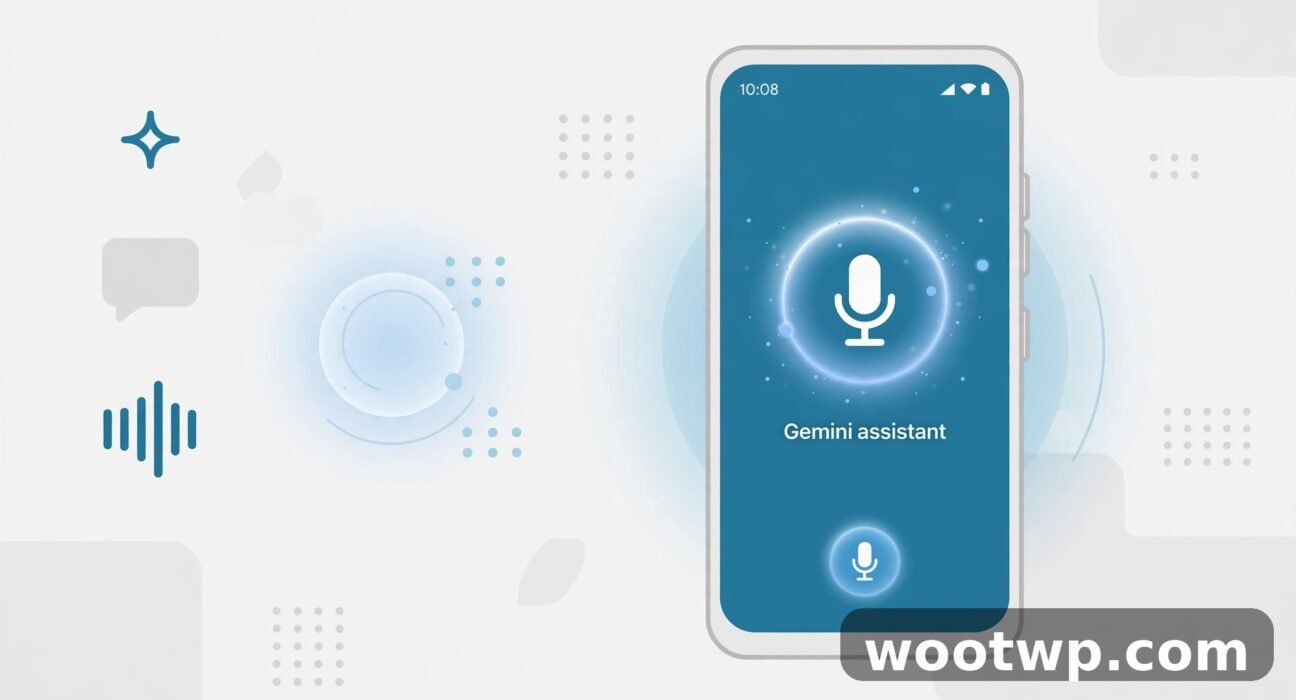
Your phone already has a voice assistant built in, but on many Android phones it no longer has to be Google Assistant. Learning how to use Google Gemini as your phone assistant lets you replace the old assistant with Gemini, so the same long press, corner swipe, or "Hey Google" that used to open Assistant now opens Gemini instead. You can type, talk, show Gemini a photo, or ask about what is on your screen, without leaving the app you are in.
This guide shows how to use Google Gemini as your phone assistant step by step: how to set it up, how to turn on hands-free use, what changes when you switch, what still uses the old assistant, and how to switch back if you prefer the old way. Read the setup section that matches your phone first, because some phones ship with Gemini already in place, while others need you to invite it in.
Table of Contents
- What Changes When You Use Google Gemini as Your Phone Assistant?
- How to Use Google Gemini as Your Phone Assistant: Setup
- How to Turn On Hey Google and Hands-Free Gemini
- How to Use Google Gemini as Your Phone Assistant Every Day
- How to Use Gemini With Photos, Your Screen, and Voice
- Gemini, Routines, and Smart Home: What to Expect
- How to Fix Gemini Not Working as Your Phone Assistant
- How to Switch Back to Google Assistant
- FAQs About Using Gemini as Your Phone Assistant
- Conclusion
What Changes When You Use Google Gemini as Your Phone Assistant?
Learning how to use Google Gemini as your phone assistant starts with understanding what changes when you call for help on your phone. Saying "Hey Google", holding the power button, holding the Home button, or swiping up from a bottom corner opens Gemini instead of Google Assistant. You see Gemini's overlay or app, where you can type, speak, attach a photo, use the camera, or ask about the screen in front of you.
What does not change is just as important. Your phone keeps its apps, contacts, and settings. Your smart speakers, smart displays, TV, car, and a locked Pixel Tablet keep using Google Assistant for "Hey Google", even after your phone switches. Paired mobile accessories, such as supported watches, headphones, and earbuds, may follow your phone's choice, so check them after you switch.
In my experience, the biggest surprise for new users is that Gemini feels more like a conversation and less like a command list. You can ask a follow-up question, change your mind mid-thread, and paste a photo into the same chat. The old assistant was better at short, fixed commands. Gemini is better when you need to explain, plan, draft, or work through something in steps. Try your three most important voice tasks on the first day, before you decide to keep the change.
What You Need Before You Switch
Google's help pages list a short set of requirements, and checking them first saves a failed setup. Google's Gemini mobile app help page describes the same setup routes and availability limits used in this guide:
- A Google account signed in on the phone. Gemini will not work as your assistant without one. Use the account you want for history and personal results.
- An eligible phone, language, and country. Gemini as a phone assistant is not available for every language, device, or account type. Some features, including "Hey Google", are not available everywhere, or for supervised accounts. If a feature is missing, check availability for your language and country before you assume the setup failed.
- The Google app set as the default assist app. Google says this is required for Gemini to act as your mobile assistant. The setup steps below check this for you.
- Android 12 or newer on most phones, with the Gemini app and the Google app installed and updated. Update both apps in the Play Store before you start.
Before you follow how to use Google Gemini as your phone assistant with a work or school account, note that those accounts have extra limits. Some assistant-powered features, such as quick voice actions, may not be available with those accounts. If you use a work account as your main account, test with your personal account first, or accept that some features will stay greyed out.
How to Use Google Gemini as Your Phone Assistant: Setup
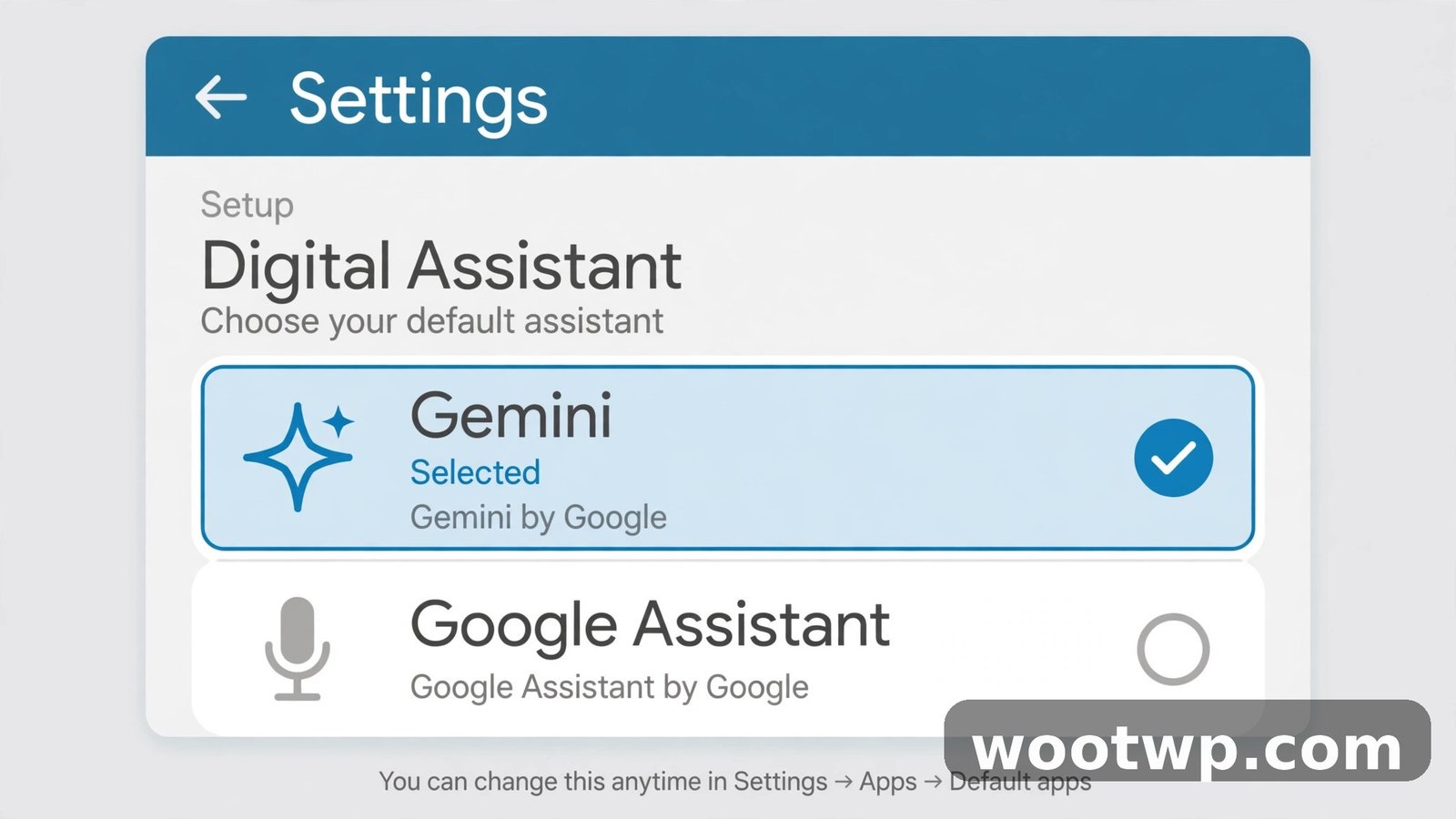
There are two usual routes for how to use Google Gemini as your phone assistant, and your phone will show you one of them. Some Android phones come with Gemini as the main assistant out of the box. Others still use Google Assistant, and you switch by installing Gemini or accepting a switch prompt. Follow the route that matches what you see.
Route 1: Gemini Is Already Your Assistant
If Gemini came preinstalled as the main assistant, setup is short:
- Open the Gemini app, or hold the power button, or swipe up from a bottom corner.
- Sign in with your Google account if Gemini asks, and read the first-run prompts instead of tapping through them blindly.
- Choose whether to turn on hands-free "Hey Google" use. You can change this later in settings.
- Ask a test question by typing or speaking, such as asking Gemini to set a timer, so you confirm the assistant responds on your phone.
- Try a touch activation and a voice activation, so you know both ways to call Gemini before you need them in a hurry.
If Gemini opens but "Hey Google" does nothing, hands-free use is off, or Voice Match is not set up yet. The hands-free section below fixes that.
Route 2: Switch From Google Assistant to Gemini
If your phone still uses Google Assistant, use one of these paths:
- Install or update the Gemini app from the Google Play Store. Open it and sign in with your Google account.
- Follow the onboarding prompts. If your phone is eligible, Gemini will offer to become your phone's main assistant. Read the activation and data options, and enable hands-free use only if you want it.
- If no offer appears, open Settings, then Apps, then Assistant, then Digital assistants from Google. The exact labels vary by Android version and phone maker, so follow the intent of the path rather than insisting on one screen name.
- Choose Gemini, then tap Switch to confirm. Gemini replaces Google Assistant as the main assistant on your phone.
- Test the switch at once: hold the power button or say "Hey Google" if hands-free use is on, and confirm Gemini opens.
You can also reach the same choice from the Gemini app. Open Gemini, tap your profile picture or the menu, and look for the assistant settings or the switch option. On some phones, the path runs through the Google app: open the Google app, tap your profile picture, then Settings, then Google Assistant, then the digital assistant choice.
How to Confirm the Google App Is the Default Assist App
If Gemini opens as an app but not as your assistant, the default assist app setting is the usual cause. Check it this way:
- Open Settings, then Apps.
- Tap Default apps, then Digital assistant app or Assist app. Names vary by maker.
- Confirm the Google app is selected. If another app is selected, choose the Google app.
- Open Gemini again and try a touch activation. The assistant overlay should now open instead of the full app, or instead of the old assistant.
Do not install Gemini from outside the Play Store to work around availability limits. Third-party copies can be outdated or unsafe, and they will not make an ineligible phone or account eligible. If Gemini does not appear in your Play Store, it may not be available in your country or for your account yet. Check Google's availability page for your language and region before you look for workarounds.
How to Turn On Hey Google and Hands-Free Gemini
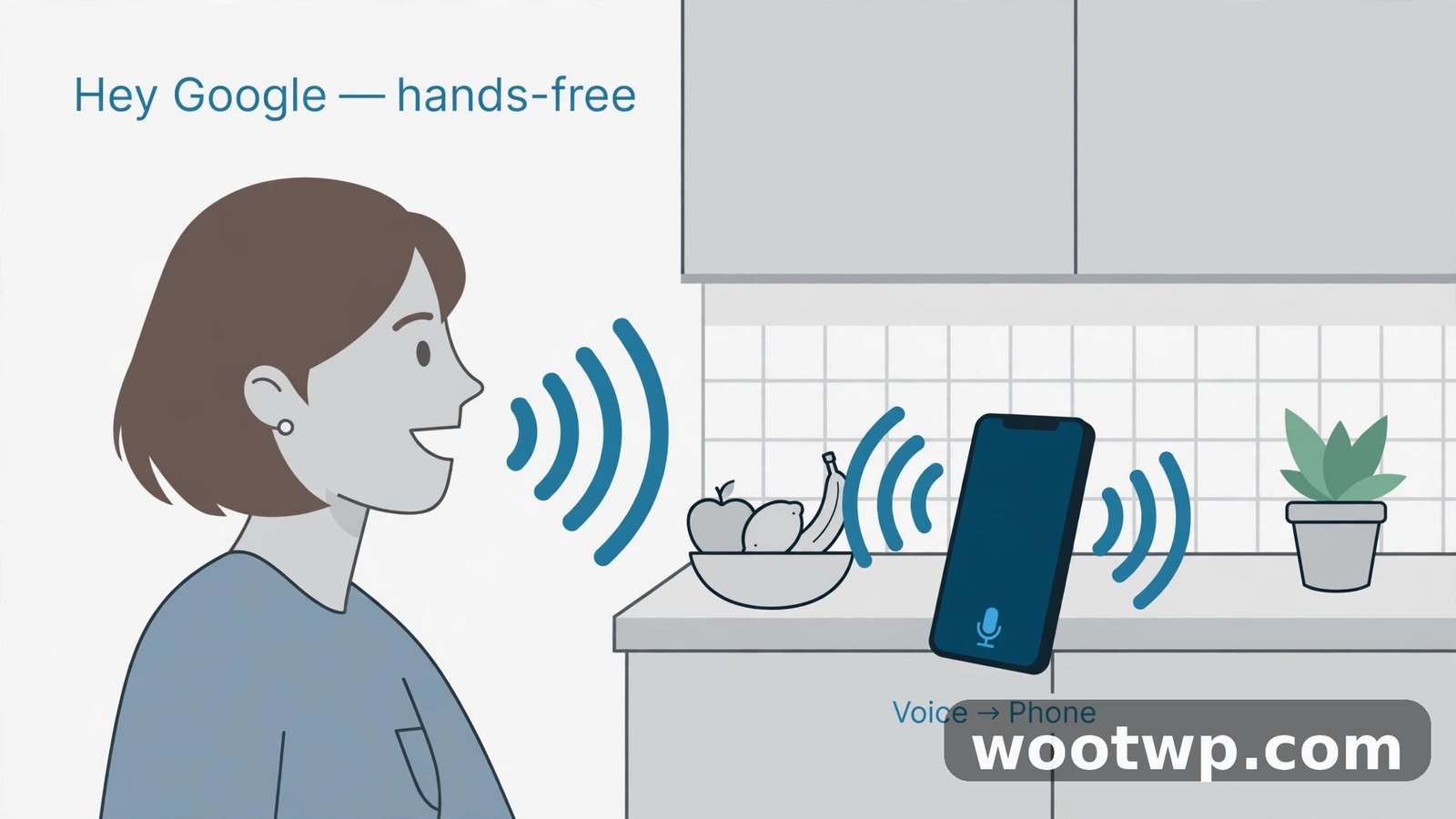
Hands-free use lets you call Gemini without touching the phone, which matters while driving, cooking, or carrying bags. It needs Voice Match, so Gemini learns to recognise your voice and does not answer every voice in the room.
- Open the Gemini app and tap your profile picture.
- Open Settings, then look for Hey Google and Voice Match, or open the Google app, tap your profile picture, then Settings, then Voice, then Voice Match. Labels vary by phone.
- Turn on Hey Google.
- Follow the on-screen Voice Match setup. Speak the sample phrases in a quiet room, at your normal volume, holding the phone as you usually would.
- Test it from the home screen and from inside another app. Say "Hey Google", wait for the Gemini overlay, and ask a simple question.
- If it does not respond, check that the phone is not on silent with voice activation blocked, that battery saver is not stopping background listening, and that you granted microphone permission to the Google app.
In my experience, Voice Match setup fails most often in noisy rooms or when people whisper the samples. Record the samples at the volume you will actually use. If you often wear a headset, set up Voice Match both with and without it, if your phone offers that choice, so hands-free use works in both cases.
Choose Your Activation Shortcuts
Pick the activations you will actually remember, and turn off the ones that trigger by accident:
- Power button long press. This is the most reliable touch activation on most phones. Set it in Settings, then System, then Gestures, or in the assistant settings, if your phone lets you choose the long-press action.
- Corner swipe. Swipe up and hold from a bottom corner to open the assistant overlay. This suits phones with gesture navigation.
- Home button hold. On phones with a Home button or pill, holding it opens the assistant.
- "Hey Google". Use it hands-free, and remember it may also wake a nearby speaker, which will answer with the old assistant, not Gemini.
If the power button opens the power menu instead of Gemini, your phone has not assigned the long press to the assistant. Change that one setting, and the button will open Gemini. If you press and hold too briefly, you may get the power menu by mistake. Hold until the overlay appears.
How to Use Google Gemini as Your Phone Assistant Every Day
Once Gemini is your assistant, daily use is about choosing the right input for the moment. Use your voice for short, hands-busy tasks. Use typing for anything with names, numbers, or wording that must be exact. Use the overlay for quick questions while you stay in another app, and use the full app when you want a longer conversation, a draft, or a follow-up thread.
Here are the tasks most people use first:
- Set timers, alarms, and reminders. Say "Hey Google, set a timer for 10 minutes" or "Remind me to call Sara at 6 pm". Confirm the time before you close the overlay.
- Make calls and send messages. Say "Call Ahmed" or "Text Maria: I am running 10 minutes late". Check the contact and the message before Gemini sends it.
- Check weather and traffic. Ask for today's weather, or "How long will it take to get to the office?" For live traffic, open Maps for turn-by-turn directions.
- Play music and control volume. Ask Gemini to play a playlist, pause music, or turn the volume up. If playback starts in the wrong app, name the app in your request.
- Open apps and settings. Say "Open Camera" or "Turn on flashlight". Gemini can open the app or toggle the setting, and you finish the task inside the app.
- Draft and rewrite text. Type or speak a rough message, then ask Gemini to shorten it, make it polite, or turn it into a list. Read the result before you send it, because Gemini can change meaning when it shortens text.
In daily use, treat Gemini as a helper that needs clear instructions. Name the person, place, app, or time in your first request, instead of asking a vague question and fixing it later. For example, say "Set a reminder for tomorrow at 9 am to water the plants" rather than "Remind me about the plants". The extra detail takes two seconds and avoids a reminder at the wrong time.
Use the Overlay Without Losing Your Place
The overlay is the small Gemini panel that opens over the app you are using. It is the fastest way to ask a question while you read a message, check a map, or watch a video. When you finish, swipe it away and you return to the same screen. If you need a longer answer, tap to open the full Gemini app, where you can scroll back, copy text, or continue the thread.
One habit helps here: if the answer matters, such as a date, a price, or a set of directions, open the full app and keep the thread open until you have used the answer. The overlay can close when you tap elsewhere, and the thread is easier to find again in the app.
How to Use Gemini With Photos, Your Screen, and Voice
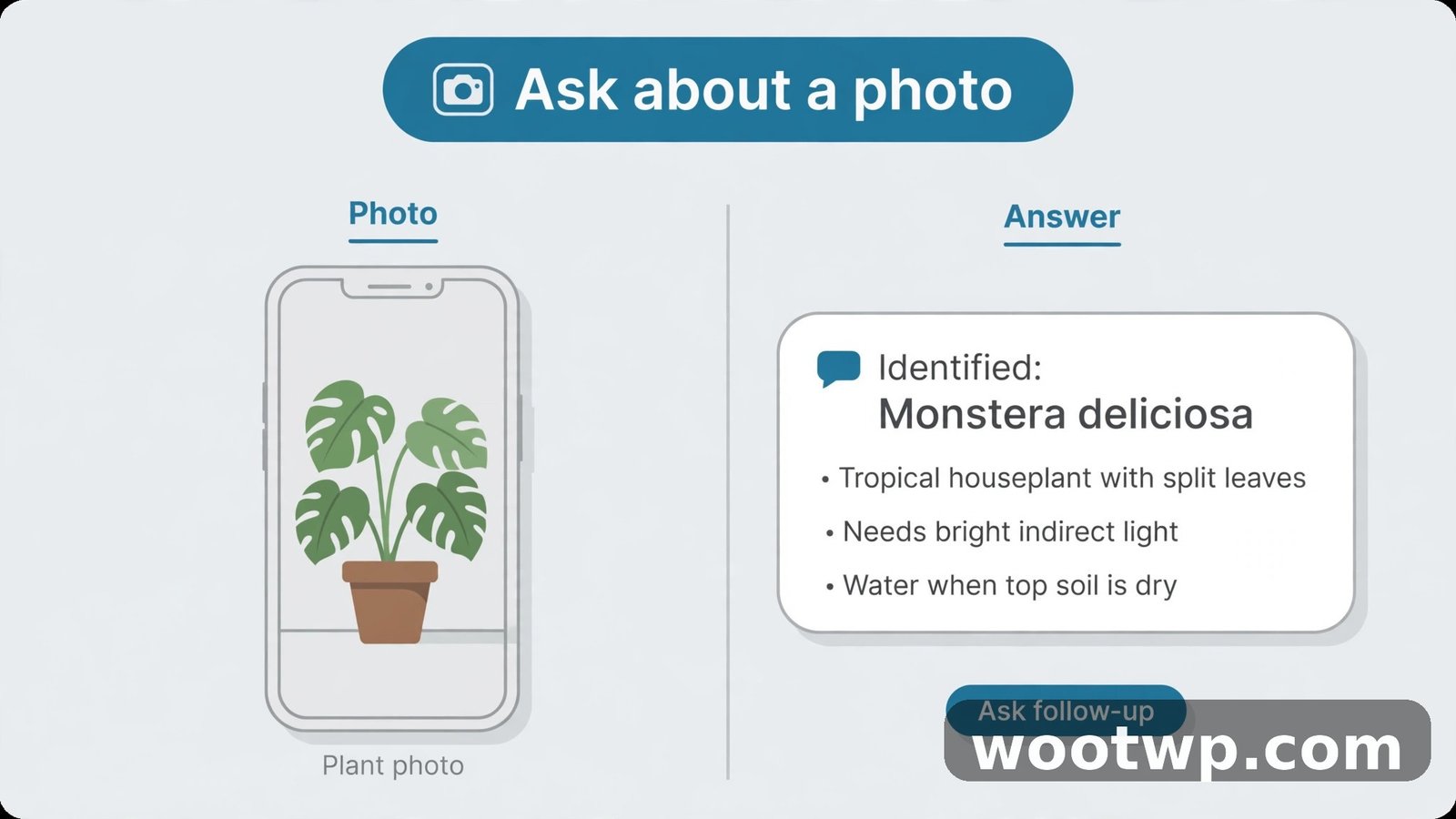
Gemini's most useful phone feature is that it can see what you see. You can show it a photo, a screenshot, or your live screen, and ask a question about it. This is where Gemini differs most from the old assistant, which mostly waited for a typed or spoken command.
Ask About a Photo
- Open Gemini and tap the image or camera button.
- Choose a photo from your gallery, or take a new photo.
- Type or speak a specific question, such as "What plant is this, and how often should I water it?" or "Read the text in this photo and list the dates".
- Check the answer against the photo. If Gemini misreads a label or a number, correct it in a follow-up message and ask again.
Photos work best when the subject fills the frame and the light is even. A blurry photo of a sign, a menu, or a label will give a blurry answer. Take a second, closer photo if the first answer looks wrong.
Ask About Your Screen
When Gemini is your assistant, you can ask about the app or web page in front of you without taking a screenshot. Open the Gemini overlay, then ask about the screen, such as "Summarise this article" or "What is the price on this page?" Gemini uses the screen content to answer. This works best in apps that share their content with the assistant. Some banking, messaging, and secure apps block screen sharing, and Gemini will say so instead of answering.
Do not share screens that show passwords, one-time codes, bank details, or private messages. Screen sharing is convenient, but it sends what you see to Gemini. If the screen shows anything you would not paste into a chat, do not ask Gemini about it.
Use Voice, Text, and the Overlay Together
The fastest workflow mixes all three inputs. Start with voice for a quick question, switch to typing when you need to fix a name or a number, and use the overlay when you are already inside another app. If Gemini mishears you, tap the microphone again, or type the correction in the same thread. You do not need to start over, and keeping the thread lets Gemini use the earlier context.
Gemini, Routines, and Smart Home: What to Expect
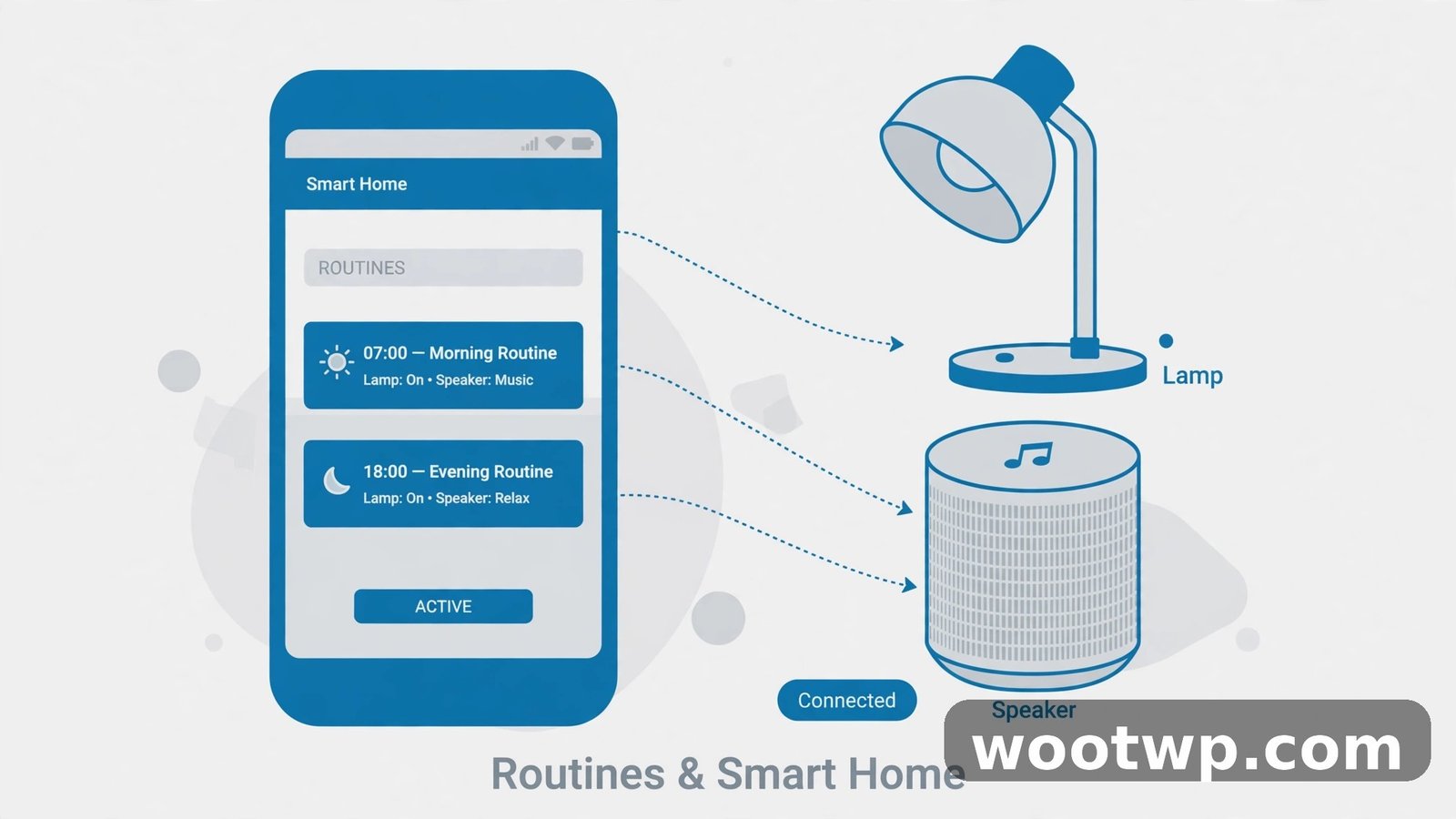
Routines and smart home control are the areas where switching to Gemini needs the most patience. Google is moving assistant features into Gemini over time, and some routines and device actions that worked with Google Assistant may work differently, or not at all, after the switch. Expect a transition, not a one-to-one replacement.
Here is what to expect on your phone:
- Simple device commands often work. "Turn off the living room light" or "Set the thermostat to 22 degrees" usually works if the device is linked to your Google Home account.
- Routines may need rebuilding. A routine that chained several actions, such as a "Good morning" routine that read the weather, turned on lights, and played news, may not run the same way. Check each routine after the switch, and rebuild the ones that fail.
- Speakers and displays keep the old assistant. Saying "Hey Google" to a smart speaker still uses Google Assistant, even after your phone switches. Do not expect the speaker to answer like Gemini.
- Quick phrases and some shortcuts may be missing. If a short command you relied on stops working, use the full request, or set up the action again in the Google Home app.
If smart home control matters to you, test your most important routine on the first day. Turn a light on and off, run your morning routine, and check that a scheduled routine still fires. If a routine fails, note the exact command and the device, then rebuild it in the Home app. Do not wait until you need the routine at night to find out it no longer works.
How to Fix Gemini Not Working as Your Phone Assistant
Most setup failures come from one of a few causes. Work through this list in order, and test after each fix, instead of changing several settings at once.
- Gemini opens as an app, but not as the assistant. Check the default assist app setting and confirm the Google app is selected. Then test a touch activation.
- "Hey Google" does nothing. Check that Hey Google is on, Voice Match is set up, microphone permission is granted to the Google app, and battery saver is not blocking background listening. Retrain Voice Match in a quiet room.
- Gemini opens, but a command does nothing. Rephrase the command with the person, app, or time included. If a smart home command fails, check the device in the Google Home app and confirm it is online and linked.
- Gemini asks you to sign in again. Sign in with the Google account you want for assistant history. If you use more than one account, check which account is active in the Gemini app, because the wrong account can hide your history and personal results.
- A feature is missing or greyed out. Check availability for your language, country, and account type. Work and school accounts, and supervised accounts, have extra limits. Update the Gemini app and the Google app, then restart the phone.
- Gemini mishears you often. Speak at normal volume, in a quiet room, and check that the microphone is not blocked by a case. Retrain Voice Match, and type names and numbers instead of speaking them when accuracy matters.
If none of these fixes work, clear the cache for the Gemini app and the Google app in Settings, then Apps, then Storage, then Clear cache. Do not clear all data unless you are ready to sign in and set up Voice Match again. Restart the phone after clearing the cache, and test the assistant before you change any other setting.
How to Switch Back to Google Assistant
Switching back is the same setting, in reverse. You do not need to uninstall Gemini, and you do not lose your Gemini chats by switching the assistant back. Follow these steps:
- Open Settings, then Apps, then Assistant, then Digital assistants from Google. Labels vary by phone.
- Choose Google Assistant, then confirm the switch.
- Test at once: hold the power button or say "Hey Google", and confirm Google Assistant opens instead of Gemini.
- If you still want to use Gemini for longer chats, keep the Gemini app installed and open it directly. It will work as an app, even when it is not your main assistant.
You can switch between Gemini and Google Assistant as often as you like. There is no waiting period, and no penalty for changing your mind. If you switch back because a routine failed, keep a note of which routine failed, and try Gemini again after the next Gemini app update, when the feature may have been restored.
FAQs About Using Gemini as Your Phone Assistant
Can I use Google Gemini as my phone assistant for free?
Yes. Using Gemini as your phone assistant does not require a paid plan. A Google account and an eligible phone are enough for the assistant features in this guide. Some advanced Gemini features, such as extra storage or higher limits in the Gemini app, may need a paid plan, but the assistant setup itself is free.
Does Gemini replace Google Assistant on all my devices?
No. Switching on your phone changes only your phone, and possibly paired mobile accessories. Smart speakers, smart displays, TVs, cars, and a locked Pixel Tablet keep using Google Assistant for "Hey Google". You will hear the old assistant on those devices, even after your phone switches.
Can I still use "Hey Google" with Gemini?
Yes, if hands-free use is available in your language and country, and you turn it on with Voice Match. Say "Hey Google", wait for the Gemini overlay, and ask your question. If "Hey Google" does nothing, check the hands-free settings in the section above, and check that the Google app has microphone permission.
Will Gemini work on my Samsung phone?
Yes, on eligible Samsung phones running Android 12 or newer, with the Gemini app and the Google app installed and updated. The settings path may use Samsung's labels, so follow the intent of the path in this guide. If your phone also offers Bixby, choose which assistant you want for each activation, so the two assistants do not compete for the same button or voice phrase.
What happens to my Google Assistant routines?
Some routines may keep working, some may need rebuilding, and some may not work at all after the switch. Test each routine after you switch, and rebuild the ones that fail in the Google Home app. Do not assume a routine works because it worked with the old assistant.
Can I use Gemini as my assistant without the Gemini app?
No. You need the Gemini app installed and updated, with the Google app set as the default assist app. Gemini needs the app to act as your assistant, even when you open it from the overlay or by voice.
Conclusion
Learning how to use Google Gemini as your phone assistant is a short setup with a lasting change: the same button, swipe, or "Hey Google" that used to open Google Assistant now opens Gemini. Set Gemini as your default assistant, turn on hands-free use if you want it, test your three most important tasks on the first day, and check your routines and smart home devices before you rely on them. If Gemini does not suit the way you work, switching back takes less than a minute.
Try the setup today, and keep this guide open while you test the first activation. If a step does not match your phone, follow the intent of the path, update both apps, and check the default assist app setting. Once Gemini is your assistant, use voice for quick tasks, typing for exact wording, and the overlay for questions while you stay in another app.