How to Create a YouTube Channel on Your Phone: 7 Easy Steps
You do not need a computer, a camera crew, or any fancy gear to get started on YouTube. If you want to learn how to create a youtube channel on your phone, you can do the whole thing from the YouTube app in a few minutes, for free. All you need is a Google account and the app already on your phone.
In this guide, I will walk you through the exact taps, one step at a time. You will set up your channel name and handle, add a picture, and learn how to upload your first video. By the end, your channel will be live and ready for viewers.
- What You Need Before You Start
- How to Create a YouTube Channel on Your Phone Step by Step
- How to Create a YouTube Channel on Your Phone: What to Do Right After Setup
- How Do I Pick a Good Channel Name and Handle?
- Do You Need a Brand Account?
- How to Upload Your First Video From Your Phone
- How to Upload a Short From Your Phone
- What Is the Made for Kids Setting?
- A Quick Tour of the YouTube Studio App
- Can You Earn Money From a Phone-Created Channel?
- Frequently Asked Questions
- Conclusion
What You Need Before You Start
Starting a youtube channel on mobile takes very little. Here is the short checklist I run through before I help anyone set one up:
- A Google account. Your channel lives on your Google account. If you already use Gmail or Google Photos, you already have one.
- The YouTube app. It comes preinstalled on most Android phones. On iPhone, grab it free from the App Store.
- The YouTube Studio app. This is a separate free app for managing your channel. Install it too, so you can check stats and comments later.
- A stable internet connection. Channel setup uses almost no data. Uploading videos is the part that eats data, so Wi-Fi helps there.
- A channel idea, even a rough one. You do not need a perfect niche on day one. A simple theme, like cooking, tech tips, or daily vlogs, is enough to start.
That is it. There is no fee to create a channel, and you do not need a subscriber count or a certain phone model. A budget Android phone and a newer iPhone both work fine.
One tip from my own experience: sign in with the Google account you actually want tied to the channel. Switching accounts later is possible, but it gets confusing fast, especially if you start uploading before you notice you used the wrong one. The steps below cover how to create a youtube channel on your phone from start to finish, so keep this page open while you tap through them.
How to Create a YouTube Channel on Your Phone Step by Step
Here is the core process. The screens look nearly the same on both systems, so whether you want to create a YouTube channel on Android or iPhone, you can follow the same steps.
Step 1: Open the YouTube App and Sign In
- Open the YouTube app on your phone.
- Tap your profile picture in the top-right corner.
- If you are not signed in, tap Sign in and choose your Google account.
- If you have more than one Google account, tap your profile picture again, tap Switch account, and pick the right one.
Step 2: Tap Create a Channel
- Tap your profile picture in the top-right corner again.
- Look for Create a channel in the menu. On some phones and app versions, this option is called Your channel instead.
- Tap it. YouTube will show you a setup screen with your name, handle, and picture.
If you have already created a channel on this account, tapping Your channel will open that existing channel instead of the setup screen. In that case, you are already done with this part.
Step 3: Choose Your Channel Name
- In the Name field, type the name you want viewers to see.
- This can be your real name, a brand name, or a topic name, like “Sara Cooks” or “Tech With Sara”.
- Keep it short and easy to say out loud. If people cannot pronounce it, they cannot search for it or recommend it to friends.
You can change your channel name later, so do not get stuck here for an hour. Pick something good, and move on.
Step 4: Pick Your Handle
Your handle is the unique username that starts with the @ sign, like @SaraCooks. It appears on your channel page, in comments, and in Shorts. It is also part of your channel link.
- In the Handle field, type the handle you want.
- YouTube will tell you right away if it is taken.
- If it is taken, try a small variation, like adding “TV”, “HQ”, or your city, rather than a long string of numbers.
Handles must be unique, and YouTube limits how often you can change yours. Treat it as semi-permanent and pick one you will still like in a year.
Step 5: Add a Profile Picture
- Tap the camera icon on the profile picture circle.
- Choose Take a photo or Choose from your photos.
- Pick a clear, bright photo or simple logo. Faces work well for personal channels. A clean logo works well for topic channels.
- Crop it to a square and confirm.
Your picture shows up tiny in comments and search results, so simple beats detailed. A busy photo turns into a blur at small sizes.
Step 6: Tap Create Channel and Confirm
- Review your name, handle, and picture one last time.
- Tap Create channel.
- YouTube may ask you to confirm your choices. Tap Confirm or Create to finish.
That is the whole setup. Your channel is now live, even though it has no videos yet. Anyone with your handle link can visit the page.
Step 7: Check Your New Channel Page
- Tap your profile picture, then tap Your channel.
- Check that your name, handle, and picture look right.
- Tap Edit or the pencil icon if anything needs fixing.
If you ever get stuck on a step, YouTube’s official guide to creating a channel walks through the same screens with pictures. You can read it here: YouTube’s official guide to creating a channel.
How to Create a YouTube Channel on Your Phone: What to Do Right After Setup
Creating the channel is only half the job. A bare channel page with no description looks unfinished, and visitors bounce fast. Spend ten more minutes on these basics right after you finish learning how to create a youtube channel on your phone.
Add a Channel Description
- Open your channel page and tap Edit or the pencil icon.
- Tap Description.
- Write two or three sentences about what your channel is about and who it is for.
- Add your upload schedule if you have one, like “New videos every Friday.”
A good formula is simple: what you make, who it is for, and how often you post. Skip the life story. Viewers decide in seconds whether to subscribe.
Add Links and Contact Details
From the same edit screen, you can add links to your other profiles, like Instagram or a website. Only add links you actually maintain. Three dead links look worse than no links at all.
Sort Out Your Banner (Channel Art)
Here is the one part that is awkward on a phone. Your banner is the wide image at the top of your channel page. You can upload one from the YouTube Studio app or from studio.youtube.com in your phone browser, but lining it up is much easier on a desktop screen.
My honest advice: do not skip the banner forever, but do not let it block your launch either. A plain, clean banner with your channel name is fine for week one. You can polish it later from a computer or a friend’s laptop.
Turn On Notifications for Your Own Channel
This sounds odd, but it helps in the early days. Turn on notifications for comments so you can reply fast. Early replies build loyal viewers, and they also teach you what your audience actually wants next.
How Do I Pick a Good Channel Name and Handle?
Your youtube channel handle name is the part people type, tag, and remember. It deserves a little thought, but not a week of stress. Here is what works in my experience:
- Short beats clever. Two or three words are easier to remember than a long pun nobody gets.
- Say it out loud. If you stumble saying it, viewers will too.
- Match the topic loosely. A cooking channel called “Sara Cooks” tells people instantly what to expect.
- Avoid numbers if you can. Numbers make a handle look taken and generic, like a default username.
- Check it everywhere. Before you commit, search the name on YouTube, Instagram, and TikTok. Matching names across platforms makes you much easier to find later.
- Skip trademarks and famous names. Using a big brand’s name or a celebrity’s name can get your channel flagged or renamed later.
One more thing: your channel name and your handle do not have to match exactly, but matching them makes life easier for viewers. When they match, there is only one name to remember.
Do You Need a Brand Account?
You may see older guides talk about Brand Accounts. Here is the plain version of what that means today.
Years ago, YouTube let you create a channel under a separate Brand Account, which could have multiple managers. That was handy for teams. New channels created from the YouTube app today are normally tied directly to your personal Google account instead.
For most solo creators, that is fine. You are the only manager, and you sign in with your own Google account. If a team will run the channel later, or you want a business-style separation, that is a desktop-level decision to sort out before you upload a lot of videos. The key point is simple: do not create a second Google account just because you heard the term Brand Account somewhere. Start with your main account, and revisit the setup only if you genuinely need multiple managers. Learning how to create a youtube channel on your phone is the same process either way.
How to Upload Your First Video From Your Phone
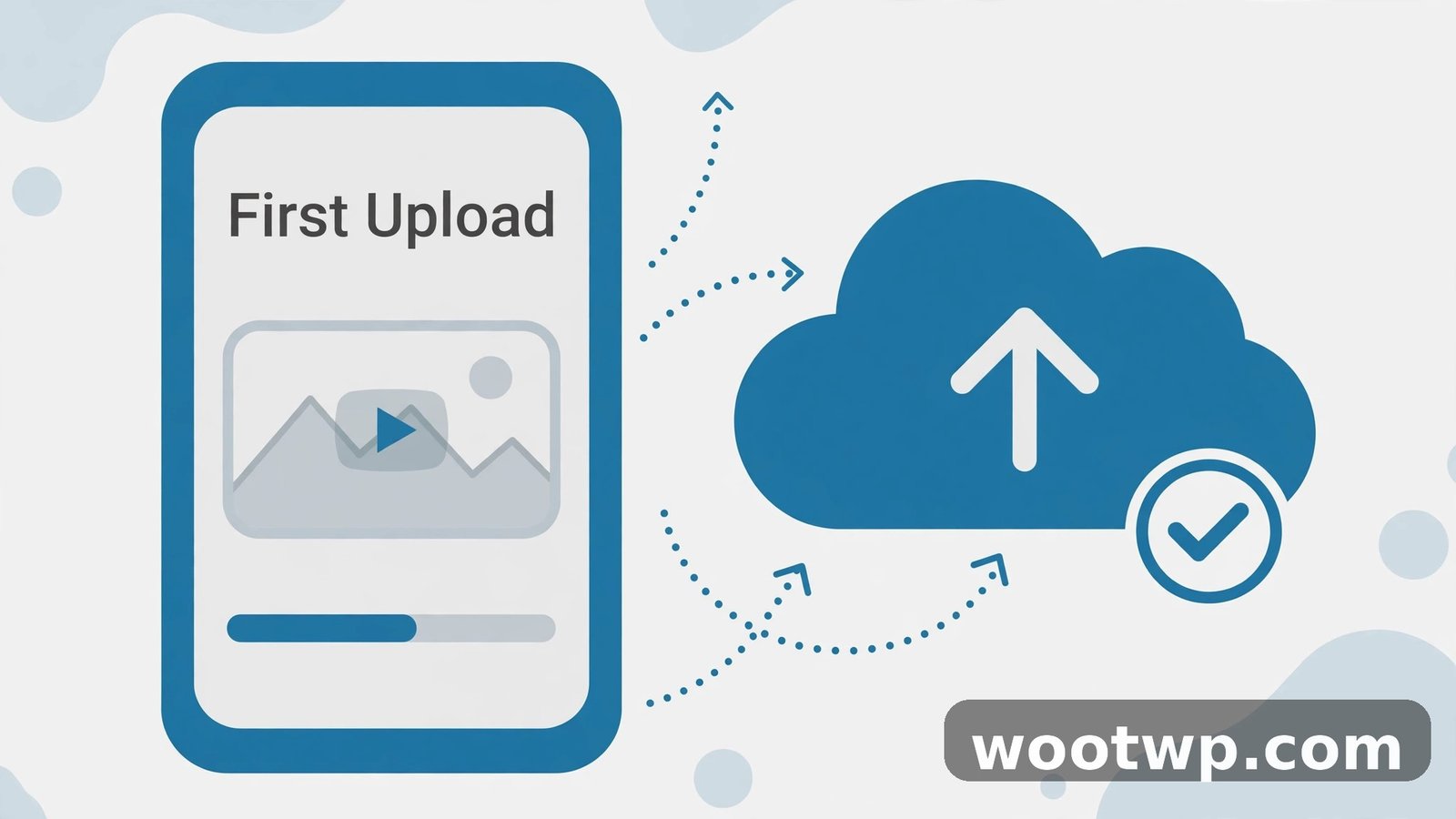
Once your channel exists, uploading is the fun part. Here is the exact flow for a regular video:
- Open the YouTube app and tap the + (plus) button at the bottom.
- Tap Upload a video.
- Pick the video from your phone gallery. You can record a fresh clip from here too.
- Tap Next.
- Add a clear title. Say what the video is about in plain words, not clickbait that overpromises.
- Write a short description. Explain what viewers will learn or see, and add a couple of relevant keywords naturally.
- Set the audience. YouTube will ask whether the video is made for kids. See the next section before you answer.
- Choose visibility: Public (everyone can see it), Unlisted (only people with the link), or Private (only you).
- Tap Upload and wait. Keep the app open on Wi-Fi until it finishes.
A few practical tips for that first upload:
- Film horizontally for regular videos. Vertical clips are for Shorts. A sideways phone video fills a TV and laptop screen properly.
- Record in a quiet room. Viewers forgive shaky video far faster than they forgive bad audio.
- Keep it short. Five to eight minutes is a sweet spot for a first video. Say one thing well, then stop.
- Add captions if you can. Captions help viewers who watch on mute and viewers who speak other languages. If you are new to this, read this guide on how to add captions to your videos for free before you publish.
- Record tutorials the easy way. If you later make how-to videos from a computer, you do not need paid software to capture your screen. See how to record your screen on Windows 11 without software for the built-in route.
That first video does not need to be perfect. It needs to exist. You will learn more from publishing one real video than from planning ten perfect ones. If you have just learned how to create a youtube channel on your phone, this upload is the moment it starts feeling real.
How to Upload a Short From Your Phone
Shorts are vertical videos up to 60 seconds long, and they are the fastest way for a new channel to get seen. The upload flow is almost the same, with one extra choice at the start:
- Open the YouTube app and tap the + button.
- Tap Create a Short.
- Record a clip up to 60 seconds, or tap the gallery icon to pick an existing vertical video.
- Trim it, add text or music from YouTube’s built-in tools, and tap Next.
- Add a title, set the audience, and choose visibility.
- Tap Upload Short.
Beginners often ask, when they upload their first video in the YouTube app, whether a Short counts as a first video. Yes, it does, and for many new creators it is the smarter first upload. A Short takes less filming time, less editing time, and it can reach people who have never heard of you through the Shorts feed. Many creators who learn how to create a youtube channel on your phone start with a Short, then follow it with a longer video in the same week.
If your video idea needs more than a minute, make it a regular video instead. Forcing a long idea into 60 seconds usually makes it rushed and confusing.
What Is the Made for Kids Setting?
Every time you upload, YouTube asks: “Is this video made for kids?” This is not a small checkbox. It changes how your video works, so answer it honestly.
- “Yes, it’s made for kids” means the video is aimed at children. YouTube turns off comments, notifications, and personalized ads on it.
- “No, it’s not made for kids” means it is general-audience content, even if kids could watch it. Comments and normal features stay on.
A cartoon for toddlers is made for kids. A phone tutorial for adults is not, even if a teenager might find it useful. When in doubt, think about who the video is truly aimed at, not who might stumble across it.
You can also set a default audience for your whole channel in the YouTube Studio app, under Settings, then Channel, then Advanced settings. That saves you answering the same question on every upload, though you can still change it per video.
A Quick Tour of the YouTube Studio App
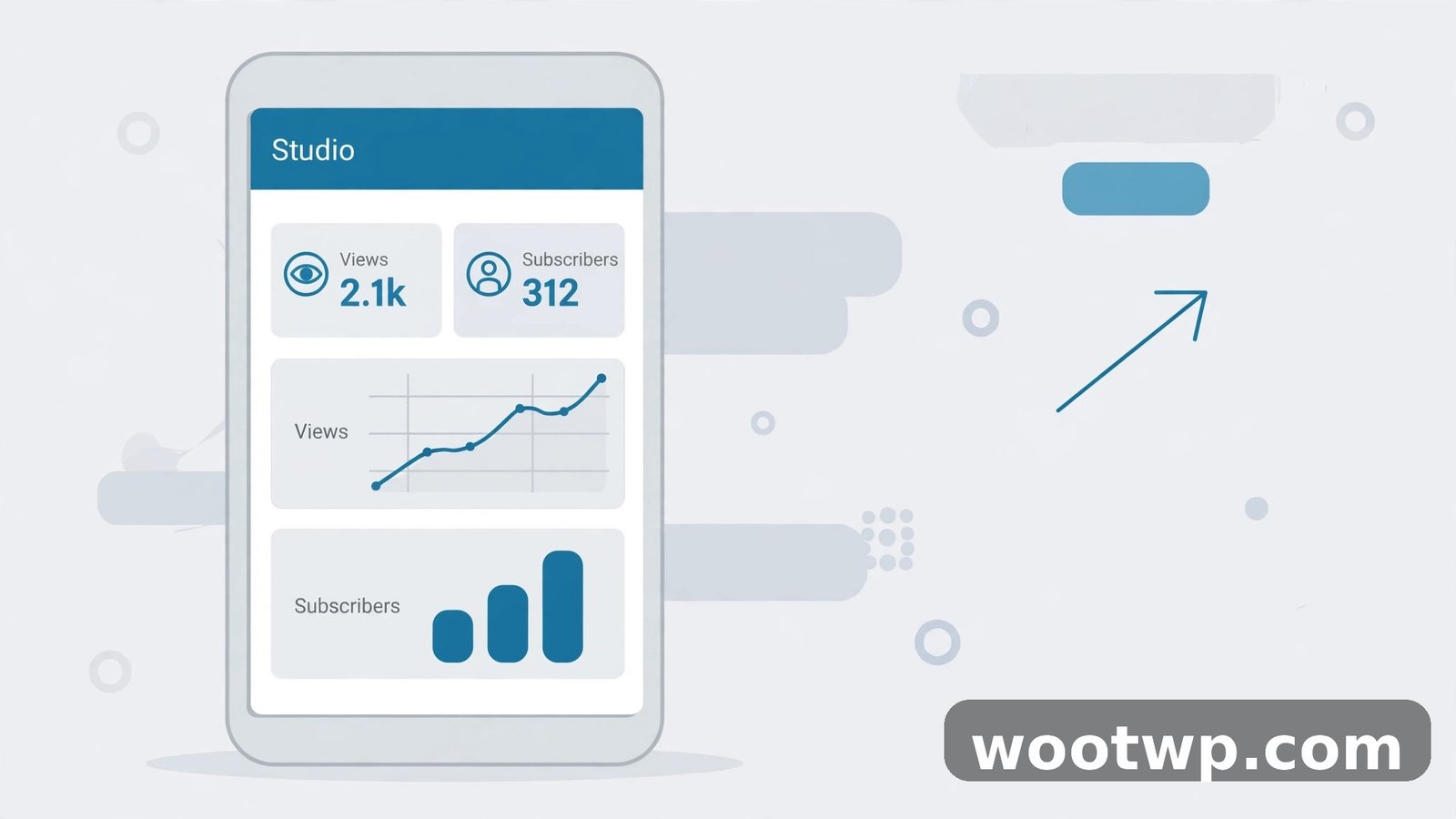
The YouTube Studio app is your channel’s control room. After you learn how to create a youtube channel on your phone, Studio is the app you will open most often. Open it and sign in with the same Google account, and you will see five tabs at the bottom:
- Dashboard. Your latest video performance, recent comments, and channel news at a glance.
- Content. Every video and Short you have uploaded. Tap any video to edit its title, description, or visibility.
- Analytics. Views, watch time, and subscriber changes. In the early days, watch the audience retention graph more than the view count. It tells you where people stop watching.
- Comments. Reply, heart, or pin comments from one place. Pinning a good early comment sets the tone for the whole comment section.
- Earn. This tab stays mostly empty until you qualify for monetization, which I cover below.
Two Studio features worth knowing right away:
- Custom thumbnails. You can change a video’s thumbnail from the Content tab by tapping the pencil icon, then the thumbnail. A custom thumbnail needs a verified account, which YouTube handles with a quick phone-number check.
- Playlists. Group related videos into playlists from the Content tab. Playlists keep viewers watching your channel instead of drifting off to someone else’s videos.
Studio also sends you a notification when a video finishes processing or when a comment needs attention. Those alerts are genuinely useful in the first month, so leave them on.
Can You Earn Money From a Phone-Created Channel?
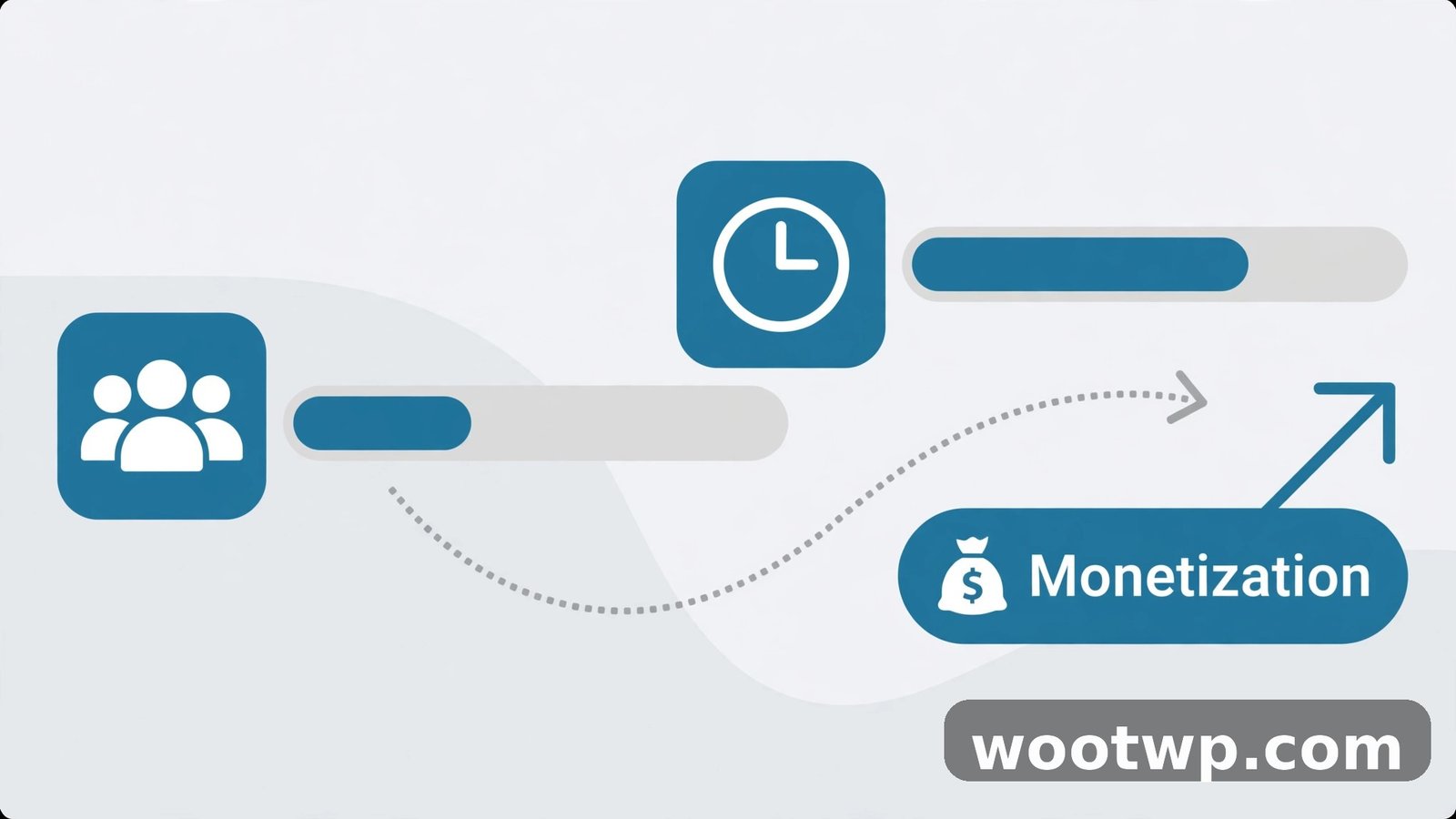
Yes, but not on day one, and anyone who promises instant earnings is selling you something. A channel created on your phone qualifies for monetization exactly the same way as a channel created on a computer. The device you used does not matter.
Once you know how to create a youtube channel on your phone, your channel qualifies for monetization exactly the same way as one created on a computer. To apply for the YouTube Partner Program, you generally need:
- 1,000 subscribers, and
- 4,000 valid public watch hours in the past 12 months, or the Shorts route of 10 million valid public Shorts views in the past 90 days.
You also need to follow YouTube’s monetization policies, turn on two-step verification for your Google account, and connect an AdSense account for payments.
Those numbers sound big, and they are meant to be a real hurdle. The realistic path is slower than the hype: publish regularly, pick topics people actually search for, and improve one thing with each video, like your audio, your titles, or your pacing. Most creators who reach the threshold do it with dozens of videos, not one viral hit.
Before you qualify, focus on the basics that actually move the needle: a clear niche, consistent uploads, and titles that match what viewers search for. The money conversation matters only after the audience exists. You can read YouTube’s own monetization details in the YouTube Help Center.
One last honest note: even after you qualify, earnings depend on views, advertisers, and your audience’s location. Treat YouTube income as a bonus that grows with the channel, not as a salary you can count on in month one.
Frequently Asked Questions
How long does it take to create a YouTube channel on your phone?
The setup itself takes about five minutes once you are signed in to a Google account. Picking a name and handle takes most of that time, so have a couple of options ready before you start.
Can I create a YouTube channel on my phone without a computer?
Yes, completely. That is the whole point of learning how to create a youtube channel on your phone: no computer is involved at any step. The YouTube app handles the full setup, uploads, and basic editing, and the YouTube Studio app covers management. A computer only becomes handy later for banner design and deeper analytics.
Is it free to create a YouTube channel on your phone?
Yes, creating a channel costs nothing, and the YouTube and YouTube Studio apps are both free. You only spend money if you choose to buy gear, editing apps, or promotion later on.
Can I create a second YouTube channel on the same phone?
Yes. Tap your profile picture, then Switch account or add another Google account, and repeat the setup steps. Each Google account can have its own channel, and you can switch between them in the app.
Can I change my channel name or handle after creating it?
Yes, you can change both from your channel page by tapping Edit. Your name can change fairly freely, but YouTube limits how often you can change your handle, so choose that one carefully.
Do I need a certain number of subscribers to upload videos?
No. You can upload your first video the moment your channel exists, with zero subscribers. Subscribers only matter later, when you apply for monetization or unlock features like Community posts.
Conclusion
Now you know how to create a youtube channel on your phone, from the first tap on your profile picture to uploading your first video and checking your stats in Studio. The setup takes minutes, but the channel itself grows one honest, useful video at a time.
So pick a name, set up your channel today, and publish that first video. That single upload is what turns a channel page into a real channel.