How to Record Screen on Windows 11 Without Software: 3 Easy Ways
Need to record your screen but don't want to download yet another app, create an account, or sit through an installer? Good news: Windows 11 already ships with not one but three free screen recorders built right in. Learning how to record screen on Windows 11 without software takes about two minutes, and for most everyday recording — tutorials, bug reports, gameplay clips, meeting demos — the built-in tools are genuinely all you need.
In this guide I'll show you all three methods — Xbox Game Bar, the Snipping Tool's recording mode, and PowerPoint's hidden screen recorder — with the exact shortcuts, where your files end up, and which one to pick for each situation.
- Why Use Built-In Tools Instead of Downloads?
- Method 1: Xbox Game Bar (Best for Apps and Games)
- Method 2: Snipping Tool (Best for Recording a Selected Area)
- Method 3: PowerPoint Screen Recording (Best for Tutorials)
- Game Bar vs Snipping Tool: Which Should You Use?
- Recording Settings Worth Changing
- Where Are My Recordings Saved?
- Fixes When Recording Doesn't Work
- When Built-In Tools Aren't Enough
Why Use Built-In Tools Instead of Downloads?
Third-party screen recorders aren't evil — but they come with baggage: installers bundled with extra software, free tiers with watermarks, accounts you didn't ask for, and background processes eating your RAM. For quick recordings, the built-in Windows tools win on every count that matters:
- Zero install. They're already on your PC, updated with Windows.
- No watermarks, no time limits on the core recording (Game Bar does cap individual recordings, but generously).
- No privacy surprises. Your recording never passes through a third-party server.
- Good enough quality. Game Bar records at up to 1080p and 60fps — plenty for tutorials and sharing.
The trade-off is features: no built-in editor, no webcam overlay, no fancy annotations. If you need those, there's a free option for that too (see the last section). But start here — most people never need more.
Method 1: Xbox Game Bar (Best for Apps and Games)
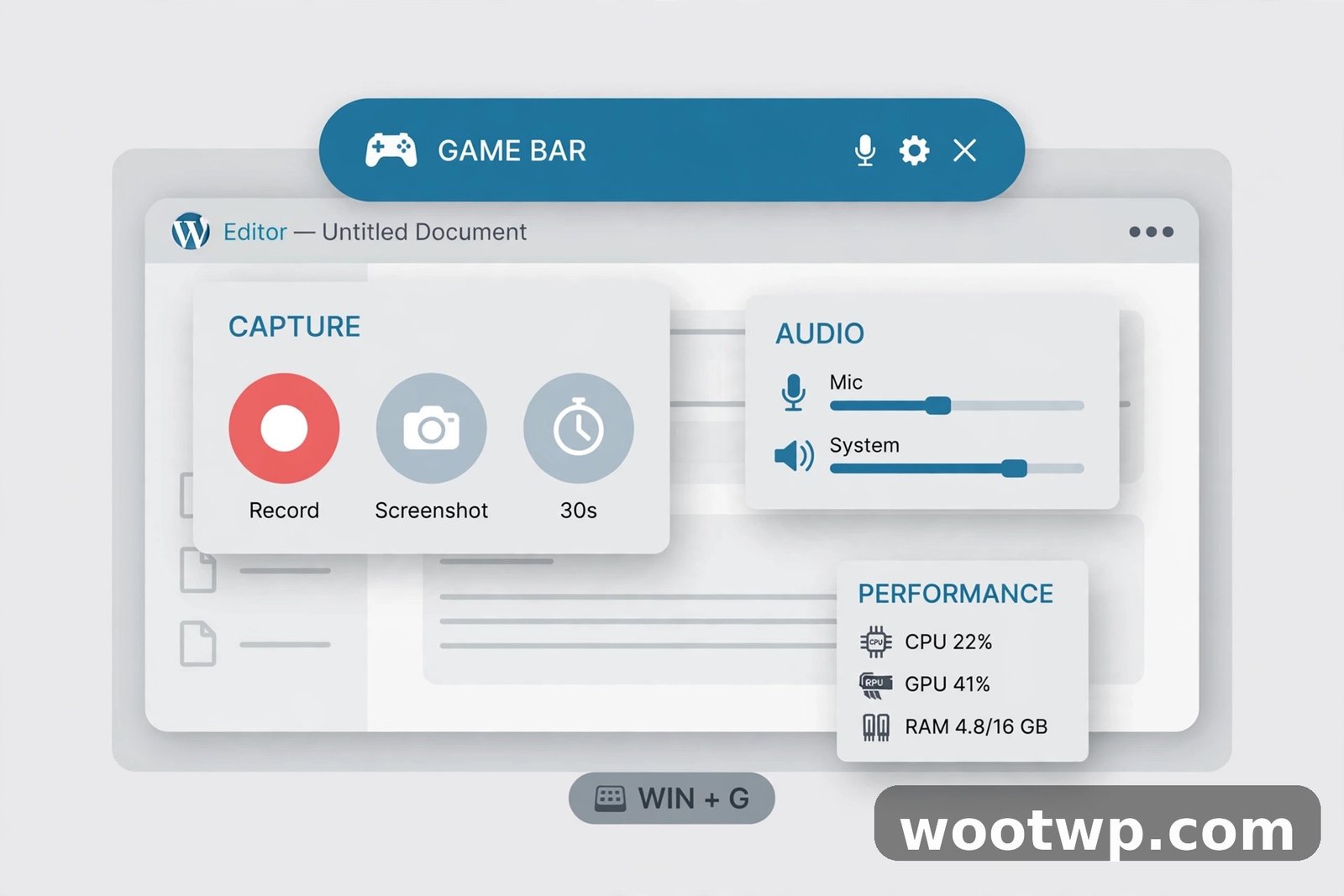
The Xbox Game Bar is Windows 11's primary built-in recorder. Despite the "Xbox" name, it records any app window — browsers, PowerPoint, games, you name it. The one thing it won't record is the desktop itself or File Explorer windows, which is its main limitation.
Make sure it's enabled first:
- Open Settings (
Win + I). - Go to Gaming > Xbox Game Bar.
- Make sure the toggle "Open Xbox Game Bar using this button on a controller" / the Game Bar shortcut is On. (The exact label varies slightly by Windows build, but the toggle is right there at the top.)
Record with the Game Bar:
- Open the app or game you want to record. (Remember: it records the active app window, not the desktop.)
- Press Win + G to open the Game Bar overlay.
- In the Capture widget, click the round Record button (or just press Win + Alt + R to start recording instantly, without opening the overlay).
- A small recording bar appears showing the elapsed time. Click the microphone icon on it to toggle mic recording on or off.
- When you're done, click the square Stop button on the recording bar — or press Win + Alt + R again.
A notification pops up saying "Game clip recorded." Click it to jump straight to the file, or press Win + G and click See my captures to browse everything you've recorded.
Handy shortcuts to memorize:
Win + G— open the Game Bar overlayWin + Alt + R— start / stop recordingWin + Alt + Print Screen— take a screenshot of the active window
I've been using Win + Alt + R for years and it's muscle memory now — start recording without breaking your flow, stop the same way. For more on what the Game Bar can do, Microsoft's support pages document the capture settings in detail.
Method 2: Snipping Tool (Best for Recording a Selected Area)
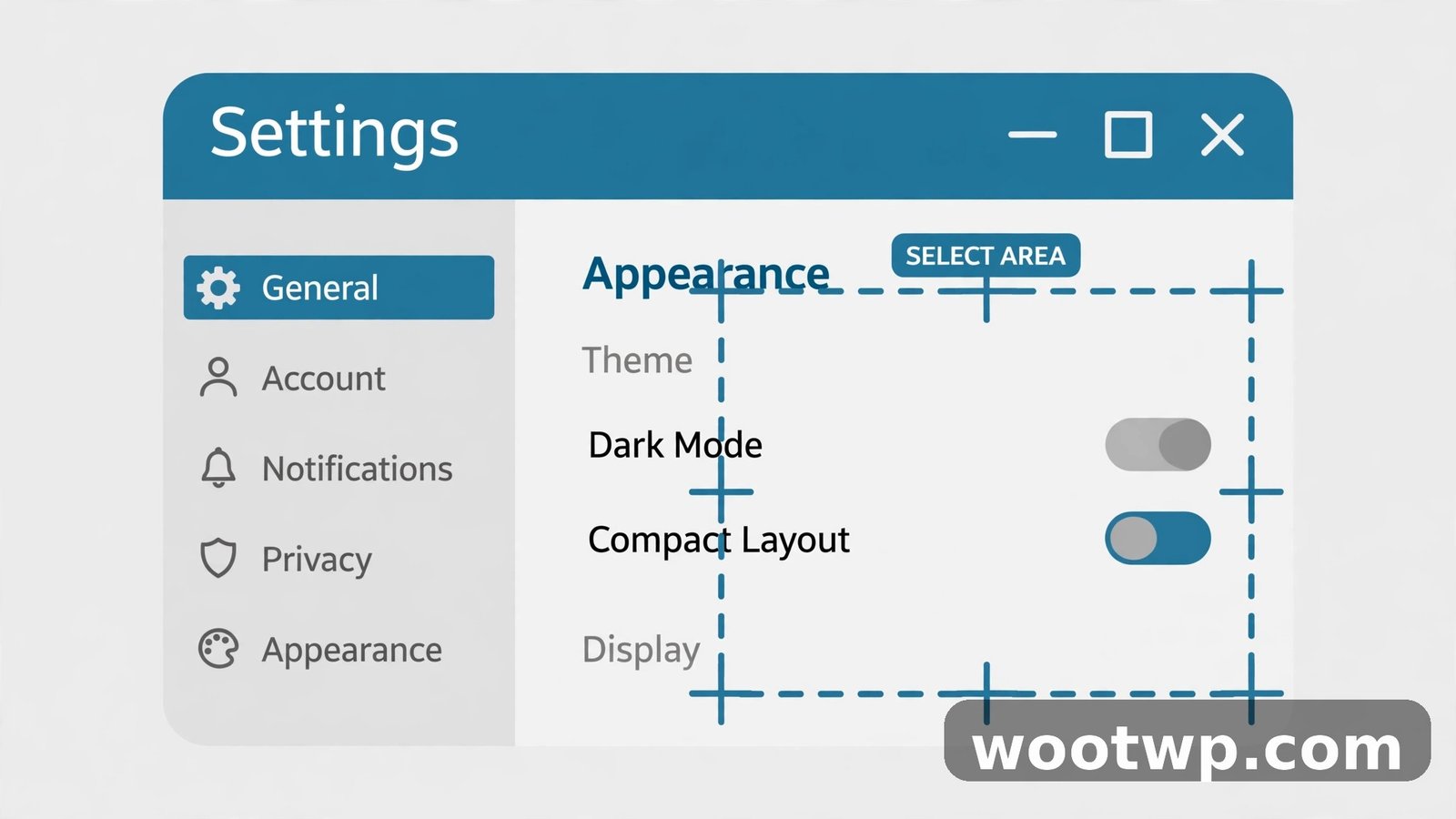
Here's the one most people miss: the humble Snipping Tool — yes, the screenshot app — gained screen recording in Windows 11. Unlike the Game Bar, it lets you drag a box around any part of the screen and record just that region, including the desktop and File Explorer. That alone makes it the better choice for a lot of tutorials.
Check you have the recording feature:
- Open the Snipping Tool (search for it in the Start menu).
- Look for a video camera icon next to the camera (photo) icon at the top. If you only see the photo icon, update the app: open the Microsoft Store, search "Snipping Tool," and install the update. Recording needs Windows 11 version 22H2 or later.
Record with the Snipping Tool:
- Open the Snipping Tool and click the video camera icon to switch to recording mode.
- Click New (or press
Win + Shift + Rfrom anywhere to jump straight in). - Drag a rectangle around the area you want to record. You can select a portion of a window, a full window, or the whole screen.
- A small control bar appears. Click the speaker icon to include system audio, and the microphone icon to include your voice. (Snipping Tool records system audio but not mic+system mixed as flexibly as Game Bar — pick what matters most.)
- Click Start. You'll get a 3-second countdown, then it records.
- Click the red Stop button on the floating bar (or press
Win + Shift + Ragain). - A preview window opens. Click Save (floppy disk icon), choose your folder, and save as MP4.
The region-select is the killer feature here. Recording a bug to send to support? Drag a box around just the broken dialog instead of your entire messy desktop. Making a tutorial? Frame exactly the settings panel you're explaining. It keeps file sizes small and viewers focused.
Method 3: PowerPoint Screen Recording (Best for Tutorials)
This one's hiding in plain sight: Microsoft PowerPoint has a built-in screen recorder, and the recording drops straight into your slide deck. If you're building a tutorial or a training presentation anyway, this skips the whole export-import dance.
- Open PowerPoint and go to the slide where you want the video.
- Click the Insert tab, then click Screen Recording (on the far right of the ribbon).
- A small control dock appears. Click Select Area and drag a box around what you want to record.
- Toggle Audio on if you want to narrate, and Record Pointer on if you want the mouse cursor visible.
- Click Record (or press
Win + Shift + R). There's a 3-second countdown. - To stop, hover at the top of the screen to reveal the dock and click Stop (or press
Win + Shift + Q). - The recording is now embedded in your slide. Right-click the video and choose Save Media as to export it as an MP4 file anywhere you like.
This is my favorite method for training materials: record the demo, and it's already sitting in the presentation where it belongs. The exported MP4 is a standard video file you can upload anywhere.
Game Bar vs Snipping Tool: Which Should You Use?
Quick decision guide:
| Situation | Use this |
|---|---|
| Recording a game or a full app window | Xbox Game Bar (Win + Alt + R) |
| Recording part of the screen / the desktop | Snipping Tool (Win + Shift + R) |
| Recording File Explorer | Snipping Tool (Game Bar can't) |
| Need mic + system audio together | Xbox Game Bar (more flexible audio) |
| Fastest possible start | Xbox Game Bar (one shortcut, no selection step) |
| Recording for a PowerPoint deck | PowerPoint (embeds directly) |
| Recording a browser video call | Xbox Game Bar (captures the app window cleanly) |
For most people, the answer is: learn Win + Alt + R for quick captures and Win + Shift + R for precise ones. Those two shortcuts cover nearly everything.
Recording Settings Worth Changing
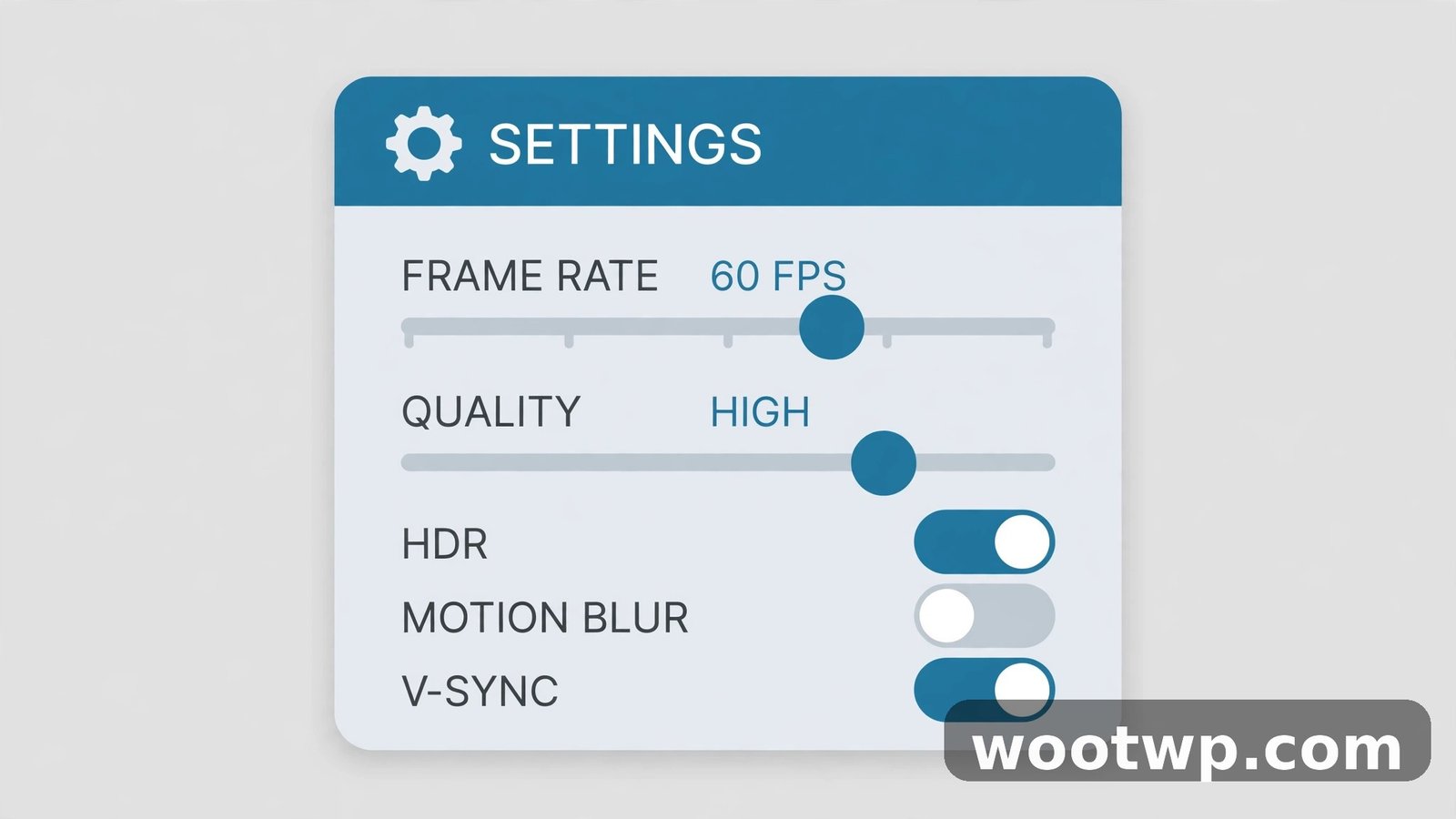
The defaults are fine, but two minutes in Settings makes your recordings noticeably better:
- Open Settings > Gaming > Captures.
- Video frame rate: set to 60 fps if your PC handles it (smoother motion for games and scrolling); 30 fps is fine for talking-head tutorials and saves space.
- Video quality: High for anything you'll publish; Standard for quick personal captures.
- Maximum recording length: Game Bar defaults to 2 hours — plenty, but if you're recording long sessions, confirm it here. You can also enable "Record in the background while I'm playing a game" to capture the last 30 seconds retroactively (great for "did you see that?!" moments).
- Audio: choose whether to record game/app audio only, or include your mic. For tutorials, enable the mic and do a quick test recording first — nothing worse than a 20-minute tutorial with no voice track.
- Capture mouse cursor: on by default; leave it on for tutorials (viewers need to see where you click), off for clean gameplay footage.
Also: turn on Do Not Disturb (Win + N, click the bell icon) before recording anything you'll share. Nothing ruins a tutorial like a personal message notification popping up mid-demo. I've learned this one the hard way.
Where Are My Recordings Saved?
Xbox Game Bar saves to Videos > Captures in your user folder — the full path is usually C:\Users\YourName\Videos\Captures. The files are MP4, named with the app name and timestamp, so they're easy to find.
Snipping Tool asks you where to save each time (it defaults to your Videos folder).
PowerPoint embeds the video in the presentation; right-click it and choose Save Media as to export the MP4 wherever you want.
If your C: drive is getting full from recordings, move the Captures folder: right-click Videos > Captures, but simpler — in Settings > Gaming > Captures, you can't change the folder directly, so instead move your entire Videos library: right-click the Videos folder > Properties > Location tab > Move. Handy if you're recording a lot.
Fixes When Recording Doesn't Work
**Win + G does nothing. The Game Bar is probably disabled. Go to Settings > Gaming > Xbox Game Bar** and turn the toggle on. On some systems (especially fresh installs or managed work PCs), the Game Bar feature may be turned off by group policy — in that case, use the Snipping Tool method instead.
"Recording isn't working" / the Record button is grayed out. Your PC needs to meet the Game Bar's hardware requirements for recording (most modern PCs do). Also check: Game Bar can't record File Explorer or the desktop — switch to the Snipping Tool for those. And it can't record some DRM-protected video (streaming apps may show a black screen — that's copy protection, not a bug).
The recording has no audio. Two usual causes: (1) you started recording with the mic muted on the recording bar — click the mic icon before you start; (2) in Settings > Gaming > Captures, audio recording is set to an option that excludes what you expected. Do a 10-second test recording and play it back before committing to a long session.
The video is choppy or laggy. Recording is CPU/GPU work. Close heavy apps and browser tabs, drop the frame rate to 30 fps in Captures settings, and if you're on a laptop, plug in the charger — Windows throttles performance on battery, which hits recording hard.
Snipping Tool has no video camera icon. Update the app via the Microsoft Store and make sure Windows 11 is on version 22H2 or later (Settings > System > About to check your version).
The file is huge. A few minutes of 1080p60 can easily hit several hundred MB. For sharing, you can re-encode smaller with the free HandBrake video converter, or just record at 30 fps / Standard quality for smaller files from the start.
When Built-In Tools Aren't Enough
The built-in recorders cover the basics brilliantly, but they don't do everything. Consider stepping up when you need:
- Editing built in — trimming, cutting mistakes, adding text overlays. Windows' free Clipchamp (preinstalled on Windows 11, or in the Microsoft Store) handles basic edits and can import your Game Bar recordings.
- Webcam overlay — picture-in-picture of your face over the screen. This is the number one reason people install dedicated recorders.
- Advanced control — multiple audio tracks, streaming, custom encoders. The free, open-source OBS Studio is the standard here — more complex, but unlimited.
My actual workflow for tutorial videos: record with the Game Bar (Win + Alt + R, zero friction), trim in Clipchamp, and I'm done. The built-in tools handle the capture; I only reach for more when the project demands it. And if those tutorials are destined for social media, the same rules from my guide on creating professional marketing videos apply — good audio and tight editing matter more than fancy tools. For sharing your finished tutorials, these social media marketing tools can help them reach a wider audience.
FAQs
How do I record my screen on Windows 11 without downloading anything?
Press Win + Alt + R to start recording with the built-in Xbox Game Bar, and press it again to stop — your MP4 saves to Videos > Captures. For recording a selected screen area, press Win + Shift + R to use the Snipping Tool's recording mode instead.
Does Windows 11 have a built-in screen recorder?
Yes, three of them: Xbox Game Bar (Win + G) for app and game windows, the Snipping Tool (Win + Shift + R) for recording any selected screen region, and PowerPoint's Insert > Screen Recording for capturing directly into presentations. All are free with no watermarks.
Can the Xbox Game Bar record my desktop?
No — the Game Bar only records app and game windows, not the desktop or File Explorer. To record the desktop or a custom screen region, use the Snipping Tool's video mode (Win + Shift + R) instead.
Where do Xbox Game Bar recordings get saved?
In your Videos > Captures folder (C:\Users\YourName\Videos\Captures) as MP4 files. A notification appears after each recording — click it to open the file immediately, or press Win + G and choose "See my captures" to browse them.
Can I record screen and audio at the same time on Windows 11?
Yes. The Xbox Game Bar records system/app audio by default — click the microphone icon on the recording bar to add your voice. The Snipping Tool lets you toggle system audio and microphone separately before you start recording.
Why is my screen recording laggy on Windows 11?
Recording uses significant CPU/GPU resources. Close unnecessary apps and browser tabs, lower the frame rate to 30 fps in Settings > Gaming > Captures, plug in your laptop charger (battery mode throttles performance), and avoid recording at higher resolution than you need.
Conclusion
You don't need to install anything to record screen on Windows 11 without software — the tools are already there. Use Win + Alt + R for fast app and game captures with the Xbox Game Bar, Win + Shift + R when you need to record a specific screen area with the Snipping Tool, and PowerPoint's recorder when the video belongs in a presentation. Learn those three, tweak the capture settings once, and you'll never sit through another screen-recorder installer again.