
How to Lock WhatsApp With Fingerprint: 3 Proven Methods
It happened to me at a family dinner. I'd just handed my phone to my cousin so she could see a photo of my nephew — one photo, that's all — and right as she took it, a WhatsApp message slid down from the top of the screen. Nothing scandalous, thankfully. Just a friend being very honest about her weekend. But my stomach dropped anyway, because for about two seconds my private chats were on display in front of a table full of relatives.
That's the moment I decided to sort this out properly. Learning how to lock WhatsApp with fingerprint took me less than a minute once I actually did it. The feature is already inside WhatsApp, hiding in plain sight. No extra app to install, no root, no subscription. In this guide I'll walk you through all three ways: App Lock for the whole app, Chat Lock for the odd conversation you really want hidden, and the lock for WhatsApp Web. Android and iPhone both.
- The Quick Answer
- Before You Start: What You Need
- Method 1: Lock the Whole WhatsApp App
- Method 2: Lock Individual Chats
- Method 3: Lock WhatsApp Web on Your Computer
- Choose the Right Auto-Lock Timer
- What Fingerprint Lock Does Not Protect
- Troubleshooting: Fingerprint Lock Not Working
- FAQs
The Quick Answer
Short version first. Details after.
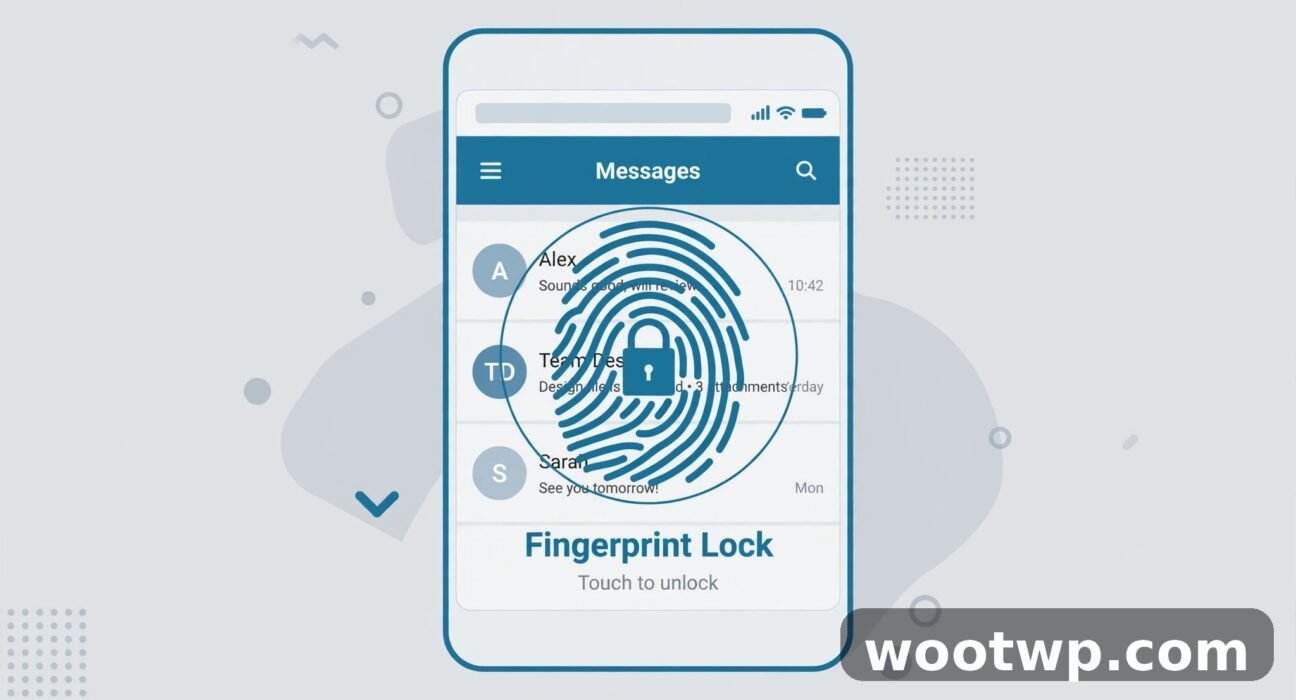
WhatsApp, then Settings, then Privacy, then App Lock. Switch on Unlock with Biometric, touch the sensor, done. From that moment on, WhatsApp asks for your fingerprint every time you open it.
iPhone? Same screen, slightly different words. It says Require Face ID there — or Require Touch ID, if your iPhone still has a home button. And honestly? Finding the Privacy menu the first time took me longer than the actual setup. That's how to lock WhatsApp with fingerprint at its simplest. The rest of this guide is for the fiddly bits. The stuff that trips people up.
Now — maybe you don't want to lock the whole app. Maybe it's just one or two chats. Then forget App Lock and use Chat Lock instead: long-press a chat, tap Lock chat, and it disappears into a hidden Locked Chats folder that only opens with your fingerprint. Free, built in, and I'll go through both, step by step, below.
Before You Start: What You Need
One thing worth knowing before you start: WhatsApp doesn't have a fingerprint scanner of its own. It borrows your phone's. Which means a couple of things need to be in place first — otherwise the option sits there greyed out and you end up thinking something's broken. Ask me how I know. Check these first, before you open WhatsApp.
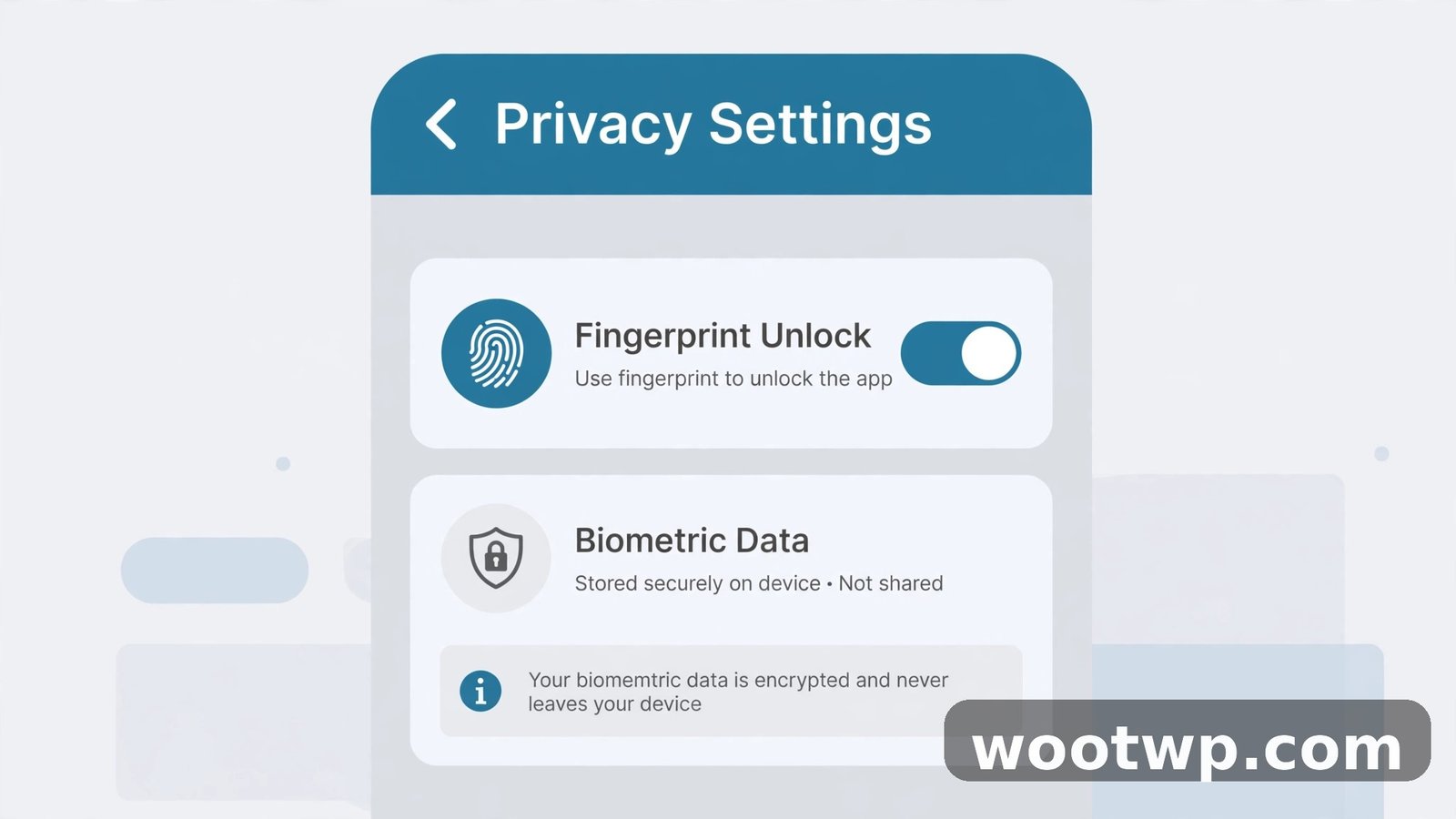
- A fingerprint or face unlock already set up on your phone. Settings, then Security or Biometrics, register at least one fingerprint or face. Here's the reassuring bit: WhatsApp never actually sees your fingerprint. It just asks your phone, "right person?" and your phone answers yes or no.
- WhatsApp up to date. Pop into the Play Store or App Store, search WhatsApp, hit Update if there's one waiting. The menu names have moved around over the years — this guide uses the current ones, so an old version might look different.
- Android 6.0 or newer. That's the minimum for the fingerprint lock, and honestly, almost every phone still in daily use clears it without trying. One weird exception, though: a handful of very old Samsung models — the Galaxy S5, Note 4, and Note 8 — don't support it at all, whatever Android version they're running. Ancient history for most of us, but worth a mention.
Method 1: Lock the Whole WhatsApp App (App Lock)
App Lock is the blunt instrument, and I mean that as a compliment. One fingerprint check, and your entire WhatsApp is behind it. Open the app after it's locked and you confirm your fingerprint before a single chat loads — not a preview, not a name, nothing. If you hand your phone around a lot, or you just like a second lock on top of your lock screen, start here.
On Android
- Open WhatsApp.
- Tap the three-dot menu in the top-right corner, then tap Settings. On newer versions of WhatsApp, tap your profile icon at the bottom right instead, then tap Settings.
- Tap Privacy.
- Scroll down and tap App Lock. On older versions this reads Fingerprint lock, and on some it reads Screen lock. Same feature, newer name.
- Turn on Unlock with Biometric.
- Confirm with your fingerprint or face when it prompts you.
- Pick when WhatsApp should lock itself: Immediately, After 1 minute, or After 30 minutes. Shorter is safer. I'll help you pick in the timer section below.
That's it, genuinely. Close WhatsApp, open it again, and the fingerprint prompt appears before your chats do. And if the fingerprint fails — wet hands after washing up, a dusty sensor, that kind of thing — WhatsApp falls back to your phone's PIN or pattern, so you're never shut out of your own chats.
Confession time: the first time I set this up on my Galaxy A52, I wasted a solid five minutes in completely the wrong place. I kept digging through the phone's own Settings app, hunting for a WhatsApp lock that was never going to be there. The lock lives inside WhatsApp's own Settings, under Privacy — not the phone's settings at all. Once I stopped looking in the wrong app, the whole thing took about forty seconds. So if you're hunting around and can't find App Lock anywhere, stop and check: which Settings are you actually in? That mix-up is far more common than you'd think.
How-To Geek's walkthrough of locking WhatsApp with a fingerprint or password shows the same screens, if you would rather follow along with pictures.
On iPhone
- Open WhatsApp.
- Tap Settings at the bottom right.
- Tap Privacy.
- Tap App Lock. On older versions this reads Screen Lock.
- Turn on Require Face ID or Require Touch ID, depending on what your iPhone has.
- Confirm with Face ID or Touch ID when it prompts you.
- Pick the delay before the lock kicks in, if your version gives you that choice.
One thing to check on iPhone, because this one catches people: Face ID has to be allowed for WhatsApp, or the toggle simply won't switch on. iOS Settings, then Face ID and Passcode, and make sure WhatsApp is enabled there. Without that permission, WhatsApp can't ask for your face at all — and it won't explain itself very clearly, either. It just refuses. Quietly. Maddening.
What changed in recent versions
WhatsApp has renamed this setting more times than I can count, and that causes real confusion. Older guides point you to a name that doesn't exist on your phone anymore, and you end up thinking the feature was removed. It wasn't. The path has stayed the same all along — Settings, then Privacy, then a lock option near the bottom. Only the label changed. These days it's App Lock, and the toggle is Unlock with Biometric on Android and Require Face ID or Touch ID on iPhone. If you're following an old guide to how to lock WhatsApp with fingerprint and the names don't match what you see, that's why. If your phone still says Fingerprint lock or Screen lock, you're on an older version. Same steps, same result.
TechEngage's guide to locking WhatsApp with fingerprint or Face ID covers the same feature, including the things the lock still cannot stop — worth a read if you want the full picture.
Method 2: Lock Individual Chats (Chat Lock)
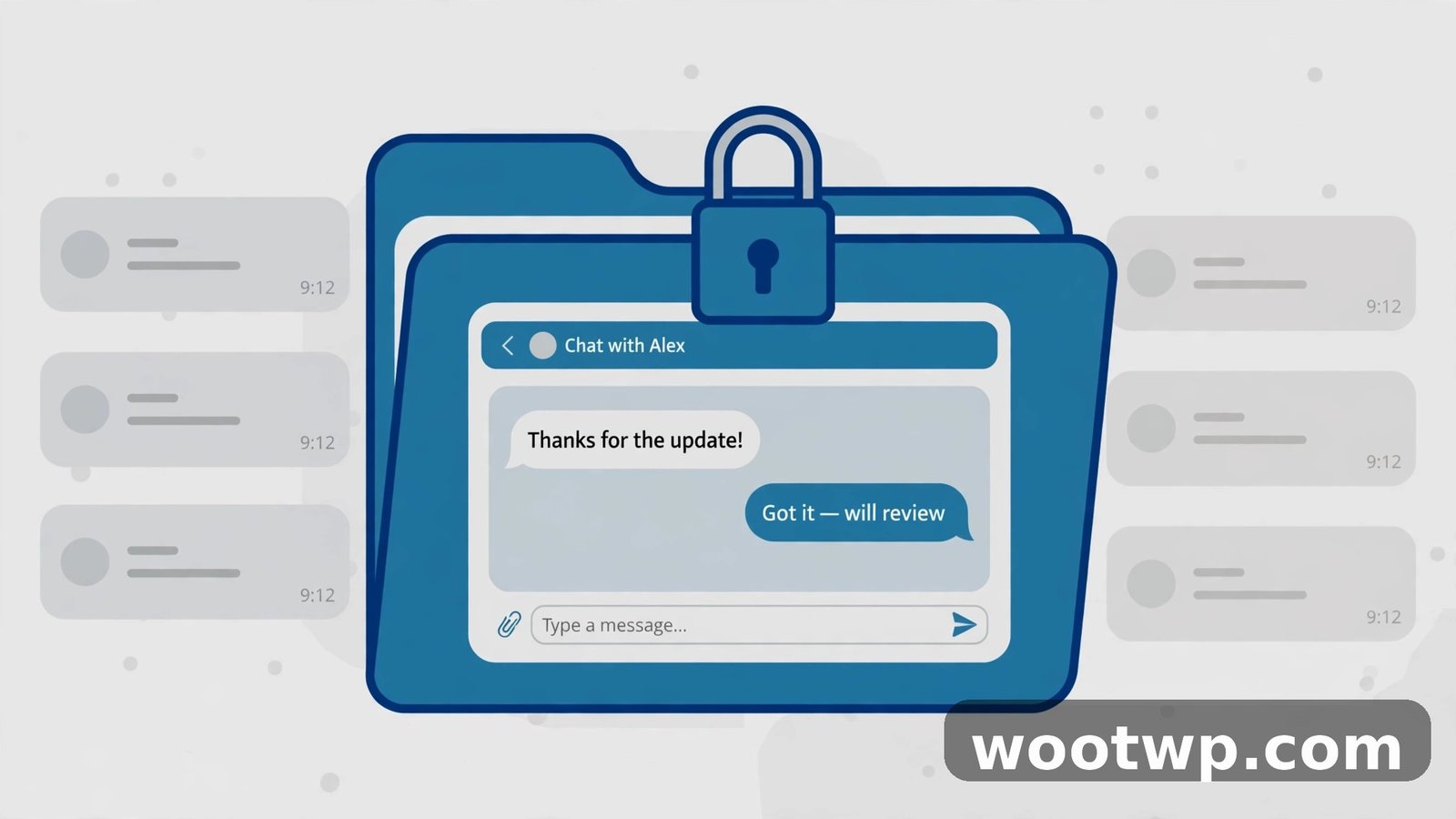
App Lock is all or nothing — every chat, locked, every time. Chat Lock is the newer, sharper tool, and honestly it's the one I reach for most. It hides only the conversations you pick, tucked away in a separate Locked Chats folder, while the rest of WhatsApp opens like normal. Most of your chats are boring and harmless? Great — leave them alone. But that one conversation about a surprise party, or the work chat with salary numbers in it? Lock just those.
How to lock a single chat
- Open WhatsApp and find the chat you want to lock.
- Long-press the chat in the list, then tap Lock chat. Or open the chat, tap the contact's name at the top, and turn on Chat Lock.
- Confirm with your fingerprint, face, or device passcode.
- The chat vanishes from your main list and moves into the Locked Chats folder.
Getting back in: scroll to the top of your chat list, pull down, and tap Locked Chats. Fingerprint, and the folder opens. The chats inside stay hidden from the main list until you unlock them.
Here's where I nearly gave myself a heart attack. The first time I tried this, I locked a chat about a surprise birthday gift, closed WhatsApp, and then panicked — because the chat was gone. Just gone from the list. I was convinced I'd deleted it by accident, and the gift was in two days. Then I remembered. Pull down from the top of the chat list. There it was, sitting in Locked Chats, perfectly fine. So if that happens to you: don't reinstall anything, don't panic. Pull down. It's hiding, not deleted.
Secret codes: an extra layer
Chat Lock has an optional upgrade, and it's a good one: a secret code. See, without it, the Locked Chats folder sits visibly at the top of your chat list. Anyone borrowing your phone can see that you've got locked chats — even if they can't open them. Which kind of defeats the purpose, doesn't it? With a secret code, the folder disappears entirely. It only shows up when you type your code word into the WhatsApp search bar. Nobody even knows the locked chats exist.
- Open the Locked Chats folder.
- Tap the three-dot menu, then Chat lock settings.
- Turn on Hide locked chats.
- Create your secret code. Pick something you'll actually remember, but nobody else would guess. Not your birthday. Not your pet's name. Not "1234", please.
- From now on, type the secret code in the WhatsApp search bar to reveal the folder.
Write the code down somewhere safe the first week — somewhere that isn't your phone. I'm serious about this. Forgetting a secret code is a special kind of annoying, because the folder is invisible until you remember it. Ask me how I know. (Actually, don't. I wrote mine on a sticky note. A sticky note. In 2026.)
App Lock vs Chat Lock: which one should you use?
- Use App Lock when you want everything behind one check and you don't mind unlocking WhatsApp every time you open it. Simple. Covers all chats, calls, and media in one go.
- Use Chat Lock when you only want to hide a few conversations and you want the rest of WhatsApp to open normally. Better for day-to-day life, because your normal chats stay one tap away.
- Use both if you want the strongest setup. App Lock guards the whole app, and Chat Lock hides the sensitive chats behind a second check, plus an optional secret code. On a phone the whole family shares, that double layer is worth the extra tap.
No single right answer here, really. It depends on who picks up your phone, and how often. A phone that never leaves your pocket is a different story from one that gets passed around the dinner table.
What Chat Lock does to notifications
Locked chats hide their message content from notifications. Instead of the sender's name and a preview of what they wrote, a locked chat notification just says you have a new message. That's it. No names, no snippets.
Why does that matter? Because the lock screen is the easiest leak of all. Someone glances at your phone on the table and reads your chats without ever opening WhatsApp. Chat Lock closes that door — at least for the conversations you've locked.
Method 3: Lock WhatsApp Web on Your Computer
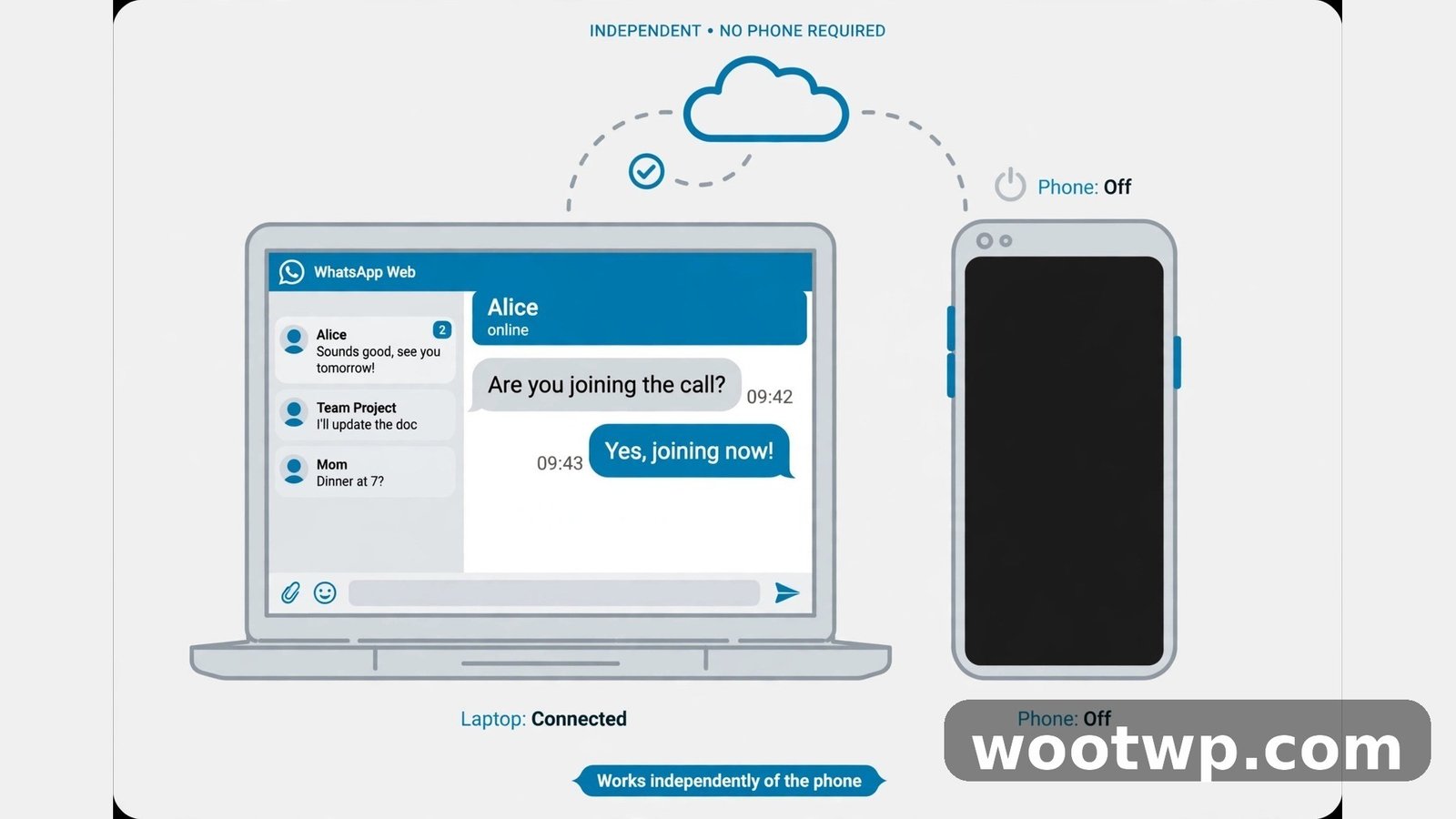
Phone sorted. What about the computer? If you use WhatsApp on a shared computer — a family laptop, an office machine, a library PC — the desktop side needs a lock too. Now, the usual trick for how to lock WhatsApp with fingerprint doesn't apply here, because a computer has no fingerprint sensor to borrow. So WhatsApp Web uses a password instead. One thing to know first: this works on WhatsApp Web in the browser. The WhatsApp desktop app for Windows and macOS doesn't offer the same lock. On a shared computer, use the browser version. If you haven't set that up yet, our guide on using WhatsApp on PC without keeping your phone online walks through linked devices first.
- Open WhatsApp Web in your browser and link your phone if needed.
- Click the three-dot menu or your profile icon, then Settings.
- Click Privacy.
- Click App Lock.
- Turn on App Lock and set a password. This is a separate password, not your phone's PIN.
- Choose the auto-lock time: after 1 minute, 15 minutes, or 1 hour.
Now WhatsApp Web locks itself after the time you picked, and anyone who wanders up to the computer needs the password to read your chats.
Do not forget this password. I mean it. On your phone there's always a fingerprint fallback. On a computer there isn't. Lose the WhatsApp Web password and your only way back in is unlinking the device and linking it all over again. Which takes about two minutes, to be fair — but it's two minutes of muttering at your screen.
Choose the Right Auto-Lock Timer
When you switch App Lock on, WhatsApp asks when it should lock itself after you leave the app. This choice matters more than it looks, because it decides how often you're actually unlocking the thing all day. Every time you switch apps to check something and come back? That's an unlock. It adds up.
- Immediately. WhatsApp locks the second you leave it. Safest setting there is. Best pick on a shared phone, or a phone you hand to other people a lot. The trade-off is real, though: you unlock it every single time you switch apps and come back. Every time.
- After 1 minute. The middle ground, and the one I'd suggest to most people. You can jump to another app to check something and come back without unlocking. But put the phone down for a minute, and it locks itself anyway. This is the setting I use myself.
- After 30 minutes. The most relaxed setting. WhatsApp only asks for your fingerprint if half an hour has passed since you last used it. Pick this only if your phone barely leaves your hand, and you mostly want cover for the odd moment you leave it sitting on a table.
I started on 30 minutes, by the way. Seemed convenient. Then my nephew picked up my phone while I was making tea, opened WhatsApp, and was halfway through my chats before I got back to the room. Nothing secret in there, thankfully — just a lot of family group noise — but it made the point. I switched to 1 minute that same evening and never went back.
There's no wrong answer, only a trade-off between safety and convenience. Start with 1 minute. Live with it for a week. Move it up or down depending on how it feels in real life, not how it sounds on paper.
What Fingerprint Lock Does Not Protect
A fingerprint lock is a strong screen across your chats. It is not magic. Knowing how to lock WhatsApp with fingerprint is only half the job — knowing where the lock stops matters just as much, because a false sense of security is worse than no lock at all. You stop being careful.
- Notifications. App Lock alone doesn't hide notification previews on your lock screen. A message can still show up in full there unless you switch off sensitive notifications in your phone's settings. Chat Lock does hide previews for locked chats. One more reason to use it for the conversations that actually matter.
- WhatsApp calls. An incoming call screen can still show the caller's name and photo, even with App Lock switched on.
- Your phone's backups. The fingerprint lock guards the app, not the backup files. If your chats back up to Google Drive or iCloud, anyone who gets into that cloud account can read the backup. Guard the cloud account with a strong password and two-factor authentication, same as anything else that matters.
- Someone who knows your phone's PIN. The fingerprint prompt falls back to your phone's PIN or pattern when biometrics fail. If someone knows that PIN, they can walk straight past the WhatsApp lock too. Keep your screen lock private. And please, not your birth year.
No fingerprint sensor on your phone at all? You can still lock WhatsApp indirectly. Use your phone's built-in app lock if it has one, or lean on a strong screen lock and keep your notifications private. And if you ever switch phones, move your two-factor codes over safely — don't leave them stranded on the old handset. Our guide on moving Google Authenticator to a new phone walks through that step by step, so your accounts stay protected on the new device.
Troubleshooting: Fingerprint Lock Not Working
App Lock missing? Won't switch on? Run through this list. Nine times out of ten, the fix is one of the first two items. (And if it's not? Keep going — the list is short.)
- No fingerprint registered on the phone. WhatsApp can't offer a fingerprint lock until your phone has one. Go to Settings, then Security, then Fingerprint, and add at least one finger.
- WhatsApp is out of date. Open the Play Store or App Store and update WhatsApp. The App Lock name and location moved around in recent updates, and an old version may still show the old Fingerprint lock name — or hide the option entirely.
- Biometrics switched off for WhatsApp. On iPhone, check iOS Settings, then Face ID and Passcode, and make sure WhatsApp is allowed. On Android, check Settings, then Security, then Biometrics, and confirm that app access is switched on.
- An old Samsung model. The Galaxy S5, Note 4, and Note 8 don't support WhatsApp's fingerprint lock at all. If you're using one of those, a third-party app locker from the Play Store is the only route, and you should pick one from a well-known developer with solid reviews.
- Work profile restrictions. If WhatsApp runs under a work profile, your employer's device policy may block biometric locks. Talk to your IT team if the option is greyed out only on the work side.
- Fingerprint sensor acting up. A dirty or wet sensor fails a lot. Wipe the sensor, dry your finger, try again. Still failing? Delete the fingerprint and register it again, pressing firmly and covering the sensor properly this time. Half-hearted taps during setup are the usual cause — the phone only learns what you show it.
A warning about third-party lock apps
You don't need a third-party app to lock WhatsApp. I'd avoid installing one for this job, to be honest. A lot of "app locker" apps ask for broad permissions, show ads, and some have been caught collecting data. WhatsApp's built-in lock does the same job without handing your chats to another company. Only reach for a third-party locker if your phone genuinely can't use the built-in feature — and then only from a developer you actually trust.
FAQs
How do I lock WhatsApp with fingerprint on Android?
Open WhatsApp, go to Settings, then Privacy, then App Lock, and switch on Unlock with Biometric. Touch the sensor when it asks, pick how quickly you want it to lock, and that is it. Just make sure you have a fingerprint saved on your phone first, or the option will not even show up. That's how to lock WhatsApp with fingerprint on Android, start to finish.
Can I lock only one chat on WhatsApp instead of the whole app?
Yes — that is what Chat Lock is for. Long-press the chat in your list, tap Lock chat, and confirm with your fingerprint. It moves into a hidden Locked Chats folder. You can also set a secret code, so the folder only appears when you type that code into the search bar. Handy, right?
How do I lock WhatsApp on iPhone with Face ID?
Open WhatsApp, go to Settings, then Privacy, then App Lock, and switch on Require Face ID. Older iPhones with a home button will show Require Touch ID instead. One catch: Face ID has to be allowed for WhatsApp under iOS Settings, then Face ID and Passcode, or the toggle will not work. I spent ten minutes on this one myself before I figured out the permission was the problem.
Does WhatsApp fingerprint lock hide message notifications?
App Lock on its own, no — notification previews can still show on your lock screen. Chat Lock does hide them, but only for the chats you locked. If you want full privacy, switch off sensitive notifications on your phone's lock screen as well, under Settings, then Notifications. It takes thirty seconds and it's worth it.
Can someone bypass WhatsApp fingerprint lock?
Not without your fingerprint or your phone's PIN. When biometrics fail, the lock falls back to your screen lock — so anyone who knows your PIN can get in. Keep that PIN private, and do not use something easy to guess, like your birth year. Seriously. Your birth year is the first thing anyone who knows you would try.
How do I turn off fingerprint lock on WhatsApp?
Go to Settings, then Privacy, then App Lock, and switch off Unlock with Biometric. It will ask for your fingerprint one last time to confirm. To unlock a single chat, open the Locked Chats folder, long-press the chat, and tap Unlock chat. Same path back, basically — nothing hidden.
Conclusion
That is how to lock WhatsApp with fingerprint in three ways: App Lock for the whole app, Chat Lock for individual conversations, and App Lock on WhatsApp Web for shared computers. Set up App Lock first. It takes under a minute and protects every chat at once. Then add Chat Lock with a secret code for the conversations that really need to stay private. Pick the 1-minute auto-lock timer, keep your phone's PIN to yourself, and your WhatsApp chats stay yours — even on a phone that other people keep picking up.