

How to Share Large Files for Free: 7 Best Ways in 2026
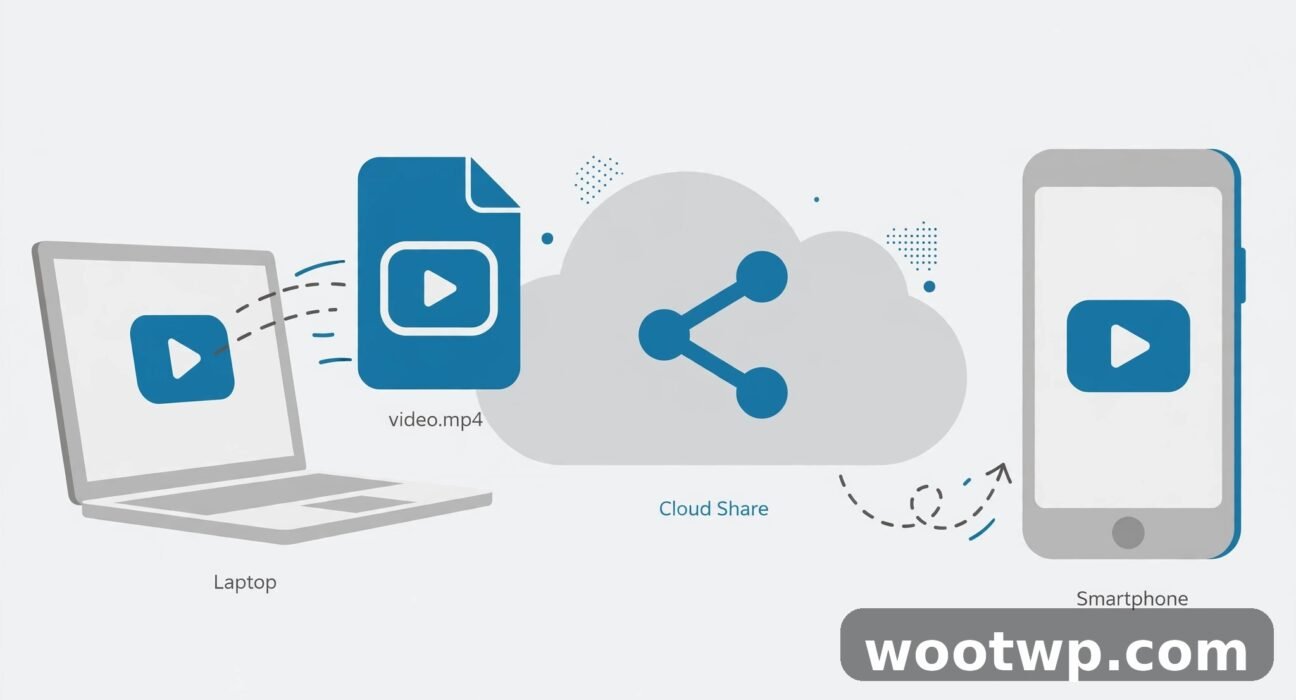
A friend of mine edits wedding videos. Last spring he finished a 4GB highlight reel, and the couple wanted it that night. He tried email first. Gmail bounced it back — too big, obviously. Then he tried WhatsApp, which squashed the quality so hard the video looked like it was filmed through a wet window. Then he tried uploading it to his cloud storage and sharing a link, except his free storage was already full of old projects. By midnight he'd tried four different things and the couple still didn't have their video. Learning how to share large files for free is one of those skills you don't think about until the exact moment you need it, and then you need it badly.
The good news: there are more genuinely free options right now than ever before, and several of them move 10GB or more without asking you to create an account. This guide compares the seven best, with real limits, so you can pick the right one in thirty seconds instead of midnight.
- Why Email Can't Send Large Files
- The 7 Free Methods at a Glance
- Method 1: SwissTransfer — Up to 50GB, No Account
- Method 2: Send Anywhere — 10GB Links and a 50GB Key
- Method 3: Google Drive and Cloud Storage You Already Have
- Method 4: WeTransfer Free — Simple but Tight Limits
- Method 5: TransferNow and Smash — No Sign-Up, Up to 5GB and Beyond
- Method 6: Send Directly, Device to Device
- Method 7: Shrink the File Before You Send It
- How to Share Large Files Safely
- Which Method Should You Pick?
- FAQs
- Conclusion
Why Email Can't Send Large Files
Email was never built for big attachments. Gmail caps personal accounts at 25MB per message, and when you exceed it, Gmail strips the attachment and drops in a Google Drive link instead. Outlook caps attachments at 20MB. Most other providers sit somewhere in the same range.
So the moment your file passes about 20MB, email stops being an option and starts being a polite error message. A single minute of phone video can be 200MB. A wedding highlight reel is gigabytes. A folder of RAW photos is bigger still. You need a different tool, and the rest of this guide is about choosing it.
The 7 Free Methods at a Glance
| Method | Free size limit | Account needed? | Link lives | Best for |
|---|---|---|---|---|
| SwissTransfer | Up to 50GB | No | 1 to 30 days, your choice | The biggest one-off send |
| Send Anywhere | 10GB link, 50GB with key | No | Link: days; key: 10 minutes | Big files, no upload wait |
| Google Drive | 15GB free storage | Yes, Google account | Until you delete it | Files you share often |
| WeTransfer free | 3GB per 30 days | Yes, free account | 3 days | Quick small sends |
| TransferNow | 5GB per transfer | No | Up to 7 days | Simple no-account sends |
| Smash | Any size | No | Up to 7 days | Very large files |
| LocalSend | No limit | No | Direct, no link | Same room, same Wi-Fi |
Free tiers change often, so treat these numbers as current at publication and glance at the provider's page before you plan anything important around one. The limits above come from the services' own pricing and help pages.
Method 1: SwissTransfer — Up to 50GB, No Account
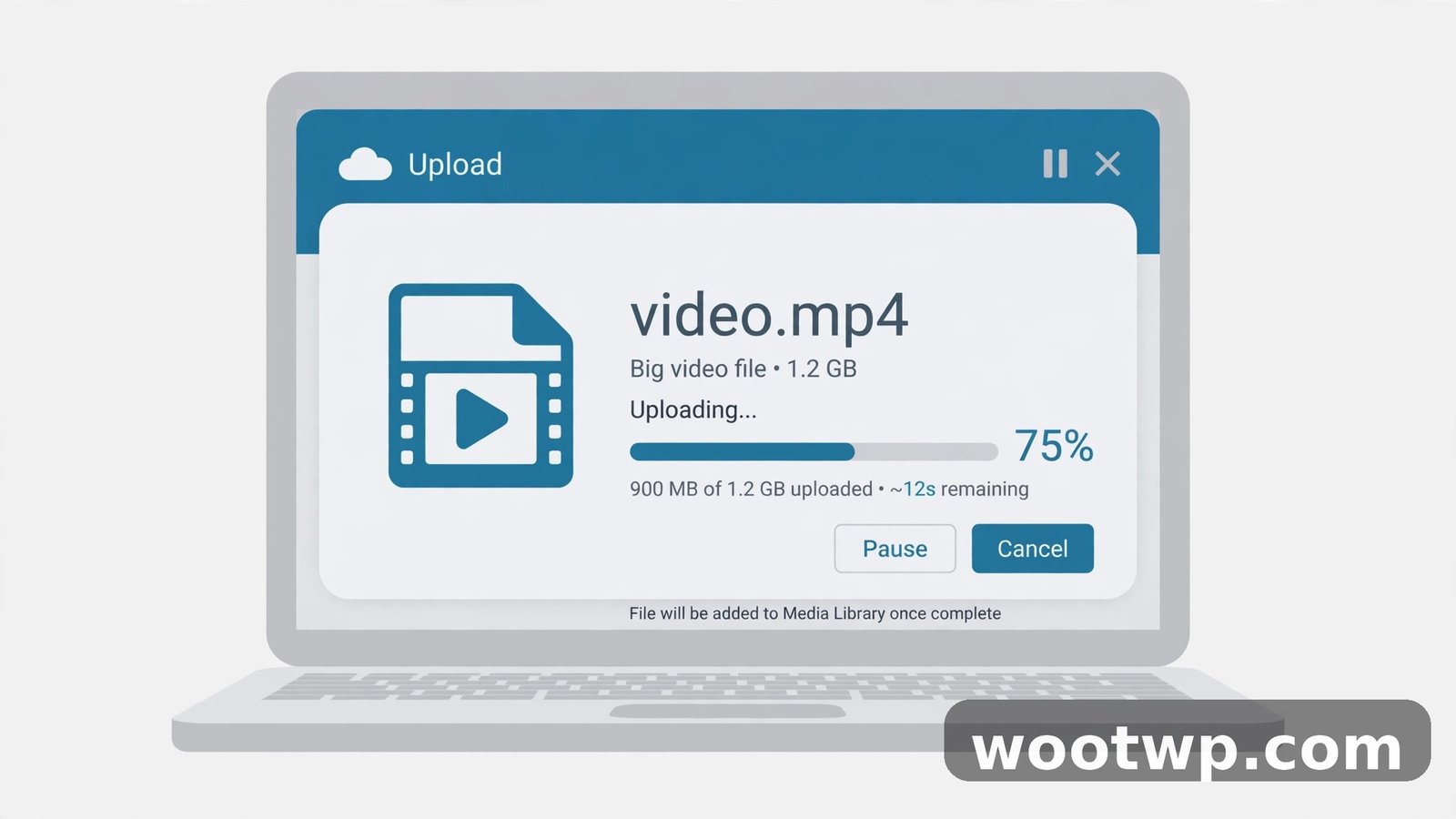
SwissTransfer, run by the Swiss hosting company Infomaniak, is the most generous mainstream free option: 50GB per transfer, free, with no registration. Files sit in Swiss data centres under Swiss privacy law, and there are no ads on the page.
- Go to SwissTransfer.
- Click to add your files, or drag them onto the page.
- Choose how long the link lives: 1, 7, 15, or up to 30 days.
- Add a password if the files are sensitive, and set a download limit if you want one.
- Copy the link and send it to whoever needs the file. They don't need an account to download.
The catch: transfers can only be created from some countries — Infomaniak restricts sending in a long list of regions, though receiving is unrestricted worldwide. And the files aren't end-to-end encrypted, so Infomaniak can technically access them on the server. For a wedding video or a project folder, that's fine. For anything genuinely confidential, pick an encrypted option from the safety section below.
Method 2: Send Anywhere — 10GB Links and a 50GB Key
Send Anywhere works two ways. Share links go up to 10GB and work like any other transfer service: upload, get a link, send it. But the clever part is the 6-digit key. It sends up to 50GB straight from your device to the other person's device, without storing the file on a server at all. The key works once, within 10 minutes.
- Open Send Anywhere on your phone or computer.
- Select your files.
- Choose Send, then share the 6-digit key it shows you.
- The other person opens Send Anywhere, taps Receive, and types the key.
Both of you need to be online at the same time for the key method, and the transfer speed depends on your internet connections. But there's no upload-then-download wait, no storage limit beyond the 50GB key cap, and nothing sits on a server afterwards. For a huge file to one specific person, this is often the fastest free route there is.
Method 3: Google Drive and Cloud Storage You Already Have
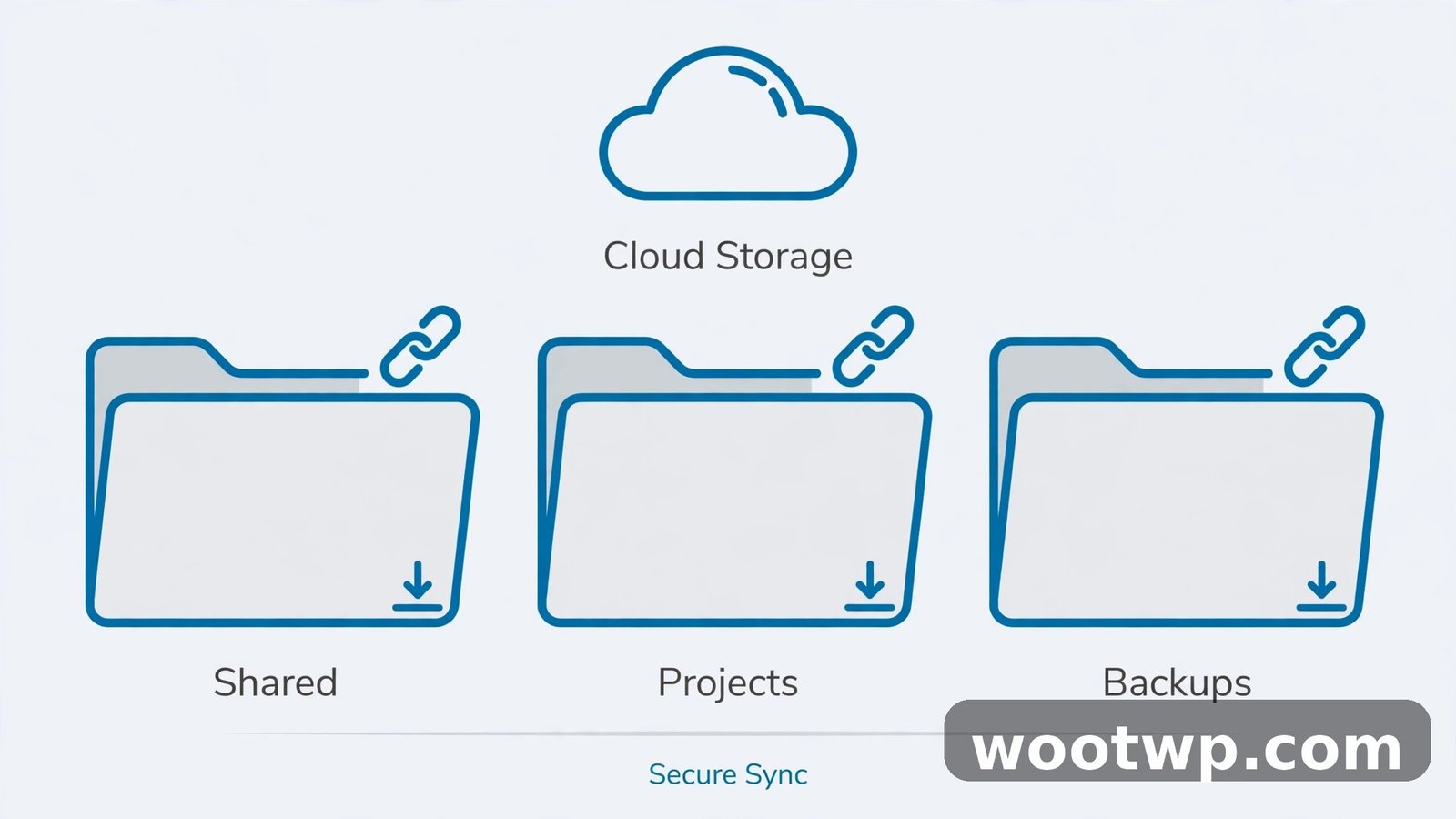
Before reaching for a transfer service, check what you already own. Every Google account includes 15GB of free storage shared across Drive, Gmail, and Google Photos. If the file fits in your free space, a Drive link is the simplest option of all.
- Open Google Drive and upload the file, or drag it into the Drive folder on your computer.
- Right-click the file and choose Share, then Copy link.
- Set the link to Anyone with the link can view, or restrict it to a specific email address.
- Send the link. The other person downloads it without needing a Google account.
The same trick works with OneDrive's 5GB free storage and Dropbox's 2GB, if that's where your files already live. Cloud storage wins when the file is something you'll share more than once — a portfolio, a price list, a family video — because the link stays live until you delete it. It loses when your free storage is already full, which is exactly the trap my friend fell into. Check your available space before promising anyone a link.
Method 4: WeTransfer Free — Simple but Tight Limits
WeTransfer is still the name most people reach for, and its free plan is now the most restrictive of the major services. You need a free account to send anything, and the free tier allows up to 10 transfers and 3GB of data in any rolling 30-day window. Links stay live for 3 days.
- Go to WeTransfer and sign in or create a free account.
- Add your files and type the recipient's email, or get a link instead.
- Send. The recipient gets an email with a download button.
It's clean, it's pretty, and it works. But 3GB a month runs out fast — one wedding video and you're done until next month. Use it for quick small sends, not as your main tool.
Method 5: TransferNow and Smash — No Sign-Up, Up to 5GB and Beyond
For a straightforward send with no account, TransferNow takes up to 5GB per transfer, keeps files for up to 7 days, and doesn't cap how many transfers you start per day. Filemail and pCloud Transfer offer the same 5GB, no-sign-up deal with a 7-day expiry.
Smash goes further: it accepts a file of any size without an account, and keeps it available for up to 7 days. Transfers over 2GB join a queue behind paying users, so a very large file might wait a while before it starts moving. But if your file is 20GB and you don't want to create an account anywhere, Smash is one of the only free options that will take it.
The pattern is the same on all of these:
- Open the site and drag your file in.
- Choose an expiry if it offers one.
- Copy the link and send it.
No account, no email, no password to remember. That's the whole appeal.
Method 6: Send Directly, Device to Device
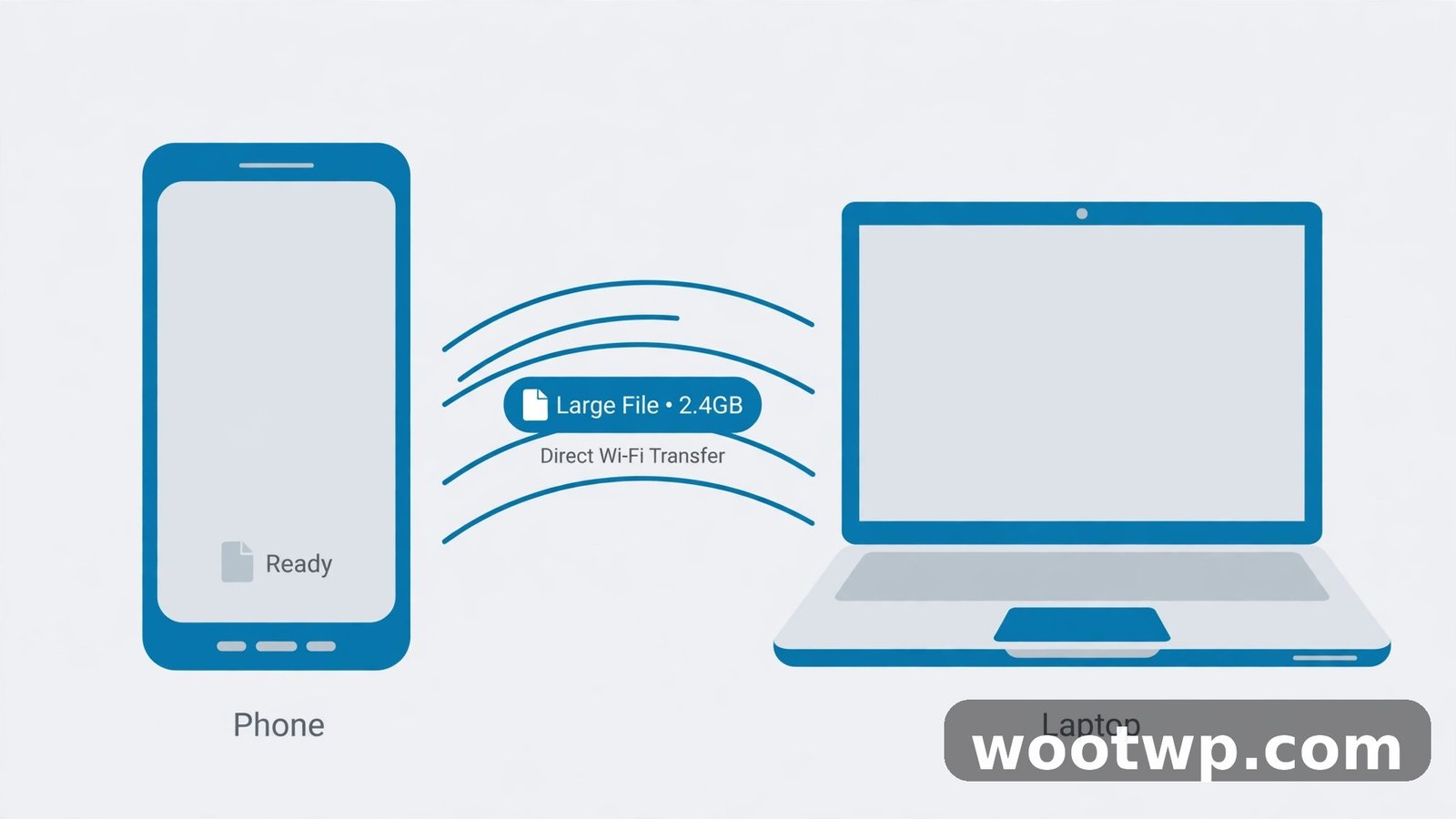
If both people are in the same place, skip the internet entirely. Direct transfer is faster than any upload, has no size limit, and costs nothing.
LocalSend is a free, open-source app that works like AirDrop but across platforms — Android, iPhone, Windows, Mac, and Linux. Both devices need the app and to be on the same Wi-Fi network. Open it on both, pick the file, pick the device, done. A 10GB video moves in minutes instead of the hour an upload would take.
Apple users already have AirDrop built in, and Android phones have Quick Share (formerly Nearby Share) built in. The catch is that both only work inside their own ecosystem. LocalSend is the bridge when one person has an iPhone and the other has an Android — which, in my family, is every single time.
If the other person isn't nearby, PairDrop and ToffeeShare do the same peer-to-peer trick over the internet: both people open the site at the same time, and the file moves directly between them with no server storage and no size limit. Both need to stay on the page until the download finishes.
Method 7: Shrink the File Before You Send It
Sometimes the smartest move isn't a bigger transfer service — it's a smaller file.
- Zip it. Right-click a folder and compress it. Text files, documents, and project folders shrink a lot. Videos and photos barely shrink at all, because they're already compressed — zipping a video saves almost nothing, and people waste hours learning that the hard way.
- Compress the video. A free tool like HandBrake can cut a video's size in half with barely visible quality loss. If you're sending a video someone will watch on a phone, nobody will notice the difference between the original and a sensibly compressed copy.
- Split it. A file splitter can cut a 10GB file into five 2GB chunks, and the recipient joins them back together. It works, but it's fiddly, and if one chunk fails the whole thing fails. Only worth it when nothing else fits.
- Lower the resolution. A 4K video sent to someone who'll watch it on a phone doesn't need to be 4K. Exporting at 1080p can cut the size by two-thirds.
If you're sending a big video on WhatsApp specifically, there's a trick to it — our guide on how to send large videos on WhatsApp without losing quality covers the document method that skips WhatsApp's compression.
How to Share Large Files Safely
A download link is a key. Anyone with it can open the file. Treat it that way.
Set a password whenever the service offers one, and send the password through a different channel than the link — link by email, password by chat message, for example. Set the shortest expiry that still works. A link that lives for 30 days is a link that can be forwarded for 30 days. A link that lives for 3 days limits the damage.
For genuinely sensitive files — contracts, ID documents, medical records — use an end-to-end encrypted service. Wormhole and Tresorit Send encrypt the file on your device before it uploads, so the service itself can't read it. Wormhole keeps files up to 5GB on its servers for 24 hours, and larger files go peer-to-peer. Tresorit Send allows 5GB per upload with links live for 7 days.
And never share a file through a random site you found in a search result without checking it first. A free transfer service that nobody has heard of is a good place to lose a file — or worse. Stick to the names in this guide, and if a service asks you to install software to download a file someone sent you, stop. A download should never need an installer.
Which Method Should You Pick?
It depends on the file and the situation.
- One huge file, one person, right now: Send Anywhere's 6-digit key, or LocalSend if you're in the same room.
- A big file to several people: SwissTransfer. 50GB, no account, link lasts up to 30 days.
- A file you'll share again and again: Google Drive. The link stays live until you delete it.
- A quick small file under 3GB: WeTransfer free, or TransferNow with no account.
- Something sensitive: Wormhole or Tresorit Send, with a password and a short expiry.
- Photos or PDFs you already manage: if it's a PDF you need to send, compress it first or split it — our guide on how to merge PDF files free on phone and PC covers handling multi-page documents before you share them.
The wrong choice costs you an hour. The right one takes two minutes. Bookmark this page — you'll need it again, probably sooner than you think.
FAQs
How can I share large files for free without an account?
SwissTransfer sends up to 50GB with no account, TransferNow and Filemail send up to 5GB with no sign-up, and Smash accepts files of any size without an account. Send Anywhere's 6-digit key moves up to 50GB device to device with no account on either side.
What is the largest file I can send for free?
SwissTransfer allows up to 50GB per transfer for free with no account. Smash states no size limit on free transfers, though files over 2GB wait in a queue. Send Anywhere's key method handles up to 50GB. For truly unlimited sizes, use a direct device-to-device app like LocalSend.
How do I send a large video file for free?
Upload it to SwissTransfer for a link that lasts up to 30 days, or use Send Anywhere's 6-digit key for a direct transfer with no server storage. If the other person is nearby, LocalSend moves it over Wi-Fi with no size limit. Compressing the video with a free tool like HandBrake first can halve the size.
Is it safe to share files with free transfer services?
Mostly, yes, if you set a password and a short expiry. Avoid services nobody has heard of, and never install software to download a file someone sent you. For sensitive files, use an end-to-end encrypted service like Wormhole or Tresorit Send, which encrypt the file on your device before uploading.
Why can't I email a large file?
Gmail caps attachments at 25MB and Outlook at 20MB. Anything bigger gets rejected or silently converted into a cloud link. Email was designed for messages, not gigabytes — use a transfer service or a cloud storage link instead.
How long do free file sharing links last?
It depends on the service. SwissTransfer lets you choose 1 to 30 days, WeTransfer free links last 3 days, and TransferNow, Filemail, and Smash links last up to 7 days. Google Drive links stay live until you delete the file or revoke the link.
Conclusion
Email caps out at 25MB, but the free internet doesn't. SwissTransfer takes 50GB with no account, Send Anywhere moves just as much straight between devices, and Google Drive covers the files you share again and again. Pick the method that fits the file — one huge send, a link that lives for weeks, or a sensitive document that needs encryption — set a password and a short expiry, and send it. The couple waiting for their wedding video got theirs that night, by the way. SwissTransfer, 4GB, no account, link in the chat before midnight. Two minutes, once he knew where to look.