

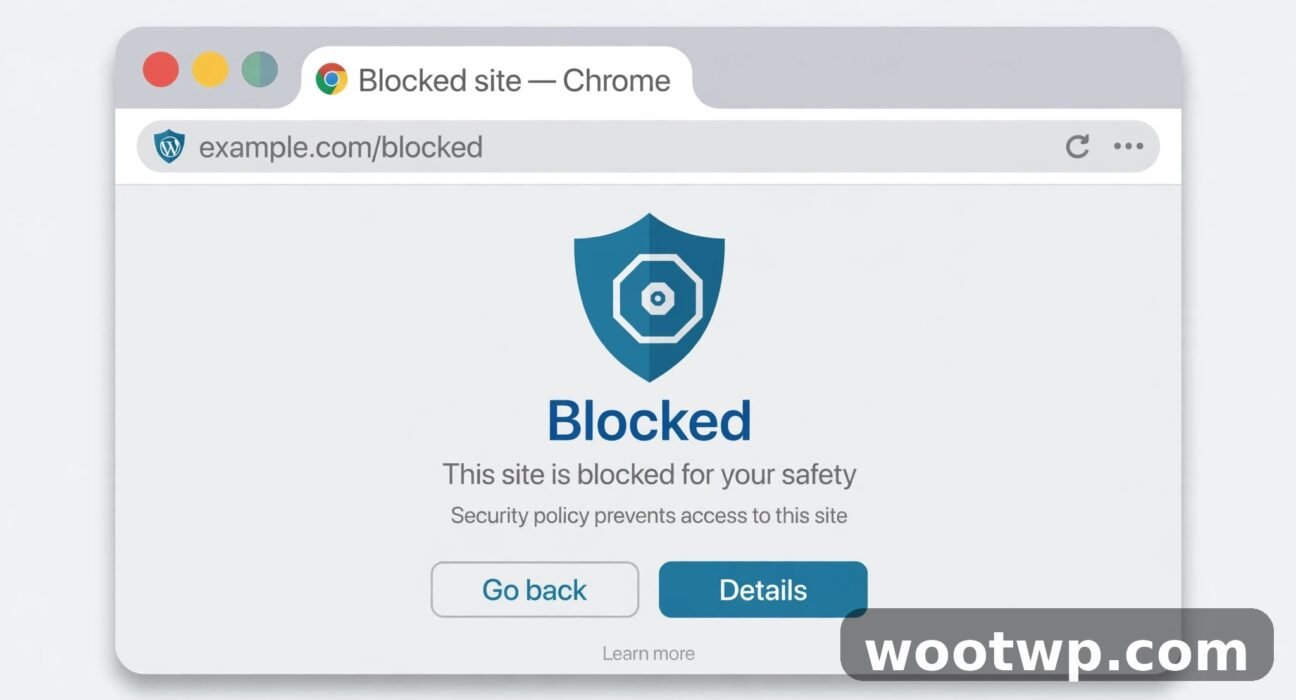
How to Block Websites on Chrome: 6 Easy Ways That Work
Last year I handed my phone to my cousin at a family dinner so he could look at some photos. Thirty seconds later a message notification slid across the top of the screen. Nothing scandalous — just a group chat — but it was mine, and it was on his screen, and I spent the rest of the evening thinking about how many little doors my browser leaves open. That's a different story, though. The one that matters here is simpler: my nephew got his first laptop last month, and the first thing his mum asked me was how to block websites on Chrome. I went looking for the setting. There isn't one. Chrome has no built-in switch that blocks a website for an ordinary account, and that surprises almost everyone who looks for it.
So this guide covers the six methods that actually work, from the two-minute extension install to the system-wide hosts file trick. Pick the one that fits your situation: blocking a distraction for yourself, keeping a child off a site, or shutting a site down across your whole home network.
- Why Chrome Has No Block Button
- Method 1: Use a Blocker Extension (Easiest)
- Method 2: Edit the Hosts File (Free and System-Wide)
- Method 3: Block Sites for a Child with Family Link
- Method 4: How to Block Websites on Chrome for Android
- Method 5: Block a Site on Your Router
- Method 6: Managed Chrome (School or Work Computers)
- What About Incognito Mode?
- The Site Still Loads — What Now?
- FAQs
- Conclusion
Why Chrome Has No Block Button
Chrome's settings let you control what a site can do — notifications, pop-ups, camera access, location. But nothing in Settings stops a site from loading. That is a deliberate choice by Google: blocking is treated as a parental-control or administrator job, not a browser feature.
So the real question isn't "where is the block button" but "who are you blocking it for, and on what device." An extension keeps you off a distracting site on your own computer. Family Link holds a child. The hosts file or the router blocks a site for every browser and every device in the house. The method changes with the job. Pick wrong and you'll spend an afternoon wondering why nothing works.
Method 1: Use a Blocker Extension (Easiest)
For most people, this is the answer. A blocker extension is a small add-on from the Chrome Web Store, and setup takes about two minutes.
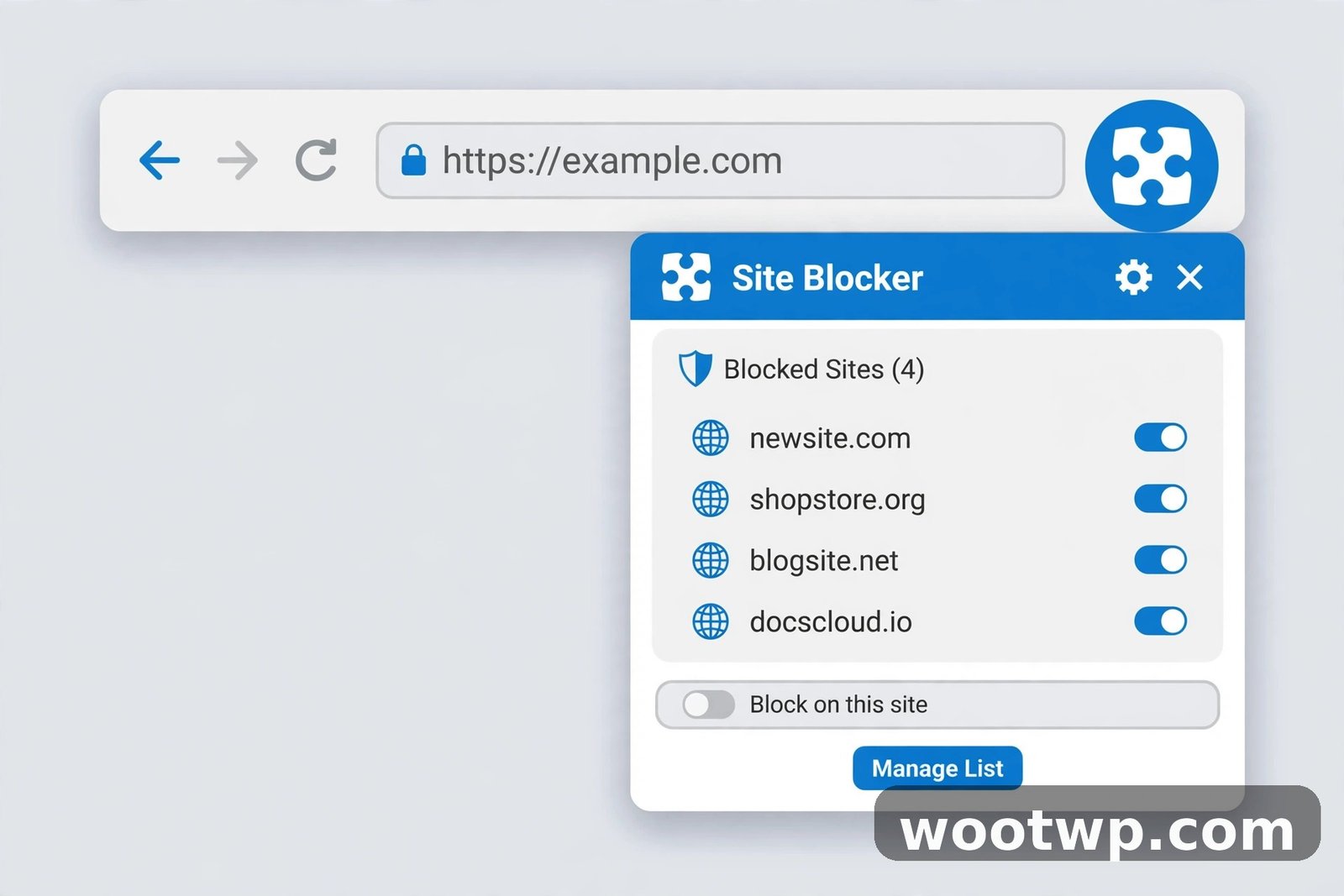
- Open the Chrome Web Store and search for "block websites." The big names are BlockSite, StayFocusd, and LeechBlock NG.
- Click Add to Chrome, then Add extension in the confirmation pop-up.
- Click the extension icon in Chrome's toolbar. If you don't see it, click the puzzle-piece Extensions button and pin it.
- Open the extension's block list and type the site you want to block, one per line, without the https part. Example: example.com.
- Save. From now on, that site shows the extension's block page instead of loading.
Which one to pick? BlockSite is the most popular and syncs your list across computers. StayFocusd is free and works on a timer — you set a daily allowance per site and it cuts you off when the time runs out. LeechBlock NG is the free option with the most control: up to 30 different site groups, each with its own schedule, plus a password lock on its settings.
That password lock matters. An extension you can switch off in two clicks is not a block, it's a suggestion. Turn on password protection before you need it, not after you've already caved at 11pm and unblocked the site yourself. I did exactly that once, felt very clever for about a minute, and then spent another hour on the site I'd blocked. Password first. Trust me on this one.
One honest limit: extensions only work in Chrome on a computer. Chrome on Android and iPhone doesn't run extensions at all, so this method stops at your laptop. For phones, see Method 4 below.
If Chrome feels sluggish after adding extensions, it's worth checking whether extensions are the culprit — our guide on how to fix Chrome using too much memory walks through the built-in task manager that shows exactly which extension is eating your RAM. And if you'd rather check the official steps for adding extensions, Google's own help page covers how to install and manage extensions.
Method 2: Edit the Hosts File (Free and System-Wide)
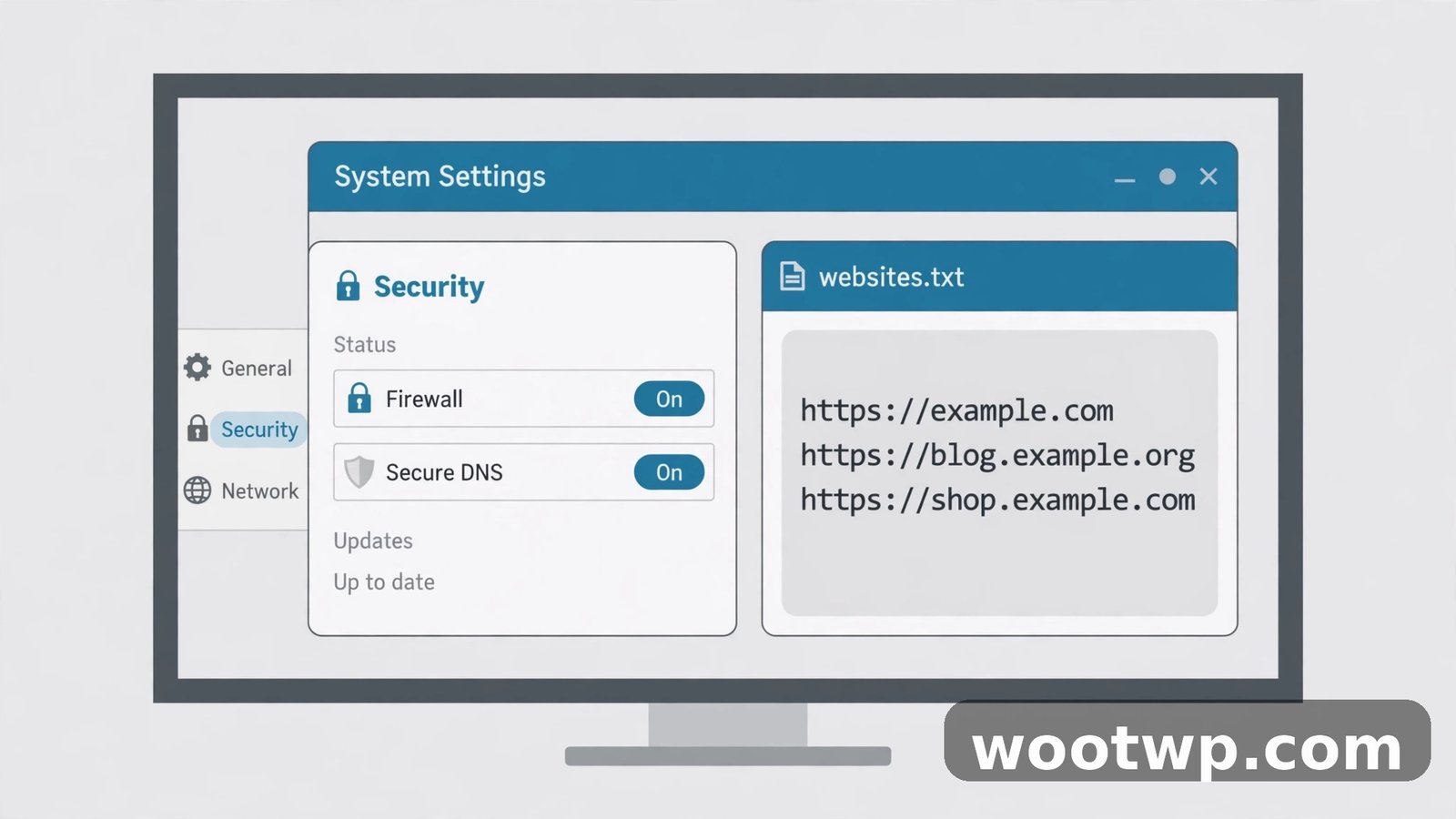
The hosts file is your computer's own address book. Before your computer asks a DNS server where a website lives, it checks this file. Point a domain at the address 127.0.0.1 — your own computer — and the request never leaves the machine. The site simply doesn't load, in Chrome, in Edge, in Firefox, in every browser at once.
On Windows:
- Open Notepad as administrator. Right-click Notepad and choose Run as administrator. This step is not optional — the file is protected.
- In Notepad, go to File, then Open, and navigate to C:\Windows\System32\drivers\etc\hosts.
- At the bottom of the file, add one line per site: 127.0.0.1 example.com
- Save the file. You may need to restart Chrome for the block to take effect.
On Mac:
- Open Terminal.
- Type sudo nano /etc/hosts and press Enter. Enter your Mac password when asked.
- Add the same lines at the bottom: 127.0.0.1 example.com
- Press Control + O to save, then Control + X to exit.
- Flush the DNS cache with sudo dscacheutil -flushcache; sudo killall -HUP mDNSResponder
To unblock a site later, delete its line from the file and save again.
Why would anyone pick this over an extension? It costs nothing, needs no account, works in every browser, and there's no extension to switch off in a weak moment. The catch is that it blocks the site for everyone on that computer, including you, and it takes a few minutes of care the first time. Editing a system file always deserves a backup copy first — save a copy of hosts somewhere safe before you change it.
Also worth knowing: clearing your browser data doesn't undo a hosts file block, because the block lives in the operating system, not the browser. If you want to reset Chrome itself, our guide on how to clear cookies in Chrome covers the settings that do get wiped that way.
Method 3: Block Sites for a Child with Family Link
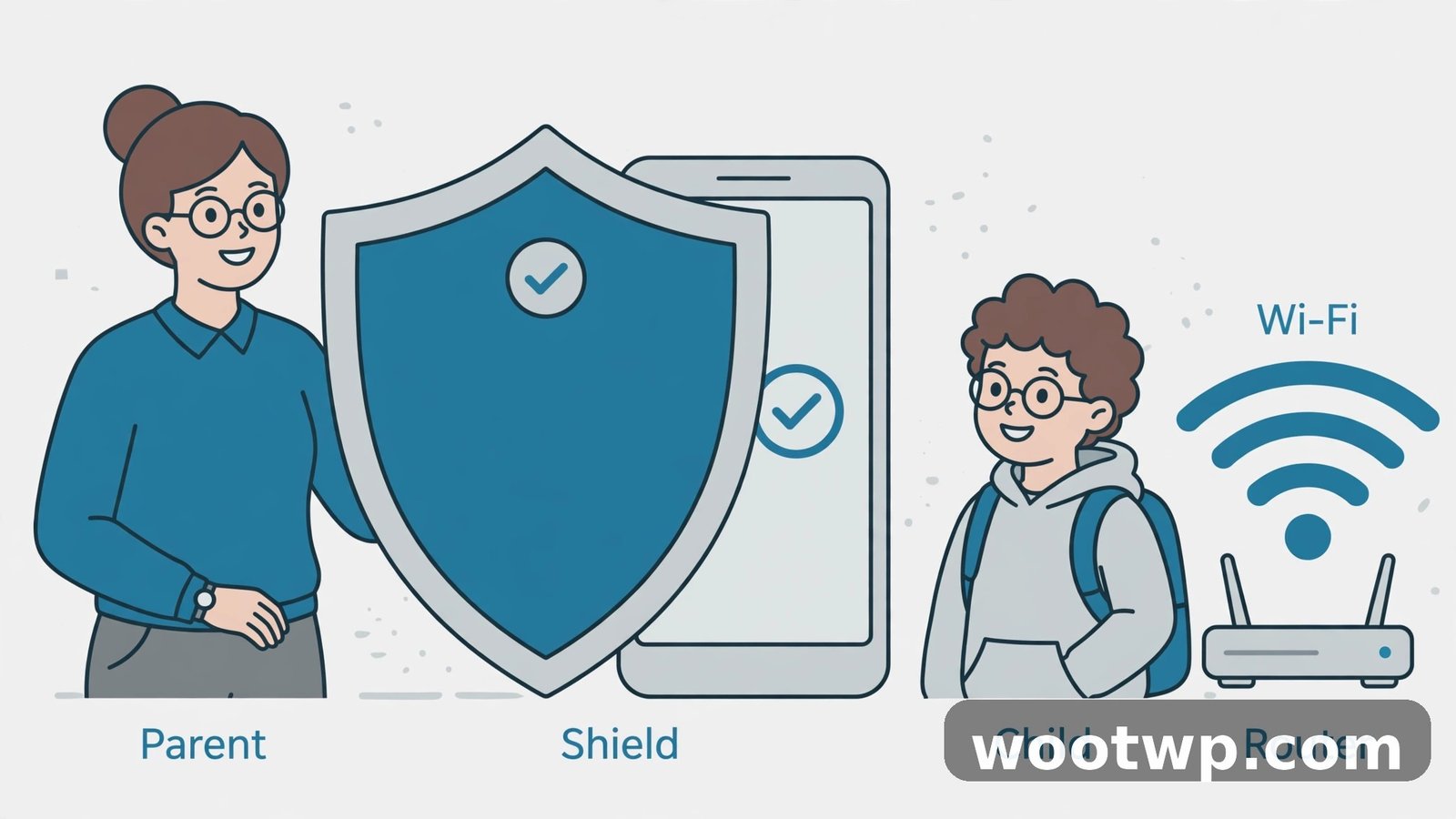
An extension will not hold a child. Children are far better at finding workarounds than adults give them credit for. For a child's account, use Google's Family Link, which applies the block at the account level — it follows the child across devices as long as they stay signed in.
- Set the child up with a supervised Google Account in the Family Link app.
- Open Family Link and select your child.
- Tap Controls, then Google Chrome and Web.
- Choose a filter: Try to block explicit sites is the middle ground, and Only allow approved sites is the strict option.
- Under Manage sites, tap Blocked sites, tap Add a website, and type the address.
The block applies in Chrome on their phone, tablet, and computer. If they sign out of Chrome, the block stops applying — which is its own conversation to have, but the technical part is solid.
On an iPhone, Apple's Screen Time is the deeper option: Settings, then Family, then your child, then Apps and Websites, then Restrictions. It works across every browser on the phone, not just Chrome.
Method 4: How to Block Websites on Chrome for Android
Chrome on Android doesn't run extensions, so the extension method is off the table. That catches a lot of people out — they install a blocker on their laptop, open the same site on their phone, and it loads straight away.
What works on Android:
- BlockSite's Android app. The same company makes a standalone app that blocks sites system-wide on the phone, including in Chrome. Install it from the Play Store, grant the permissions it asks for, and add your sites.
- Digital Wellbeing. Built into Android. Go to Settings, then Digital Wellbeing, then the dashboard, and set a timer for Chrome or for a specific app. It won't block a single website, but it caps the time you can spend on it.
- Family Link. As above — for a child's supervised account, the web filter applies in Chrome on Android too.
- A private DNS filter. Services like NextDNS or the family filter on Cloudflare let you block whole categories of sites at the DNS level. You set it once in Settings, then Network, then Private DNS, and it covers the whole phone.
For iPhone users, Chrome has the same extension problem. Family Link's filter works in Chrome on iOS while the child stays signed in, and Screen Time's web content restrictions cover Safari and every other browser on the device.
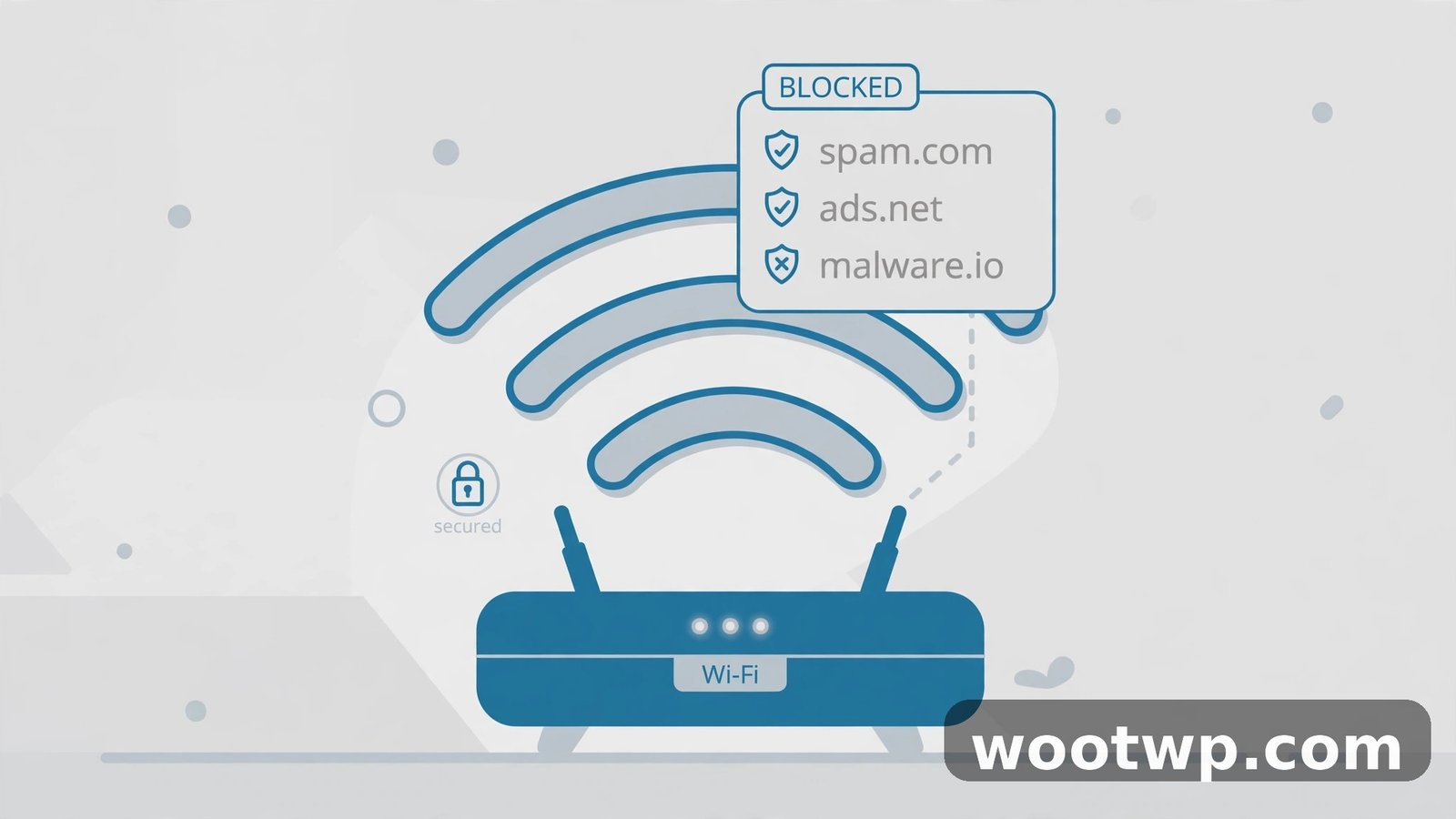
Method 5: Block a Site on Your Router
Want a site blocked for every device in the house — phones, tablets, laptops, the smart TV — without touching each one? Block it on the router.
- Find your router's admin page. It's usually at 192.168.1.1 or 192.168.0.1 in your browser.
- Log in with the admin password, which is printed on a sticker on the router unless you changed it.
- Look for a section called Parental Controls, Access Restrictions, or Website Filtering. Every brand names it differently.
- Add the domain you want to block and save.
The exact menu depends on the router brand — TP-Link, Netgear, Asus, and ISP-supplied routers all hide it in different corners — but the idea is identical everywhere. A router block is the hardest to dodge in the house, because it sits upstream of every device. The trade-off is that it blocks the site for everyone, and changing the list means logging into the router again.
Method 6: Managed Chrome (School or Work Computers)
If the computer belongs to a school or a company, the block is set by an administrator through Chrome's URLBlocklist policy in the Google Admin console. It applies to every user on that machine and can't be removed from inside Chrome.
There's no trick to get around a managed block from the user's side, and that's the point. If you administer a fleet of Chromebooks and need to block a site, the Admin console path is Devices, then Chrome, then Settings, then Users and Browsers, then URL Blocking. Add the addresses and save.
What About Incognito Mode?
Here's the trap almost everyone falls into. Chrome switches extensions off in Incognito windows by default. So an extension block stops working the moment an Incognito window opens. The site loads normally, and the block looks broken.
Fix it in thirty seconds. Go to the three-dot menu, then Extensions, then Manage extensions. Find your blocker, click Details, and turn on Allow in Incognito. Now the block applies in private windows too.
Hosts file blocks and router blocks don't have this problem — they sit below the browser, so Incognito changes nothing. Family Link blocks don't either, as long as the child stays signed in.
Google's own help page explains how private browsing works in Chrome if you want the full picture of what Incognito does and doesn't hide.
The Site Still Loads — What Now?
Work through this list, top to bottom.
First, check the address you typed. Blockers usually need the bare domain — example.com, not https://www.example.com/page. A www version and a non-www version are different entries in some blockers. Add both.
Second, restart Chrome. Some blockers only pick up a new list after a restart, and the hosts file change sometimes needs one too.
Third, check for a second browser. If you blocked a site in Chrome but the person opens it in Edge or Firefox, nothing stops them. That's what the hosts file and the router are for.
Fourth, check Incognito, as above. Allow in Incognito is off by default and it's the single most common reason a block "doesn't work."
Fifth, check for a VPN. A VPN doesn't usually bypass a hosts file block, but it can bypass a router-level DNS filter, because the DNS lookup happens through the VPN tunnel instead of your router. If someone in the house uses a VPN, router blocking gets weaker.
FAQs
Can you block a website on Chrome without an extension?
Yes. Edit the hosts file on Windows or Mac to point the domain at 127.0.0.1, which blocks it in every browser on that computer. You can also block it on your router, which covers every device in the house, or use Family Link for a child's account.
How do I block a website on Chrome on my phone?
Chrome on Android and iPhone doesn't run extensions. Use the BlockSite Android app, a private DNS filter like NextDNS, or Family Link for a child's supervised account. On iPhone, Apple's Screen Time web restrictions cover every browser on the phone.
How do I block a website on Chrome permanently?
Use the hosts file method or a router block — both survive browser restarts, extension removals, and profile changes. If you use an extension, turn on its password lock so the block can't be switched off casually, and enable Allow in Incognito on the extension's details page.
Why can I still open a blocked site in Incognito mode?
Chrome disables extensions in Incognito windows by default. Go to Extensions, then Manage extensions, click Details on your blocker, and switch on Allow in Incognito. Hosts file and router blocks are not affected by Incognito at all.
Does blocking a website on Chrome block it in other browsers too?
Only if the block sits below the browser. The hosts file and router methods block the site in every browser on the device or network. An extension blocks it in Chrome only — Edge and Firefox will still load it.
Can I block websites on Chrome for free?
Yes. LeechBlock NG is free, the hosts file method is free, Family Link is free, and router blocking is free. BlockSite has a free tier that covers a basic block list. You don't need to pay anything to block a website on Chrome.
Conclusion
Chrome won't give you a block button, but the workarounds are simple once you know them. An extension handles it on your own computer in two minutes. The hosts file or your router shuts a site down for the whole house. Family Link is the right tool for a child's account. Pick the method that matches who you're blocking and where, lock it down so it can't be undone in a weak moment, and test it in an Incognito window before you call it done. That's the whole job — and now the site that kept pulling you back in just shows a blank page instead.