How to Fix Chrome Using Too Much Memory: 9 Proven Free Fixes
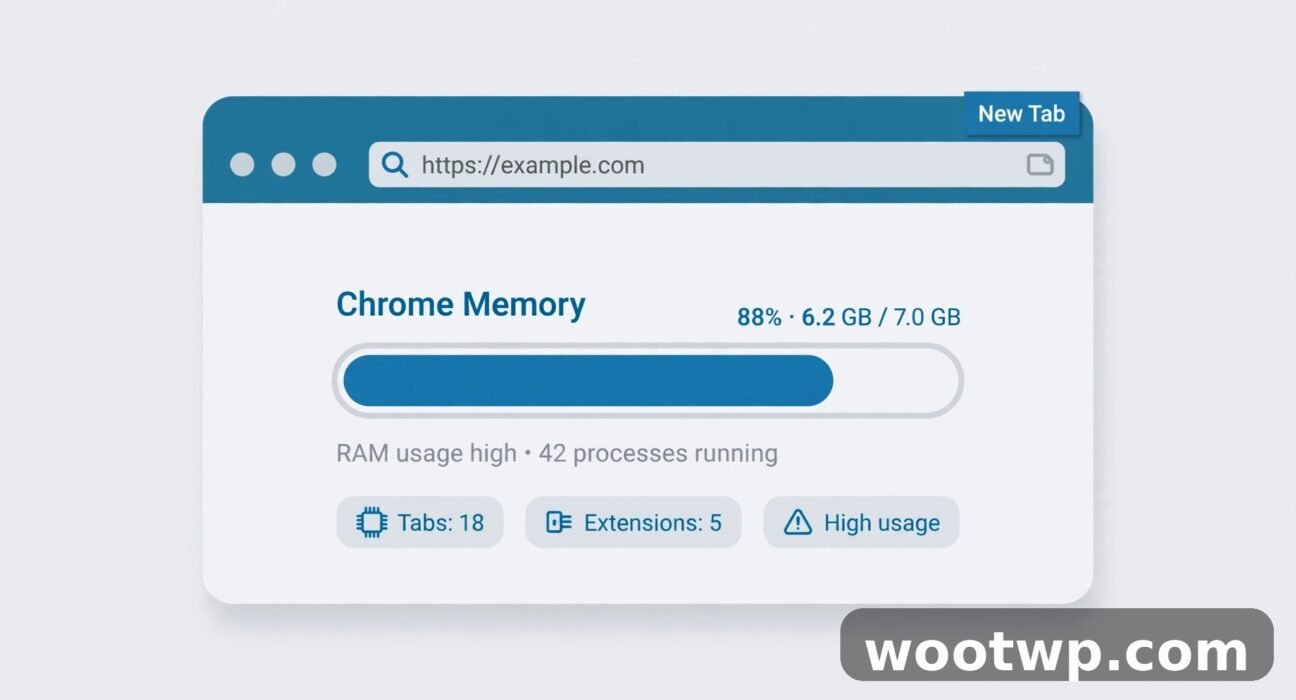
If Chrome is eating your computer’s memory alive, you are not imagining it. Learning how to fix Chrome using too much memory is one of the most useful browser skills you can pick up, because the fix is usually free and takes less than ten minutes. Tabs slow down, videos stutter, and your whole computer starts to crawl — all because one browser is hogging RAM that other programs need.
In this guide I’ll show you exactly where Chrome’s memory goes, how to find the worst offenders in seconds, and the nine fixes that actually work, in the order you should try them. No downloads, no paid tools, and no need to switch browsers.
- Why Does Chrome Use So Much Memory?
- How to Fix Chrome Using Too Much Memory in 5 Minutes
- Turn On Memory Saver to Fix Chrome High Memory Usage
- Find and Remove the Extensions Eating Your RAM
- Clear Cache and Cookies Without Losing Your Logins
- Stop Chrome Running in the Background
- Turn Off Preload Pages and Other Hidden Memory Drains
- Update Chrome and Check Hardware Acceleration
- Change Your Tab Habits to Reduce Chrome RAM Usage
- When to Reset Chrome or Start a Fresh Profile
- Frequently Asked Questions
Why Does Chrome Use So Much Memory?
Chrome uses a lot of memory by design, and understanding why helps you fix it without guessing. Every tab, extension, and open window runs as its own separate process. That isolation is a security feature: if one tab crashes or a bad site tries something nasty, it cannot easily take down your other tabs.
The trade-off is RAM. Each process carries its own overhead, so 30 open tabs cost far more than 30 tabs would in a browser that shares one process. Add modern websites to the mix — video players, live chats, maps, spreadsheets running in a tab — and a single tab can easily use several hundred megabytes on its own.
Extensions add another layer. Many extensions keep running in the background on every page you visit, even when you are not using them. A coupon finder, a price tracker, and a screen recorder can quietly add hundreds of megabytes before you open a single tab.
Then there is preload. Chrome tries to be fast by loading pages in the background before you click them, and by keeping recently closed tabs ready to reopen. That speed costs memory, and on a computer with 4 GB or 8 GB of RAM, the cost shows up fast.
The good news: none of this means Chrome is broken or that you need a new computer. It means Chrome’s defaults favor speed over memory, and you can change those defaults in a few clicks.
How to Fix Chrome Using Too Much Memory in 5 Minutes
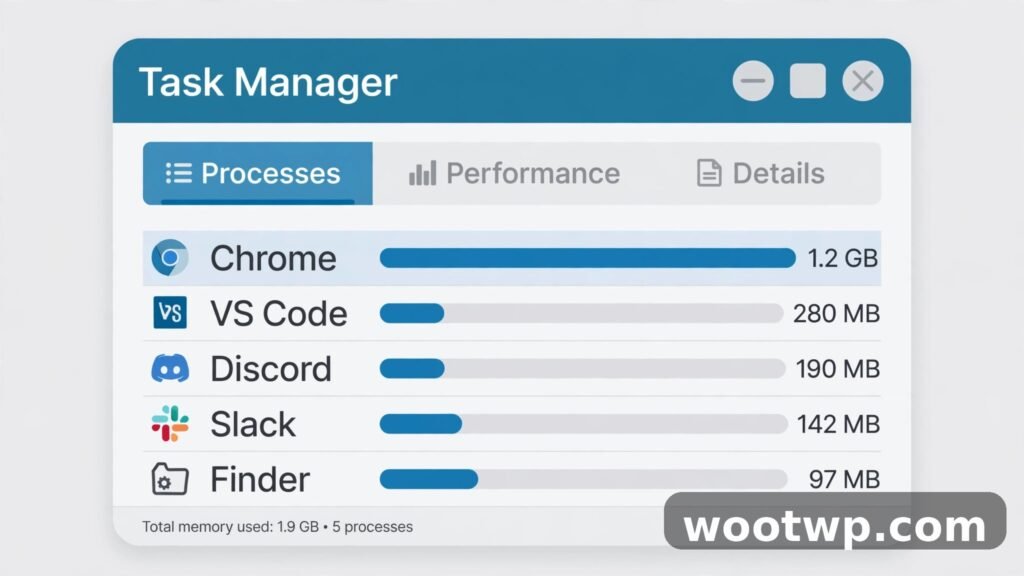
Before changing settings, find out what is actually eating your memory. Chrome has a built-in Task Manager that shows memory use per tab, extension, and background process. This is the fastest way to fix Chrome using too much memory, because it stops you from closing the wrong tabs.
- Open Chrome and press Shift + Esc. This opens Chrome’s own Task Manager, not the Windows or Mac one.
- Click the “Memory footprint” column header to sort by memory use, highest first.
- Look at the top entries. You will usually see one or two tabs far above the rest, plus an extension or two.
- Select a tab you do not need right now and click “End process.” The tab turns into a sad-face page, but you can reload it any time and nothing is lost except unsaved typing in that tab.
- Repeat for any extension using far more memory than it should.
I have seen a single frozen video tab use more RAM than twenty normal tabs combined. Killing that one process instantly made the whole computer feel new again. Do this check first, every time Chrome feels slow, before you touch any settings.
If you are on a Mac, the same Shift + Esc shortcut works inside Chrome. You can also check Activity Monitor, but Chrome’s own Task Manager is more useful because it names the exact tab or extension responsible.
Turn On Memory Saver to Fix Chrome High Memory Usage
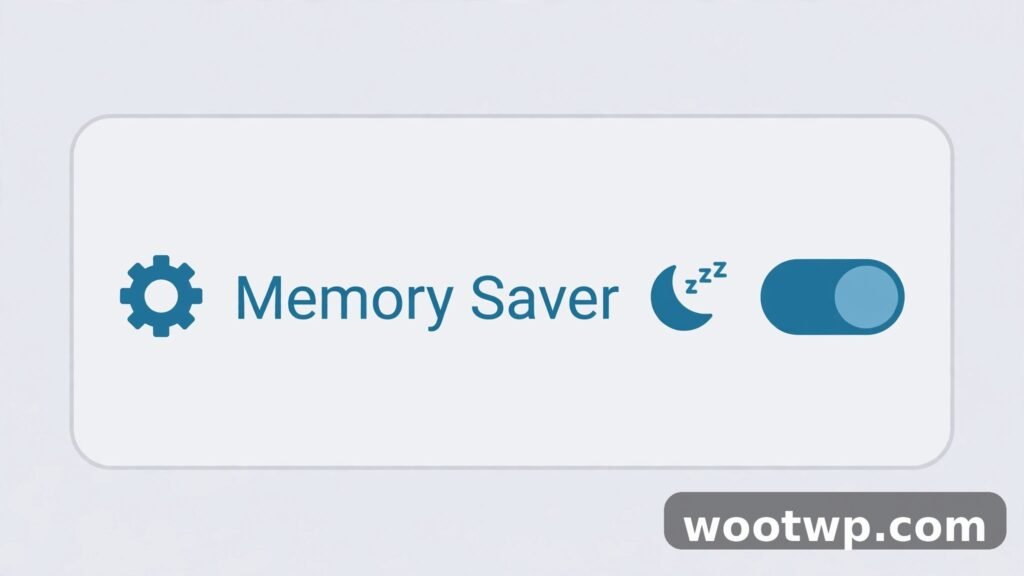
Memory Saver is the single most effective setting for Chrome high memory usage, and it is built in. When it is on, Chrome automatically frees memory from tabs you have not used in a while. Those tabs stay in your tab bar, and they reload instantly when you click back to them.
Here is how to turn it on:
- Click the three dots in the top-right corner of Chrome, then choose Settings.
- Click “Performance” in the left menu.
- Turn on “Memory Saver.”
- Choose a mode. “Moderate” frees memory from tabs you have not touched in a while. “Balanced” is a good middle ground for most people. “Maximum” frees memory aggressively and saves the most RAM, but tabs reload more often.
If a site misbehaves when it reloads — a form that loses your typing, a music player that stops, a live dashboard that resets — you can exempt it:
- In the same Performance settings page, find “Always keep these sites active.”
- Click “Add” and type the site address, for example your webmail or music site.
- Save it. That site will now stay fully loaded even when Memory Saver is on.
In my experience, Memory Saver on Balanced or Maximum cuts Chrome’s total memory use by roughly a third on a tab-heavy session, with no noticeable downside for normal browsing. If you only change one setting from this guide, make it this one. Google’s own Memory Saver help page explains which tabs stay active and how to add exceptions.
Find and Remove the Extensions Eating Your RAM
Extensions are the hidden cause behind many cases of Chrome using too much memory. People install them, forget them, and they keep running on every page forever. A quick audit once every few months keeps this under control.
- Type chrome://extensions in the address bar and press Enter.
- Look through the list honestly. If you do not recognize an extension, or you have not used it in months, remove it.
- For extensions you want to keep, click “Details” and check what sites it can read. An extension that reads every site you visit costs more than one that only works when you click its icon.
- Turn off extensions you only need occasionally instead of removing them. The toggle on each card disables it completely until you turn it back on.
Pay special attention to these common memory hogs: coupon and price-tracking extensions, VPN extensions that route all traffic, screen recorders, ad blockers running alongside a second ad blocker, and any extension that promises to “enhance” every website you visit.
One rule that saves a lot of RAM: never run two extensions that do the same job. Two ad blockers, two password managers, or two tab managers will fight each other and double the memory cost. Pick the better one and remove the other. And only install extensions from sources you trust — a shady extension can cost you far more than memory, so it is worth knowing how to check if a link is safe before clicking before you install anything from an unfamiliar page.
After your audit, restart Chrome and check the Task Manager again. Most people find their idle memory use drops noticeably, sometimes by several hundred megabytes, just from removing extensions they forgot they had.

Clear Cache and Cookies Without Losing Your Logins
A bloated cache does not usually cause huge memory use on its own, but it does make Chrome sluggish, and sluggish feels the same as slow. Clearing it is a safe, quick win — as long as you do it the right way so you stay signed in to your sites.
- Press Ctrl + Shift + Delete (Windows) or Cmd + Shift + Delete (Mac) to open “Delete browsing data.”
- Choose the “Basic” tab and set the time range to “All time.”
- Tick “Cached images and files” only. Leave cookies and history unticked if you want to stay signed in.
- Click “Delete data” and restart Chrome.
If Chrome still feels heavy after that, a deeper clean can help. For a full walkthrough of what each option deletes and what is safe to remove, see our guide on how to clear cookies in Chrome.
One warning: do not clear cookies casually if you rely on saved logins for work. You will be signed out everywhere, and getting back into accounts with two-factor codes takes time. Cached images and files alone fix most of the sluggishness, so start there.
Stop Chrome Running in the Background
By default, Chrome can keep running in the background after you close its window, so it can show notifications and keep web apps updated. That is convenient, but it means Chrome never truly releases its memory. On a low-RAM computer, this one setting can be the difference between a fast morning and a slow one.
- Open Chrome Settings and click “System” in the left menu.
- Turn off “Continue running background apps when Google Chrome is closed.”
- Close Chrome completely and reopen it to apply the change.
If you rely on a web app that must notify you — a chat app or a work dashboard — you can keep background running on and instead close Chrome’s window only when you are done for the day. But for most people, turning this off is free memory with no downside, because Chrome starts fast enough when you open it again.
While you are in the System settings, check whether Chrome opens at login on your computer. On Windows, open Task Manager, go to “Startup apps,” and disable Chrome if it is listed. On Mac, check System Settings, then General, then Login Items. A browser that launches itself at boot eats memory before you even start working.
Turn Off Preload Pages and Other Hidden Memory Drains
Chrome preloads pages it thinks you might visit next, so they open instantly when you click. That is a nice trick on a powerful computer, but on a machine short on RAM it spends memory on pages you may never open. Turning it off costs you a fraction of a second per click and gives memory back.
- Open Chrome Settings and click “Performance.”
- Find “Preload pages” and turn it off, or set it to “No preloading.”
- In the same area, turn off “Speed up your browsing and searching” if you see it — this is the same feature under an older name in some Chrome versions.
Another hidden drain is hardware-heavy pages left open in background tabs: video sites paused mid-stream, maps with live traffic, and social feeds that auto-play videos. Pausing a video before switching tabs, or bookmarking a heavy page and closing it instead of leaving it open “for later,” saves more memory than most settings tweaks.
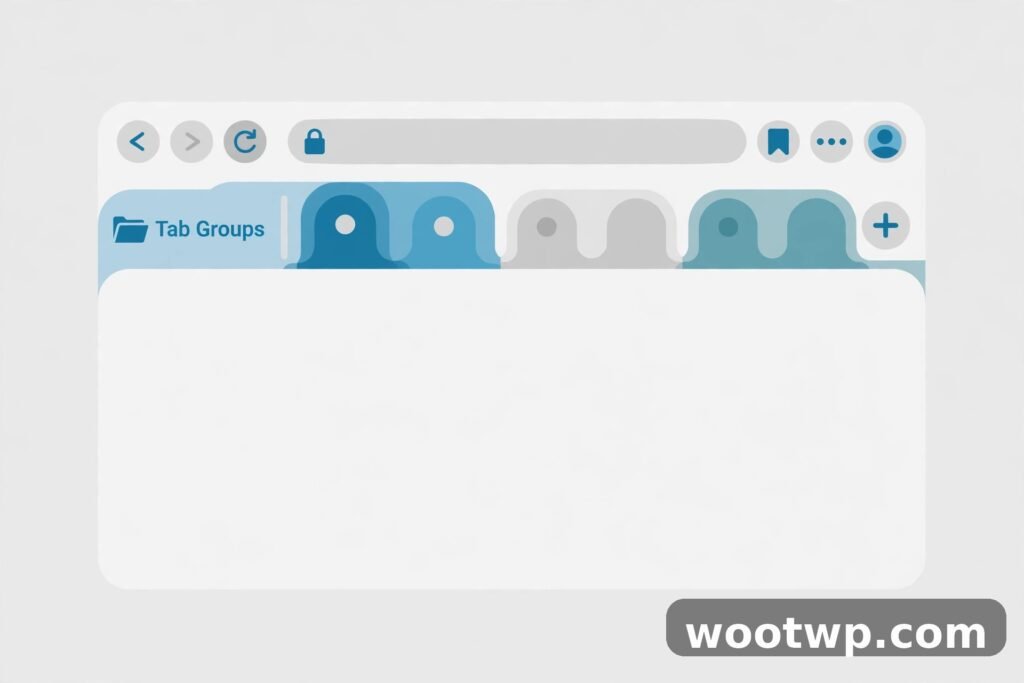
Tab groups help here too. Group tabs by task, collapse the groups you are not using, and Chrome treats collapsed groups more lightly. It is not as powerful as Memory Saver, but it keeps a 40-tab session manageable.
Update Chrome and Check Hardware Acceleration
Old Chrome versions can leak memory — slowly using more and more RAM the longer they run, even without new tabs. Updates fix these leaks, so keeping Chrome current is a real fix, not just generic advice.
- Click the three dots, then Help, then “About Google Chrome.”
- Chrome checks for updates automatically and installs them. Restart when it asks.
- If you have not restarted Chrome in weeks, do it now. A fresh start clears leaked memory that no setting can reclaim.
Hardware acceleration is another setting worth checking. It lets Chrome use your graphics card for video and animations, which usually reduces memory and CPU use. But on some older computers or buggy graphics drivers, it causes the opposite: crashes, flickering, and ballooning memory.
- Open Chrome Settings, click “System,” and find “Use hardware acceleration when available.”
- If it is on and Chrome is stable, leave it on.
- If Chrome crashes, flickers, or uses extreme memory on video sites, turn it off, restart Chrome, and test for a day. You can always turn it back on.
I have seen hardware acceleration fix video stutter on one machine and cause it on another, so treat this as a test, not a rule. Change it, use Chrome normally for a day, and keep whichever setting feels better.
Change Your Tab Habits to Reduce Chrome RAM Usage
Settings can only do so much. The biggest long-term way to reduce Chrome RAM usage is changing how you treat tabs, because tab count is the single biggest factor in memory use.
First, stop using open tabs as a to-do list. Every tab you keep open “to read later” costs memory every minute it sits there. Bookmark it instead: press Ctrl + D (or Cmd + D on Mac), save it to a “Read later” folder, and close the tab. The page is one click away, and it costs zero memory while bookmarked.
Second, use tab groups for real work. When you are researching something, group those tabs, name the group, and collapse it when you switch tasks. When the task is done, right-click the group and close the whole group at once instead of hunting tabs one by one.
Third, restart Chrome once a day if you keep it open all the time. Chrome is not designed to run for weeks without a restart, and a daily restart clears leaked memory and stale processes. Bookmark your important tabs first, or turn on “On startup: Continue where you left off” in Settings, so your tabs come back automatically.
Fourth, watch out for the worst offenders and treat them specially: video sites, online document editors with huge files, and social feeds that load endlessly as you scroll. Keep only one of those open at a time when you can, and close them when you are done instead of leaving them in a background tab.
These habits sound small, but they compound. A person with 12 intentional tabs uses far less memory than a person with 60 forgotten tabs, even with identical settings.
When to Reset Chrome or Start a Fresh Profile
If you have tried everything above and Chrome still uses extreme memory, the problem may be a corrupt profile or a setting buried somewhere you cannot find. Two options fix this without losing your bookmarks and passwords, which sync through your Google account.
Option one is a settings reset:
- Open Chrome Settings and click “Reset settings.”
- Click “Restore settings to their original defaults.”
- Confirm. This turns off extensions, clears temporary data, and resets settings, but keeps your bookmarks, history, and saved passwords.
Option two is a fresh profile, which is stronger:
- Click your profile icon in the top-right corner, then “Add” to create a new Chrome profile.
- Sign in with your Google account so bookmarks and passwords sync over.
- Use the new profile for a day. If memory use is normal, move to it permanently and delete the old profile.
A reset feels drastic, but it takes five minutes and it fixes problems that hours of tweaking cannot. I treat it as the last step, not the first, because most people never need it — but when you do need it, it works.
Frequently Asked Questions
How much memory should Chrome normally use?
For light browsing with a handful of tabs, a few hundred megabytes is normal. With 10 to 20 tabs open, 1 to 2 GB is common. What matters is not the raw number but whether your computer still feels fast. If Chrome uses 2 GB and everything runs smoothly, that is fine. If it uses 2 GB on a 4 GB computer and everything crawls, that is a problem worth fixing.
Why is Chrome using so much memory with only one tab open?
One heavy tab can use a lot of memory on its own, especially a video site, a web app, or a page with many ads and trackers. Extensions also count: even with one tab open, a dozen extensions keep running in the background. Open Chrome’s Task Manager with Shift + Esc to see whether the tab or an extension is responsible.
Does Memory Saver slow down Chrome?
No, not in normal use. Tabs you have not visited in a while reload when you click them, which takes a second or two, but active tabs are untouched. Most people never notice it except that their computer feels faster overall. If a specific site misbehaves after reloading, add it to the “Always keep these sites active” list.
Will closing tabs delete my work?
Closing a tab does not delete bookmarks, history, or saved passwords. It only loses unsaved typing in that tab, like half-written form text. If you are worried, bookmark the page first with Ctrl + D, or use “Continue where you left off” in startup settings so Chrome restores your tabs after a restart.
Is it better to use fewer extensions or fewer tabs?
Both matter, but tabs usually matter more, because each tab is a full process. That said, a single bad extension can use more memory than ten normal tabs, so check both. Start with Chrome’s Task Manager: it tells you in seconds whether tabs or extensions are your bigger problem.
Should I switch browsers to save memory?
Only if you have tried the fixes in this guide and Chrome still struggles on your hardware. Other browsers based on the same engine behave similarly with many tabs open. Fixing tab habits and turning on Memory Saver usually closes the gap, and you keep your bookmarks, passwords, and extensions where they are.
Conclusion
Learning how to fix Chrome using too much memory comes down to a short routine: check Chrome’s Task Manager, turn on Memory Saver, audit your extensions, and keep your tab count intentional. Do those four things and most memory problems disappear without spending a cent.
Start with the five-minute Task Manager check today, turn on Memory Saver, and restart Chrome. If your computer feels faster afterward — and it usually does — make the tab habits in this guide part of your routine, and Chrome will stay fast instead of slowly eating your RAM again.