How to Recover a Hacked Instagram Account Without Email or Phone: 7 Proven Steps
Losing your Instagram account to a hacker is stressful enough. Learning how to recover a hacked Instagram account without email or phone access feels even worse, because the normal password reset route assumes you can still open your inbox or receive a text. When the hacker changed your email and phone number, that route is closed.
The good news: Instagram has other ways to prove an account is yours. You can recover through a trusted device, a linked Facebook account, or a video selfie check that matches your face to your old photos. This guide walks you through each route in the order you should try them, plus exactly what to do the minute you get back in so it never happens again.
- First: Confirm the Account Is Really Hacked
- How to Recover a Hacked Instagram Account Without Email or Phone: Start Here
- Try a Trusted Device or Saved Login First
- Recover Through a Linked Facebook Account
- Use the Video Selfie Identity Check
- What to Do If the Video Selfie Fails
- What If the Hacker Got the Account Disabled?
- Lock the Account Down the Minute You Get Back In
- Frequently Asked Questions
First: Confirm the Account Is Really Hacked
Before you start the recovery process, make sure you are dealing with a hack and not a simple lockout. The signs of a hack are specific, and they change which route you should take.
Check for these signs:
- You get an email from Instagram saying your email address or phone number was changed, and you did not request it.
- Your password no longer works, even though you are sure it is right.
- Posts, stories, or messages appear on your account that you did not create, often promoting crypto giveaways or asking your followers for money.
- People you follow, or who follow you, change suddenly.
- You are logged out on all devices at once.
If you only forgot your password and your email and phone are unchanged, use the normal “Forgot password” reset instead — it is much faster. The routes in this guide are for the harder case: the hacker changed your contact details, so reset codes go to them, not you.
One urgent step, whatever route you take: warn your followers. If you have another account, or a friend can post for you, tell people not to send money or click links from your hacked account. Hackers often scam followers within hours of taking over, and a quick warning protects people who trust you.
Also check your email inbox — including the spam folder — for messages from Instagram about the change. An email about an email-address change sometimes includes a “secure your account” or “revert this change” link. That link only works for a short time, so if you find one, use it immediately before doing anything else.
How to Recover a Hacked Instagram Account Without Email or Phone: Start Here

Instagram’s recovery flow is the same starting point for every route, so begin here and follow the prompts honestly. Trying to game the flow or submitting many requests at once slows things down.
- Open the Instagram app and tap “Forgot password?” on the login screen (on some phones it says “Get help logging in”).
- Enter your username, or the email address or phone number you originally used, even if you no longer have access to them. Instagram needs this to find the right account.
- Tap “Need more help?” or “Can’t reset your password?” when Instagram offers to send a code to an address you cannot open.
- Choose the option that says your account was hacked, or that you no longer have access to your email or phone.
- Follow the on-screen steps. Instagram will offer the recovery methods it has for your account, which depend on what you set up before the hack.
What Instagram offers next varies. Some people get a login link on a device they have used before. Others get the video selfie check. Others are asked for a photo ID. Work through whatever it offers, in order, and do it from your usual phone on your usual home wifi if you can. Instagram trusts familiar devices and connections more than a brand-new phone on a strange network, and that trust makes recovery smoother.
Do not pay anyone who promises to recover your account for a fee. Instagram recovery is free, and paid “recovery services” are almost always scams — sometimes run by the same people who stole accounts in the first place. Anyone asking for your password, a payment, or a code sent to your phone is not helping you. If you want Instagram’s own instructions alongside this guide, see Instagram’s hacked accounts help page.
Try a Trusted Device or Saved Login First

This is the easiest route, and many people skip it because they assume being logged out means it is gone. It is not. A trusted device — a phone or computer where you have logged in before — can still vouch for you.
Check every device you own:
- Open the Instagram app on your phone. If you are still logged in on any device, even an old tablet, you can change your password and contact details from inside the app right now, before the hacker locks that session out.
- Check your browser. If you ever logged into Instagram on your computer and told the browser to remember you, you may still be signed in there even after the app logged you out.
- Check your saved passwords. Open your phone’s password manager or your browser’s saved passwords and search for Instagram. If the original password is saved there, and the hacker has not changed it yet, you may be able to log straight in.
If you find a live session, act fast and in this order:
- Go to Settings, then Accounts Center, then Password and security, and change your password to a strong new one the hacker cannot guess.
- In the same area, check your email address and phone number. Remove any address or number you do not recognize, and add your own current ones.
- Go to “Where you’re logged in” and log out every device you do not recognize.
- Turn on two-factor authentication before you do anything else. Our guide on how to enable two-factor authentication on Instagram walks through the authenticator-app method, which is the safest option.
Even if this route fails, it costs you five minutes and it sometimes works when nothing else does. I have seen people recover accounts this way after assuming all hope was lost, simply because an old tablet in a drawer was still signed in.
Recover Through a Linked Facebook Account
If your Instagram account is linked to Facebook through Accounts Center, and you still control that Facebook account, this route can bypass the email and phone problem entirely.
- On the Instagram login screen, tap “Log in with Facebook” if it appears, or go through “Forgot password?” and choose the Facebook option when offered.
- Log in to Facebook normally. If Facebook asks for its own verification, complete it there first.
- Once Instagram accepts the Facebook login, go straight to Accounts Center and update your Instagram email address and phone number to ones you control.
- Change your Instagram password immediately, and log out unknown devices as described above.
This only works if the accounts were linked before the hack and you still control Facebook. If the hacker unlinked Facebook, or you never linked the accounts, move on to the video selfie check below.
One caution: if your Facebook account is also compromised, secure Facebook first. Recovering Instagram through a hacked Facebook account just hands the hacker a fresh route back in. Change your Facebook password, check its login sessions, and turn on its two-factor authentication before you use it to recover Instagram.
Use the Video Selfie Identity Check

When you cannot recover a hacked Instagram account without email or phone through a device or Facebook, the video selfie check is the main route left. Instagram compares a short video of your face with photos and videos already on your account, so it works even when the hacker changed every contact detail.
Here is how it works:
- From the recovery flow, choose the option to verify your identity with a video selfie when Instagram offers it.
- Find good lighting. Face a window or a bright lamp, with light on your face, not behind you. Avoid hats, sunglasses, and heavy filters.
- Follow the on-screen direction: Instagram asks you to turn your head slowly to one side, then the other, so it can capture your face from different angles.
- Record in one steady take. Do not rush the turns — slow and smooth gives the system a clearer match.
- Submit and wait. Responses usually arrive within a few hours to a few days, sent to an email address or phone number you provide during the flow. Check that inbox, including spam, regularly.
Tips that improve your chances:
- Use the phone you normally used for Instagram, on your usual wifi. A familiar device helps Instagram trust the request.
- Record the selfie yourself, in the moment, when asked. Pre-recorded videos and photos of a screen are rejected.
- Make sure your face is clearly visible and matches how you appear in your account photos. If your account has very few photos of you, the check is harder — be patient and try again if it fails.
- Provide an email address you actually control when Instagram asks where to send the result. This becomes your new contact point for the account.
If Instagram asks for a government photo ID instead of, or as well as, a video selfie, use a passport, driving licence, or national ID card. The name on the ID does not have to match your Instagram display name, but it helps if it matches the details you signed up with. Only submit ID through Instagram’s own flow, never by email to someone claiming to be support, and never to a third-party “recovery” service.
What to Do If the Video Selfie Fails
A failed video selfie is frustrating, but it is not the end. Failures are common, and they often have fixable causes rather than meaning Instagram has decided against you.
Try these fixes before giving up:
- Record again in better light, facing a window in daylight, with a plain background behind you.
- Switch from mobile data to wifi, or try a different phone. Large video files fail to upload more often on slow or unstable connections, and a failed upload can look like a failed check.
- Remove anything covering your face, and turn your head more slowly than you think you need to.
- Wait a day and resubmit through the hacked-account flow from the start. A fresh submission is often picked up faster than a stuck one, and repeated identical submissions in the same hour do not help.
If the check keeps failing, consider whether your account has enough photos of your face for a match. Accounts that never posted photos of their owner are genuinely harder to verify this way. In that case, keep any other evidence ready: the original email address you signed up with, approximate account creation date, previous passwords you remember, and names of accounts you interacted with. Instagram’s support forms sometimes ask for these details, and having them ready speeds up any manual review.
Do not submit dozens of requests in a panic. One clean, well-lit submission, then a patient wait, then one fresh resubmission if days pass with no reply, is the approach that works best.
What If the Hacker Got the Account Disabled?
Sometimes you follow the recovery steps only to find the account is disabled, usually because the hacker posted content that broke Instagram’s rules. This needs a different route: an appeal, not the hacked-account form.
- Try to log in. If Instagram shows a disabled notice, tap “Learn more” or “Disagree with decision” if those options appear.
- State clearly that the account was hacked and the violating posts were not yours. Keep it short and factual: when you lost access, what changed, and that you are the original owner.
- Submit the appeal promptly. Disabled-account appeals have deadlines in the notice, and missing them can make the decision permanent.
- Do not create a copycat account with the same name and content while appealing. That can confuse the review and, in some cases, count against you.
While you wait, keep your evidence together: screenshots of the hack notice emails, dates you lost access, and any messages from followers about scam posts from your account. If the appeal succeeds, go straight to the lockdown steps below before posting anything.
Lock the Account Down the Minute You Get Back In
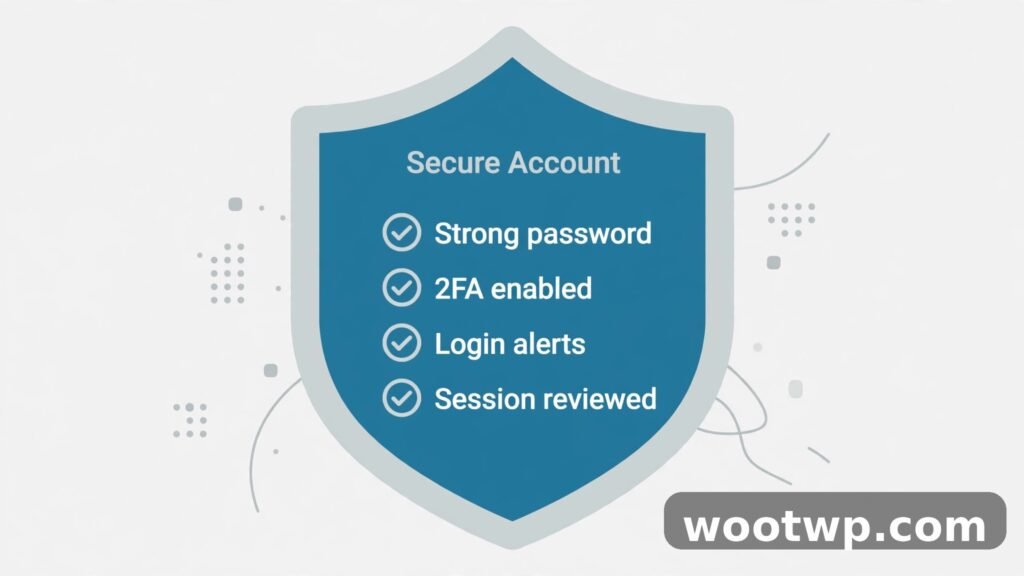
Getting back in is only half the job. Hackers often try again, sometimes using a session or a linked app they left behind. Do this lockdown in order, before you post or reply to anyone:
- Change your password to a strong, unique one you have never used anywhere else. A secure password generator can create one that is long and random, and your phone or browser can remember it for you.
- Remove any email address or phone number you do not recognize, and confirm your own current ones are listed.
- Turn on two-factor authentication with an authenticator app, not SMS. If you already use an authenticator on another phone, our guide on how to transfer Google Authenticator to a new phone explains how to move it safely.
- Go to “Where you’re logged in” and log out every session except the one you are using right now.
- Check Accounts Center for linked accounts and apps. Remove any Facebook account, app, or website you do not recognize.
- Save your backup codes. In two-factor settings, Instagram gives you a set of one-time codes for the day your phone is lost. Store them somewhere safe, offline, away from your phone.
- Review your recent posts, stories, and sent messages. Delete scam posts the hacker made, and warn followers who may have interacted with them.
Then protect the email account behind Instagram, because that inbox is the master key. If your email password was weak or reused, change it too, and turn on two-factor authentication there as well. An Instagram account secured with a compromised email account is not secure at all.
Finally, be honest with yourself about how the hack happened, so it does not repeat. The most common routes are phishing links in DMs (“is this you in this video?”), fake login pages, and reused passwords exposed in an old data breach. If you clicked a suspicious link before the hack, run a malware scan on your phone, and never enter your Instagram password on a page you reached from a DM link again — always open the app or type the address yourself.
Frequently Asked Questions
Can I recover my Instagram account without email or phone access?
Yes, in most cases. Instagram offers recovery through a trusted device, a linked Facebook account, or a video selfie identity check that matches your face to your account photos. You do not need the old email or phone number for these routes, but you do need to provide a new email address or phone number where Instagram can send the result.
How long does Instagram account recovery take?
A login link or trusted-device recovery takes minutes. A video selfie check usually takes a few hours to a few days. A disabled-account appeal can take longer, and Instagram publishes no fixed response time. Submitting the same request repeatedly does not speed it up, so make one clean request and wait before resubmitting.
What if the hacker changed my username too?
Your account can still be found by its original details in the recovery flow, and Instagram’s identity check is based on your face and account history, not just the current username. Enter the username you remember, or the original email or phone number, when starting recovery. If followers know your new username, that helps you track the account, but it does not change the recovery steps.
Does Instagram charge for account recovery?
No. Recovery through Instagram’s own help flow is free. Anyone charging a fee, asking for your password, or requesting a code sent to your phone is running a scam. Never pay for recovery, and never share login codes with anyone claiming to be Instagram support.
Can I recover my account if I never posted photos of my face?
It is harder, because the video selfie check compares your face with photos already on the account. If your account has no photos of you, try the trusted-device and linked-Facebook routes first, and keep any other ownership evidence ready: your original signup email, approximate creation date, and previous passwords. Some accounts in this situation still recover through manual review, but it takes longer.
How do I stop my Instagram account from being hacked again?
Use a unique password, turn on two-factor authentication with an authenticator app, and never log in through links sent in DMs or emails. Check your login sessions regularly, remove apps you do not recognize from Accounts Center, and keep the email account behind Instagram secured with its own strong password and two-factor authentication. Those four habits block the vast majority of account takeovers.
Conclusion
Knowing how to recover a hacked Instagram account without email or phone access comes down to working through Instagram’s own routes in order: a trusted device first, a linked Facebook account second, and the video selfie identity check when nothing else is available. It takes patience, especially the identity check, but it works for most people who stick with one clean request at a time.
Start the recovery flow today, from your usual phone if you can, and the minute you are back in, lock the account down with a new password and two-factor authentication. That one afternoon of work protects everything you built on the account, and it makes a second hack far less likely.