How to Sign a PDF Digitally for Free: 5 Methods That Actually Work
Learning how to sign a PDF digitally for free is one of those small skills that saves you real hassle every single month. Job offers, rental agreements, school forms, freelance contracts — they all arrive as PDFs, and they all need your signature. The old way meant printing the file, signing it with a pen, scanning it back in, and hoping the result was legible. You don’t need a printer anymore, and you definitely don’t need to pay for a subscription just to put your name on a document.
There are five reliable free methods that cover every device you probably own: a desktop PC, a Mac, an iPhone, or an Android phone. All of them work without spending a cent, and most of them use software you already have installed. I’ve signed dozens of contracts this way over the years, from freelance agreements to apartment paperwork, and the method matters less than doing it cleanly and securely. This guide walks you through each option step by step, explains what kind of signature each one produces, and covers whether free signatures actually hold up legally. Let’s get into it.
Contents
- Why Free Signing Beats Print-and-Scan
- Method 1: How to Sign a PDF Digitally for Free With Adobe Acrobat Reader
- Method 2: How Do You Sign a PDF on a Mac? Use Preview
- Method 3: How to Sign a PDF on an iPhone With Built-In Markup
- Method 4: How to Sign a PDF on Android Without Extra Apps
- Method 5: Sign a PDF Online for Free (With Privacy Caveats)
- Digital Signature vs Electronic Signature: What’s the Difference?
- Are Free Signatures Legally Valid?
- 7 Tips for a Clean, Professional-Looking Signature
- Frequently Asked Questions
- Conclusion
Why Free Signing Beats Print-and-Scan
Before the step-by-step methods, a quick case for changing your habit if you still print and scan. Signing digitally on your device is faster (a couple of minutes instead of a trip to the printer), produces a cleaner document (no gray scan shadows or crooked pages), and keeps a perfect digital trail. Every time you sign on your phone or computer, you keep the original file crisp and searchable instead of degrading it through a scanner.
There’s also a security angle people miss. A printed-and-scanned signature is trivially easy to copy, cut out, and paste onto another document. A signature applied inside a PDF reader at least stays inside that file with the rest of the document metadata. Neither method is bulletproof on its own, but the digital route is no worse than ink on paper for everyday agreements, and it’s far more convenient.
One honest note: the free methods in this guide produce electronic signatures (a visual mark on the page), not cryptographic digital signatures with certificates. For everyday contracts that’s exactly what most people need, and I’ll explain the distinction properly further down.
Method 1: How to Sign a PDF Digitally for Free With Adobe Acrobat Reader
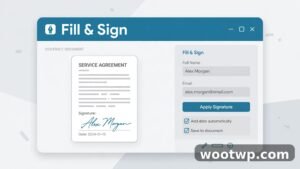
Adobe Acrobat Reader’s Fill & Sign feature is the most versatile free option, and it works on Windows, Mac, iPhone, and Android. The desktop version is free to download and requires no paid plan for signing. Your signature is saved in the app, so you draw or type it once and reuse it on every document after that.
Create your signature
- Download and open Adobe Acrobat Reader if you don’t have it yet.
- Open your PDF in Reader.
- In the right-hand toolbar, click Fill & Sign. (On newer versions, look for it under the Tools menu or the pencil icon in the top bar.)
- Click the Sign button, then choose Add Signature.
- You’ll get three choices: Type (pick a font style for your name), Draw (draw with your mouse or trackpad), or Image (upload a photo of your handwritten signature). Draw usually looks the most natural.
- Click Apply. Reader saves this signature for future documents.
Add signature to PDF and finish
- Click Sign again and select the signature you just created.
- Click where you want it to appear on the page, then drag the corners to resize it.
- If the form also needs dates or initials, use the Fill & Sign toolbar to add text or your initials in the right fields.
- Go to File > Save (or Save a Copy) and your signed PDF is ready to send.
The same signature syncs to the free Acrobat Reader mobile app if you sign in with a free Adobe account, which means you can create it on your computer and reuse it on your phone. A free Adobe account is worth the two minutes here because it also lets you share files for others to sign without paying.
Method 2: How Do You Sign a PDF on a Mac? Use Preview
If you own a Mac, you don’t need to install anything. Preview — the app that opens PDFs by default — has a built-in signature tool that’s been there for years. You can create your signature with the trackpad or by holding a signed piece of paper up to your Mac’s camera, and in my experience the camera method gives the cleanest result by far.
Capture your signature
- Open the PDF in Preview.
- Go to the menu bar and click the Markup icon (the pen tip inside a circle), then click the Signature icon (a scribble that looks like a signature).
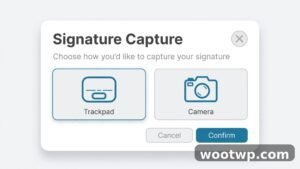
- Choose Create Signature.
- Pick Trackpad and sign with your finger or stylus, then press any key when done. Or pick Camera, hold a piece of paper with your signature on it up to the camera, line it up with the guide, and click Done when it looks clean.
- Click Done to save the signature to Preview.
Place it on the document
- Click the Signature icon again and choose your saved signature.
- Click anywhere on the page to drop it in, then drag to move it and drag the corner handles to resize.
- Save with File > Save or export a fresh copy with File > Export as PDF if you want to preserve the original unsigned file.
Preview stores your signatures across your Mac’s apps, so the same signature shows up in other markup-enabled apps too. One caution: signatures created this way live on your Mac only unless you migrate them manually, so if you switch computers, you’ll recreate it.
Method 3: How to Sign a PDF on an iPhone With Built-In Markup
iPhones have everything needed built in, no downloads required. You can sign a PDF that’s attached to an email or saved in the Files app using the Markup tool, and it takes about a minute once you know where the button is.
Sign a PDF from the Files app
- Open the Files app and find your PDF.
- Tap the PDF to open it, then tap the Markup button (the pen tip icon) at the bottom of the screen.
- Tap the plus (+) button in the toolbar, then choose Signature.
- If you’ve never made one, tap Add or Remove Signature, then tap + and draw your signature with your finger or an Apple Pencil.
- Tap Done, then tap your signature to place it on the page.
- Drag it into position, resize with the blue handles, then tap Done in the top-left corner to save.
Sign a PDF attachment from Mail
- Open the email with the PDF attachment.
- Touch and hold the attachment, then choose Markup and Reply (or tap the attachment, then the Markup icon).
- Follow the same steps: tap +, choose Signature, place it, and tap Done. The signed PDF is attached to a reply automatically.
The iPhone’s signature is stored on the device, and it syncs through iCloud to your other Apple devices signed in with the same Apple ID. In my experience, using a fingertip works fine for short signatures, but if your signature has loops and flourishes, an inexpensive capacitive stylus gives noticeably cleaner strokes.
Method 4: How to Sign a PDF on Android Without Extra Apps
Android doesn’t have one single system-wide signing tool like Apple’s Markup, but there are two solid free routes that need no paid apps: Google Drive’s built-in PDF markup, and the free Adobe Acrobat Reader mobile app.
Option A: Google Drive markup
- Open the Google Drive app and open the PDF (upload it to Drive first if it isn’t there).
- Tap the pencil/edit icon or the three-dot menu, depending on your Drive version, and look for Markup or Annotate.
- Use the pen tool to draw your signature directly on the page.
- Save the annotated copy. Drive keeps the original and your marked version, so nothing is overwritten accidentally.
Option B: Free Adobe Acrobat Reader app
- Install Adobe Acrobat Reader from the Google Play Store (free).
- Open your PDF in the app and tap the pencil icon at the bottom.
- Tap Fill & Sign, then the pen/fountain icon to create your signature by drawing with your finger.
- Tap to place the signature on the page, resize as needed, and save.
If you use a Samsung phone, Samsung Notes also lets you import a PDF, draw a signature with the S Pen or your finger, and export it back as a PDF — worth knowing since it’s already on your device. Any of these Android routes will let you sign a PDF electronically in a few minutes without handing your document to a random website.
Method 5: Sign a PDF Online for Free (With Privacy Caveats)
Free browser-based tools are the most convenient option when you’re on a borrowed computer or a Chromebook with no apps installed. A reputable choice is PDF24’s free online signing tool, which lets you upload a PDF, draw or upload a signature, and download the signed file without creating an account.
The workflow is the same everywhere: upload the PDF, add your signature with the drawing tool, drag it into place, download the result. It’s genuinely free and takes about two minutes.
But be honest with yourself about the trade-off. Uploading a document to any website means a copy of it passes through someone else’s server. For a school permission slip or a freelance invoice, that’s a perfectly fine trade. For a mortgage contract, a medical form, or anything with bank details, identity numbers, or sensitive personal data, stick to the offline methods above — Acrobat Reader, Preview, or your phone’s built-in tools — where the file never leaves your device. As a rule I follow: if I’d hesitate to email the document to a stranger, I don’t upload it to a free website either.
Also worth a quick check before you sign any PDF: make sure the file isn’t password-locked against editing. If your PDF asks for a password before you can annotate it, our guide on how to remove a password from a PDF walks through it — you’ll need the legitimate password, of course.
Digital Signature vs Electronic Signature: What’s the Difference?
These two terms get mixed up constantly, and the difference matters when someone asks you for one specifically.
An electronic signature is the broad term: any mark that shows intent to sign. A typed name, a drawn squiggle on your phone, a scanned image of your handwritten signature, or clicking an “I agree” button — all of these are electronic signatures. Every free method in this guide produces electronic signatures. They’re quick, they look like a signature on the page, and they’re what 99 percent of everyday documents need.
A digital signature (in the technical sense) is a specific kind of electronic signature backed by cryptography. It uses a digital certificate issued by a trusted authority to lock the document and prove who signed it and that nothing changed afterward. Think of it as a tamper-evident seal. Free tools generally don’t issue these certificates — they’re usually part of paid business or enterprise plans, or issued by your employer or a government ID program.
Practical rule: if a contract just says “sign here,” any method in this guide works. If a bank, government agency, or employer specifically asks for a “digital signature with a certificate,” they usually provide the certificate or the platform themselves. Don’t pay for a certificate service just because someone used the word “digital” loosely.
Are Free Signatures Legally Valid?
This is the question people actually worry about, and the short answer is yes — free electronic signatures are legally valid for the vast majority of everyday agreements.
In the United States, the ESIGN Act (in force since 2000) gives electronic signatures the same legal standing as handwritten ones for most transactions, as long as the signer intended to sign and the signature can be attributed to them. The EU’s eIDAS regulation provides a similar framework across Europe, and most other countries have equivalent laws. None of these laws require you to pay for a particular brand of signing software.
What actually matters legally isn’t the price of the tool but the evidence around the signature: that the right person signed, that they meant to sign, and that the document hasn’t been altered since. That’s why keeping the email thread where the signed PDF was sent, or using a service that logs timestamps, strengthens your position far more than any paid logo would.
Two realistic limits to know about. First, some document types are excluded from electronic-signature laws in certain places — wills, court filings, and some real-estate transfers are classic examples — so check local rules for high-stakes paperwork. Second, a counterparty can always insist on a specific signing platform as a contract term, and then it’s their rule, not the law. For normal freelance contracts, rental forms, HR paperwork, and school documents, a free signature is completely fine.
7 Tips for a Clean, Professional-Looking Signature
However you sign, a few habits separate a crisp professional signature from a blurry mess.
1. Practice the digital version of your signature. Your pen signature won’t translate one-to-one to a trackpad or fingertip. Spend five minutes drawing it a few times in the signature tool until you get a version you’re happy with, then save that one and reuse it.
2. Zoom in before you sign. In Acrobat Reader and most mobile apps, zoom to 150 percent or more before drawing. Small strokes made at full-page zoom look shaky; the same strokes drawn large and then shrunk down look smooth.
3. Use a stylus if you have one. A basic capacitive stylus costs very little and makes phone and tablet signatures dramatically cleaner than a fingertip. The camera method on Mac Preview is the other high-quality free option.
4. Keep the signature reasonably sized. A signature that fills a quarter of the page looks amateurish. Aim for something close to the size of a real handwritten signature — roughly the height of two or three lines of text.
5. Use dark ink on a clean background. Black or dark blue on white reads best and prints best. Avoid light colors or thin strokes that vanish when the PDF is printed or faxed.
6. Flatten or lock the document after signing. In Acrobat Reader, printing to PDF or using “Save a Copy” helps prevent the signature from being accidentally moved later. If you’re sending an important contract, this small step keeps your signature exactly where you put it.
7. Secure the accounts behind your signatures. If your signature is saved in an Adobe account or cloud service, that account is part of your signing identity now. Use a strong unique password and turn on two-factor authentication. If you’re moving to a new phone, migrate your authenticator properly first — our walkthrough on transferring Google Authenticator to a new phone covers the exact steps so you don’t lock yourself out.
Frequently Asked Questions
Can I sign a PDF for free without creating an account?
Yes. Mac Preview, iPhone Markup, and Android’s built-in markup tools need no account at all. Adobe Acrobat Reader’s Fill & Sign works without an account on desktop, though a free Adobe account lets your signature sync across devices.
How do I sign a PDF digitally for free on Windows?
Download the free Adobe Acrobat Reader, open your PDF, and use Fill & Sign to draw, type, or upload your signature. It’s the most complete free option on Windows and takes about five minutes from download to signed document.
Is a free electronic signature legally binding?
For most everyday agreements, yes. Laws like the US ESIGN Act and the EU’s eIDAS regulation recognize electronic signatures as valid, and they don’t require paid software. Exclusions exist for certain document types like wills in some jurisdictions, so check local rules for high-stakes paperwork.
What’s the difference between signing and initialing a PDF?
Signing is your full signature on the signature line; initialing is adding your initials to individual pages or clauses to show you’ve reviewed them. Acrobat Reader’s Fill & Sign lets you create both a full signature and a separate initials mark, and you can place initials anywhere on the document.
Can someone copy my signature from a signed PDF?
A signature image in a PDF can be screenshotted or extracted, just like a scanned ink signature can be photocopied. This is true of paid and free tools alike. For sensitive agreements, the email trail and any timestamp evidence matter more than the signature image itself.
Do free signing tools add a watermark to my document?
The reputable free options in this guide don’t. Adobe Acrobat Reader, Apple Preview, and phone markup tools produce clean signed PDFs with no watermark. Be cautious with random free websites — some lesser-known ones stamp their logo on your file unless you pay, so always check the downloaded result before sending it.
Conclusion
Figuring out how to sign a PDF digitally for free comes down to picking the method that matches the device in front of you: Acrobat Reader’s Fill & Sign on a computer, Preview on a Mac, built-in Markup on an iPhone, or your Android phone’s own annotation tools. The takeaway is simple — you don’t need a printer, a scanner, or a paid subscription to sign a document properly. Draw your signature once, save it, and the next contract that lands in your inbox takes two minutes instead of a trip to the office supply store.