
How to Check Screen Time on Android: 7 Easy Ways That Work
Your phone has been keeping a record of exactly how much time you waste on it. Every scroll, every "just one more video", every 2 a.m. check of a group chat you don't even like. It counted all of it, and it will show you the total any time you ask. Most people never ask. That's the problem. Learning how to check screen time on Android takes about two minutes, and once you see the number you can't unsee it. This guide shows you where the number lives on Pixel, Samsung, and Xiaomi, how to read it without fooling yourself, and the one trick that actually changed my habits — no extra app, no sign-up, nothing to buy.
The Four Taps That Show Your Number
Good news first: nothing to install. Every Android phone with Google's tools built in already has the feature, a thing called android digital wellbeing, and it's been part of Android since Android 9 Pie. Unless your phone is very old or heavily stripped down, it's sitting there waiting.
- Open Settings.
- Tap Digital Wellbeing and parental controls — on some phones it just says Digital Wellbeing.
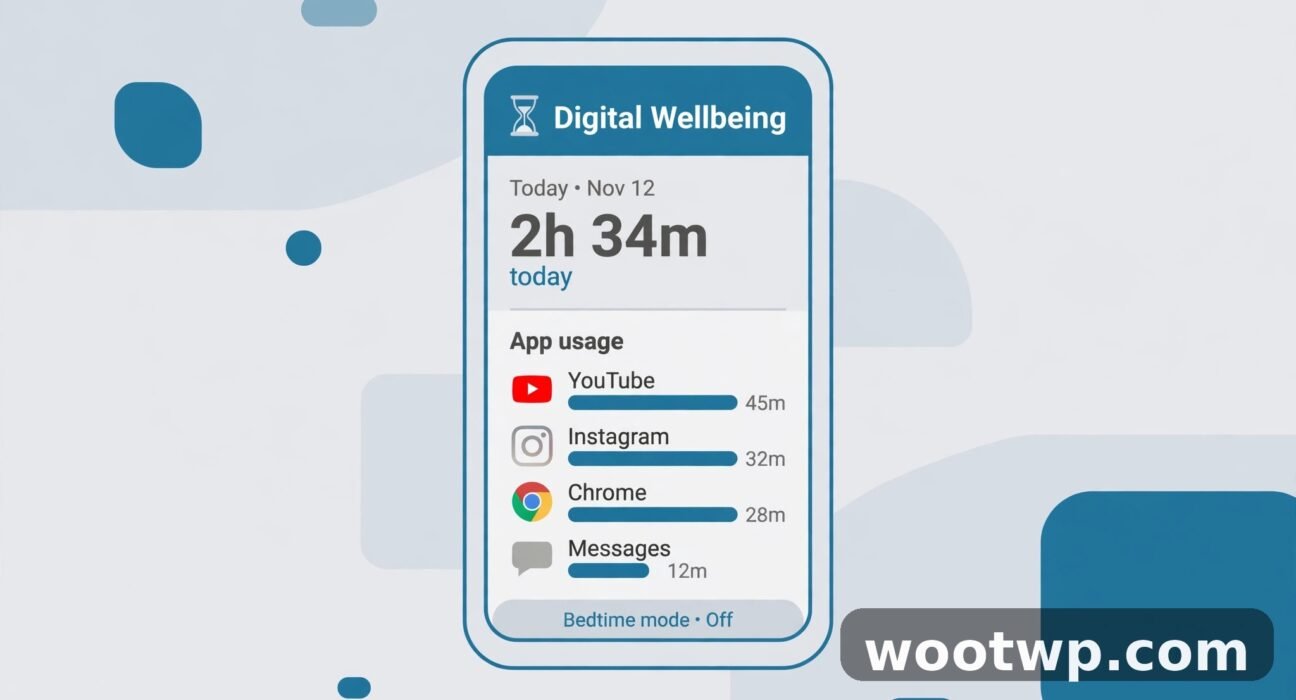
- The big number at the top? That's today's screen time. Your total so far today.
- Tap the chart to open the full dashboard.
One catch, and it tripped me up the first time: the very first time you open it, Android asks you to set up a profile. One tap and it starts tracking. But it can't show you days from before you turned it on, because — well — it wasn't watching yet. Yesterday is gone. Today onwards is covered.
Reading the Dashboard Without Lying to Yourself
Once the dashboard is open, look at the dropdown at the top. Three views live there, and they answer three different questions, so it's worth knowing which one you're looking at before you start judging yourself. Screen time shows minutes per app, which is probably the view you want. Notifications received shows how many pings each app sent you and when they arrived. Times opened shows how many times you actually tapped into each app, and that one hurts the most, in my experience — an app you opened forty times in a day owns a piece of your attention even if the minutes look small.
Tap any day on the weekly bar graph to see that day instead of today. On a Pixel you can flip back through roughly 25 days of history, which is enough to spot a pattern instead of one bad evening. Google's own Digital Wellbeing help page walks through the same steps if your menus look slightly different.
Samsung, Xiaomi, and the Rest: Same Feature, Different Label
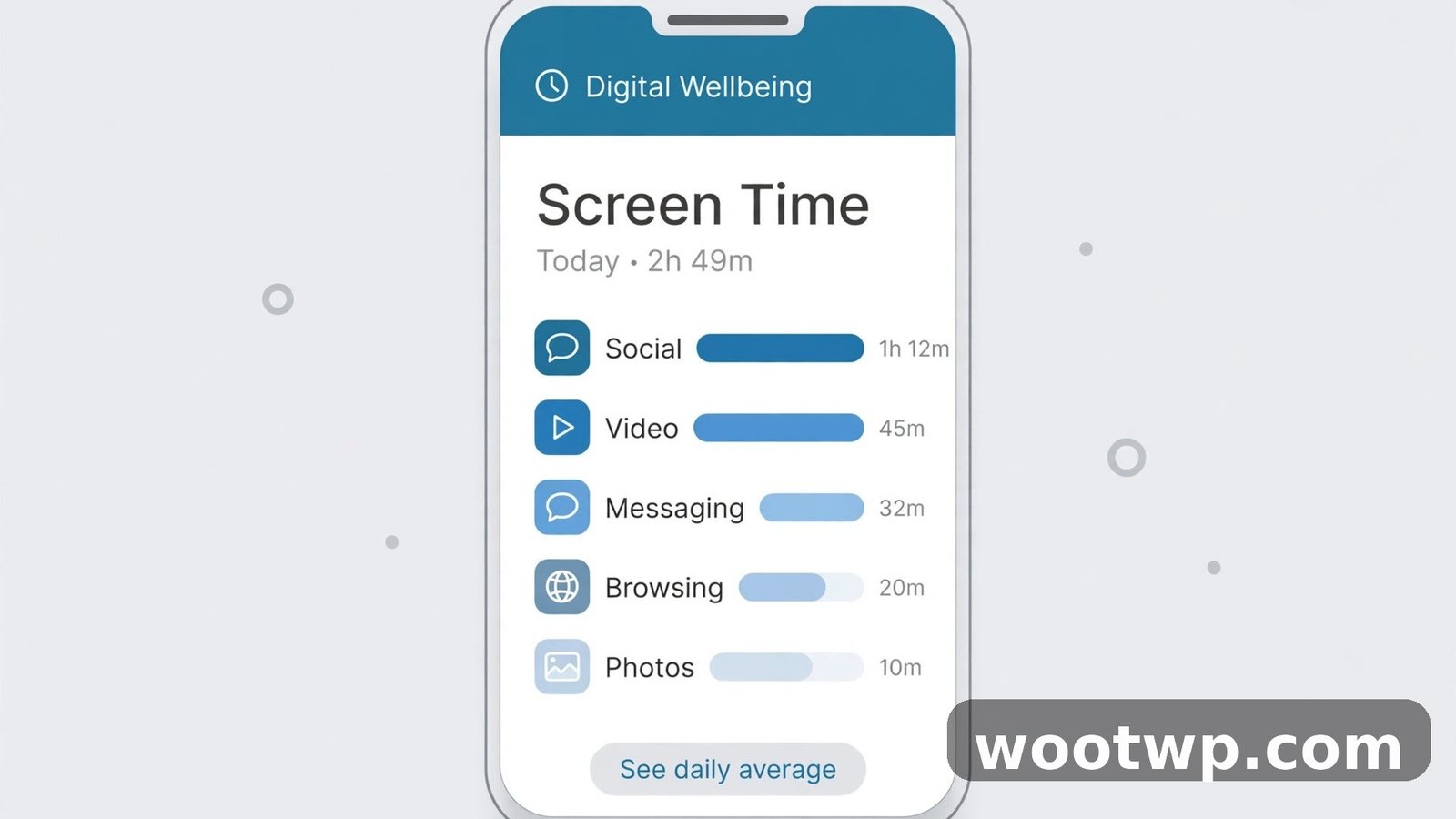
Samsung does things its own way — same idea, a few extra toys on top. The screen time Samsung builds into One UI lives in the same place, so if you've done it on a Pixel you already know the shape of it. Open Settings, tap Digital Wellbeing and parental controls, and the bar graph at the top shows today. Tap a day to see that day's breakdown, tap an app in the list below to see its time, its opens, and its notifications. Done. That's the whole trick.
Two Samsung extras are worth knowing about. Up in the top right there's a Weekly report icon — looks like four little vertical bars — and it shows your daily average for the week plus your most-used apps at a glance. Then there's Screen time goal: hit Set goal, pick your number in hours and minutes, tap Done, and the tracker on the main screen shows your progress against it. A goal with no nagging. Nice.
Xiaomi, Redmi, and POCO phones running HyperOS — MIUI on the older models — have the same feature, filed under a slightly different name on some builds. Settings, then Digital Wellbeing and parental controls. On some HyperOS builds it's called Healthy device usage instead. Tap the dashboard or the chart at the top and there's today's total, with the per-app list underneath. Same thing, different label.
OnePlus, Oppo, Realme, Vivo, Motorola — same pattern again. The names move around. Digital Wellbeing here, Screen time there, Healthy device usage somewhere else. But the feature is the same, and the Settings search bar finds it fast: type "screen time" into the search box at the top of Settings and tap the result. Works on almost every Android phone sold in the last five years. I've tried it on four different brands now, and the layout differences are small once you know where to look.
Every Method at a Glance
| Phone | Where to find it | What it's called | Worth knowing |
|---|---|---|---|
| Pixel / stock Android | Settings, then Digital Wellbeing and parental controls | Digital Wellbeing | About 25 days of history on the weekly graph |
| Samsung Galaxy | Same place, in One UI | Digital Wellbeing | Weekly report plus a screen time goal |
| Xiaomi / Redmi / POCO | Settings, then Digital Wellbeing and parental controls | Digital Wellbeing, or Healthy device usage on some builds | Same dashboard, different label |
| OnePlus, Oppo, Realme, Vivo, Motorola | Settings search, type "screen time" | Varies by brand | Same feature underneath |
| Phone without it built in | Play Store, install Google's Digital Wellbeing app | Digital Wellbeing | Needs Android 9 or later |
If your phone isn't on this list, the Settings search trick in the row above is still the fastest way to find it. Type "screen time" and tap whatever shows up.
What If Digital Wellbeing Is Missing?
Some phones don't show it. Older Android versions, a few budget models, phones sold in certain regions — they ship without the full Digital Wellbeing feature. Before you assume yours is one of them, try the search trick. Open Settings and type "screen time" or "wellbeing" into the search box. It's often there, just buried under a name you didn't expect. I've seen people give up on this step when the feature was sitting two taps away the whole time.
If the search finds nothing, you can still check screen time on Android by installing Google's app. Play Store, search for Digital Wellbeing, install Google's official app, open it once, then go back to Settings and look for it again. That's it.
If the Play Store refuses the install for lack of room — that's a different problem with a simple fix. Here's how to free up storage on Android without deleting photos.
Still nothing? Then check the version. Your phone needs Android 9 or later for Digital Wellbeing to work at all. Settings, then About phone, then Android version. On Android 8 or older, the built-in tool simply doesn't exist on that handset, and a third-party tracker from the Play Store is the only route. For everyone else, the built-in dashboard is the one to use. It's already on your phone, it doesn't show you ads, and it doesn't want your email address. Hard to beat that.
How to Check Screen Time on Android for Just One App
Maybe you don't care about your total. Maybe you care about one app. Instagram, YouTube, TikTok — whatever keeps stealing your evenings. That's easy too, and it's the fastest way to check app usage on Android for a single culprit.
- Open Settings, then Digital Wellbeing and parental controls.
- Tap the chart at the top to open the dashboard.
- Tap the app in the list.
- You get a daily graph for that app alone: minutes used, times opened, notifications received.
This is the view that actually changed my behaviour. Sunday night, 11:40 pm, lights off, Pixel 8 in my hand. I'd told myself one more video, then sleep. Forty minutes later I finally opened the dashboard properly. 5 hours and 42 minutes for the day. YouTube alone had eaten 2 hours and 14 minutes — most of it after 9 pm, in bed, when I was supposed to be winding down. And I'd opened it 31 times. Thirty-one. I wasn't watching two-hour videos. I was dipping in, thirty-one separate times, mostly while waiting for things — the kettle, the lift, the ad break on TV. Those little dips add up to a whole evening.
My total for the day looked bad but vague. YouTube's own page was specific. That's the number most worth knowing, if I'm honest.
Quick side note, since I run through these numbers whenever I set up a new phone: that's also the moment to sort out your logins before you wipe the old handset. If that's you, here's how to move Google Authenticator to a new phone without locking yourself out of your accounts.
What the Numbers Actually Mean
So you know where the number lives. Now what does it actually mean? Three numbers matter, and they tell you three very different things.
Total minutes is the headline. It answers one question: how long was my screen on today? Compare it against your own last seven days, not against anyone else's number. There's no magic figure that counts as good or bad — a delivery driver and a novelist use their phones in completely different ways, and both totals are fine for them. Your baseline is yours.
Then there's times opened, the compulsion number, and the one I find most revealing, because it separates two very different habits. An app you opened 40 times for 20 minutes total? That's a checking habit. An app you opened twice for two hours? That's a watching habit. Same screen time, totally different problem. Different fix, too.
And notifications received — the interruption count. If one app sent you 90 notifications, it's not informing you. It's herding you. Turn its notifications off for a day and see if you miss anything. You almost certainly won't.
Look at your android app usage time across a full week before you change anything. One bad day means nothing. A pattern across five days means something. And the worst app is usually obvious the moment you see the list sorted by time — it sits at the top like it owns the place.
A few people check their number and immediately think it's broken. It usually isn't. It's just counting something slightly different from what you expected. Screen time counts screen-on time only. A podcast or playlist playing with the screen off doesn't count. Neither does music in the car over Bluetooth. So if your day was mostly audio, your number will look small — and it's telling the truth. Your screen really was off.
Then there's the browser thing. Browser time is logged against the browser app, not the website. Two hours on a news site shows up as two hours of Chrome. If you want the per-site picture, Chrome has its own history, but Digital Wellbeing won't split it for you. While you're thinking about it: if you'd rather Google didn't keep that history at all, you can set Google search history to delete itself automatically. Oh, and casting doesn't count either — watching YouTube on the TV through your phone adds nothing, because your phone screen is off.
Last one. The numbers are approximate. Android rounds, some system apps get grouped together, and a few minutes can slip between categories after a software update. Treat the total as a reliable guide to where your time went, not a stopwatch reading down to the second. The shape of the list matters more than the exact digits. Honestly, the shape is the whole story.
Put Your Screen Time on the Home Screen
Checking once is interesting. Seeing the number every time you unlock your phone is a different thing entirely. That's what the widget is for.
Long-press an empty spot on your home screen, tap Widgets, find Digital Wellbeing in the list, and long-press the screen time widget. Drag it where you want it. Lift your finger. Done.
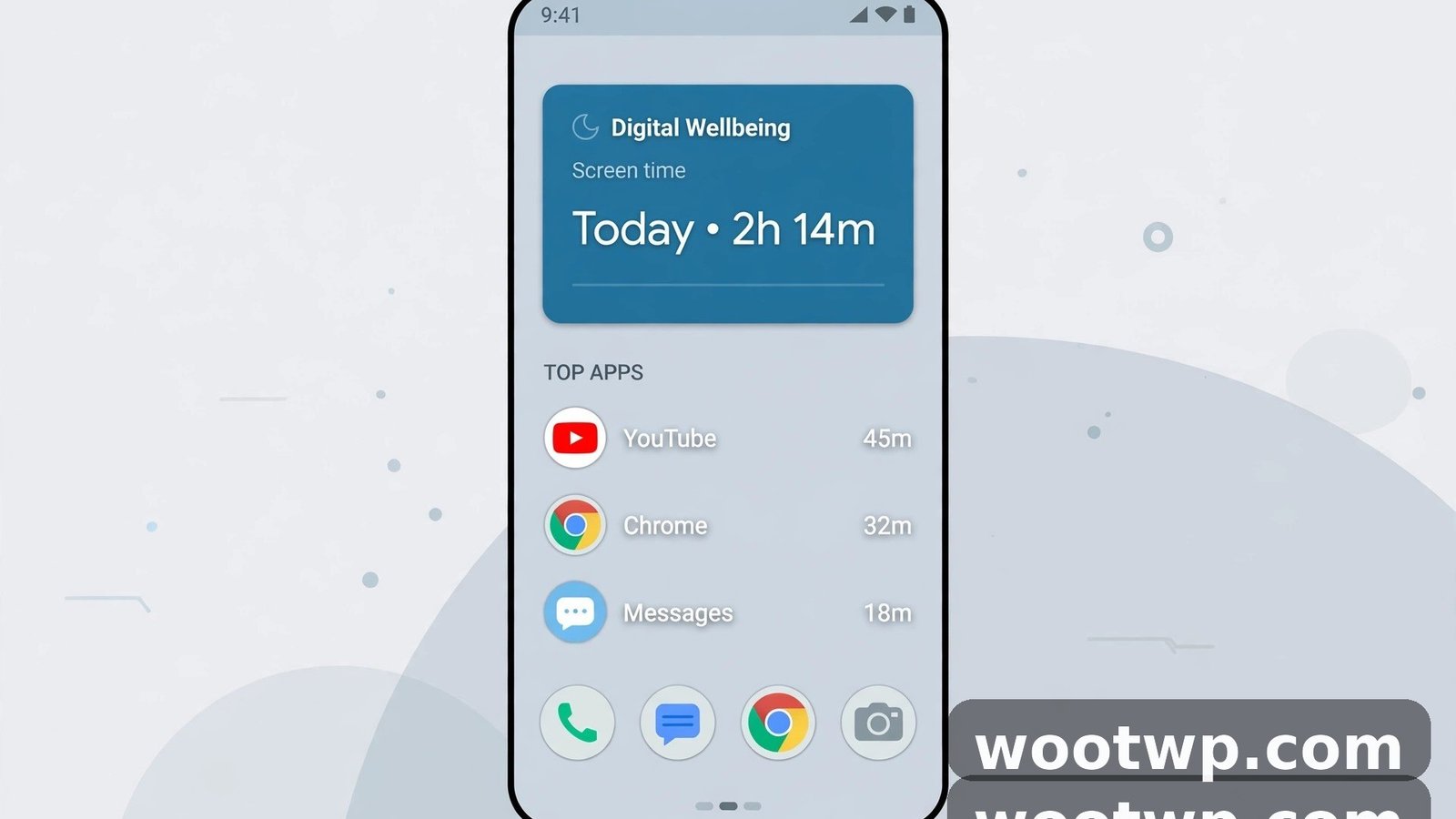
The widget shows today's total plus your top three apps, and it updates through the day — the fastest way to check screen time on Android without opening Settings at all. I stuck mine on the second home screen, right next to the apps it was judging. The effect was immediate. Not dramatic. Just a quiet little number that made me think twice before opening YouTube "for a second" at 10 pm.
Nope, it won't shame you into good behaviour by itself. But it removes the excuse of not knowing. And knowing is the whole point of this exercise.
If I had to pick one method from this whole guide and throw the rest away, it'd be the widget. The dashboard is for digging into the numbers once a week. The widget is the thing that actually changes what you do at 10 pm, because it's right there, judging you, every single time you unlock the phone. The other methods tell you what happened. This one stops it happening again.
Set an App Timer (and Survive It)
Seeing the number is step one. Doing something about it is step two, and app timers are the simplest tool Android gives you. No willpower required. Well — almost none.
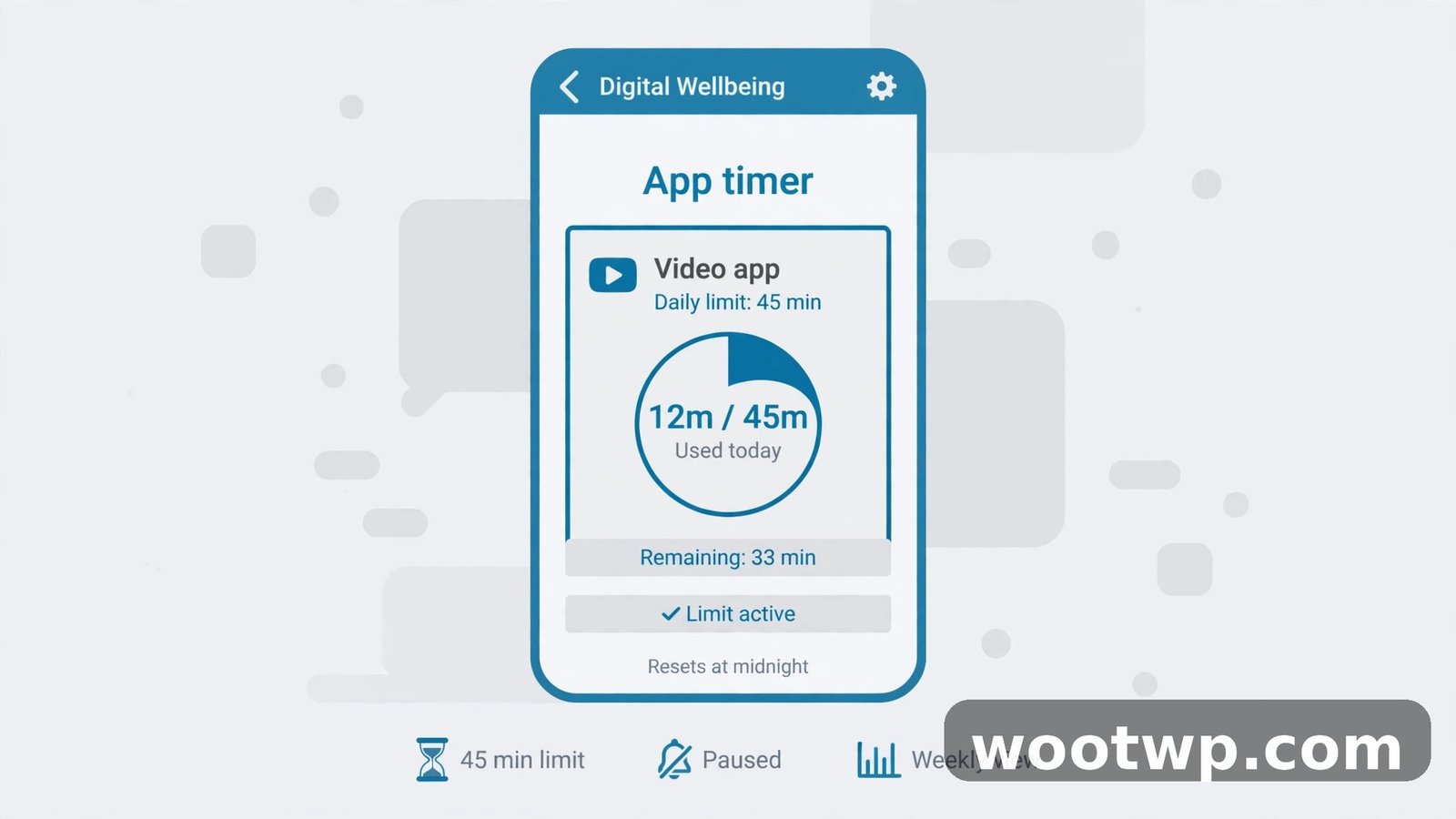
Open Settings, then Digital Wellbeing and parental controls. Tap App timers — some newer builds call it App limits — then tap the app you want to cap. Pick a daily limit, say 45 minutes, and tap Done.
When the timer runs out, the app's icon goes grey and it won't open. You can still tap it, and Android offers you 15 more minutes if you really want them. The timer resets at midnight. There's also a PIN option for app time limits in the same area, which stops you — or a child — from just tapping "ignore" and carrying on. Worth setting, trust me.
I set a 45-minute timer on YouTube the same night I found that 2-hour-14-minute figure, then tapped "15 more minutes" three times in a row. So much for willpower. The second night I left the phone in the kitchen when I went to bed. That worked better than any timer ever has.
A timer plus a tiny bit of friction beats a timer on its own. Every time. Pair it with one physical change — phone out of the bedroom, or the app off the home screen — and it starts to stick. A timer on its own is just a suggestion your thumb can overrule.
How to Check Screen Time on Android for Your Child's Phone
Your own phone is one thing. Your child's phone is another — and you check that one from your own phone, not theirs. That's Google Family Link.
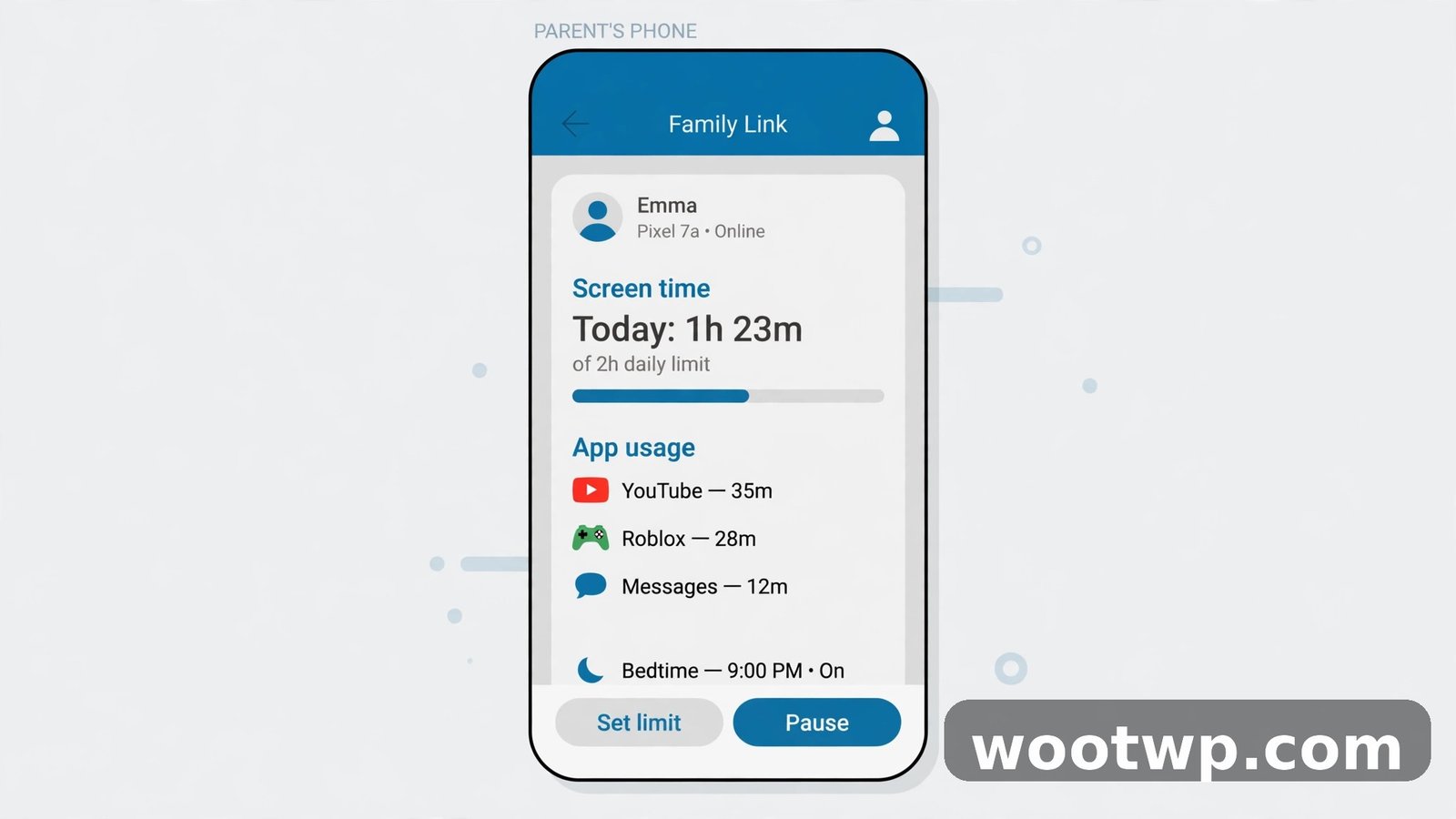
Open the Family Link app on your phone (the parent device), select your child at the top, tap Screen time at the bottom. There it is: today's total, the per-app breakdown, the weekly pattern. All of it.
This is the one place where checking screen time turns into actual parenting instead of self-surveillance. A weekly pattern beats a single day's number every time. One long Saturday is not a crisis. Every single day creeping upward, though — that's a conversation. And from the same screen you can set a daily limit and a bedtime lock, which apply on the child's phone automatically once they're set. No chasing the phone around the house. It just works.
Four Questions Everyone Asks
How do I check screen time on Android?
Open Settings, then tap Digital Wellbeing and parental controls. The number at the top is today's screen time. Tap the chart and you get the breakdown by app, times opened, and notifications received — and you can tap any day on the bar graph to look at previous days. Two minutes, and you have the full picture.
Does screen time include YouTube and Netflix?
Yes. Any app that's on your screen counts — YouTube, Netflix, games, social apps, all of it. Audio with the screen off doesn't count, and neither does casting to a TV. That's the blind spot. Know it's there.
Can I check my child's screen time from my own phone?
Yes, with Google Family Link. Open the Family Link app on your phone, select your child, and tap Screen time. You see their daily total and per-app breakdown, and you can set daily limits and a bedtime lock from the same screen. The child's account needs to be supervised through Family Link first, which is a one-time setup — five minutes, and then you never think about it again. The weekly view is the one worth watching: a single long Saturday means nothing, but every day creeping upward is a conversation worth having. Limits and bedtime locks set on your phone apply on theirs automatically, so you're not chasing the handset around the house every evening.
Is there a way to check screen time on Android without an app?
Yes. Digital Wellbeing isn't an app you download — it's built into Android itself, in Settings, and it's been there since Android 9. No download, no account, no subscription. The only exception is a phone that shipped without it, in which case Google's Digital Wellbeing app from the Play Store adds it back. Either way, you're not paying anyone anything.
Start With One Timer
Two minutes to check the number. One timer on the worst app. That's the whole plan, and it's the only version of it I've ever actually stuck to. You can always add a second timer next week.
Check it once. Look at the app sitting at the top of the list. Set one timer on that one app.