How to Make Your Android Phone Faster: 9 Fixes for Old, Slow Phones
If you’re looking for how to make your Android phone faster, you’re in good company. I’ve seen this happen to nearly every Android phone: the device that once flew through apps now stutters opening the camera and crawls loading webpages. Before you buy a new phone, try these nine fixes — most slow phones can be revived in under an hour.
Table of Contents
- Why Do Android Phones Slow Down Over Time?
- Fix 1: Free Up Storage Space
- Fix 2: How Do You Clear Cache on Android Safely?
- Fix 3: Uninstall Unused Apps and Disable Bloatware
- Fix 4: Restart Your Phone Weekly
- Fix 5: Reduce Animations in Developer Options
- Fix 6: Limit Background Apps and Processes
- Fix 7: Update Android and Your Apps
- Fix 8: Remove Widgets and Live Wallpapers
- Fix 9: Factory Reset as a Last Resort
- Why You Should Avoid RAM Booster Apps
- FAQs
- Final Thoughts
Why Do Android Phones Slow Down Over Time?
A new phone feels fast because it’s empty and its software was tuned for that hardware. Over the years, storage fills with photos, videos, downloads, and forgotten apps, and each install adds background services that grow silently. When free space drops below roughly 10 percent, Android struggles with temporary files and updates, and everything slows down at once.
Fix 1: Free Up Storage Space
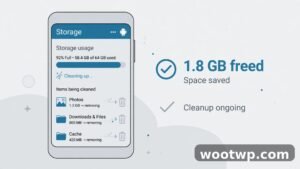
This is the single most effective way to speed up an Android phone — if storage is nearly full, clearing space often produces an immediate improvement.
How to Check Your Storage
- Open Settings
- Tap Storage and wait while Android calculates usage by category
Aim to keep at least 10 to 15 percent of total storage free.
What to Delete First
- Old downloads: check the Files app’s Downloads folder for forgotten PDFs, installers, and memes.
- Duplicate photos and screenshots: delete them in bulk from Google Photos or your gallery app.
- Large videos: a single 4K clip can be several gigabytes — back up the keepers, then delete local copies.
- WhatsApp media: in WhatsApp, go to Settings > Storage and data > Manage storage to find the chats hogging the most space.
Use the Built-In Storage Cleaner
Files by Google has a Clean feature that finds junk files, duplicates, blurry photos, and files you haven’t opened in months. Samsung, Xiaomi, and others ship their own device-care tools under Settings > Battery and device care or similar — safe because they come from your phone’s manufacturer.
Fix 2: How Do You Clear Cache on Android Safely?

Cache is just temporary data apps store to load faster — thumbnails, preview images, bits of web pages. It isn’t personal data, so deleting it won’t log you out or erase anything important.
Clear the Cache for Individual Apps
- Open Settings
- Tap Apps (or Apps & notifications)
- Pick an app that’s misbehaving or hogging space — social media and browsers are the usual suspects
- Tap Storage & cache, then Clear cache
Notice the two buttons: Clear cache and Clear storage (sometimes Clear data). Only tap Clear cache. Clear data wipes login sessions, settings, and saved files for that app — effectively resetting it.
Why This Helps
When cache gets corrupted or bloated, apps take longer to open and behave strangely. I’ve fixed apps that crashed on launch simply by clearing their cache. Repeat for your heaviest apps every couple of months.
Fix 3: Uninstall Unused Apps and Disable Bloatware
Every installed app takes up storage, and many run background services that consume memory even when you never open them. To make an old Android faster, be ruthless with apps you don’t use — check the Play Store’s Manage apps & device > Manage screen, sort by Least used, and uninstall anything untouched in months.
Deal With Bloatware
Pre-installed apps from your manufacturer or carrier often can’t be uninstalled, but you can usually disable them:
- Go to Settings > Apps and select the pre-installed app
- Tap Disable (you may need to choose Uninstall updates from the three-dot menu first)
Disabling removes the app from your drawer, stops it from running, and frees the space its updates took. You can re-enable it anytime.
Fix 4: Restart Your Phone Weekly
Restarting clears RAM and stops runaway background processes — do it weekly, and performance often perks up right away.
Fix 5: Reduce Animations in Developer Options
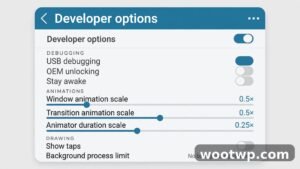
This is my favorite trick because the effect is instant. Android plays little animations every time you open an app or pull down the notification shade. Reducing them makes the interface feel dramatically more responsive.
How to Enable Developer Options
- Open Settings > About phone, find Build number, and tap it seven times until you see a confirmation
- Go back to Settings > System > Developer options (on Samsung, directly under Settings)
Change the Animation Scales
Scroll to these three settings and change each from 1x to 0.5x — or off for maximum speed:
- Window animation scale
- Transition animation scale
- Animator duration scale
This doesn’t make the processor faster — it removes the artificial waiting built into the visual effects. The phone was already finishing the work; it was just playing an animation while you waited.
Fix 6: Limit Background Apps and Processes
An Android running slow is often one doing too much at once — apps syncing, updating, and pushing notifications in the background eat RAM and battery.
Restrict Battery Usage per App
- Go to Settings > Apps and pick an app that doesn’t need to run constantly (a shopping app, a game, a news reader)
- Tap App battery usage (or Battery) and choose Restricted
Don’t restrict apps where you need instant notifications — messaging, email, and authenticator apps should stay unrestricted. In Developer options, Running services shows which processes use RAM; if an app you barely use is eating a lot of memory, it’s a strong candidate for uninstalling.
Fix 7: Update Android and Your Apps
Updates often include performance fixes and memory optimizations, and security updates keep compromised software from dragging your phone down.
- System: Go to Settings > System > System update (on Samsung: Settings > Software update) and install anything available.
- Apps: In the Play Store, tap your profile icon, then Manage apps & device > Update all.
Fix 8: Remove Widgets and Live Wallpapers
Every widget on your home screen is a tiny app refreshing in the background — weather, news, calendar. Live wallpapers are worse: they keep the graphics processor busy constantly, draining battery and stealing resources. Try this: keep only one or two widgets you truly check daily and switch to a static wallpaper — most people notice the difference, especially with 4 GB of RAM or less.
Fix 9: Factory Reset as a Last Resort

If everything above still leaves your phone painfully slow, a factory reset wipes apps, settings, accounts, and files, returning the phone to its out-of-the-box state. It fixes slowdowns nothing else touches, because it clears years of accumulated system clutter.
Back Up Everything First
A reset is irreversible — don’t skip this.
- Photos and videos: Confirm Google Photos backup is complete (open the app and check backup status)
- WhatsApp chats: in WhatsApp, go to Settings > Chats > Chat backup and run a manual backup to Google Drive right before resetting — our guide to recovering deleted WhatsApp messages covers backup and restore
- Contacts and calendar: these usually sync to your Google account — verify at contacts.google.com from a computer
- Two-factor authentication: this is the one people forget. If you use Google Authenticator, move your codes to your new setup before the reset or you’ll be locked out. Our guide on how to transfer Google Authenticator to a new phone walks through the export process — follow it while your current phone still works
How to Factory Reset
- Go to Settings > System > Reset options (on Samsung: Settings > General management > Reset)
- Tap Erase all data (factory reset), confirm, and enter your PIN — the wipe takes several minutes
When it reboots, sign in, restore your backup, and install only the apps you actually use — the phone will stay fast far longer.
Why You Should Avoid RAM Booster Apps
You’ve seen apps promising to “boost RAM” and “clean junk” with one tap. Here’s the truth: Android already manages memory well on its own. These apps force-close background apps — which Android then restarts, using more battery and CPU than if they’d been left alone. Many are also packed with ads and request excessive permissions. The built-in tools — Files by Google and your manufacturer’s device-care feature — do the same job, safely and free.
FAQs
How can I make my Android phone faster without deleting apps?
Clear app caches, reduce animations to 0.5x in Developer options, restart weekly, and remove widgets and live wallpapers. These four steps cost nothing and don’t require deleting a single app.
Why is my Android phone so slow all of a sudden?
Usually it’s storage filling past 90 percent, a buggy app update, or one misbehaving app. Check storage first, then battery usage in Settings — an app draining power abnormally is usually the culprit.
Does clearing cache make your phone faster?
It can, especially for specific apps — it removes bloated or corrupted temporary files that slow launches and cause glitches. Combined with freeing storage and limiting background apps, it’s a solid part of a speed-up routine.
Will a factory reset make my old Android faster?
Yes — it’s the most thorough fix available and usually restores near-original performance. Back up photos, WhatsApp chats, and authenticator codes first, and only reinstall the apps you genuinely use.
How much free storage should I keep on my Android phone?
Keep at least 10 to 15 percent free. Below that threshold, Android struggles with temporary files and app updates, and slowdowns hit the whole system.
Are phone cleaner apps safe to use?
Most third-party cleaner and RAM booster apps do more harm than good — they force-close apps Android would manage better itself, and many are packed with ads or excessive data collection. Stick to built-in tools like Files by Google.
Final Thoughts
Learning how to make your Android phone faster comes down to a simple routine: keep storage healthy, clear caches periodically, uninstall what you don’t use, and restart weekly. Most slow phones don’t need replacing — they need maintenance. Work through these nine fixes in order, and your phone will likely feel years younger.
For more guides, see the Android section on wootwp.com — including how to recover a lost Android phone — plus the official Android site and Google’s Android help center for device-specific instructions.