How to Schedule Emails in Gmail (Desktop, Android & iPhone)
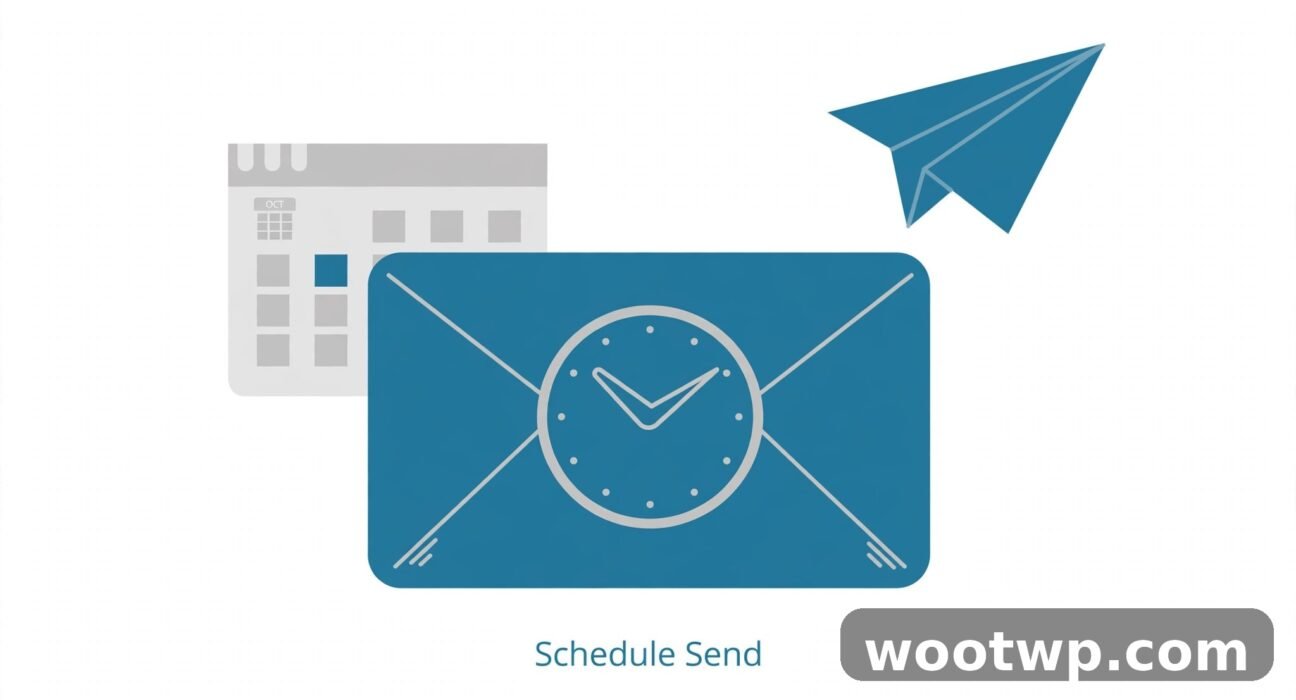
Writing an email at 11pm that you want to land in someone’s inbox at 9am? Gmail’s built-in scheduling does exactly that — no extensions, no third-party tools. You write the message now, pick when it goes out, and Gmail sends it automatically. Below is how to do it on desktop, Android, and iPhone, plus how to change or cancel a scheduled email and what to do when scheduling doesn’t work.
How to Schedule an Email on Desktop
Scheduling on the desktop version of Gmail takes about ten seconds:
- Open mail.google.com and click Compose.
- Write your email as normal — recipient, subject, and body.
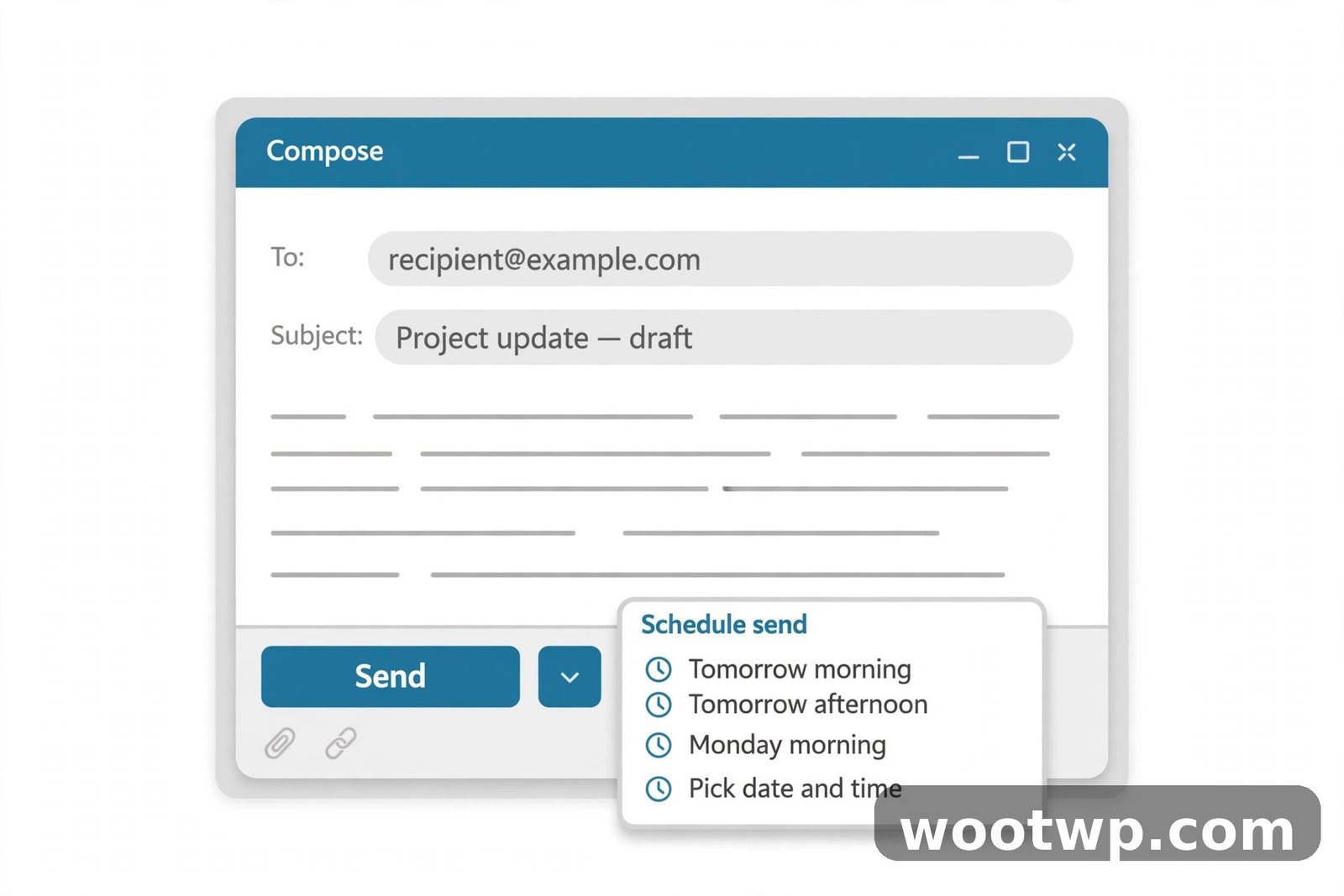
- Next to the blue Send button, click the small downward arrow (▾).
- Choose Schedule send from the dropdown.
- Pick one of the suggested times (like “Tomorrow morning”) or click Pick date & time to choose your own.
- Select the date and time, then click Schedule send.
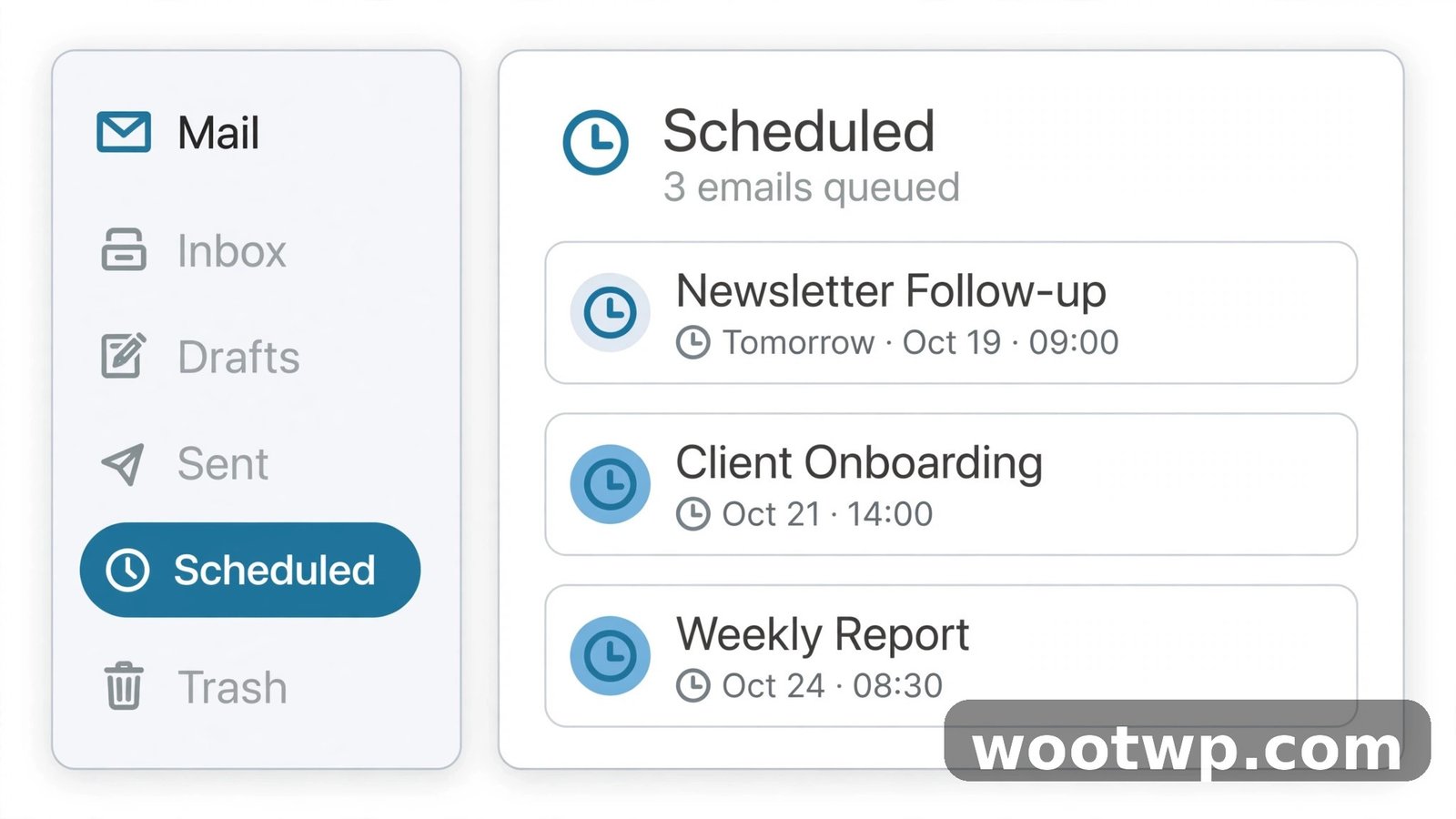
Your email moves to the Scheduled folder in the left sidebar and goes out automatically at the time you chose. The dropdown arrow sits right next to the standard send button.
How to Schedule an Email on Android
The Gmail Android app supports scheduling with a nearly identical flow:
- Open the Gmail app and tap Compose.
- Write your message.
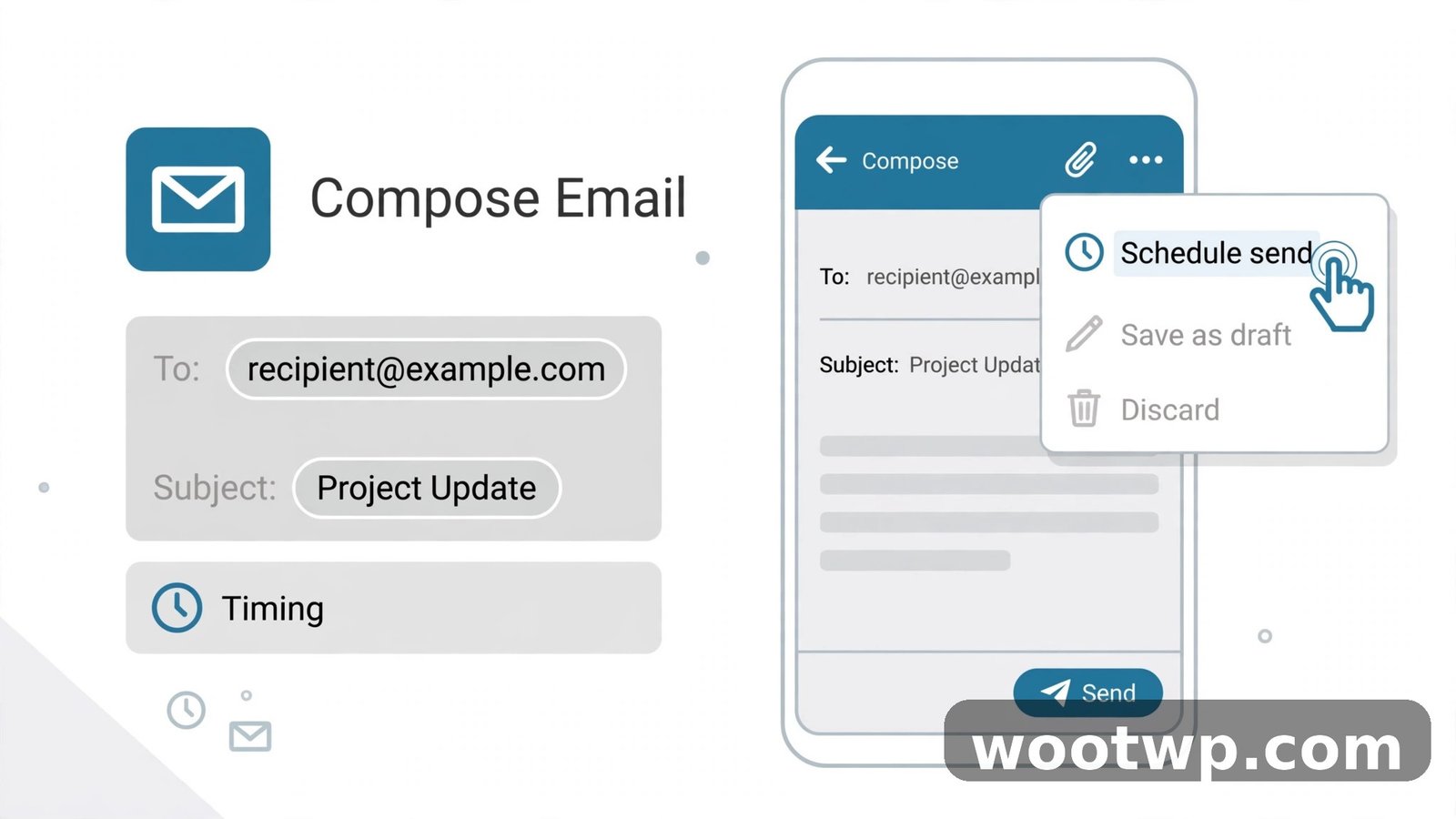
- Tap the three-dot menu (⋮) in the top-right corner of the compose window.
- Tap Schedule send.
- Choose a suggested time or tap Pick date & time for a custom one.
- Confirm, and the email lands in your Scheduled label.
One difference from desktop: the three-dot menu also shows options like “Discard” and “Save draft,” so make sure you tap Schedule send and not “Save draft” by mistake — a draft won’t go out on its own. If you’ve ever lost a draft on mobile, the draft stays attached to the scheduled copy.
How to Schedule an Email on iPhone
The iPhone flow mirrors Android:
- Open the Gmail app and tap Compose.
- Write your message.
- Tap the three-dot menu (⋮) in the top-right of the compose window.
- Tap Schedule send.
- Pick a preset or choose Pick date & time.
- Confirm to schedule it.
Scheduled emails live in the Scheduled label, which you reach from the hamburger menu (☰) in the top-left. As with Android, don’t confuse “Schedule send” with “Save draft” — only the scheduled copy sends itself. And if your phone is off or has no connection at send time, don’t worry: scheduling happens on Google’s servers, not on your device, so it fires as normal.
Viewing, Editing, and Canceling Scheduled Emails
Changed your mind? No problem — you have full control until the moment it sends:
- To view: open the Scheduled folder (desktop sidebar) or Scheduled label (mobile menu).
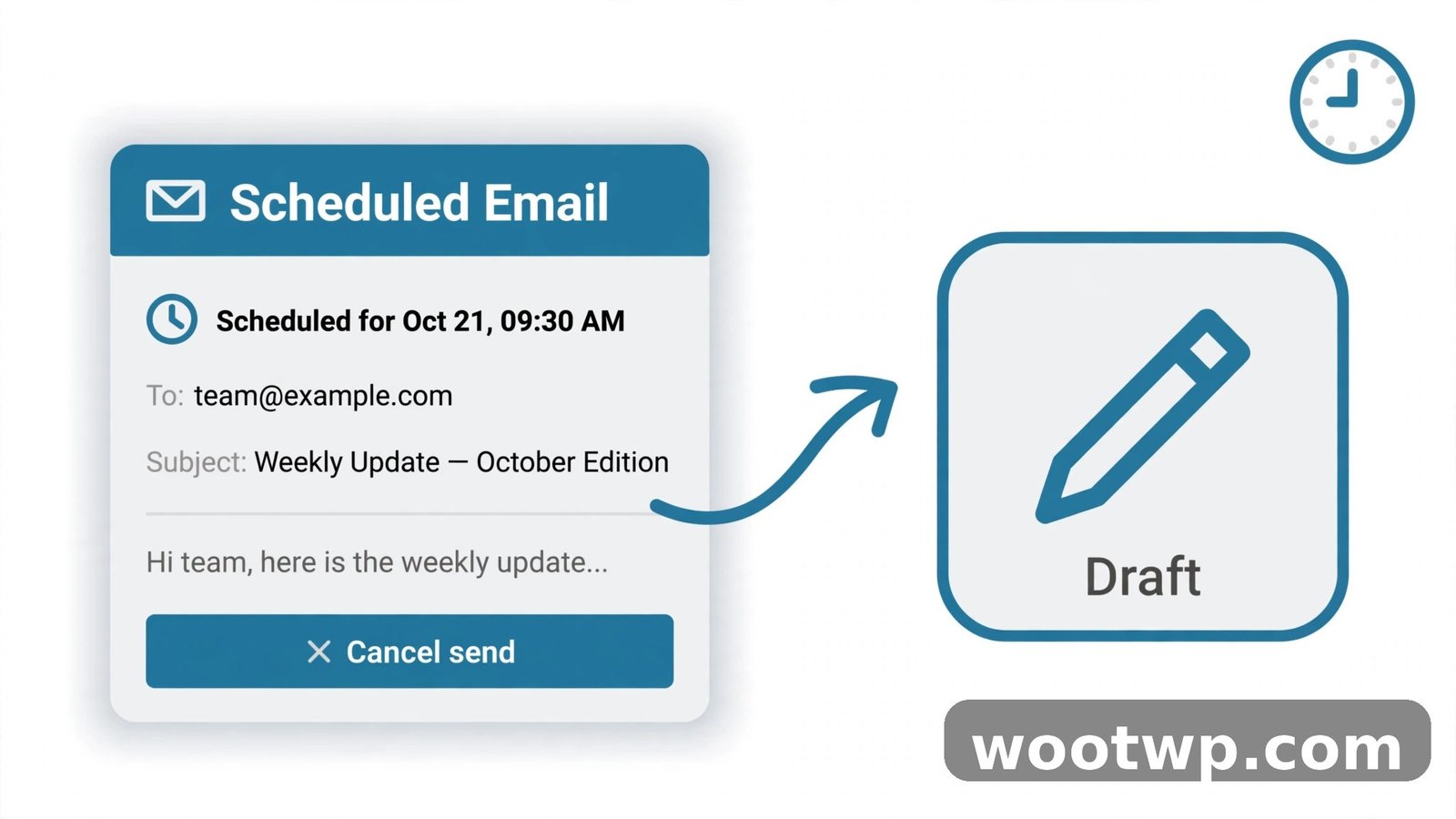
- To cancel: open the scheduled email and click Cancel send. It becomes a regular draft you can edit, reschedule, or delete.
- To reschedule: cancel the send first, then use the Schedule send dropdown again on the draft and pick a new time.
There’s no limit to how many times you can reschedule — just do it before the original send time arrives. Once it sends, it behaves like any sent email.
Scheduled Email Limits and Things to Know
- Maximum scheduled emails: Gmail allows up to 100 scheduled emails at a time. Hit the cap and you’ll need to let some send (or cancel them) before scheduling more.
- How far ahead: you can schedule weeks or months in advance — there’s no strict published cap on the date range, but very distant dates (a year+) can behave unpredictably, so keep important ones within a few months.
- Timezone: scheduled times follow your device’s current timezone settings. If you travel between scheduling and send time, double-check.
- Offline: scheduling requires an internet connection at the moment you schedule — the send itself happens server-side.
- Confidential mode: you can combine scheduling with Confidential mode for expiring, passcode-protected emails.
Troubleshooting: When Scheduling Doesn’t Work
The Schedule send option is missing. Make sure you’re using the official Gmail app or mail.google.com — some third-party email clients that connect to Gmail don’t expose scheduling. Update the Gmail app to the latest version.
A scheduled email didn’t send. Check the Scheduled folder — if it’s still there, it may have hit the 100-email cap or been blocked by a temporary sending limit. Reschedule it for a few minutes later.
Wrong time sent. This is almost always a timezone issue. Check your device’s timezone and your Google Account’s region settings, then reschedule.
Can’t find the Scheduled folder. On desktop, click More in the left sidebar to expand hidden labels. On mobile, open the hamburger menu (☰) and scroll down.
Good Habits for Scheduled Email
A few practices that make scheduling genuinely useful instead of a mess:
- Batch your writing: draft all of Monday’s emails on Sunday evening and schedule them for 9am — your mornings stay clear.
- Respect working hours: scheduling a non-urgent email for 9am instead of firing it at midnight keeps you from training people to expect instant replies at all hours.
- Review before send day: glance at the Scheduled folder each morning. A quick scan catches typos and outdated info while you can still cancel.
- Don’t schedule time-sensitive news: if the content could go stale (prices, event details), send it closer to when it’s written.
Scheduling pairs well with a clean inbox — if your Gmail is drowning in newsletters, our guide on how to stop spam emails in Gmail will quiet the noise, and if you’re running out of space, see how to free up Gmail storage without deleting emails.
Frequently Asked Questions
Does the recipient know the email was scheduled?
No. Scheduled emails arrive looking exactly like normally sent emails — no header, badge, or indicator reveals the scheduling.
Can I schedule an email with attachments?
Yes. Attachments work normally with scheduled emails; they’re uploaded when you schedule and sent with the message.
What happens if I’m offline at the send time?
Nothing bad — the email sends anyway. Scheduling is executed by Google’s servers, so your device doesn’t need to be on or connected.
Can I schedule recurring emails in Gmail?
Not natively. Gmail only schedules one-offs. For recurring sends, you’d need a third-party add-on or a Google Apps Script.
Does scheduling work in the Gmail mobile website?
The mobile web version of Gmail is limited — use the official Gmail app for reliable scheduling on phones.
Conclusion
Scheduling in Gmail is one of those features that takes ten seconds to learn and saves hours over a year: write when it suits you, deliver when it suits them. Use the dropdown on desktop or the three-dot menu on mobile, manage everything from the Scheduled folder, and keep an eye on the 100-email cap. Once it’s a habit, late-night email sessions stop spilling into other people’s inboxes at midnight.