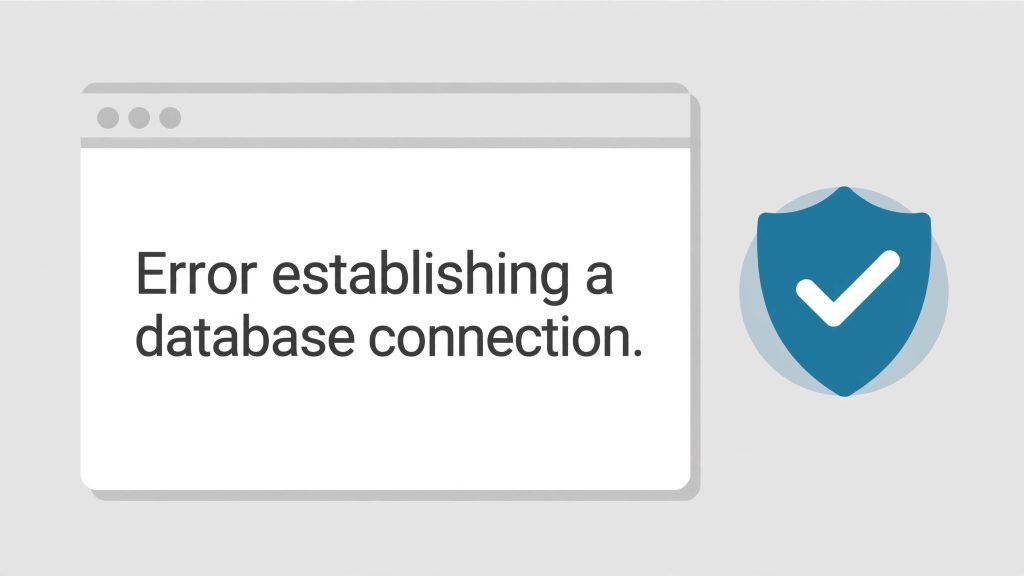
Few things are scarier than opening your website and seeing a plain white page that says “Error establishing a database connection.” No design, no content, just that one line. Take a breath — your content is almost certainly still there, and this error is fixable.
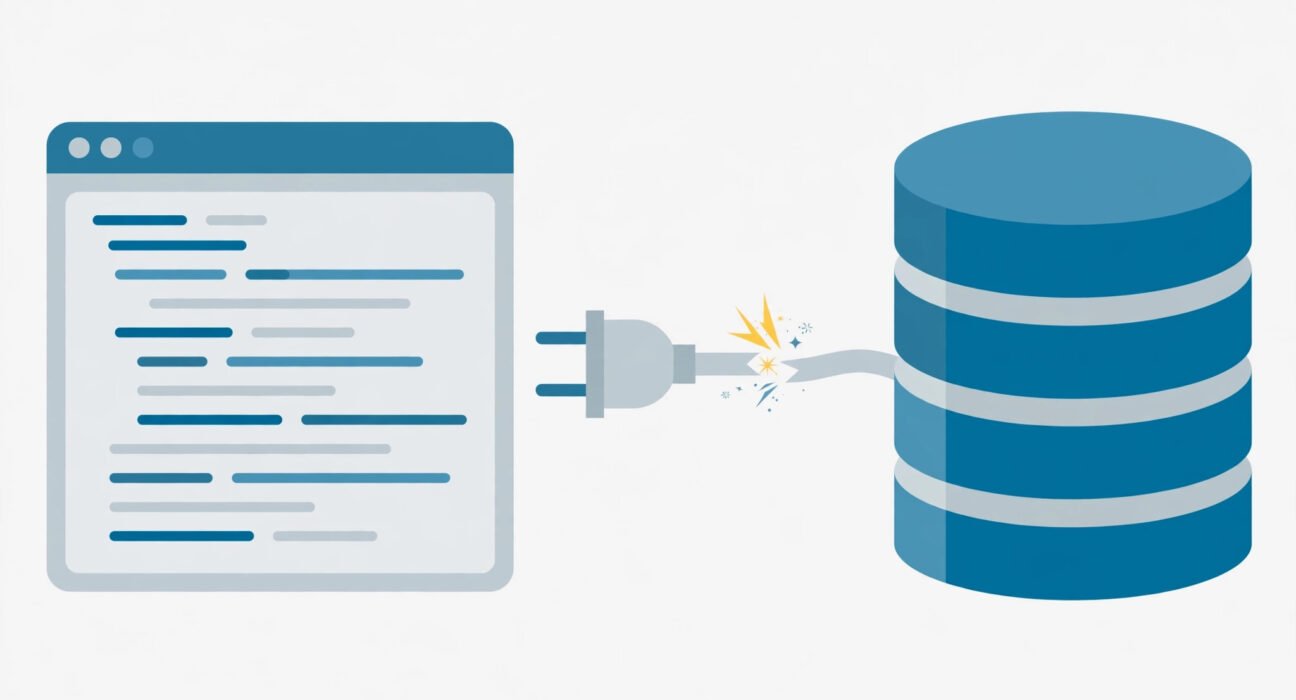
Here’s what it actually means in plain language: WordPress has two halves. One half is PHP code (the files on your server). The other half is a MySQL database where every post, page, comment, and setting lives. When you load a page, WordPress asks the database for the content. This error means the database didn’t answer. The PHP side is fine — it just can’t reach the data.
That narrows things down nicely. The problem is almost always one of three things: wrong login details in your configuration file, a corrupted database, or a database server that’s down. Work through the fixes below in order, and most people get their site back within the first three.
Before you touch anything: if you can, take a backup. At minimum, download a copy of your wp-config.php file before editing it. Everything below is reversible, but a backup means you never have to worry.
Fix 1: Check Whether It’s the Whole Site or Just wp-admin
This one test tells you a lot, so do it first. Try opening your WordPress dashboard:
yoursite.com/wp-adminIf wp-admin loads fine but the front end shows the error, your database credentials are correct (WordPress can connect). The problem is likely a corrupted database — specifically the wp_options table, which holds your site URL. Skip straight to Fix 3 (repair the database).
If wp-admin shows the same error, WordPress can’t connect to the database at all. The most likely culprit is wrong credentials or a downed database server. Continue with Fix 2.
This takes ten seconds and saves you from chasing the wrong cause.
Fix 2: Verify Your Database Credentials in wp-config.php
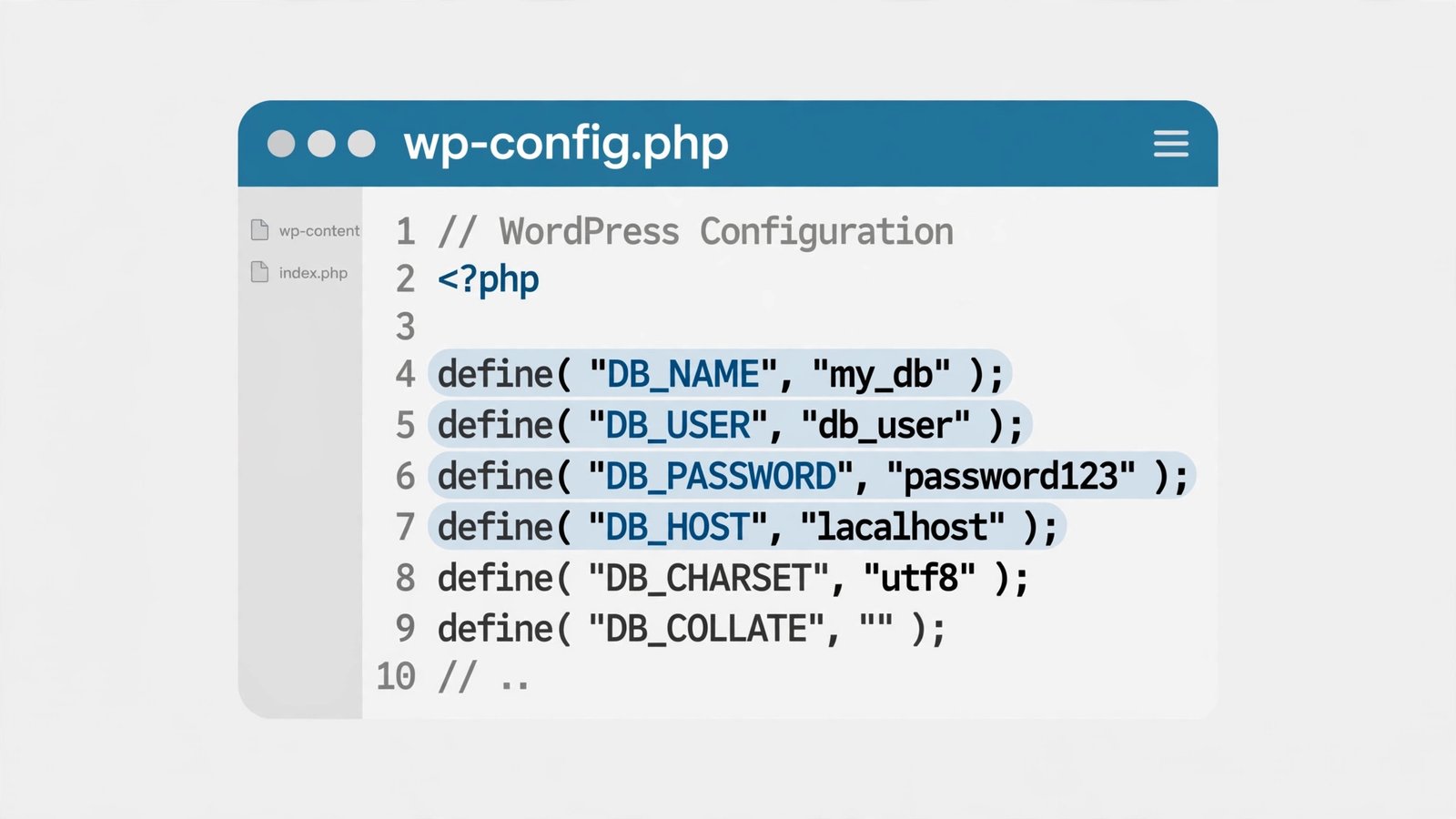
This is the single most common cause of the error, especially after moving hosts, restoring a backup, or changing your hosting password. WordPress stores its database login in wp-config.php, in your site’s root folder. If any of the four values is wrong, you get exactly this error.
Open wp-config.php via FTP or your hosting File Manager and look for these lines:
define( 'DB_NAME', 'your_database_name' );
define( 'DB_USER', 'your_database_user' );
define( 'DB_PASSWORD', 'your_database_password' );
define( 'DB_HOST', 'localhost' );
Now check each one against what your hosting panel says:
- DB_NAME — In your hosting panel, open phpMyAdmin or the Databases section. The database name must match character for character, including any prefix your host adds (many hosts prefix names like
cpaneluser_wp123). - DB_USER — The database user must exist and be assigned to that database with full privileges. A common mistake after migration: the database was imported but the user was never created or linked.
- DB_PASSWORD — Passwords get mangled during migrations more often than you’d think. Reset the database user’s password in your hosting panel, then paste the new one into
wp-config.php. Watch out for special characters being altered by copy-paste. - DB_HOST — This is
localhoston the vast majority of shared hosts. But some hosts (GoDaddy, for example) use a specific hostname likesomething.db.1234567.hostedresource.com. If you recently changed hosts and left this aslocalhost, that’s your problem. Your host’s documentation lists the correct value.
Quick sanity check: some hosts let you test the connection from phpMyAdmin. If phpMyAdmin itself won’t open or shows an access error, the problem is at the server level, not your config — jump to Fix 4.
Also worth ruling out while you’re here: a stale browser cache can occasionally show you an old error page after the real problem is fixed. If you’ve already fixed something and still see the error, clear your cache — here’s how to clear cookies and cache in Chrome — then hard-refresh.
Fix 3: Repair a Corrupted Database
If your credentials are correct but the error persists — or if wp-admin works while the front end doesn’t — the database itself may be corrupted. This can happen after a failed update, a server crash, or a plugin writing bad data.
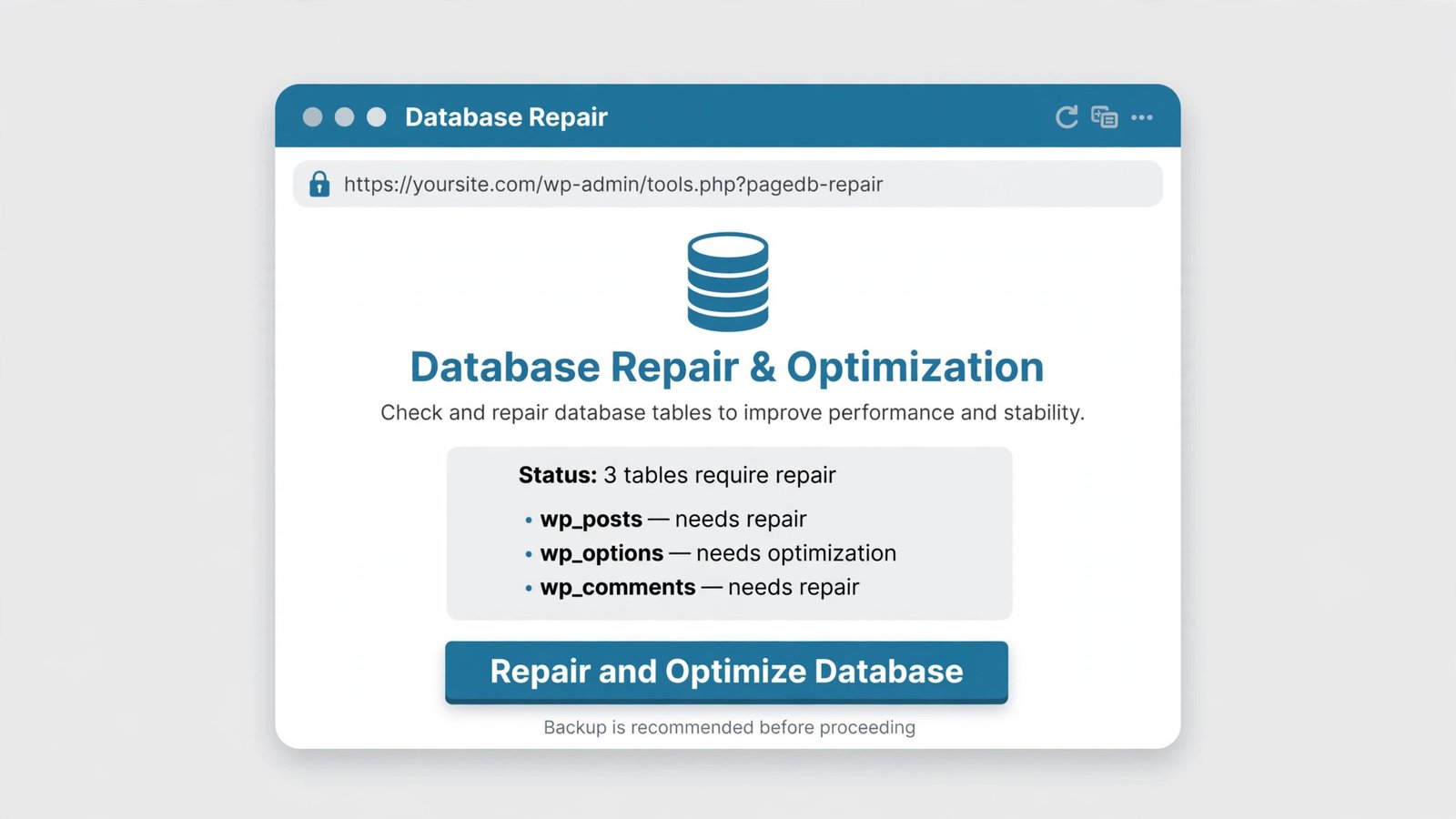
WordPress has a built-in repair tool, but it’s disabled by default. Here’s how to use it:
Step 1: Add this line to your wp-config.php, just above the line that says /* That's all, stop editing! */:
define( 'WP_ALLOW_REPAIR', true );Step 2: Visit this URL in your browser:
yoursite.com/wp-admin/maint/repair.phpStep 3: You’ll see two buttons: Repair Database and Repair and Optimize Database. Click “Repair and Optimize Database” — it does everything the first button does, plus cleans up overhead.
Step 4: Wait for it to finish, check your site, then immediately remove the line you added from wp-config.php.
That last step is not optional. The repair page requires no login, so anyone who knows the URL can run it against your database while it’s enabled. Add it, use it, delete it — all in one session.
What if the repair tool finds nothing? Then corruption probably isn’t the issue, and the problem is more likely server-side. Move on to Fix 4.
Fix 4: Check Whether the Database Server Is Down
Sometimes the problem isn’t your site at all — it’s the server your database runs on. Shared hosts pack many customers onto one database server, and when it goes down or gets overloaded, every site on it shows this exact error.
How to tell:
- Check your host’s status page. Most hosts have one (search “[your host] server status”). If there’s an ongoing incident affecting MySQL, that’s your answer — wait it out.
- Try phpMyAdmin. If it won’t load or times out, the database server is likely down or unreachable.
- Check with a neighbor. If you have another site on the same hosting account and it’s also showing the error, it’s server-side. If the other site works fine, the problem is specific to this site’s database or config.
What to do:
- On VPS or dedicated hosting, you can restart MySQL yourself. In cPanel look for “Restart Services” or use SSH:
service mysql restart(orservice mariadb restarton newer setups). - On shared hosting you can’t restart the server — contact your host’s support and tell them exactly this: “My site shows ‘Error establishing a database connection,’ phpMyAdmin is also unreachable, and my wp-config.php credentials are correct.” That sentence saves you twenty minutes of back-and-forth, because it rules out everything they’d ask you to check first.
- If the host confirms the server is fine, ask them to check whether your database user still has the correct privileges — these can silently break during server maintenance.
Fix 5: Inspect the Database Directly in phpMyAdmin
If the server is up, credentials are right, and the repair tool didn’t help, it’s time to look inside the database. Open phpMyAdmin from your hosting panel and select your WordPress database.
What to look for:
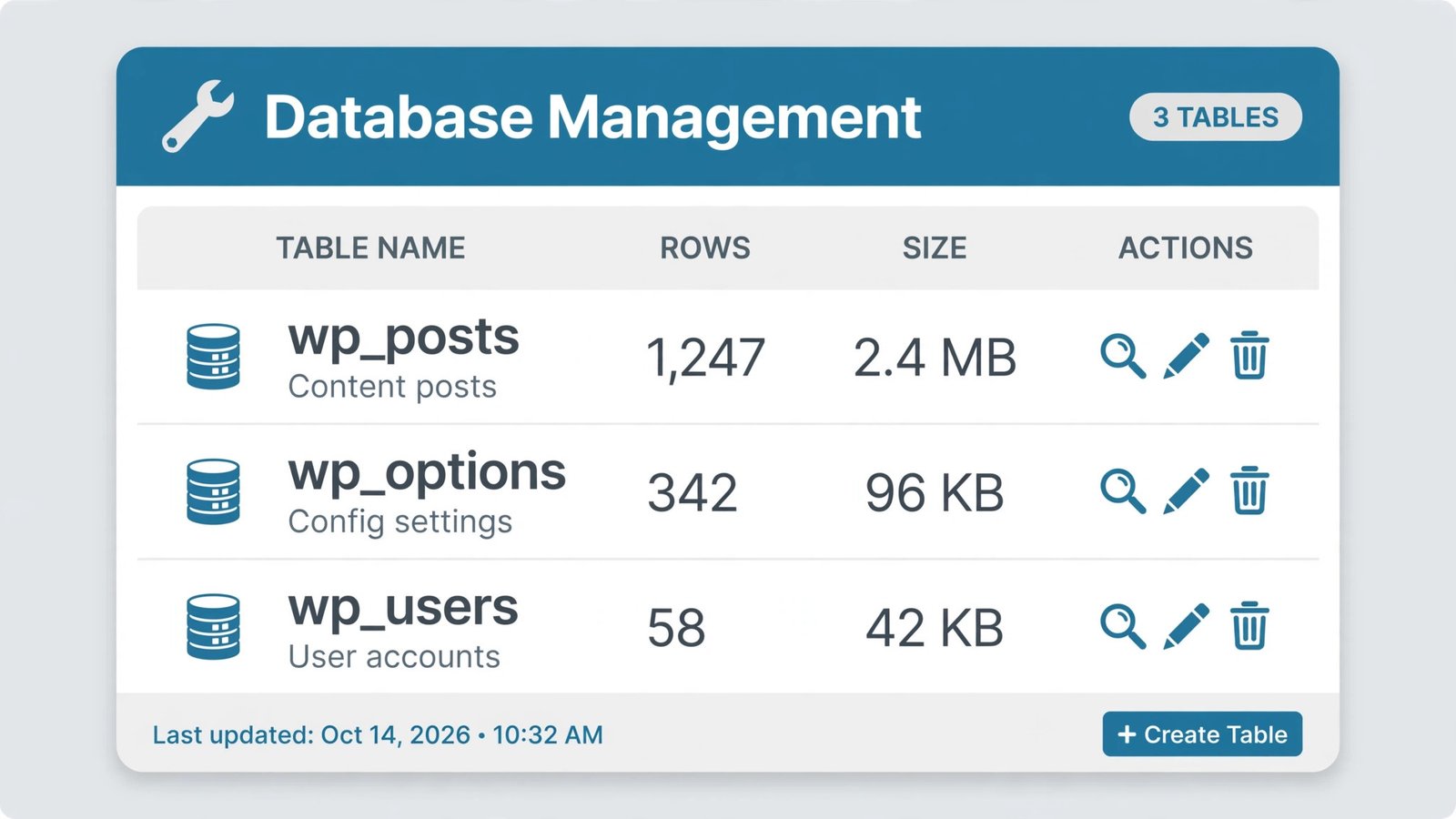
- Do the tables exist? You should see tables like
wp_posts,wp_options,wp_users(the prefix may differ). If the database is empty or nearly empty, your tables were dropped — restore from backup (Fix 6). Don’t panic: this is rare. - Check the
wp_optionstable. Click Browse and look at the first rows:siteurlandhomeshould contain your correct site address. If they show an old domain or a staging URL after a migration, that’s breaking the connection handshake. Edit them to the correct URL. - Look for crashed tables. phpMyAdmin sometimes flags tables as “in use” or crashed. Select the suspicious tables, and from the “With selected” dropdown choose Repair table.
- Check the table count. A standard WordPress install has 12 core tables. If you see far fewer, something deleted them — again, that’s a restore-from-backup situation.
One more thing worth checking while you’re in the hosting panel: disk space. If your hosting account is completely full, MySQL can’t write and may refuse connections. It sounds too simple, but it happens — especially on small shared plans where backups pile up unnoticed.
Fix 6: Restore From a Backup
If nothing above worked, stop troubleshooting and restore. There’s no prize for finding the root cause while your site sits dead — get it back online first, investigate later.
The right way to restore:
- In your hosting panel or backup plugin, pick the most recent backup from before the error appeared.
- Restore both the files and the database. Restoring only one half is a classic way to end up with mismatched credentials (which causes… this exact error).
- After restoring, immediately check
wp-config.php— some restore tools overwrite it with old credentials.
If you don’t have a backup: check whether your host keeps automatic backups. Most managed WordPress hosts and many shared hosts keep 7–30 days of backups even if you never set anything up. Ask support — “do you have an automatic backup of my account from before [date]?” is a perfectly normal question, and the answer is often yes.
Let this be the moment you set up automated backups if you haven’t. A plugin like UpdraftPlus with scheduled backups to Google Drive takes ten minutes to configure and makes every future crisis a five-minute fix instead of a five-hour one. And while you’re hardening things, make sure your accounts are locked down — here’s how to move Google Authenticator to a new phone so you don’t lose 2FA access to your hosting and WordPress accounts.
Fix 7: Stop It From Coming Back
Fixed it? Good. Now make sure you don’t see that white screen again next month. Recurring “error establishing a database connection” almost always has one of these causes:
- Your host can’t handle your traffic. On cheap shared hosting, traffic spikes exhaust the database server’s connection limit. If the error appears during busy periods and vanishes on its own, you’re outgrowing your plan. Time to upgrade — or at least ask your host to raise your MySQL connection limit.
- Too many plugins hitting the database. Some plugins query the database on every single page load — statistics plugins, related-post plugins, and badly coded widgets are repeat offenders. Audit your plugins: deactivate anything non-essential and see if the error stops recurring.
- No caching. A caching plugin (or server-level cache) means most visitors never touch the database at all — they get a static HTML copy. That alone can cut database load by 90% or more.
- An unreliable host. If this error keeps returning and your host’s answer is always “everything looks fine on our end,” believe the pattern, not the support ticket. A host with an unstable database server will cost you more in downtime than a better plan costs per month.
- Keep WordPress updated. Core, theme, and plugin updates regularly fix the exact bugs that corrupt databases. Enable automatic updates for minor releases at minimum.
Frequently Asked Questions
Will I lose my posts and pages?
No. This error means WordPress can’t reach the database — it doesn’t mean the database is gone. Your content sits untouched in MySQL while you troubleshoot. The only scenario where content is actually lost is if tables were deleted, which is rare and is exactly what backups are for.
How long does it take to fix?
Most cases resolve in 15–30 minutes. Wrong credentials (Fix 2) take five minutes once you know where to look. A host-side outage (Fix 4) resolves itself — you’re just waiting on them.
Can a plugin cause “Error establishing a database connection”?
Indirectly, yes. A plugin can’t change your database password, but a badly coded plugin can corrupt tables or exhaust the database server’s resources, which produces the same error. If the error started right after installing or updating a plugin, rename its folder via FTP to deactivate it and see if the site returns.
Why does wp-admin work but my site doesn’t?
Your credentials are fine (WordPress is connecting). The usual cause is a corrupted wp_options table — specifically the siteurl/home rows. Run the database repair tool (Fix 3) or check those values directly in phpMyAdmin (Fix 5).
Is it safe to leave WP_ALLOW_REPAIR enabled?
No. The repair page at /wp-admin/maint/repair.php requires no login, so anyone can trigger database operations on your site while it’s active. Add the line, run the repair, remove the line — all in one sitting.
What if the error comes and goes?
Intermittent errors point to resource limits, not configuration. Your site is hitting the database server’s connection or memory ceiling during busy periods. Enable caching, trim heavy plugins, and talk to your host about limits — or upgrade to a plan with dedicated resources.
Conclusion
“Error establishing a database connection” looks terrifying but it’s one of the most diagnosable errors in WordPress. The fix is almost always in this short list: wrong credentials in wp-config.php, a corrupted table you can repair in two minutes, or a database server that’s having a bad day.
Work the fixes in order, back up before you change anything, and remove that WP_ALLOW_REPAIR line when you’re done. And once your site is back, take ten minutes to set up automated backups — the next time something breaks at midnight, you’ll be restoring instead of troubleshooting.
If this guide got your site back online, you might also want a lighter setup going forward — a bloated theme with dozens of database-heavy features is often part of why these errors start. Here are 3 free WordPress themes that look premium without the bloat.