

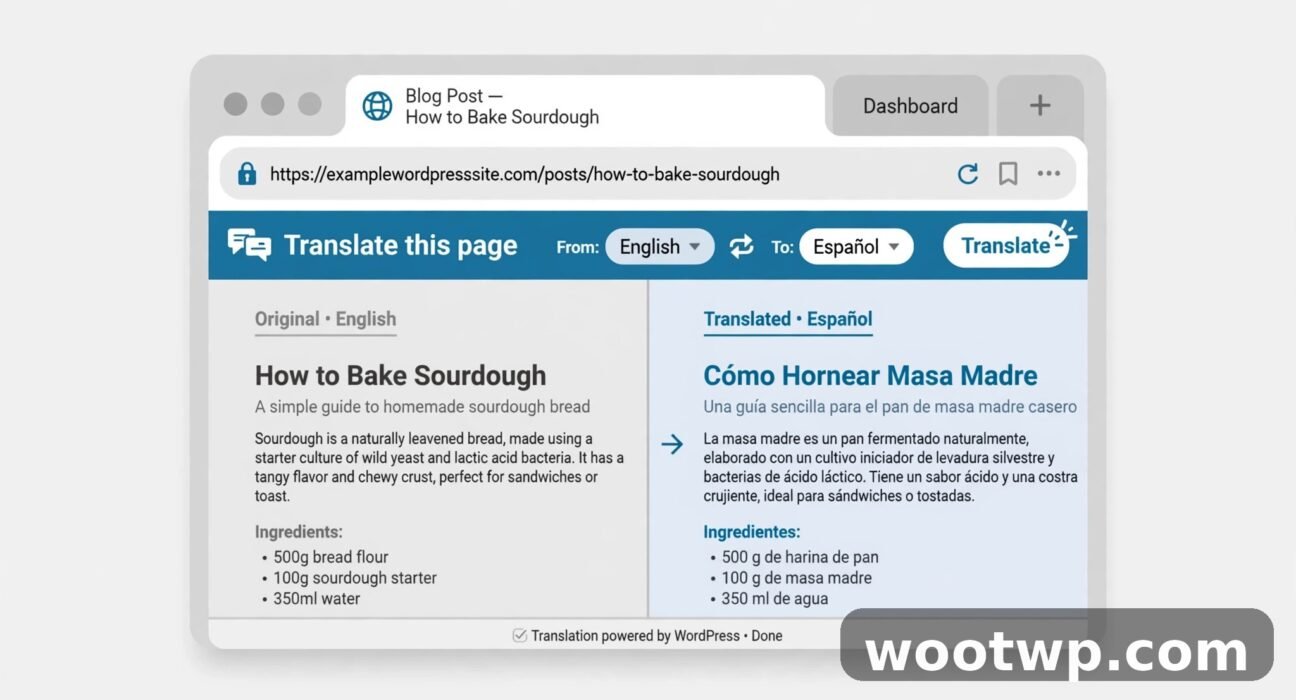
How to Translate an Entire Webpage Automatically: 7 Easy Methods
You open a page in another language and you need the whole thing in English right now. Learning how to translate an entire webpage automatically saves you from copying text line by line into a translator.
Most modern browsers can do this for you in one tap or click. Chrome, Edge, Safari, and Firefox all have built-in translation. You do not need to install anything for the basic methods.
This guide shows you each method step by step, on PC and on your phone. You will also learn how to set your preferred language, how to make translation automatic, and what to do when the translate button does not show up.
- How to Translate an Entire Webpage Automatically in Chrome on Desktop
- How to Translate an Entire Webpage Automatically in Chrome on Android and iPhone
- Translate a Webpage in Microsoft Edge
- Translate a Webpage in Safari on Mac
- Translate a Webpage on iPhone and iPad
- Translate a Webpage in Firefox
- Use Google Translate to Translate a Whole Webpage
- Browser Extensions That Translate Webpages
- Set Your Default Language and Always-Translate Preferences
- What Machine Translation Gets Wrong
- Why the Translate Prompt Does Not Appear and How to Fix It
- FAQs About Translating a Webpage Automatically
- Conclusion
How to Translate an Entire Webpage Automatically in Chrome on Desktop
Chrome has the smoothest built-in translation of any desktop browser. In most cases, it offers to translate the page as soon as it loads. You just accept the offer and the whole page changes language in a second or two.
This is the fastest way to translate webpage in Chrome. You do not need an extension, an account, or a separate tool.
Use the translate prompt when it appears
- Open Chrome on your PC or Mac.
- Go to a webpage written in another language.
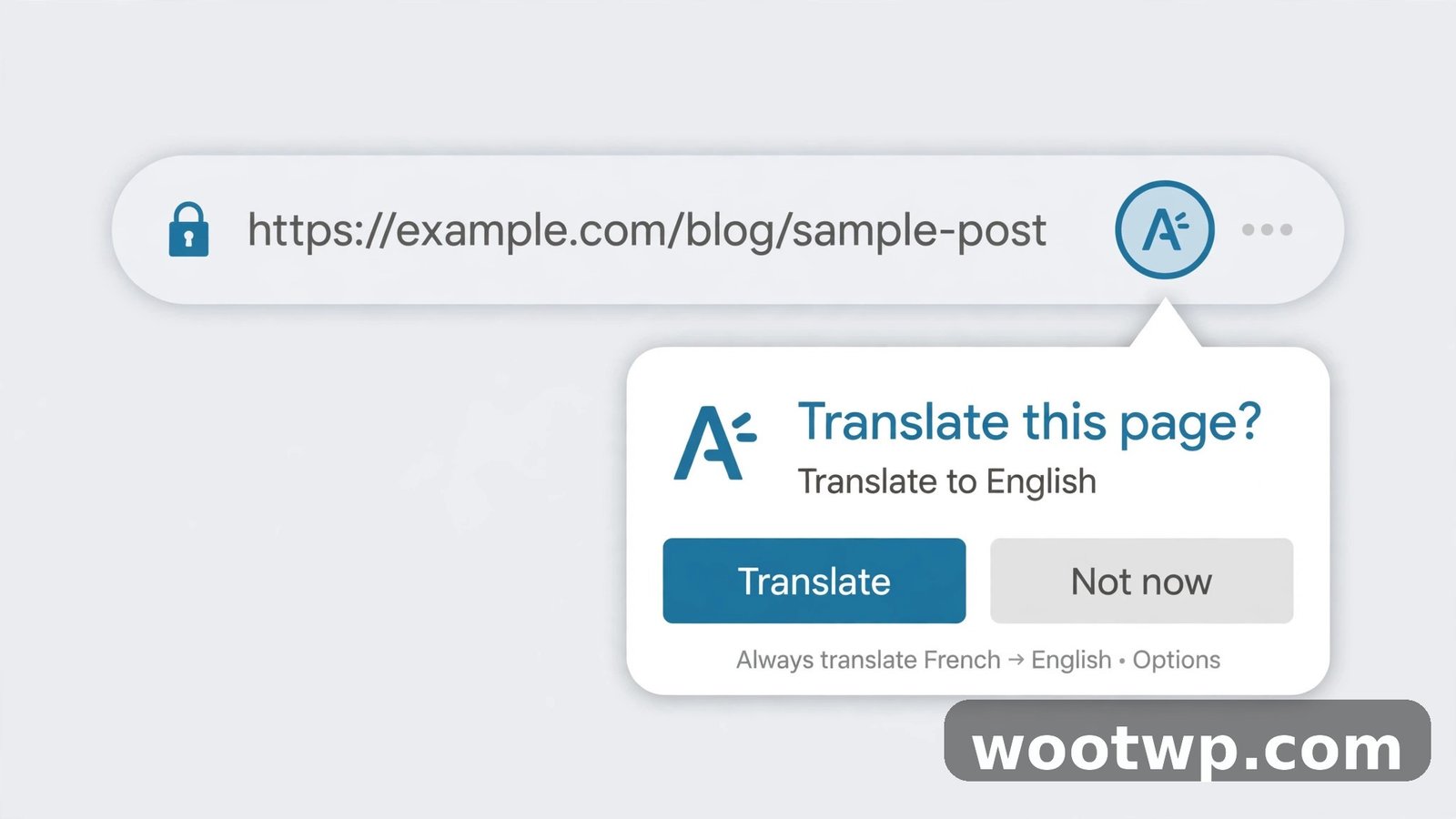
- Wait for the translate prompt near the top right of the address bar.
- Click the language Chrome suggests, usually English.
- Click Translate.
The page will reload in your language. Menus, headings, buttons, and most body text will change. Images with text inside them will not change, and neither will some embedded widgets.
If you want to go back, click the translate icon again and choose Show original. That restores the page in its first language.
Use the address-bar icon when no prompt appears
Sometimes Chrome does not show the prompt right away. The icon is still there in most cases.
- Look at the right side of the address bar for a small translate icon.
- Click the icon to open the translate box.
- Pick your target language from the list.
- Click Translate.
If you do not see the icon at all, right-click anywhere on the page and choose Translate to English. That option appears on most foreign-language pages.
Turn on Always translate pages in this language
If you read a lot of pages in one language, you can make Chrome translate them without asking each time.
- Open the page in that language.
- Click the translate icon in the address bar.
- Click the three dots in the translate box.
- Tick Always translate pages in this language.
- Choose your target language if Chrome asks.
From now on, pages in that language will switch over on their own. You can undo this later from the same menu by unticking the option.
Check your Chrome language settings
If translation never works, your settings may be off. Check them once and you will save a lot of time later.
- Click the three dots at the top right of Chrome.
- Go to Settings.
- Click Languages on the left.
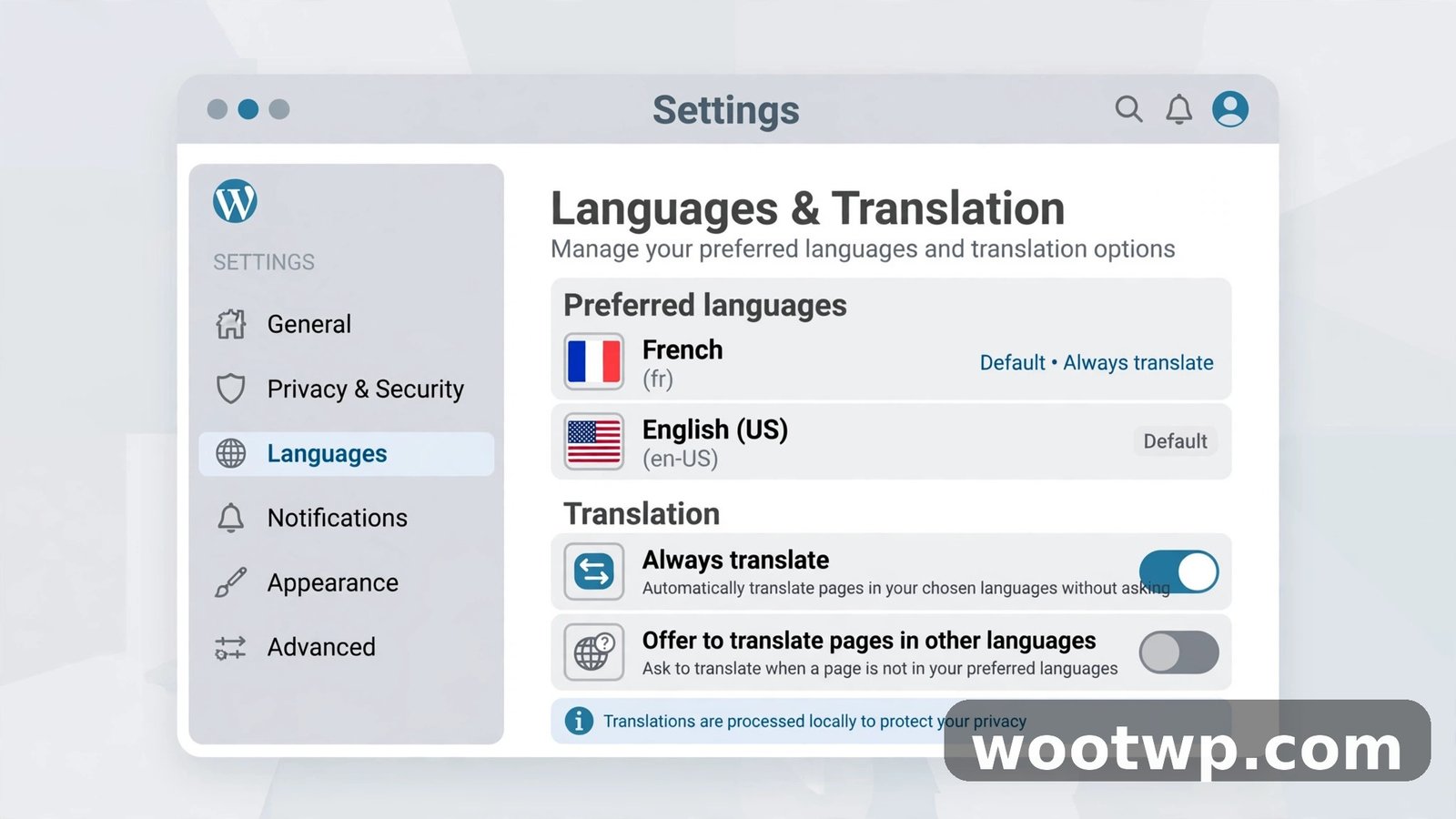
- Make sure Offer to translate pages that aren't in a language you read is turned on.
- Add your preferred language at the top of the list if it is missing.
You can find more detail in the official Google Chrome Help on translating webpages. It covers the same settings with screenshots for the current version.
How to Translate an Entire Webpage Automatically in Chrome on Android and iPhone
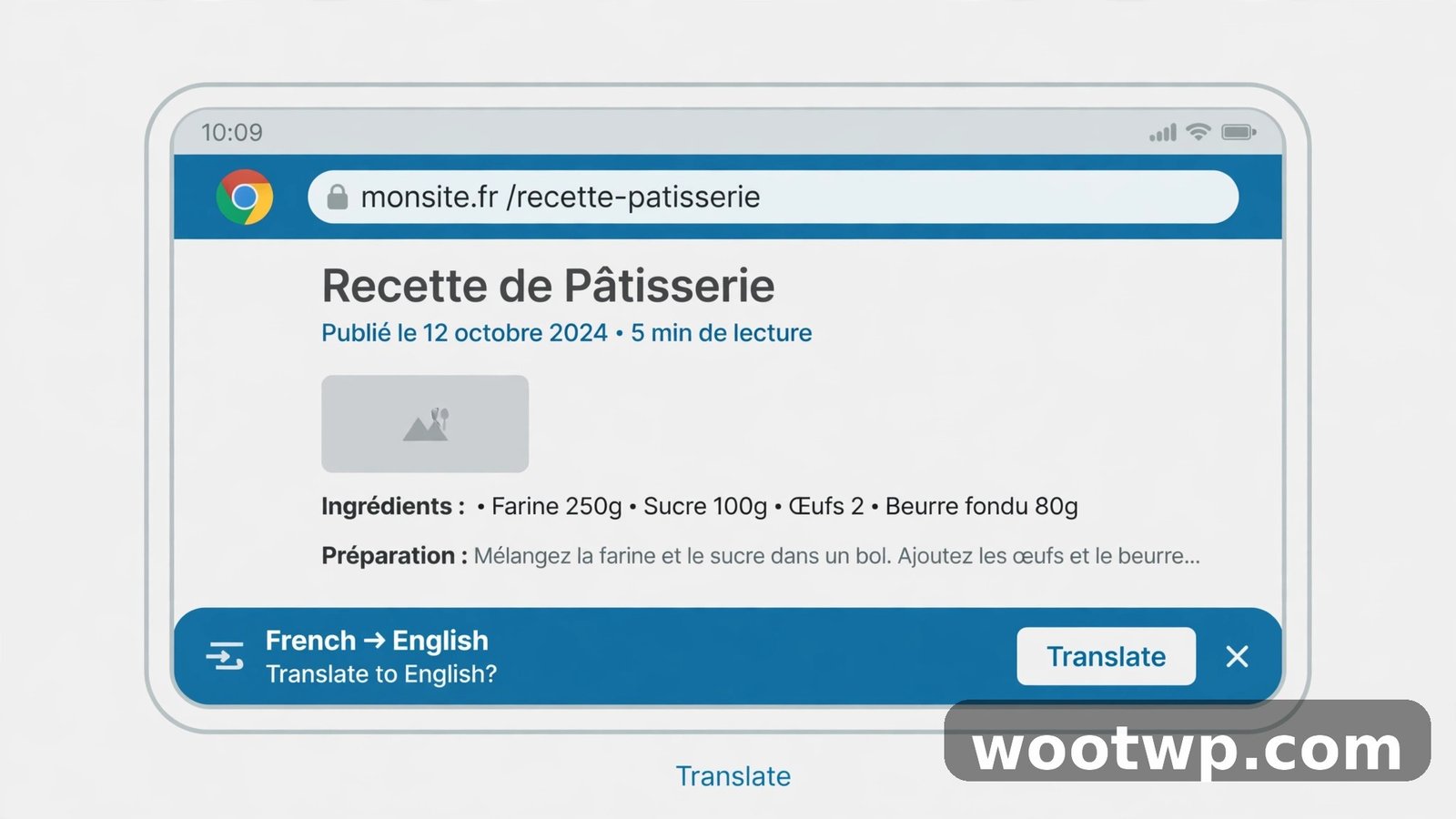
Chrome on your phone works in much the same way as Chrome on a PC. The translate bar sits at the bottom of the screen instead of the top. Once you learn it, you can translate any page in a few seconds while you are out and about.
This is the method most people use to translate webpage in Chrome on mobile. It works on both Android and iPhone, with only small differences in the menus.
Translate a page on Android
- Open the Chrome app on your Android phone.
- Go to a webpage in another language.
- Look for the translate bar at the bottom of the screen.
- Tap the language you want, usually English.
- Wait a moment for the page to change.
If the bar does not show, tap the three dots at the top right, then tap Translate. Chrome will then offer the languages it detected on the page.
To make Chrome auto translate web pages in a language you read often, tap the gear icon on the translate bar and turn on Always translate pages in this language. You can also pick a different target language there.
Translate a page on iPhone
- Open the Chrome app on your iPhone.
- Go to a webpage in another language.
- Tap the translate bar at the bottom if it appears.
- Tap English or your preferred language.
- Tap Translate if Chrome asks for confirmation.
If no bar appears, tap the three dots at the bottom right, then tap Translate. The steps are the same after that point.
On iPhone, Chrome uses the same language list as the desktop version. If you set English as your main language in the app, Chrome will offer it first every time.
Change the target language on mobile
You are not stuck with English. You can translate a page into Spanish, French, Arabic, Urdu, or any other language Chrome supports.
- Open the translate bar on the page.
- Tap the gear icon or the three dots.
- Tap More languages.
- Pick the language you want.
- Tap Translate.
Chrome will remember that choice for the current page. For future pages, it will still offer your main language first.
Translate a Webpage in Microsoft Edge
Edge has built-in translation powered by Microsoft Translator. It works on Windows, Mac, Android, and iPhone. If you already use Edge, you do not need to switch browsers to read foreign pages. Learning how to translate an entire webpage automatically in Edge takes less than a minute once you know where the icon sits.
Translate a page on Edge desktop
- Open Edge on your PC or Mac.
- Go to a webpage in another language.
- Look for the translate icon in the address bar.
- Click Show translate options.
- Pick your target language.
- Click Translate.
Edge will translate the page right away. A small icon stays in the address bar so you can switch back to the original language at any time.
To make Edge translate a language every time, open the translate box, click More, and tick Always translate pages from this language. Edge will remember that setting.
Translate a page on Edge mobile
- Open the Edge app on your phone.
- Go to a webpage in another language.
- Tap the three dots at the bottom.
- Tap Translate.
- Pick your target language.
Edge on mobile shows the same options as the desktop version. You can also set a language to always translate from the same menu.
Change Edge translation settings
- Click the three dots at the top right of Edge.
- Go to Settings.
- Click Languages.
- Turn on Offer to translate pages that aren't in a language I read.
- Add the languages you read under Preferred languages.
If a page is already in a language you listed, Edge will not offer to translate it. That is by design. Remove the language from the list if you want Edge to offer translation for it again.
Translate a Webpage in Safari on Mac
Safari on Mac can translate webpages into English and several other languages. The feature is built in, so you do not need an extension for the languages Apple supports. If you want to know how to translate an entire webpage automatically in Safari, the address-bar button is the whole method.
Use the translate button in Safari
- Open Safari on your Mac.
- Go to a webpage in another language.
- Look for the translate icon in the address bar.
- Click it and choose Translate to English.
- Wait for the page to reload in English.
If the icon is greyed out, the page language may not be supported, or the page may already be in English. Try a different page to test it.
Set your preferred languages in Safari
Safari uses the language list from your Mac settings. To change it, follow these steps.
- Open System Settings on your Mac.
- Click General, then Language and Region.
- Add your preferred language at the top if needed.
- Restart Safari and open the page again.
Safari will now offer that language first when it translates a page. In my experience, this one setting fixes most cases where Safari offers the wrong language.
When Safari cannot translate a page
Safari supports a smaller set of languages than Chrome or Edge. If your page is in a language Safari does not support, the translate icon will not appear.
In that case, copy the page address and use the Google Translate website method below. It supports far more languages and works in any browser.
Translate a Webpage on iPhone and iPad
Safari on iPhone and iPad has the same built-in translation as Safari on Mac. It is one of the easiest ways to read a foreign page on an Apple device. Once you learn how to translate an entire webpage automatically on iPhone, you can use the same steps on iPad without any change.
Translate a page in Safari on iPhone
- Open Safari on your iPhone or iPad.
- Go to a webpage in another language.
- Tap the AA icon in the address bar.
- Tap Translate to English.
- Tap Enable Translation if your phone asks.
The page will change language in a few seconds. Tap the AA icon again and choose View Original to switch back.
Change the translation language on iPhone
- Tap the AA icon in the address bar.
- Tap Translate to English or your current language.
- Tap the language name to see other options.
- Pick the language you want.
Your iPhone will remember your choice for that site. You can change it again at any time from the same menu.
Use Chrome or Edge on iPhone instead
If Safari does not support the page language, open the same page in Chrome or Edge on your iPhone. Both apps have their own translation, as described above, and they support more languages than Safari.
This is a useful fallback when you travel or when you follow links in another language. You do not need to change your main browser to use it.
Translate a Webpage in Firefox
Firefox now has built-in page translation, so you no longer need an extension for basic translation. The feature works on desktop and on Android, and it keeps improving with each release. The steps for how to translate an entire webpage automatically in Firefox are short, and the translate icon stays in the address bar for easy access.
Translate a page in Firefox on desktop
- Open Firefox on your PC or Mac.
- Go to a webpage in another language.
- Look for the translate icon in the address bar.
- Click it to open the translation panel.
- Pick your target language.
- Click Translate.
Firefox will translate the page in place. You can click the same icon again to switch back to the original text.
If the icon does not appear, click the menu button at the top right, go to Settings, then General, and check the translation settings under Language. Make sure translation is turned on.
Translate a page in Firefox on Android
- Open Firefox on your Android phone.
- Go to a webpage in another language.
- Tap the three dots at the bottom right.
- Tap Translate page.
- Pick your target language.
Firefox on Android works the same way as the desktop version. The translation happens on your device for supported languages, which keeps the page private.
Set Firefox to always translate a language
- Open a page in the language you want to translate.
- Click the translate icon in the address bar.
- Open the settings in the translation panel.
- Choose Always translate for that language.
Firefox will then translate pages in that language without asking. You can remove the setting later from the same panel.
Use Google Translate to Translate a Whole Webpage
If your browser does not offer translation, or if you want to translate website to English from a language your browser does not support, use Google Translate directly. This method works in any browser, on PC and on mobile. It is also a solid backup when you need to know how to translate an entire webpage automatically without changing your browser settings.
Translate a page with Google Translate
- Go to Google Translate.
- Click Websites at the top.
- Paste the full address of the page you want to read.
- Pick the source language or leave it on Detect language.
- Pick your target language, for example English.
- Click the link Google Translate creates.
Google Translate will open a translated copy of the page. You can click links inside that copy and Google Translate will keep translating the new pages too.
This method is handy when you get a link in a chat or email and you do not want to open it in a new browser first. Paste the link, get the translated version, and read it right away.
Limits of the Google Translate website method
Some pages do not translate cleanly this way. Login pages, shopping checkouts, and pages that load content after you scroll may show gaps. Interactive forms may also break.
For those pages, use your browser's built-in translation instead. It keeps the page working while it changes the text, so buttons and forms still respond.
A google translate webpage link is still a good backup. Keep it in your bookmarks for pages your browser cannot handle.
Browser Extensions That Translate Webpages
Built-in translation covers most needs. Extensions help when your browser does not support a language, or when you want extra features like translating selected text or a whole PDF. An extension can also help if you are on an older browser and want to know how to translate an entire webpage automatically without updating first.
When to use an extension
Use an extension if your browser has no built-in translation for the language you need, or if you want to translate only part of a page. Extensions can also help on older browser versions.
Do not install three translation extensions at once. They can clash, slow the browser down, and show two translate bars on the same page. Pick one, test it, and remove the others.
How to pick a safe extension
- Go to your browser's official extension store.
- Search for the translator by its exact name.
- Check the rating, the number of users, and the last update date.
- Read the permissions it asks for before you install it.
- Install it only if it comes from a known developer.
Avoid extensions that ask for access to all your data on all sites unless they need it to translate pages. A simple translator should not need your passwords or your browsing history.
How to use a translation extension
- Install the extension from the official store.
- Pin its icon to your toolbar if it is hidden.
- Open a webpage in another language.
- Click the extension icon.
- Pick your target language and click Translate.
Most extensions add a button to translate the full page or just the text you select. To translate selected text, highlight it first, then click the extension icon.
Set Your Default Language and Always-Translate Preferences
Setting your languages once saves you from picking a language on every page. Each browser stores this in a slightly different place, but the idea is the same. These preferences are the key to how to translate an entire webpage automatically every time, instead of tapping Translate on each new page.
Set Chrome language preferences
- Go to Chrome Settings.
- Click Languages.
- Add your preferred language under Preferred languages.
- Move it to the top of the list.
- Turn on Offer to translate pages that aren't in a language you read.
Chrome will now offer your top language first. It will also skip translation for pages already in a language you listed.
Set Edge language preferences
- Go to Edge Settings.
- Click Languages.
- Add your preferred language.
- Turn on Offer to translate pages that aren't in a language I read.
Edge will use this list to decide when to show the translate prompt. If you add a language by mistake, remove it and the prompt will come back.
Set Firefox language preferences
- Go to Firefox Settings.
- Click General.
- Scroll to Language.
- Choose your preferred language for displaying pages.
- Set translation options under the same section.
Firefox also lets you pick which languages to always translate and which to never translate. Use that list to stop prompts for languages you already read.
Set Safari language preferences
Safari follows your device language settings. Change them in System Settings on Mac, or in Settings, then General, then Language and Region on iPhone and iPad.
Add the language you want to read in, then restart the browser. Safari will offer that language first when it translates a page.
What Machine Translation Gets Wrong
Automatic translation is fast and useful, but it is not perfect. Knowing its limits helps you read translated pages with care and avoid costly mistakes.
Meaning can shift in subtle ways
Machine translation works well for simple, direct text. It struggles with jokes, slang, idioms, and words that have more than one meaning. A phrase that is polite in one language can sound blunt in another.
If a sentence looks odd, switch back to the original for a moment. Read the surrounding lines too. The context often clears up the meaning.
Names, brands, and technical terms may change
Some translators change product names, place names, or technical terms. Others leave them as they are. Both can confuse you if you are following steps or comparing models.
Check brand names and model numbers against the original page before you act on them. I have seen this cause confusion on support pages, where a model name was translated as a common word.
Images and embedded content do not translate
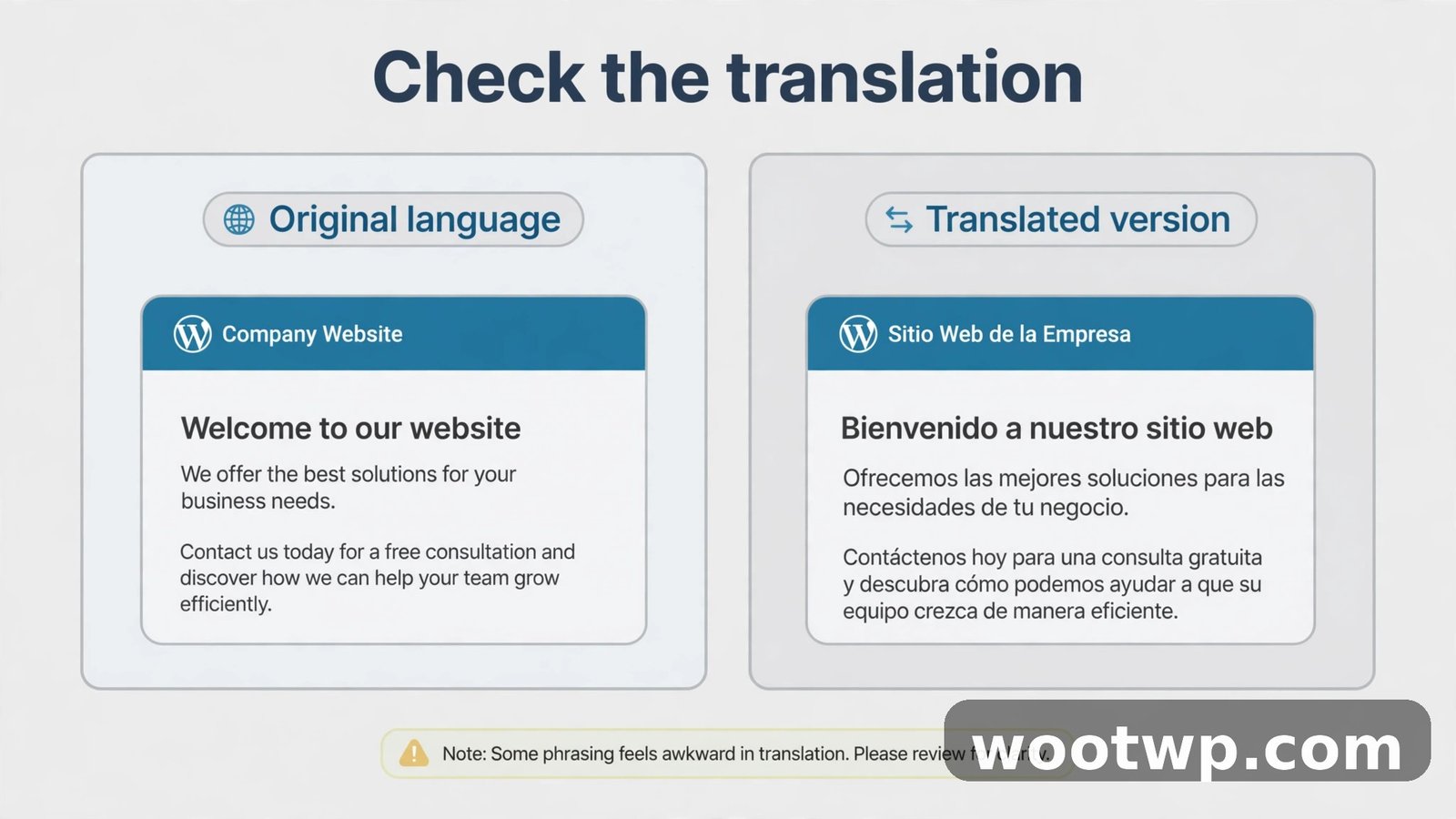
Text inside images, charts, screenshots, and videos does not change when you translate a page. The same goes for some embedded maps, forms, and third-party widgets.
If the key detail is in an image, you will need to translate that image separately or find a text version of the same detail. Do not assume the image text matches the translated page text.
Legal, medical, and financial text needs a human
Never rely on machine translation alone for a contract, a medical form, a visa application, or a financial agreement. A small error in one word can change the meaning of a clause or a dose.
For those cases, use a qualified human translator. Machine translation is fine for getting the general idea, but it is not a safe substitute for an exact translation.
Why the Translate Prompt Does Not Appear and How to Fix It
The translate prompt usually appears on its own. When it does not, the cause is often simple. Work through these checks in order.
The page is already in your language
If the page is in a language you listed as one you read, your browser will not offer to translate it. This is the most common reason the prompt stays hidden.
Remove that language from your preferred languages list, or open the page in a private window and test it there.
Translation is turned off
Check the language settings in your browser and make sure the offer to translate is turned on. The paths are listed above for Chrome, Edge, and Firefox.
If you turned it off by accident, turning it back on fixes the problem right away.
The page language is not detected
Some pages do not declare their language in the code. Your browser may then fail to detect it and skip the prompt.
Try right-clicking the page and choosing Translate, or use the Google Translate website method above. That method lets you pick the source language by hand.
An extension or setting is blocking it
A translation extension, a privacy extension, or a strict setting can hide the built-in prompt. Turn off your extensions one by one and reload the page to find the one that causes it.
If Chrome acts up in other ways too, old site data can be part of the problem. See this guide on how to clear cookies in Chrome before you test the page again. Then reload the page and check if the prompt returns.
The page is too short or mostly images
Very short pages, pages with little text, and pages made mostly of images may not trigger translation. The browser needs enough text to detect the language.
Use the Google Translate website method for those pages. It works even when the built-in prompt does not appear.
Update your browser
Old browser versions may lack translation or may have bugs in it. Update to the latest version, restart the browser, and try the page again.
On mobile, update the browser app from your app store. On desktop, go to Settings, then About, and let the browser check for updates.
FAQs About Translating a Webpage Automatically
How do I translate an entire webpage automatically in Chrome?
Open the page in Chrome and click Translate when the prompt appears near the address bar. To make it automatic, click the translate icon, open the three dots menu, and tick Always translate pages in this language. Chrome will then translate future pages in that language without asking.
How can I translate a webpage to English on my phone?
Open the page in Chrome, Edge, or Safari on your phone and tap the translate bar or the AA icon. Pick English as the target language. On Android, the translate bar sits at the bottom of the screen. On iPhone, Safari shows the option under the AA icon in the address bar.
Why is Google Translate not translating a whole webpage?
The page may block translation, load most of its text after you scroll, or use a language Google Translate does not support for websites. Try your browser's built-in translation instead, or reload the page and try the Google Translate link again. Some login pages and checkouts also resist translation by design.
Can Firefox translate webpages without an extension?
Yes, current versions of Firefox have built-in page translation on desktop and Android. Click the translate icon in the address bar, pick your target language, and click Translate. You do not need an extension for the languages Firefox supports.
How do I make Edge auto translate web pages?
Open a page in the language you want, click the translate icon, and tick Always translate pages from this language. Edge will remember that choice. You can also add the language in Edge Settings under Languages and turn on the offer to translate pages you do not read.
Does Safari translate webpages automatically?
Safari can translate a page when you tap the translate icon in the address bar and choose your language. It does not always translate every page on its own. If Safari does not support the page language, open the same page in Chrome or Edge, or use Google Translate with the page address.
Conclusion
Learning how to translate an entire webpage automatically turns a foreign page from a barrier into a quick read. Pick your browser, use its built-in translation first, and set your language preferences once so future pages translate without extra taps.
Start with Chrome or Edge for the widest language support, use Safari or Firefox if they are your main browser, and keep Google Translate as a backup for pages that do not trigger the prompt. That simple setup covers almost every page you will meet.

