
How to Turn Off Ad Personalization on Google: 7 Easy Ways That Work
Tuesday night. Couch. TV on in the background, phone in my hand, not really watching either of them. A pair of running shoes slid into the sidebar of the news site I was reading. Shoes I had glanced at — once, that morning, on a sports store site. By Wednesday they were in my Gmail. Thursday, YouTube. Same shoes. Everywhere I went online, there they were, like a salesperson who had decided I was definitely buying and just needed a little more time.
That was the week I finally sat down and figured out how to turn off ad personalization on Google. Two minutes. No install, no payment, nothing to buy. It works on desktop, Android, and iPhone, signed in and signed out — and this guide covers all of it, plus what actually changes once you flip the switch. And what doesn't. Because the second part matters just as much.
Table of Contents
- What Happens When You Turn Off Ad Personalization on Google?
- How to Turn Off Ad Personalization on Google When You're Signed In
- How to Turn Off Ad Personalization on Google on Android
- How to Turn Off Ad Personalization on Google on iPhone
- How to Turn Off Ad Personalization on Google When You're Signed Out
- What About the Partner Sites and Apps Settings?
- Will Turning Off Ad Personalization Delete My Data?
- FAQs
What Happens When You Turn Off Ad Personalization on Google?
Quick version first, because it saves confusion later. Google builds a picture of your interests. Searches. Videos you watched. Sites you visited. Location history. That picture is what picks the ads you see. Flip the switch off, and Google stops using that picture for ads. Simple as that.
So what actually changes?
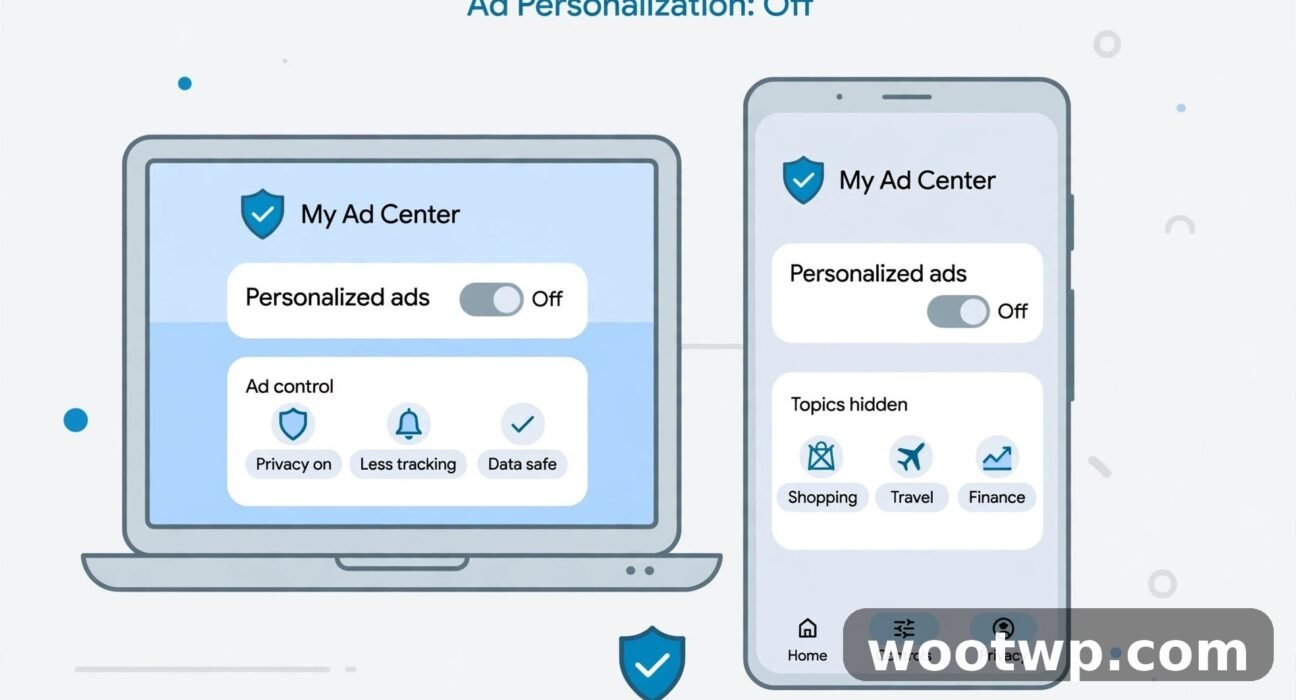
Ads on Google services stop being chosen from your interests, your past searches, or your watch history. Ads on partner sites and apps stop being personalized by Google too. The topics and brands you customized in My Ad Center? Deleted. Any information you saved there stops being used to pick your ads. And the whole thing applies across every device where you're signed into the same Google account — flip it once, and your phone, your tablet, your laptop all follow.
Now the part people get wrong.
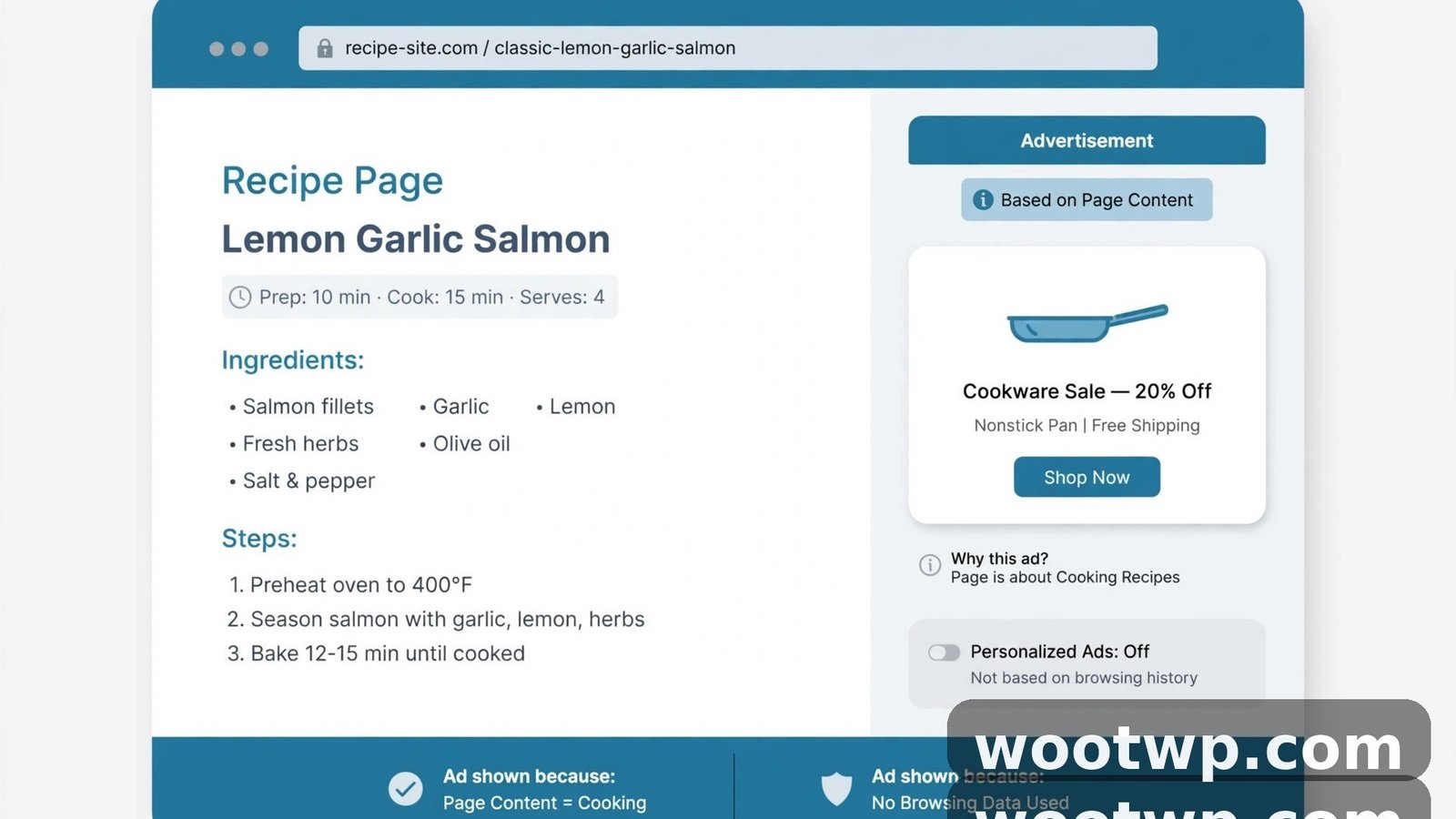
Turning off ad personalization does not turn off ads. Sorry. You'll still see ads. They'll just be picked from the context around them instead of from you. Time of day. The topic of the page you're reading. Your general location. Your active search. The video you just watched. A cooking blog shows a food ad. A search for plumbers shows a plumbing ad. That kind of thing.
And it doesn't delete your data, either. Search history, YouTube history, location history — all of it stays exactly where it is unless you delete it separately. The switch only stops Google from using it to choose ads. That's a real difference. Plenty of people flip the toggle and assume their data is gone. It isn't. (There's a section on the actual deleting further down.)
One more thing, worth knowing before you start: accounts belonging to someone under 18 never get personalized ads while signed in. The option simply isn't there for them. For everyone else, it's on by default. You have to switch it off yourself. Nobody's going to do it for you.
How to Turn Off Ad Personalization on Google When You're Signed In
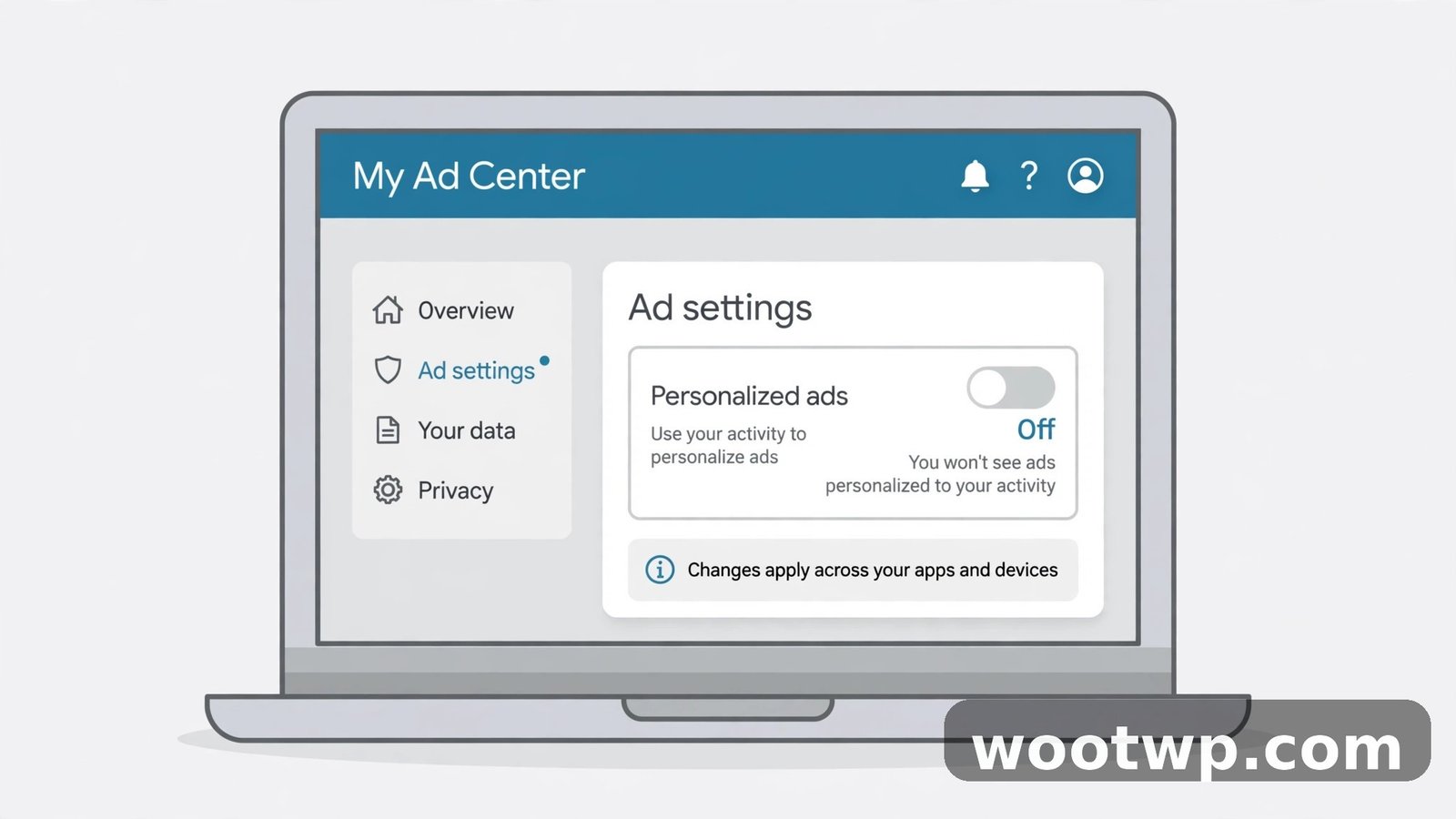
This is the main method. Any desktop or laptop browser. My Ad Center is Google's control panel for your ads, and the toggle lives right there.
My first attempt? A mess. I went into my Google Account's privacy page and spent five minutes hunting through menus before it dawned on me that My Ad Center is its own page. Don't do what I did. Go straight there.
- Go to myadcenter.google.com and sign in if you aren't already.
- Look for the Personalized ads section near the top of the page.
- Select Off next to "Personalized ads".
- Confirm your choice when Google asks if you're sure.
Done. That's the whole thing. The change applies right away. And because it syncs with your account, it covers your phone, your tablet, and any other computer where you sign in with the same account. No repeating it device by device.
Already inside your Google Account settings? Same page, different route:
- Go to myaccount.google.com.
- Select Data and privacy in the left menu.
- Scroll down to My Ad Center and select it.
- Select Off next to "Personalized ads" and confirm.
Same switch. Same result. Whichever route feels easier.
While you're in there — peek at the Topics and Brands tabs. That's what Google thinks you're interested in. Mine once listed "luxury watches." I laughed out loud. I have never bought a luxury watch in my life, and I never will. You can remove topics or brands one by one. Turning personalization off deletes them for you anyway, but it's a useful little look at the profile Google built while you weren't paying attention.
If you want the official wording, Google's own help page spells it out. The My Ad Center help page covers what personalized ads use and what happens when you switch them off.
How to Turn Off Ad Personalization on Google on Android
On Android, the fastest route is the same My Ad Center page — the toggle syncs with your account, so the device you flip it on doesn't matter. But your phone has one extra thing worth doing, because Android apps use their own advertising ID, separate from Google's ad personalization. Two jobs, really. Here's the first.
From the Google app:
- Open the Google app on your Android phone.
- Tap your profile picture in the top right.
- Tap Manage your Google Account.
- Tap Data and privacy.
- Scroll down and tap My Ad Center.
- Turn Personalized ads off and confirm.
No Google app handy? Same steps from Chrome. Profile picture, Manage your Google Account, then follow the same path.
Now the extra Android step. Your phone has an advertising ID — a resettable number that apps use to show you targeted ads. Turning off Google's ad personalization doesn't reset it or remove it. Different system, different switch. To handle it:
- Open Settings on your phone.
- Tap Google.
- Tap Ads (on some phones it's under Privacy, then Ads).
- Tap Delete advertising ID.
That deletes the ID, and apps that relied on it start over from scratch. You can repeat this whenever you like. Between the two switches — My Ad Center for Google's own ads, advertising ID for apps — you've covered the main ways Android targets ads at you.
One honest note, from my own experience: I did both of these on a Tuesday. Wednesday, I still saw an ad for those same running shoes. Once. Then it stopped. The change isn't always instant on every app and site, because some ad slots were already loaded or cached. Give it a day before you judge whether it worked.
How to Turn Off Ad Personalization on Google on iPhone
iPhone owners get the same My Ad Center switch, since it's tied to your Google account rather than to your phone. No Google advertising ID to delete on iOS the way there is on Android, so this one's shorter.
- Open the Google app on your iPhone (or Chrome, if that's what you use).
- Tap your profile picture in the top right.
- Tap Manage your Google Account.
- Tap Data and privacy.
- Scroll to My Ad Center and open it.
- Turn Personalized ads off and confirm.
That's it. And if you use Safari and rarely open Google's apps, the same thing works from any browser at myadcenter.google.com. Sign in, flip the switch, done. The setting follows your account, not the browser, so it covers YouTube and Google Search on your iPhone too.
To be fair, iPhone owners already have one extra layer of protection that Android doesn't offer by default: Apple's App Tracking Transparency prompts. An app asks to track you across other apps and websites, you say no, and that app can't use your data for targeted ads. Handy. But — and this trips people up — it's separate from Google's switch. The two don't talk to each other. Saying no to tracking in iOS settings doesn't turn off Google ad personalization. Turning off Google ad personalization doesn't change your iOS tracking choices. Two different doors. Close both if you want the full effect.
How to Turn Off Ad Personalization on Google When You're Signed Out
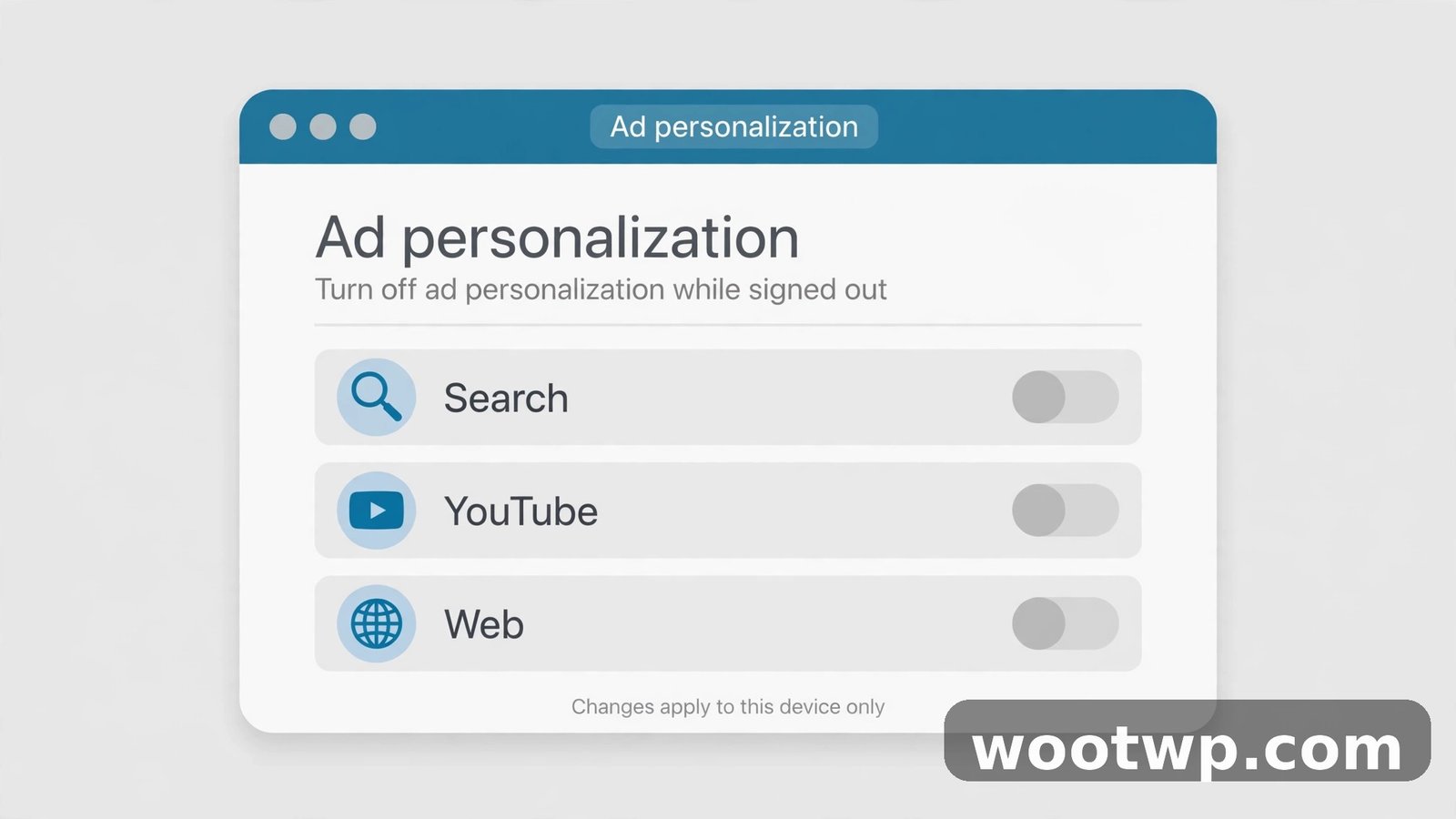
What if you don't want to sign in at all? Maybe you use Google Search without an account. Maybe you share a computer and never sign in. You can still turn off personalization — but the rules change. No account to tie the setting to means Google stores it in your browser instead. Every browser, every device, separately.
- Go to myadcenter.google.com while signed out.
- You'll see Ad Settings for your current browser and device.
- Turn off Personalized ads for Search, YouTube, and the web (partner sites) — each one has its own toggle.
- Confirm each change.
Three separate toggles. Three separate confirmations. A bit tedious, honestly. There's a reason for it, though: signed out, Google treats Search, YouTube, and the wider web as three different places, and the setting for one doesn't carry over to the others. These are the Google ad personalization settings for a signed-out browser, and they only live in that one browser. They don't follow you anywhere.
Here's the catch, and it's a big one: this setting lives in a cookie. Clear your cookies and it's gone. You'll have to do it again. If you regularly clear cookies in Chrome, expect to re-do this step fairly often. Signing in — even just to flip the switch — gives you a setting that sticks. Funny thing, really. One of the few cases where signing in actually helps your privacy rather than hurting it.
There's also a browser-level option worth knowing about. Chrome has a setting called Privacy Sandbox under Settings, then Privacy and security, then Third-party cookies. Turning off ad topics there stops Chrome from sharing your browsing interests with sites for ad purposes. It isn't the same thing as the My Ad Center switch. But the two work well together.
What About the Partner Sites and Apps Settings?
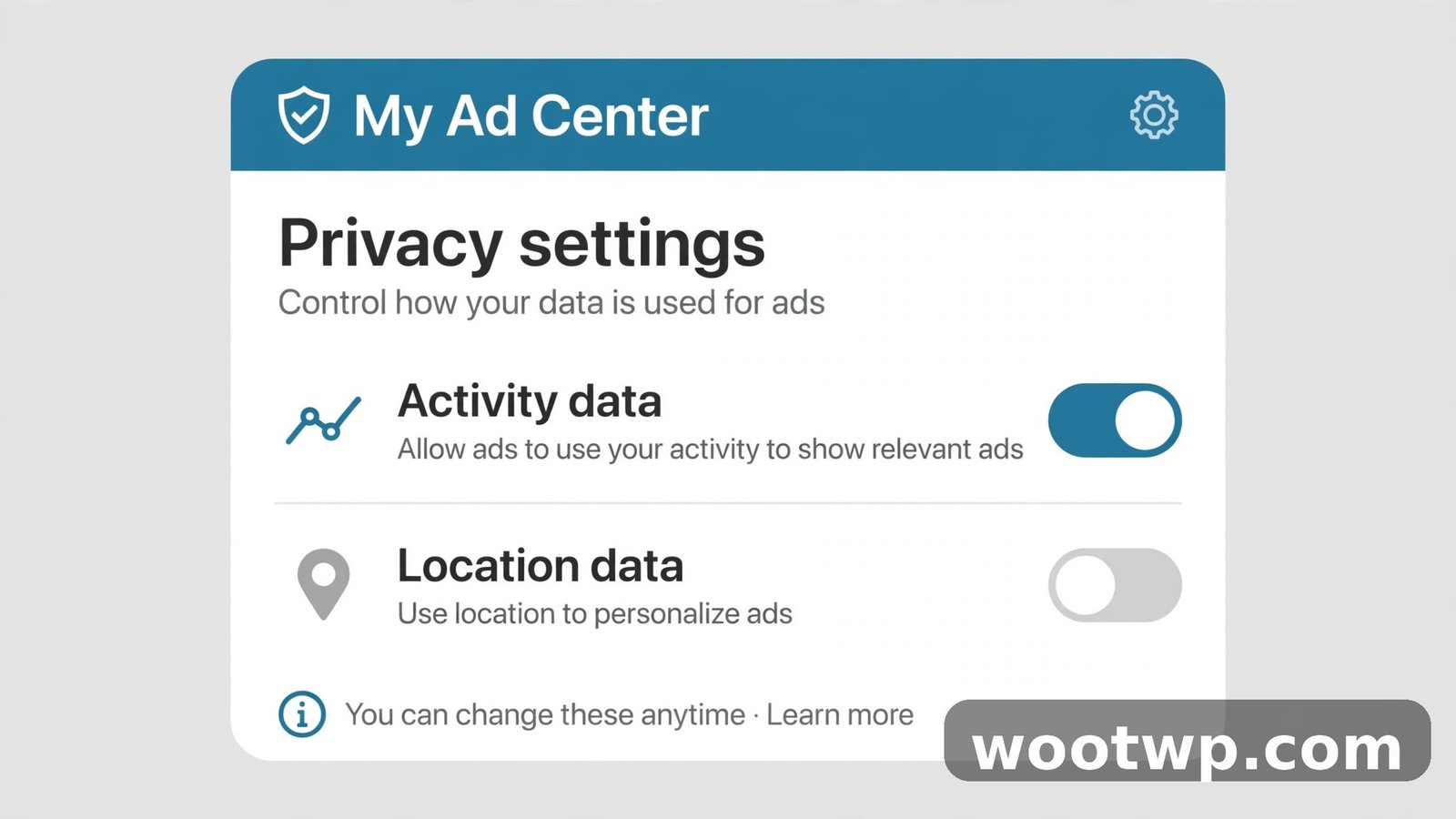
Scroll down a bit in My Ad Center and you'll find a section called Manage Privacy. This is where Google's ad personalization gets more granular, and it's worth a minute of your time. Think of these as the Google ads privacy settings that sit underneath the main toggle. The main switch stops the targeting. These two decide what new information gets collected for it.
Two switches live here:
- Activity on sites and apps that send information to Google. This covers the data Google collects when you visit a site or use an app that uses Google's advertising services. Turn it off, and that activity stops being used to personalize your ads.
- Areas where you've used Google services. This covers location-based information — the places where you've used Google Search, Maps, and other services. Turn it off, and Google stops using those areas to pick your ads.
Below that, there's a Partner ad settings section. Some of Google's partners let you manage how they use your data, and Google links out to their own settings pages from here. Mixed bag, I'll be honest. Some partners offer a clean toggle. Others bury it three menus deep. Still worth checking if there's one particular site whose ads keep finding you.
My advice? If you're going this far, turn both Manage Privacy switches off along with the main toggle. Main switch stops Google from using the profile it built. These two stop new pieces from being added to it. Together they cover more ground than either one alone.
Will Turning Off Ad Personalization Delete My Data?
No. And this is the misunderstanding I run into most often, so let's be direct about it.
Turning off ad personalization stops Google from using your data to choose ads. It does not erase the data. Your search history is still there. Your YouTube watch history is still there. Your location history is still there. If that bothers you — and honestly, it should bother you at least a little — you need to deal with the data itself, separately.
Here's how:
- Go to myaccount.google.com and open Data and privacy.
- Under History settings, open Web and App Activity, Location History, and YouTube History one at a time.
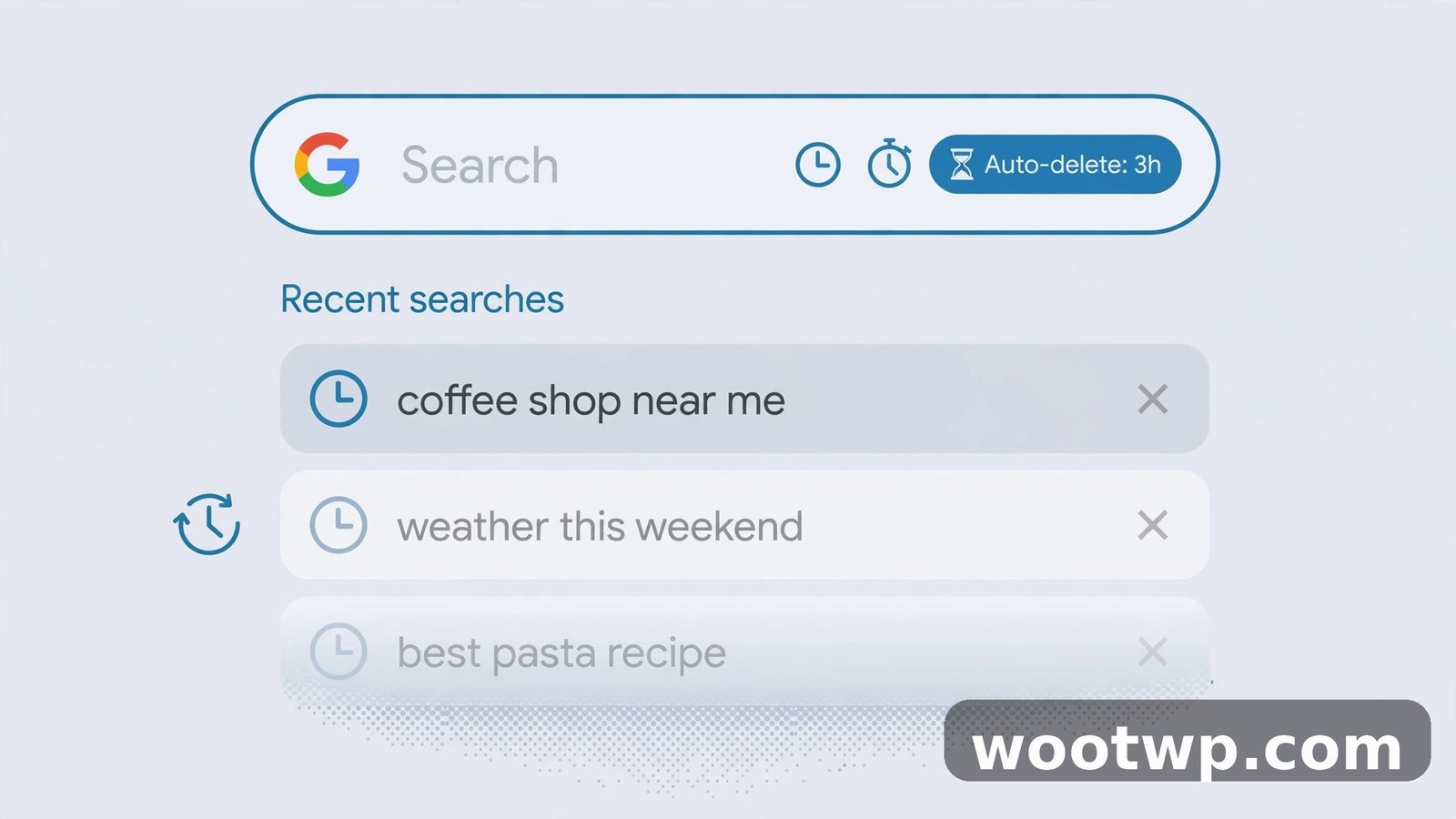
- In each one, set Auto-delete to 3 months. That's the shortest option Google offers, and it's the best balance between privacy and keeping your account useful.
- While you're there, use Delete to clear the old history you don't want kept at all.
I used to stick a note on my monitor to remind myself to do this every few months. A sticky note. In 2026. Then I found the auto-delete setting, set it once, and never thought about it again. Ask me how I know the manual approach doesn't work.
For search history specifically, you can set it to delete itself on a schedule. Our guide to how to delete Google search history automatically walks through the auto-delete setup step by step, including the 3-month, 18-month, and 36-month options and which one makes sense for most people.
One related tip while you're inside your Google Account: if you ever switch phones, sort out your two-factor authentication before you wipe the old one. Our guide on how to transfer Google Authenticator to a new phone covers the exact steps, and it's the kind of thing that's easy to forget until you're locked out of an account at the worst possible moment.
What Changes After You Switch It Off (and What Doesn't)
So you've flipped the switch. What should you actually expect over the next few days?
The ads get more generic. Instead of the shoes you looked at yesterday, you'll see ads for things based on whatever page you're on. A news article about gardening shows a garden centre ad. A video about car repair shows a car parts ad. Some people find this a relief. Others find it slightly annoying, because the ads are less relevant — and less relevant ads can feel more random, not less.
The creepy feeling goes away. That's the big one. No more ads for a product you mentioned out loud near your phone. (It wasn't listening, by the way. It was the cookie from the site you visited. But it certainly felt like listening.) No more ads chasing you from site to site for a week after one search.
Your recommendations don't change. This trips people up. Turning off ad personalization doesn't affect your YouTube recommendations, your Google Discover feed, or your search results. Those run on different systems with their own settings. If your YouTube homepage still shows videos about running shoes, that's your watch history talking, not the ad system.
Nothing else about your account changes. Email works the same. Saved passwords work the same. Photos, documents, calendar — untouched. The switch is narrow on purpose. It only touches advertising.
And the ads don't go away. I keep saying it because it's the single most common surprise. If your goal was to stop personalized ads Google serves you entirely, this switch alone won't do it — you'll still see roughly the same number of ads. They'll just be less about you. Want fewer ads altogether? Different job. An ad blocker, a different browser, or paying for the ad-free version of a service. The personalization switch was never meant to do that.
FAQs
Does turning off ad personalization on Google stop all ads?
Nope. Ads still show up on Google Search, YouTube, and partner sites — they're just picked from context now. The page you're on, the time of day, your general location. Not your interests, not your browsing history. Fewer ads is a different problem, and for that you need an ad blocker or a paid ad-free plan.
How do I turn off ad personalization on Google on my phone?
Google app, profile picture, Manage your Google Account, Data and privacy, My Ad Center. Turn Personalized ads off, confirm, done. It syncs with your account, so your other devices get it too. Android users can go one step further and delete the advertising ID — Settings, then Google, then Ads — for an extra layer.
Will my YouTube recommendations change if I turn off personalized ads?
No. Recommendations come from your watch history, and that's a separate system from ads. Turn off personalization and the ads change; the videos YouTube suggests stay exactly the same. To change recommendations, you have to manage your YouTube watch history in your Google Account settings.
Can I turn off ad personalization on Google without signing in?
Yes, you can. Go to myadcenter.google.com while signed out and switch off the separate toggles for Search, YouTube, and the web. The catch? That setting lives in a browser cookie. One browser, one device, and clearing your cookies wipes it. Sign in and the setting sticks everywhere.
Does turning off ad personalization delete my Google data?
No. The switch stops Google from using your data to pick ads — that's all it does. Search history, YouTube history, location history, all still saved. To actually remove them, go to your Google Account, open Data and privacy, and set auto-delete to 3 months on Web and App Activity, Location History, and YouTube History.
Why am I still seeing personalized ads after turning it off?
Give it a day. Some ad slots were already loaded or cached before you flipped the switch, and some apps take a while to pick up the change. Still happening after 24 hours? Check you're signed into the right account — the setting applies per account, so a second Google account on the same device needs its own toggle. And check whether you're signed out in one browser and signed in in another.
Conclusion
Learning how to turn off ad personalization on Google is a two-minute job with a real payoff: ads that stop following you from site to site, and a little more breathing room between you and your own browsing history. Flip the switch in My Ad Center, turn off the two Manage Privacy switches while you're there, and set auto-delete on your history if you want the job done properly. The ads won't disappear — but they'll finally stop knowing quite so much about you.