
How to Check Battery Health on Android: 7 Easy Ways That Work
If your phone dies at 20% or barely lasts until lunch, learning how to check battery health on Android is the fastest way to find out whether the battery is worn out or something else is draining it. Unlike iPhones, Android phones do not put one clear battery health number in the same place on every device. Some brands show it in Settings, some hide it behind a dialer code, and some do not show it at all — but there is always a way to get the number. This guide covers every method, from the built-in screens on Samsung and Pixel phones to free apps and one simple command for technical users.
Battery health is a measure of how much charge your battery can still hold compared with when it was new. A phone at 100% health holds a full charge. A phone at 80% health holds only four-fifths of its original capacity, which is why the battery percentage drops faster even though nothing else changed. Most lithium batteries lose capacity slowly over two to three years of daily charging, and that wear is normal. What matters is knowing where yours stands, so you can decide whether to change a setting, replace the battery, or simply stop worrying.
In this guide:
- What Battery Health Actually Means
- Method 1: Check Battery Health in Settings
- Method 2: How to Check Battery Health on Android With a Hidden Dialer Code
- Method 3: Use a Free App Like AccuBattery
- Method 4: Read the Raw Numbers With ADB
- What Your Battery Health Percentage Means
- How to Slow Down Battery Wear
- Frequently Asked Questions About Android Battery Health
- Conclusion: Know the Number, Then Decide
What Battery Health Actually Means
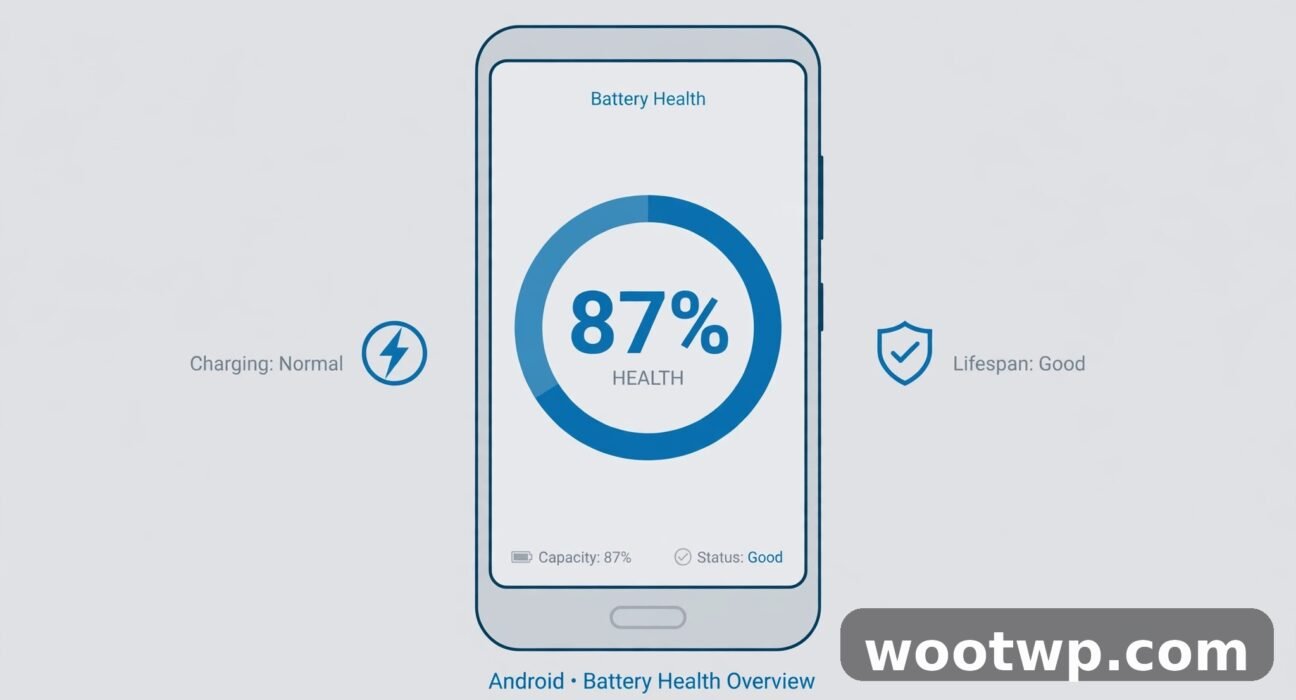
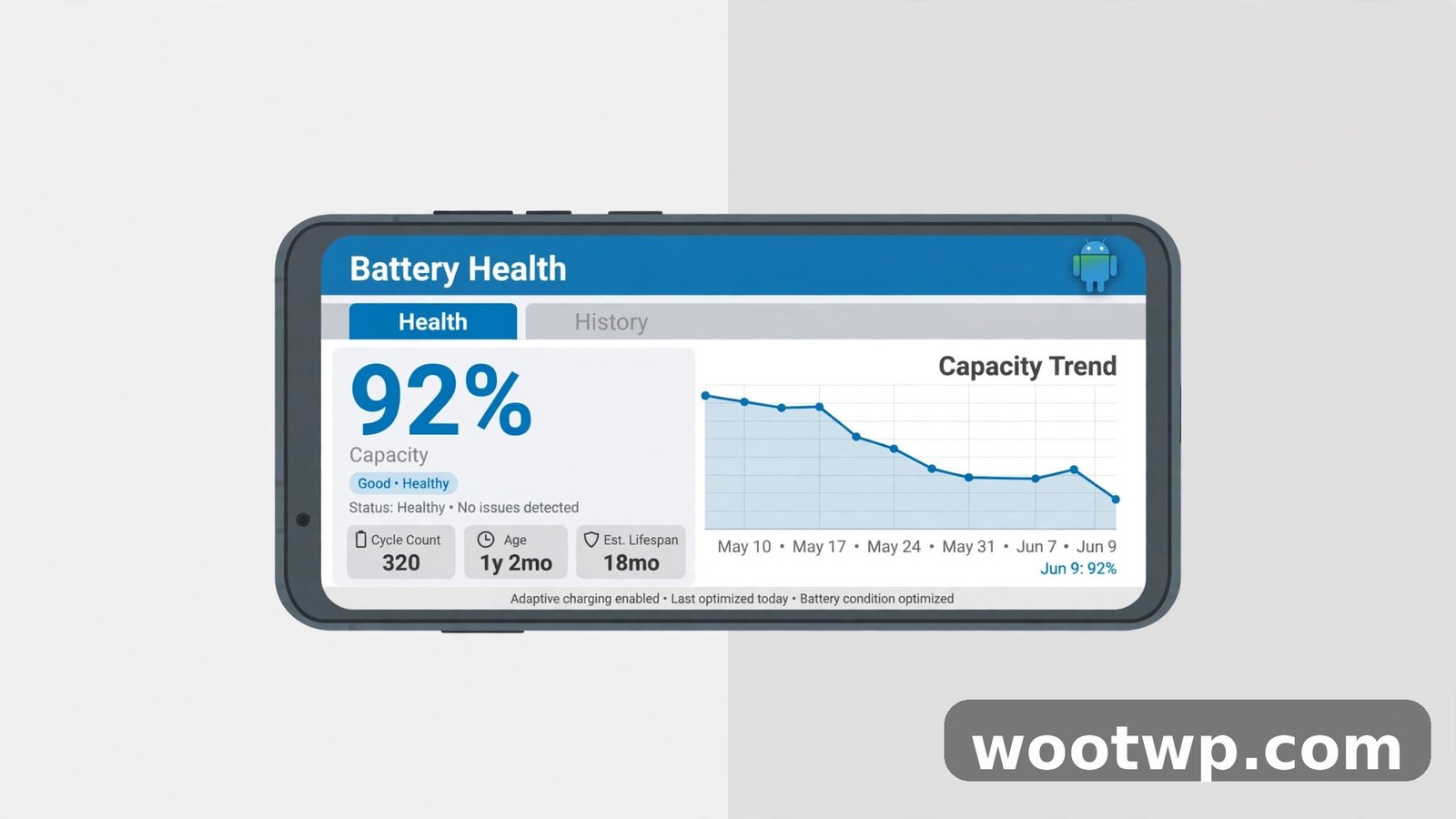
Battery health is usually shown as a percentage. It compares your battery's current maximum capacity with its design capacity — the amount it could hold when it left the factory. If your phone shipped with a 5,000 mAh battery and it now holds only 4,250 mAh, its health is 85%.
Two numbers matter, and they are not the same thing:
- Battery health (maximum capacity): How much charge the battery can still hold. This drops slowly and permanently over time. You cannot restore it with settings.
- Battery usage: Which apps and features used power since the last charge. This changes every day and is what most Android battery screens show by default.
A second number worth knowing is the charge cycle count. One cycle is a full 0-to-100% charge, though it can be spread over several partial charges. Most phone batteries are rated for around 500 full cycles before their capacity drops noticeably, and newer phones often promise 800 to 1,000 cycles. A phone with 300 cycles and 92% health is in good shape. A phone with 900 cycles and 76% health is near the end of its useful life.
Heat is the biggest enemy of battery health. A phone that regularly gets hot while charging, gaming, or sitting in a car in the sun will lose capacity faster than one kept cool. Fast charging adds some wear too, though modern phones manage it well enough that normal use is fine.
Method 1: Check Battery Health in Settings
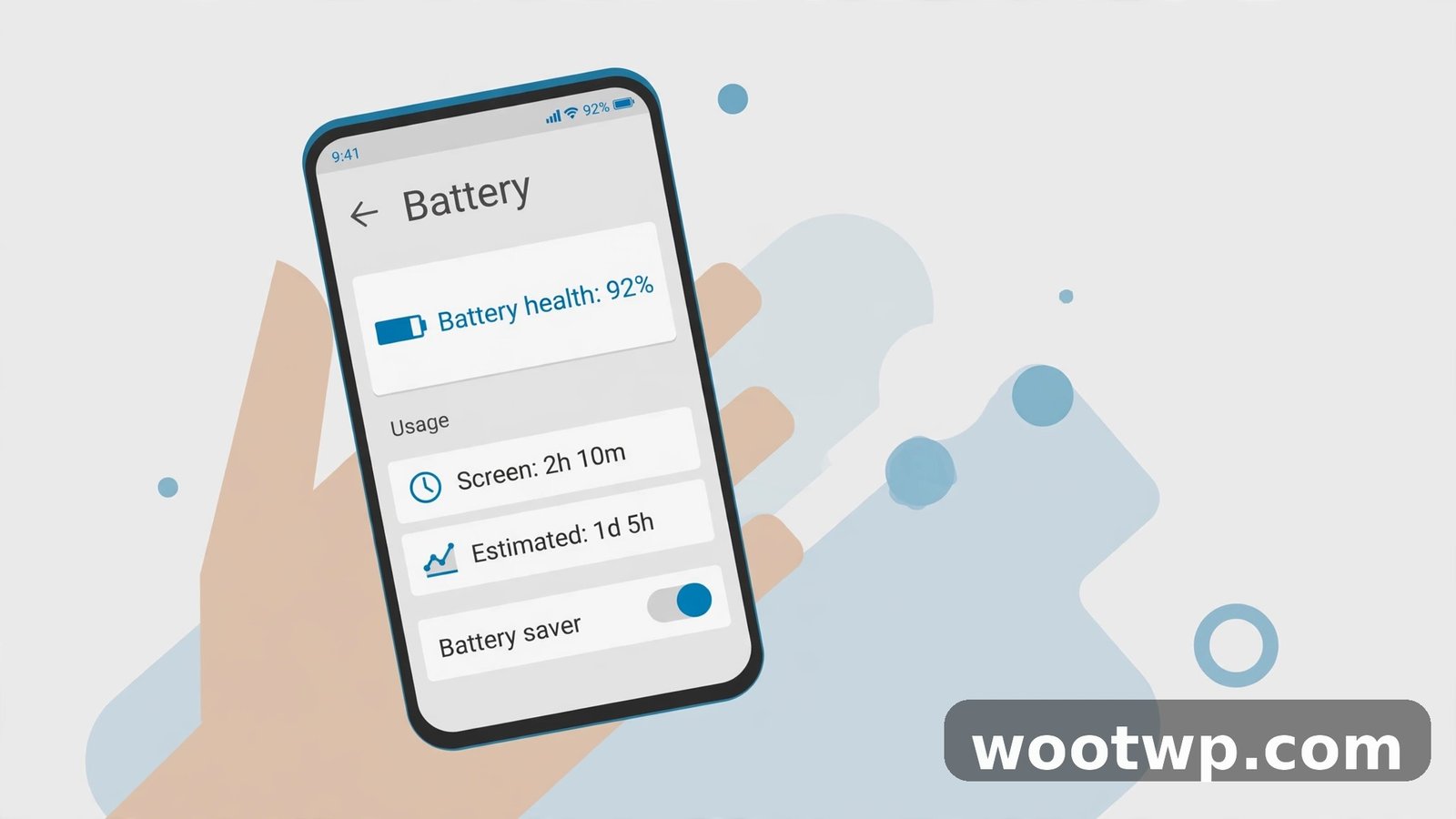
Start here. Newer Android phones show battery health in Settings, though the exact location depends on the brand. Try the path for your phone first.
Google Pixel
Pixel phones running Android 14 and later have a dedicated battery health screen:
- Open Settings.
- Tap Battery.
- Tap Battery health (on some models it is under Battery diagnostics).
- Read the maximum capacity percentage and the cycle count.
If you do not see it, try Settings > About phone > Battery information. Pixel phones also show the manufacture date and the cycle count there, which helps you judge how worn the battery is for its age.
Samsung Galaxy
Samsung shows battery health in two places:
- Open Settings.
- Tap Battery.
- Tap Battery information or Battery details. On newer One UI versions, you will see a battery health field with a percentage.
The second route uses the Samsung Members app, which comes pre-installed:
- Open the Samsung Members app.
- Tap Support at the bottom, then Phone diagnostics.
- Tap Battery status.
- The app runs a short check and shows a rating — Good, Normal, or Weak — along with the capacity.
If the rating says Weak, the battery has lost a large part of its original capacity and a replacement is worth considering.
Xiaomi, Redmi, and POCO
On MIUI and HyperOS:
- Open Settings.
- Tap Battery or Battery & performance.
- Look for a battery health indicator or a status line that says whether the battery is normal or degraded.
Xiaomi also has a hidden dialer code that gives a direct reading — see Method 2 below.
OnePlus, OPPO, and other brands
Many newer phones from OnePlus, OPPO, vivo, and HONOR have added a battery health screen in the last year or two. The path is usually Settings > Battery > More battery settings, or you can type "battery health" into the search bar at the top of Settings. If nothing appears, your phone simply does not expose the number, and you need one of the methods below.
Method 2: How to Check Battery Health on Android With a Hidden Dialer Code
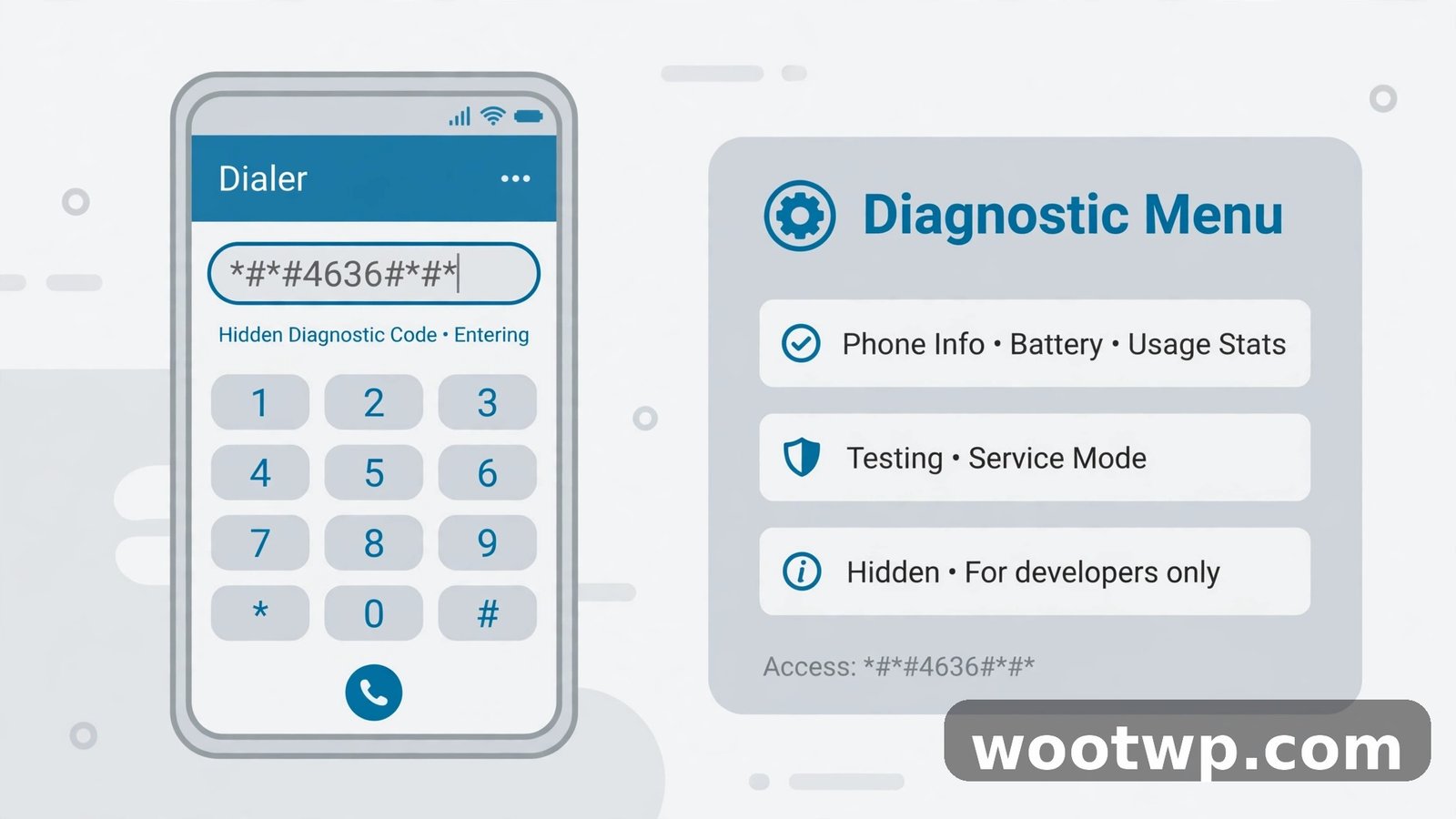
Android has hidden diagnostic menus that open when you dial a special code in the Phone app. This takes five seconds and needs no app.
- Open the Phone app.
- Type
*#*#4636#*#*on the dial pad. The testing menu should open automatically after the last character. - Tap Battery information.
- Read the battery health status, level, voltage, and temperature.
A few things to know before you try it:
- The code does not work on every phone. Samsung phones with One UI usually ignore it. If nothing happens, your phone's software blocks the menu.
- The status shown here is a general label — Good or similar — not an exact percentage. It tells you whether the battery is healthy, not how much capacity is left.
- Samsung owners can try
*#0228#instead. It opens a battery status screen showing voltage and temperature in real time. - Xiaomi owners can try
*#*#6485#*#*. Look for the MB_06 entry — that is the battery health reading.
If no code works on your phone, move on to the app method. It works on any Android phone.
Method 3: Use a Free App Like AccuBattery
When your phone's settings do not show a clear percentage, a battery app fills the gap. AccuBattery is the most widely used option, and it is free on the Play Store. It estimates your battery's remaining capacity by watching real charging sessions, so it needs a few days of normal use before its number is reliable.
- Install AccuBattery from the Google Play Store.
- Open the app and walk through the short setup. Grant the permissions it asks for.
- Use your phone normally for two or three days. Charge and discharge it as usual — the app learns from real sessions.
- Open the app and tap the Health tab.
- Read the estimated battery health percentage and the estimated capacity in mAh.
The app compares your battery's design capacity with what it measures during charging. A reading of 88% means your battery holds about 88% of its original charge. The number becomes more accurate as the app sees more charge cycles, so check it again after a week.
Two other free apps do a similar job:
- Battery Guru tracks temperature, charging habits, and health over time, and it can warn you when the battery gets too hot.
- DevCheck shows detailed hardware information, including the battery's design capacity and current capacity, on phones that expose it.
One honest warning: no app can measure capacity perfectly. AccuBattery's estimate is usually within a few percent, which is good enough to decide whether your battery is fine or worn out. If two different apps agree, you can trust the number. If they disagree wildly, give AccuBattery a few more days of data.
Method 4: Read the Raw Numbers With ADB
If you are comfortable with a computer and a cable, Android Debug Bridge (ADB) gives you the most direct look at your battery's raw data. This needs no root access and no app.
- On your phone, open Settings > About phone and tap Build number seven times to turn on Developer options.
- Go to Settings > System > Developer options and turn on USB debugging.
- Install ADB on your computer (it comes with Android Studio's platform tools, which are free to download).
- Connect the phone with a USB cable and allow USB debugging when the phone asks.
- On the computer, run:
adb shell dumpsys battery— shows the current battery state.adb shell cat /sys/class/power_supply/battery/charge_full— shows the current full-charge capacity in microampere-hours.adb shell cat /sys/class/power_supply/battery/charge_full_design— shows the design capacity.
Divide the first number by the second and multiply by 100. That is your battery health percentage. For example, 4,250,000 divided by 5,000,000 is 85%.
This method is more work than the others, and the files it reads do not exist on every phone. Use it when you want a second opinion on an app's estimate, or when your phone shows no health number anywhere else.
What Your Battery Health Percentage Means
Once you have the number, here is how to read it:
- 95–100%: Like new. Nothing to do. If the battery still drains fast, an app or a setting is the cause, not the battery.
- 85–94%: Normal wear after a year or two. You might notice slightly shorter life, but the phone is fine.
- 80–84%: Noticeable wear. The phone may need a midday top-up. A battery replacement is worth considering if the short life bothers you.
- Below 80%: The battery is worn out. Expect the phone to die early, shut off in the cold, or show sudden percentage drops. Replace the battery or the phone.
If your phone dies at 20% or jumps from 30% to 5% in minutes, that is a classic sign of a worn battery, even before you check the number. The battery's voltage drops under load and the phone shuts down to protect itself.
A low health number does not always mean you need a new battery today. If you are near a charger most of the day and the phone still gets you through, you can keep using it. But if you rely on the phone for a full day away from power, 80% or below is the point where a replacement starts to pay for itself.
How to Slow Down Battery Wear
You cannot reverse battery wear, but you can slow it down. These habits make a real difference over a year or two:
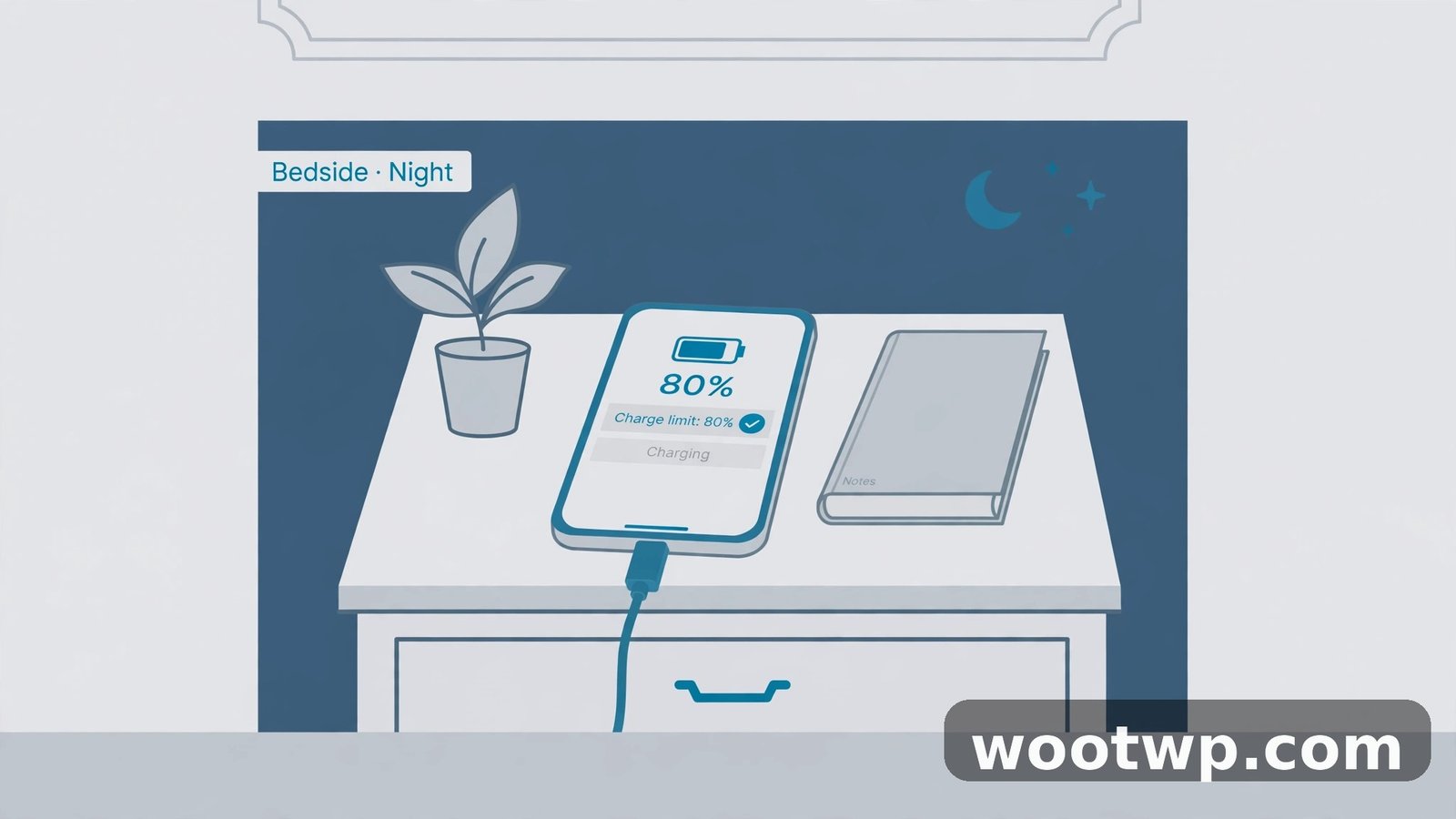
- Avoid charging to 100% every night. Many phones now have an adaptive charging or battery protection setting that stops at 80% overnight and finishes just before you wake up. Turn it on in Settings > Battery.
- Keep the phone cool. Do not leave it in a hot car, in direct sun, or under a pillow while charging. Heat speeds up capacity loss more than anything else.
- Use the charger that came with the phone, or a good-quality one. Cheap chargers can deliver unstable voltage.
- Do not let the battery sit at 0% for days. A fully drained battery left empty degrades faster. Charge it to at least 20% before storing a phone.
- Turn on adaptive battery. Android's adaptive battery limits background power for apps you rarely use. It is in Settings > Battery > Adaptive preferences on most phones, and it helps both daily life and long-term health.
If your battery is draining fast but its health is fine, the problem is usually an app or a setting. Our guide on how to make your Android battery last longer walks through the settings that make the biggest difference. And if the whole phone feels sluggish alongside the battery drain, the fixes in how to make your Android phone faster are worth a look too.
Frequently Asked Questions About Android Battery Health
How do I check battery health on Android without an app?
Open Settings > Battery and look for a battery health or battery information entry. Pixel phones show it under Settings > Battery > Battery health, and Samsung phones show it under Settings > Battery > Battery information. If your phone has no such entry, dial *#*#4636#*#* in the Phone app and tap Battery information for a basic status reading.
What is a good battery health percentage for Android?
Anything above 85% is good for a phone that is a year or two old. New phones sit at 95–100%. Below 80%, the battery is worn and you will notice shorter life, early shutdowns, or sudden percentage drops. At that point a battery replacement is usually the sensible fix.
How many charge cycles does an Android battery last?
Most phone batteries are rated for about 500 full charge cycles before capacity drops noticeably, and newer phones often promise 800 to 1,000 cycles. One cycle is a full 0-to-100% charge, spread over as many partial charges as you like. Pixel phones show the cycle count under Settings > About phone > Battery information.
Does AccuBattery really work for checking battery health?
Yes, within a few percent. AccuBattery estimates capacity by measuring real charging sessions, so it needs two or three days of normal use before its number is reliable. Give it a week for the best result, and compare it with a second app such as Battery Guru if you want extra confidence.
Why does my Android battery drain fast even at good health?
Battery health measures capacity, not drain. Fast drain with good health usually means an app is misbehaving, the screen brightness is high, or a feature such as location or 5G is working hard in the background. Check Settings > Battery > Battery usage to see which app used the most power since the last charge.
Can I replace my Android battery myself?
It depends on the phone. Most modern phones have glued-in batteries and need a heat gun, picks, and patience to open safely. A repair shop usually charges far less than a new phone and can replace the battery in under an hour. Check whether your phone is still under warranty first — a worn battery is sometimes covered.
Conclusion: Know the Number, Then Decide
Learning how to check battery health on Android takes two minutes, and it ends the guessing. If the number is above 85%, your battery is fine and the real problem is an app or a setting. If it is below 80%, you have a clear answer: the battery is worn, and a replacement will bring the phone back to life. Check it once, write the number down, and check again in six months. That is all it takes to stay ahead of a dying battery.