
How to Make Android Battery Last Longer: 12 Proven Tips
If your phone is down to 20 percent before dinner, learning how to make Android battery last longer is not about buying a new phone or carrying a power bank everywhere. In most cases, a few settings are working against you: a bright screen that stays on too long, apps refreshing in the background, location running all day, and charging habits that wear the battery down over time. This guide shows you exactly what to change, in order, so you get more hours from each charge and keep the battery healthier for longer.
Menu names vary a little by brand and Android version. The steps below give the Pixel path first, then the Samsung path where it differs. On other brands, look for the same words under Settings, Battery, Display, Location, or Apps. If a setting is missing on your phone, your brand may call it by another name or place it one menu deeper.
In this guide:
- Why Does Your Android Battery Drain So Fast?
- How to Make Android Battery Last Longer With Screen Settings
- Adaptive Battery and Background App Limits
- Battery Saver Settings That Work Every Day
- Location, Bluetooth, Wi-Fi, and 5G Settings
- Notifications and Sync Settings
- How to Make Android Battery Last Longer With Smarter Charging Habits
- What to Do When One App Drains Your Battery
- Battery Myths to Skip
- Frequently Asked Questions About Android Battery Life
- Conclusion: Small Changes That Add Up
Why Does Your Android Battery Drain So Fast?
Before you change anything, find out what is actually using the charge. That check is the first step in learning how to make Android battery last longer, because it tells you whether the screen, one app, or the signal is the real problem. I have seen this step save people a lot of guesswork. A phone that loses charge overnight usually has a different cause from a phone that drains only while you are watching videos, and the fix is different too.
Tip 1: Check Battery Usage Before You Change Anything
Battery usage shows which apps and system features used the most power since the last full charge. It will not give you a perfect lab measurement, but it is the best starting point you have, and it takes less than a minute.
- Open Settings.
- Tap Battery.
- Tap Battery usage. On Samsung, tap Battery, then look for battery usage details or tap View details.
- Look at the list for the last 24 hours. Tap an app to see how much time it spent on screen and in the background.
Pay attention to background time. An app you barely opened should not show hours of background use. A navigation, video, or game app will naturally sit near the top on a day you used it heavily. That is normal. The warning sign is an app near the top on a day you hardly touched it.
How to Read Battery Usage Without Overreacting
Do not judge one bad day. A software update, a long trip with weak signal, or a day of heavy video calls will drain any phone faster. Check battery usage over two or three normal days and look for a repeat offender. If the same app keeps appearing at the top, that is the app to fix first. If Screen or Display is at the top, start with the screen settings in the next section. If Mobile network or Phone idle is high, signal and radio settings are more likely to help.
How to Make Android Battery Last Longer With Screen Settings
The screen is usually the biggest single drain on a phone, because it is on whenever you are using the phone. That is good news in one way: screen changes pay off fast, and you can feel the difference the same day. These four tips are the fastest way to learn how to make Android battery last longer without giving up anything you enjoy using.
Tip 2: Use Adaptive Brightness and Keep Peak Brightness in Check
A screen at full brightness outdoors uses far more power than the same screen indoors at a comfortable level. Adaptive brightness adjusts the screen to the light around you, so you are not running at full brightness in a dim room.
- Open Settings.
- Tap Display.
- Turn on Adaptive brightness. On Samsung, the same switch is under Settings, Display, Adaptive brightness.
- If you set brightness by hand, keep it as low as you can still read comfortably, and turn it up only when you step into bright sunlight.
I keep adaptive brightness on and nudge the slider down a little when I am indoors. The phone still brightens outside, and I do not have to think about it during the day.
Tip 3: Shorten Your Screen Timeout
Every extra minute the screen stays on after you put the phone down is wasted charge. A 30-second timeout is a good balance for most people. It is long enough to read a message without the screen going dark, and short enough to stop the phone glowing in your pocket or on a desk.
- Open Settings.
- Tap Display.
- Tap Screen timeout or Screen timeout under Display settings. On Samsung, tap Settings, Display, Screen timeout.
- Choose 30 seconds. If 30 seconds feels too short, try 1 minute, but avoid 5 minutes or 10 minutes unless you need the screen on for a specific task.
Tip 4: Lower the Refresh Rate When You Do Not Need It
A 120Hz screen refreshes twice as often as a 60Hz screen, which makes scrolling look smoother. It also uses more power. Many phones let you choose a standard refresh rate, and some let the phone switch on its own.
- Open Settings.
- Tap Display.
- Tap Smooth Display on Pixel, or Motion smoothness on Samsung.
- Choose Standard or 60Hz for everyday use. Keep the higher rate only if you notice the difference and value it more than the extra battery life.
If your phone has an adaptive refresh rate option, that is a good middle ground. It uses the high rate when you are scrolling and drops back when the screen is still.
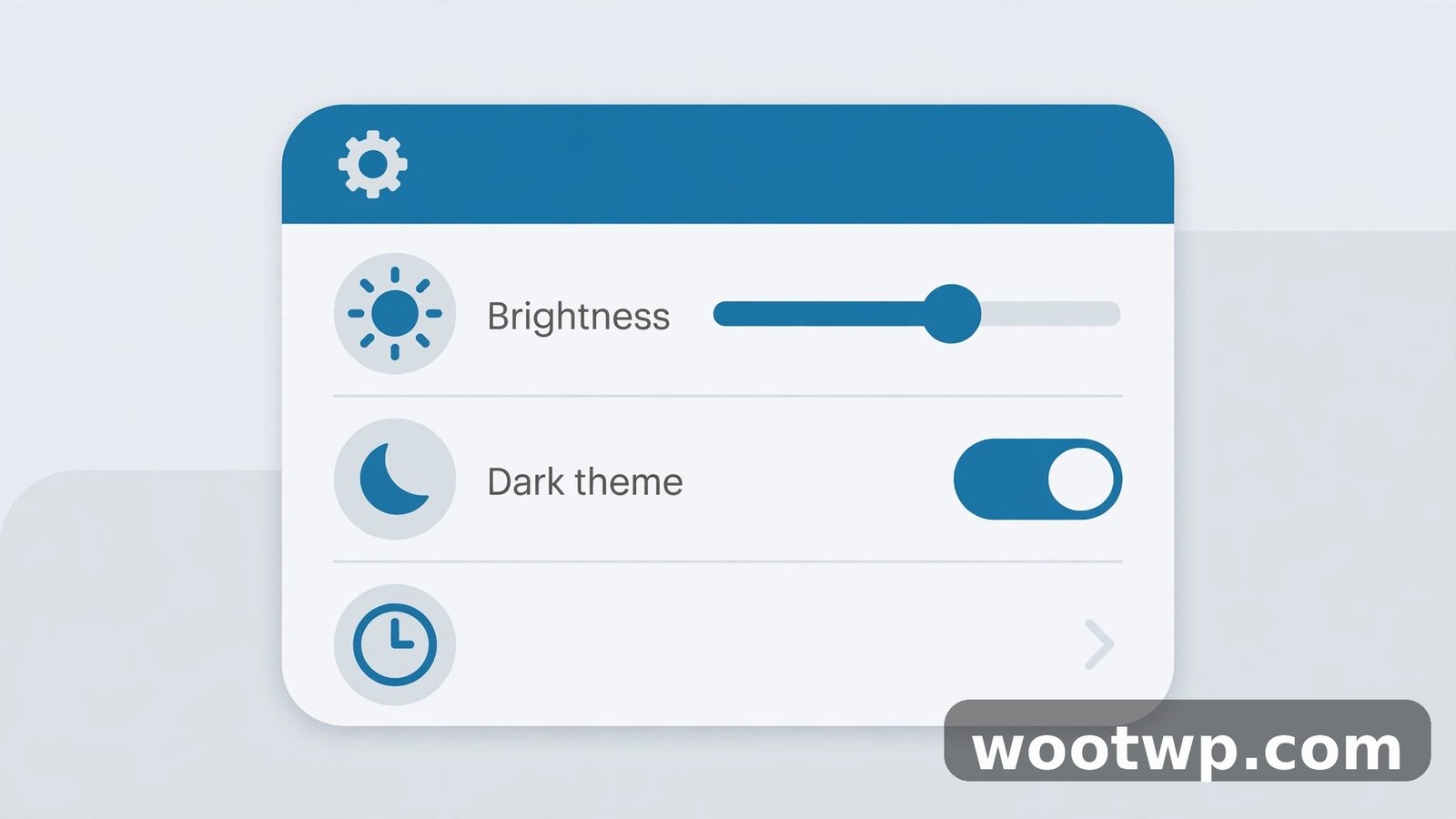
Tip 5: Use Dark Theme on OLED Screens
Dark theme saves real power on phones with OLED or AMOLED screens, because black pixels on those screens draw very little power. On phones with LCD screens, the saving is small, because the backlight stays on. Most Samsung Galaxy phones and Pixel phones use OLED screens, so dark theme is worth turning on for them.
- Open Settings.
- Tap Display.
- Tap Dark theme and turn it on, or set a schedule so it turns on in the evening.
- In apps that offer their own dark mode, such as your browser or messaging apps, turn dark mode on there too.
Adaptive Battery and Background App Limits
This is the part most people skip, and it is where Android does a lot of quiet work for you. If you want to know how to make Android battery last longer without managing each app by hand, start here. Adaptive Battery learns which apps you use often and limits background activity for apps you rarely open. Used well, it can reduce battery drain on Android without you having to manage each app by hand. The key is to leave it on and only loosen the rules for apps that truly need to run in the background, such as a messaging app you rely on for work.
Tip 6: Keep Adaptive Battery Turned On
Adaptive Battery is on by default on Pixel phones, and Samsung phones have similar background limits under a different name. It can take a few weeks to learn your habits fully after you set up a new phone or reset one, so give it time before you judge it.
- On Pixel, open Settings.
- Tap Battery, then Battery Saver, then Adaptive Battery.
- Make sure Use Adaptive Battery is turned on.
- On Samsung, open Settings, then Battery, then Background usage limits, and make sure unused apps are set to sleep or deep sleep as offered.
Google's own help pages recommend keeping Adaptive Battery and battery optimisation on, and keeping apps set to optimised unless you have a clear reason to change one. That matches what I have seen in practice: turning it off rarely fixes a problem, and it usually costs battery life for no gain. If you want the official background, see Google's guide to getting the most life from your Android battery and Google's Pixel Adaptive Battery help page.
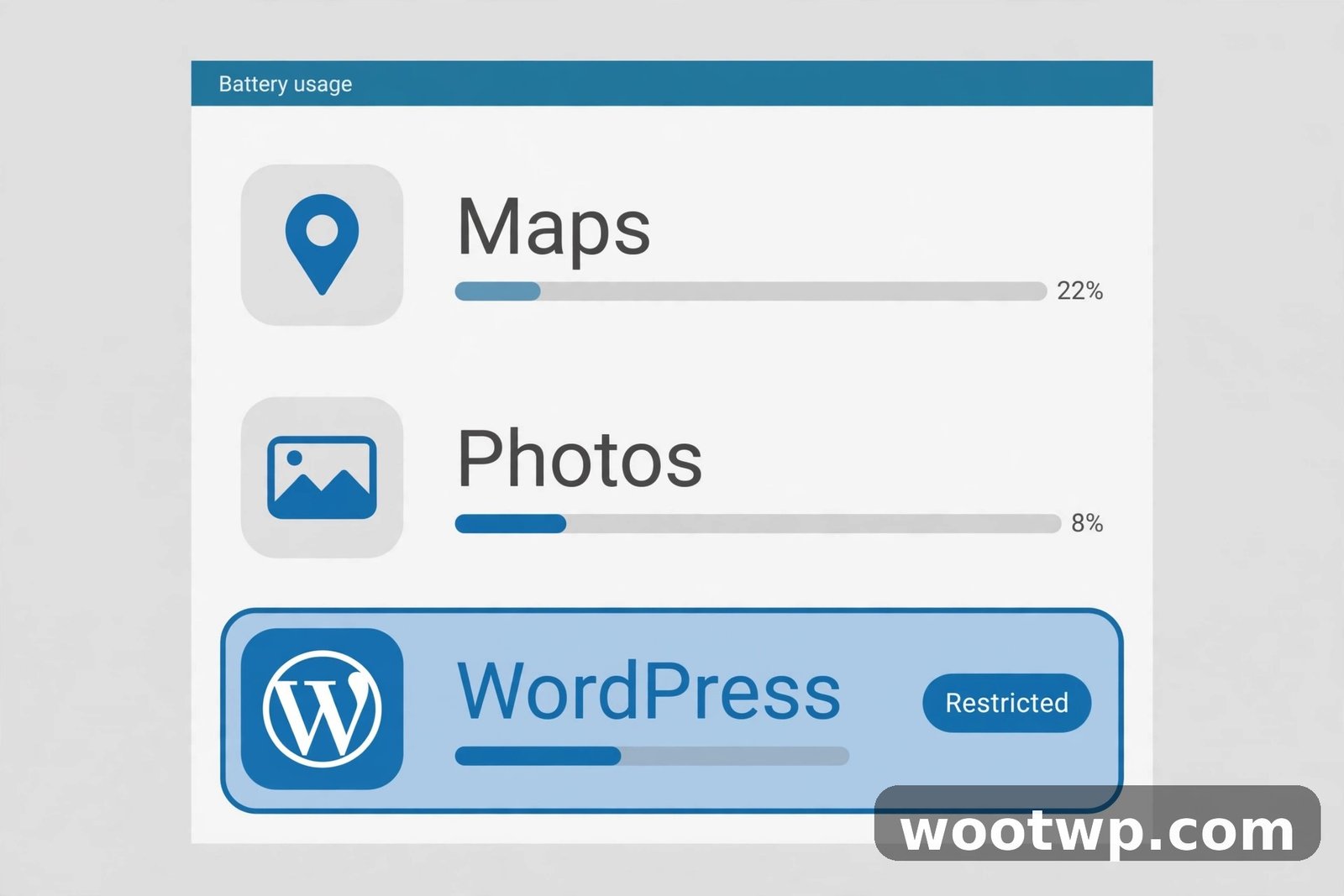
Tip 7: Restrict Background Use for Hungry Apps
When battery usage points to one app with heavy background use, restrict that app instead of restricting everything. A shopping app, a social app, or a game does not need to refresh all day while you are not using it.
- Open Settings.
- Tap Battery, then Battery usage, and tap the app that is draining power.
- Tap App battery usage or Battery, depending on your phone.
- Choose Restricted for an app you do not need running in the background. Choose Optimised for most other apps.
Be careful with messaging, email, alarm, health, and smart home apps. If you restrict those, messages and alerts may arrive late. For those apps, keep the setting on Optimised, and fix the drain another way, such as turning off auto-playing video inside the app or reducing how often it refreshes.
If you also want your phone to feel snappier while you make these changes, read our guide on how to make your Android phone feel faster again. Many of the same background limits help both battery life and speed.
Battery Saver Settings That Work Every Day
Battery Saver is the built-in emergency mode, and it is far more useful when it turns on by itself. Knowing how to make Android battery last longer means knowing when to let Battery Saver do this work for you, instead of waiting until the phone is nearly dead. When Battery Saver is on, the phone turns on dark theme, limits background activity, pauses location when the screen is off, and delays some notifications. It does not turn your phone into a basic phone. It trims the extras so the charge you have left stretches further.
Tip 8: Schedule Battery Saver So It Turns On by Itself
The best Android battery saver settings are the ones you do not have to remember. Set a schedule once, and the phone will handle low-battery days on its own.
- Open Settings.
- Tap Battery, then Battery Saver.
- Tap Set a schedule or Schedule and reminders, depending on your phone.
- Choose Based on percentage and pick a level that fits your day, such as 20 percent. Or choose Based on your routine on Pixel, which lets the phone turn Battery Saver on before it expects you to run out.
- On Samsung, open Settings, Battery, then turn on Power saving mode and tap it to choose what it limits, such as background network use and the refresh rate.
You can also turn Battery Saver on by hand from Quick Settings. Swipe down from the top of the screen twice, find Battery Saver, and tap it. Turn it off the same way when you are back near a charger.
Pixel phones also offer Extreme Battery Saver on newer models. It pauses most apps and keeps only the essential ones you choose, such as Phone, Messages, and Maps. Save it for travel days, long outings, or times when you will be away from a charger for many hours. It is too limiting for everyday use, but it is the strongest tool you have when the battery is low and the day is long.
Location, Bluetooth, Wi-Fi, and 5G Settings
Radios use power whenever they are searching, scanning, or holding a weak connection. You do not need to turn everything off. Part of learning how to make Android battery last longer is stopping the searching you are not using, and giving the phone a break in places where the signal is poor. These changes are easy to reverse, so try them one at a time and see what helps on your phone.
Tip 9: Limit Location, Scanning, and 5G Drain
Start with location. Many apps ask for location access they do not need all the time, and location history and scanning can keep the radios busy even when you are not using maps.
- Open Settings.
- Tap Location.
- Tap App location permissions and change apps you do not trust with constant location to Allow only while using the app or Do not allow.
- Go back to Location, tap Location services, and turn off Wi-Fi scanning and Bluetooth scanning unless you use a feature that needs them, such as finding lost earbuds or automatic Wi-Fi connections.
- Turn off Location from Quick Settings when you do not need maps or ride apps, and turn it back on when you do.
Next, check Wi-Fi and Bluetooth habits. Leaving Wi-Fi on at home is fine, and it usually uses less power than mobile data. Leaving Bluetooth on is also fine if you use earbuds or a watch. The waste comes from scanning and searching: Wi-Fi scanning for nearby networks, Bluetooth scanning for nearby devices, and a phone hunting for 5G in an area with weak 5G coverage.
For 5G, try this if your battery drops fast while you are out:
- Open Settings.
- Tap Network and internet, then SIMs or Mobile network, depending on your phone.
- Tap Preferred network type.
- Choose 4G preferred or LTE preferred for the day and compare. In areas with weak 5G, staying on a stable 4G connection can use less power than jumping between 5G and 4G.
On Samsung, the path is Settings, Connections, Mobile networks, Network mode. You can switch back to 5G at any time, so this is a test, not a permanent change.
Notifications and Sync Settings
Notifications wake the screen, and sync keeps apps checking for new mail, messages, and updates. A phone that lights up every minute will lose charge faster than a quiet phone, even if you never pick it up. Quieting the noisiest apps is a simple way to learn how to make Android battery last longer. You do not need to silence everything. Silence the apps that interrupt you without adding value.
Tip 10: Cut Notification and Sync Overload
Work through your most chatty apps first: social apps, shopping apps, games, and news apps. Each one that stops waking your screen helps a little, and together they help a lot.
- Open Settings.
- Tap Notifications, then App notifications, and turn off notifications for apps you do not need to hear from right away.
- Inside social and shopping apps, turn off promotional notifications and sound alerts, and keep only direct messages if you want them.
- Open Settings, tap Passwords and accounts or Accounts, and check which accounts sync automatically. Turn off sync for accounts you no longer use.
- In your email app, check sync settings. If an account checks for new mail every few minutes, change it to a longer interval or to push only for your main account.
If you want to reduce battery drain on Android during work hours, try Do Not Disturb with exceptions for calls from your contacts. The screen stays dark, the phone stays quiet, and the charge lasts longer, while important calls still get through.
How to Make Android Battery Last Longer With Smarter Charging Habits
How you charge matters as much as how you use the phone. Heat and time spent at a full charge wear a lithium battery down over months and years. You cannot stop that wear completely, but you can slow it down with habits that cost you nothing. This is how to extend phone battery life beyond one charge, by protecting the battery itself.
Tip 11: Charge to 80 Percent When You Can, and Keep Heat Down
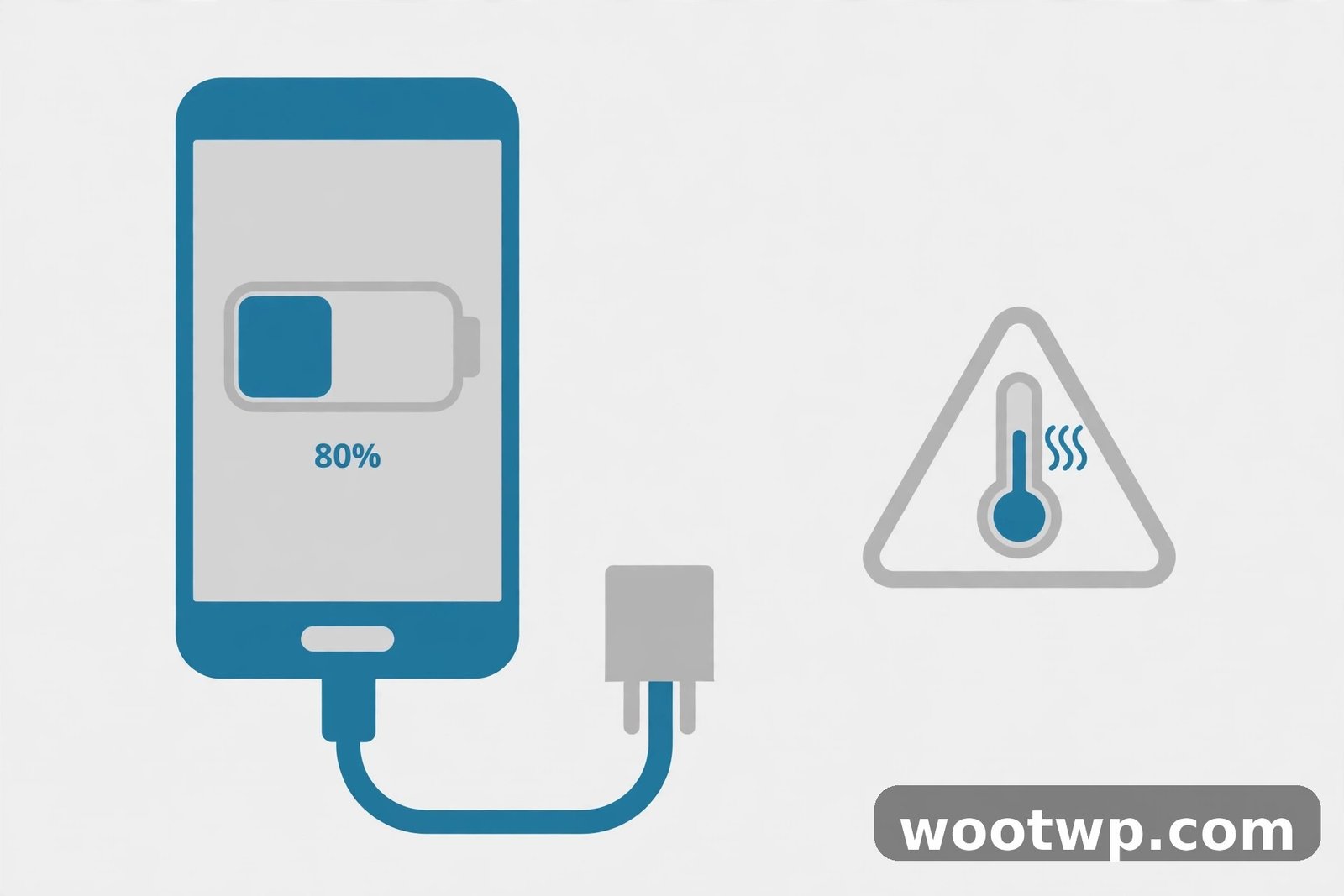
Many newer phones offer a charge limit or adaptive charging. A charge limit stops charging at 80 percent or 85 percent, which reduces stress on the battery when you charge overnight or leave the phone plugged in for hours. Adaptive charging learns when you usually unplug and holds the charge at 80 percent overnight, then finishes charging shortly before you wake up.
- On Pixel, open Settings.
- Tap Battery, then Battery health or Charging optimisation on newer models.
- Turn on Adaptive Charging, or choose Limit to 80 percent if your phone offers it.
- On Samsung, open Settings, then Battery, then Battery protection or Protect battery, and turn on the limit. Older Samsung phones call this Protect battery and cap charging at 85 percent.
You do not need to follow the 80 percent limit every single day. Use it for routine overnight charging, and charge to 100 percent when you need a full day away from chargers, such as travel days. The habit that matters is the everyday one, not the exception.
Heat is the other half of battery health. Do not charge your phone under a pillow, in direct sunlight, or in a hot car. Take a thick case off if the phone feels warm while charging, and avoid heavy gaming while the phone is plugged in, since gaming plus charging heats the battery from both sides. If your phone feels hot, unplug it, let it cool, and charge it later. A phone that is warm to the touch is telling you to slow down, and listening to it will help the battery last longer over the life of the phone.
Use a charger and cable you trust. You do not need the most expensive charger, but a damaged cable, a loose plug, or a charger that makes the phone very hot is worth replacing. Fast charging is safe on modern phones when the phone and charger agree on a supported standard, and the phone will slow charging on its own when it gets warm. Wireless charging is convenient, but it can add heat, so take the case off and centre the phone on the pad if you use it often.
What to Do When One App Drains Your Battery
Sometimes one app is the whole problem. When you are learning how to make Android battery last longer, a single bad app is often the fastest win. It may have a bug, a stuck sync, or a feature that keeps the phone awake. Work through these steps in order, and check battery usage after each change. Stop as soon as the drain is gone, so you do not change settings you did not need to change.
- Force stop the app, then reopen it. Open Settings, Apps, tap the app, and tap Force stop. Reopen it and use it normally for a few hours.
- Update the app. Open the Play Store, search for the app, and tap Update if one is offered. App updates often fix battery bugs.
- Clear the app cache. Open Settings, Apps, tap the app, tap Storage and cache, and tap Clear cache. Do not tap Clear storage unless you are ready to sign in again and lose saved app data.
- Turn off the app's most demanding features inside the app itself, such as auto-playing video, background refresh, or constant location tracking.
- Restrict the app's background use, as described in Tip 7, if it still drains power after the steps above.
- Uninstall and reinstall the app as a last step. If the drain comes back right after a fresh install, the app itself may be the cause, and you may want an alternative app that does the same job.
If the drain started right after a system update, give the phone two or three days. Updates often cause extra background work while the system re-indexes files and relearns your habits. If the drain is still there after three normal days, restart the phone, check for a further system update, and then work through the steps above.
A sudden drain with other strange signs, such as apps you did not install, pop-ups, or data use you cannot explain, is worth a closer look. Our guide on how to check if your phone is hacked walks through the signs to look for and the checks to run before you assume the battery itself is at fault. And if low storage is forcing apps to work harder, our guide on how to free up storage on Android without deleting photos can help you clear space safely.
Battery Myths to Skip
Battery advice is full of old rules that no longer apply to modern phones. Following them wastes your time, and some of them make battery life worse. Skip these, and spend your effort on the settings above instead.
Myth: Closing every app saves battery. Swiping apps away forces the phone to reload them from scratch next time, which uses more power than leaving them paused in memory. Android already pauses apps you are not using. Close an app only if it is frozen or misbehaving. Leave the rest alone.
Myth: You must drain a new phone to zero before charging it. Modern lithium batteries do not need a full drain, and deep drains add stress. Charge when it suits you, and unplug when it suits you. The 80 percent habit above is about long-term health, not a rule you must follow on day one.
Myth: A battery saver app from the store will fix a bad battery. Third-party saver apps cannot change how Android manages power, and many of them run in the background themselves, which adds drain. Use the built-in Battery Saver and Adaptive Battery instead. They are made for your phone, they are free, and they do not need extra permissions.
Myth: Turning the phone off every night saves a lot of battery. A restart once in a while is healthy, because it clears stuck processes. Turning the phone off every night is not needed, and it can delay overnight updates and alarms if you forget to turn it back on. Restart once a week, or when the phone feels sluggish, and leave it at that.
Myth: Charging overnight always ruins the battery. Overnight charging is fine when adaptive charging or a charge limit is on, because the phone holds the charge and finishes near the time you wake up. What hurts is heat plus a long time at 100 percent, day after day. Fix the heat and the charge limit, and overnight charging stops being a problem.
Frequently Asked Questions About Android Battery Life
Why does my Android battery drain so fast all of a sudden?
A sudden drain is usually caused by one app misbehaving, a recent update, weak signal, or a feature left on, such as location sharing or a hotspot. Check battery usage first, update the app at the top of the list, and restart the phone. If the drain started after a system update, give it two or three days, since the system does extra work after an update.
Does Adaptive Battery really help, and should I leave it on?
Yes, leave Adaptive Battery on. It learns which apps you use and limits background activity for apps you rarely open, which helps the battery last longer with no daily effort from you. It can take a few weeks to learn your habits after a new setup, so do not turn it off after one day. Only loosen the setting for apps that must run in the background, such as messaging or health apps.
Is it bad to charge my phone to 100 percent every night?
Charging to 100 percent now and then is fine, especially on travel days. Charging to 100 percent and leaving the phone there for hours every night adds wear over time. Use adaptive charging or an 80 percent limit for routine overnight charging, and save full charges for days when you need the extra hours.
Does dark theme really save battery on Android?
Dark theme saves noticeable power on OLED and AMOLED screens, which most Pixel and Samsung phones use, because black pixels draw very little power on those screens. On LCD screens the saving is small. Either way, dark theme is worth using if you like how it looks, and it helps most on OLED phones.
Should I turn off 5G to save battery?
Turning off 5G can help in areas with weak 5G coverage, where the phone keeps searching for a signal or jumping between 5G and 4G. In areas with strong 5G, the difference is smaller. Try 4G preferred for a day in a weak-signal area and compare battery usage. You can switch back at any time.
How do I make my Android battery last longer when I am travelling?
Turn on Battery Saver before you leave, lower the brightness, download maps and videos for offline use, and turn off location scanning when you do not need it. These are the same steps that show how to make Android battery last longer on any long day out. Carry a power bank for long days, and charge to 100 percent before you set out. Extreme Battery Saver on Pixel, or Power saving mode on Samsung, is the strongest option when you will be away from a charger for many hours.
Conclusion: Small Changes That Add Up
Learning how to make Android battery last longer comes down to a short routine: check battery usage, tame the screen, leave Adaptive Battery on, schedule Battery Saver, limit location and scanning, and charge with heat and the 80 percent limit in mind. Do those things once, and your phone will quietly save power every day without you thinking about it. Start with the screen and Adaptive Battery today, and you should notice the difference by tomorrow.