

How to Download Instagram Reels on Phone Without App: 5 Easy Ways
You found a Reel you want to keep, but you do not want to install yet another app to save it. Learning how to download Instagram Reels on phone without app is simpler than most guides make it sound. In many cases you need no extra software at all, because Instagram now offers its own Download button on many public Reels, and your phone browser and built-in screen recorder cover the rest.
In this guide, I will walk you through five practical ways to save Instagram Reels to phone storage on Android and iPhone. You will learn which method to try first, where the video file ends up, what to do when the Download button is missing, and how to stay safe when you use a browser tool.
One limit applies to every method below. Only download public Reels, your own Reels, or Reels you have permission to save. Saving a clip to watch later is personal use. Reposting someone else’s work as your own is a different matter, and private-account content is off limits.
- Before You Download a Reel
- Method 1: Instagram’s Own Download Button
- Method 2: Browser Method on Android
- Method 3: Browser Method on iPhone
- Method 4: Screen Recording
- Method 5: Save Inside Instagram
- Where Downloaded Reels Go
- Fix Common Problems
- Stay Safe Without an App
- Frequently Asked Questions
- Conclusion
Before You Download a Reel
A quick check first will save you time. Not every Reel can be downloaded, and that is usually the creator’s choice rather than a fault with your phone. Understanding the rules also helps you pick the right method instead of trying each one at random.
Only Download Public Reels You Have Permission to Keep
Stick to Reels from public accounts where downloading is allowed, plus your own posted Reels. If an account is private, do not try to work around its privacy settings. The same applies if a creator has switched downloads off for a particular Reel. In my experience, most download problems turn out to be one of those two settings, not a broken phone.
Think about what happens next, too. Saving a Reel to watch later, study a technique, or keep a recipe is personal use. Uploading it to your own account, editing out the credit, or using it in an ad needs the creator’s permission. If you want to share a Reel more widely, ask first and keep the creator’s username visible.
Check Storage, Connection, and Updates
A phone that is nearly full can fail a download without a clear error message, so free up a little room if your storage warning has been showing. A stable Wi-Fi connection also helps, especially for longer Reels, because a weak signal can leave you with a file that stops halfway through.
It also helps to run a current version of Instagram. The Download button and Share menu layout in the steps below assume a recent Instagram app and a recent version of Android or iOS. If your menus look different, update Instagram from the Play Store or App Store first.
Method 1: How to Download Instagram Reels on Phone Without App With Instagram’s Own Button
Try this method first. It is built into Instagram, it needs no extra app, and it is the cleanest option when it is available. If you want the simplest answer to how to download Instagram Reels on phone without app, start here.
How to Use the Download Button
- Open the Instagram app and open the Reel you want to save.
- Tap the Share icon, which looks like a paper plane, on the right side of the screen.
- Look for Download in the Share menu.
- Tap Download and wait for the saving message to finish.
- Open your Gallery or Photos app and check that the Reel is there.
The video saves as a file on your phone, so you can watch it without opening Instagram and without an internet connection. The saved file includes an Instagram watermark, the creator’s username, and the audio credit. Those marks show where the clip came from, so leave them in place.
What If the Download Button Is Missing?
A missing button usually means the creator turned downloads off for that Reel, the account is private, or the Reel was posted before downloads were widely available. Instagram also switches downloads off by default for public accounts belonging to users under 18, although those users can turn the setting on.
If you are a creator and you want others to download your Reels, check your settings. You can control downloads for a single Reel in More options before you share it, and set a default for all your Reels in your privacy settings. If you are a viewer and the button is missing, use the Save option in Method 5, or move on to screen recording for personal viewing only when you have permission to keep a copy. For official guidance on the current Save and sharing options, see the Instagram Help Center.
Method 2: How to Download Instagram Reels on Phone Without App on Android With Your Browser
When Instagram’s own button is not available, the browser method is the next option many people try. It uses the link to the Reel and a web page that fetches the video file. This is another way to learn how to download Instagram Reels on phone without app, and the whole process takes about a minute when it works well.
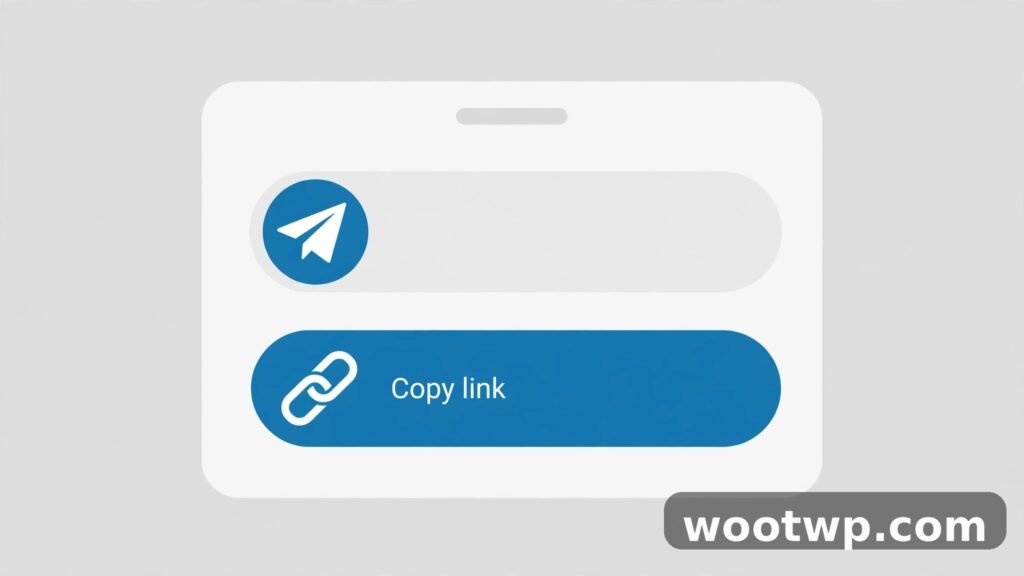
Copy Instagram Reel Link and Paste It in Your Browser
- Open the Reel in the Instagram app.
- Tap the Share icon on the right side of the screen.
- Tap Copy link. You should see a short confirmation that the link was copied.
- Open Chrome or your usual browser on the same phone. Avoid opening the link inside Instagram’s in-app browser if you can, because that view can behave differently.
- Paste the link into a browser-based Instagram Reels downloader page. In plain terms, you are using an instagram reels downloader browser tool, a web page that reads the public link and offers the video file for download.
- Tap the download option the page shows, and choose the highest quality if you are offered a choice.
- Wait for the download to finish, then open your Gallery or Files app to confirm the video is saved.
To copy Instagram Reel link details correctly, double-check that you copied the full link before you paste it. A partial link is one of the most common reasons a browser tool says it cannot find the video, so go back and copy it again if the pasted text looks short or broken.
Android Tips and Warnings
Keep the browser tab open until the download completes. Switching away too soon can pause the download on some Android phones and leave you with an incomplete file. If the download bar disappears but no file appears, check the Downloads folder in your Files app before you try again. The file is often there even when the Gallery has not refreshed yet.
Watch out for pages that pile on pop-ups and fake download buttons. The real download control is usually a single clear button near the video preview. If a page asks you to install an app, create an account, or enter your Instagram password, close the tab at once. A genuine browser download does not need your login details, and I treat aggressive pop-ups as a reason to leave, not a step to follow.
Method 3: Browser Method on iPhone
The iPhone version follows the same idea as Android, with a few Apple-specific differences in where the file lands. Once you know those differences, the process is just as quick. This method also lets you save Instagram Reels to phone storage without installing anything extra.
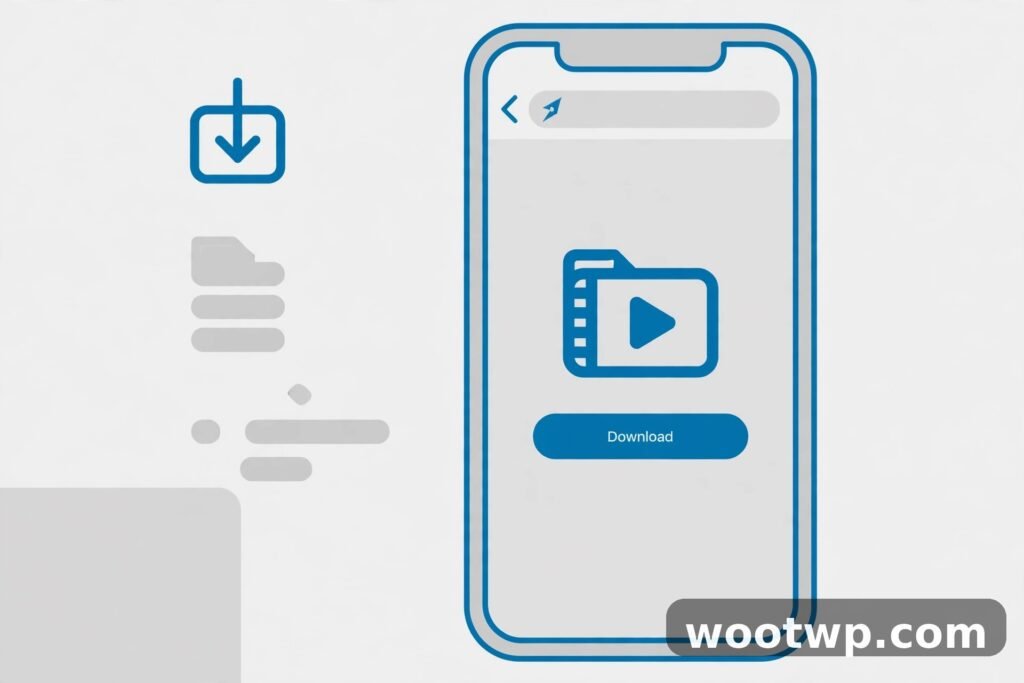
How to Download Instagram Reels on Phone Without App on iPhone
- Open the Reel in the Instagram app on your iPhone.
- Tap the Share icon and choose Copy link.
- Open Safari and paste the link into a browser downloader page, just as you would on Android.
- Tap the download option the page offers. Safari may ask whether you want to download the file. Tap Download to confirm.
- Tap the download icon in the Safari toolbar, which looks like a downward arrow, to see the progress.
- When the download finishes, tap the file in the download list to open it, or find it in the Files app under Downloads.
If Safari opens the Reel in Instagram instead of staying in the browser, the link may have been handed back to the Instagram app. To avoid that loop, paste the link into a new Safari tab after closing Instagram from the app switcher, or long-press the pasted link and choose to open it in Safari.
Where the File Lands on iPhone
On iPhone, browser downloads usually go to the Files app first, in the Downloads folder, rather than straight into Photos. That surprises a lot of people who check Photos and conclude the download failed. Open Files, tap Downloads, and look for the video there. From Files, tap Share and choose Save Video to move a copy into Photos, where it is easier to find and play later.
If you download Reels often, you can change the default Safari download location in Settings, under Safari and then Downloads. Whichever location you choose, check Files before you repeat a download, or you may end up with two or three copies of the same Reel.
Method 4: Screen Recording
Screen recording is the fallback that works when neither the Download button nor a browser tool gives you a file. It records whatever is playing on your screen, so it does not depend on the creator’s download setting. Use it only for personal viewing, and only for content you have permission to keep, because recording does not change the rights in the video.
Screen Record on Android
- Pull down from the top of the screen twice to open Quick Settings.
- Find Screen Record. If you do not see it, tap the edit icon and add it to Quick Settings.
- Tap Screen Record and choose device audio or media sound if you want the Reel’s audio included.
- Open Instagram, open the Reel, and play it from the start while the recording runs.
- Pull down Quick Settings again and tap Stop when the Reel finishes.
- Open the recording in your Gallery, trim the start and end to remove the menu taps, and save the trimmed copy.
Android screen recordings usually save to a Screen recordings or Movies folder. The quality depends on your screen resolution and the quality Instagram streams at, so a recording may look slightly softer than a direct download. That is normal, and it is one reason to prefer Method 1 or the browser method when either one works.
Screen Record on iPhone
- Open Settings, then Control Center, and make sure Screen Recording is included. Add it if it is missing.
- Swipe down from the top-right corner to open Control Center.
- Long-press the Screen Recording button and turn the microphone off unless you want to record your own voice. The Reel’s sound is captured as device audio.
- Tap Start Recording, wait for the countdown, then open Instagram and play the Reel full screen.
- Open Control Center again and tap the red recording button to stop.
- Open Photos, find the recording, tap Edit, and trim the ends so only the Reel remains.
Trimming matters more than people expect. An untrimmed recording starts with your home screen and Control Center, which looks messy and wastes storage. Take thirty seconds to trim, and the saved clip will start cleanly at the beginning of the Reel.
Method 5: Save Inside Instagram
Sometimes you do not need a video file at all. You just want to find the Reel again later. Learning how to download Instagram Reels on phone without app is useful, but saving a Reel inside Instagram is faster when you only need quick access later. In that case, saving is the better choice, and it always works for Reels you are allowed to watch. The trade-off is that you get a bookmark, not a file.
How Saving Is Different From Downloading
When you tap Save on a Reel, Instagram adds it to your private Saved collection. Only you can see that collection, and the creator does not get a notification. You can find the Reel later from your profile, under the Saved tab, and sort saved Reels into collections such as recipes, workouts, or travel ideas.
The catch is that a saved Reel still lives on the creator’s account. If the creator deletes the Reel or makes the account private, your saved copy disappears with it. You also need an internet connection to watch it, since nothing is stored on your phone. Saving is ideal for quick reference, but it is not a substitute when you need offline access.
How to Save and Organise a Reel
- Open the Reel you want to keep.
- Tap the Save or bookmark icon on the right side of the screen.
- To sort it, open your Saved collection and add the Reel to a named collection.
- To find it later, go to your profile, tap the menu, choose Saved, and open the right collection.
If you save a lot of Reels, collections are worth the small effort they take. A single long Saved list becomes hard to search after a few weeks, while a handful of named collections lets you find a Reel in seconds. This method also avoids every safety risk that comes with browser downloader pages, since you never leave Instagram and never paste a link anywhere.
Where Downloaded Reels Go
Knowing where to look is half the battle. Many people repeat a download two or three times simply because they checked the wrong app first. Check both places below before you assume the download failed.
On Android
Instagram’s own Download button usually sends the video straight to your Gallery or Photos app. Browser downloads usually land in the Downloads folder first, which you can open in the Files app. From there, most Gallery apps will also show the video once the media library refreshes. Screen recordings usually appear in a dedicated Screen recordings album.
On iPhone
On iPhone, Instagram downloads save to Photos, where you can find them in Recents or in the Videos album. Browser downloads go to the Files app under Downloads unless you changed the Safari setting. Screen recordings also save to Photos. If a downloaded Reel plays with no sound, check that your phone is not on silent and that the volume is up. If it still has no sound, the tool may have saved a muted preview, so try the Download button or a screen recording instead, and delete the faulty file.
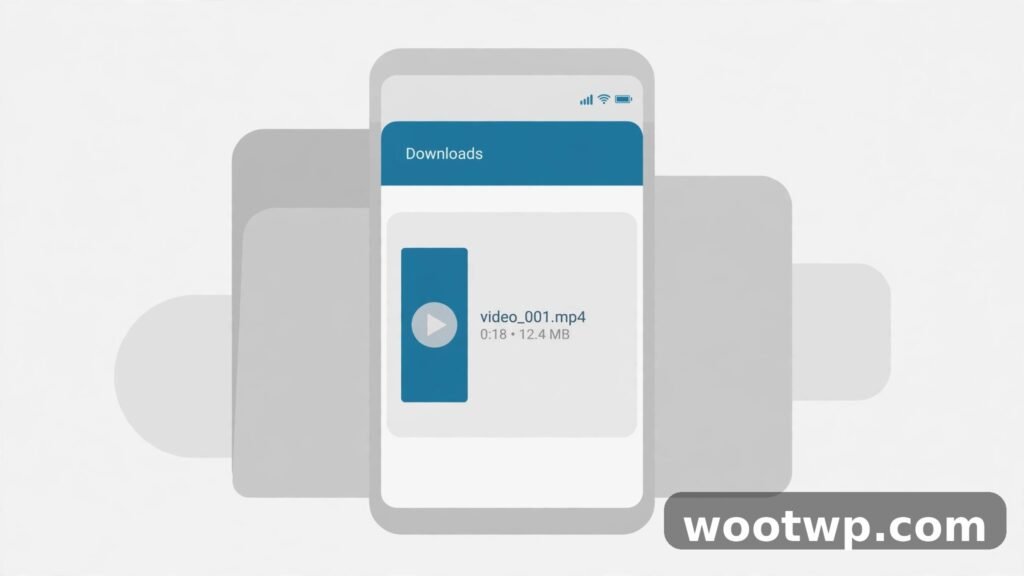
Why Can’t I Download Instagram Reels on Phone Without App? Fix Common Problems
Most download failures have a simple cause. Work through the checks below in order, starting with the easiest. In my experience, the first three fixes solve the large majority of cases when you are trying to work out how to download Instagram Reels on phone without app and something goes wrong.
The Link Opens Instagram Instead of Downloading
This happens when your phone hands the pasted link back to the Instagram app instead of keeping it in the browser. On Android, paste the link into Chrome and stay in Chrome while the page loads. If Chrome keeps jumping to Instagram, try a different browser. On iPhone, use a fresh Safari tab and open the link in Safari rather than letting the system redirect it.
A related problem is pasting the link into a search engine instead of a downloader page. A search for the link text will just show web results. Paste the link into the input box on the browser tool page itself, then tap its download button.
There Is No Download Button on the Reel
A missing button usually means the creator turned downloads off, the account is private, or the Reel predates the download feature. There is no setting on your phone that brings the button back for someone else’s Reel. Your options are to save the Reel inside Instagram, use a browser tool for personal viewing if you have permission, or use screen recording as a last resort.
If the button is missing on your own Reel, check your privacy settings. Open the Reel, tap the three-dot menu, look for the download permission, and make sure downloads are allowed. For a new upload, check More options before you share it, since that is where the per-Reel download setting lives.
Poor Quality, No Sound, or a File That Will Not Play
Poor quality usually comes from a weak connection or from choosing a low-quality option on a browser tool page. Try again on Wi-Fi, pick the highest quality offered, and compare the result with Instagram’s own Download button if it is available. For no sound, check that the Reel itself has sound, that you did not mute it, and that a screen recording used device audio rather than the microphone only.
If the file will not play, check your free storage first, since a nearly full phone can discard a download silently. Also check the file size in Downloads or Files. A file of only a few kilobytes is not a real video, and it usually means the page returned an error instead of the Reel. Delete it and try again, keeping the browser tab open until the progress indicator finishes. Clearing your browser cache can help too, and this guide to clear cookies in Chrome explains the steps without losing saved passwords when you follow it carefully.
Stay Safe Without an App
The browser method is convenient, but it is also where most of the risk sits when you learn how to download Instagram Reels on phone without app. Browser downloader pages are free to build, which means good ones and bad ones look alike at first glance. A few habits will keep your account and your phone safe.
Red Flags That Mean Close the Tab
Close the page at once if it asks for your Instagram username and password, asks you to log in through Instagram, or asks for a verification code. No browser download needs those details, and handing them over can put your account at risk. The same applies to pages that ask you to install an app, a browser extension, or a configuration profile before they show a download button.
Other warning signs include endless pop-ups, fake virus alerts, buttons that open new tabs instead of downloading, and promises of a file if you complete a survey first. If a page shows more ads than content, leave and try a different method. Screen recording and Instagram’s own Download button avoid all of these risks, which is why they are worth trying first.
If you are unsure whether a link is safe before you tap it, learn how to check if a link is safe before clicking. The same caution applies to links in comments and direct messages that promise free downloads. When a link feels off, trust that feeling and do not open it.
Protect Your Account and Respect Creators
Use a strong, unique password for Instagram and turn on two-factor authentication, so a leaked password alone is not enough to take over your account. If you ever entered your Instagram details on a downloader page by mistake, change your password right away and review the devices signed in to your account. See this guide to enable two-factor authentication on Instagram for step-by-step help.
Avoid tools that sell themselves on helping you download Reels without watermark so you can repost them. A file without a watermark may look cleaner, but removing the creator’s credit does not give you the right to publish the clip as your own. If you need a clean copy for a collaboration, ask the creator to send you the original file. Keep your phone software up to date as well, since current versions of Android, iOS, Chrome, and Safari include security fixes that make fake pop-ups less likely to succeed.
Frequently Asked Questions
Can I download Instagram Reels on phone without app for free?
Yes. Instagram’s own Download button is free when the creator allows downloads, and saving a Reel inside Instagram costs nothing. Browser tools are also usually free, although many show ads, and screen recording uses only features already built into your phone. You should never need to pay or sign up to download a Reel for personal viewing.
How do I copy Instagram Reel link on Android and iPhone?
Open the Reel, tap the Share icon that looks like a paper plane, and tap Copy link. The link is then ready to paste into your browser or a message. If you do not see Copy link, update the Instagram app and check that you opened the Reel itself rather than a preview in your feed.
Why does Instagram not show a Download button on some Reels?
The creator may have turned downloads off for that Reel, the account may be private, or the Reel may have been posted before the download feature was available. Instagram also turns downloads off by default for public accounts belonging to users under 18. In those cases, use Save inside Instagram or ask the creator for permission to keep a copy.
Where are downloaded Reels saved on Android and iPhone?
On Android, Instagram downloads usually appear in your Gallery, while browser downloads go to the Downloads folder in the Files app. On iPhone, Instagram downloads save to Photos, while Safari downloads go to the Files app under Downloads. If you cannot find a file, check Files before you download it again.
Is it legal to download Instagram Reels on phone without app?
Downloading a public Reel for personal viewing, where the creator allows downloads, is generally fine for your own private use. Reposting, editing out credit, or using the clip commercially without permission can infringe the creator’s rights, even if you downloaded the file successfully. When in doubt, keep the download private or ask the creator first.
Can I download a Reel from a private account?
No, you should not try. Private-account Reels are shared only with approved followers, and trying to bypass that setting breaks the trust the account owner placed in their privacy controls. If a private-account Reel matters to you, ask the account owner to share it with you directly or to send you the file.
Conclusion
Now you know how to download Instagram Reels on phone without app, starting with Instagram’s own Download button, then the browser method on Android and iPhone, screen recording as a fallback, and Save as the simplest way to find a Reel again. Try the built-in button first, keep the creator’s credit visible, and never hand over your login details to a browser tool. That one habit, plus sticking to public Reels you have permission to keep, will handle almost every Reel you want to save.