How to Enable Two-Factor Authentication on Instagram: 6 Easy Steps
If someone gets your Instagram password, they get your account. Your photos, your DMs, your followers, your business — gone in minutes, and getting it back is a painful process. Learning how to enable two-factor authentication on Instagram is the single most effective thing you can do to stop that from happening. It takes about three minutes, and it blocks the vast majority of account takeovers even when the attacker knows your password.
In this guide I'll walk you through turning on Instagram 2FA on the app and on desktop, explain which verification method to pick (authenticator app beats SMS every time), and show you how to save your backup codes so you never lock yourself out.
- What Is Two-Factor Authentication on Instagram?
- Before You Start: What You'll Need
- How to Enable Two-Factor Authentication on Instagram
- Set Up With an Authenticator App (Recommended)
- Set Up With SMS Text Message
- Set Up With WhatsApp
- How to Turn On Instagram 2FA From a Computer
- Save Your Backup Codes — Don't Skip This
- What Changes at Login Once 2FA Is On
- Locked Out? How to Recover Without Your Codes
- How to Turn Off Two-Factor Authentication
What Is Two-Factor Authentication on Instagram?
Two-factor authentication (2FA) means Instagram asks for two things when you log in from a new device: your password (something you know) plus a one-time code (something you have). The code comes from your phone — either an authenticator app, a text message, or WhatsApp.
Why does this matter so much? Because passwords leak constantly. Data breaches, phishing pages, reused passwords — if your Instagram password is floating around somewhere, 2FA is the wall between the attacker and your account. They can type the correct password all day and still can't get in without that second code. If you've ever gone through the nightmare of a hacked Instagram account, you know recovery is slow and uncertain. Prevention takes three minutes. Recovery takes weeks.
Before You Start: What You'll Need
- The Instagram app installed and updated (or a browser for the desktop method).
- Your Instagram password — you'll need to confirm it during setup.
- An authenticator app if you choose the recommended method. Google Authenticator, Microsoft Authenticator, Authy, and Duo Mobile are all free. On iPhone, the built-in Passwords app also works as an authenticator.
- A pen and paper or a secure note for your backup codes. Screenshots are convenient but think about where they end up (cloud backups, shared albums).
Make sure your app is current before you start: open the Play Store or App Store, search Instagram, and tap Update if it's available. The menu paths below match the current app layout.
How to Enable Two-Factor Authentication on Instagram
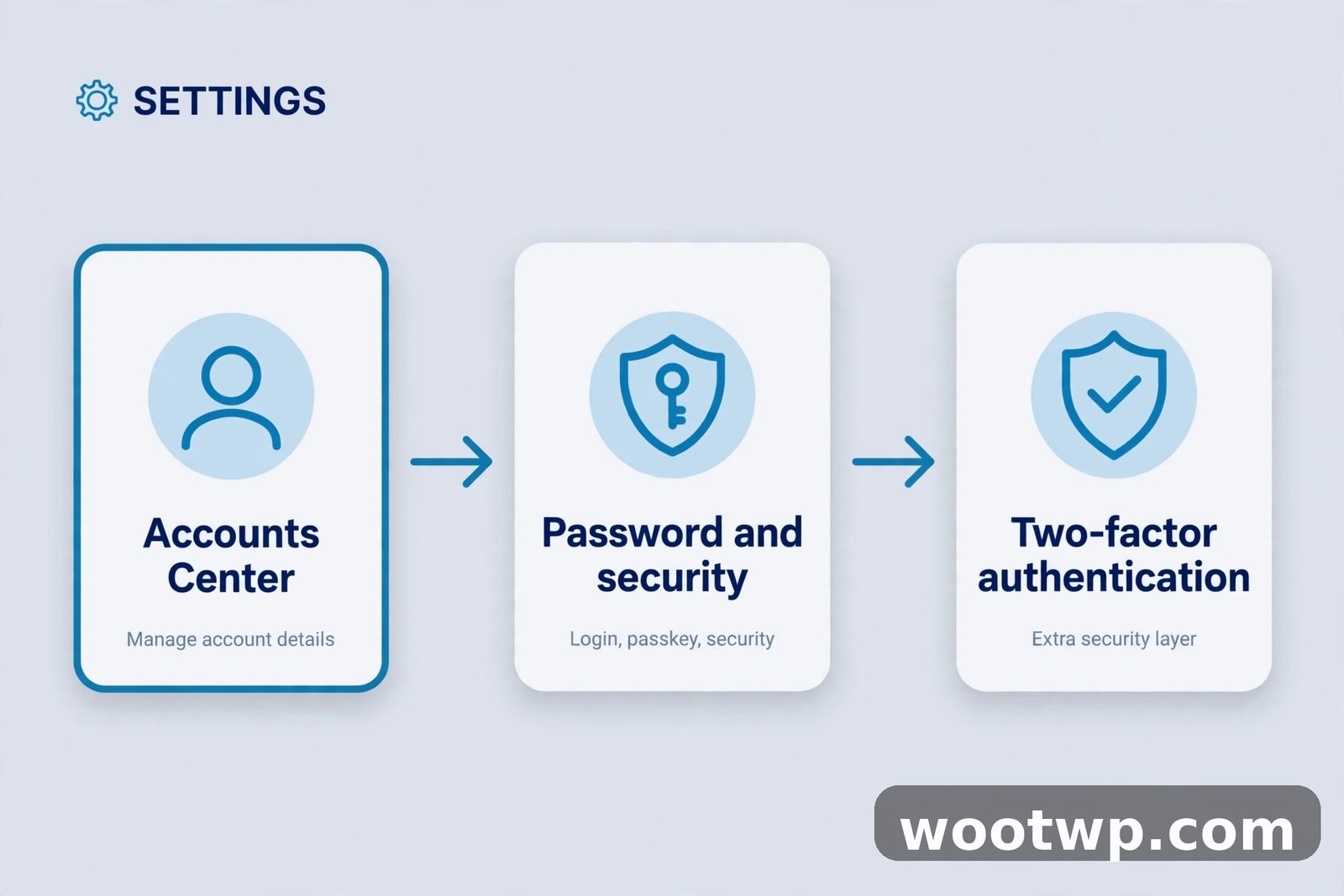
The setup lives in the Accounts Center, which Meta now shares across Instagram and Facebook. Here are the exact steps on the mobile app:
- Open the Instagram app and tap your profile picture in the bottom-right corner.
- Tap the menu icon (three horizontal lines) in the top-right corner.
- Tap Settings and privacy at the bottom of the menu.
- Tap Accounts Center near the top.
- Tap Password and security.
- Tap Two-factor authentication, then select your Instagram account (if you have multiple accounts, 2FA is per-account — turn it on for each one).
You'll now see the three verification methods: Authentication app (recommended), WhatsApp, and Text message. Pick one and follow its setup below. You can enable more than one — in fact, I recommend the authenticator app as your primary method and SMS or WhatsApp as a backup.
Set Up With an Authenticator App (Recommended)
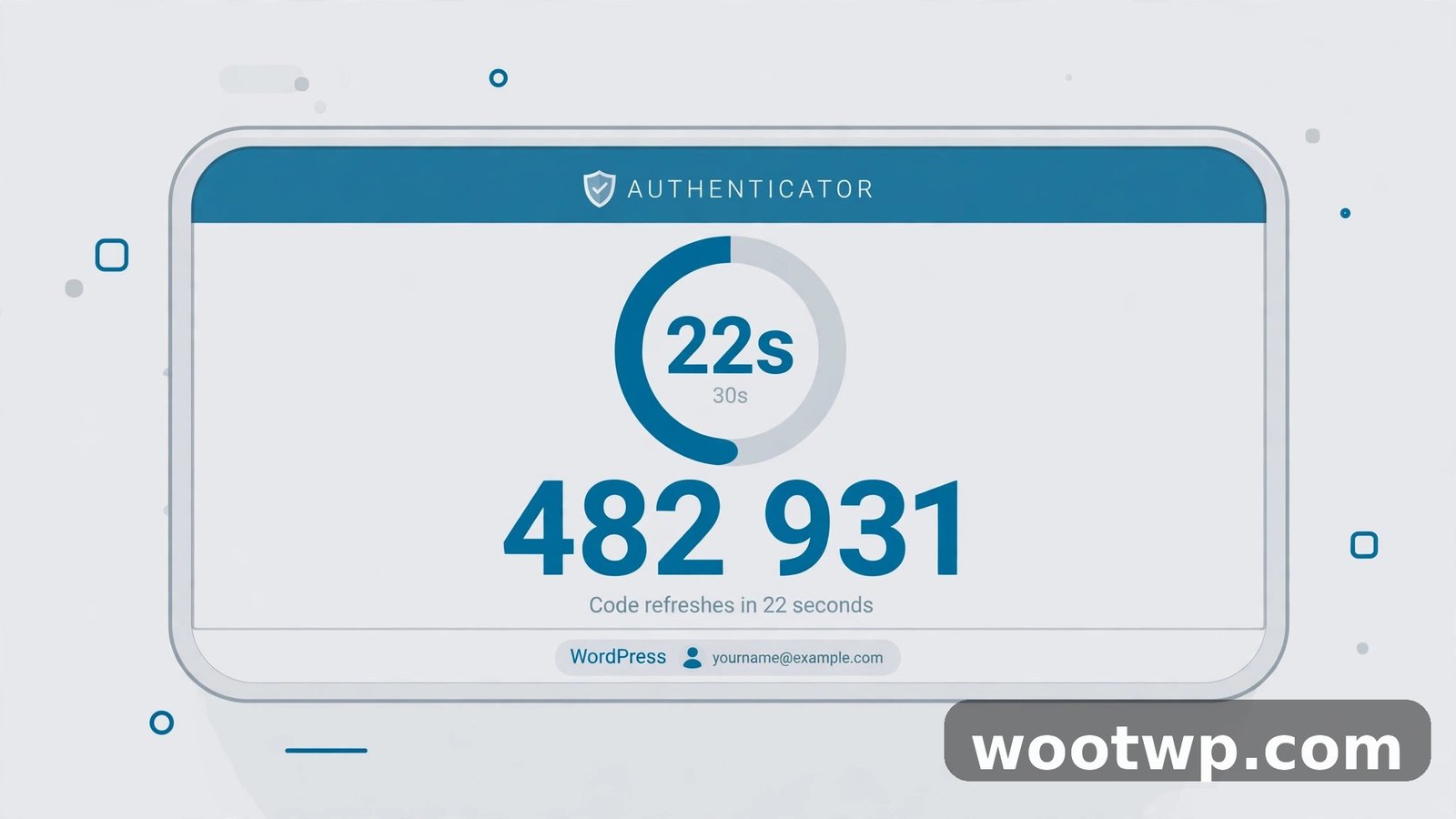
This is the method Meta recommends, and it's the one I suggest to everyone. Authenticator apps generate a new 6-digit code every 30 seconds, directly on your phone — no network needed, no waiting for a text, and immune to SIM-swap attacks that can intercept SMS codes.
- On the 2FA method screen, select Authentication app and tap Next.
- Instagram will show a QR code (or offer a setup key). Open your authenticator app.
- In the authenticator app, tap + (Add account) and choose Scan a QR code. Point your camera at Instagram's QR code.
- If scanning doesn't work, tap "Can't scan the QR code?" on Instagram's screen to get a text key, then paste it into the authenticator app manually.
- The authenticator app now shows a 6-digit code for Instagram. Type it into Instagram and tap Next.
Done. Instagram will confirm that two-factor authentication is on. If you ever get a new phone, move your authenticator app over properly before wiping the old one — this is the number one way people lock themselves out.
Set Up With SMS Text Message
SMS codes are better than nothing, but they're the weakest of the three methods. Attackers can hijack phone numbers through SIM swapping, and texts can be delayed or intercepted. Use SMS only as a backup method, or if you genuinely can't use an authenticator app.
- On the 2FA method screen, select Text message and tap Next.
- If you don't have a phone number on your account, Instagram will ask you to add one and verify it with a code.
- Enter the 6-digit code Instagram texts you, then tap Next.
Keep in mind: if you travel or change numbers, update the number in your account immediately, or you could lose your backup login path. And if you get a new SIM, test that the codes still arrive before you need them in an emergency.
Set Up With WhatsApp
Instagram also lets you receive login codes through WhatsApp — a middle ground between SMS and an authenticator app. It's tied to your WhatsApp account rather than your SIM, which makes it more resistant to SIM-swap attacks than plain SMS.
- On the 2FA method screen, select WhatsApp (you may need to enable text-message 2FA first, then add WhatsApp as an additional method).
- Enter the WhatsApp number you want codes sent to.
- Enter the 6-digit code WhatsApp sends you to confirm.
This is a solid backup method if your authenticator app ever fails and you can't receive SMS — say you're abroad with no cell signal but you have Wi-Fi for WhatsApp.
How to Turn On Instagram 2FA From a Computer
Prefer a bigger screen? The desktop flow mirrors the app:
- Go to instagram.com and log in.
- Click your profile picture in the top-right corner, then click Settings (gear icon).
- In the left sidebar, click Accounts Center.
- Click Password and security, then Two-factor authentication.
- Select your Instagram account and choose a method — Authentication app is recommended.
- Scan the QR code with your phone's authenticator app and enter the code to confirm.
For the authenticator app step, Instagram's own help center walks through the current screens if anything looks different from these steps — Meta occasionally renames menus.
Save Your Backup Codes — Don't Skip This
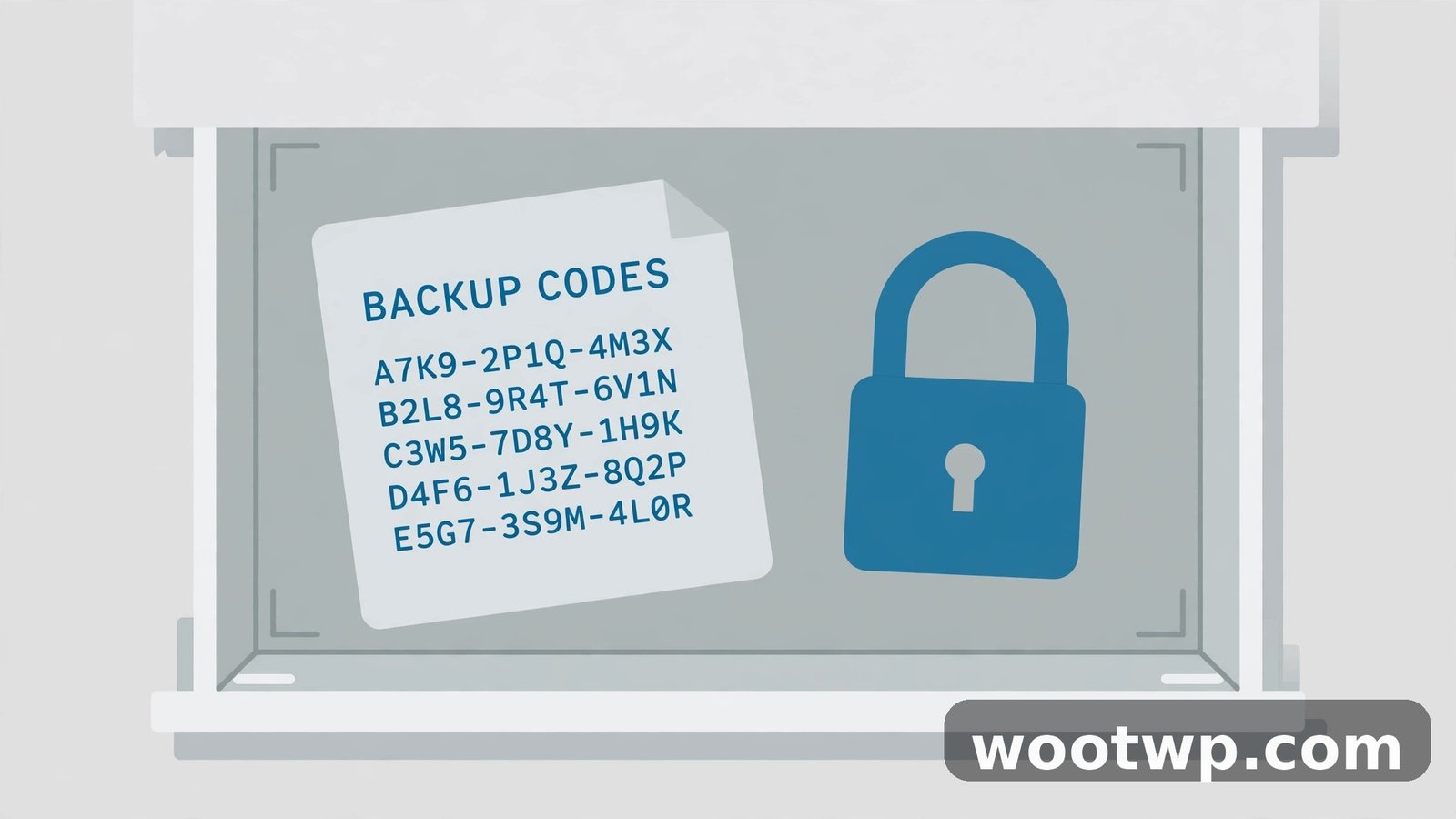
After enabling 2FA, Instagram gives you backup (recovery) codes — one-time codes you can use to log in if you lose access to your authenticator app or phone number. This is the step everyone skips and later regrets.
- Go back to Settings and privacy > Accounts Center > Password and security > Two-factor authentication.
- Select your account, then tap Additional methods or Recovery codes (the label varies by app version).
- Instagram shows a set of codes. Write them down on paper and store them somewhere safe — a drawer, a safe, anywhere offline.
Each code works once. If you ever use one, generate a fresh set afterward. Treat these like house keys: anyone holding one can get into your account, so don't store them in your photo gallery or email drafts. And while you're hardening things, make sure your password itself is strong — a secure password generator can create one that actually resists guessing, which matters because 2FA protects the login, not a weak password an attacker can phish.
What Changes at Login Once 2FA Is On
Day-to-day, almost nothing changes. On devices where you're already logged in, you stay logged in. The new step only appears when you sign in from a new device or browser:
- Enter your username and password as usual.
- Instagram asks for the 6-digit security code.
- Open your authenticator app, read the current Instagram code, and enter it before the 30-second timer runs out.
- You're in. Instagram can remember the device so it won't ask again for a while.
One annoyance to know about: if you use third-party apps that log into Instagram on your behalf (scheduling tools, analytics apps), they may need you to approve the login or enter a code the first time. That's normal — it's 2FA doing its job.
Locked Out? How to Recover Without Your Codes
It happens: new phone, authenticator app not transferred, no backup codes, number changed. Don't panic — you have options, roughly in this order:
- Use a backup code. This is why you saved them. Enter one at the 2FA prompt and you're in.
- Try another 2FA method. If you set up SMS or WhatsApp as a backup, request the code through that channel instead.
- Use a logged-in device. If Instagram is still logged in on your old phone or a tablet, go to the 2FA settings there and generate new backup codes or switch methods.
- Instagram's account recovery. On the login screen, tap "Get help logging in" (or "Forgot password?") and follow the identity verification steps. This can involve confirming your email or phone, and in harder cases, a video selfie verification. It's slow — days, sometimes — which is exactly why backup codes exist.
If your email itself was compromised too, check whether your address appears in known breaches with a tool like the one in my guide on checking if your email has been hacked — securing the email behind your Instagram account matters just as much.
How to Turn Off Two-Factor Authentication
I'll be honest: I don't recommend this. But if you need to — say you're consolidating accounts or switching methods — here's how:
- Go to Settings and privacy > Accounts Center > Password and security > Two-factor authentication.
- Select your account.
- Toggle off each enabled method (Authentication app, WhatsApp, Text message).
- Confirm when Instagram warns you about reduced security.
A better move than turning 2FA off entirely is switching methods: add the new method first, confirm it works, then remove the old one. Never leave the account with zero methods during the swap.
FAQs
How do I turn on two-factor authentication on Instagram?
Open the Instagram app, go to your profile, tap the menu, then Settings and privacy > Accounts Center > Password and security > Two-factor authentication. Select your account, choose Authentication app (recommended), SMS, or WhatsApp, and follow the on-screen steps. Save your backup codes when you're done.
Is the authenticator app or SMS better for Instagram 2FA?
The authenticator app is better. It works offline, codes appear instantly, and it can't be intercepted like SMS. SMS codes are vulnerable to SIM-swap attacks, where an attacker convinces your carrier to move your number to their SIM. Use SMS only as a backup method.
What do I do if I lost my Instagram 2FA codes?
Use one of your saved backup codes at the login prompt. If you don't have those, try a backup 2FA method (SMS or WhatsApp), or use a device where you're still logged in to generate new codes. As a last resort, use Instagram's "Get help logging in" recovery flow, which may require identity verification.
Can I use Instagram 2FA on multiple devices?
Yes. You can add the same Instagram account to an authenticator app on multiple phones by scanning the same QR code during setup, or by entering the same setup key on each device. Instagram also lets you enable multiple 2FA methods (app + SMS + WhatsApp) on one account.
Will 2FA log me out of all my devices?
No. Enabling 2FA doesn't log out existing sessions. It only adds the code step for new logins from unrecognized devices. If you suspect someone is already in your account, change your password and use "Log out of all devices" in the Accounts Center separately.
How do I get my Instagram backup codes?
Go to Settings and privacy > Accounts Center > Password and security > Two-factor authentication, select your account, and look for Additional methods or Recovery codes. Write the codes down on paper and store them somewhere safe — each code can be used once if you lose access to your 2FA method.
Conclusion
Turning on two-factor authentication on Instagram is three minutes of setup that protects years of photos, messages, and followers. Use the authenticator app method, add SMS or WhatsApp as a backup, and — the part everyone skips — save your backup codes somewhere offline. Do it now, while you're thinking about it, not after the "suspicious login attempt" email arrives. For the full picture of keeping your authenticator codes safe when you switch phones, see my guide on moving Google Authenticator to a new phone.