How to Create a Poll on WhatsApp and Instagram Stories: 2 Easy Guides
Group chats get messy fast. Ten people, ten different opinions, and a decision that never quite gets made. Polls fix that in one tap, and if you want to know how to create a poll on WhatsApp and Instagram stories, both apps have the feature built in already. No extra app, no link to a survey site, no cost.
In this guide, I will walk you through creating a poll on WhatsApp step by step, including group chats, one-to-one chats, and WhatsApp Web, and then show you how to add a poll sticker to an Instagram story, a Reel, and a group chat. I will finish with tips for writing polls people actually vote on, and the common mistakes that make polls flop.
- Why Polls Beat Asking in a Message
- How to Create a Poll on WhatsApp
- How to Create a Poll on WhatsApp Web and Desktop
- WhatsApp Poll Settings Worth Knowing
- How to Create a Poll on Instagram Stories
- How to Add a Poll to an Instagram Reel or Post
- How to Create a Poll in an Instagram Group Chat
- How to Write Polls People Actually Vote On
- Frequently Asked Questions
Why Polls Beat Asking in a Message
Asking "where should we eat on Friday?" in a group chat produces a thread of conflicting answers, a few jokes, and usually no decision. A poll produces one screen where everyone taps an option and the result is visible to all. That difference matters for a few reasons:
- One tap to vote. People who would never type a reply will tap an option.
- Live results. Everyone sees the tally update as votes come in, so there is no need to count replies.
- A clear winner. When the poll closes, the decision is obvious, and nobody can claim they missed the thread.
- Less noise. One message replaces twenty, which keeps the group chat readable.
Polls work for serious decisions too: picking a meeting time, choosing a project name, settling a family plan, or getting quick feedback from customers. The mechanics are the same either way.
How to Create a Poll on WhatsApp
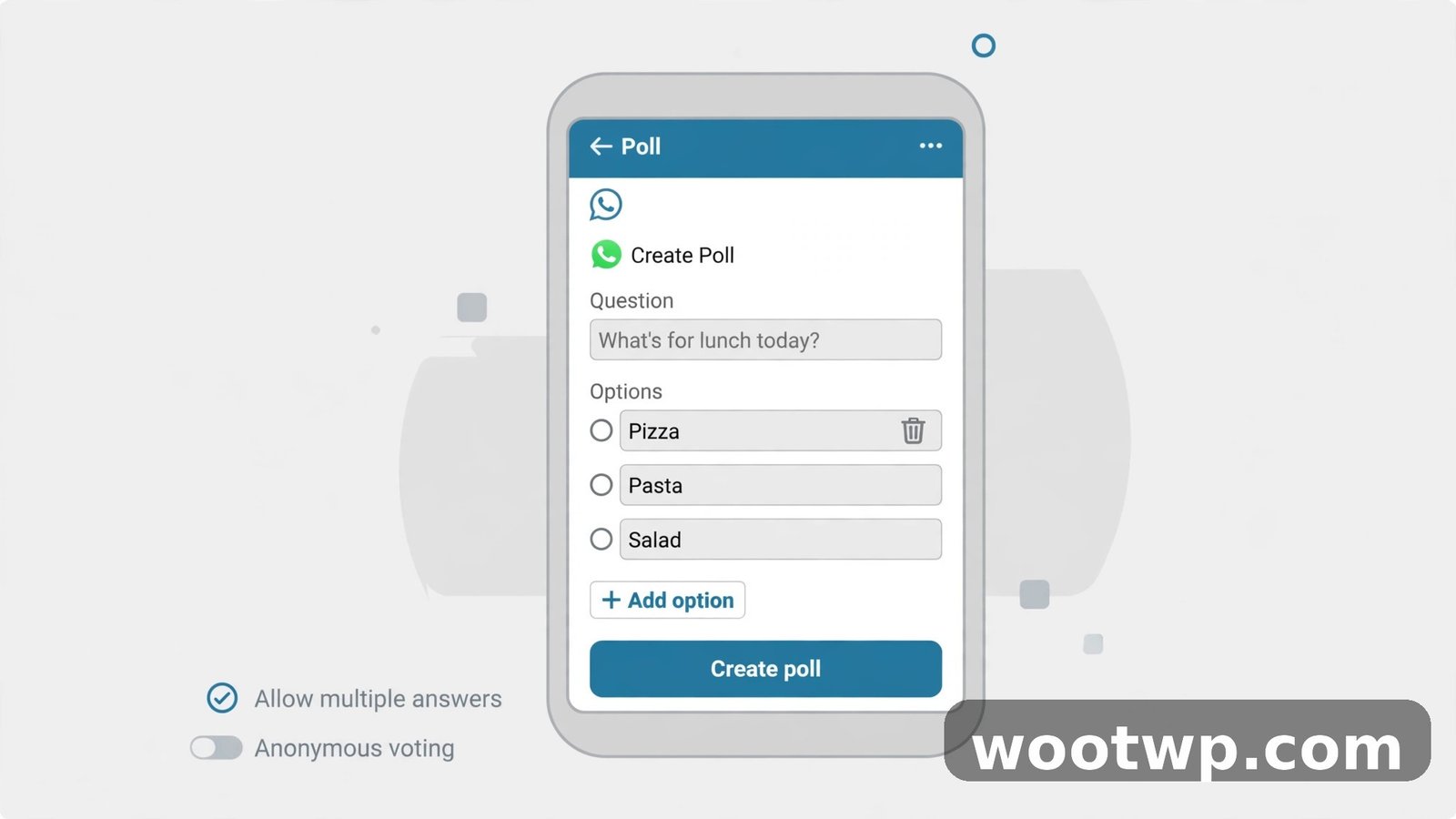
WhatsApp polls work in group chats and one-to-one chats, on Android and iPhone, and the steps are nearly identical on both.
- Open WhatsApp and open the chat or group where you want the poll.
- Tap the attachment icon (a paperclip on Android, a plus sign on iPhone) next to the message box.
- Tap Poll.
- Type your question in the Question field. Keep it short and specific, like "Where should we eat on Friday?"
- Add your options, one per field. WhatsApp lets you add up to 12 options.
- If you want people to pick more than one answer, turn on Allow multiple answers.
- Tap Send.
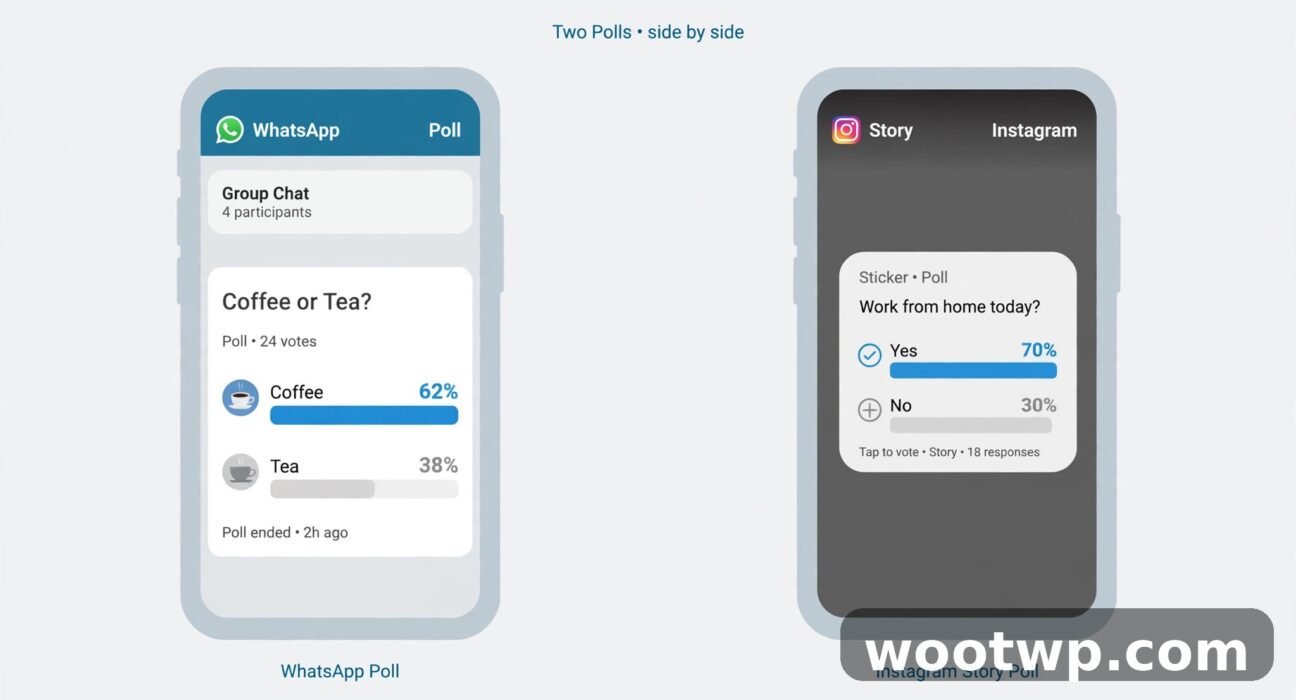
The poll appears in the chat immediately, and everyone in the conversation can vote. Results update live as votes come in, and you can tap View votes on the poll to see who picked what, unless you turned on the anonymous option.
A few details worth knowing: you can reorder options by dragging them before you send, and you can edit the question within 15 minutes of sending if you spot a typo. After that window, you will need to delete the poll and post a corrected one.
How to Create a Poll on WhatsApp Web and Desktop
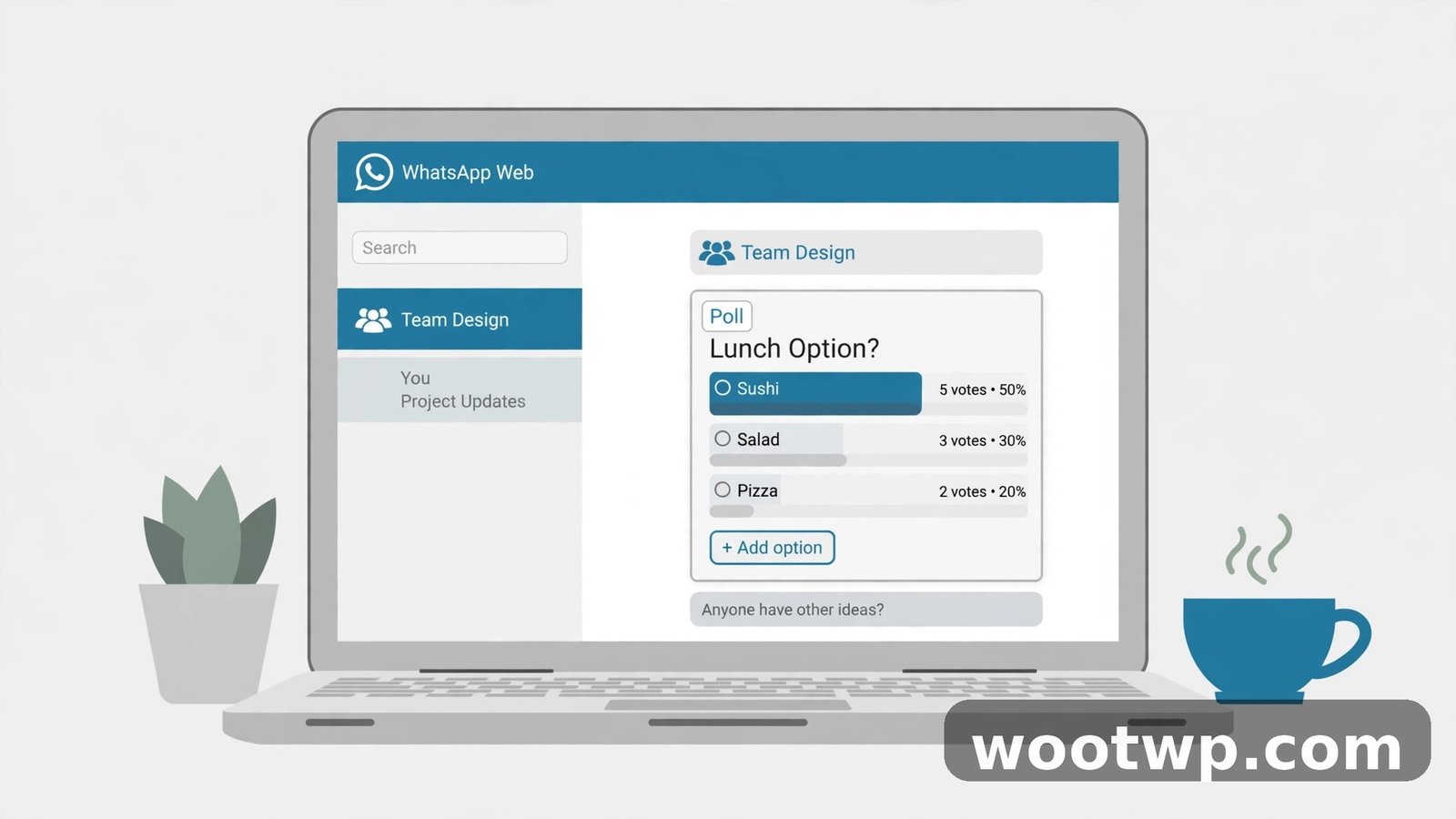
If you are working on your computer, you do not need to pick up your phone. WhatsApp Web and the desktop app support polls with the same options.
- Open WhatsApp Web or the desktop app and open the chat or group.
- Click the attachment icon (a plus sign or paperclip) next to the message box.
- Click Poll.
- Type your question and add up to 12 options.
- Choose whether to allow multiple answers.
- Click Send.
Votes from phone users and web users mix together in the same tally, so it does not matter which device people vote from. One limitation: you cannot create a poll in a WhatsApp Channel. Channels are broadcast-only, so polls there are not supported. For anything interactive, use a group chat instead.
WhatsApp Poll Settings Worth Knowing
Beyond the basic steps, a few settings change how your poll behaves:
- Multiple answers. Off by default. Turn it on for questions like "which dates work for you?" where people may have several valid answers. Leave it off for either-or decisions.
- Anonymous voting. When this is on, voters see the totals but not who voted for what. This is useful for sensitive questions, like feedback on a plan, where people might hold back if their name is attached.
- End time. You can set a deadline for the poll, after which no more votes are accepted. This is handy for decisions with a real cutoff, like booking a restaurant by Thursday.
- Editing. You have 15 minutes after sending to fix the question. Options cannot be edited after sending, so double-check them before you tap Send.
- Deleting. Long-press the poll and tap Delete to remove it. You can delete it for everyone or just for yourself, the same as any other message.
If you run polls often, it is worth learning these settings once, because they cover almost every situation you will run into. And if an important poll or decision ever gets deleted from a group by mistake, our guide on how to recover deleted WhatsApp messages covers what can actually be restored.
How to Create a Poll on Instagram Stories
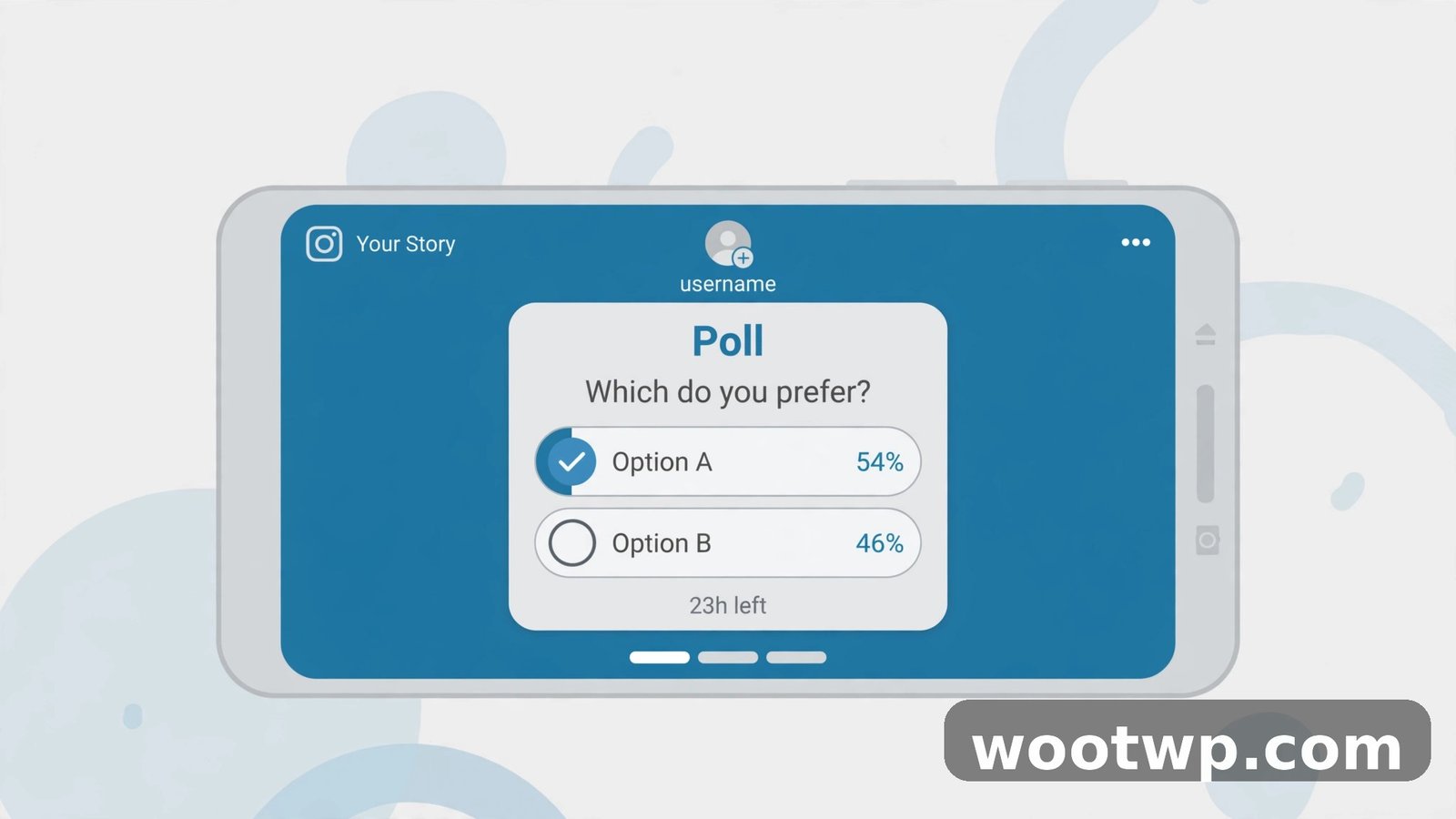
Instagram polls live in Stories, and they are one of the easiest engagement tools on the platform. Here is how to create a poll on Instagram stories from scratch:
- Open Instagram and swipe right, or tap the plus icon and choose Story.
- Take a photo or video, or pick one from your camera roll. A background image makes the poll easier to notice than a blank screen.
- Tap the sticker icon (the smiling square) at the top of the screen.
- Tap the Poll sticker.
- Type your question in the sticker's text field.
- Edit the answer options. The defaults are Yes and No, but you can tap each one and type anything you like, up to four options.
- Drag the sticker to where it sits clearly on the screen, and resize it with two fingers if needed.
- Tap Your story to share it.
People vote by tapping an option, and you see the results in real time by swiping up on your own story. You can also see exactly who voted for each option, which is useful if you are running a poll for a small group rather than a public audience.
Two practical notes: stories disappear after 24 hours, so a story poll is a short-window tool, and if you want the results to last, share a follow-up story announcing the winner before the original expires. Also, keep the question visible. If the poll sticker sits over a busy part of the photo, move it to a plain area so people can read it at a glance.
How to Add a Poll to an Instagram Reel or Post
Stories are not the only place for Instagram polls. You can attach a poll to a Reel or a feed post as well, and these last much longer than 24 hours.
- Create a Reel or a feed post as normal.
- Before publishing, look for the Add poll option. On Reels, it appears among the stickers when you edit the Reel. On feed posts, it appears in the caption area when you create the post.
- Type your question and add 2 to 4 options, each up to 25 characters.
- Publish the Reel or post.
Polls on Reels and posts show vote counts and percentages, but unlike story polls, they do not show who voted. They also cannot be edited after publishing, so check the question and options carefully before you post. For creators, this placement is useful because a Reel poll keeps collecting votes for as long as the Reel circulates, which can be weeks rather than a day.
How to Create a Poll in an Instagram Group Chat
Instagram group chats have their own poll feature, which is the closest equivalent to a WhatsApp group poll on the platform.
- Open Instagram and go to your Direct Messages.
- Open the group chat where you want the poll.
- Tap the sticker icon or the plus icon in the message box, depending on your version of the app.
- Tap Poll.
- Type your question and add your options.
- Tap Create or Send.
Everyone in the group can vote, and the results appear in the chat. This is the best option when your group already lives on Instagram and you do not want to move the conversation to WhatsApp just for one question.
How to Write Polls People Actually Vote On
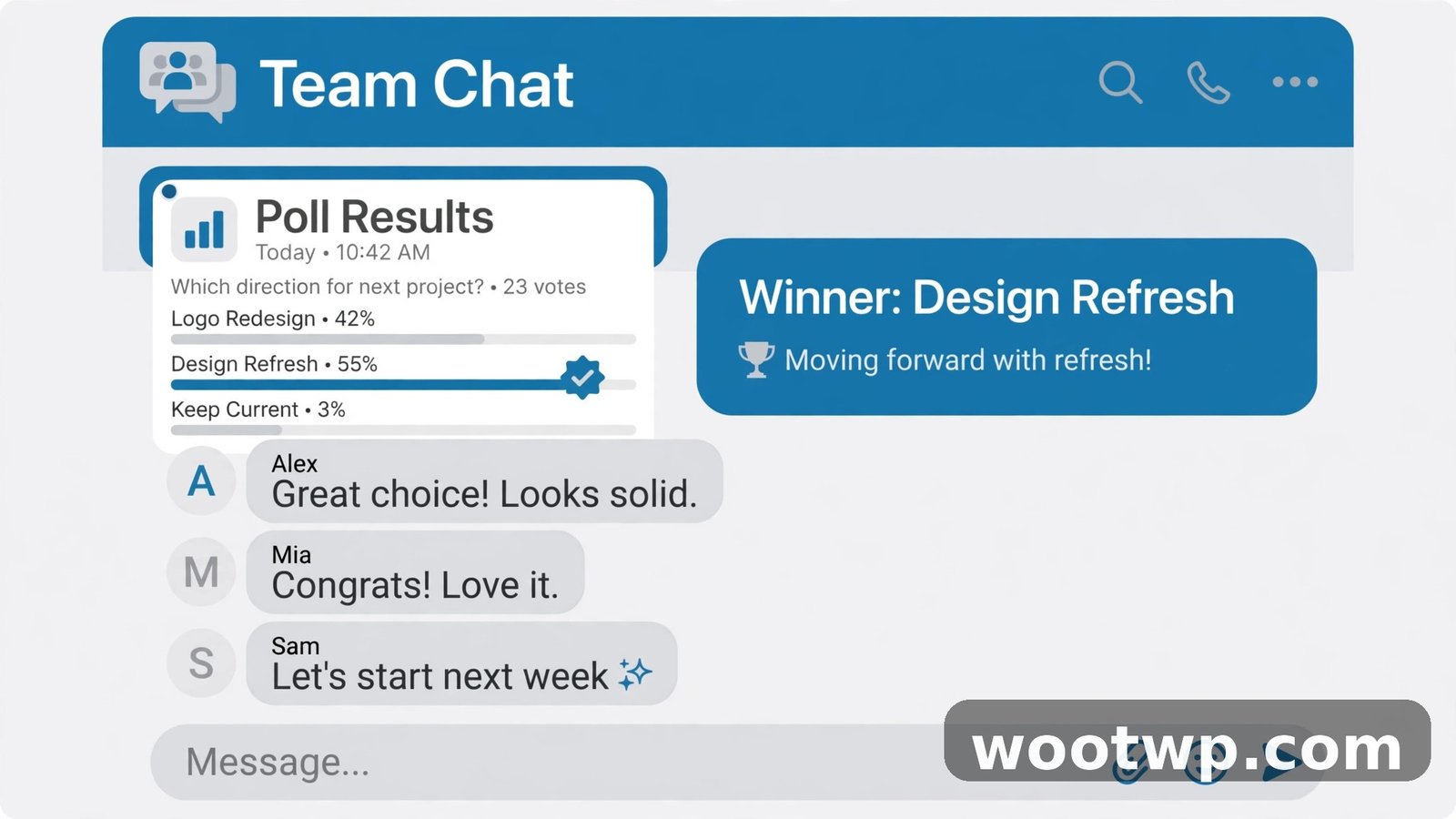
The mechanics take a minute to learn. Writing a poll people bother to answer takes a little more thought, and these habits make the difference:
- Ask one question, not three. "Where and when should we meet?" is two polls. Split it.
- Keep options short. Long options get skimmed or ignored. Aim for a few words each.
- Limit the options. Four or fewer works best on Instagram, and even on WhatsApp, a poll with 12 options usually means the question was too vague.
- Make the options genuinely different. "Pizza, Italian, pasta place" is one option wearing three costumes. Offer real choices.
- Add a deadline. A poll with no end date drifts. Say "vote by Thursday" in the message around the poll, or set an end time on WhatsApp.
- Close the loop. When the poll ends, announce the result in the chat or a follow-up story. People vote more next time when they see their vote mattered.
- Use polls for opinions, not facts. "Which design do you like?" is a great poll. "What time does the shop open?" is a search, not a vote.
If you are using polls for a business or a page, the same rules apply, with one addition: reply to the result. A story that says "you picked the blue one, here it is" turns a throwaway tap into a reason to follow you. And since a poll-driven page attracts attention, make sure the account itself is locked down. See how to enable two-factor authentication on Instagram if you have not done that yet.
Frequently Asked Questions
How do I create a poll on WhatsApp?
Open the chat, tap the attachment icon, tap Poll, type your question, add up to 12 options, and tap Send. You can allow multiple answers and set an end time before sending.
How do I create a poll on Instagram stories?
Create a story, tap the sticker icon, tap the Poll sticker, type your question, edit the options (up to four), place the sticker, and share the story. Swipe up on your own story to see results and who voted.
Can I see who voted in a WhatsApp poll?
Yes, unless the poll is set to anonymous. Tap View votes on the poll to see who picked each option. On Instagram stories you can also see who voted, but on Reels and feed posts you only see totals.
How many options can a WhatsApp poll have?
Up to 12 options. Instagram story polls allow up to 4 options, and Reel or post polls allow 2 to 4 options of up to 25 characters each.
Can I edit a poll after sending it?
On WhatsApp, you can edit the question within 15 minutes of sending, but not the options. On Instagram, polls cannot be edited after publishing, so check everything before you post.
Do WhatsApp polls work on WhatsApp Web?
Yes. Click the attachment icon in a chat on WhatsApp Web or the desktop app, choose Poll, and fill in the question and options the same way as on your phone.
Conclusion
Knowing how to create a poll on WhatsApp and Instagram stories turns group decisions from long threads into a single tap. On WhatsApp, open any chat, tap the attachment icon, choose Poll, and send. On Instagram, add the Poll sticker to a story, a Reel, or a group chat message. Keep the question short, limit the options, and always announce the result. That is the whole skill, and once you use it a few times, you will wonder how your group chats ever functioned without it.