How to Fix Blurry Instagram Stories: 9 Proven Ways to Stay Sharp
You record a crisp video, it looks perfect in your camera roll, and then it turns soft and fuzzy the moment it goes live as a story. If you want to know how to fix blurry Instagram stories, you are not alone, and in most cases the fix takes less than five minutes. The blur almost always comes from one of a few places: a quality setting inside Instagram, a weak connection, or a file that does not match what Instagram expects.
In this guide, I will walk you through the fixes in the order I try them myself, starting with the quick settings that solve most cases, then moving to camera and export settings for stubborn cases. You do not need a new phone or a paid app. You just need to give Instagram a clean file and the right upload conditions.
- Why Your Instagram Stories Look Blurry
- Fix 1: Turn On Upload at Highest Quality
- Fix 2: Turn Off Data Saver
- Fix 3: Upload on Strong Wi-Fi
- Fix 4: Use the Right Size and Shape
- Fix 5: Record and Export at the Right Settings
- Fix 6: Stop the Double-Compression Trap
- Fix 7: Update Instagram and Restart Your Phone
- Fix 8: Fix Blurry Photos Taken in Low Light
- Fix 9: Test Before You Post the Real Story
- Frequently Asked Questions
Why Your Instagram Stories Look Blurry
Instagram compresses every story you upload. It makes its own copy, shrinks photos to 1080 pixels wide, and re-encodes videos so they load fast on every connection. You cannot switch that compression off completely, and that is normal. The goal is not zero compression. The goal is to hand Instagram a file that survives compression with its detail intact.
Here are the usual causes, and how to spot each one:
- Upload at highest quality is off. Every story looks soft, photos and videos alike, even on Wi-Fi.
- Data Saver is on. Stories look worse on mobile data than on Wi-Fi, or worse than they used to look.
- Weak connection during upload. The story was slow to post, or it looks soft only when you post on the go.
- Wrong size or shape. The story looks cropped, stretched, or zoomed in, with text cut off at the edges.
- The source file was already soft. It looks blurry in your camera roll too, before Instagram touches it.
- Too many edits and re-saves. Each save through another app adds a fresh round of compression.
- Old app version or a tired phone. The app crashes, lags, or uploads slowly, and quality drops with it.
Work through the fixes below in order. Most people stop at fix 2 or 3, because that is where the problem lives.
Fix 1: Turn On Upload at Highest Quality
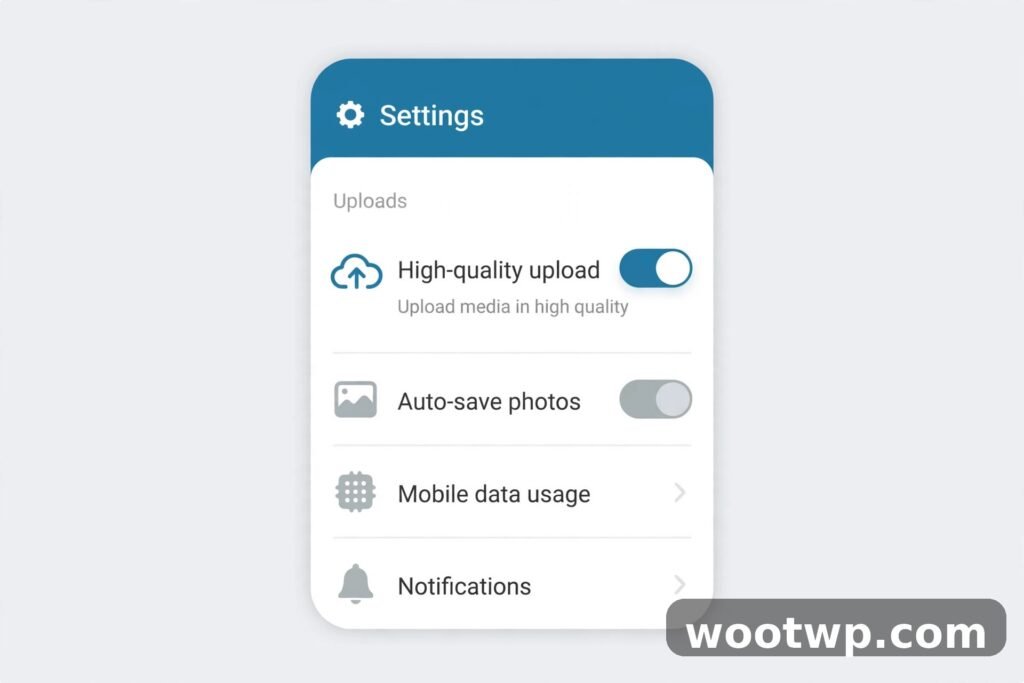
This is the single most important setting for how to fix blurry Instagram stories, and it is easy to miss because it sits inside the data settings, not the camera settings.
- Open Instagram and tap your profile picture in the bottom-right corner.
- Tap the three-line menu in the top-right corner.
- Tap Settings and privacy.
- Tap Data usage and media quality.
- Turn on Upload at highest quality.
On some phones the screen is labelled slightly differently, and older versions put it under Settings, then Account, then Data usage. The toggle does the same job either way: it tells Instagram to use the full-resolution version of your file instead of a smaller preview version.
Leave this setting on permanently. It uses a bit more data per upload, which is a fair trade for stories that actually look like what you shot. If you post mostly on Wi-Fi, you will barely notice the difference in data use.
Fix 2: Turn Off Data Saver
Data Saver is the other half of the same problem. When it is on, Instagram shrinks your uploads to save mobile data, and the result is exactly the soft, washed-out look you are trying to fix.
- Open Instagram and go to Settings and privacy.
- Tap Data usage and media quality.
- Make sure Data Saver is switched off. On iPhone it may appear as Use less cellular data. Switch that off too.
Check both toggles, because they can work independently. I have seen phones where Upload at highest quality was on but Data Saver was still on, and stories still came out soft. Both settings need to be in the right state: high-quality uploads on, Data Saver off.
If you are on a limited data plan, turn Data Saver back on only when you are travelling and truly need to save data, then switch it off again before your next important post. Think of it as a travel mode, not a permanent setting.
Fix 3: Upload on Strong Wi-Fi
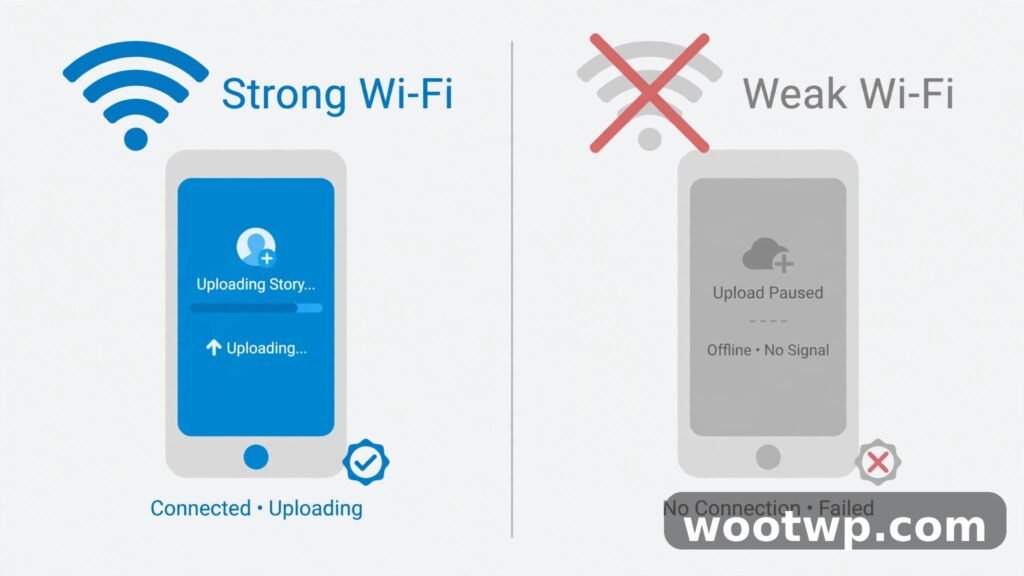
Instagram watches your connection while you upload. On a weak or unstable signal, it compresses harder so the upload does not time out, and your story pays the price. This is why the same video can look fine one day and blurry the next: the file did not change, the connection did.
Practical rules that help:
- Post on Wi-Fi when quality matters, especially for videos.
- Wait until you have a stable signal. A story that uploads in a few seconds will usually look better than one that struggles for a minute.
- Avoid uploading while moving, in a lift, or on a crowded public network.
- If a story posts blurry on mobile data, delete it and re-upload the same file on Wi-Fi. Do not re-save or re-edit the file first, or you add another round of compression.
If you must post on mobile data, stay still, keep the app open until the upload finishes, and check the story on a second device or a friend’s phone before you assume it is fine. Your own phone sometimes shows a cached preview that looks sharper than what everyone else sees.
Fix 4: Use the Right Size and Shape

Stories are vertical: 1080 pixels wide by 1920 pixels tall, a 9:16 shape. When your file does not match that shape, Instagram crops, zooms, or stretches it, and all three make detail look worse.
- Photos: export or crop to 1080 x 1920 before you upload. A square photo stretched to fill a story will look soft and wrong.
- Videos: export at 1080 x 1920, 30 frames per second. That is the size Instagram handles best.
- Text and faces: keep important text and faces away from the very top and bottom edges, where Instagram’s own interface overlaps them.
- Screenshots: a tall screenshot usually fits stories well, but a wide screenshot will be shrunk to fit and will look tiny and blurry. Crop to the part that matters.
You do not need a fancy editor for this. Your phone’s built-in editor, or a free app like Snapseed, can crop to 9:16 in seconds. The trick is to do the crop once, at full quality, and then upload that file directly.
Fix 5: Record and Export at the Right Settings
A story can only be as sharp as the file you start with. If the source is soft, no Instagram setting will rescue it. These habits keep your source files clean:
- Record with your phone’s own camera app, not inside Instagram when quality matters. The native camera app records at higher quality and gives you the full file to work with.
- Set video to 1080p at 30fps. On iPhone, go to Settings, then Camera, then Record Video, and pick 1080p at 30 fps. On Android, open the Camera app, go to Settings, and pick the same resolution and frame rate. Shooting in 4K sounds better, but Instagram has to shrink 4K down anyway, and the extra downscaling can add artefacts. For stories, 1080p is the sweet spot.
- Turn off HDR or Dolby Vision for story clips if your phone offers it, because Instagram does not handle HDR in stories well and the colours can shift.
- Export video as MP4 with the H.264 codec if your editor gives you a choice. That is the format Instagram handles most cleanly.
- Keep clips short and under the file size limits. A story video can be up to 60 seconds, and very large files get squeezed harder.
- Clean your lens. It sounds obvious, but a smudged lens is a classic cause of soft photos, and it is the first thing I check when someone says every photo looks blurry.
When you edit, export once at maximum quality. Do not export, re-import, add a filter, and export again. Every extra save costs detail.
Fix 6: Stop the Double-Compression Trap
Double compression is the quiet killer of story quality. It happens when your file gets compressed twice before Instagram even sees it: once by an app that sends it, and once by Instagram itself.
Common traps include:
- Sending the video to yourself on WhatsApp, then downloading it and posting it. WhatsApp compresses media hard by default.
- Downloading a video from a cloud link that serves a preview version instead of the original.
- Posting through a third-party scheduler that re-processes your file before it reaches Instagram.
- Screenshotting a photo instead of using the original file. A screenshot is a lower-quality copy of what was on screen.
The fix is simple: upload the original file, straight from your camera roll, through the official Instagram app. If you need to move a file between devices, use a method that keeps the original, such as a USB cable, AirDrop, or a cloud drive set to original quality, and check the file size after the transfer. If a 40 MB video arrives as a 4 MB video, it was compressed in transit, and you should transfer it again.
Fix 7: Update Instagram and Restart Your Phone
An old app version can upload at lower quality or hit bugs that newer versions fixed. This is a quick check, not a long job:
- Open the Play Store or App Store and search for Instagram.
- If an Update button shows, tap it and wait for the update to finish.
- Restart your phone. This clears temporary glitches and frees memory, which helps the upload run cleanly.
- Open Instagram again, check that Upload at highest quality is still on, and post a test story.
Also clear Instagram’s cache if the app feels sluggish. On Android, go to Settings, then Apps, then Instagram, then Storage, and tap Clear cache. Do not tap Clear data, because that signs you out and removes your saved settings. On iPhone, there is no cache button, so deleting and reinstalling the app is the equivalent step, but only do that if you know your login details.
While you are in your account settings, it is worth tightening your security too. Our guide to enabling two-factor authentication on Instagram walks through the authenticator-app method, which keeps your account safe while you focus on content. If you also want quieter messaging, see how to turn off read receipts on Instagram DMs.
Fix 8: Fix Blurry Photos Taken in Low Light
Some blur has nothing to do with Instagram. Low light forces your camera to work harder, and the result is grain, smearing, and soft detail that no upload setting can fix.
- Shoot in good light whenever you can. Facing a window or a lamp beats shooting with light behind your subject.
- Hold the phone steady with both hands, or brace it against a table or wall. Even a small shake shows up in low light.
- Avoid digital zoom. Walk closer instead. Digital zoom crops the image and enlarges what is left, which always looks softer.
- Use Night mode if your phone offers it, and hold still until it finishes. Moving during a Night mode shot ruins it.
- Wipe the lens before low-light shots. Smudges scatter light and make night photos look hazy.
If a photo is already blurry in your camera roll, retake it if you can. Editing a blurry photo sharper is rarely convincing, and viewers notice the sharpening artefacts straight away.
Fix 9: Test Before You Post the Real Story
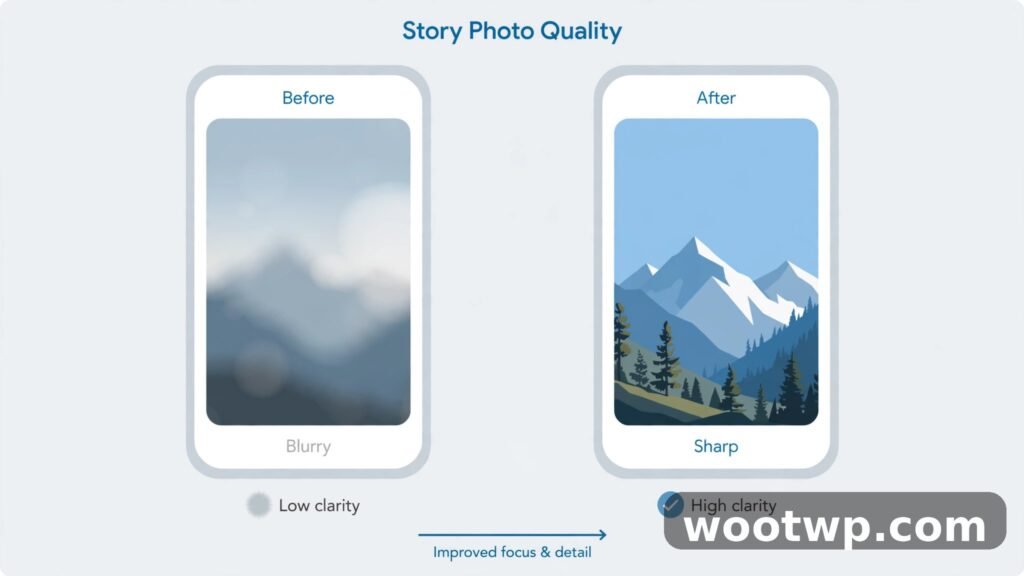
Before you post a story that matters, such as a product launch or an announcement, run a quick test:
- Post the story to your Close Friends list only, or to a test account if you have one.
- View it on a different phone or on a larger screen.
- Check small text, faces, and fine detail, not just the overall look.
- If it looks sharp, delete the test and post it for real. If it looks soft, work back through fixes 1 to 6 before you post again.
This takes two minutes and saves you from discovering a problem after hundreds of people have already seen the blurry version.
For a second walkthrough of the same settings, see this guide to why Instagram stories go blurry, which covers the data-saver and upload-quality toggles in detail. Instagram’s own help centre remains the most reliable source when story sizes change.
Frequently Asked Questions
Why are my Instagram stories blurry but my feed posts are sharp?
Stories and feed posts are processed differently. Stories are compressed more aggressively so they load fast and disappear after 24 hours, while feed posts keep a higher-quality copy. Turning on Upload at highest quality and posting on Wi-Fi closes most of the gap, but stories will rarely look quite as sharp as a feed photo.
How do I fix blurry Instagram stories on Android?
Open Instagram, go to Settings and privacy, then Data usage and media quality, turn on Upload at highest quality, and turn off Data Saver. Then upload the original 1080 x 1920 file on Wi-Fi. On Android, also check that your camera is set to 1080p, because some phones default to a lower video resolution.
How do I fix blurry Instagram stories on iPhone?
The steps are the same, with one extra check: on iPhone the Data Saver option may be labelled Use less cellular data. Turn it off, turn on Upload at highest quality, and record in 1080p at 30fps in the Camera app. Avoid HDR video for stories, since Instagram does not handle it well.
Why is only one story blurry while the rest look fine?
That usually points to the file itself. The blurry one was probably sent through WhatsApp, downloaded from a cloud preview, heavily filtered, or shot in low light. Check the original in your camera roll. If it is soft there, the problem started before Instagram, and you need the original file or a retake.
Does Instagram compress stories even with high-quality uploads on?
Yes, some compression always happens. The high-quality toggle reduces it, it does not remove it. That is why starting with a clean 1080 x 1920 file matters so much: a file that needs little work from Instagram survives compression far better than one that needs heavy resizing.
Can I fix a story that is already posted and blurry?
You cannot sharpen a posted story in place. Delete it and re-upload the original file after checking your quality settings and connection. If the original file itself is blurry, you will need to retake or re-export it, because Instagram cannot add detail that was never there.
Conclusion
Learning how to fix blurry Instagram stories comes down to a short checklist: turn on Upload at highest quality, turn off Data Saver, post on strong Wi-Fi, and hand Instagram a clean 1080 x 1920 file straight from your camera roll. Do those four things and most stories sharpen up right away. If one still looks soft, check the source file, because the blur usually started before Instagram ever saw it.