How to Hide Last Seen on WhatsApp for Specific Contacts: 5 Easy Steps
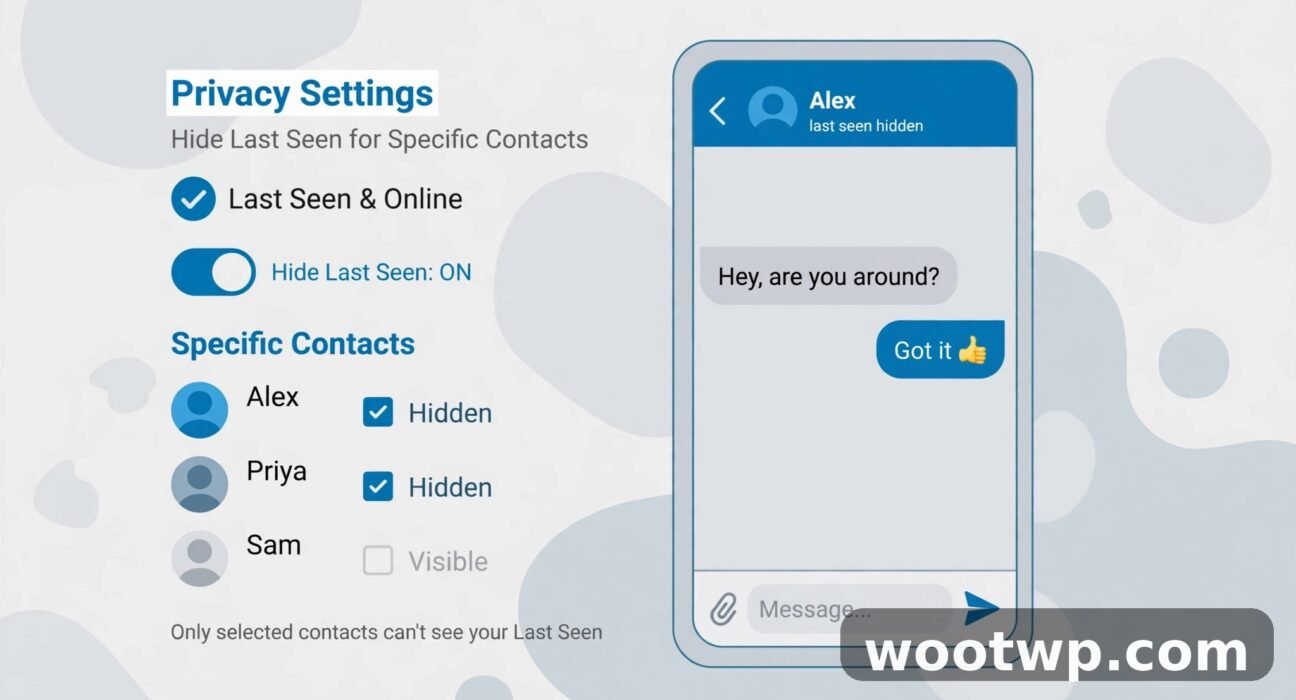
You do not want to hide from everyone. You just want one or two people to stop watching when you were last online, while everyone else still sees you normally. Learning how to hide last seen on WhatsApp for specific contacts gives you exactly that control, without blocking anyone or disappearing from your whole contact list.
WhatsApp added this option a while back, but it sits inside a privacy menu most people never open, and the wording trips people up. In this guide, I will show you the exact steps on Android and iPhone, explain the trade-off you accept when you hide from someone, and clear up what this setting does not hide.
- What "My Contacts Except" Actually Does
- How to Hide Last Seen on WhatsApp for Specific Contacts on Android
- How to Hide Last Seen on WhatsApp for Specific Contacts on iPhone
- Set Your Online Status to Match
- What Changes for the People You Hide From
- What This Setting Does Not Hide
- How to Change or Remove Someone From the List
- When to Use "Nobody" Instead
- Troubleshooting: The Option Is Missing or Not Working
- Frequently Asked Questions
What "My Contacts Except" Actually Does
WhatsApp gives you four choices for who can see your last seen:
- Everyone: anyone with your number can see it, even if they are not saved in your contacts.
- My Contacts: only people saved in your contacts can see it.
- My Contacts Except: everyone in your contacts can see it, except the specific people you pick.
- Nobody: no one can see it.
The third option is the one you want here. Pick a boss, an ex, or a relative who comments every time you are online late, add them to the exception list, and they stop seeing your last seen. Everyone else notices nothing at all.
There is one trade-off, and it matters: the rule is reciprocal. If you hide your last seen from someone, you cannot see theirs either. That is WhatsApp's fairness rule, and it applies to every privacy level, not just this one. So before you add someone, decide whether losing sight of their last seen bothers you. For most people hiding from one nosy contact, it does not.
How to Hide Last Seen on WhatsApp for Specific Contacts on Android
- Open WhatsApp on your Android phone.
- Tap the three-dot menu in the top-right corner.
- Tap Settings.
- Tap Privacy.
- Tap Last seen and online. It sits near the top of the privacy list.
- Under "Who can see my last seen", tap My contacts except.
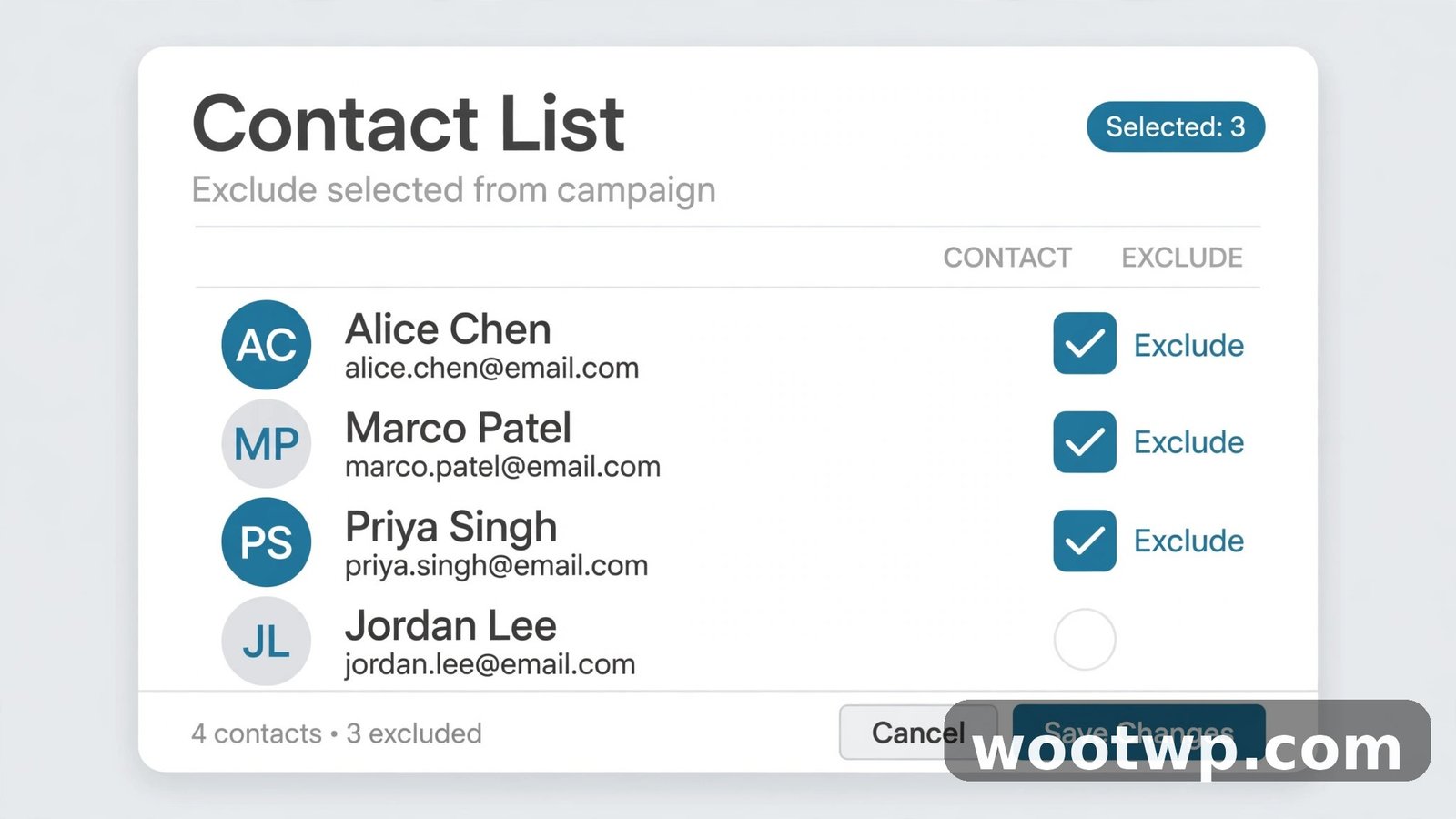
- Your contact list opens. Tap each person you want to hide from so a tick appears next to their name.
- Tap the green tick button in the bottom-right corner to save.
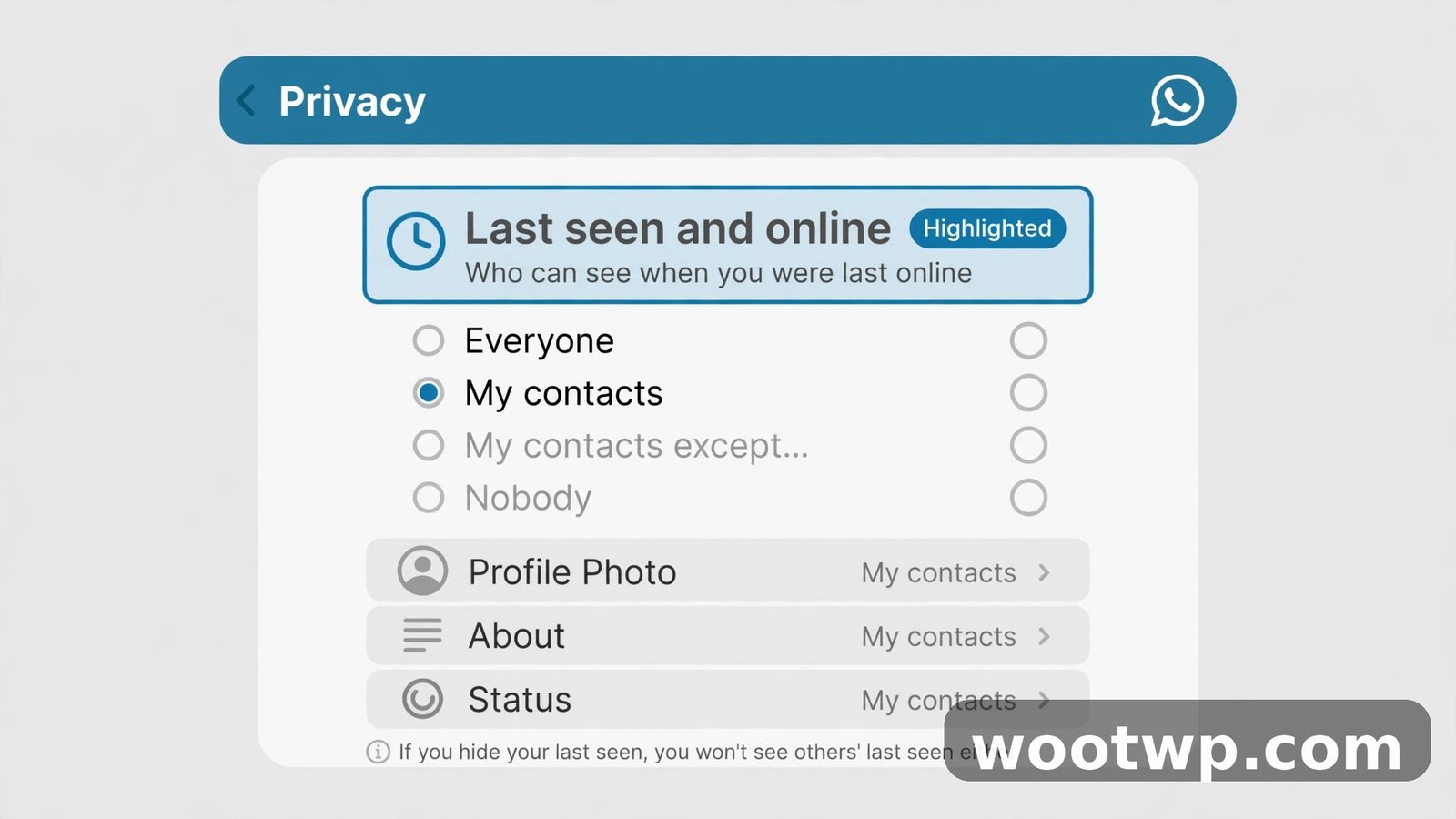
That is it. There is no separate save button on the privacy screen itself, and the change applies instantly. It also syncs to your linked devices, so you do not need to repeat it on WhatsApp Web or a linked tablet.
A practical tip: only the people you tick are affected. If you add someone by mistake, go back to the same screen and untick them. No notification is sent either way, so no one knows you changed the list.
If you use WhatsApp for more than chats, remember that privacy settings are per account. Our guide to using WhatsApp's built-in assistant features explains what the assistant can do, and if you run a second account you will need to set this privacy option on each account where you want it.
How to Hide Last Seen on WhatsApp for Specific Contacts on iPhone
- Open WhatsApp on your iPhone.
- Tap Settings in the bottom-right corner, or tap your profile picture if your version shows that instead.
- Tap Privacy.
- Tap Last seen and online.
- Under "Who can see my last seen", tap My contacts except.
- Tap the contacts you want to hide from, then tap Done in the top-right corner.
The steps are nearly identical to Android, with the usual iPhone differences: Settings lives at the bottom of the screen, and you confirm with Done instead of a green tick. The result is the same, and the change syncs across your linked devices.
One iPhone habit worth breaking: if you open WhatsApp from a notification and reply quickly, you were still online, even if your last seen is hidden. The setting hides the timestamp, it does not make your activity invisible in every sense, as I explain below.
Set Your Online Status to Match
Hiding your last seen but leaving your online status visible defeats the point. Someone who opens your chat while you are using WhatsApp will still see "Online" under your name in real time.
On the same Last seen and online screen, look for the second section: "Who can see when I am online". Set it to Same as last seen. That ties the two together, so the people you excluded from your last seen also cannot see you as online.
Do this step every time you change the first setting. I have seen people hide their last seen, forget the online toggle, and wonder why a contact still knew they were active at midnight. The online toggle is the missing piece in almost every such case.
Note that this does not hide you from group counts. WhatsApp notes that if online visibility is left open, you can still count toward the online count shown in groups. Setting it to Same as last seen closes that gap too.
What Changes for the People You Hide From
Here is exactly what a hidden contact sees after you save the change:
- They open your chat and see no last seen timestamp under your name. It is simply blank.
- While you are using WhatsApp, they do not see "Online" either, provided you set online to Same as last seen.
- They can still send you messages, and you can still reply. Nothing about messaging, calls, or groups changes.
- They receive no notification about the change. WhatsApp never announces privacy changes.
- They cannot see your last seen, and you cannot see theirs. That reciprocal part is automatic.
What they might notice, over time, is the absence itself. If someone used to see "last seen today at 11:42 PM" and now sees nothing, they may guess you changed a setting. There is no way around that, and WhatsApp gives you no subtler option. If a contact asks, a simple "I tightened my privacy settings" is honest and ends the conversation cleanly.
What This Setting Does Not Hide
This is where most confusion lives, so be clear about the limits before you rely on the setting:
- Typing indicator: if you are in a chat with someone at the same time, they can still see "typing…" while you type, whatever your last seen setting is.
- Read receipts: blue ticks still show that you opened a message, unless you turn read receipts off separately in Privacy. That is a different toggle, and turning it off also stops you seeing other people's blue ticks.
- Your replies: answering a message at 2 a.m. tells the sender you were awake at 2 a.m., no matter what your last seen says.
- Profile photo and About: these have their own privacy settings on the same Privacy screen, with the same My contacts except option. Hiding your last seen does not hide your photo.
- Status updates: your Status privacy is separate too. Someone hidden from your last seen can still see your Status unless you exclude them there as well.
- Your phone number: there is no way to hide your number from people you chat with on WhatsApp.
In short, this setting hides two signals: your last seen timestamp and, if you set it to match, your online label. It does not make you invisible on WhatsApp, and no setting does. Anyone promising a fully invisible mode, especially a third-party app that claims to do it, is not worth the risk to your account.
How to Change or Remove Someone From the List
Life changes, and so does the list. Maybe a work contact stops being a problem, or you want to add someone new.
- Open WhatsApp, go to Settings, then Privacy, then Last seen and online.
- Make sure My contacts except is still selected.
- Tap the number shown next to it, or tap the option again, to open your excluded contacts.
- Untick anyone you want to show your last seen to again, or tick anyone new you want to hide from.
- Confirm with the green tick on Android or Done on iPhone.
Changes apply instantly. If you remove someone, they will start seeing your last seen again from that moment, but they will not see your past activity from while they were hidden. There is no history to reveal.
If you ever want to start clean, switch the setting to My Contacts for a day, then back to My contacts except and rebuild the list. That is rarely needed, but it is a tidy way to clear out old names you no longer recognise.
When to Use "Nobody" Instead
My contacts except is the right choice when the problem is one or a few people. Switch to Nobody when the problem is everyone:
- You want a clean break from being monitored at all, and you do not mind losing everyone else's last seen in return.
- You are dealing with harassment, and you want the smallest possible footprint while you sort it out.
- You simply prefer not to share activity timestamps with anyone, as a matter of principle.
Nobody is also the simplest option to explain: no one sees it, no exceptions to maintain. The cost is the same reciprocal rule, applied to everyone. For most everyday cases, though, My contacts except is kinder to your normal contacts and solves the actual problem without collateral damage.
For a broader privacy reset, pair this with the steps in our guide to securing your Facebook account after a hack attempt, and check WhatsApp's own help pages at faq.whatsapp.com for the current wording of each privacy option, since menu labels shift slightly between app versions.
Troubleshooting: The Option Is Missing or Not Working
If you open Last seen and online and see only Everyone, My Contacts, and Nobody, with no My contacts except option, update WhatsApp first. Open the Play Store or App Store, search for WhatsApp, and install any available update. The granular option has been available for years, so a missing option almost always means an outdated app.
Other quick checks:
- The contact still sees your last seen: check that online is set to Same as last seen, and that you saved the exception list with the tick or Done button. Also check you edited the right account if you run two WhatsApp accounts.
- You still see their last seen: that is expected if they have not hidden theirs from you. The reciprocal rule only removes your view of someone you hid from, not the other way round, and it works per direction.
- Changes do not appear on WhatsApp Web: sign out of WhatsApp Web and sign back in, or wait a few minutes. Privacy changes sync, but a stale web session can lag behind.
- You cannot find the contact in the list: the My contacts except list only shows saved contacts. Save the number first, then add them to the list.
If none of that helps, restart your phone and check again. Privacy settings are stored on WhatsApp's servers, not just on your phone, so a restart plus an update resolves almost every stuck case I have seen.
Frequently Asked Questions
Can I hide my last seen on WhatsApp from one specific person only?
Yes. Go to Settings, then Privacy, then Last seen and online, choose My contacts except, and tick just that person. They will stop seeing your last seen, while everyone else in your contacts still sees it normally. No notification is sent to them.
Will the person know I hid my last seen from them?
WhatsApp does not tell them. They will simply see no timestamp under your name. Over time they may guess, especially if they used to see your last seen regularly, but there is no alert, message, or marker that gives it away directly.
Does hiding last seen also hide my online status?
Not automatically. You must also set "Who can see when I am online" to Same as last seen on the same screen. If you skip that step, contacts you hid from can still see "Online" while you are actively using WhatsApp.
If I hide my last seen from someone, can I still see theirs?
No. The rule is reciprocal. Hiding your last seen from a contact also hides their last seen from you. If you need to see their activity, you will need to remove them from your exception list.
Can I hide last seen from someone who is not saved in my contacts?
Not with My contacts except, because that list only includes saved contacts. For unsaved numbers, use My Contacts, which hides your last seen from everyone who is not saved, or Nobody, which hides it from everyone. Save the number first if you want the per-person option.
Does hiding last seen affect messages, calls, or groups?
No. You can still send and receive messages, make voice and video calls, and take part in groups exactly as before. The setting only controls the last seen timestamp and, if you match it, the online label. Nothing else about your account changes.
Conclusion
How to hide last seen on WhatsApp for specific contacts comes down to one menu: Settings, Privacy, Last seen and online, then My contacts except, plus setting online to Same as last seen. That is the whole job, and it takes under two minutes. Pick only the people who actually need hiding, remember the reciprocal trade, and check the related toggles for profile photo and Status if you want a fuller privacy reset.