How to Check If Your Phone Is Hacked: 8 Warning Signs to Watch
Your phone holds your messages, photos, bank apps, and email, so the thought that someone else might be inside it is unsettling. The good news is that most hacked phones show clear signs, and most of those signs are easy to check yourself. If you want to learn how to check if your phone is hacked, start with the warning signs below, then run the checks in order, and act fast if several signs point the same way.
In this guide, I will show you the eight strongest warning signs, the quick checks that confirm or rule out a hack, and exactly what to do if you find something wrong. I will also tell you which popular "hacking tests" are myths, so you do not waste time on them.
- The 8 Warning Signs Your Phone May Be Hacked
- How to Check If Your Phone Is Hacked: Quick Checks You Can Run Now
- Check for Call Forwarding and SIM Problems
- Check Your Apps, Permissions, and Battery Use
- Check Your Accounts for Unauthorized Activity
- What to Do If Your Phone Is Hacked
- Myths and Fake Hacking Tests to Ignore
- How to Keep Your Phone Safe Afterwards
- Frequently Asked Questions
The 8 Warning Signs Your Phone May Be Hacked
One sign on its own rarely proves a hack. Old batteries drain fast, phones overheat in summer, and apps crash for ordinary reasons. Look for a cluster: if three or more of these show up together, especially alongside account activity you do not recognize, treat it seriously.
1. Battery drains much faster than usual. Spyware runs in the background all day, sending data out and listening for commands, which uses far more power than normal apps. If your battery suddenly lasts half as long as it did last month, with no change in how you use the phone, that is a strong signal.
2. Data usage spikes for no reason. Open your phone's data usage settings and look for an app using far more mobile data than it should. Spyware uploads recordings, photos, and location data, which shows up as unexplained data consumption, often from an app you barely use or do not recognize.
3. The phone overheats when idle. A phone that feels hot while sitting on a table, not charging and not running a game or video, may have something working hard in the background. Heat plus battery drain together is a much stronger signal than either alone.
4. Apps you never installed appear on your phone. Check your app list for unfamiliar names, especially ones with generic labels like "System Service," "Update Service," or "Device Health." Real system apps rarely appear as new installs, and spyware often hides behind boring names.
5. Pop-ups appear outside your browser. Occasional pop-ups inside a website are normal. Pop-ups on your home screen, lock screen, or inside other apps point to adware or malware installed on the phone itself.
6. Messages, calls, or posts you did not make. If friends report strange messages from you, your call history shows numbers you never dialed, or your social accounts post content you did not write, your phone or one of your accounts is compromised. This sign alone deserves immediate action.
7. Your phone behaves strangely. Random restarts, apps crashing constantly, settings changing on their own, the camera or microphone indicator lighting up when no app should be using them, or the phone refusing to shut down normally can all indicate malicious software at work.
8. Your number stops working suddenly. A phone that shows "No Service" while others on the same network work fine, combined with lockouts from your email or bank accounts, can mean a SIM swap attack: someone convinced your carrier to move your number to their SIM, which lets them receive your verification codes.
If you recognize several of these signs, move on to the checks below right away. Do not wait for more proof before securing your most important accounts, because a compromised phone can also mean compromised passwords.
How to Check If Your Phone Is Hacked: Quick Checks You Can Run Now
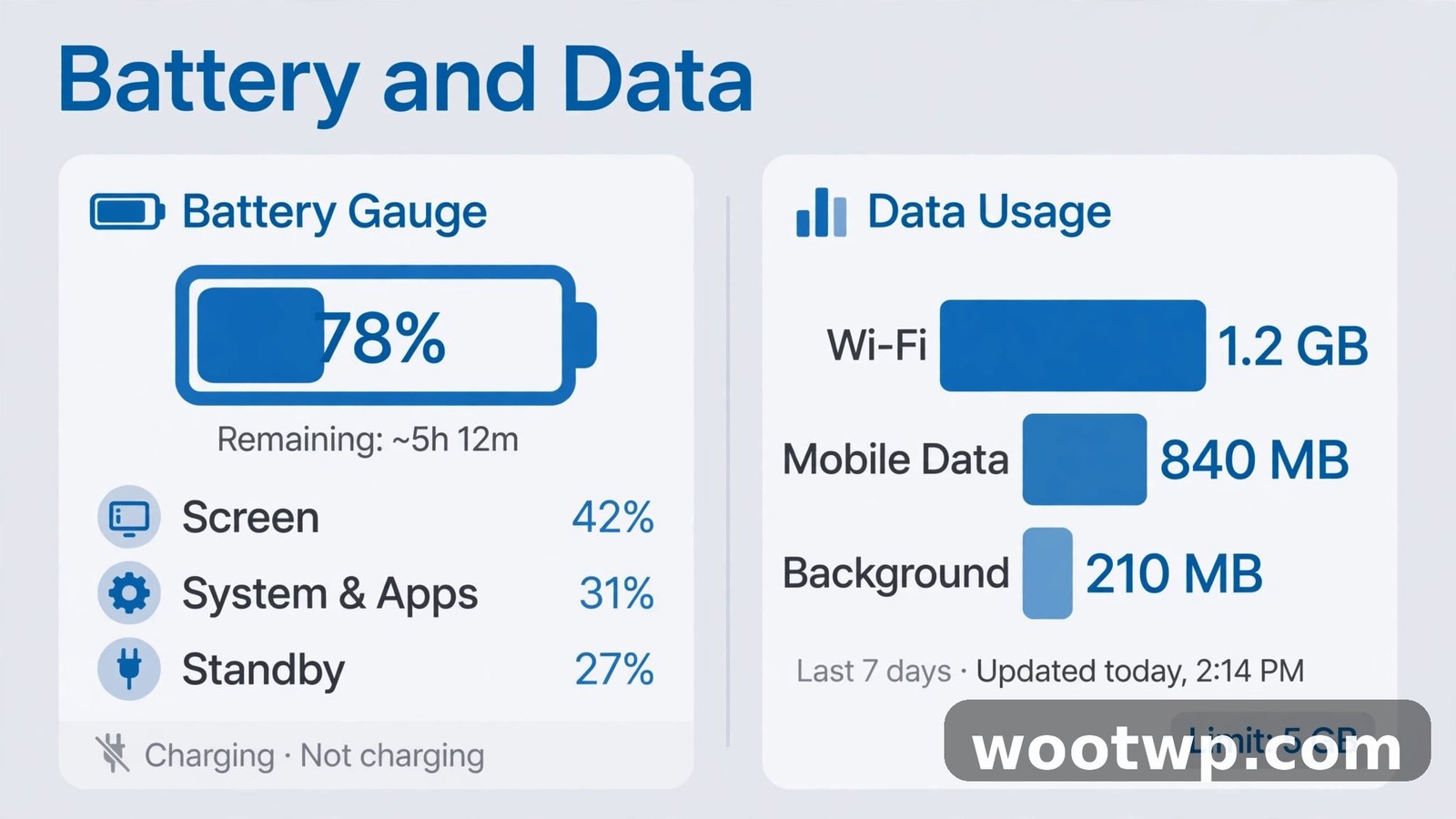
These checks take about fifteen minutes and use only tools already on your phone. Do them in order, and note anything unusual as you go.
Check Your Battery and Data Usage
On Android, go to Settings, then Battery, then Battery Usage, and look at which apps used the most power in the last 24 hours. On iPhone, go to Settings, then Battery, and scroll the per-app list. An unfamiliar app near the top of either list deserves a closer look.
Then check data: on Android, go to Settings, then Network and Internet, then SIMs, then App Data Usage. On iPhone, go to Settings, then Mobile Data, and scroll the per-app list. Compare what you see with how you actually use each app. A weather app using gigabytes of data is not a weather app doing its job.
Check for Unknown Apps
On Android, go to Settings, then Apps, then See All Apps, and scroll the full list slowly. On iPhone, swipe through your home screens and your App Library, and check Settings, then General, then iPhone Storage for a complete list.
Look for apps you do not remember installing, apps with generic names, and apps with no icon or a blank icon. If you find one, do not open it. Note its name, then search for it online from another device to see whether it is a known system component or known malware.
Check Device Admin and Profile Permissions
Spyware often protects itself with device administrator rights or a configuration profile, which makes it harder to uninstall.
On Android, go to Settings, then Security, then Device Admin Apps, and check which apps hold that permission. Only your phone maker's tools and, if you use one, your company's device management app should appear there. Remove admin rights from anything unfamiliar before you try to uninstall it.
On iPhone, go to Settings, then General, then VPN and Device Management, and look for configuration profiles you did not install. A profile you do not recognize, especially one tied to an app you do not know, should be removed.
Check for Call Forwarding and SIM Problems
Call forwarding tricks are a real but narrow threat: if someone set up forwarding on your number, your calls and verification codes can go to their phone. You can check this with standard dialer codes, which work on most Android phones and GSM networks.
Open your phone app and dial these codes one at a time:
- Dial the code for unconditional forwarding status to see if all your calls are being forwarded to another number. If a number appears that you did not set up, that is a problem.
- Dial the code for conditional forwarding status to see where calls go when your phone is busy, unanswered, or off.
- If you find forwarding you did not set up, dial the code that turns off all call forwarding, then contact your carrier to confirm the change and check for a SIM swap.
I am deliberately not listing the exact codes as magic hacking detectors, because no dialer code detects spyware or proves your phone is hacked. These codes only show forwarding settings, which is one specific check among many. Be wary of websites that promote secret codes as complete hacking tests: some of those codes actually set up forwarding to an attacker's number, which is the opposite of helping you.
If your number suddenly stops working, or your carrier tells you your SIM was recently replaced or ported without your request, treat it as urgent. Call your carrier from another phone, ask them to lock the number, and change passwords for your email and bank accounts from a different device immediately, since verification codes may be going to the attacker.
Check Your Apps, Permissions, and Battery Use
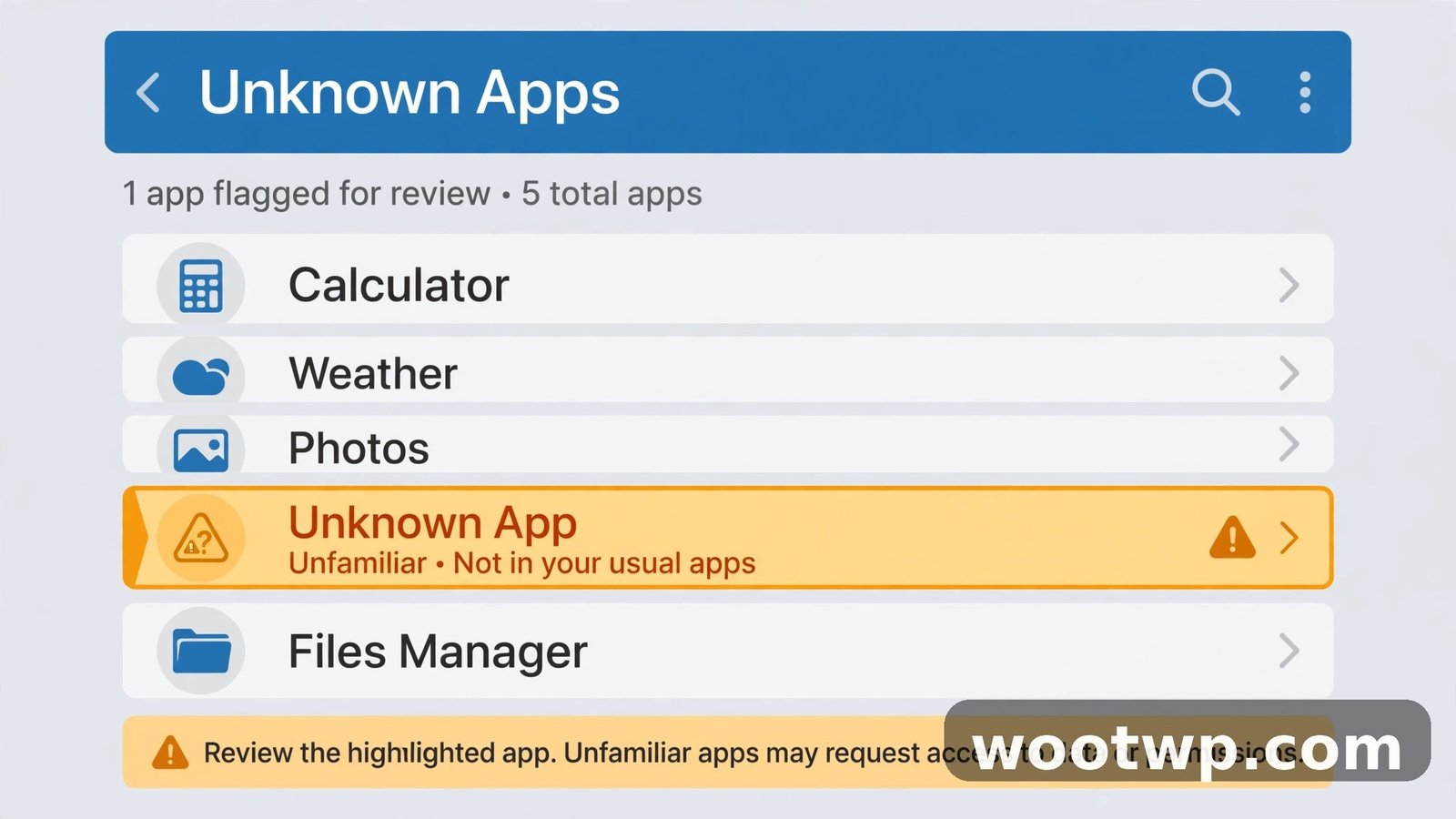
A hacked phone often reveals itself in permissions: an app that has access to things it has no business touching.
On Android, go to Settings, then Privacy, then Permission Manager, and review the sensitive permissions one by one: Camera, Microphone, Location, SMS, and Contacts. For each permission, look at which apps hold it. A flashlight app with SMS access, a game with microphone access, or an app you do not recognize with location access all deserve removal.
On iPhone, go to Settings, then Privacy and Security, and review the same categories. iPhone also shows a green or orange dot at the top of the screen when the camera or microphone is in use. If that dot appears while you are not on a call, recording, or using a camera app, open the Control Center to see which app triggered it, and check that app's permissions.
Also run the built-in scanner. On Android, Google Play Protect runs automatically, but you can check it manually: open the Play Store, tap your profile picture, then Play Protect, then Scan. On iPhone, there is no antivirus app to install, and Apple advises against them; instead, use Settings, then Privacy and Security, then Safety Check, which reviews who and what has access to your data.
If you spot a suspicious app, remove it: on Android, long-press its icon and choose Uninstall, or remove it from Settings, then Apps. On iPhone, long-press and choose Remove App, then Delete App. If an app refuses to uninstall, remove its device admin rights or profile first, as described above, then try again.
Check Your Accounts for Unauthorized Activity
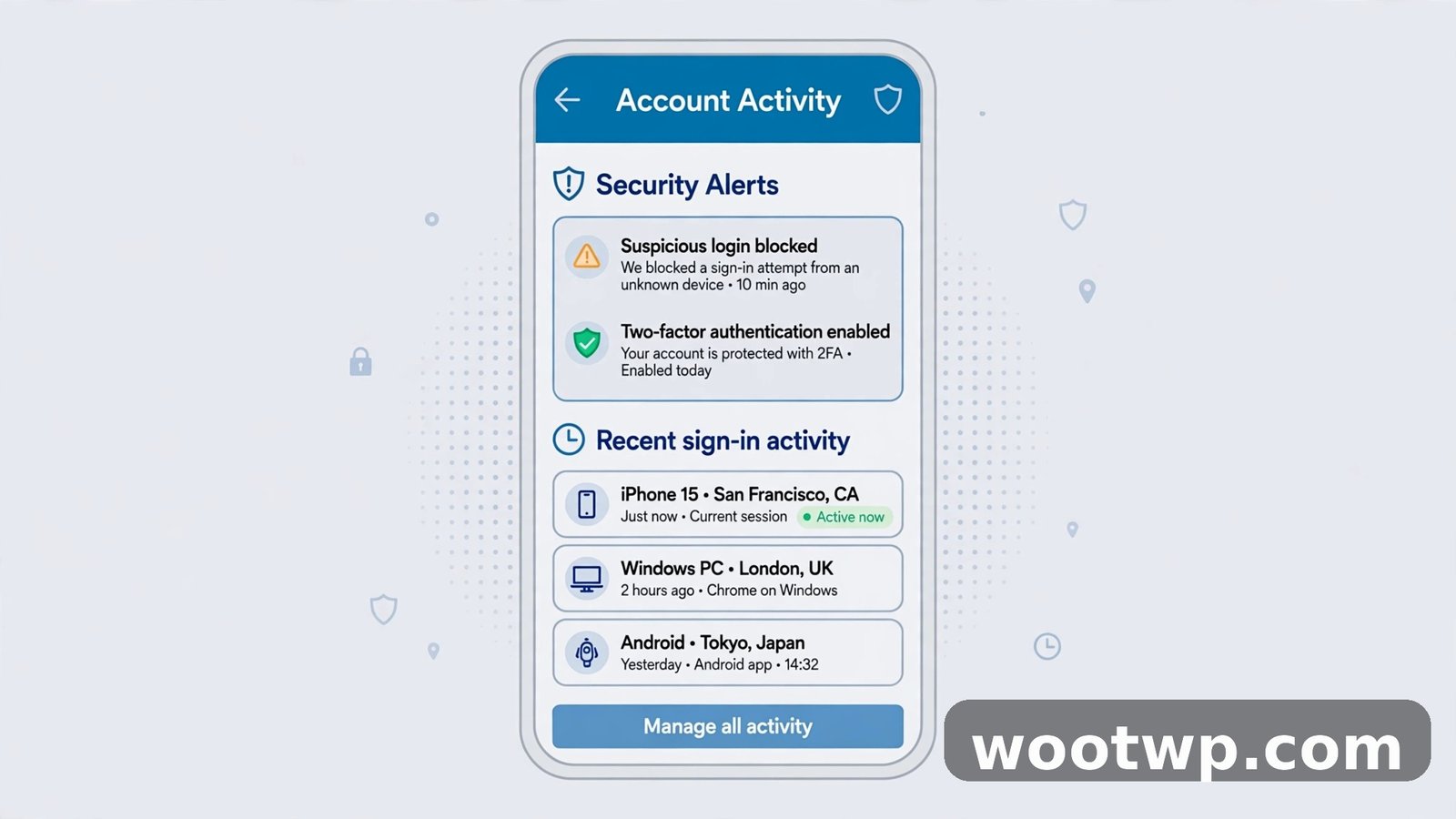
Sometimes the phone itself is fine, but an account on it is compromised, and the symptoms look the same. Check your most important accounts from another device if you can, so a compromised phone cannot hide the evidence.
Email first. Your email account controls password resets for almost everything else, so it matters most. Open your email account's security page and review recent sign-ins, active sessions, and forwarding rules. You can also check whether your address appeared in a known data breach at Have I Been Pwned. Look for logins from places you have never been, devices you do not own, and forwarding rules sending your mail elsewhere. If anything looks wrong, change the password and turn on two-factor authentication right away.
Google or Apple account. Check the security pages for your Google account or Apple ID for unknown devices, recent sign-ins, and changes to recovery options. Remove any device you do not recognize, and confirm your recovery email and phone number are still yours.
Bank and payment apps. Open each banking and payment app and review recent transactions. Report anything you do not recognize to your bank immediately, even small amounts, because attackers often test with a tiny charge before a larger one.
Social accounts. Review recent logins, active sessions, and posts on each social account. Log out of sessions you do not recognize, and change passwords for any account that shows activity you did not cause.
For a step-by-step walkthrough of checking whether an email address has appeared in a known data breach, our guide on how to check if your email was hacked covers the haveibeenpwned check and what to do with the result. And if a suspicious email was the way in, our guide on how to tell if an email is phishing helps you spot the next attempt before you click.
What to Do If Your Phone Is Hacked
If your checks confirm a problem, or several signs still point to a hack even after you removed suspicious apps, work through these steps in order. Do the urgent account steps from another device if possible.
- Disconnect and contain. Turn on airplane mode to cut the phone off from the network while you work, which stops spyware from sending more data out.
- Change your most important passwords from another device. Start with email, then banking, then social accounts. Use a different device, such as a computer or a family member's phone, so the compromised phone cannot capture the new passwords.
- Turn on two-factor authentication everywhere it is offered. Prefer an authenticator app over SMS codes, especially if you suspect a SIM swap, since SMS codes may go to the attacker.
- Remove suspicious apps and profiles. Follow the removal steps above, including device admin rights and configuration profiles, then restart the phone.
- Run the built-in security scan. On Android, run a Play Protect scan. On iPhone, run Safety Check and review everything it flags.
- Contact your carrier if your number is affected. Ask them to check for a SIM swap, lock your number against porting, and add a PIN to your carrier account so future changes need it.
- Warn your contacts. If strange messages went out from your accounts, tell friends and family not to click links in those messages, so the attack does not spread through your contact list.
- Factory reset as a last resort. If problems persist after removing suspicious apps, back up only your photos, contacts, and files you trust, then factory reset the phone. When you set it up again, reinstall apps fresh from the official store, and do not restore a full backup, because the backup may carry the malware back onto the phone.
A factory reset sounds drastic, but it is the most reliable way to remove persistent spyware, and it is what security agencies recommend when a phone stays compromised after cleanup. Most people find the reset less painful than expected, because photos and contacts restore from the cloud, and apps reinstall in minutes.
Myths and Fake Hacking Tests to Ignore
The internet is full of hacking tests that sound convincing and prove nothing. Knowing them saves you worry and, in one case, saves you from making things worse.
Dialer codes that "detect hackers." As noted above, forwarding codes only show forwarding settings. No code scans your phone for spyware, and no code tells you whether someone is watching your screen. Treat any site that sells a code as a complete hacking test with skepticism.
Codes that claim to show "unknown connections." Long service-menu codes exist on some Android phones, but they show technical radio information, not a list of hackers. They are easy to misread, and mistyped codes can change settings you did not intend to change.
Battery and signal tricks. A single fast battery drain, one hot afternoon, or one dropped call is not proof of a hack. Batteries age, networks drop, and apps misbehave. Look for patterns across days and across several signs, not single incidents.
"Your phone is hacked" pop-ups. A web page that claims your phone is infected and urges you to install its app is itself the scam. Close the browser tab, clear your browsing data if needed, and do not install anything it recommends.
Fake antivirus apps. On Android, stick to Play Protect and well-known security apps from the Play Store. On iPhone, do not install antivirus apps at all; Apple's built-in protections and Safety Check are the right tools. An antivirus app from outside the official store is more likely to be malware than protection.
How to Keep Your Phone Safe Afterwards
Once your phone is clean, a few habits keep it that way without much effort.
- Update promptly. Install system and app updates when they appear. Most updates include security fixes for flaws attackers actively exploit, and delaying them leaves known holes open.
- Install only from official stores. Avoid side-loaded apps and app stores outside Google Play or Apple's App Store. If an app is not in the official store, there is usually a reason.
- Review permissions twice a year. Spend five minutes in Permission Manager checking which apps hold camera, microphone, location, and SMS access. Remove permissions from apps that no longer need them.
- Use strong, unique passwords and two-factor authentication. A password manager helps here: one strong master password, unique passwords everywhere else, and an authenticator app for your most important accounts. If you need a fresh password on the spot, our free secure password generator creates a strong, random one in seconds.
- Be careful with links and attachments. Most phone compromises start with a phishing message, not a technical exploit. If a message pressures you to act fast, offers something too good to be true, or comes from an unexpected sender, pause before you tap.
- Lock your SIM with a PIN. Ask your carrier how to add a port-out PIN and a SIM PIN. This simple step makes SIM swap attacks much harder, and it costs nothing.
Frequently Asked Questions
How can I tell if my phone is hacked?
Look for a cluster of signs: fast battery drain, unexplained data use, overheating while idle, unfamiliar apps, pop-ups outside your browser, and messages or account activity you did not cause. Run the battery, app, permission, and account checks in this guide to confirm before you act.
Is there a code to check if my phone is hacked?
No single code detects hacking. Dialer codes can show call forwarding settings, which is one useful check, but they cannot scan for spyware or prove someone is watching your phone. Be wary of sites that promote secret codes as complete hacking tests.
What should I do first if I think my phone is hacked?
Change your email password from another device, turn on two-factor authentication, and remove any unfamiliar apps. If your number stops working or accounts show lockouts, contact your carrier immediately about a possible SIM swap.
Can a factory reset remove a hacker from my phone?
Yes, in almost all cases. A factory reset wipes apps and settings, including most spyware. Reinstall apps fresh from the official store afterwards, and do not restore a full backup, since the backup may carry the malware back onto the phone.
Can an iPhone be hacked?
Yes, though it is less common than on Android, because Apple's closed system limits side-loading. iPhones are usually compromised through phishing, malicious profiles, or stolen account credentials rather than rogue apps, so account checks and Safety Check matter most.
How do I know if someone is tracking my phone's location?
Check Settings, then Privacy, then Location Services or Permission Manager, and look for apps with location access that should not have it. Also check for unknown configuration profiles and device admin apps. Remove anything unfamiliar, and review which people and apps you share your location with.
Conclusion
Learning how to check if your phone is hacked is less about one magic test and more about reading the pattern: battery, data, heat, unfamiliar apps, strange account activity, and forwarding settings together tell a story no single sign can. Run the checks in this guide, act quickly on your most important accounts if something is wrong, and use a factory reset when cleanup does not stick. With prompt updates, official-store apps only, and regular permission reviews, your phone stays a much harder target afterwards.