

How to Check If a Website Is Down for Everyone or Just You: 7 Quick Checks
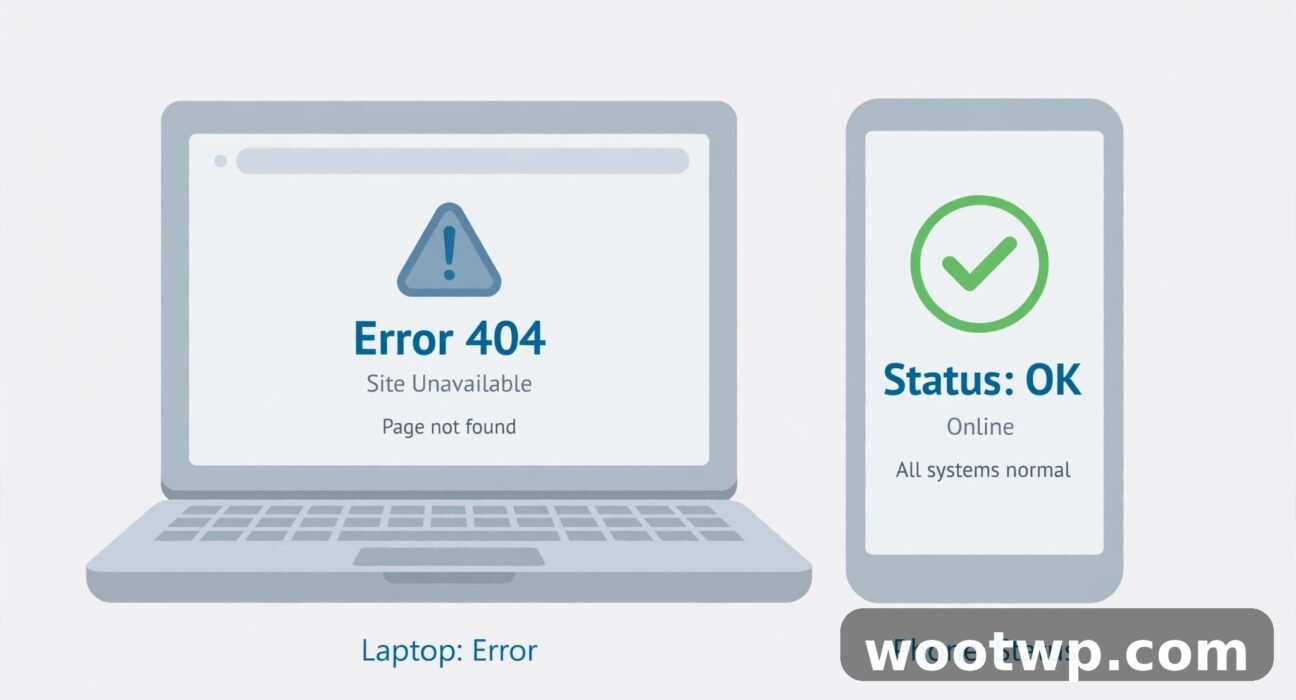
It was a Tuesday morning, about twenty minutes before a client call, and the dashboard I needed simply would not load. I clicked refresh. Nothing. Refreshed again, harder this time, as if the extra force would help. Still nothing — just a blank tab and a spinning wheel. My first thought was that the whole site had gone down at the worst possible moment. My second thought, about thirty seconds later, was that my own Wi-Fi had picked today of all days to misbehave. Learning how to check if a website is down for everyone or just you is one of those small skills that saves you from that exact spiral. It takes about a minute, and it tells you whether to sit tight or start fixing things on your end.
This guide walks you through seven checks, in order, from fastest to most thorough. Start at the top. Most of the time you’ll have your answer by check two.
- The 30-Second Test: Switch to Mobile Data
- Check DownDetector First
- Try a Website Down Checker
- Is It Your Browser? Try Incognito Mode
- What Is That Error Message Actually Telling You?
- Flush Your DNS Cache
- Switch Your DNS to 1.1.1.1 or 8.8.8.8
- Check the Site’s Own Status Page and Social Accounts
- If It Is Only You: What to Do Next
- If It Is Everyone: What to Do Next
- When It Is Your ISP or VPN
- FAQs
- Conclusion
The 30-Second Test: Switch to Mobile Data
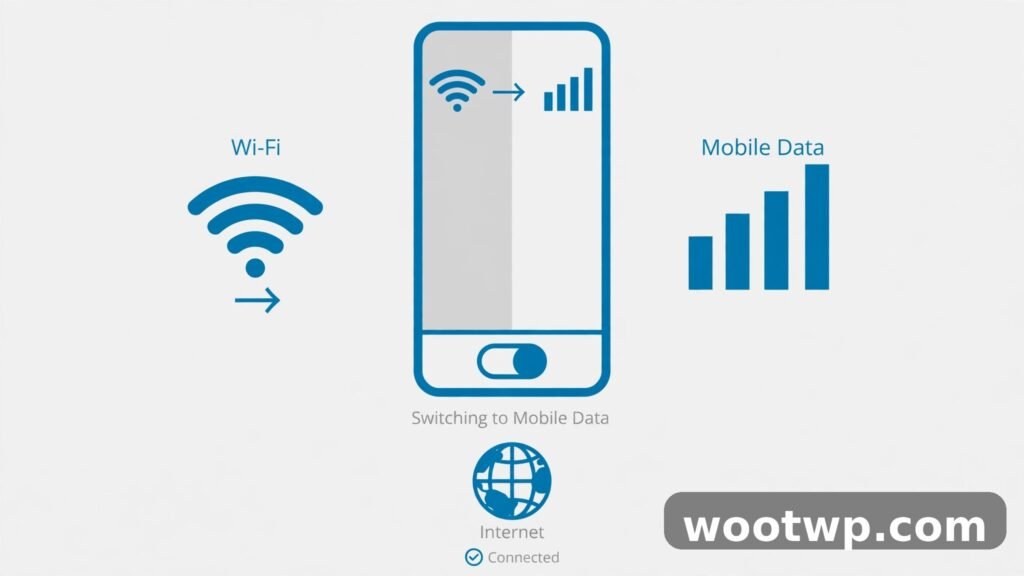
Before you touch a single setting, do the fastest test there is. Turn off Wi-Fi on your phone and load the site over mobile data. If it loads, the site is fine. Your home connection is the problem, not the website.
This one test splits the whole problem in half, and honestly it’s the simplest answer to how to check if a website is down for everyone or just you — no tools, no sign-ups, no settings to change. Site loads on mobile data but not on Wi-Fi? Then it’s your network, your router, or your internet provider. Site fails on both? Then it’s either the site itself or something on your device, like a bad DNS setting or a browser extension gone rogue.
No phone handy? The same idea works in reverse. If the site fails on your laptop, try loading it on your phone’s browser with Wi-Fi switched off. Same result, same answer.
Honestly, I wish someone had told me this years ago. My old routine was to restart the router first, every single time, like some kind of ritual. Unplug, count to ten, plug back in, wait for the lights. Three minutes gone, and half the time the site was down for everyone anyway and there was nothing to fix. Now I check mobile data first. Takes thirty seconds. The router can wait.
Check DownDetector First
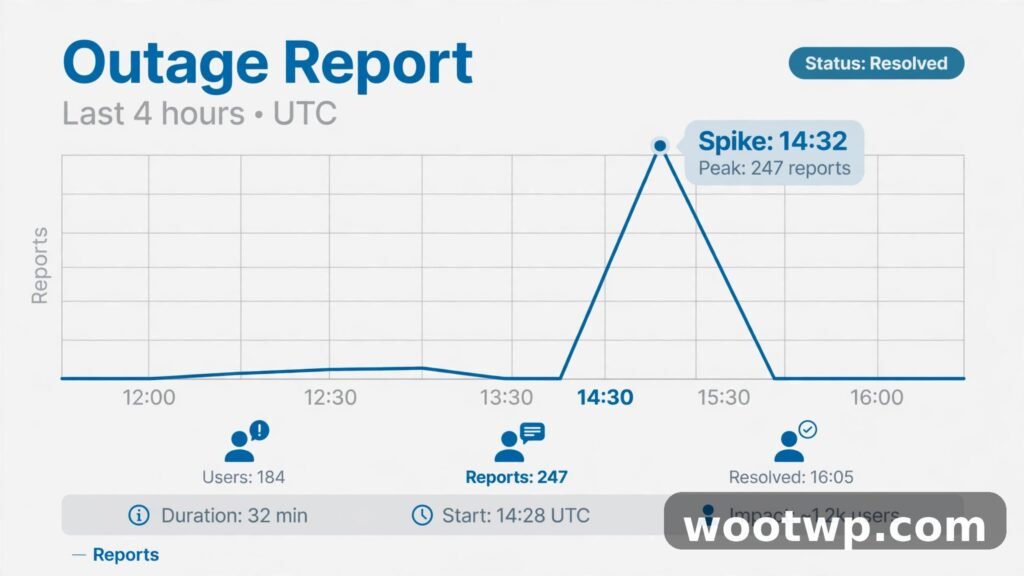
DownDetector is the quickest way to see whether other people are hitting the same wall. Head to downdetector.com, type the name of the site into the search box, and you’ll get a live graph of user reports over the last 24 hours. A flat line means the site is probably fine and the problem is on your side. A sudden sharp spike means thousands of people just reported the same outage at the same time. That’s your answer right there.
The comments underneath the graph are worth a quick scan too. People report what they’re seeing — the app won’t log in, the checkout page hangs, the site loads but videos don’t play. If their symptoms match yours, you can stop troubleshooting. It isn’t you.
One more thing DownDetector shows that most people miss: the outage map. If reports cluster in one country or region, the site might be fine globally but broken near you. That points toward a regional network problem or a bad route between your provider and the site’s servers, rather than a full outage.
If you’re wondering how to check if a website is down for everyone or just you without installing anything or signing up anywhere, this is it. DownDetector is free, it works in any browser, and it takes about ten seconds. I keep it bookmarked. It’s the first place I look whenever a big service goes quiet, before I waste a minute on my own settings.
Try a Website Down Checker
A website down checker does the test from a different angle. Instead of collecting user reports like DownDetector, it pings the site from its own server and tells you plainly whether the site responds. The classic one is downforeveryoneorjustme.com. Type in the address, hit enter, and you get one of two answers: it’s just you, or it’s not just you.
The beauty of this kind of checker is that it removes your network from the equation entirely. The check runs from a server somewhere else in the world. If that server can reach the site and you can’t, the problem sits somewhere between you and the site — your connection, your DNS, or your device.
A couple of other checkers work the same way, and they each have small perks. Some show response times. Some let you check from different locations. But honestly, for a quick yes-or-no answer, one checker is enough. Run it once. If two different checkers disagree, trust DownDetector’s user reports as the tiebreaker, since real people’s reports catch partial outages that a single ping can miss.
Quick note: these checkers can only test what you type in. I once spent ten minutes convinced a site was down before I realised I’d typed the address wrong — one missing letter, and every checker in the world will tell you the site doesn’t exist. Double-check the spelling before you trust the result. Ask me how I know.
Is It Your Browser? Try Incognito Mode
Sometimes the site is fine, your internet is fine, and the culprit is your browser itself. A stale cache, a corrupted cookie, or an extension blocking the page can make one specific site refuse to load while everything else works perfectly. The fastest way to find out is an incognito or private window, because it loads the site with no extensions, no saved cookies, and a clean cache.
In Chrome, press Ctrl+Shift+N on Windows or Cmd+Shift+N on Mac to open an incognito window. In Firefox, it’s Ctrl+Shift+P. In Edge, Ctrl+Shift+N. Then type the site’s address and hit enter.
- Site loads in incognito but not in your normal window. The problem is almost certainly a bad cookie, a stale cached file, or an extension. Start by clearing the site’s cookies — our guide on clearing your cookies in Chrome walks through it step by step — then try the site again. If that doesn’t fix it, disable your extensions one by one and reload after each. Ad blockers and privacy extensions are the usual suspects.
- Site fails in incognito too. Your browser isn’t the problem. Move on to the DNS checks below.
- Site loads in incognito but slowly. That usually points to a bloated cache rather than a broken one. Clearing your browsing data for the last few days often sorts it out.
While you’re at it, try a different browser entirely. If Chrome won’t load the site but Firefox does, you’ve narrowed it down to a Chrome-specific issue — a bad profile, a stuck update, or an extension that only runs in Chrome. That distinction matters, because it tells you where to look next instead of blaming your Wi-Fi for a browser problem.
What Is That Error Message Actually Telling You?
The browser’s error page looks scary, but it’s actually giving you a diagnosis for free. You just need to know how to read it. Reading the error is the second half of how to check if a website is down for everyone or just you. The message tells you which side the fault sits on, before you change a single setting. Here’s what the common ones mean in plain language.
ERR_CONNECTION_TIMED_OUT
Your browser tried to reach the site and got no answer at all. The site’s server either isn’t responding or something between you and it is dropping the connection. If DownDetector also shows an outage, it’s the site. If not, suspect your network, your firewall, or your VPN. Try the mobile data test to narrow it down.
DNS_PROBE_FINISHED_NXDOMAIN
This one means the address couldn’t be found at all — the internet’s phone book has no entry for that domain. Sometimes the site’s domain settings really are broken. More often, though, your DNS is stale or your provider’s DNS is having a bad day. The DNS fixes further down this page usually clear it. And do check your spelling first. A typo gives you this exact error, and it looks identical to a real DNS failure.
500 Internal Server Error
The site’s server is running, but something broke on its end while handling your request. This is the site’s problem, full stop. There’s nothing you can do except wait and try again later. Refreshing every ten seconds won’t speed it up, tempting as that is.
502 Bad Gateway and 503 Service Unavailable
A 502 means the server you reached tried to ask another server for the page and got a bad answer back. A 503 means the server is up but overloaded or down for maintenance. Both point at the site’s side of things. A 503 during a big product launch or a viral moment often clears itself in a few minutes as traffic settles.
ERR_CONNECTION_REFUSED
The server is reachable but actively refused the connection. That can mean the site’s web server software crashed while the machine itself is still online. It can also mean your firewall or security software is blocking the site. If it happens on every device on your network, lean toward the site. If it happens on one device only, check that device’s firewall.
Google keeps its own plain-language list of these messages, and it’s worth bookmarking: Google’s guide to fixing Chrome connection errors covers each error with the steps Chrome itself suggests. When you’re unsure what an error means, matching it against that page beats guessing.
Flush Your DNS Cache
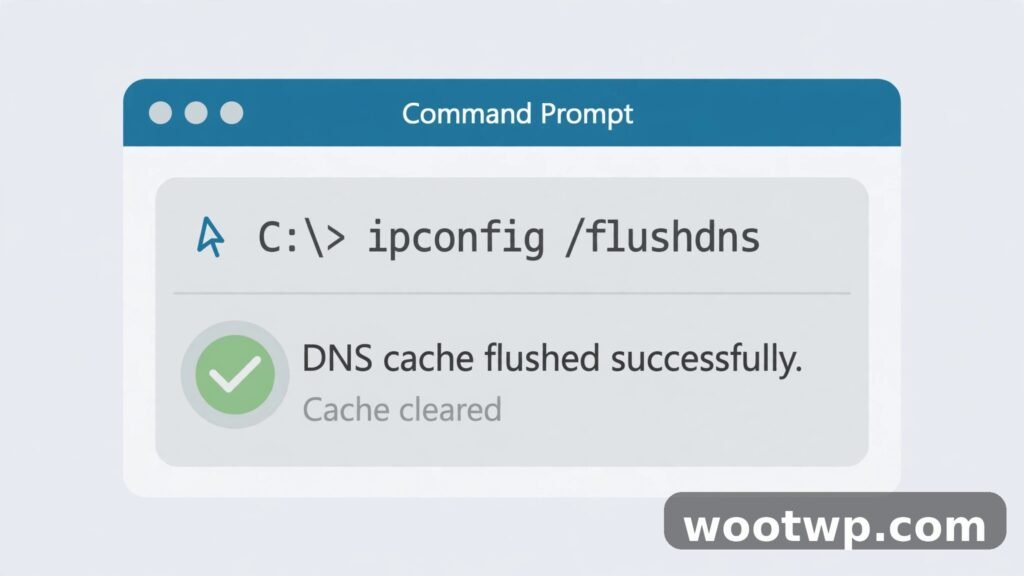
Your computer keeps a small local list of the addresses it has looked up recently, called the DNS cache. Normally that makes browsing faster. But if a site moved to a new server and your cache still points at the old one, you’ll keep hitting a dead address until the cache clears. Flushing it forces your computer to look the address up fresh. It’s a small step, but it’s part of how to check if a website is down for everyone or just you properly — it rules out a stale local lookup before you blame the site.
On Windows 11, this takes about ten seconds:
- Press the Windows key, type
cmd, right-click Command Prompt, and choose Run as administrator. - Type
ipconfig /flushdnsand press Enter. - You should see the message “Successfully flushed the DNS Resolver Cache.”
- Close the window and try the site again.
On a Mac:
- Open Terminal from Applications, then Utilities.
- Type
sudo dscacheutil -flushcache; sudo killall -HUP mDNSResponderand press Enter. - Type your Mac password when asked. Nothing shows on screen as you type — that’s normal.
- Try the site again.
You can also check whether your computer can even see the site’s address. In Command Prompt or Terminal, type nslookup example.com using the real site address instead of example.com, and press Enter. If it returns an IP address, your DNS is working and the problem lies elsewhere. If it times out or says the domain doesn’t exist, your DNS is the thing to fix. The command ping example.com does a similar check from a different angle — it tests whether the server answers at all.
Switch Your DNS to 1.1.1.1 or 8.8.8.8
If flushing the cache didn’t help, the next suspect is your DNS provider itself — usually your internet provider’s default servers. Sometimes those servers go slow, return stale answers, or block a site by mistake. Switching to a public DNS service takes two minutes and often fixes the problem on the spot.
The two most popular options are Cloudflare’s 1.1.1.1 and Google’s 8.8.8.8. Both are free, fast, and widely used. It also answers how to check if a website is down for everyone or just you from a different angle: if the site loads on 1.1.1.1 but not on your provider’s DNS, the fault was never the site’s. Here’s how to switch on Windows 11:
- Open Settings, then Network and internet, then Wi-Fi or Ethernet, depending on how you’re connected.
- Click your network name, then scroll down and click Edit next to DNS server assignment.
- Change the setting from Automatic to Manual and turn on IPv4.
- In Preferred DNS, type
1.1.1.1. In Alternate DNS, type1.0.0.1. - Click Save, then try the site again.
On a Mac, go to System Settings, then Network, then your connection, then Details, then DNS. Click the plus button and add 1.1.1.1 and 1.0.0.1, then click OK. On a phone, the setting lives under your Wi-Fi network’s advanced options — look for Private DNS on Android or Configure DNS on iPhone.
To be fair, changing DNS sounds technical, but it’s really just telling your device to ask a different phone book. You can switch it back the same way if you don’t like the result. And if the site suddenly loads after the switch, you’ve found your answer: your old DNS servers were the problem, not the site.
Check the Site’s Own Status Page and Social Accounts
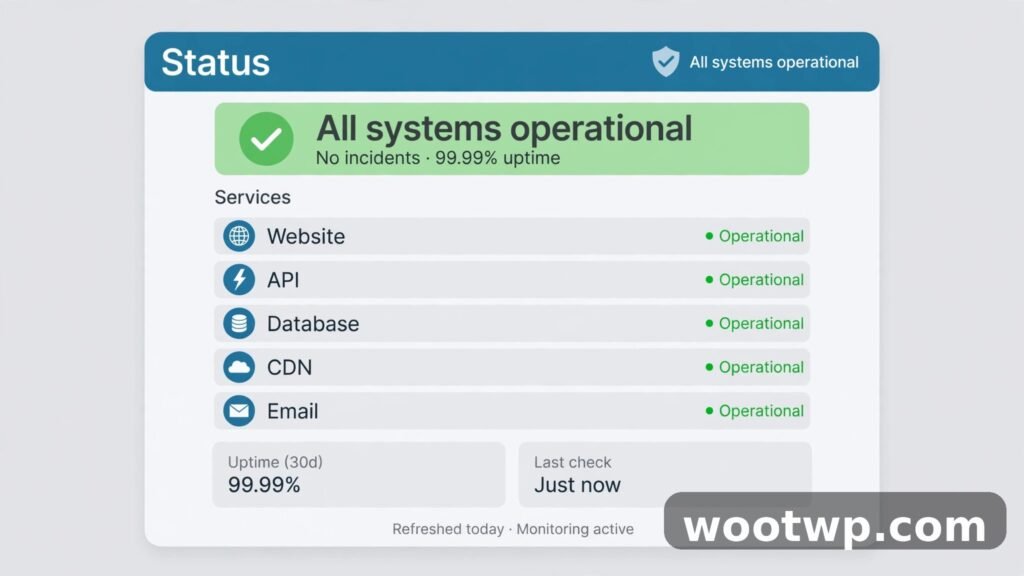
Big services usually tell you when they’re broken — you just have to look in the right place. Many sites run a dedicated status page, often at a subdomain like status.example.com or a page linked from the site’s footer. It lists each part of the service and whether it’s operational, degraded, or down. If the status page says there’s an incident, believe it. That’s the site’s own team telling you.
No status page? Check the site’s social accounts, especially X (Twitter). Companies post outage updates there faster than anywhere else, and users flood the replies within minutes of a real outage. Search for the site’s name plus the word “down” and sort by latest. A flood of fresh complaints is as good as an official announcement.
This is also how to check website status when the checkers disagree. DownDetector might show a small spike while the status page says everything is fine. That usually means a partial outage — one feature broken, the rest working — or a regional problem the status page hasn’t acknowledged yet. In that case, the user reports are telling the truth even if the official page hasn’t caught up.
If It Is Only You: What to Do Next
So the checkers say the site is up, DownDetector is quiet, and your phone on mobile data loads it fine. It’s just you. Or rather, just your network or your device. Work through this short list in order, and by the end you’ll know exactly which piece of your own setup was at fault — that’s how to check if a website is down for everyone or just you, properly, instead of guessing.
- Restart your browser first. Close it completely — not just the tab — and open it again. A stuck browser process causes more mystery failures than people admit.
- Clear the site’s cookies and cache. A corrupted cookie for that one site can block it while everything else works. Our guide on clearing your cookies in Chrome covers the exact clicks.
- Restart your router. Unplug it, wait a full thirty seconds, plug it back in, and give it two minutes to come back. Yes, this is the step I used to do first and got wrong. It’s still worth doing — just do it after the checks that tell you it’s actually your network.
- Try another device on the same Wi-Fi. If your phone loads the site but your laptop doesn’t, the problem is the laptop, not the network.
- Turn off your VPN or ad blocker briefly. Then reload the site. If it works, the VPN server or the blocker was the problem. Switch VPN servers or add the site to the blocker’s allowlist.
- Run the DNS steps above. Flush the cache, then switch to 1.1.1.1 or 8.8.8.8 if flushing alone didn’t do it.
If none of that works, the problem may sit with your internet provider — a routing fault between them and the site, or a DNS filter on their side. That’s the next section’s territory.
If It Is Everyone: What to Do Next
The honest answer here is: not much, and that’s fine. If the site is down for everyone, the fix has to come from the site’s own team, and no amount of restarting your router will hurry them along. Knowing how to check if a website is down for everyone or just you saves you from pointless troubleshooting here — the answer is already in, and it’s not your equipment. What you can do is useful, just different.
First, check whether the site has an alternative way in. Many services have a mobile app that runs on separate servers from the website. If the website is down but the app works, use the app for now. Some sites also have a lightweight or text-only version, or a mirror domain. Second, check the status page or social accounts every so often instead of hammering refresh — most big outages get fixed within the hour, and constant refreshing just adds load to a server that’s already struggling.
And if you were in the middle of something — a payment, a form, an upload — don’t resubmit it blindly when the site comes back. Check whether it actually went through first. Duplicate payments and double orders are the classic side effect of an outage, and they’re a bigger headache than the downtime itself.
When It Is Your ISP or VPN
Sometimes the site is up for the rest of the world and down for you, but nothing on your device is wrong. That’s usually your internet provider or your VPN. Here’s how to tell.
If the site loads on mobile data but not on your home Wi-Fi, and you’ve already flushed DNS and switched to 1.1.1.1, the fault is somewhere on your provider’s network — a routing problem, a DNS filter, or a peering issue between them and the site’s host. Try restarting the router once more, then wait it out or call your provider and mention the specific site. Providers fix routing faults faster when customers name the destination.
A VPN can cause the same symptoms in a subtler way. The site might block your VPN server’s IP address because of abuse from other users on that server. Or the VPN server itself might have a routing problem. Switch to a different server location in your VPN app and try again. If the site loads, you found it — stick with the new server. Some sites also block known VPN addresses outright, in which case turning the VPN off for that site is the only option.
One last scenario: the site works on your phone and your laptop at home, but not on your work or school network. That’s almost always a network filter. Workplaces and schools block categories of sites, and the block page sometimes looks like a plain connection error. Nothing you do on your device will get around a network-level block, and honestly, that’s by design. Use your mobile data instead, or wait until you’re on your own network.
If you switch devices a lot while troubleshooting — say, moving from your laptop to a borrowed phone — remember to move your two-factor codes over safely rather than leaving them stranded on the old handset. Our guide on moving Google Authenticator to a new phone walks through that step by step.
FAQs
How can I check if a website is down for everyone or just you without installing anything?
Open DownDetector, search for the site, and look at the report graph — a sudden spike means a real outage. Then try downforeveryoneorjustme.com for a second opinion from a different server. Both are free, work in any browser, and take under a minute combined.
Why does a website work on my phone but not on my computer?
Usually it’s your computer’s browser cache, a bad cookie, an extension, or a stale DNS entry on that one machine. Try the site in an incognito window first — if it loads there, clear the site’s cookies and disable extensions one by one. If it still fails, flush your DNS cache and try switching to 1.1.1.1.
What does DNS_PROBE_FINISHED_NXDOMAIN mean?
It means your browser couldn’t find the site’s address at all, so the domain lookup failed. Check the spelling of the address first, because a typo produces this exact error. If the spelling is right, flush your DNS cache, then switch your DNS to 1.1.1.1 or 8.8.8.8 and try again.
How do I know if a website is down or if my internet is down?
Load a different well-known site, like a search engine. If nothing loads anywhere, your internet connection is the problem — check your router and your provider. If only one site fails while everything else works, that site or the route to it is the problem, and the checks in this guide will pin it down fast. That’s how to check if a website is down for everyone or just you in under a minute, with nothing installed.
Is DownDetector accurate?
Mostly, yes, but it measures user reports, not the site’s actual servers. A big spike is a reliable sign of a real outage, and a flat graph usually means the site is fine. Small spikes can be misleading, though — they sometimes reflect a regional problem or a flood of reports about a single broken feature rather than the whole site being down.
How long do website outages usually last?
There’s no fixed answer, and anyone promising one is guessing. Small glitches clear in minutes. Bigger outages at large services often take under an hour, while a serious infrastructure failure can stretch to several hours. Check the site’s status page for updates rather than refreshing the site itself — the status page is the first thing their team updates.
Conclusion
That’s how to check if a website is down for everyone or just you: start with the mobile data test, confirm with DownDetector and a website down checker, then work through your browser, your error message, and your DNS. One clear takeaway — check the site’s status before you start fixing your own setup, because the fastest fix is often realising there’s nothing to fix at all.