
How to Use Gemini AI for Research and Study: 8 Proven Tips
If you're still using Google Gemini like a fancier search box, you're getting maybe 10% of what it can do. Used properly, it's a research assistant that reads your PDFs, builds study guides, cross-checks sources, and explains hard concepts at exactly your level. Used carelessly, it's a confident-sounding machine that will occasionally invent facts and hand them to you with a straight face.
This guide is about the first kind. I'll show you how to use Gemini AI for research and study the way students and researchers actually get value from it — Deep Research for big topics, source uploads for your own material, prompt techniques that get better answers, and the verification habits that keep you safe from its mistakes.
- What Can Gemini Actually Do for Research and Study?
- Getting Started: Opening Gemini for the First Time
- Tip 1: Use Deep Research for Big, Messy Topics
- Tip 2: Upload Your Own Sources and Ask Questions
- Tip 3: Turn Dense Material Into Study Guides and Flashcards
- Tip 4: Create a Gem for Your Repeated Study Tasks
- Tip 5: Connect Gemini to Your Google Apps (Carefully)
- Tip 6: Verify Everything — Gemini Makes Mistakes
- Tip 7: Keep Your Private Data Private
- Tip 8: Write Better Prompts With a Simple Formula
- Gemini vs NotebookLM: When to Use Which
What Can Gemini Actually Do for Research and Study?
Let's set expectations honestly. Gemini is strong at: summarizing long documents, explaining concepts in plain language, brainstorming angles for an essay or project, comparing viewpoints across sources, generating practice questions, translating academic jargon, and drafting outlines you then improve.
It's weak at: precise facts, dates, statistics, citations (it can invent plausible-looking references), anything that changed recently if it hasn't browsed, and math-heavy reasoning unless you check the steps. The pattern is simple — Gemini is excellent at understanding and reshaping information, and unreliable at remembering exact information. Structure your workflow around that and you'll rarely be burned.
For students, the sweet spot is using Gemini as a tutor and a first-pass researcher, not as a source of truth. Ask it to help you understand, then verify the facts against real sources. That one habit separates people who benefit from AI from people who get embarrassed by it.
Getting Started: Opening Gemini for the First Time
If you haven't used it yet, setup takes a minute:
- Go to gemini.google.com in your browser, or install the Gemini app from the Play Store / App Store.
- Sign in with your Google account. A Google account unlocks conversation history, file uploads, and connected apps. (If you're a student, check whether your school provides a Google Workspace account — it may come with extra data protections.)
- Pick your language and you're in. The main screen is a simple chat box — type a question and press Enter.
- Before doing anything serious, open Settings > Activity and review what's saved. Decide whether you want your prompts stored, and check the connected apps list to see what Gemini can access.
That's the whole setup. Now the interesting part: what to actually ask it.
Tip 1: Use Deep Research for Big, Messy Topics
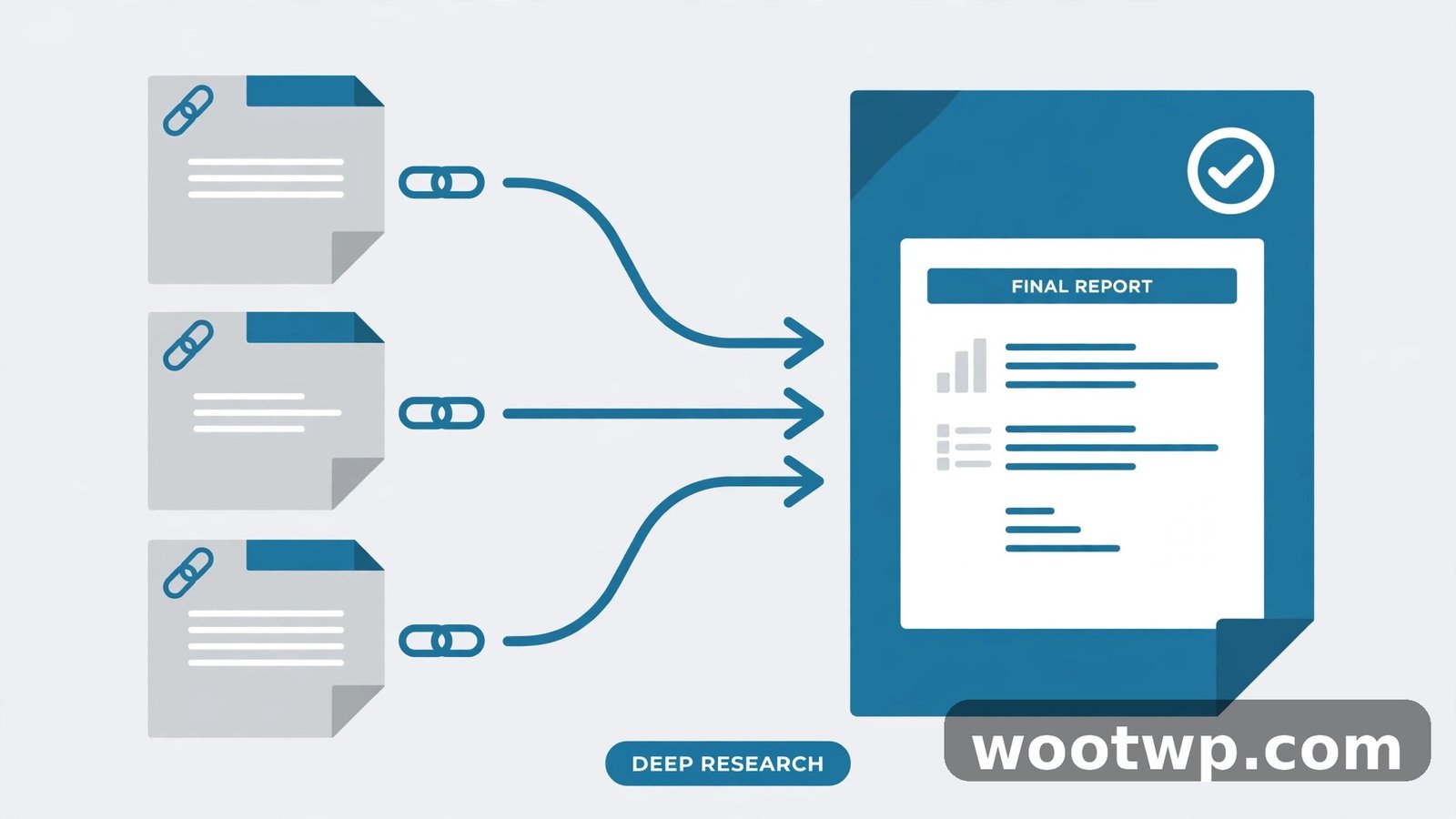
Deep Research is Gemini's most powerful research feature, and most casual users never find it. Instead of answering from its training data, it plans a research task, browses the web across many sources, and compiles a structured report with citations — the whole thing takes a few minutes.
How to run it:
- In the Gemini app or website, click the Tools menu (or the "+" / tools icon, depending on your version).
- Select Deep Research.
- Type a real research question, not a keyword: "What are the main arguments for and against a four-day work week, with evidence from recent trials?" beats "four day work week" every time.
- Gemini shows you its research plan — the sub-questions it will investigate. Edit the plan if it's missing an angle you care about.
- Hit submit and wait. You'll get a multi-section report with linked sources.
When to use it: literature reviews, background research for essays, comparing products or policies, understanding a debate from multiple sides. When not to: quick factual questions (regular chat is faster), anything where you need sources you can cite in an academic paper (verify every citation first — see Tip 6).
Tip 2: Upload Your Own Sources and Ask Questions
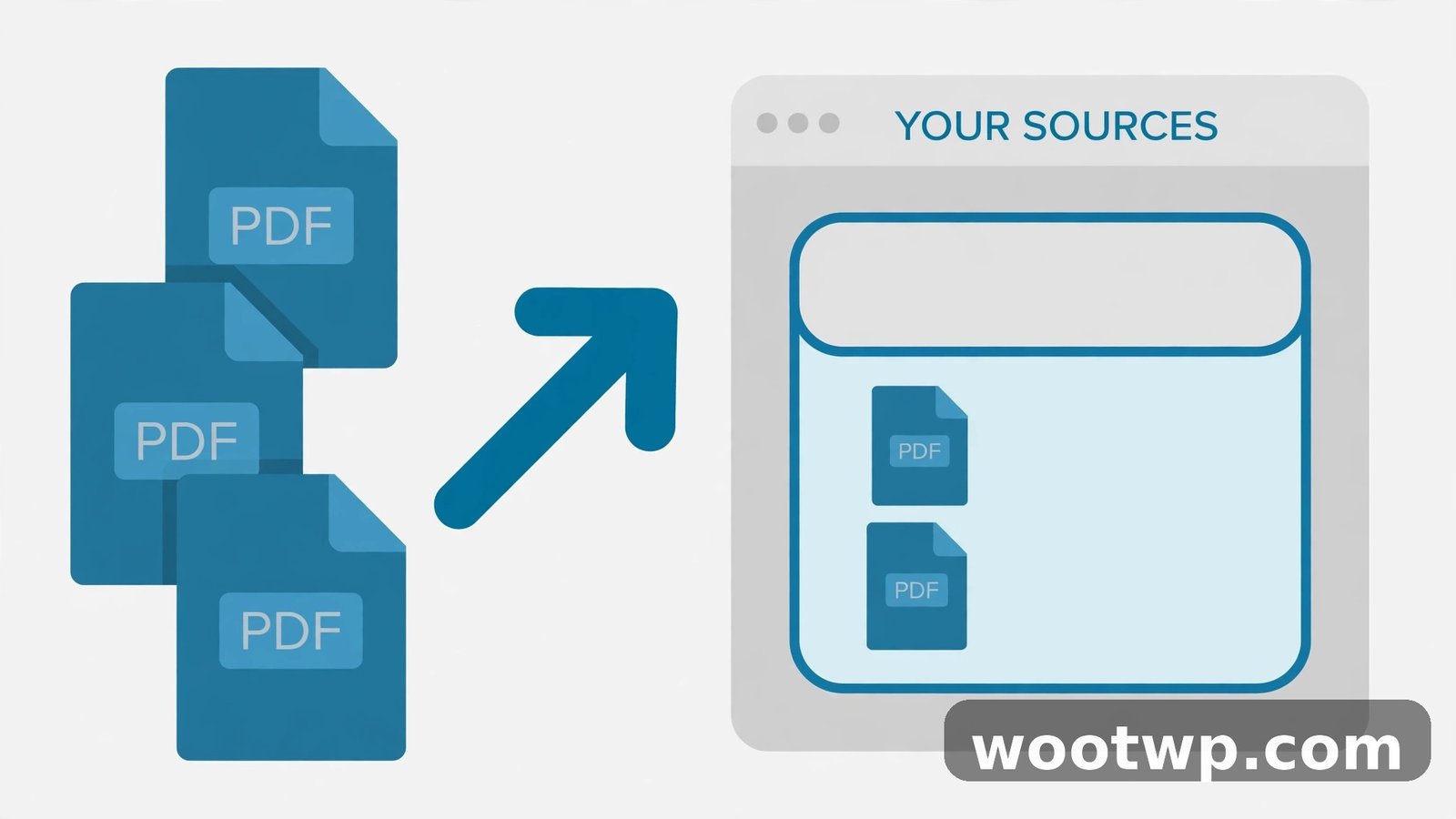
This is the feature that turns Gemini from a generic chatbot into your personal research assistant. You can attach PDFs, documents, images, and even spreadsheets, then ask questions about your material — and because it's reading your files, the answers are far more reliable than open-ended chat.
Practical ways to use this:
- Summarize a 40-page paper into a one-page brief with key findings: "Summarize this paper in 300 words, focusing on the methodology and the three main findings."
- Compare multiple sources: upload three articles and ask "Where do these three authors disagree, and what evidence does each cite?"
- Extract specifics: "List every date, statistic, and named study mentioned in this document."
- Explain the hard parts: "Explain section 3 of this paper as if I'm a first-year student."
The upload button is the paperclip (or +) icon in the chat box. Gemini accepts PDFs, Word docs, plain text, images, and common file types. For best results, upload clean, text-based PDFs — scanned images with crooked text will confuse it. And keep the sensitive stuff out: don't upload documents with personal data, unpublished work you can't afford to leak, or anything under NDA (more on that in Tip 7).
Tip 3: Turn Dense Material Into Study Guides and Flashcards
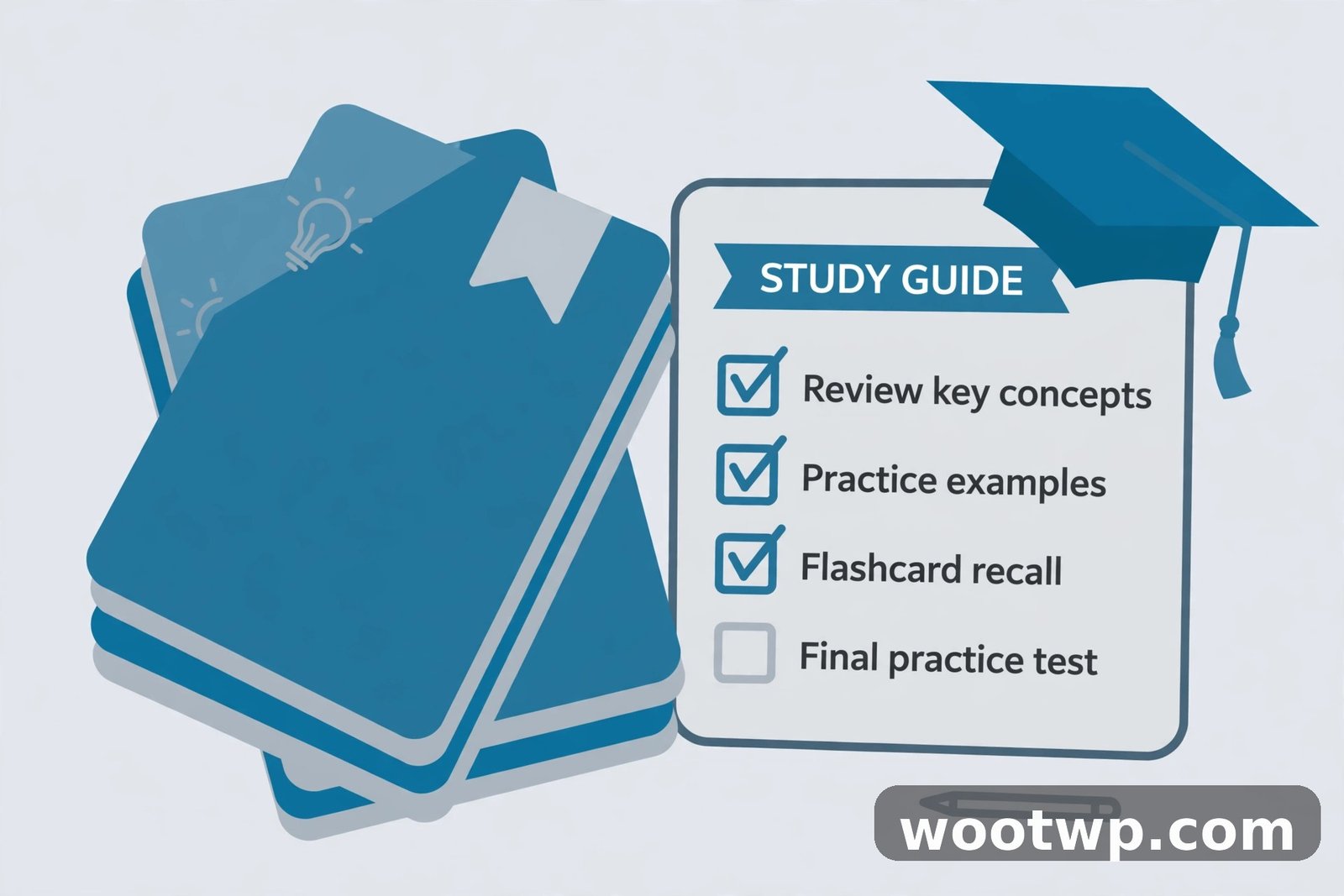
Exam coming up? This is where Gemini earns its keep. Feed it your lecture notes, textbook chapters, or slides, then ask it to convert them into study formats:
- Study guide: "Turn these notes into a structured study guide with key terms defined, then a 10-question practice quiz at the end."
- Flashcards: "Make 30 flashcards from this chapter: term on the front, definition on the back, formatted as a simple list I can copy into my flashcard app."
- Timeline or mind map: "Create a timeline of the events in this chapter with one-sentence descriptions."
- Explain-and-test loop: "Explain photosynthesis to me, then quiz me on it one question at a time, and correct me if I'm wrong."
That last one — the interactive quiz mode — is genuinely effective. Telling Gemini to ask you one question at a time and give feedback turns passive reading into active recall, which is how studying actually works. It's like a patient tutor that never gets tired of your wrong answers. If you're building a broader study toolkit, my roundup of the best free AI tools for students covers more apps that pair well with this workflow.
Tip 4: Create a Gem for Your Repeated Study Tasks
If you find yourself typing the same instructions over and over — "summarize this like I'm a beginner," "check my essay for weak arguments" — stop retyping and make a Gem. Gems are custom versions of Gemini with built-in instructions, so you set up the behavior once and reuse it forever.
- In Gemini, open the Gems section (sidebar on web, menu on mobile).
- Click New Gem and give it a name, like "Study Summarizer."
- Write the instructions once: "You are a study assistant. When I paste text, summarize it in bullet points, define any technical terms, and end with 3 review questions. Keep it under 300 words."
- Save it. Now every conversation with that Gem follows those rules automatically.
Ideas for study Gems: an essay reviewer that critiques structure and flags weak claims, a concept explainer tuned to your level ("explain like I'm 16"), a citation checker that reminds you to verify (it can't verify for you, but it can nag you to do it). Ten minutes of setup saves you from repeating the same prompt a hundred times.
Tip 5: Connect Gemini to Your Google Apps (Carefully)
Gemini can connect to Gmail, Google Drive, Docs, and other Google services, pulling your own files and emails into its answers. For research, this is powerful: Deep Research can combine your Drive documents with web sources, and you can ask things like "Find the email where my professor mentioned the deadline" or "Summarize the notes in my Drive folder for this project."
To set it up: open Gemini Settings > Connected apps (or "Extensions" in some versions) and toggle on the Google services you want. You choose what it can touch — it only accesses what you explicitly connect.
The careful part: every connected app is another door into your personal data. My rules:
- Connect Drive for research projects, but keep sensitive folders out — move private documents to a folder Gemini can't see, or don't connect Drive at all on a shared account.
- Think twice before connecting Gmail. It's convenient, but your inbox contains password resets, financial statements, and private conversations. If you do connect it, review what Gemini actually pulled before sharing any output.
- On a school or work account, check your institution's AI policy first. Some schools restrict which data AI tools may access, and violating that can have real consequences.
The convenience is real, but so is the exposure. Connect deliberately, not by default. For the broader picture of locking down what Google knows about you, see my walkthrough of Google privacy settings.
Tip 6: Verify Everything — Gemini Makes Mistakes
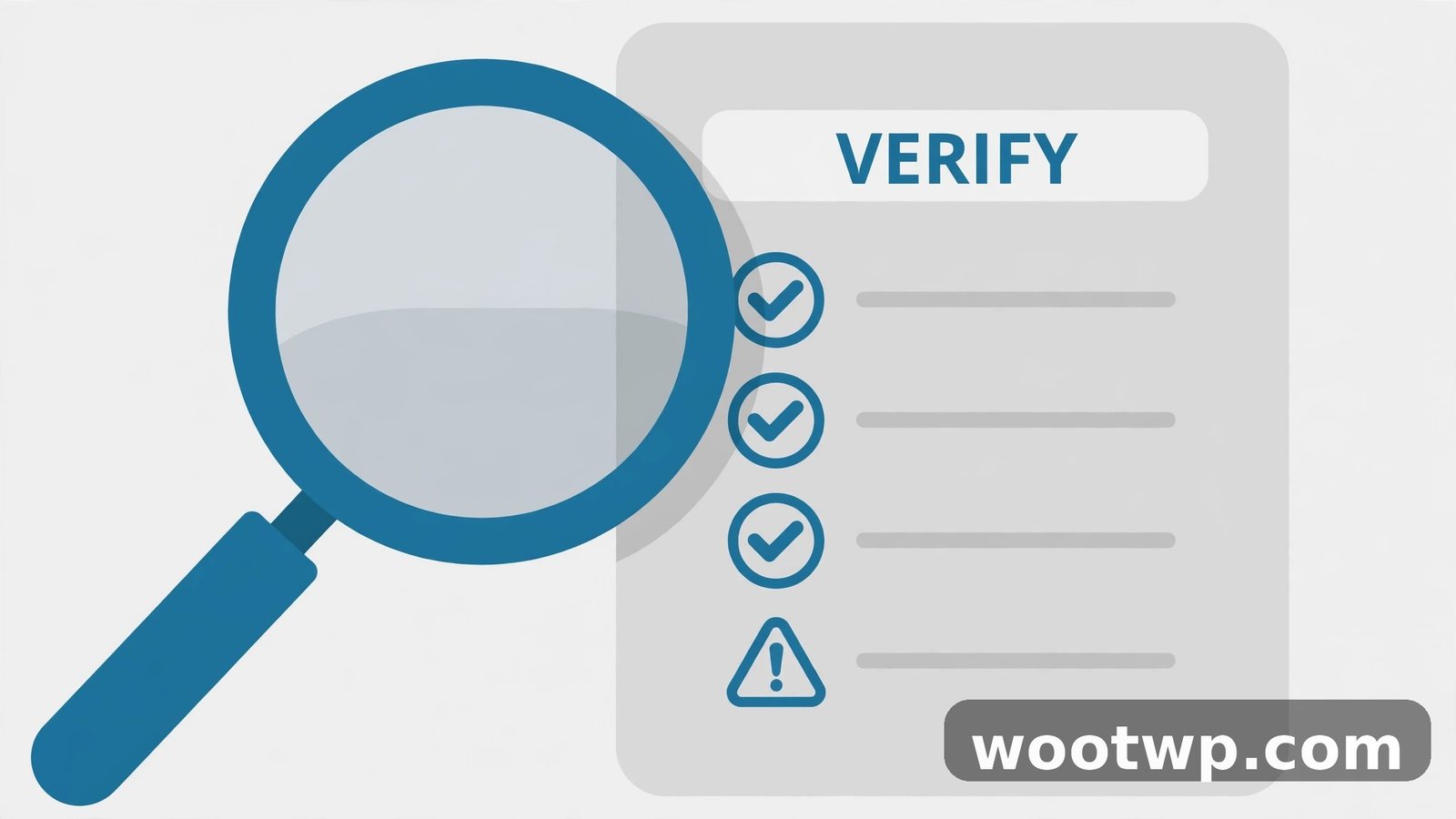
This is the most important tip in this guide, so let me be blunt: Gemini will confidently state things that aren't true. It doesn't lie on purpose — it predicts plausible-sounding text, and sometimes the plausible text is wrong. Dates, statistics, quotes, citations, and paper titles are the danger zones.
Build these habits:
- Click the sources. When Gemini cites web sources (especially in Deep Research), open them and confirm the claim is actually there.
- Cross-check facts that matter. If a number, date, or quote is going into your assignment, verify it in at least one independent source.
- Never trust AI-generated citations blindly. Gemini can produce perfectly formatted references to papers that don't exist. Look up every citation before it goes in your bibliography.
- Ask for uncertainty. "How confident are you in this answer, and what would change your mind?" — it won't fix errors, but it sometimes surfaces weak spots.
- Treat it as a draft machine, not an oracle. Let it brainstorm, outline, and explain. You verify, decide, and write the final version.
The students who get in trouble with AI aren't the ones who use it — they're the ones who copy its output without checking. Verification takes minutes and it's the difference between a useful tool and an academic integrity disaster.
Tip 7: Keep Your Private Data Private
Quick privacy checklist before you paste anything into Gemini:
- Never paste: passwords, ID numbers, financial details, addresses, or anything that could identify you or someone else.
- Unpublished work: your thesis draft, a paper under review, original research data — once it's in a chat, you've lost control of where it goes. Check your account's data-use settings, and consider whether the convenience is worth it.
- Other people's data: classmates' names, interview transcripts, survey responses. Anonymize first, or don't upload at all.
- Review Activity settings: in Gemini's settings, check whether your prompts are saved and whether they're used to improve the models. Turn off what you're not comfortable with — especially on a personal account where the defaults are permissive.
A good rule of thumb: if you wouldn't post it publicly, think twice before pasting it into any AI chat. For everyday study material — textbook chapters, public articles, your own notes — there's no issue. For everything else, pause and think.
Tip 8: Write Better Prompts With a Simple Formula
Better prompts get better answers. You don't need a course in prompt engineering — this four-part formula covers 90% of study use cases:
- Role: who should Gemini act as? ("You are a patient physics tutor…")
- Task: what exactly should it do? ("…explain Newton's third law…")
- Context: what's your level and what have you tried? ("…I'm a high-school student and I keep confusing it with the first law…")
- Format: how should the answer look? ("…use a real-world example, then give me 3 practice questions.")
Compare "explain Newton's third law" with "You are a patient physics tutor. Explain Newton's third law to a high-school student who keeps confusing it with the first law. Use one everyday example, then quiz me with 3 questions, one at a time." Same topic, wildly different usefulness.
A few more prompt tricks for research:
- "Argue both sides" — "Give me the strongest argument for X and the strongest argument against X, with one piece of evidence for each."
- "Show your reasoning" — "Walk through your reasoning step by step before giving the final answer."
- "Challenge me" — "Here's my thesis: [paste]. Find the three weakest points in my argument."
- "Simplify, then deepen" — "Explain this in one paragraph for a beginner, then in one paragraph for an expert."
Gemini vs NotebookLM: When to Use Which
Google makes two AI research tools and they overlap, so here's the quick distinction. Gemini is the generalist: chat, Deep Research across the web, connected Google apps, image generation, everyday questions. NotebookLM (at notebooklm.google) is the specialist: you upload your sources into a notebook, and it answers only from those sources, with citations pointing to exact passages. It can even generate an audio overview — a podcast-style discussion of your documents.
My rule: use NotebookLM when you have a defined set of sources and need grounded, citable answers from exactly those sources (studying for an exam from your notes, analyzing a fixed document set). Use Gemini when you're exploring, brainstorming, need web research, or want a tutor-style conversation. Many students use both: NotebookLM for the course material, Gemini for everything around it. And when you need to rephrase source material in your own words for assignments, an AI paraphrasing tool can help you rewrite passages cleanly — just remember Tip 6 and cite your sources properly.
FAQs
How do I use Gemini AI for studying effectively?
Upload your study material (notes, PDFs, slides) and ask Gemini to summarize, explain, or quiz you on it. Use Deep Research for exploring new topics, create Gems for repeated tasks like summarization, and always verify facts and citations against real sources before using them in assignments.
Is Google Gemini free for students?
Yes, the core Gemini app is free with a Google account, including chat, file uploads, and Deep Research (with usage limits). Google also offers paid tiers with higher limits and more powerful models. Students with school Google Workspace accounts should check their institution's policy on AI tool usage.
Can Gemini read my PDF and answer questions about it?
Yes. Attach a PDF using the upload button in the chat, then ask questions about its contents — summaries, explanations, comparisons, or extracting specific facts. Text-based PDFs work best; scanned images with poor quality may produce unreliable results.
What is Gemini Deep Research and how do I access it?
Deep Research is a Gemini feature that browses the web across many sources and compiles a cited report on your question. Access it through the Tools menu in the Gemini app or website, type a detailed research question, review the research plan it proposes, and submit. Results arrive in a few minutes.
Is it cheating to use Gemini for homework?
It depends on your school's policy and how you use it. Using Gemini to understand concepts, brainstorm, or get feedback is generally like using a tutor. Submitting AI-generated work as your own usually violates academic integrity policies. When in doubt, ask your teacher — and always verify AI output before relying on it.
How accurate is Gemini for research?
Gemini is strong at understanding and explaining information but can invent facts, dates, statistics, and citations. Treat it as a starting point and a thinking partner, not a source of truth. Always open cited sources and cross-check important claims independently.
Conclusion
Learning how to use Gemini AI for research and study comes down to a simple workflow: ask it to explore and explain, feed it your own sources for grounded answers, and verify everything important before you trust it. Deep Research handles the broad exploration, uploads and NotebookLM handle your own material, good prompts get you better answers, and verification keeps you honest. Used that way, Gemini isn't a shortcut around learning — it's one of the best study partners you'll ever have.