How to Check If a Link Is Safe Before Clicking: 7 Proven Ways
You got a text message saying your package can't be delivered. There's a link. You got an email about an unpaid invoice — also with a link. A friend sent you something "funny" on WhatsApp, and yes, it's a link too.
Here's the thing: clicking first and asking questions later is exactly what scammers count on. So if you're wondering how to check if a link is safe before clicking, you're already ahead of most people. The good news is that checking a link takes seconds, not minutes — and after reading this guide, you'll have seven proven methods that work on your phone and your computer.
In This Guide
- How to Check If a Link Is Safe Before Clicking in Under 30 Seconds
- What Does a Suspicious Link Look Like? 7 Red Flags
- How Do You Expand a Shortened URL to See the Real Destination?
- How to Scan Any Link with VirusTotal Before You Click It
- How to Use Google Safe Browsing to Check a Website's Safety
- Are QR Codes Safe? How to Check a QR Code Before Scanning
- What Should You Do If You Already Clicked a Bad Link?
- Frequently Asked Questions
How to Check If a Link Is Safe Before Clicking in Under 30 Seconds
Let's start with the fastest routine. This is what I do whenever I get a link I'm not 100% sure about — the whole thing takes about half a minute:
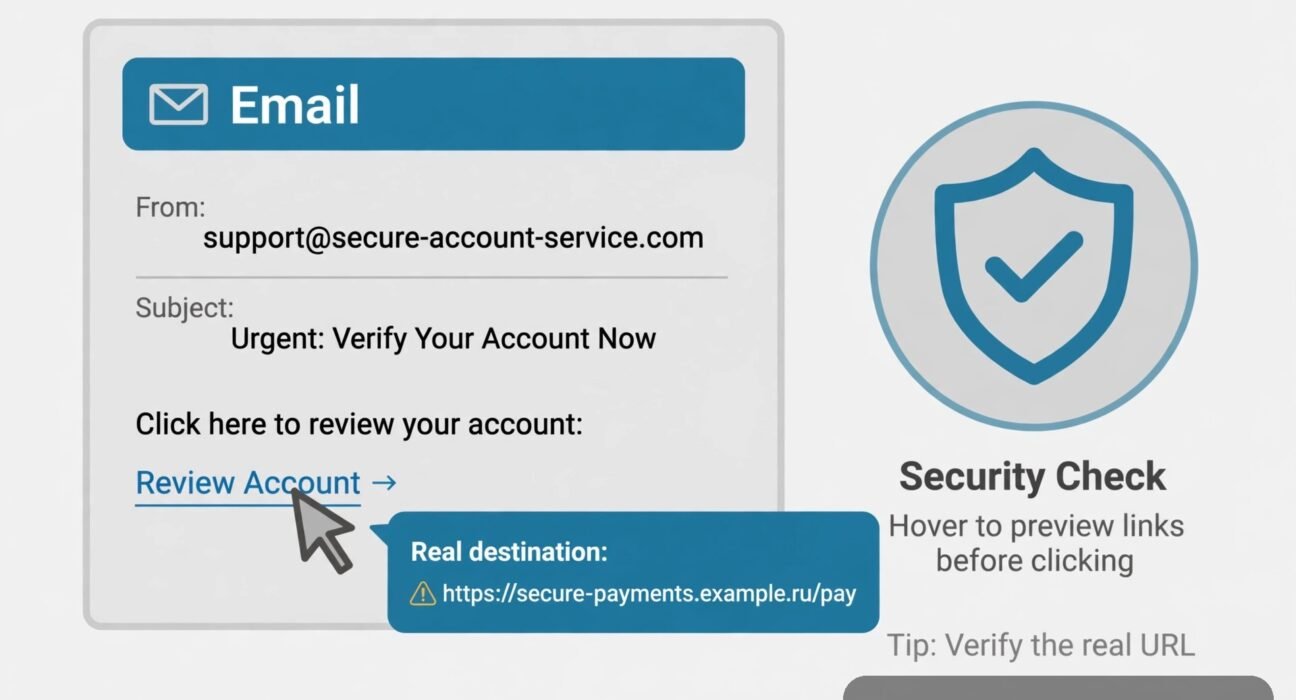
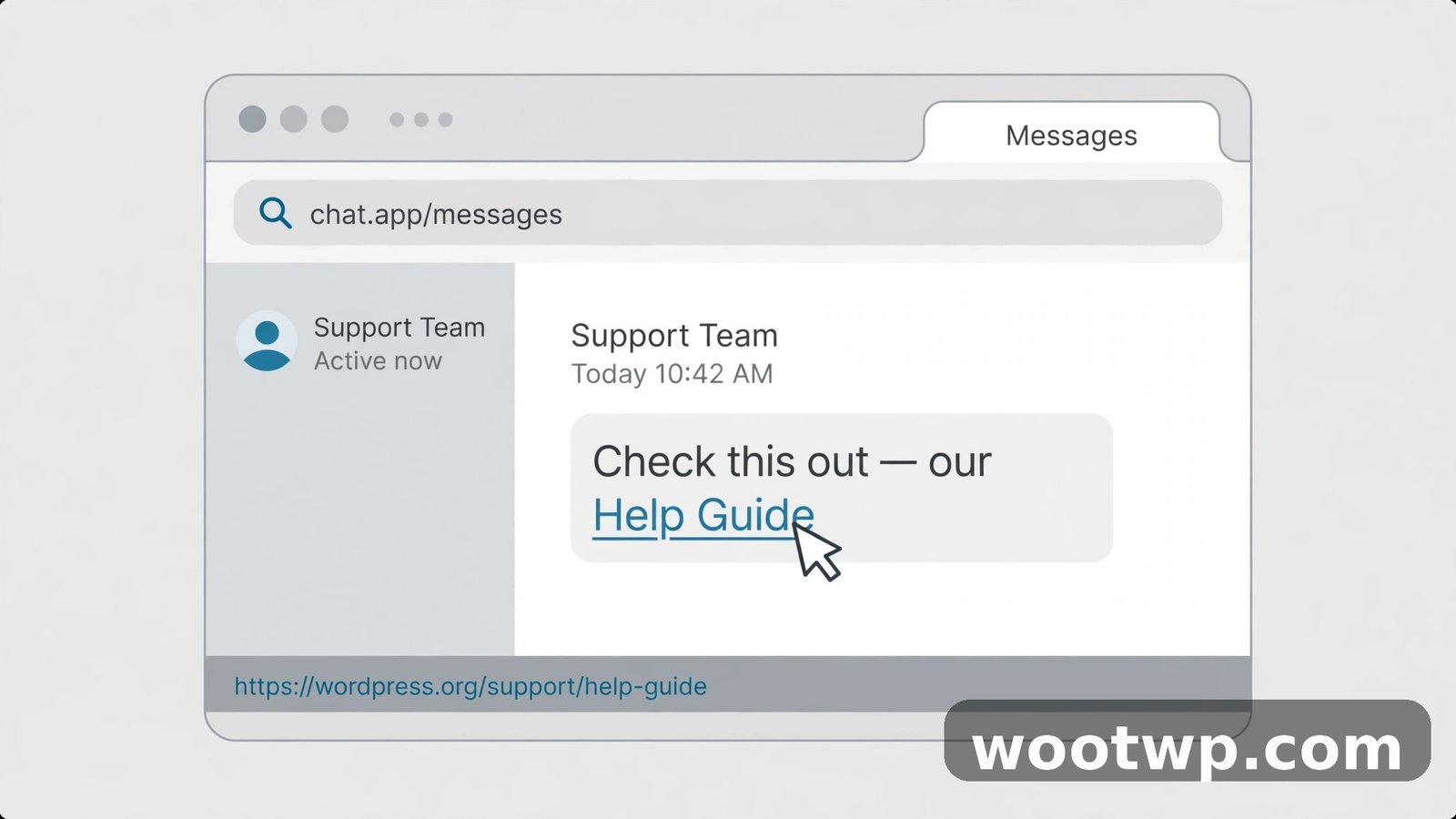
- Hover before you click. On a computer, hold your mouse over the link and read the full address that pops up (usually in the bottom-left corner of your browser). On a phone, press and hold the link — a preview card shows the real destination. If the address looks nothing like the company the message claims to be from, stop right there.
- Read the domain carefully. The domain is the part between "https://" and the first "/". A legit Apple email won't link to
apple-support-verify.net— it links toapple.com. Anything extra tacked onto a familiar brand name is a red flag. - Look for the padlock and HTTPS. Real login pages, banks, and stores use
https://(with the "s"). If a page asks for a password or payment details over plainhttp://, close it. - Expand it if it's shortened. Links like
bit.ly/3xYz9qhide their destination on purpose. Use a free URL expander (covered below) to reveal the real address before you tap. - Scan it with VirusTotal. Copy the link, paste it into VirusTotal's URL scanner, and check what 90+ security vendors say about it. It takes about 10 seconds and catches most known threats.
That's the whole routine. The rest of this guide goes deeper into each step so you know exactly what you're looking at.
What Does a Suspicious Link Look Like? 7 Red Flags
Learning to read a URL is the single most valuable skill here. You don't need any tool for this — just your eyes. Here's what to watch for.
1. Misspelled or look-alike brand names
Scammers register domains that look like real companies at a glance:
micorsoft.cominstead ofmicrosoft.comamaz0n-deals.cominstead ofamazon.compaypa1.cominstead ofpaypal.com
They swap letters for numbers, add words like "support," "verify," or "secure" to the domain, or use a different top-level domain entirely (netflix-support.org instead of netflix.com).
2. Random strings and URL shorteners
A link like bit.ly/2Fm8XkQ tells you nothing. Legitimate companies sometimes use shorteners in marketing, but a shortened link in an unsolicited message is always worth expanding first (I'll show you how below).
3. The domain hides behind subdomains
Read the domain right-to-left. In login.apple.com.verify-account.ru, the actual domain is verify-account.ru — everything before it is just a subdomain designed to fool you. The real company name appears in the subdomain, not the domain. This is one of the most common phishing tricks I've seen.
4. Strange characters in the address
Percent-encoded gibberish like sign-in%40secure%2Ecom or punycode domains like xn--apple-9ua.com are used to disguise where you're really going. If the address looks like alphabet soup, don't click it.
5. No HTTPS on a sensitive page
If a link takes you to a login form, a payment page, or anything asking for personal details — and the address starts with http:// instead of https:// — walk away. In my experience, no serious company runs account pages without HTTPS in 2026.
6. The message creates false urgency
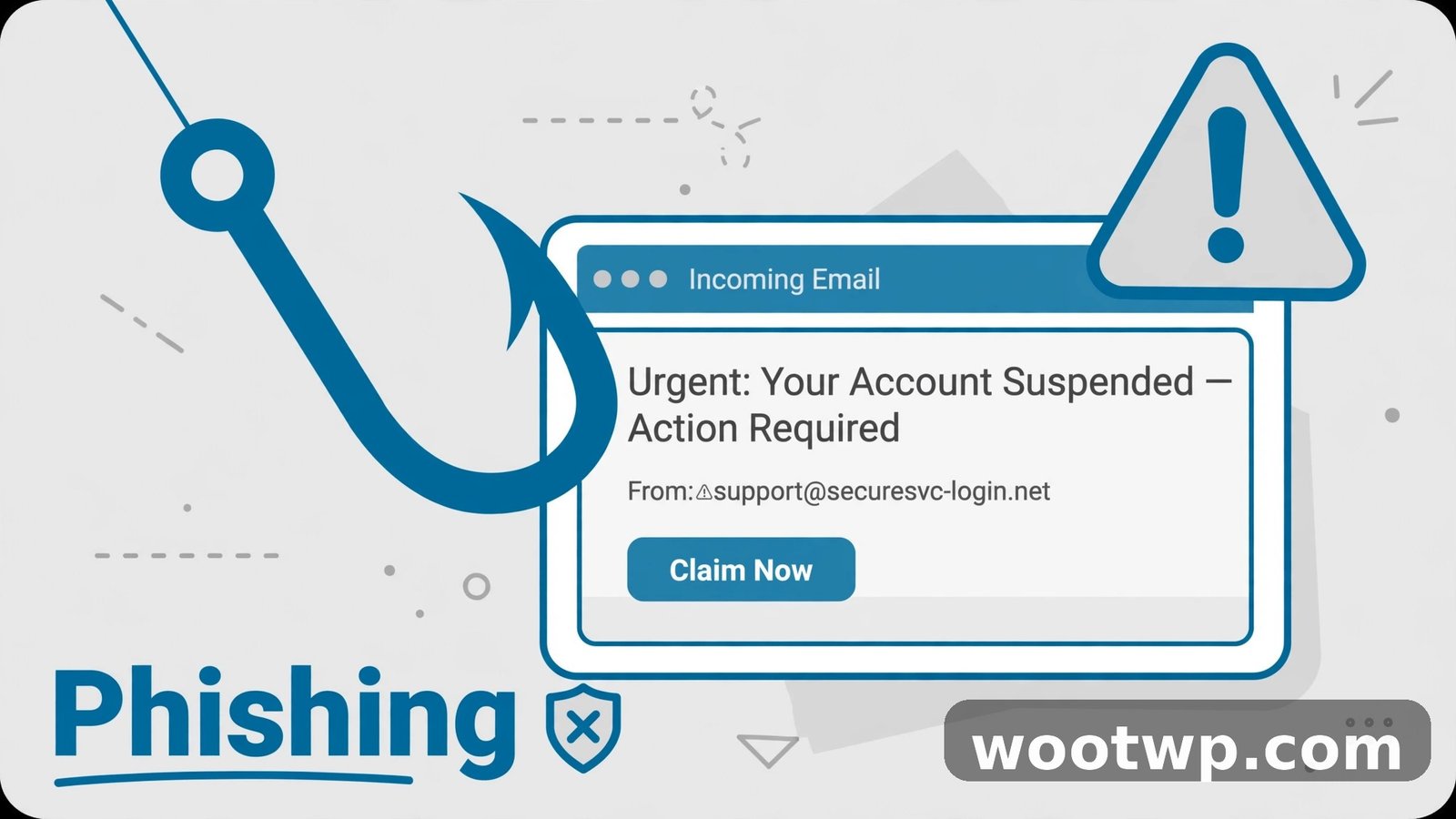
"Your account will be suspended in 24 hours!" "Unusual login detected!" "Claim your refund now!" Scammers rush you so you click before you think. A real bank or service will never pressure you to click a link in a text message.
7. The sender doesn't match the brand
An email "from Apple" that arrives from noreply@apple-verification.xyz isn't from Apple. Check the actual sender address, not just the display name — display names are trivially faked.
How Do You Expand a Shortened URL to See the Real Destination?
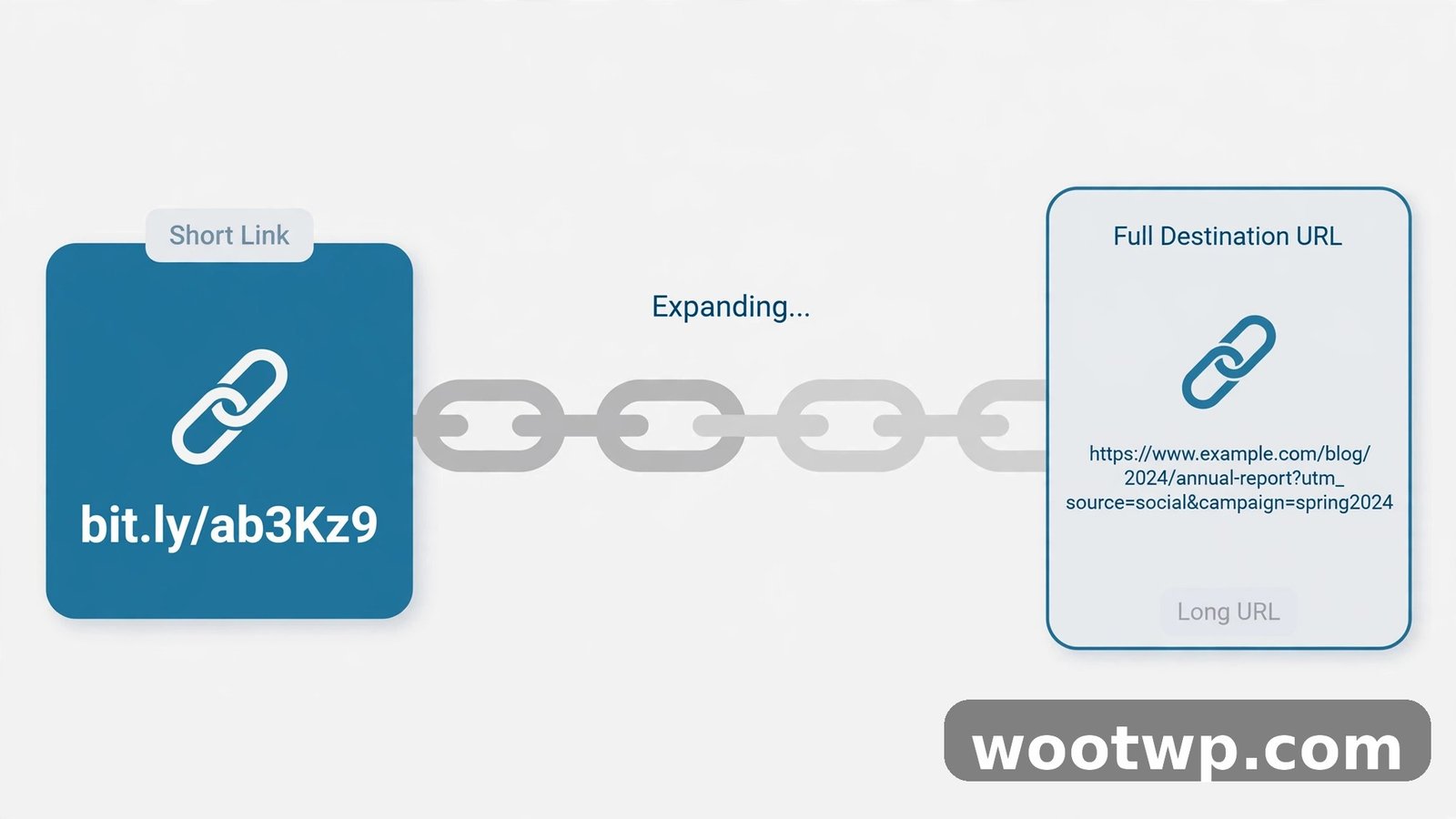
Shortened links (bit.ly, tinyurl, t.co, goo.gl, and the dozens of others) are opaque by design. They exist to make links shorter — but scammers love them for the same reason, because they hide the destination. Here's how to expand any shortened URL without visiting it.
Method 1: Use an online URL expander
These free services show you where a short link goes without ever opening the page:
- CheckShortURL (checkshorturl.com) — paste the short link, click "Expand," and see the full destination plus a safety snapshot.
- Unshorten.It (unshorten.it) — same idea, plus a screenshot preview of the target site.
- WhereGoes (wheregoes.com) — shows the full redirect chain, so you can see every hop between the short link and the final page.
How to use them:
- Copy the shortened link (long-press on phone, right-click on desktop).
- Paste it into the expander's input box.
- Click the expand/check button.
- Read the revealed destination URL carefully — apply the red-flag checks from the previous section.
Method 2: Preview before the click with "+" shortcuts
Many shorteners have a built-in preview trick. Add a plus sign (+) to the end of a Bitly or TinyURL link:
bit.ly/2Fm8XkQ+opens Bitly's own info page about that link instead of the destination.tinyurl.com/abc123+(well, the preview variant) shows the TinyURL preview page.
This reveals the destination plus when the link was created and how many times it's been clicked — links created minutes ago that already have thousands of clicks are a hallmark of spam campaigns.
Method 3: Check the link's redirect chain yourself
If you're comfortable with a tiny bit of tech, you can see the redirect chain without any website:
- On desktop, you can use an online redirect checker like WhereGoes.
- Read every hop in the chain. A legit marketing link might bounce through one tracking domain. A link that bounces through three or four unrelated domains before landing somewhere unexpected is not worth your trust.
Once you've revealed the destination, run the domain through the VirusTotal check in the next section — the two techniques pair perfectly.
How to Scan Any Link with VirusTotal Before You Click It
VirusTotal is my favorite link-checking tool because it's free, it doesn't need an account, and it asks more than 90 security engines what they think of a URL. If any of them has seen this link used in a phishing campaign or malware attack, you'll know about it in seconds.
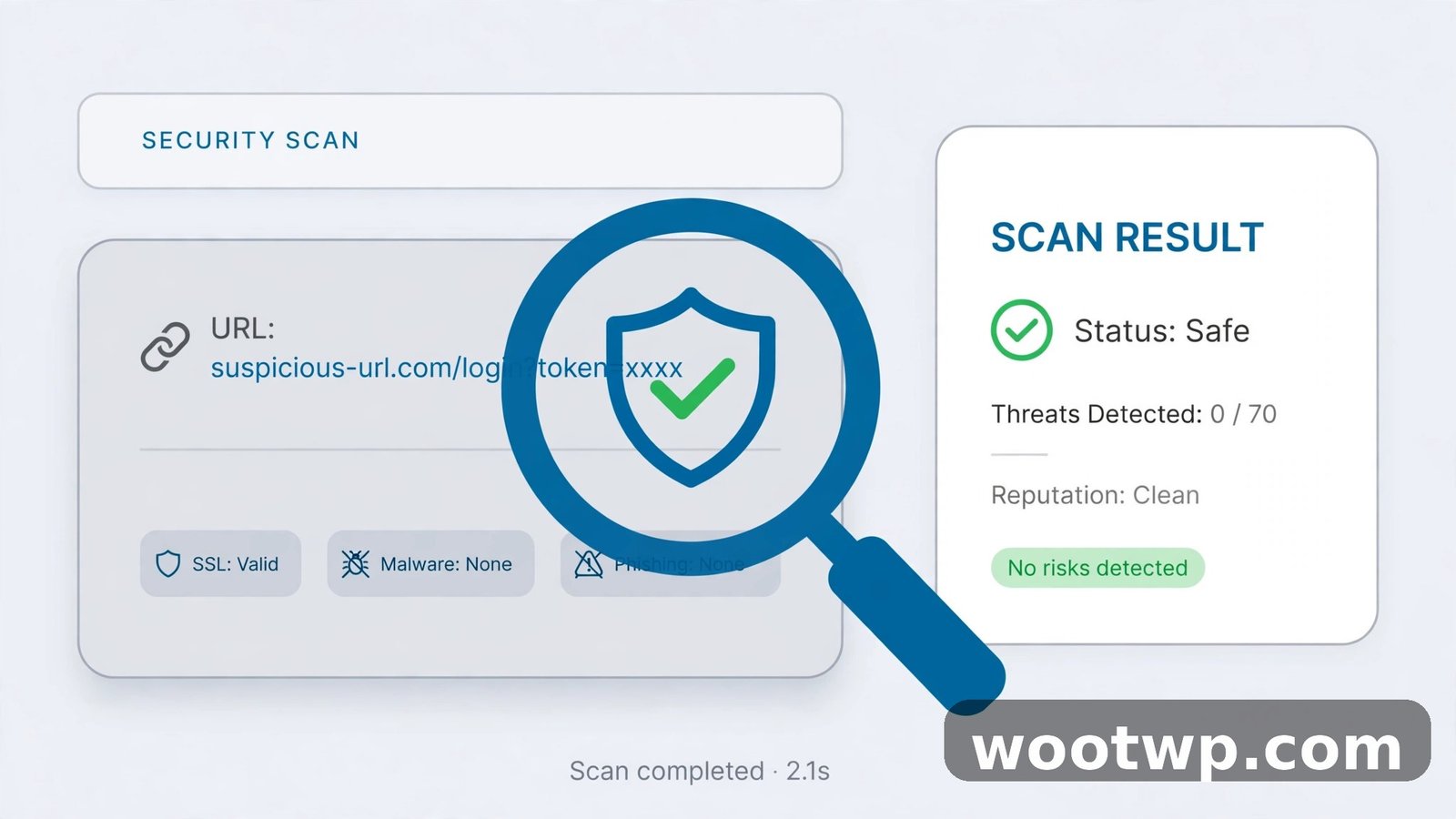
Step-by-step: scanning a link on VirusTotal
- Copy the suspicious link (long-press on phone, right-click and "Copy link address" on desktop).
- Go to virustotal.com in your browser.
- Click the URL tab at the top of the search box.
- Paste the link into the field and click Search (or press Enter).
- Wait a few seconds while VirusTotal checks its database and runs a fresh scan.
- Read the results screen.
How to read VirusTotal results
The results page shows you how many security vendors flagged the URL:
- 0 out of 90+ detections — the link isn't in any known threat database. That's a good sign, but it's not a guarantee. Brand-new scam sites can take hours to get listed.
- 1–2 detections — treat this cautiously. Some vendors are aggressive and flag anything new. If a URL is only a few hours old and flagged by two lesser-known engines, it could be a false positive — but I'd still avoid logging into anything through it.
- 3 or more detections — this is malicious. Delete the message and don't visit the link. In my experience, anything at this level is either phishing, malware, or a scam storefront.
You can also click the Details tab on the results page to see the domain's age, registrar, and IP history. A "bank" site registered three days ago on a free subdomain is obviously fake.
VirusTotal on your phone
VirusTotal's website works fine in mobile browsers — no app needed. Just copy the link, switch to your browser, and paste it into virustotal.com. If the message is in WhatsApp, Telegram, or SMS, long-press the link, choose Copy, and you're ready to check.
How to Use Google Safe Browsing to Check a Website's Safety
Google Safe Browsing is the technology behind Chrome's "Dangerous site" warnings. It maintains a constantly updated list of phishing sites, malware distributors, and unwanted software. You can query it directly for any URL.
Step-by-step: checking a site with Google Safe Browsing
- Go to transparencyreport.google.com/safe-browsing/search in your browser.
- Paste the suspicious URL into the "Check site status" box.
- Click the search button.
- Google tells you one of two things:
- "No unsafe content found" — the site isn't on the current blocklist. Good sign, same caveat as before: brand-new scam sites may not be listed yet.
- A warning that the site is dangerous — the page is confirmed unsafe. Stay away.
Make your browser check automatically
Even better than manual checks: make sure Safe Browsing protection is actually turned on in your browser.
In Chrome (desktop and Android):
- Open Settings (three-dot menu → Settings).
- Go to Privacy and security → Safe Browsing.
- Select Enhanced protection — this checks URLs against Google's list in real time and gives you the fastest warnings.
In Chrome (iPhone):
- Open Chrome → tap the three-dot menu → Settings.
- Tap Privacy and Security → Safe Browsing.
- Choose Enhanced protection.
With Enhanced protection on, Chrome warns you before a dangerous page even loads — so your manual checks become a second opinion rather than your only defense. If Chrome itself throws a red "Deceptive site ahead" warning, trust it. I've never seen that warning fire on a legitimate website.
For more on keeping your browser's defenses in shape, see our guide on how to clear cookies in Chrome — useful if you ever did click something dodgy and want to clean up tracking leftovers.
Are QR Codes Safe? How to Check a QR Code Before Scanning
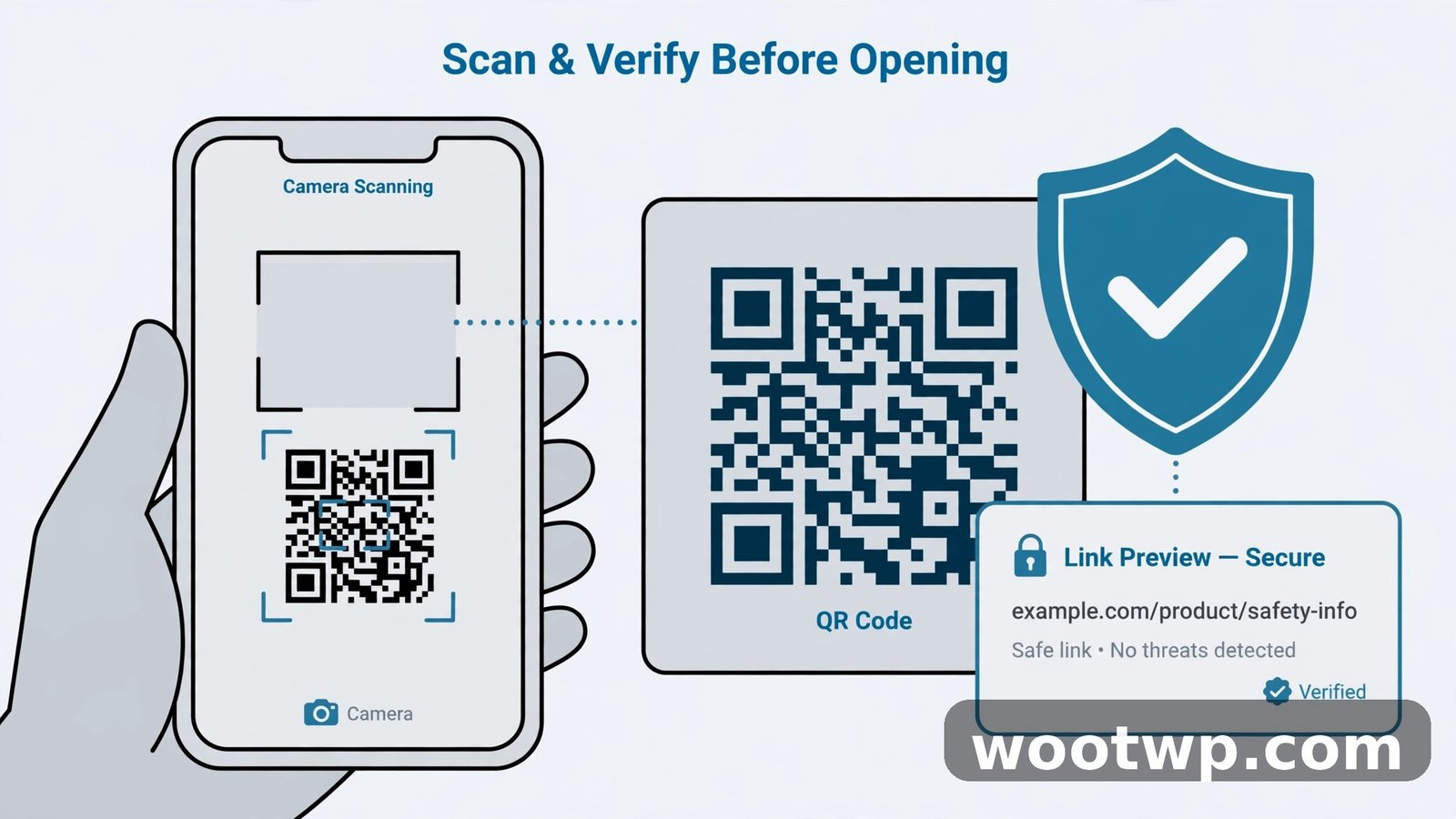
QR codes are just links in disguise — and you can't read them with your eyes. That makes them a perfect hiding place for malicious URLs. Here's how to check one before you commit.
The problem with QR codes
A QR code in a restaurant, on a parking meter, or in an email could point anywhere. There have been real-world cases of scammers pasting their own QR stickers over legitimate ones on parking meters and restaurant tables, redirecting payments to their own accounts. You can't hover over a QR code to preview it — so you need a different approach.
How to check a QR code before scanning
- Use a QR scanner app that shows a preview. Many scanner apps (and most built-in phone cameras) display the URL the code points to before opening it. Don't tap "Open" — read the URL first, using the same red-flag checks from earlier in this guide.
- Check the physical code. If a QR sticker looks pasted over another one, is crooked, or sits on a parking meter or payment terminal, be suspicious. Legitimate businesses print their codes; scammers stick theirs on top.
- Look for context clues. A QR code on an official bill, in a bank's app, or printed on a restaurant's own menu is probably fine. A random QR code in an unsolicited email or flyer deserves the same scrutiny as a random link.
- Never scan a QR code to "verify your account" from a text message. Banks don't work this way. That's phishing wearing a square costume.
If you already scanned one
Don't panic. If you only opened a page but didn't enter any information or download anything, you're usually fine — just close the tab. If you entered a password or card number, change that password immediately and enable two-factor authentication everywhere it matters. Our walkthrough on moving Google Authenticator to a new phone is a good starting point if you're setting up 2FA properly for the first time.
What Should You Do If You Already Clicked a Bad Link?
It happens. Maybe this guide reached you one click too late. Here's the damage-control checklist, in order of priority:
- Disconnect first if something downloaded. If clicking the link downloaded a file — especially on Android, which allows sideloading — turn on airplane mode and don't open the file. Run a scan with your phone's built-in security tool (Google Play Protect on Android: Play Store → profile icon → Play Protect → Scan).
- Don't enter anything else. If a fake login page opened, close it without typing. If you already typed your password, change it right now from the real site — type the address yourself, don't follow another link.
- Check your accounts. Look at recent login activity on your email and bank accounts. Gmail users: go to myaccount.google.com → Security → Your devices and Recent security activity. Kick out any session you don't recognize.
- Enable two-factor authentication. Even if your password leaked, 2FA stops most attackers cold. Use an authenticator app rather than SMS codes when you have the choice.
- Clear the browser. If the site dropped cookies or other junk, clean it out. See how to clear cookies in Chrome for the exact steps.
- Report the link. In Chrome, you can report a phishing page at safebrowsing.google.com/safebrowsing/report_phish/. In your email app, mark the message as phishing. Reporting helps get the site blocked for everyone else.
Frequently Asked Questions
How can I check if a link is safe before clicking on my iPhone?
Press and hold the link to preview its real destination, then read the domain carefully for misspellings or strange additions. For anything you're unsure about, copy the link and paste it into virustotal.com in Safari — it takes about ten seconds and checks the URL against 90+ security engines.
Is it safe to click a link if it starts with HTTPS?
HTTPS only means the connection is encrypted — it says nothing about whether the site itself is trustworthy. Scammers routinely get HTTPS certificates for phishing sites because they're free. Treat HTTPS as one small positive signal, not a safety guarantee.
Can a shortened link like bit.ly be dangerous?
Yes — shortened links hide their destination, which is exactly why scammers use them. Always expand a short link with a free URL expander (CheckShortURL or Unshorten.It) before visiting it, especially if it arrived in an unsolicited message.
What does it mean if VirusTotal shows 1 detection out of 90?
One detection is usually a false positive from an aggressive vendor, especially on a brand-new legitimate site. Two is a yellow flag. Three or more detections from different vendors almost always means the link is malicious — don't visit it.
Does Google warn me about dangerous links automatically?
Yes, if Safe Browsing is enabled. In Chrome, go to Settings → Privacy and security → Safe Browsing and select Enhanced protection. Chrome will then show a red "Deceptive site ahead" warning before loading known phishing or malware pages.
I clicked a suspicious link but didn't enter any information. Am I safe?
Almost certainly yes. Simply loading a page can't infect a modern, updated phone or browser in the vast majority of cases — the danger comes from entering credentials, downloading files, or granting permissions. Close the tab, clear your cookies if you want to be thorough, and carry on.
Conclusion
Learning how to check if a link is safe before clicking is one of those small habits that pays off enormously. Hover or long-press to preview the destination, read the domain with a skeptical eye, expand any shortened URLs, and when in doubt, run the link through VirusTotal or Google Safe Browsing. It takes thirty seconds — and it can save you from the weeks of headache that follow a stolen password or a drained account.
Sources: For scanning links, use VirusTotal directly. For Google's own site-status checks, see the Google Safe Browsing site status tool.