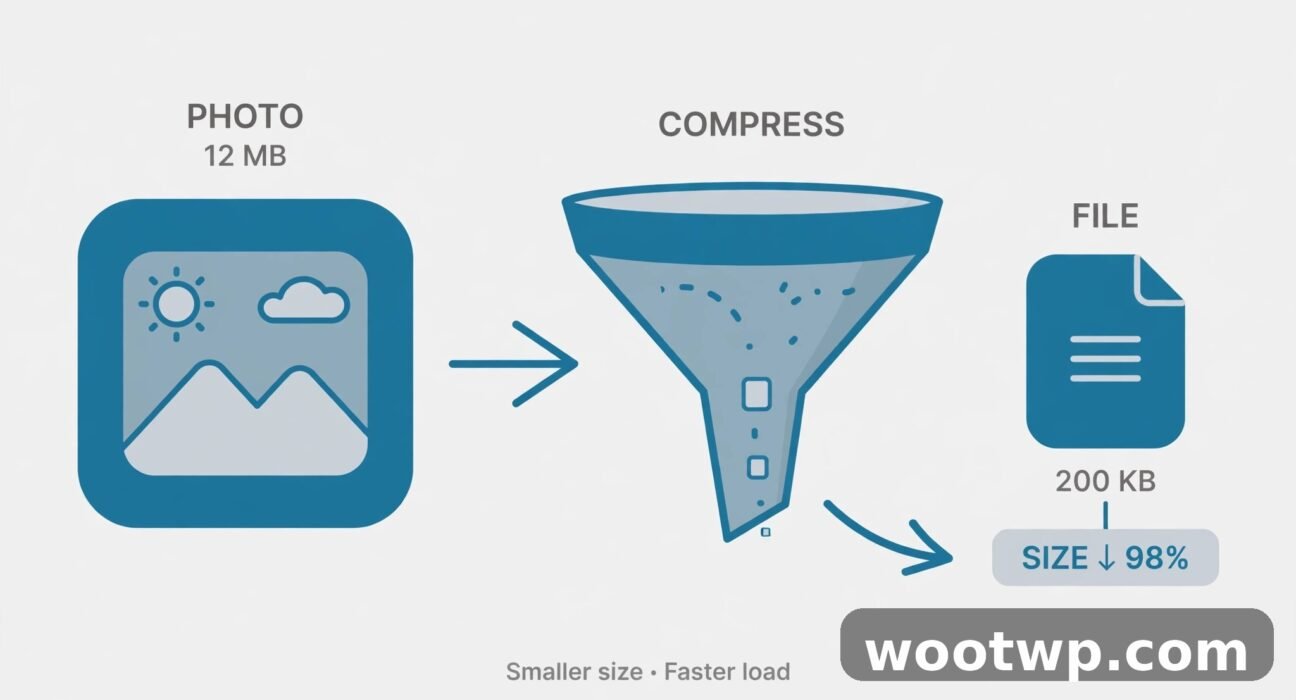
How to Compress Images Without Losing Quality: 7 Easy Tips
You take a photo on your phone and it weighs 5 MB. You need to email it, upload it to your website, or send it over WhatsApp — and everything demands a smaller file. But every "compress" button feels like a gamble: will the picture come out blocky and ruined?
It doesn't have to. In this guide you'll learn exactly how to compress images without losing quality — the same workflow I use every week for blog photos and client work. It comes down to three decisions: shrink the dimensions first, pick the right format, and choose a sensible quality setting. Get those right and your files shrink dramatically while looking identical to the original.
Table of Contents
- Why Do Images Get So Huge in the First Place?
- Lossy vs Lossless: Which One Should You Use?
- Step 1: Resize First, Compress Second — Order Matters
- Step 2: Pick the Right Format: JPG, PNG, or WebP?
- Step 3: Dial In the Perfect Quality Setting
- How to Compress Images Without Losing Quality Online (No Software Needed)
- How to Compress Images Without Losing Quality on Windows and Mac
- What Quality Setting Should I Use for Photos, Graphics, and Screenshots?
- 5 Mistakes That Wreck Your Image Quality
- FAQs About Image Compression
Why Do Images Get So Huge in the First Place?
A digital image is just a grid of pixels, and each pixel stores color information. A 12-megapixel phone photo is 4000 by 3000 pixels — that's 12 million pixels of data. Saved without compression, it can easily hit 30 MB or more.
Camera apps already compress your shots into JPEG files, so your 12 MP photo might be 4–6 MB instead of 30 MB. But that's still far more than most jobs need. A photo displayed at 1200 pixels wide on a web page doesn't need 4000 pixels of detail. The extra data is dead weight: it slows page loads, eats mobile data, and gets rejected by upload forms.
Here's the good news: most of that weight can go away without any visible change. Image compression works by finding and removing information your eyes wouldn't notice anyway — smooth color gradients, tiny details, repeated patterns. The trick is knowing which compression to use and how far to push it. That's exactly what this guide on how to compress images without losing quality will show you, step by step.
Lossy vs Lossless: Which One Should You Use?
Every image compression method falls into one of two camps. Understanding the difference is half the battle when you want to learn how to compress images without losing quality.
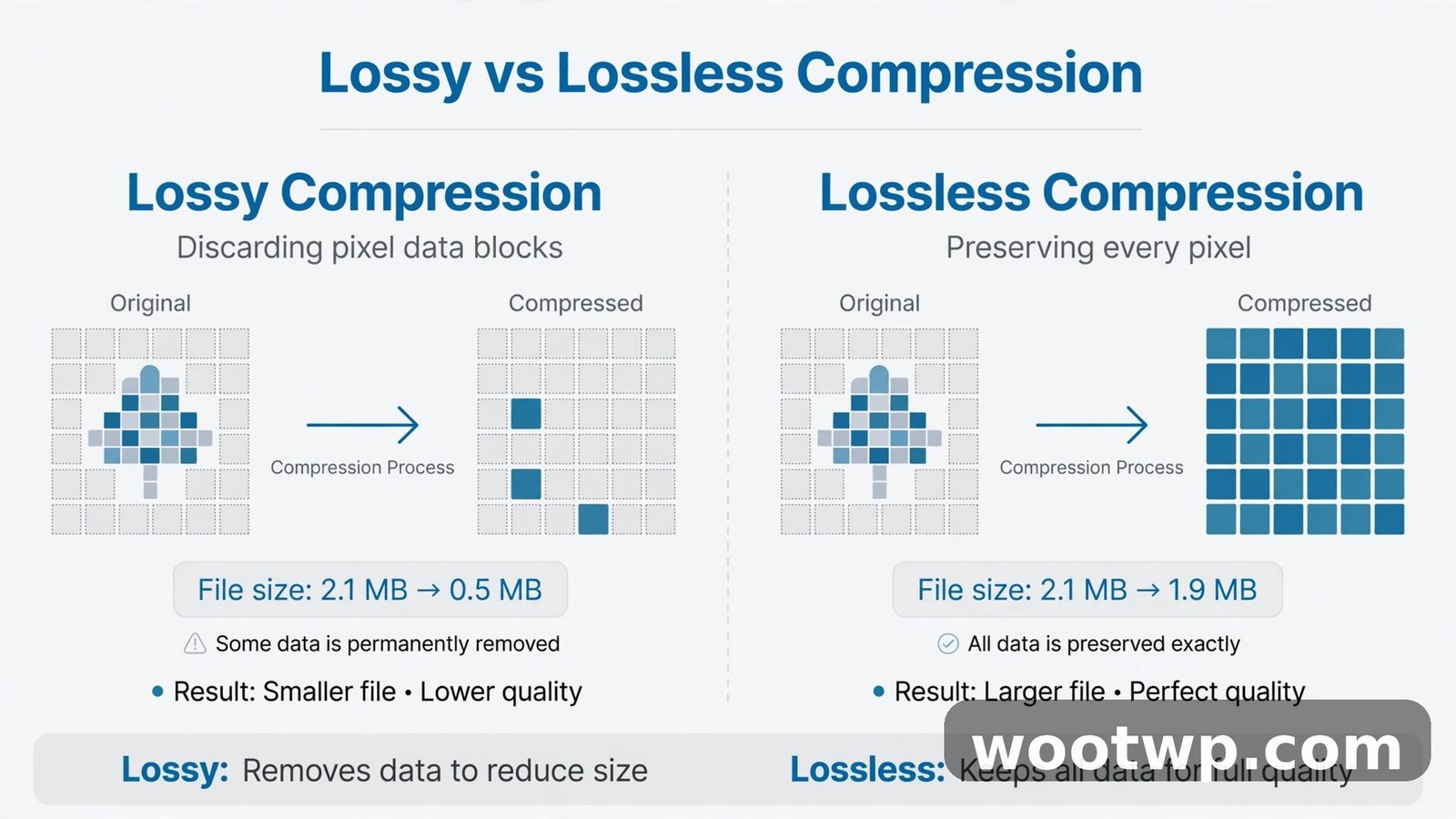
Lossless compression shrinks the file without throwing away any pixel data. The image looks pixel-for-pixel identical to the original, and you can open, save, and re-save it as many times as you like. PNG is the classic lossless format. The catch: lossless files stay relatively large. A photo that compresses well with lossy methods might only shrink 10–20% as a PNG.
Lossy compression deletes data the algorithm judges as unimportant — subtle color shifts, fine texture, details below what screens typically show. A JPEG can be a tenth the size of the original. The catch: every re-save loses a little more, and pushing the quality too low produces the ugly blocky artifacts everyone recognizes.
When to Choose Lossy
- Photos from your camera or phone
- Blog post images and social media uploads
- Any image where slight, invisible data loss is acceptable
- Situations where file size matters most (email attachments, web pages)
When to Choose Lossless
- Logos, icons, and graphics with sharp edges or flat colors
- Images with text that must stay crisp
- Files with transparency
- Archival copies of originals you might edit later
For most real-world compression work — uploading, sharing, emailing — lossy is the right tool. You just need to control it properly, and controlling it properly is what learning how to compress images without losing quality is really about.
Step 1: Resize First, Compress Second — Order Matters
This is the step most people skip, and it makes the biggest difference. Before touching any quality slider, shrink the image to the dimensions you actually need.
A 4000-pixel-wide photo compressed to JPEG at quality 80 is still heavy. The same photo resized to 1600 pixels wide and then compressed is dramatically smaller — because the compressor has far fewer pixels to describe. Halving each dimension cuts the pixel count by 75%, and the file size drops roughly in proportion.
How to know what size you need:
- Blog or website images: match the display width, usually 1200–1600 pixels wide. Anything more is wasted.
- Email attachments: 1024–1600 pixels wide is plenty for on-screen viewing.
- Social media: each platform downsamples anyway — 1080–2048 pixels wide is a safe range.
- Full-screen viewing on a laptop: 1920 pixels wide covers it.
Steps to resize without quality damage:
- Make a copy of the original first. Always work on a copy — resizing is destructive.
- Open the image in any editor (even the Photos app on Windows or Preview on Mac).
- Set the new width to your target and let the height scale automatically to keep the aspect ratio.
- Save, and only then move on to compression settings.
This resize-first habit is the single biggest factor in how to compress images without losing quality: most of the file size disappears at the resize step, before you ever touch a quality slider.
One warning: never resize up. Making a small image bigger can't add detail back — it just blurs. If your image is already the right size or too small, leave the dimensions alone and go straight to format and quality.
Step 2: Pick the Right Format: JPG, PNG, or WebP?
The format you choose decides how the file is compressed, and choosing wrong can double or triple your file size for no benefit.
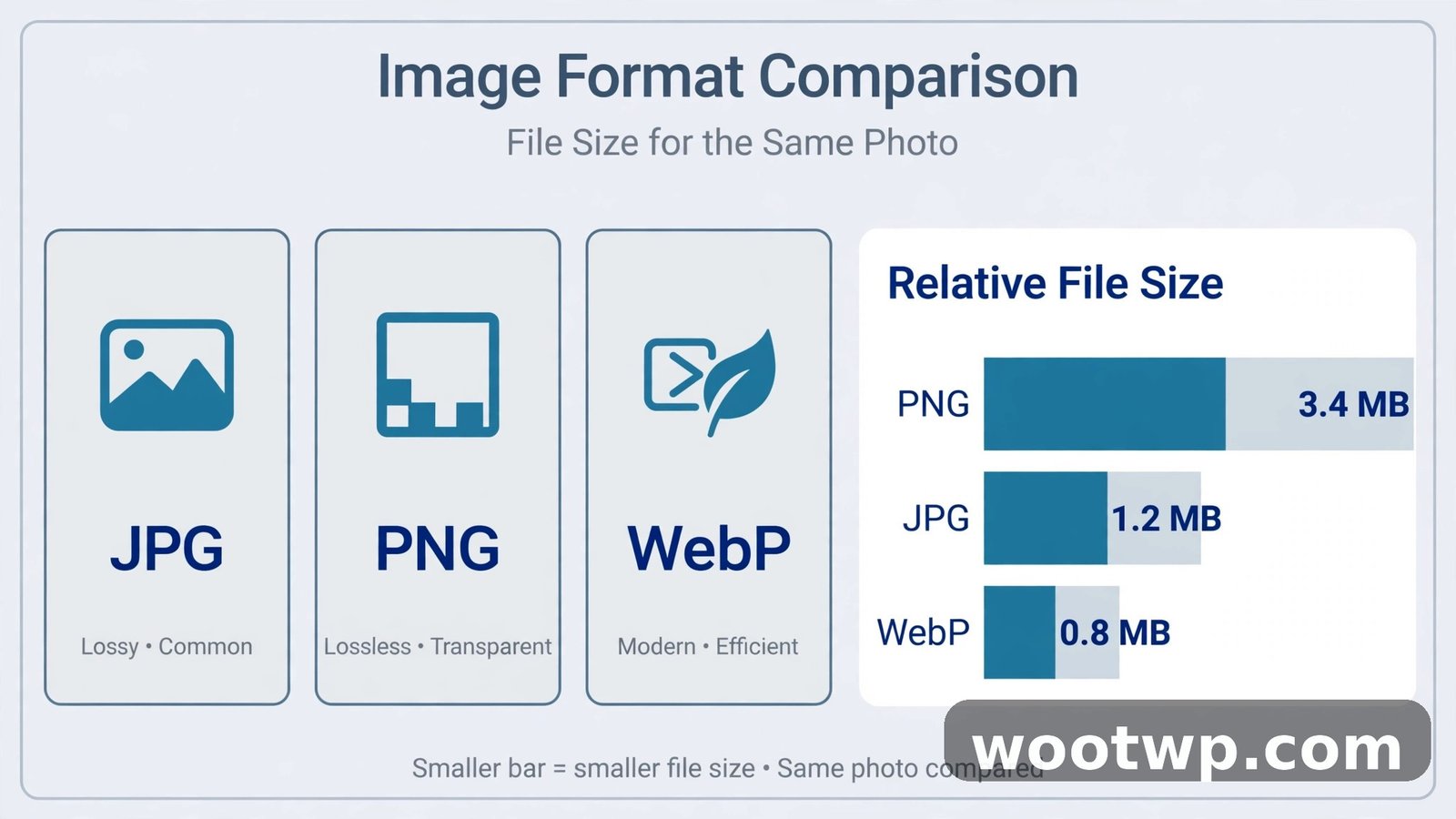
JPG (JPEG) is the workhorse for photographs. Its lossy compression is tuned for real-world images with gradients and detail, and it offers a quality slider so you control the size-versus-quality trade-off. It's supported absolutely everywhere. Use JPG for photos.
PNG is lossless and supports transparency. It's ideal for logos, screenshots with text, and graphics with sharp edges. But for photos, PNG files are huge compared to JPG — sometimes five to ten times larger. Never save a photo as PNG unless you have a specific reason.
WebP is the modern alternative developed by Google. It handles both lossy and lossless compression, supports transparency and animation, and consistently beats both JPG and PNG on file size. Google's own tests found WebP images roughly 25–35% smaller than comparable JPEGs, with no visible difference. The one downside used to be support, but that's over: every current browser — Chrome, Edge, Firefox, Safari — displays WebP fine. If you're optimizing for a website, WebP is almost always the best choice.
Quick decision guide:
- Photo for web, email, or sharing → JPG (or WebP if your platform accepts it)
- Logo, icon, or graphic with text → PNG
- Screenshot with sharp text → PNG (lossy JPG blurs text edges)
- Website images where size matters most → WebP
- Animated image → WebP or GIF
If you're not sure which format your platform accepts, JPG is the safe universal answer. Format choice is the second big decision in how to compress images without losing quality, so it's worth getting right before you move on.
Step 3: Dial In the Perfect Quality Setting
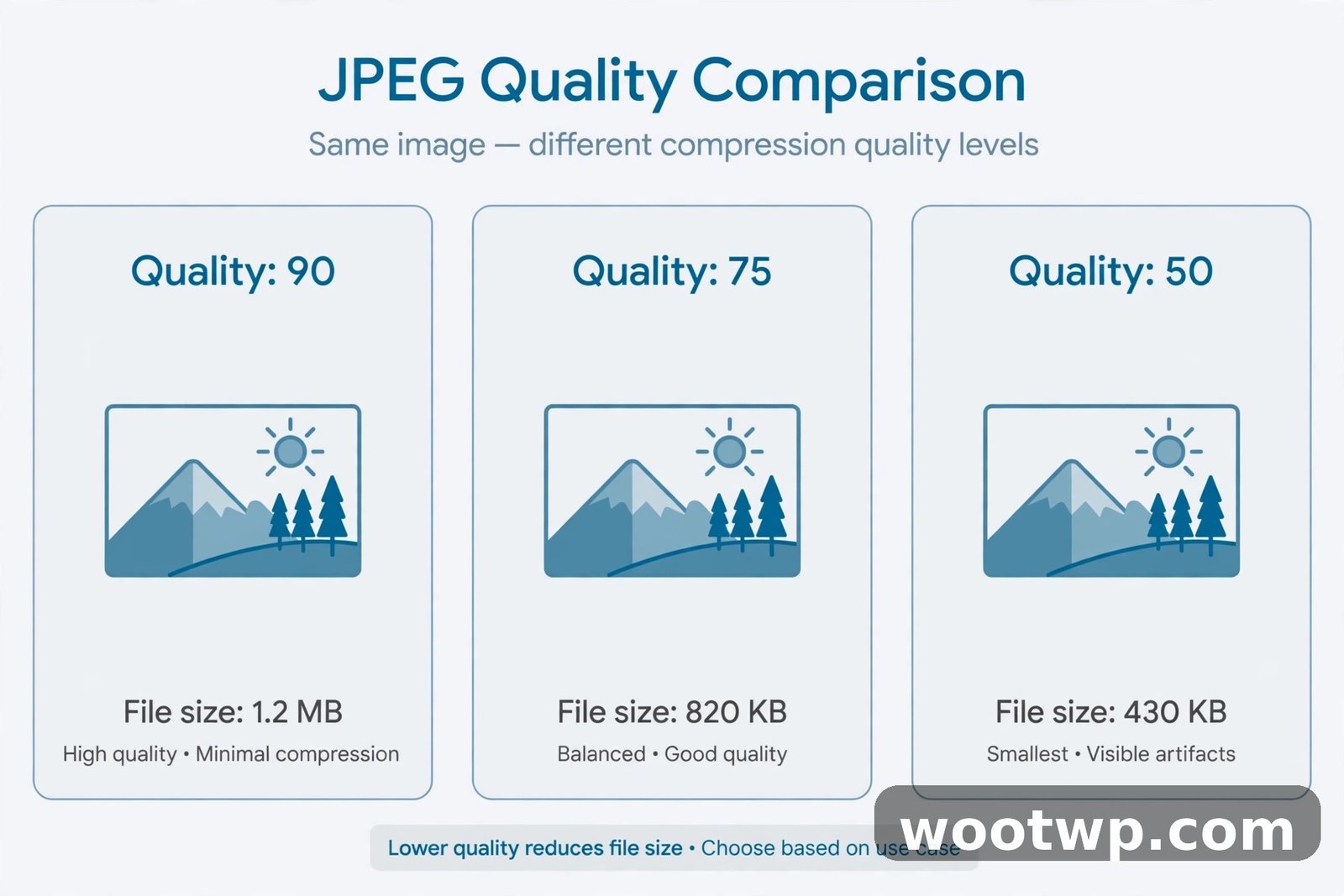
Here's where people get nervous, but it's simpler than it looks. Most image compression tools show a quality slider from 1 to 100. The rule of thumb I've settled on after years of testing: quality 75–85 for JPG photos looks virtually identical to 100 at a fraction of the file size.
Why the sweet spot works: the JPEG algorithm starts by discarding high-frequency detail your eyes barely register. The visible damage — banding, blockiness, halos around edges — only shows up when you push quality below about 60 for photos. Between 75 and 85, side-by-side comparisons with the original are nearly impossible to tell apart.
How to find your ideal setting:
- Open your resized image in a compression tool.
- Start at quality 80.
- Zoom to 100% and look at detailed areas — hair, fabric, foliage, text.
- Drop the quality by 5 at a time until you spot degradation, then go back up one step.
- Save that setting. For most photos, you'll land between 70 and 85.
For WebP, the same logic applies: quality 75–85 gives excellent results. For PNG, there's no quality slider — PNG is lossless — but some tools offer a "compression level" that affects file size without touching quality. Always use the highest PNG compression level; it's free savings.
A final tip: avoid compressing the same file twice. Each lossy save throws away a little more data. Do all your edits, then compress once at the very end.
How to Compress Images Without Losing Quality Online (No Software Needed)
The fastest way to learn how to compress images without losing quality is to do it right in your browser. These free tools run entirely on your computer — your photos never leave your device with the good ones — and they need zero installation.
Method 1: Squoosh (Best Control)
Squoosh is Google's free browser-based image tool, and it's my top recommendation because it shows a live before-and-after comparison while you drag the quality slider. You can see exactly what the compression does before you download anything.
- Go to Squoosh in Chrome or any modern browser.
- Drag your image onto the page (or click to select it).
- In the "Compress" panel on the right, pick your format — MozJPEG for photos, OxiPNG for graphics, or WebP.
- Drag the quality slider to around 75–80 and watch the live preview.
- Zoom in on the preview to check fine details.
- When you're happy, click the download button at the bottom right.
Squoosh also handles resizing: look for the "Resize" checkbox in the edit panel and enter your target width before compressing.
Method 2: Our Free Image Compressor (Fastest)
If you just want it done quickly without fiddling with sliders, use our free online image compressor — it picks sensible compression settings automatically so your photos shrink without visible quality loss.
- Open the image compressor page.
- Upload your JPG, PNG, or WebP image.
- Let it process — the tool reduces the file size while keeping quality high.
- Download the compressed result.
This is the option I point non-technical friends to: no sliders, no decisions, just a smaller file.
Method 3: Browser Extensions for Bulk Work
If you compress dozens of images regularly — say, for a blog or online store — a browser extension saves real time. Extensions that hook into right-click menus let you compress images directly from any web page. Just make sure the extension you pick processes files locally rather than uploading them to a server, especially if your images are private.
How to Compress Images Without Losing Quality on Windows and Mac
Online tools are great for one-offs. But if you compress images regularly, learning how to compress images without losing quality on your own machine saves time — and your computer already has what you need.
On Windows, the free Photos app handles resizing: open the image, click the three dots, choose "Resize image," and pick a percentage or custom dimensions. For actual compression, the free Paint.NET editor (a different program from Microsoft Paint) gives you a quality slider when saving as JPEG. Set it to 80 and you're done.
On Mac, Preview is surprisingly capable. Open the image, go to Tools, then "Adjust Size" to resize. Then File, "Export," choose JPEG, and drag the quality slider to around 80. The export dialog shows the resulting file size live, so you can tune it on the spot.
For serious bulk compression on either platform, the free desktop app Caesium Image Compressor processes whole folders with one click — handy when you have 200 product photos to shrink before a site launch.
What Quality Setting Should I Use for Photos, Graphics, and Screenshots?
Different images tolerate compression differently. Here's the cheat sheet I keep taped to my workflow:
Photographs (camera shots, portraits, landscapes): JPG or WebP at quality 75–85. Photos have so much natural detail and color variation that compression artifacts hide easily. I've seen 4 MB camera photos drop to under 400 KB at quality 80 with no visible change.
Graphics and logos (flat colors, sharp edges): PNG, always. Lossy compression smears sharp edges and creates ugly noise in flat color areas. If the file must be small and the graphic allows it, try WebP lossless — it's usually 20–30% smaller than PNG for the same perfect quality.
Screenshots with text: PNG. JPEG compression around text creates the fuzzy halos everyone recognizes from over-compressed memes. If you must use JPG for a screenshot, keep quality at 90 or above.
Images for WordPress or websites: resize to your content width first, then WebP at quality 75–80. Image weight is one of the biggest reasons WordPress sites load slowly — pair this habit with one of the lightweight free WordPress themes and your pages will feel dramatically faster.
When in doubt, export two versions and compare them zoomed in at 100%. Your eyes are the final judge.
5 Mistakes That Wreck Your Image Quality
Even with the right tools, these five habits undo all your careful work:
1. Compressing an already-compressed image. Downloading a JPEG from Facebook and compressing it again stacks artifacts on artifacts. Always start from the highest-quality original you have.
2. Saving as PNG "to be safe." PNG is lossless, but for a photo it's enormous. A 5 MB JPEG photo can become a 20 MB PNG. Bigger files aren't higher quality — they're just wasteful.
3. Resizing after compressing. Changing dimensions after compression forces the image through another lossy pass. The correct order is always: resize first, then compress once.
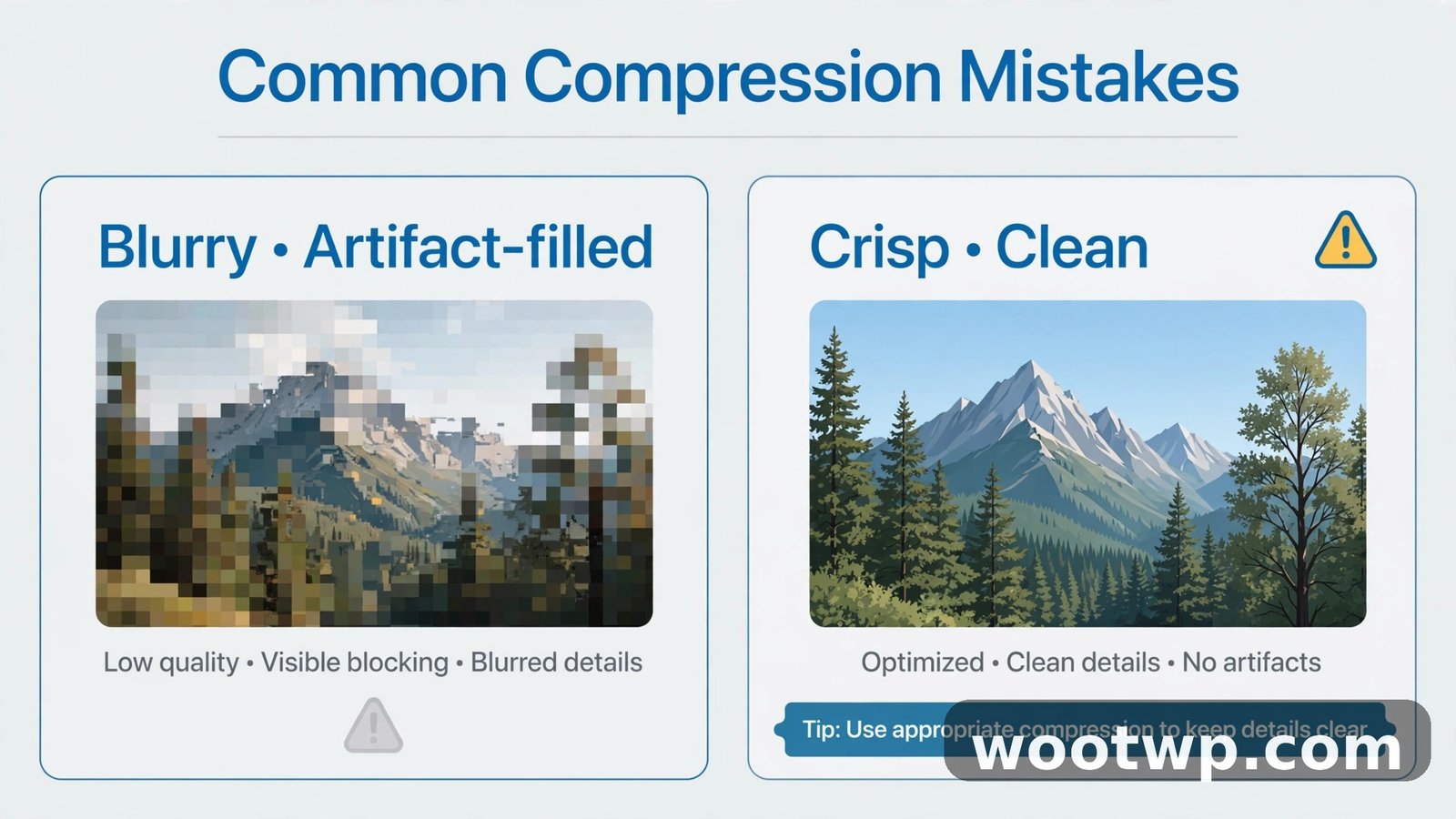
4. Using quality below 60 for photos. Some tools default to aggressive settings. Anything under 60 on a photo produces visible banding and blockiness. If the file is still too big at quality 70, resize smaller or switch to WebP instead of dropping quality further.
5. Ignoring the file's destination. A billboard print needs maximum quality; a website thumbnail doesn't. Match your effort to the use case. Compressing a tiny profile picture at quality 95 is pointless — and exporting a print poster at quality 60 is a disaster.
FAQs About Image Compression
Will compressing an image always reduce its quality?
No. Lossless compression reduces file size with zero quality loss, and even lossy compression at sensible settings (quality 75–85) produces results your eyes can't distinguish from the original. Knowing how to compress images without losing quality is mostly about avoiding the bad habits, not finding secret tools.
What is the best image format for websites in 2026?
WebP is the best all-round choice for websites: it's 25–35% smaller than JPEG at the same quality, supports transparency like PNG, and works in every modern browser. Use JPG as a fallback for very old systems, and PNG for graphics with sharp text or transparency requirements where WebP isn't accepted.
What JPEG quality setting should I use?
For most photos, quality 75–85 gives the best balance — files shrink to a fraction of their original size with no visible difference. Go higher (90+) only for images that will be printed or heavily cropped. Drop below 60 and you'll start seeing blocky artifacts and banding in smooth areas.
Does WebP work in all browsers?
Yes, for all practical purposes. Chrome, Edge, Firefox, and Safari have all supported WebP for years, and current versions handle it natively. You can read Google's format guidance in the MDN Web Docs on image types if you want the technical details.
How can I reduce image file size on my phone?
On Android and iPhone, open the photo in your gallery app, look for a resize or save-a-copy option, and reduce the dimensions to what you need (1600 pixels wide is plenty for sharing). For more control, free apps like the image compressor tools above work in your mobile browser with no installation.
How do I know if I compressed an image too much?
Zoom to 100% and look for blocky squares in smooth areas, halos around sharp edges, and banding in skies or gradients. If you see any of those, go back to the original and re-compress at a higher quality setting. When in doubt, compare the compressed version side by side with the original.
The Bottom Line
Learning how to compress images without losing quality isn't about finding a magic button — it's a simple three-step habit: resize to the dimensions you need, pick the right format for the image type, and set quality in the 75–85 range. Do that once per image and you'll cut file sizes dramatically while keeping every pixel that matters.
Start with the image you're struggling with right now. Run it through one of the browser tools above, compare the result with the original, and check the file size difference. Once you see a 5 MB photo drop under 500 KB looking identical, you'll never skip this step again.