
How to See Saved WiFi Password on Android: 5 Easy Ways
You joined a WiFi network months ago — at a cousin's flat, maybe, or that café with the good coffee — and your phone has remembered it ever since. Then someone asks for the password and… nothing. Blank. I've stood there doing exactly that, patting my pockets like the password might be written on a receipt in there somewhere. It wasn't. Learning how to see saved WiFi password on Android took me under a minute once somebody showed me where to look. No root. No dodgy app off the Play Store. Just the settings already sitting on your phone, doing nothing.
This guide runs through every method that still works: the built-in share option on Android 10 and newer, the Samsung shortcut, the QR code trick, the router fallback, and what to do on a really old phone.
- The Quick Answer
- Before You Start: What You Need
- Method 1: Use the Built-In Share Option
- Method 2: The Samsung Galaxy Method
- Method 3: Scan the QR Code With Another Phone
- Method 4: Check Your Router Settings
- Method 5: Older Android Phones
- What to Do If the Password Still Won't Show
- Keep Your WiFi Password Safe
- FAQs
The Quick Answer
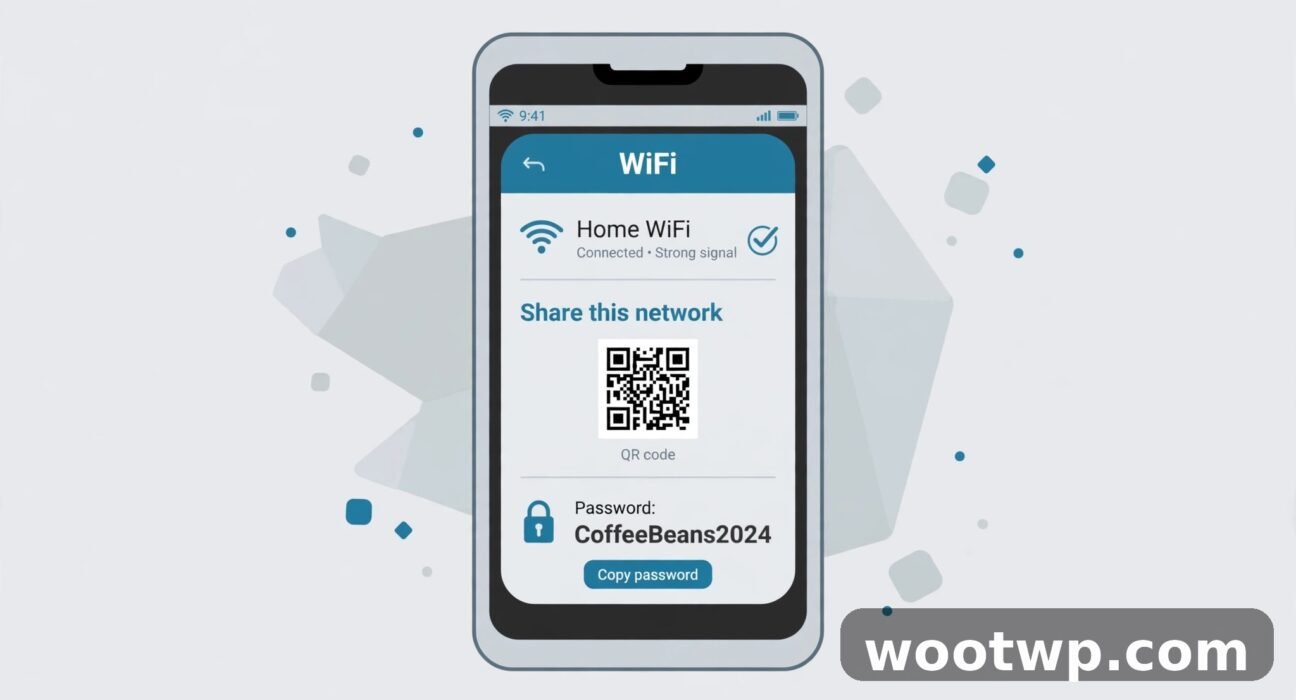
Got a phone on Android 10 or newer? You're about thirty seconds away from the answer. Open Settings, head to Network and internet, then Internet or WiFi. Tap the network, hit Share, unlock with your fingerprint, PIN, or pattern — and a QR code pops up. On most phones the password sits in plain text right underneath it. Done.
That's the whole trick, and the fastest way to learn how to see saved WiFi password on Android. Nothing to install, no router login, no root.
Now — what if there's a QR code and no text under it? (Happens on some phones. Mine included, once.) Don't panic. Hand the phone to your friend and let their camera scan the code; they'll be online without ever seeing the password. The rest of this guide covers that case, plus Samsung phones, ancient Android versions, and the router method that has never once let me down. TeamViewer's guide to finding your WiFi password on any device is a useful cross-check if your phone's menus look different from the steps here.
Before You Start: What You Need
Three quick checks. Ten seconds now, and you'll dodge a lot of confused tapping later.
- Your phone must have joined the network before. Sounds obvious, right? But Android can only show passwords for networks it has actually saved. Never connected to it? Then there's nothing stored on your phone to show — you're asking an empty drawer for a key.
- You need your screen lock. Android makes you prove it's your phone first: fingerprint, PIN, pattern, password, whichever you've got. There's no way round this step. And honestly? Good. If anyone could read your saved passwords without unlocking the phone, that would be a disaster waiting to happen. Don't know your own screen lock? Sort that out before anything else.
- Know your Android version. Settings, then About phone, then Android version. That's where it lives. Android 10 and newer have the built-in Share option. Anything older needs a different approach — Method 5, further down.
Method 1: Use the Built-In Share Option (Android 10 and Newer)
This is the fastest way to see a saved WiFi password on Android, and it works on Google Pixel, Motorola, OnePlus, Xiaomi, Oppo, Vivo, and most other phones running Android 10 or later. Google slipped this feature in with Android 10, so if your phone is from the last few years, you've almost certainly got it — probably without ever noticing it was there.
How did I find it? By accident, if I'm honest. Sunday afternoon, maybe two years back. A cousin was over, asked for my WiFi password, and I stood there in my own living room with absolutely no idea what it was. I'd typed it in once, months earlier, and my brain had filed it under "not my problem anymore". My Pixel 7a bailed me out. I tapped Share, pressed my thumb to the sensor, and there it was — password in plain text, sitting under the QR code like it had been waiting for me all along. Thirty seconds, start to finish. My cousin was online before the kettle had boiled.
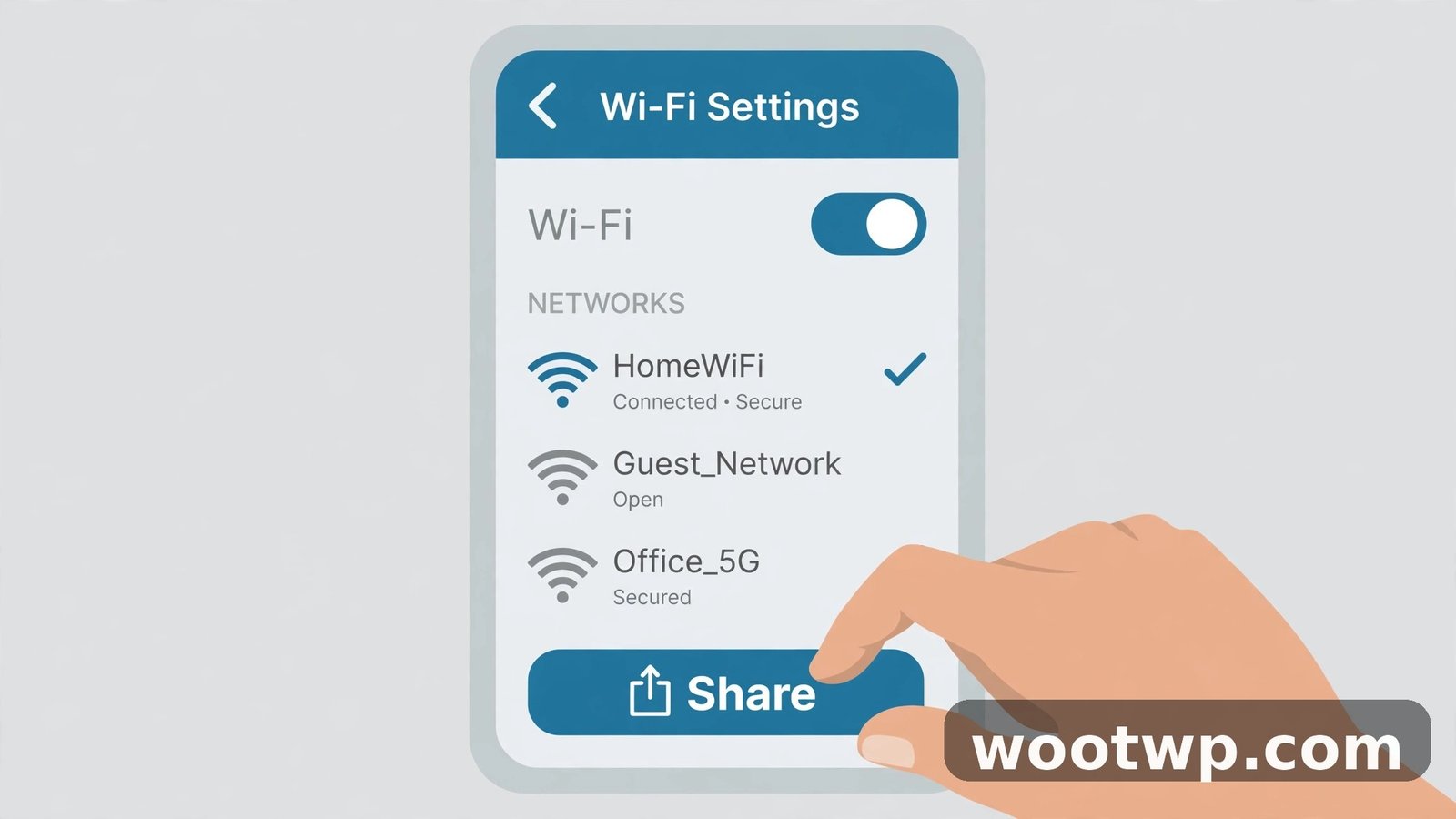
Step-by-step: view the password on stock Android
- Open the Settings app on your phone.
- Tap Network and internet.
- Tap Internet or WiFi, depending on your phone. On some phones the menu is just called WiFi.
- Find the network you want. If you are connected to it right now, it sits at the top of the list. If not, scroll down and tap Saved networks, then pick the network from the list.
- Tap the gear icon next to the network name, or tap the network name itself to open its details page.
- Tap Share. The button often shows a small QR code icon.
- Unlock your phone when asked. Use your fingerprint, face, PIN, or pattern.
- A QR code appears on screen. On most phones, the network name and the password appear in plain text right below the QR code.
Write it down somewhere safe — or screenshot it for your own records. (Just remember a screenshot of a password is only as safe as your phone is, so tuck it in a locked note if you keep it.) For a second opinion on the same steps, Android Authority's guide to finding your WiFi password on Android walks through the same Share flow with screenshots.
Why some phones show a QR code but no text
Here's the annoying bit. A few phone makers hide the plain-text password and show only the QR code. It's a design choice, not a bug — common on some Samsung models running older One UI versions. The password is still in there, encoded in the QR code, just not spelled out for you. Method 3 shows how to pull it out with a second phone, and Method 2 covers the newer Samsung shortcut.
When you're learning how to see saved WiFi password on Android on one of these phones, the missing text feels like a dead end. It really isn't. The QR code carries the exact same password — you just need a different way to read it.
Method 2: The Samsung Galaxy Method (One UI 6 and Newer)
Samsung phones run their own skin, One UI, on top of Android, so the steps look a little different — and how to see saved WiFi password on Android on a Galaxy phone is its own little dance. The good news? Samsung made this easier in recent versions. If your Galaxy runs One UI 6 or newer (Android 14 and up), you can see the password directly. No QR code needed at all.
- Open Settings.
- Tap Connections.
- Tap WiFi.
- Tap the gear icon next to the network you are connected to. For a network you are not connected to right now, tap the three-dot menu, then Advanced settings, then Manage networks, and pick the network.
- Look at the Password field on the network details page.
- Tap the eye icon next to the password field.
- Unlock your phone with your fingerprint or PIN. The password appears in plain text.
Running One UI 5 or earlier? Then the eye icon probably isn't there. Don't waste ten minutes hunting for it — use the Share button to get the QR code, then Method 3 to read the password from it.
My dad's Galaxy A52 taught me this the slow way. One UI 5, no eye icon anywhere. I spent a solid five minutes tapping around the WiFi page, absolutely convinced I was missing something. I wasn't. The option simply didn't exist on that version. In the end the QR code plus Google Lens pulled the password out — which, funnily enough, is exactly what Method 3 is for.
A note on the Samsung Share option
Even on older Galaxy phones, the Share option is right there on the same WiFi settings page. Tap Share, confirm who you are, and you get your QR code. Samsung also throws in a Save as image option on some models, which drops the QR code into your gallery. From there you can open the image in Google Lens, and Lens will often read the password straight out of the QR code for you. Neat little workaround, that one.
Method 3: Scan the QR Code With Another Phone
This is the real workhorse — the answer to how to see saved WiFi password on Android when the plain text just isn't there. You need a second phone or tablet with a camera. Doesn't matter if it's Android or iPhone.
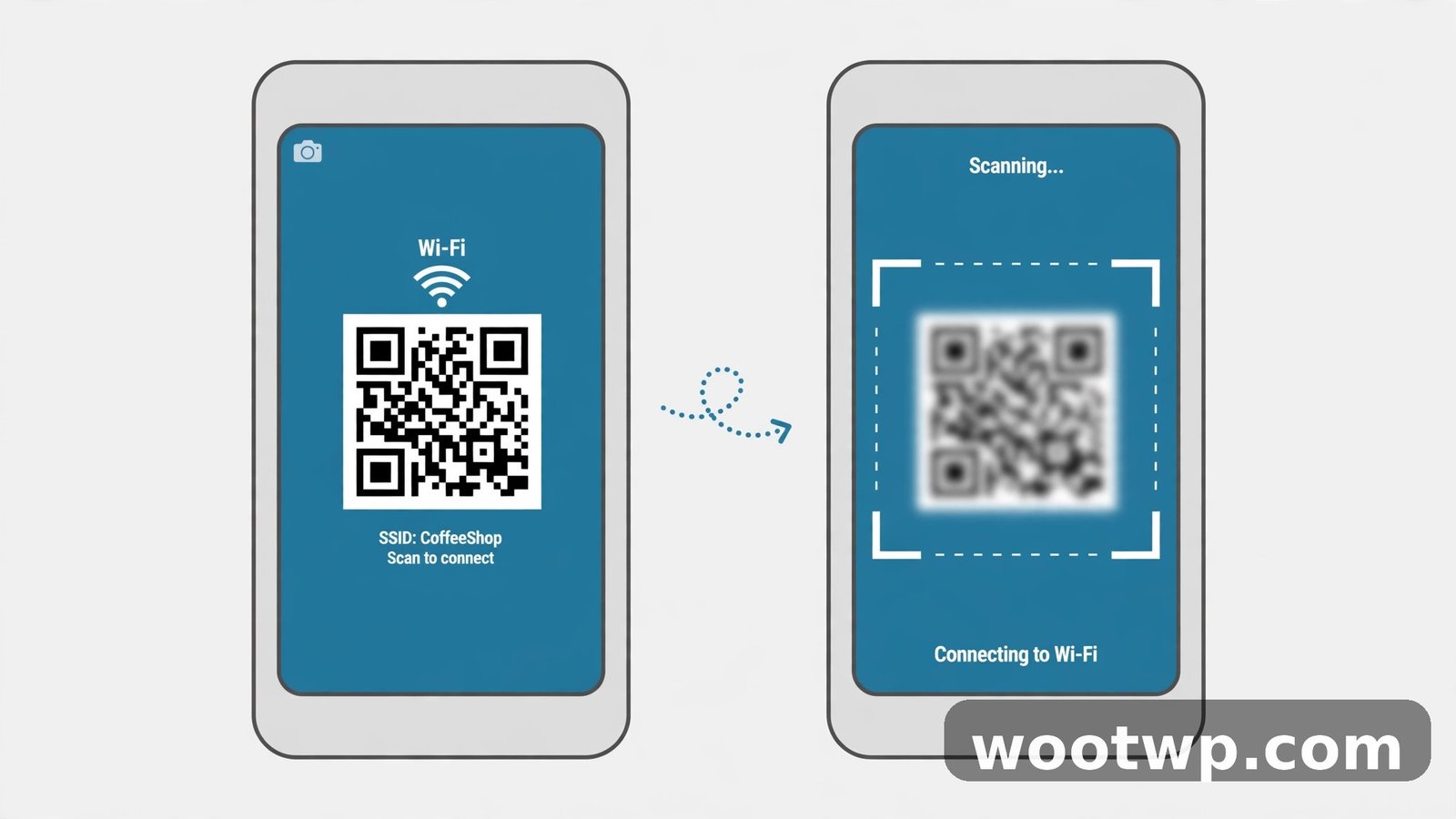
- On your Android phone, follow Method 1 to bring up the QR code for the network.
- On the second phone, open the camera app and point it at the QR code.
- A prompt appears offering to join the WiFi network. On iPhone, tap the notification that pops up. On Android, tap the join prompt on screen.
- That is it. The second phone connects without anyone typing the password.
No typing. No spelling out a 16-character password letter by letter while someone writes it on the back of their hand. Your guest just points their camera at your screen and they're in. I've done this at family dinners more times than I can count — someone new arrives, someone shouts "what's the WiFi?", and instead of the whole room shouting a password across the table, one phone scans another and it's done.
How to read the actual password from the QR code
What if you need the password itself, not just a connection? Say you're setting up a laptop, or a smart TV that can't scan anything. Then you want the code decoded, and Google Lens is the easiest way to do it. It's already on most Android phones.
- Open Google Lens or the Google app and tap the camera icon.
- Point it at the QR code on your first phone, or take a photo of the QR code and open that photo in Lens.
- Lens reads the code and shows the network details, including the password in plain text.
Or save the QR code as an image and open it in any free QR scanner app. The code itself holds the network name, the security type, and the password — so any decoder will show you all three.
One small tip, learned the hard way: crank your screen brightness up before the other phone tries to scan. A dim screen in a bright room is the number one reason a scan fails. It looks like a broken QR code. It isn't. It's just glare. (I once spent ten minutes convinced a code was corrupt before I thought to turn the brightness up. Ten minutes. For a brightness slider.)
Method 4: Check Your Router Settings
If the phone methods don't work for you, your router always has the answer — and knowing how to see saved WiFi password on Android through the router is the fallback that never fails. Think about it: the router is the thing that created the network in the first place. Its admin page lists the current WiFi password. This works on any phone, any Android version, even if you've never connected to the network on that phone at all.
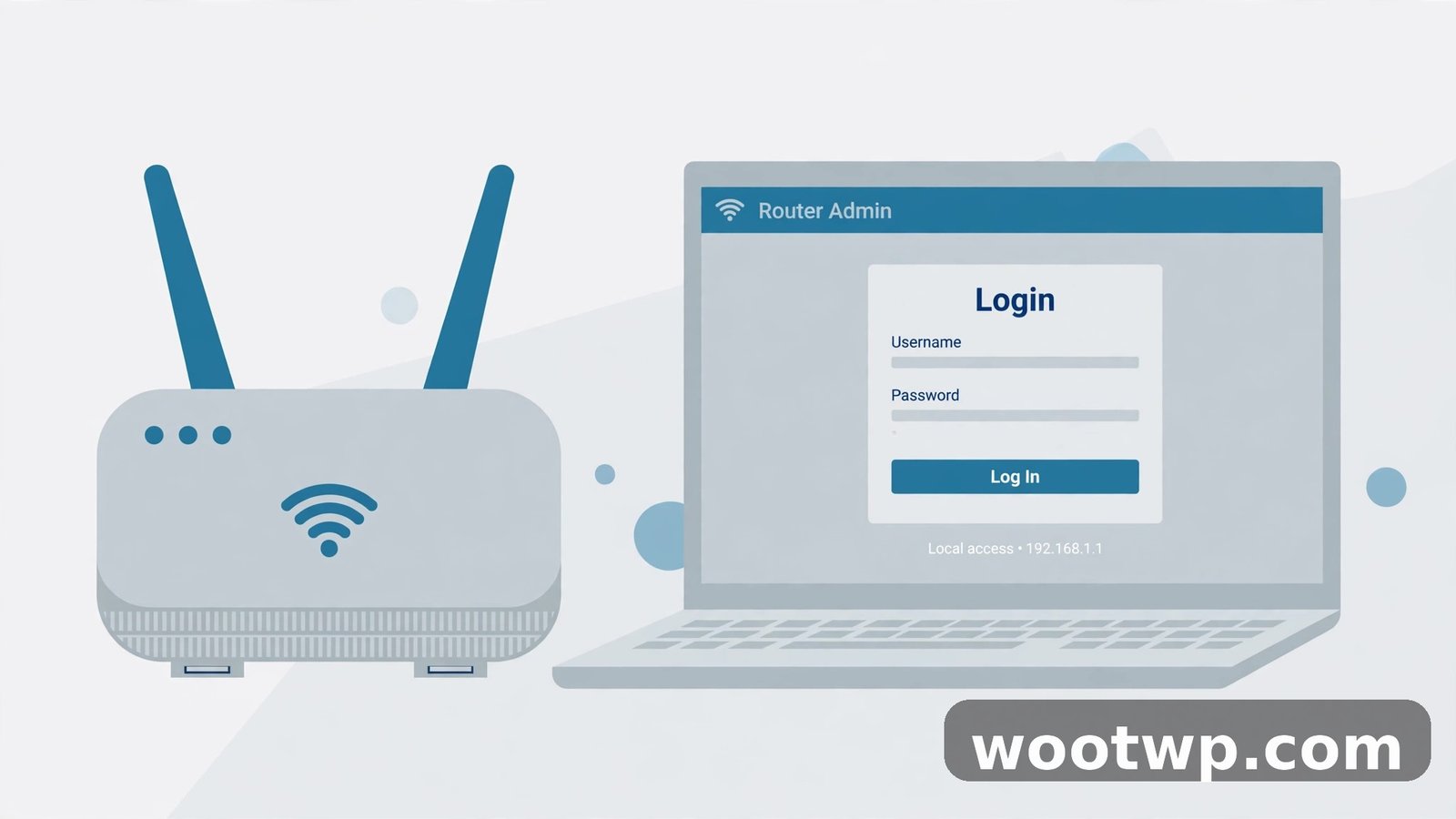
- Make sure your phone is connected to the WiFi network, or connect a laptop to it.
- Open a browser and go to your router's admin page. Common addresses are
192.168.1.1or192.168.0.1. If neither works, check the sticker on the bottom of your router, which usually lists the address. - Log in with the router's admin username and password. These are also printed on the router sticker unless you changed them. They are not the same as the WiFi password.
- Look for a section called Wireless, WiFi, or WLAN settings.
- Find the Password, Network key, or Pre-shared key field. Tap the eye icon or the Show option to reveal it.
That bit in step 3 — the two different passwords — trips up a lot of people. It tripped me up the first time, too. I typed the WiFi password into the admin login box, got rejected, and sat there assuming the sticker was wrong. It wasn't wrong. The admin password and the WiFi password are two completely different things, and the sticker usually has both printed on it, one above the other, in tiny print. Easy mistake. Annoying one.
What if you cannot log in to the router?
Nobody knows the router admin password? You've got two options. First, ask whoever set the router up — often your internet provider, or whoever installed it. Second, reset the router with the small reset button on the back. But be warned: a reset wipes everything custom. WiFi name, password, all of it, back to factory defaults, and you'll be setting the network up again from scratch. Only reset as a last resort.
Seriously. Last resort. A reset means every device in the house drops off the network at once — phones, laptops, the TV, the smart bulbs, all of it — and you get to reconnect them one by one. Ask around first. Somebody usually knows the password, even if it takes a phone call to find out who.
Method 5: Older Android Phones (Android 9 and Below)
Phones on Android 9 or older don't have the built-in Share option. Google only added it in Android 10. So on these phones your options are thinner — and I'll be straight with you about which ones are actually worth it.
- Use the router method. Method 4 above works no matter how old your phone is, and it's the safest choice you've got.
- Ask someone else on the network. If a family member has a newer phone that's already connected, they can pull the password up with Method 1 in seconds. Fastest route, honestly.
- Root access. On a rooted phone, the saved passwords live in a system file, and a root file explorer can read them. I don't recommend rooting a phone just for this. Rooting voids warranties, breaks banking apps, and opens up real security risks. The router method gives you the same answer without any of that mess.
And while you're at it — if your phone is stuck on Android 9 or older, check whether a software update is hiding under Settings, then System, then System update. Even a jump to Android 10 unlocks the built-in Share option, and then all of this gets a lot easier.
What to Do If the Password Still Won't Show
Sometimes you follow the steps exactly and the password still doesn't appear. If that's where you are with how to see saved WiFi password on Android, here are the usual causes — and the fix for each one.
- You're looking at the wrong network. Saved networks and nearby networks look painfully similar in that list. Make sure you tapped the exact network name you need. This is the most common mistake, and the easiest to miss — especially in a flat where half the networks are called something like "HomeWiFi" or "TP-LINK_5G". I once spent ages on the wrong "HomeWiFi" before noticing there were two of them.
- Your phone needs an update. A few older Android 10 and 11 builds had a bug where the Share button showed a QR code with no password text. Check for a system update and try again.
- A work profile is in the way. If the network was saved under a work profile, your personal profile may not be able to show it. Switch to the work profile, or ask your IT team.
- The network uses enterprise security. Office and campus networks that use a username-and-password login (WPA2-Enterprise) don't store a simple shared password. There's no password to show, because each person logs in with their own credentials. Talk to your network admin instead.
Keep Your WiFi Password Safe
Figuring out how to see saved WiFi password on Android is easy — and that's exactly why you should treat it with care. Anyone who holds your unlocked phone for a minute can do the same thing you just did. A few habits keep your home network safer.
- Use a strong WiFi password. A long mix of words, numbers, and symbols is much harder to guess than a pet's name. If your current password is weak, change it in the router settings and reconnect your devices. Yes, reconnecting everything is a pain. Do it anyway.
- Lock your phone properly. A fingerprint or PIN is the only thing standing between a stranger and your saved passwords. A phone with no screen lock just hands over every saved WiFi password to whoever picks it up. Think about that next time you're tempted to turn the lock off because it's "annoying".
- Turn on two-factor authentication for your important accounts. Your WiFi password is one thing, but your email and banking accounts matter more. Our guide on moving Google Authenticator to a new phone walks through keeping your two-factor codes safe when you switch devices.
- Check who is on your network now and then. If your internet feels slow for no reason, a neighbour may be using your WiFi. Our guide on checking who is using your WiFi shows how to spot unknown devices on your router.
- Share with a QR code, not a text message. When a guest needs WiFi, show them the QR code instead of texting the password. A texted password lives in chat history forever. A scanned QR code just connects them, and that's the end of it.
If your home internet has been slow lately, it may not be a password problem at all. Our guide on fixing slow WiFi at home covers placement, channels, and the restart order that fixes most speed complaints.
FAQs
Can I see a saved WiFi password on Android without root?
Yes — Android 10 and newer have a built-in Share option, and that's how to see saved WiFi password on Android without root. The Share button shows the password or a QR code, and root never comes into it. All you need is your screen lock, to prove it's your phone. Root was only ever the answer on Android 9 and older, back before Google added the Share button. These days? Forget root ever existed.
How do I see a saved WiFi password on Android if I am not connected to the network right now?
Head to Settings, then Network and internet, then WiFi, then Saved networks. Pick the network from that saved list and tap Share — that's how to see saved WiFi password on Android for a network you're not currently on. You don't have to be connected right now. You just need to have joined it once before, so Android has it stored.
Why does my Samsung phone not show the WiFi password?
On Samsung phones running One UI 5 or older, the password field stays hidden and you only get a QR code. Update to One UI 6 or newer and the eye icon appears, which reveals the password in plain text. Or scan the QR code with Google Lens — Lens reads the password straight out of the code. Either way works; the update is the tidier fix if your phone offers it.
Is it safe to share my WiFi password with a QR code?
Yes, and it's the safest way to share it. The other device connects directly without the password being typed, spoken, or sent in a message. Just be careful who you show the code to — anyone who scans it gets full access to your network. A QR code on a screen in a crowded room is basically a password written on a whiteboard.
Can I find the WiFi password on Android using a third-party app?
On Android 10 and newer, you don't need one, and I would avoid them. A lot of WiFi password apps ask for root access or permissions they have no business asking for, and some are plain malware dressed up as a helpful tool. The built-in Share option or your router settings give you the same answer with none of the risk. Why hand your passwords to a stranger's app?
What is the difference between the WiFi password and the router admin password?
The WiFi password is what devices use to join your wireless network. The router admin password is what you use to log in to the router's settings page. They are two different passwords, and changing one does not change the other. The admin password is usually printed on a sticker on the router — which is also where most people find the WiFi password in the first place.
Conclusion
So now you know how to see saved WiFi password on Android five different ways, and the first one takes under a minute on any modern phone. Open your WiFi settings, tap Share, unlock your phone, and the password is right there under the QR code. If your phone only shows the code, scan it with a second device or read it with Google Lens. And if all else fails, your router's admin page always has the answer. Keep the password safe, share it with a QR code instead of a text message, and you'll never be stuck hunting for it again.