Check Who Is Using Your WiFi: 5 Proven Ways That Work
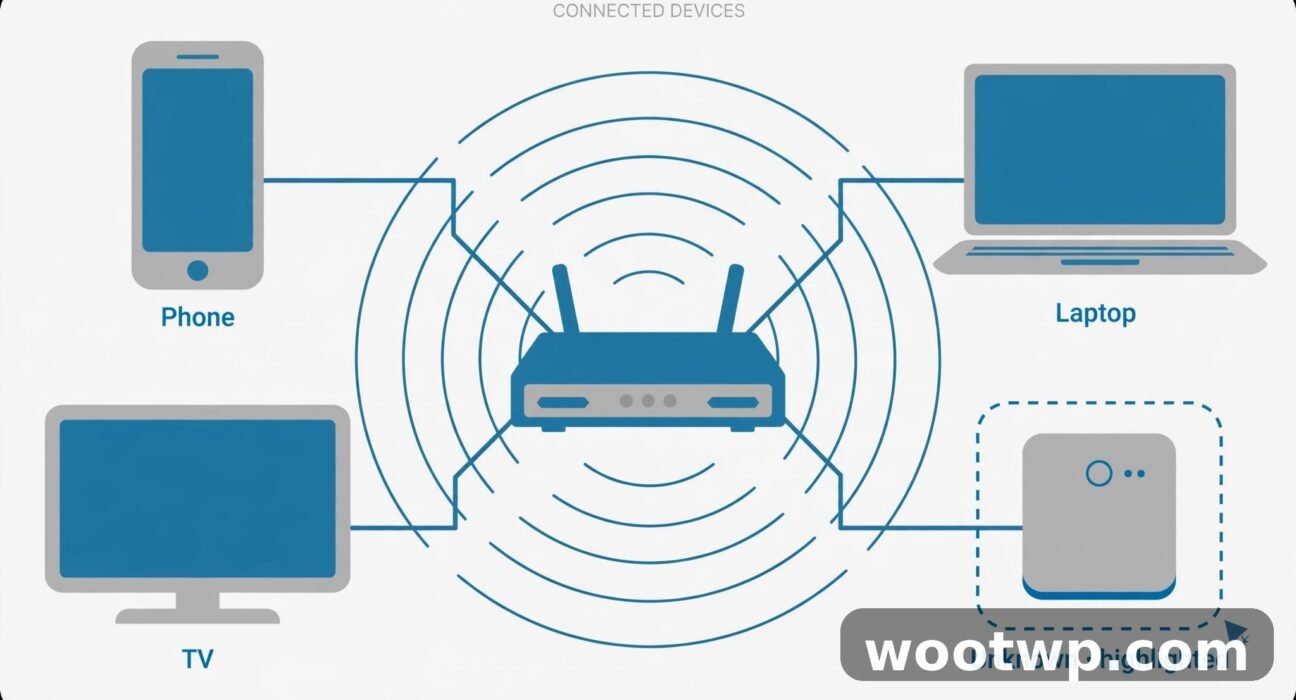
Internet suddenly crawling, and you suspect the neighbor is streaming movies on your dime? Learning how to check who is using your WiFi takes about five minutes, and it answers the question definitively — no guessing, no paranoia. This guide shows you how to see every device on your network using your router's own device list and free scanner apps, how to tell a stranger's phone apart from your own smart TV, and how to kick intruders off and keep them off.
Table of Contents
- Signs Someone Is Using Your WiFi Without Permission
- Method 1: Check Your Router's Connected Devices List
- Method 2: Scan Your Network with the Fing App
- Method 3: Scan from Your PC
- How to Identify Unknown Devices (Don't Panic Yet)
- How to Kick Someone Off Your WiFi for Good
- How to Secure Your WiFi So It Stays Yours
- FAQs
- Conclusion
Signs Someone Is Using Your WiFi Without Permission
Before you start scanning, check whether the symptoms actually point to an intruder:
- Speeds dropped for no reason. Your plan hasn't changed, the router is in the same spot, but everything buffers. Rule out the usual causes first (too many of your own devices streaming, ISP issues), but a sudden slowdown is the classic symptom.
- The router's activity light blinks like crazy when all your devices are off or asleep. Blinking means traffic is flowing — to something.
- Your data usage spiked. If your ISP's app shows much higher usage than your household could plausibly use, someone else is drinking from the well.
- Unknown devices in your router's device list — the definitive check, covered below.
One or two of these together is worth investigating. All four is nearly a diagnosis.
Method 1: Check Your Router's Connected Devices List
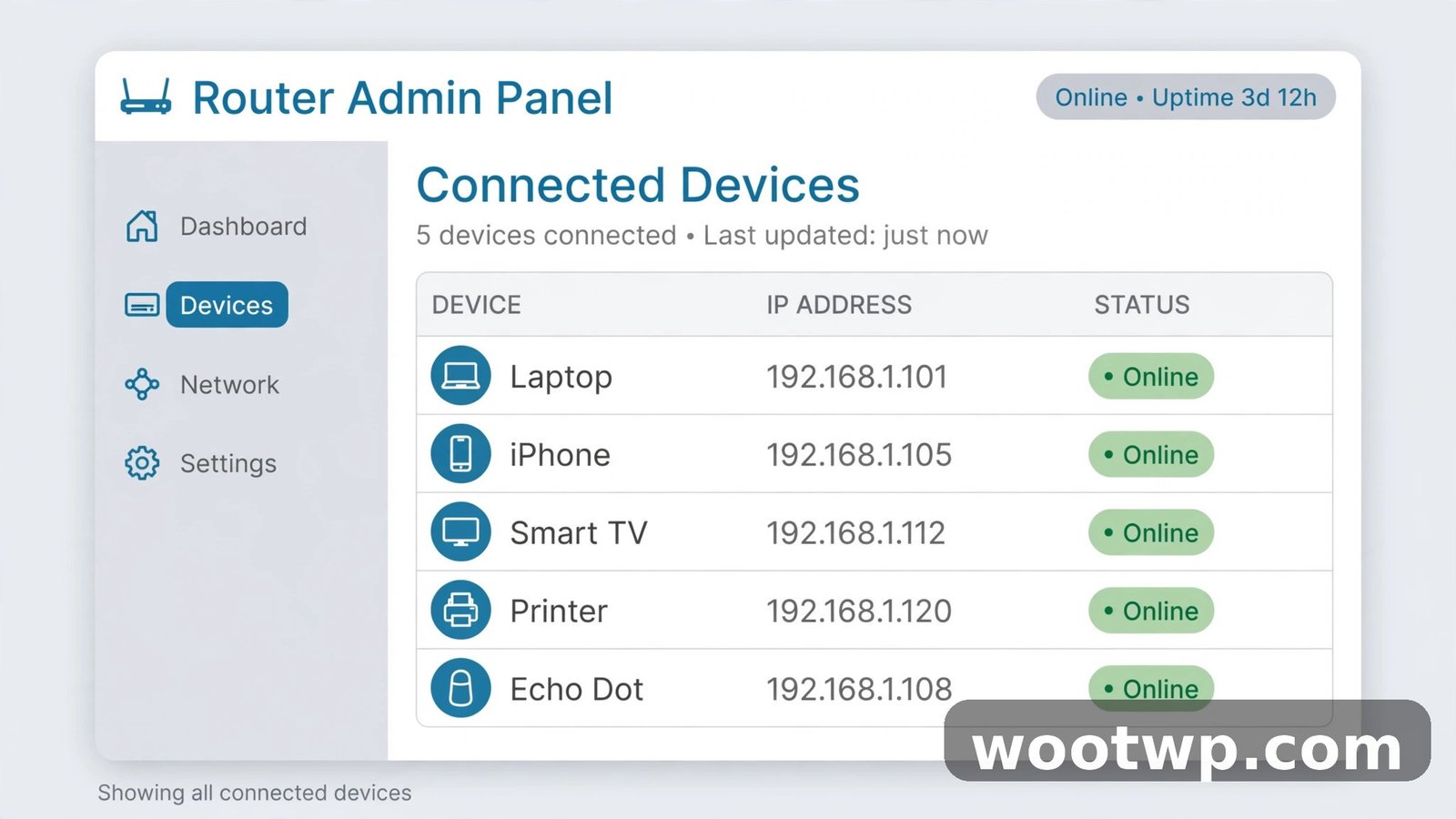
Your router already knows every device on your network. This method needs no installs and works on any device with a browser.
- Find your router's admin address. It's usually printed on the sticker on the router itself — commonly 192.168.1.1 or 192.168.0.1. On Windows, you can also run
ipconfigin Command Prompt and look for "Default Gateway." On a phone connected to the WiFi, check the network details for the gateway address. - Log in to the admin panel. Type the address into your browser. The default username and password are on the router sticker too (often admin/admin or admin/password). If you changed them and forgot, you'll need a factory reset — write the new ones down this time.
- Find the device list. Look for a section called "Connected Devices," "Client List," "DHCP Clients," "Network Map," or "Attached Devices." The exact name varies by brand (TP-Link, D-Link, Huawei, and ISP-provided routers all label it differently).
- Review the list. You'll see device names, IP addresses, and MAC addresses for everything currently connected. Compare it against what you own: your phones, laptops, TV, smart speakers, plugs, cameras.
Anything you can't account for is a candidate intruder — but read the "don't panic" section before you accuse the neighbor.
Method 2: Scan Your Network with the Fing App
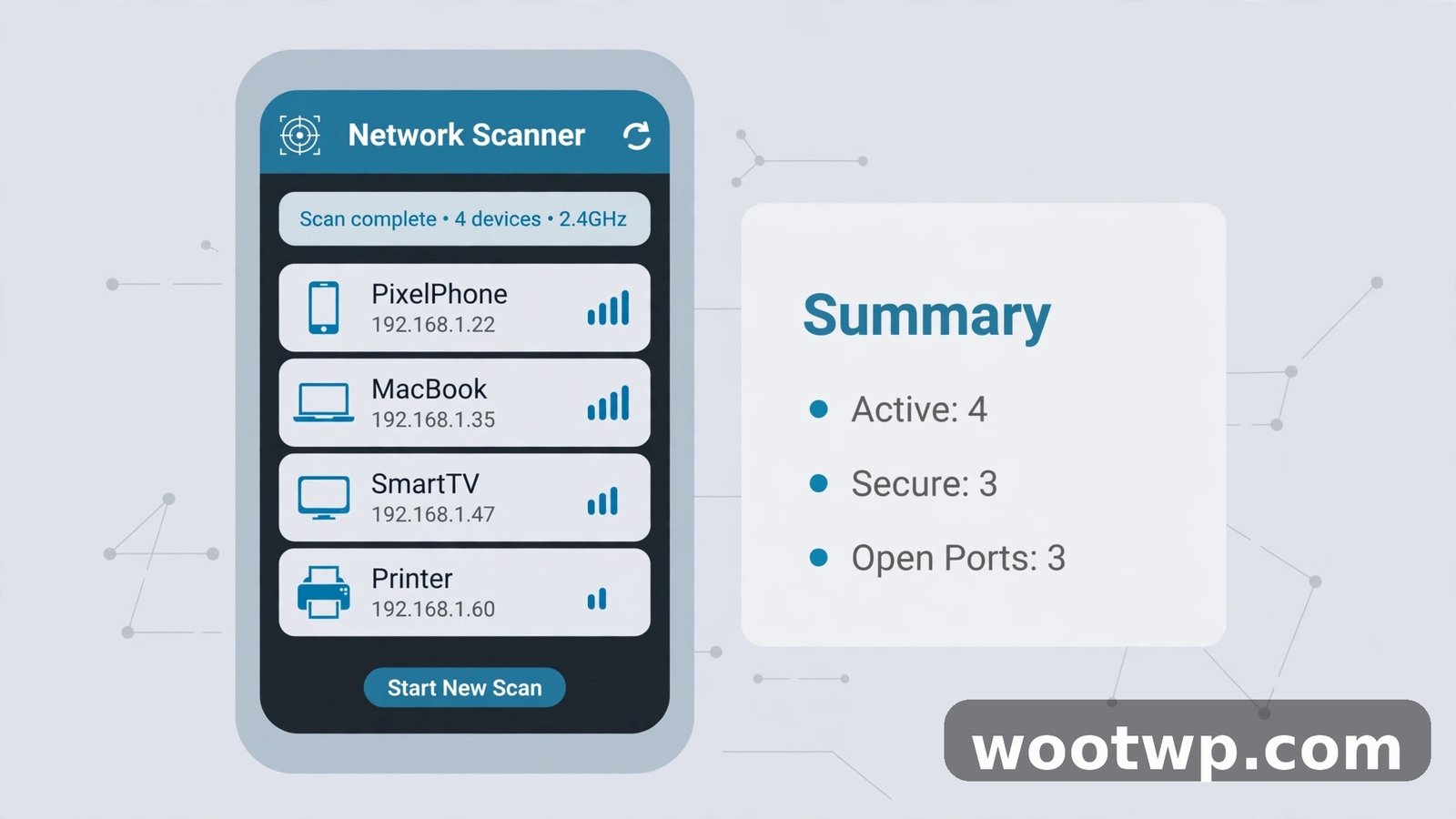
If the router admin panel feels intimidating, Fing does the same job from your phone with a much friendlier interface. It's free for basic network scanning on Android and iPhone.
- Install Fing from the Play Store or App Store.
- Connect your phone to your WiFi — the scan only sees the network you're currently on.
- Open Fing and tap "Scan for devices." Within seconds you get a list of everything on the network.
- Tap any device to see its IP address, MAC address, and manufacturer. Fing is good at identifying brands — "Espressif" means a smart-home gadget, "Hon Hai" is usually a Foxconn-made device (common in consoles and phones).
- Name your own devices. Tap each one you recognize and give it a label ("Living room TV," "Sara's laptop"). Next time you scan, strangers stand out instantly.
Fing also shows which devices are currently active versus recently seen, which helps you catch the phone that only connects at night. For more ways to keep an older Android phone running smoothly while you run tools like this, see this guide on making your Android phone faster.
Method 3: Scan from Your PC
Prefer a computer? Two free options cover Windows, Mac, and Linux:
Wireless Network Watcher (Windows, free): A tiny portable tool from NirSoft — no installation needed. Download it, run it, and it immediately lists every device on your WiFi with IP address, MAC address, device name, and manufacturer info. Right-click any device for details like first/last seen times. Note: some antivirus tools flag NirSoft utilities because of what they can do, not because they're malicious — download only from the official NirSoft site.
Angry IP Scanner (Windows, Mac, Linux, free and open source): Enter your network's IP range (usually 192.168.1.1 to 192.168.1.254), click Start, and it lists every responding device with its MAC address. Heavier-duty than you need for a quick check, but excellent if you like detail.
A good roundup comparing these and a few more options is this wireless network watcher software comparison — useful if you want to pick the right tool before downloading anything.
How to Identify Unknown Devices (Don't Panic Yet)
An unfamiliar name in the device list is not proof of an intruder. Modern homes are full of quiet network guests:
- Smart home gear — TVs, speakers, plugs, bulbs, cameras, thermostats, and doorbells all connect, often with cryptic manufacturer names.
- Phones with private MAC addresses — both Android and iPhone now randomize their MAC addresses by default for privacy. Your own phone may show up as an "unknown device" with a strange address.
- Guests you forgot about — the friend who asked for the WiFi password six months ago whose phone auto-connects every time they walk past.
How to identify them properly:
- Count first. If the list shows 12 devices and you can account for 12 gadgets in the house, you're fine.
- Match MAC addresses. Every device has a unique MAC. Find yours: Android — Settings, then About Phone, then Status; iPhone — Settings, then General, then About (listed as "Wi-Fi Address"); Windows — run
ipconfig /allin Command Prompt and look for the wireless adapter's physical address. Compare with the scan results. - Unplug to identify. Turn off smart devices one by one and rescan. When the mystery entry vanishes, you've found it.
- Check the timing. A device that only appears at 3 AM is more suspicious than one that's been there since you bought a smart plug.
Only treat a device as an intruder after you've ruled out your own gear.
How to Kick Someone Off Your WiFi for Good
Found a genuine freeloader? Here's the removal order, from quick to permanent:
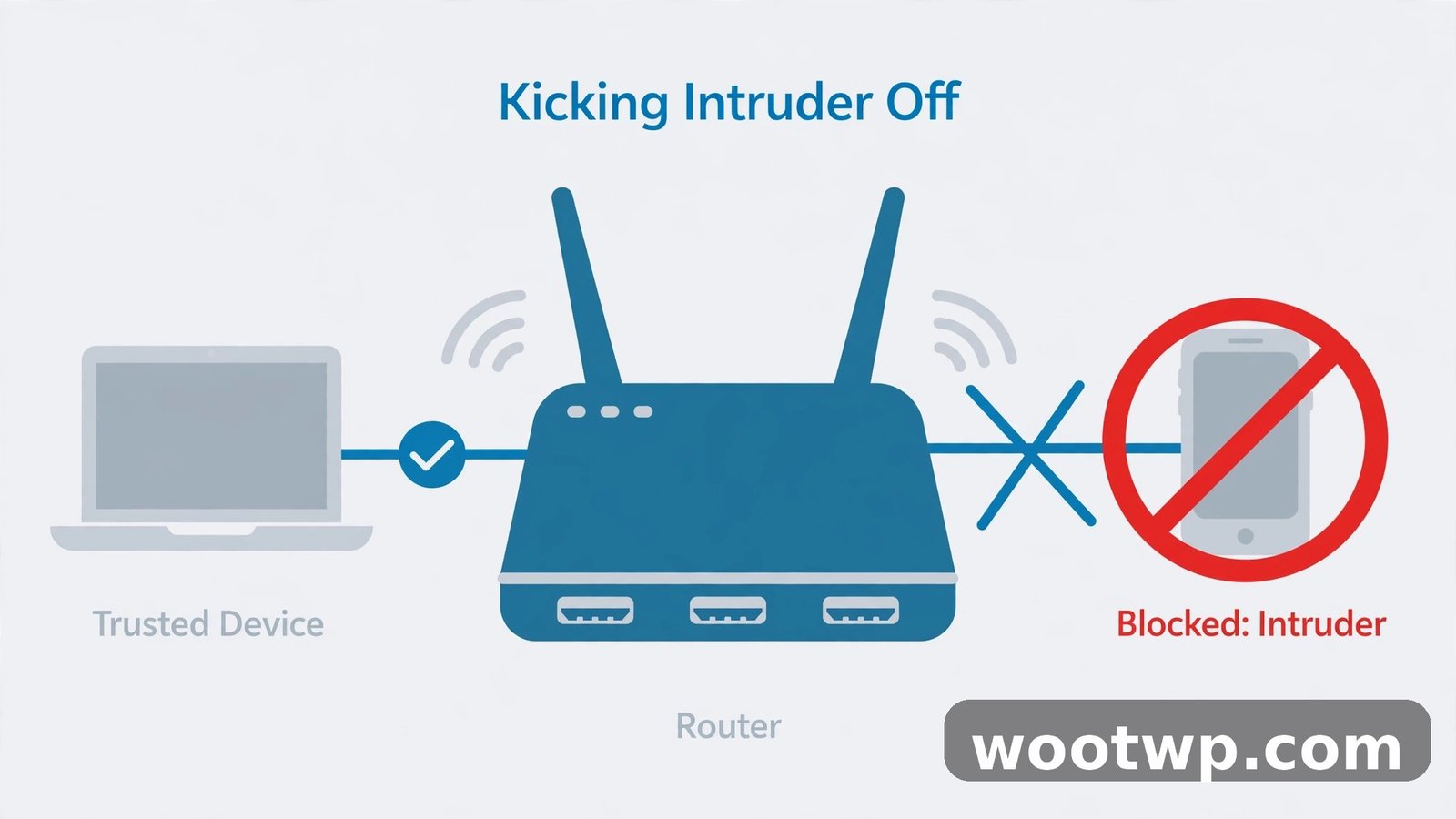
- Block the device in your router. Go back to the connected devices list, select the intruder's device, and choose "Block" or "Deny access." This kicks it off immediately — but a determined person can reconnect if they still know your password.
- Change your WiFi password. This is the step that actually ends it: everyone gets disconnected, and only people with the new password get back on. Use a long passphrase — three or four random words plus numbers beats a short "clever" password.
- Change the router admin password too. If the intruder got in with the default admin/admin, they could just unblock themselves. Set a strong, unique admin password.
- Reconnect only your own devices. Go through the house and reconnect everything you own. Anything that can't reconnect with the new password wasn't yours.
What about "WiFi jammer" apps that claim to kick people off? Skip them. The legitimate way to remove someone is through your own router's block list and a password change. Apps that deauthenticate other users often violate local laws and your ISP's terms.
How to Secure Your WiFi So It Stays Yours
A one-time cleanup means nothing if the door stays open. Lock it properly:
- Use WPA2 or WPA3 encryption. Check your router's wireless security settings — if it's on WEP or "Open," that's how the intruder walked in. WPA3 is best; WPA2 is fine if your router doesn't offer WPA3.
- Disable WPS. The push-button WPS feature has known vulnerabilities. Turn it off in the router settings and connect devices with the password instead.
- Update the router firmware. Manufacturers patch security holes regularly. Check for updates in the admin panel every few months.
- Use a guest network for visitors. Most modern routers can broadcast a separate guest WiFi. Guests get internet without ever touching your main password or seeing your devices.
- Turn off remote administration unless you actually use it — it lets anyone on the internet try to log in to your router.
- Re-scan monthly. A quick Fing scan once a month takes a minute and catches new freeloaders early.
FAQs
How can I see who is connected to my WiFi?
Log in to your router's admin panel and open the connected devices (or DHCP client) list, or scan the network with a free app like Fing on your phone. Both show every device's name, IP, and MAC address.
Why do I see devices I don't recognize on my WiFi?
Usually it's your own gear: smart TVs, speakers, plugs, and cameras often appear with cryptic manufacturer names, and phones with private MAC addresses show up as unknown. Match MAC addresses and unplug devices one by one to identify them before assuming an intruder.
Can I kick someone off my WiFi from my phone?
Yes — log in to your router's admin page from your phone's browser and block the device, or change the WiFi password, which disconnects everyone at once. Some router makers' apps also offer device blocking directly.
Will changing my WiFi password kick everyone off?
Yes. Every connected device gets disconnected immediately and must rejoin with the new password. That's exactly why it's the most effective way to remove unauthorized users.
Is it illegal for someone to use my WiFi without permission?
In many countries, yes — unauthorized access to a computer network is an offense in most jurisdictions, including under laws like the UK's Computer Misuse Act and various US state and federal statutes. Beyond legality, an intruder can slow your connection and potentially expose your network to abuse.
How do I know if my neighbor is stealing my WiFi?
Scan your network and look for devices you can't account for after identifying all your own gear. Confirm with MAC address matching. If an unknown device persists after you've ruled out smart-home gadgets and guests, treat it as unauthorized and block it.
Conclusion
To check who is using your WiFi, start with your router's connected devices list or a quick Fing scan — both show you every device on the network in under a minute. Take the time to identify your own smart-home gear before sounding the alarm, then remove real intruders by blocking them and changing your WiFi password. Finish with WPA2/WPA3 encryption, a guest network for visitors, and a monthly rescan. Five minutes of checking now saves you months of mysteriously slow internet.
For a broader look at scanner options before you download anything, this tiny utility roundup walks through the most popular free tools.