
How to Fix Android Phone Overheating: 9 Proven Fixes That Work
A phone that feels hot in your hand is worrying, and it is more common than most people think. If you want to know how to fix Android phone overheating, the good news is that most cases come down to one app working too hard, a bad charger, or a setting that pushes the processor for no reason. This guide starts with what to do right now, then walks through nine fixes that stop the heat from coming back.
- What to Do Right Now If Your Phone Is Too Hot to Hold
- Is It Normal Warmth or Real Android Phone Overheating?
- Fix 1: Find the Rogue App Draining Your Battery
- Fix 2: Restart Your Phone
- Fix 3: Take the Case Off and Get Out of the Sun
- Fix 4: Fix Your Charging Habits
- Fix 5: Turn Down the Display Settings That Add Heat
- Fix 6: Install the Latest Software Update
- Fix 7: Test Your Phone in Safe Mode
- Fix 8: Check Your Battery Health
- Fix 9: Give the Processor a Break
- What NOT to Do When Your Phone Overheats
- When to Visit a Repair Shop
- Frequently Asked Questions
What to Do Right Now If Your Phone Is Too Hot to Hold
If your phone is too hot to hold comfortably, stop using it and act fast. Unplug the charger at once if the phone is plugged in. Close the app you were using, especially a game, the camera, or a video call.
Move the phone out of direct sunlight and away from heat sources like a car dashboard. Take the case off so heat can escape from the back. Then put the phone screen-down on a cool, hard surface, like a table or a tile floor, and leave it alone for 10 to 15 minutes. If it will not cool down, switch it off completely and let it rest.
That short break is the fastest way to cool down your Android phone safely. In my experience, most phones feel noticeably cooler within ten minutes once the charger is out and the heavy app is closed. Do not keep using a very hot phone to see if it gets better. Heat is the enemy of batteries, and a short rest now is far cheaper than a damaged battery later.
Is It Normal Warmth or Real Android Phone Overheating?
Not every warm phone is a problem. Your phone packs a powerful processor into a very small body with no fan, so some warmth is normal. The trick is knowing the difference between normal warmth and real overheating.
Warmth is normal while gaming, recording 4K video, or on a long video call. It is also normal while charging, especially with fast charging, or while setting up a new phone or downloading a large update. In each case, the warmth should fade within a few minutes of stopping the activity.
It is a real problem when the heat shows up at the wrong time. Watch for these warning signs:
- The phone feels hot while sitting idle on a table, doing nothing
- It gets hot within a few minutes of light use, like browsing or texting
- The battery drops fast at the same time the phone heats up
- The phone shows a temperature warning, slows down, dims the screen, or shuts itself off
- The heat keeps coming back day after day, even after a restart
Context matters more than any exact temperature reading. A phone that gets hot while gaming is normal. A phone that gets hot while charging overnight on your bedside table is not, and that is when you need to work through the fixes below. Telling the two apart is the first step in how to fix Android phone overheating, because normal warmth needs no fix at all.
Fix 1: Find the Rogue App Draining Your Battery
In my experience, a single misbehaving app is the most common cause of Android phone overheating. One app stuck in a loop, or constantly using location in the background, can keep the processor busy all day. The Battery usage screen shows you exactly which app is guilty.
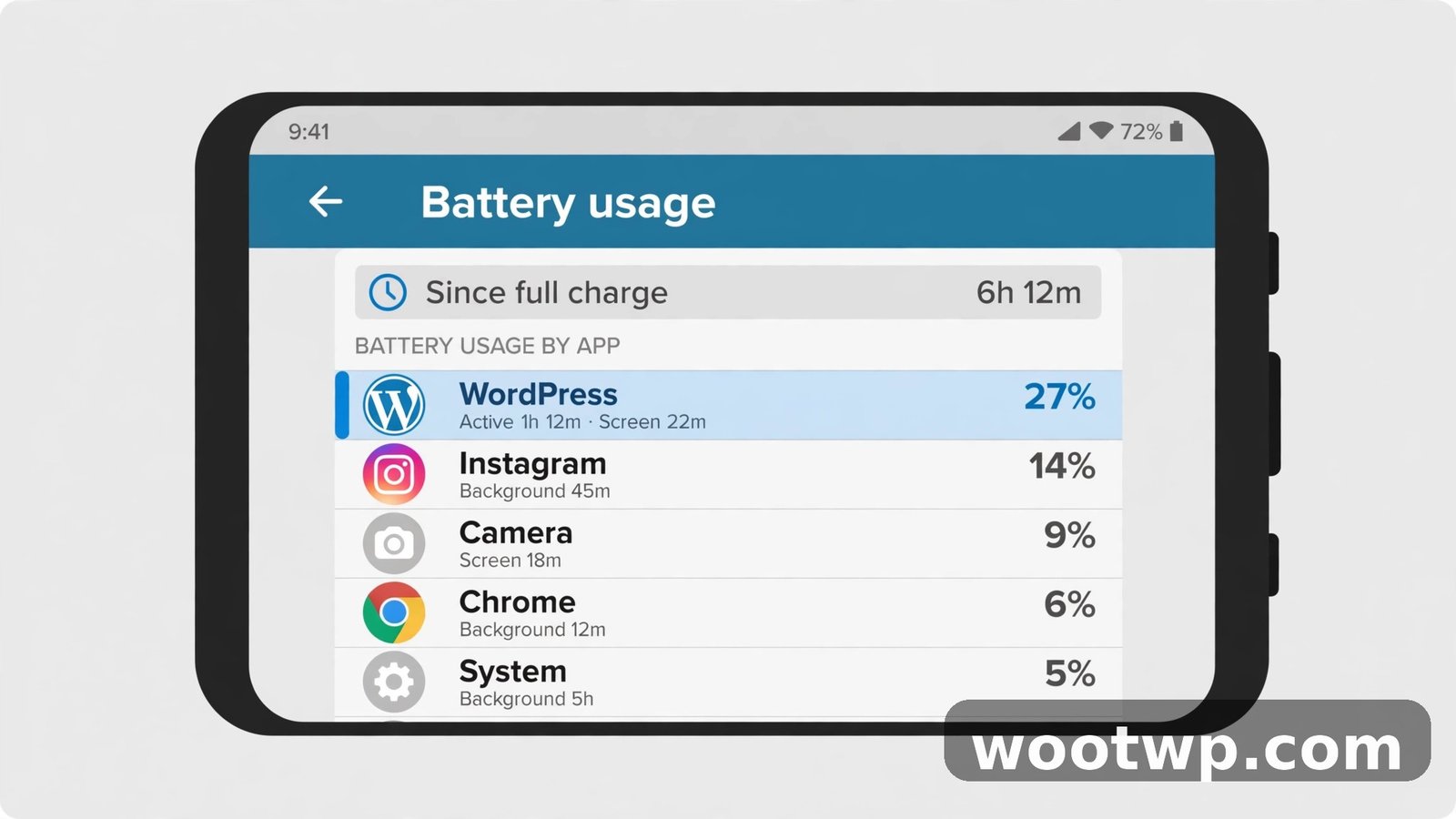
Here is how to find it:
- Open Settings.
- Tap Battery.
- Tap Battery usage.
- Look at the list of apps and the percentage next to each one.
- Tap any app near the top to see how much time it spent in the foreground and in the background.
An app that used a large share of battery while mostly running in the background is your prime suspect. Social media apps, poorly coded free apps, and apps that track location are repeat offenders. Once you have found it, tap the app and turn on Background restriction, or set it to Restricted under battery use. If it is an app you rarely use, uninstall it instead.
If you want a deeper look at battery condition before you blame an app, this guide explains how to check battery health on Android step by step.
Fix 2: Restart Your Phone
A restart is the simplest Android phone hot fix on this list, and it works more often than people expect. Apps and system processes can get stuck after an update, a crash, or days of non-stop use. A stuck process keeps the processor awake, and an awake processor makes heat.
Here is how to do it properly:
- Press and hold the power button until the power menu appears.
- Tap Restart. If your phone only offers Power off, tap that, wait 30 seconds, then switch it back on.
- After the restart, leave the phone alone for five minutes and feel the back of it.
If the phone stays cool after a restart but heats up again later, something is starting up with the phone and causing trouble. That points to an app, which brings us back to Fix 1, or to Safe Mode in Fix 7. Restart your phone at least once a week as a habit, and you will avoid a lot of small problems before they grow. It is a small habit, but it is a real part of how to fix Android phone overheating the easy way.
Fix 3: Take the Case Off and Get Out of the Sun
Your phone cools itself through its body. A thick case traps that heat, and direct sunlight adds heat from outside at the same time. It is a bad combination, and it is one of the easiest causes of Android phone overheating to fix.
Take the case off and feel the back of the phone. If it is much hotter under the case than the case itself feels, the case is part of the problem. Thick rubber, leather, and wallet-style cases are the worst offenders. A thin case is usually fine, but any case makes cooling slower while charging or gaming.
Never leave your phone on a car dashboard, a windowsill, or a beach towel in direct sun. A phone left in a parked car on a warm day can get far hotter than it ever gets from normal use. The same goes for using your phone as a sat nav on a sunny dashboard while it charges. That is three heat sources at once: the sun, the charger, and the screen at full brightness.

If you use your phone for navigation, clip it to an air vent mount so cool air flows over it. If you are outside on a hot day, keep the phone in a pocket or a bag, in the shade, and take it out only when you need it.
Fix 4: Fix Your Charging Habits
Charging creates heat, and bad charging habits create a lot of it. This is the area where small changes make the biggest difference, especially when your phone gets hot while charging.
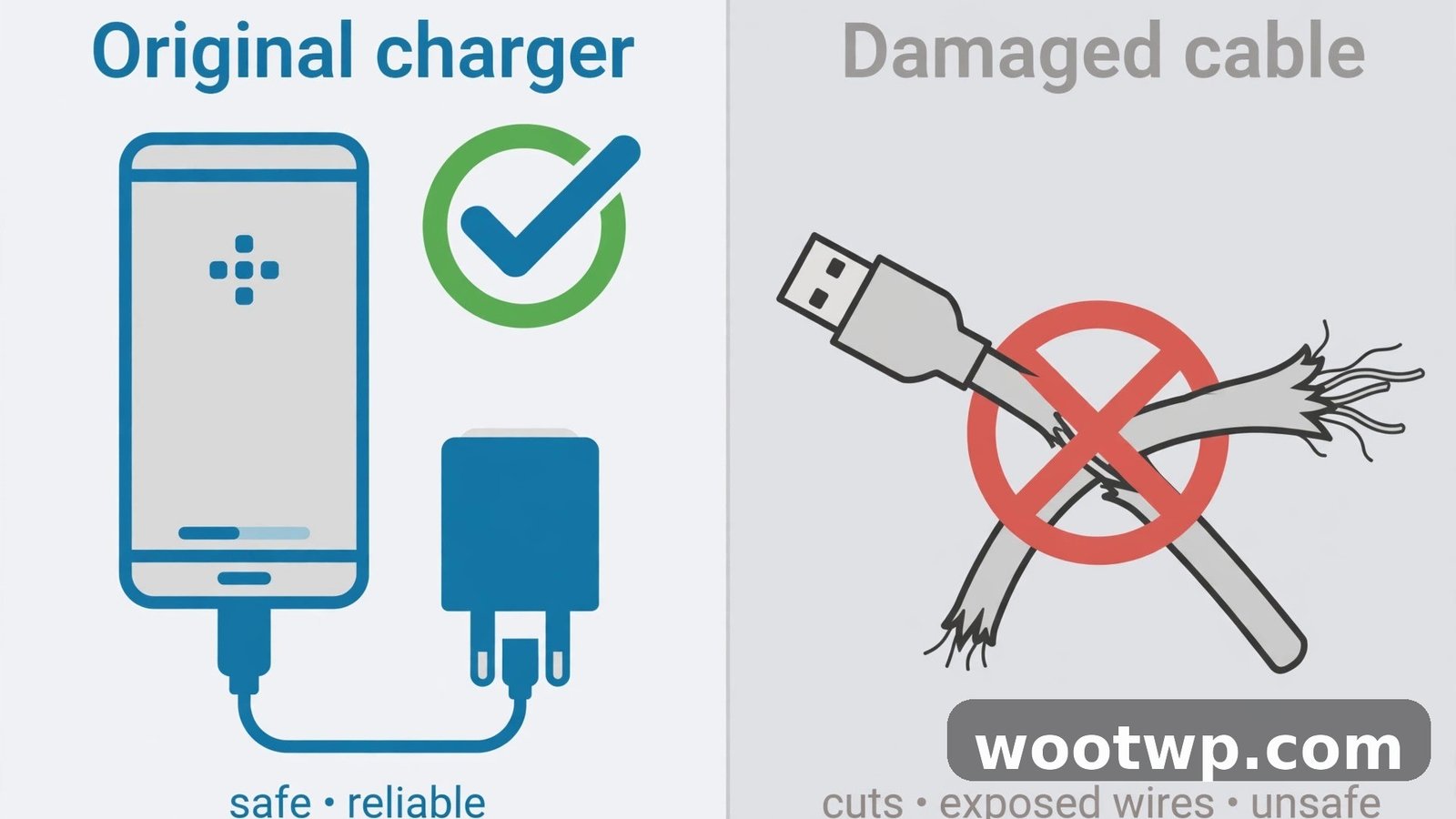
Use the charger that came with your phone, or a certified charger from a known brand. Cheap, unbranded chargers often deliver unstable power, and unstable power means extra heat. The same applies to damaged cables. If a cable is frayed or the plug feels loose, replace it.
Follow these charging rules:
- Stop using the phone while it charges. Gaming or video calls during charging forces the battery to charge and discharge at the same time, and that generates serious heat.
- Charge on a hard, flat surface. A bed, a sofa, or a pile of clothes traps heat around the phone.
- Unplug the phone once it reaches 100 percent. Leaving it on the charger all night keeps the battery warm for hours.
- Remove the case while charging if your phone usually feels warm on the charger.
Wireless charging adds more heat than wired charging, because some energy is lost as heat between the pad and the phone. If your phone gets hot on a wireless charger, switch to a wired charger and see if the problem goes away.
Fix 5: Turn Down the Display Settings That Add Heat
The screen is one of the biggest power users in your phone. A bright screen running at a high refresh rate makes the processor and the battery work harder, and that work turns into heat.
Start with brightness. Swipe down from the top of the screen and lower it to a comfortable level, or turn on Adaptive brightness so the phone adjusts it for you. The path is Settings > Display > Adaptive brightness. A screen at full brightness outdoors in summer is a common cause of a hot phone.
Next, check the refresh rate. Many newer phones run at 120Hz by default, which looks smooth but uses more power. Go to Settings > Display > Motion smoothness or Refresh rate, depending on your brand, and choose Standard or 60Hz instead of Adaptive or 120Hz.
Finally, turn off Always On Display if you use it. It keeps part of the screen lit all day, and that adds a small but constant amount of heat and battery drain. Go to Settings > Lock screen > Always On Display and switch it off. Most people never notice the difference once they get used to the cooler, longer-lasting phone. These small display changes are a quiet part of how to fix Android phone overheating for good.
Fix 6: Install the Latest Software Update
Software updates often include fixes for battery drain and heat. Phone makers regularly release patches that fix a bug in the system, improve how the processor manages power, or stop a system app from running wild. Skipping updates means living with bugs that are already fixed, so this step belongs in any plan for how to fix Android phone overheating.
Here is how to check:
- Open Settings.
- Tap System or Software update, depending on your brand.
- Tap System update or Download and install.
- Install any update that is available, then restart the phone.
On Samsung phones, the path is Settings > Software update > Download and install. On Pixel phones, it is Settings > System > Software updates. Do the update while the phone is cool, plugged into a good charger, and connected to Wi-Fi. Do not start an update on a phone that is already very hot. Let it cool down first, then update.
If your phone gets hot right after an update, give it a day. The system re-indexes files and optimizes apps after a big update, and that extra work usually settles down within 24 hours.
Fix 7: Test Your Phone in Safe Mode
Safe Mode starts your phone with only the built-in system apps running. Every app you installed is switched off temporarily. This is the fastest way to answer one question: is a third-party app causing the heat, or is it the phone itself?
Here is how to enter Safe Mode:
- Press and hold the power button until the power menu appears.
- Press and hold Power off on the screen until a message asks if you want to reboot into Safe Mode.
- Tap OK.
Your phone will restart with "Safe mode" written in a corner of the screen. Use it normally for 30 to 60 minutes. Browse a little, send a few messages, and feel the back of the phone.
If the phone stays cool in Safe Mode, an app you installed is the cause. Restart the phone to leave Safe Mode, then uninstall your most recently installed or updated apps one at a time, starting with the ones near the top of Battery usage. Test the phone for a few hours after each removal until the heat stops. If the phone still gets hot in Safe Mode, the cause is the system, the battery, or the hardware, and software tricks will not fix it. Safe Mode fixes nothing by itself, but it tells you exactly where to look when you are working out how to fix Android phone overheating.
Fix 8: Check Your Battery Health
A worn battery is a common cause of Android phone overheating on older phones. Batteries wear out with every charge cycle. As they age, they hold less charge, charge less efficiently, and produce more heat while doing it. A phone with a worn battery will feel hot during ordinary use, drain quickly, and sometimes shut down even though the battery icon shows charge left.
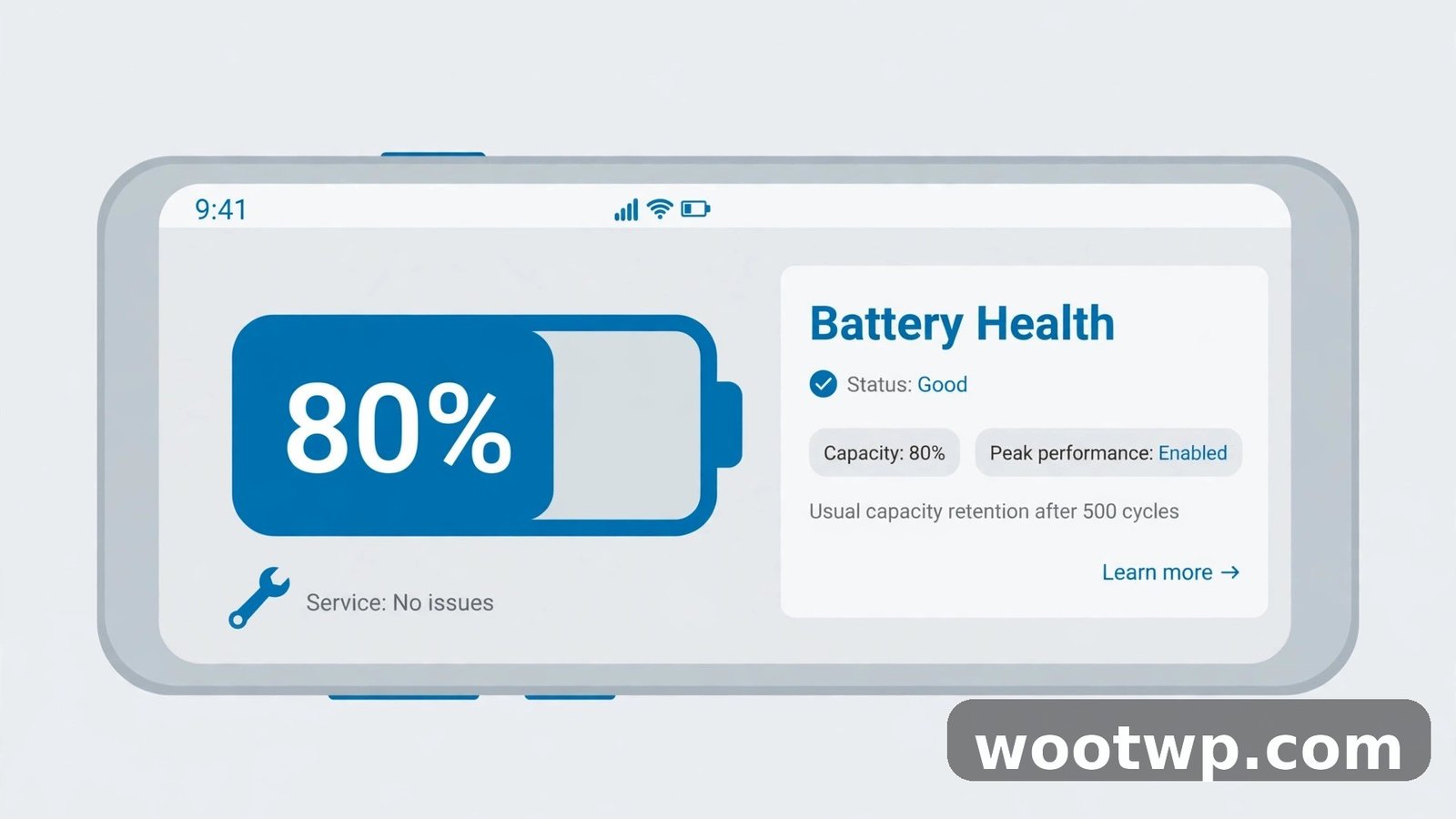
Here is how to check it:
- Open Settings.
- Tap Battery.
- Tap Battery health or Battery diagnostics, if your phone shows it. Pixel 6 and later models show this under Settings > Battery > Battery diagnostics.
- On Samsung phones, open the Samsung Members app, tap Support, then Phone diagnostics, then Battery status.
If your phone does not show battery health in Settings, your phone maker's app or a visit to a repair shop can test it. A battery health reading below about 80 percent of its original capacity is a sign the battery is worn. At that point, no app fix will fully solve the heat, because the battery itself is the problem.
The good news is that a battery replacement is one of the cheapest phone repairs, and it often makes an old phone feel new again. Do not try to replace the battery yourself unless you know exactly what you are doing. Modern phone batteries are glued in place, and a punctured battery is a fire risk. A new battery is often the real answer to how to fix Android phone overheating on a phone that is two or three years old.
Fix 9: Give the Processor a Break
Sometimes the problem is not one bad app or one bad setting. It is everything at once. Too many apps running, too many features switched on, and too many demands on the processor will heat any phone up. Knowing how to fix Android phone overheating means starting by removing the load, then finding the cause.
Start by closing the heavy apps you are not using. Swipe up from the bottom of the screen to open recent apps, then swipe away the games, camera apps, and video apps. You do not need to close every app, every time. Just close the demanding ones when you are done with them.
Then turn off the features you are not using right now:
- Swipe down and turn off Bluetooth, Location, and Mobile hotspot when you do not need them.
- Turn off auto-sync for accounts you rarely check, under Settings > Accounts.
- Switch off 5G if you are in an area with weak 5G signal. A phone hunting for a weak signal works hard and gets hot. Go to Settings > Connections > Mobile networks > Network mode and choose 4G or LTE.
If your phone still runs hot after these changes, it may simply be working through a heavy workload, like a big backup or a large download. Check Settings > Battery > Battery usage again after an hour. If the top item is a system process like a backup or an update, let it finish, then check again.
If your phone also feels slow as well as hot, a general cleanup helps. This guide shows how to make your Android phone faster without installing extra apps. And if storage is nearly full, that can make the system work harder too, so learn how to free up storage on Android without deleting photos before you buy anything.
What NOT to Do When Your Phone Overheats
Bad advice about overheating is everywhere, and some of it can damage your phone or hurt you. Never put your phone in a fridge or a freezer. The sudden cold can cause condensation inside the phone, and water inside a phone causes corrosion, short circuits, and permanent damage. Let the phone cool down naturally at room temperature.
Never put your phone in water to cool it down, even if it claims to be water resistant. Water resistance wears down over time, and a hot phone under a cold tap is a fast way to crack a seal or a screen.
Never use a "phone cooler" or "cooling" app from the Play Store. These apps claim to lower your phone's temperature, but they cannot change how hot the hardware gets. Most of them show fake temperature readings, run ads, and keep running in the background, which adds more heat instead of removing it.
Never keep charging a phone that is already very hot. Unplug it and let it cool first. Never press down on a phone whose back panel is lifting or bulging. That is a swollen battery, and it needs professional help, not pressure.
Google's own support page explains how to keep your Pixel phone from feeling too warm or hot, and Samsung gives similar advice on what to do when your Samsung phone overheats or gets hot. Both makers say the same thing: stop using the phone, move it somewhere cool, and let it cool down on its own. The steps in this guide are the safe way to learn how to fix Android phone overheating, so skip the shortcuts and stick with them.
When to Visit a Repair Shop
Most overheating is fixable at home with the steps above. Some of it is not, and knowing the difference matters. Visit a repair shop if any of these apply:
- The phone gets hot while sitting idle, even in Safe Mode, after a restart, and with no apps running.
- The back panel or screen is lifting, bulging, or separating from the frame. This can mean a swollen battery. Treat it as a safety fault: switch the phone off at once, do not charge it, do not press on it, and take it to a repair shop as soon as you can.
- The phone shuts down by itself, shows temperature warnings often, or refuses to charge.
- The phone gets hot and the battery drains fast even after a factory reset. Back up your data first, then reset from Settings > System > Reset options > Erase all data. If the heat survives a reset, it is almost certainly a hardware fault.
- The phone has been dropped in water or suffered a hard drop, and the heat started after that.
Choose an authorized service center or a repair shop with good reviews for your brand. Tell them exactly when the phone gets hot and what you have already tried. That saves them time and saves you money. Bring the list of fixes you have already tried, so the technician can skip straight to the hardware checks that decide how to fix Android phone overheating for good.
Frequently Asked Questions
Why is my Android phone overheating all of a sudden?
A sudden change usually means a new app, a recent update, or a damaged charger. Check Battery usage for an app using far more power than usual, and think about what changed on the day the heat started. A restart is the quickest Android phone hot fix to try first, and a software update fixes most sudden cases.
Is it normal for an Android phone to get hot while charging?
A little warmth while charging is normal, especially with fast charging. It is not normal if the phone is too hot to hold, or if it stays hot long after you unplug it. If your phone gets hot while charging, check the charger first, take the case off, and stop using the phone while it charges.
Why does my phone get hot when I am not using it?
An app running in the background is the most likely cause. Open Settings, then Battery, then Battery usage, and look for an app with high background use. Restrict its background activity or uninstall it. A worn battery can also cause idle heat, and that is a common reason people search for how to fix Android phone overheating.
Can overheating damage my Android phone?
Yes, over time. Heat wears out the battery faster, can shorten its life, and may damage other parts if it happens often. Occasional warmth during gaming or charging is not a disaster. Daily overheating is a problem worth fixing, and that is why learning how to fix Android phone overheating early is worth the effort.
How can I cool down my Android phone fast?
Unplug it, close heavy apps, take the case off, and move it somewhere cool and shaded. Put it on a hard, cool surface and leave it alone for 10 to 15 minutes. That is the safest way to cool down your Android phone, and it works better than any shortcut. Do not put it in a fridge or a freezer, and do not run it under water.
Why does my phone overheat when playing games?
Games push the processor and the graphics chip hard, and the screen stays on at full brightness. That is the heaviest normal workload a phone can have. Lower the screen brightness, take the case off, close other apps first, and take a short break every 30 minutes or so to let the phone cool.
Conclusion
Learning how to fix Android phone overheating starts with one simple habit: pay attention to when the heat happens. Heat during gaming or charging is normal. Heat at idle, heat that will not go away, or heat with a swollen back panel is not. Work through the nine fixes in order, starting with the rogue app in Battery usage, and most phones cool down for good. If your phone still overheats after all of them, get the battery checked by a repair shop.