How to Free Up Storage on Android Without Deleting Photos: 7 Easy Fixes
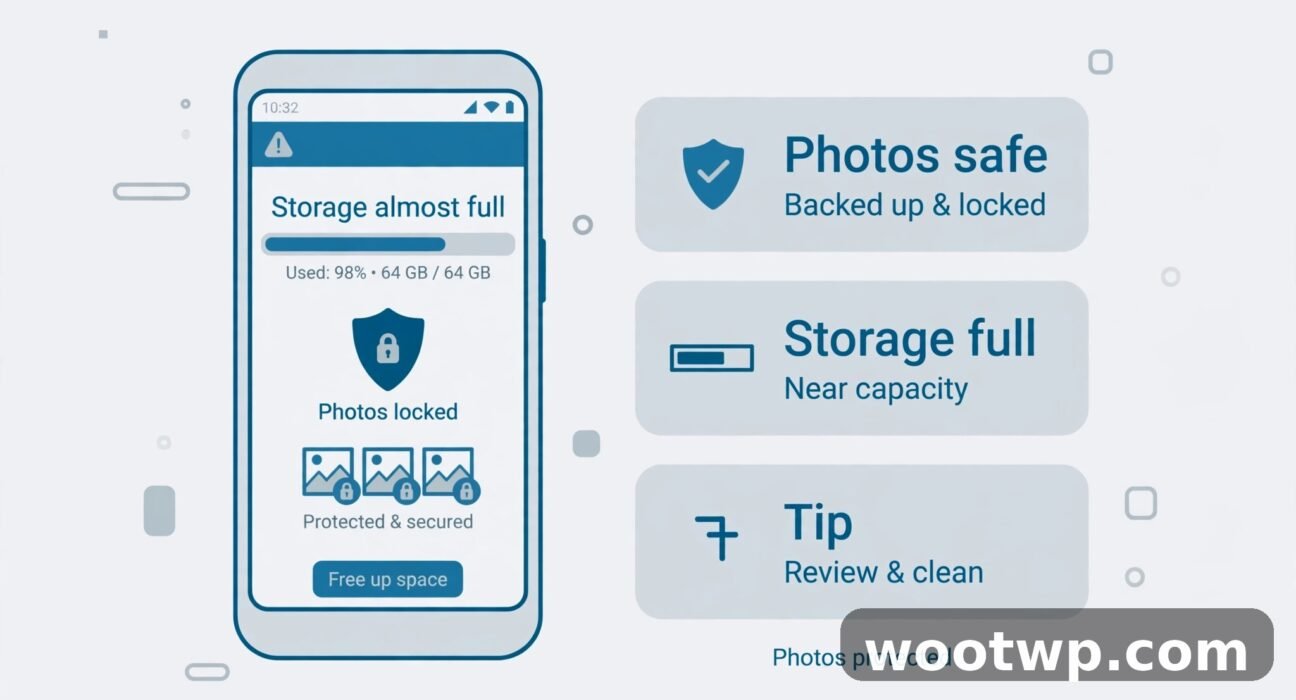
Your phone keeps yelling "Storage almost full" — and the first thing it asks you to sacrifice is always your photos. Don't. Learning how to free up storage on Android without deleting photos is easier than most people think, because the real space hogs are usually hiding where you never look: bloated app caches, gigabytes of WhatsApp media, forgotten downloads, and files you already backed up months ago.
I have cleaned up dozens of "full" phones for friends and family, and I have never once had to delete a single precious photo to do it. In most cases, you can recover 5 to 20 GB in under half an hour. Here is exactly how, step by step.
Table of Contents
- Step 1: Find what's really eating your Android storage
- Step 2: Clear app caches (the biggest quick win)
- Step 3: Use Google Photos "Free up space"
- Step 4: Tame your WhatsApp media
- Step 5: Clean Downloads and large files with Files by Google
- Step 6: Switch to lite apps and ditch bloat
- Step 7: Habits that keep your Android storage healthy (and your photos)
- Frequently asked questions
Step 1: Find what's really eating your Android storage
Before you delete or clear anything, take two minutes to see where your space actually went. Android shows you a clean breakdown, and the culprit is rarely your photos — it is usually apps, system files, and media.
- Open Settings > Storage.
- Tap through the categories: Apps, Photos & videos, Audio, Files (or Other files on some phones).
- Note the top two or three categories. Those are your targets.
On Samsung phones the path is slightly different: Settings > Battery and device care > Storage. On Pixel phones it is Settings > Storage, plain and simple.
What I usually find on a "full" phone: apps taking 30–60 GB, WhatsApp media alone taking 10+ GB, and a Downloads folder full of forgotten files. Actual photos the person cares about? Rarely the main problem. Once you know where the gigabytes live, you can reclaim them safely.
Step 2: Clear app caches (the biggest quick win)
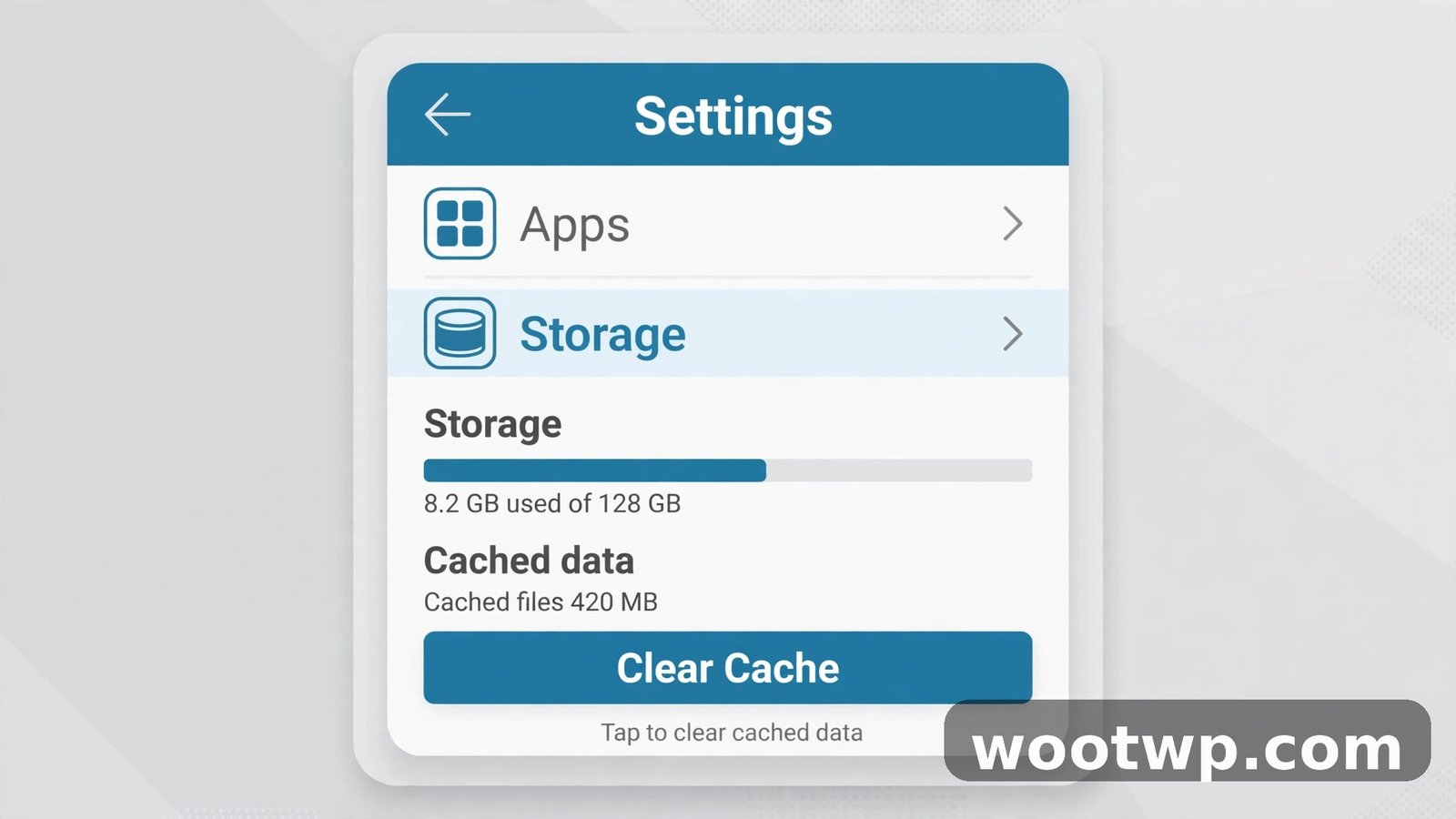
App cache is temporary data — thumbnails, pre-loaded images, downloaded video previews — that apps store so they open faster. Over months, caches can grow to several gigabytes, especially in browsers, social media apps, and streaming apps. Clearing cache deletes none of your accounts, settings, or saved files. It is completely safe, and the apps just rebuild the cache as you use them.
Clear cache for one heavy app
- Open Settings > Apps (or Settings > Apps > See all apps).
- Tap the app you want to clean — good candidates are Chrome, Facebook, Instagram, TikTok, YouTube, and Spotify.
- Tap Storage & cache.
- Tap Clear Cache.
That is it. Chrome alone can hold 1–2 GB of cache on a phone that has been browsing for a year.
Clear cache for all apps at once
On many phones you can wipe every app's cache in one go:
- Open Settings > Storage.
- Tap Apps (or Cached data on older Android versions).
- If prompted, confirm you want to clear cached data.
A quick warning about the button next to it: Clear Storage (also called Clear Data) is NOT the same thing. That button resets the app — it deletes your saved logins, settings, and downloaded content. On WhatsApp, for example, Clear Data would wipe your chats. Never tap it unless you mean it. Clear Cache is the safe one.
If your browser feels sluggish along with being bloated, you may also want to clear out old browsing junk. My guide on how to clear cookies in Chrome walks through the browser side of this cleanup.
Step 3: Use Google Photos "Free up space"
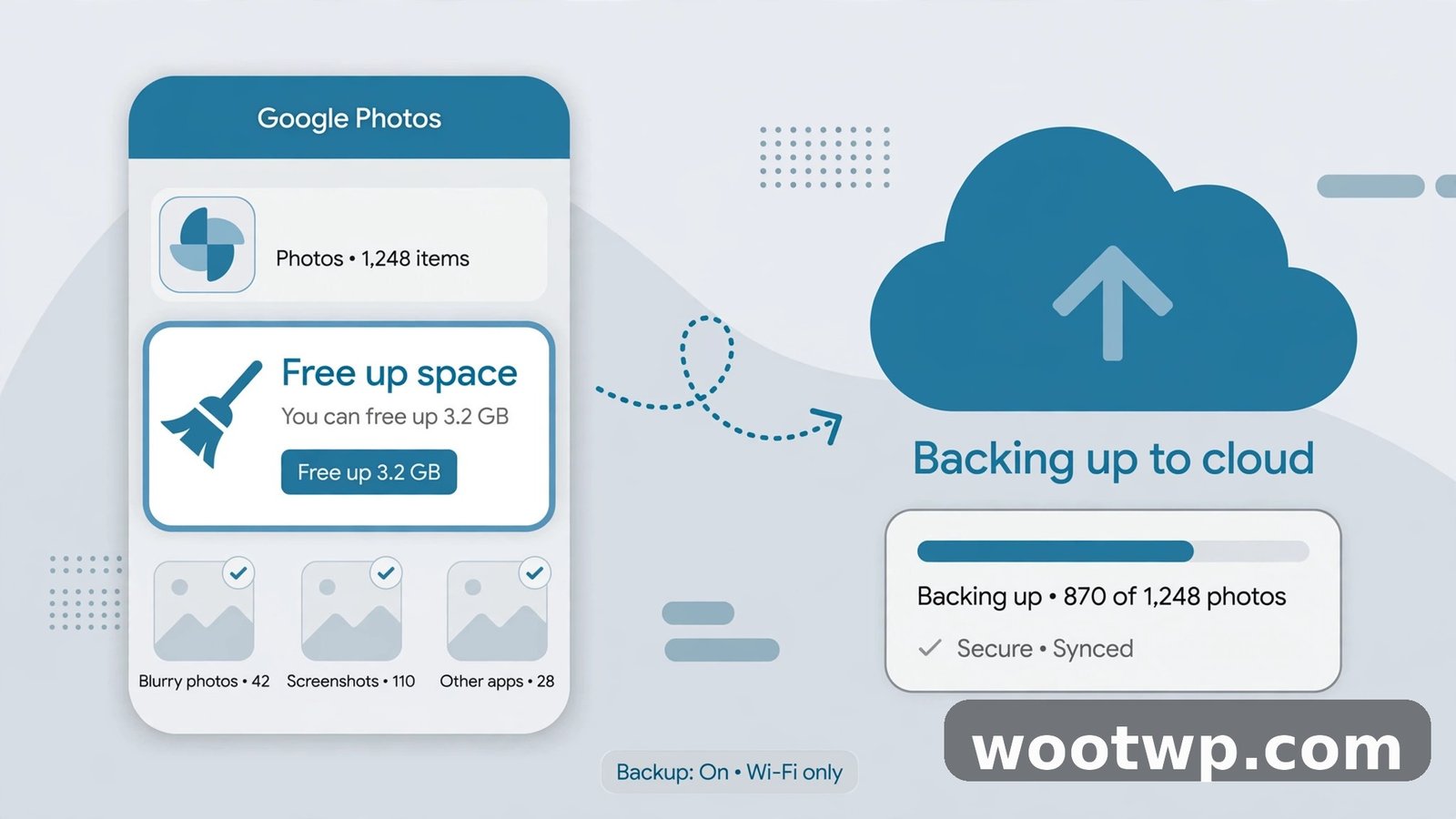
Here is the magic trick behind how to free up storage on Android without deleting photos: your photos do not have to live on your phone at all. Once Google Photos backs them up to the cloud, you can remove the local copies and still see every photo right inside the Google Photos app, streaming them on demand. Nothing is truly deleted — just moved off your device.
Make sure backup is on first
- Open the Google Photos app.
- Tap your profile picture (top right), then Photos settings > Backup.
- Confirm Backup is turned on and that it recently completed. Look for the message "Backup complete" — do not skip this check.
Note: Google Photos backup counts against your Google account storage (15 GB free, shared with Gmail and Drive). If that fills up, old photos are still there — new ones just stop backing up. Check one.google.com/storage if you suspect it is full.
Free up the space
- In Google Photos, tap your profile picture (top right).
- Tap Free up space.
- Photos will show how much space it can reclaim (often 5–15 GB).
- Tap Free up and confirm.
The photos disappear from your device storage but remain fully visible in Google Photos with an internet connection. Google's own help page on freeing up space explains exactly which device copies get removed and what stays.
In my experience, this single step is the biggest win for people whose phones are full of photos and videos they refuse to delete. Do the backup check carefully — that is the one step you must not rush.
Step 4: Tame your WhatsApp media
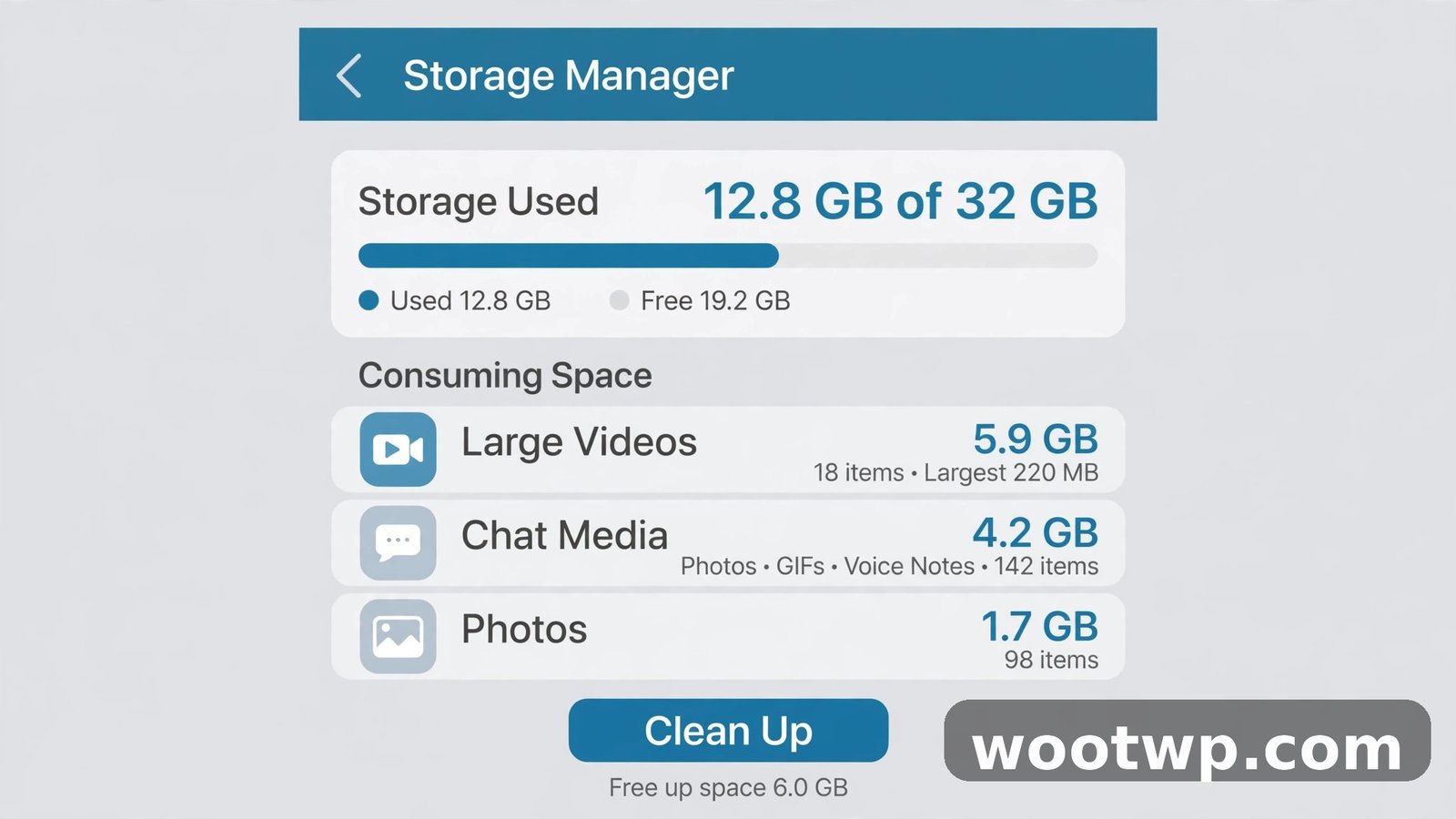
WhatsApp is the silent storage killer on many phones. Every photo, video, voice note, and PDF someone sends you gets saved to your device, often twice — once in the chat and once in your gallery. Family groups alone can chew through 10 GB without you noticing.
Stop the auto-download flood
- Open WhatsApp and tap the three dots > Settings > Storage and data.
- Under Media auto-download, set all three categories — When using mobile data, When connected on Wi-Fi, and When roaming — to only Photos or even No media. Leave videos and audio off.
- This does not delete anything you already have. It just stops the flood going forward.
Stop WhatsApp media appearing in your gallery
- In WhatsApp, go to Settings > Chats.
- Turn off Media visibility. New downloads will no longer show up in your gallery apps.
Delete the media you already have (without deleting photos you want)
WhatsApp has a built-in storage manager that lets you delete by chat or by file size, so you can clear the junk while keeping what matters:
- Go to Settings > Storage and data > Manage storage.
- You will see a bar showing WhatsApp's total usage, plus a list of chats sorted by size and a "Larger than 5 MB" section.
- Tap a chat, select the big videos and forwarded junk, and delete them. Your text messages stay.
- Repeat for the top few chats.
Be honest with yourself here: do you really need that 400 MB video someone forwarded in 2022? This cleanup alone has freed 8–12 GB on phones I have helped with.
Step 5: Clean Downloads and large files with Files by Google
The Downloads folder is a graveyard of PDFs, APKs, memes, and installers you opened once. And large video files you forgot about are the other classic culprit. Google's free Files by Google app finds all of this for you.
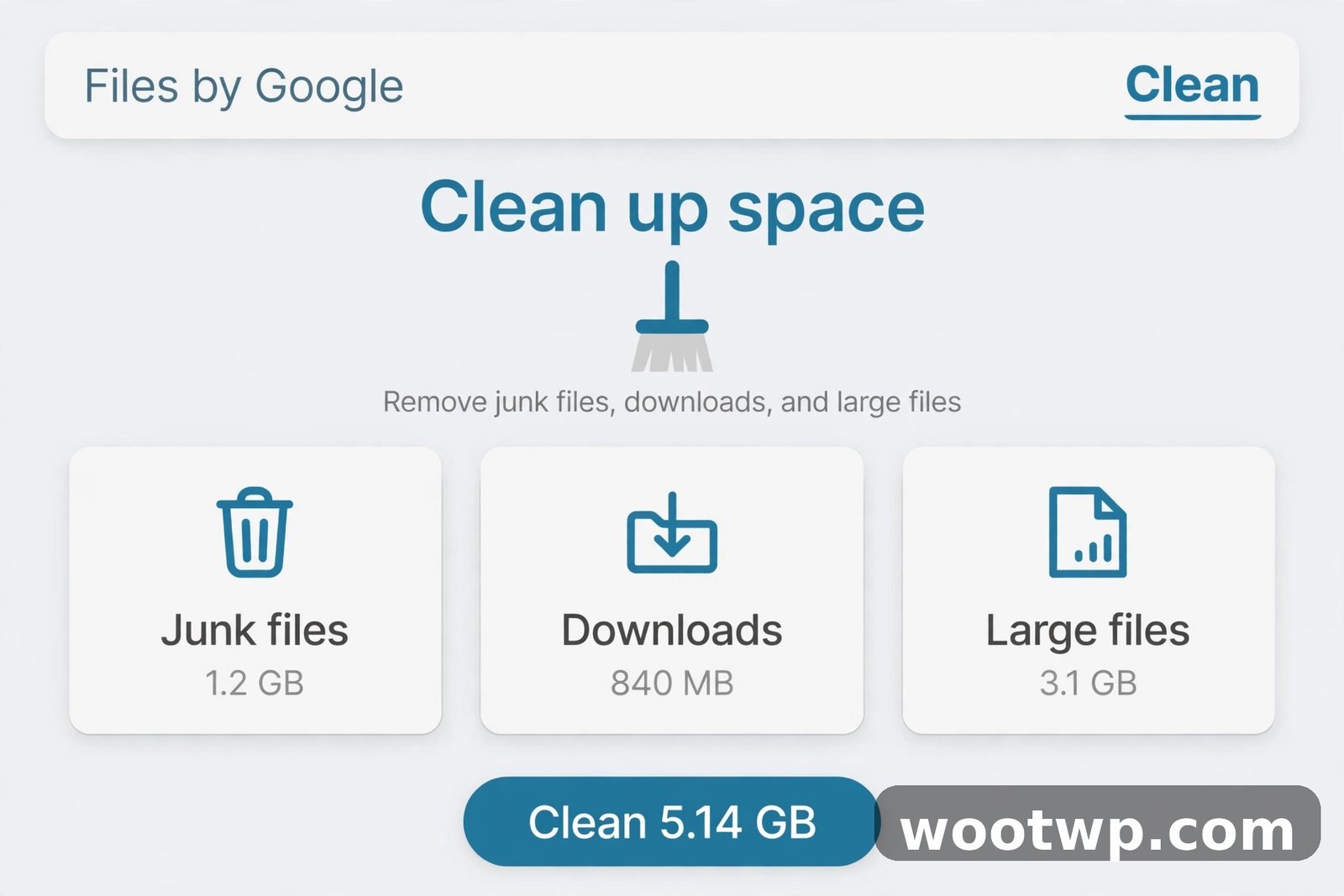
If Files by Google is not on your phone, install it from the Play Store — it is free and made by Google. Then:
- Open Files by Google and tap the Clean tab at the bottom.
- Work through the suggestion cards:
- Junk files — safe to delete, tap Clean.
- Delete large files — review the list (old videos, big downloads) and delete what you do not need.
- Delete downloaded files — pick through your Downloads folder.
- Delete duplicate files — Files finds exact duplicates of photos and downloads.
- Delete backed-up photos — this is the same Google Photos "free up space" trick, offered from inside Files.
- Also check Delete unused apps — Files shows apps you have not opened in months so you can uninstall them with one tap.
Google also documents these built-in cleanup options in their Android storage help page if you want the official rundown for your specific phone.
One tip: before deleting large videos, make sure they are backed up in Google Photos (Step 3 covers that). Then deleting the local copy is painless.
Step 6: Switch to lite apps and ditch bloat
Some apps are enormous. Facebook, Instagram, and TikTok can each eat 1–2 GB just sitting there. If you are tight on space, you have two good moves:
Use lite versions and the browser instead. Facebook Lite, Messenger Lite, and Instagram's lighter footprint save hundreds of megabytes. For some services, just using the mobile website in Chrome works fine and takes zero extra storage beyond the browser you already have.
Uninstall or disable apps you never open. Go to Settings > Apps, sort by size if your phone allows it, and be ruthless with anything you have not opened in three months. For pre-installed apps you cannot uninstall, tap Disable — that stops them from updating and hoarding data.
A related move for heavy users: move to the cloud where you can. Keep documents in Google Drive instead of your Downloads folder, and stream music on Spotify or YouTube Music instead of keeping MP3s on the device.
Step 7: Habits that keep your Android storage healthy (and your photos)
Freeing up space once feels great. Keeping it free takes three small habits:
- Turn on Smart Storage (Pixel phones): Go to Settings > Storage > Smart Storage and enable it. It automatically removes backed-up photos and videos after 30, 60, or 90 days. Set it once and forget it.
- Review WhatsApp storage every couple of months: Repeat the Settings > Storage and data > Manage storage cleanup from Step 4. It takes five minutes and group chats refill fast.
- Clear your Downloads folder monthly: Open Files by Google, glance at downloads, and delete what you no longer need. I do this on the first of every month and it never builds up.
One more scenario worth planning for: if your phone is so full that you cannot even install updates or take photos, the problem may be bigger than cleanup — it may be time to think about moving to a new device. When that day comes, moving your logins safely matters too; my guide on how to transfer Google Authenticator to a new phone covers the part most people forget during a phone switch.
Frequently asked questions
Will clearing app cache on Android delete my photos or messages?
No. Clearing cache only removes temporary files like thumbnails and pre-loaded content. Your photos, chats, accounts, and app settings stay exactly where they are. The button you must avoid is "Clear Storage" or "Clear Data" — that one resets the app.
How can I free up storage on Android without deleting photos or videos I love?
Back them up to Google Photos first, then use the "Free up space" button in the Google Photos app to remove the local copies. The photos remain visible in the app whenever you have internet. Then clear app caches, clean WhatsApp media, and empty your Downloads folder for even more room.
Why does my Android storage say full even after deleting photos?
Because photos are rarely the real problem. App caches, WhatsApp media, downloads, system files, and app data usually take up far more space. Check Settings > Storage to see the breakdown — in my experience, clearing caches and WhatsApp junk frees more space than deleting photos ever would.
Does Google Photos "Free up space" really delete my photos?
No — it only removes the copies stored on your phone. The backed-up copies stay in your Google account and appear normally in the Google Photos app. The one hard rule: make sure backup is fully complete before you tap "Free up space," or photos that never finished uploading could be lost.
How much storage can clearing cache actually free on Android?
It depends on the phone, but 1–5 GB is typical on a phone that has not been cleaned in a year or more. Browsers, Facebook, Instagram, TikTok, and YouTube are usually the biggest contributors. Combined with WhatsApp and Downloads cleanup, 10–20 GB total is realistic.
Can I move apps to the SD card to free up internal storage?
On modern Android phones (Android 10 and newer), most apps can no longer be moved to an SD card — Google phased out adoptable storage on most devices. The realistic fixes are clearing caches, removing WhatsApp media, offloading photos to Google Photos, and uninstalling unused apps, which this guide covers step by step.
Conclusion
You now know how to free up storage on Android without deleting photos: clear app caches, back up with Google Photos and use "Free up space," tame WhatsApp media, and sweep Downloads with Files by Google. Do all four and that "storage almost full" warning should be gone today — with every photo still safely in your Google Photos library.