Convert PDF to Word Free Without Losing Formatting: 6 Easy Ways
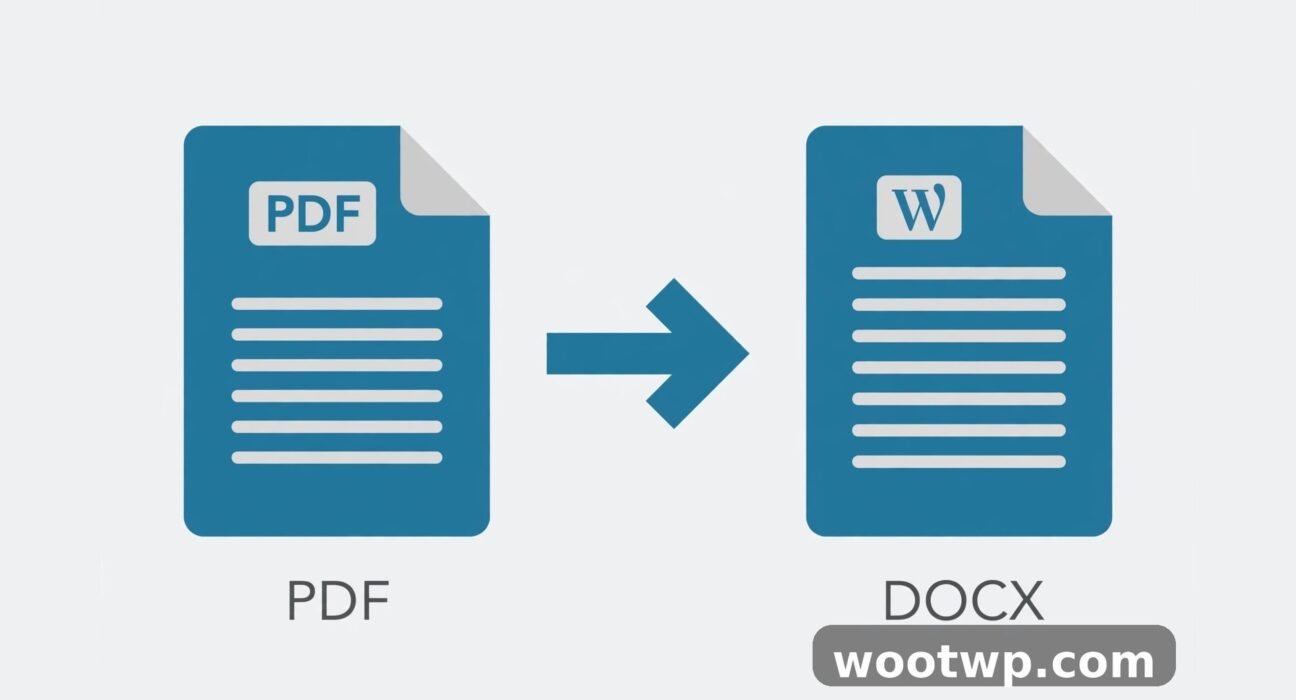
You need to edit a PDF, but every converter you've tried hands back a mess — broken tables, shifted text, missing fonts. Learning how to convert PDF to Word free without losing formatting comes down to one thing: using a tool that rebuilds the document structure instead of just dumping the text. In this guide, I'll walk you through six free methods that actually preserve your layout, explain why formatting breaks in the first place, and show you how to fix the conversion when something still looks off.
Table of Contents
- Why PDF to Word Conversions Lose Formatting
- Method 1: Use a Free Online PDF to Word Converter
- Method 2: Open the PDF Directly in Microsoft Word
- Method 3: Convert with Google Docs
- Method 4: Use LibreOffice Writer
- Method 5: Convert on Your Phone
- How Do You Convert a Scanned PDF to Word?
- How to Fix Formatting After Conversion
- What About Password-Protected PDFs?
- FAQs
- Conclusion
Why PDF to Word Conversions Lose Formatting
A quick bit of background helps everything else make sense. A PDF is a picture of a finished page — it stores exactly where each letter sits, but it doesn't remember that those letters form a paragraph, a table, or a two-column layout. Word, on the other hand, is built around editable structure: paragraphs, styles, tables, sections.
Converting means guessing the structure back from the picture. Good converters do this well; bad ones just pour the text out in reading order and let the layout collapse. Three things make conversion harder:
- Scanned PDFs are images of pages with no text layer at all — they need OCR (optical character recognition) before anything else works.
- Complex layouts — multi-column text, text wrapped around images, fancy tables — confuse simple converters.
- Missing fonts — if the PDF uses a font your system doesn't have, Word substitutes something close, and spacing shifts.
Knowing which kind of PDF you have tells you which method to pick.
Method 1: Use a Free Online PDF to Word Converter
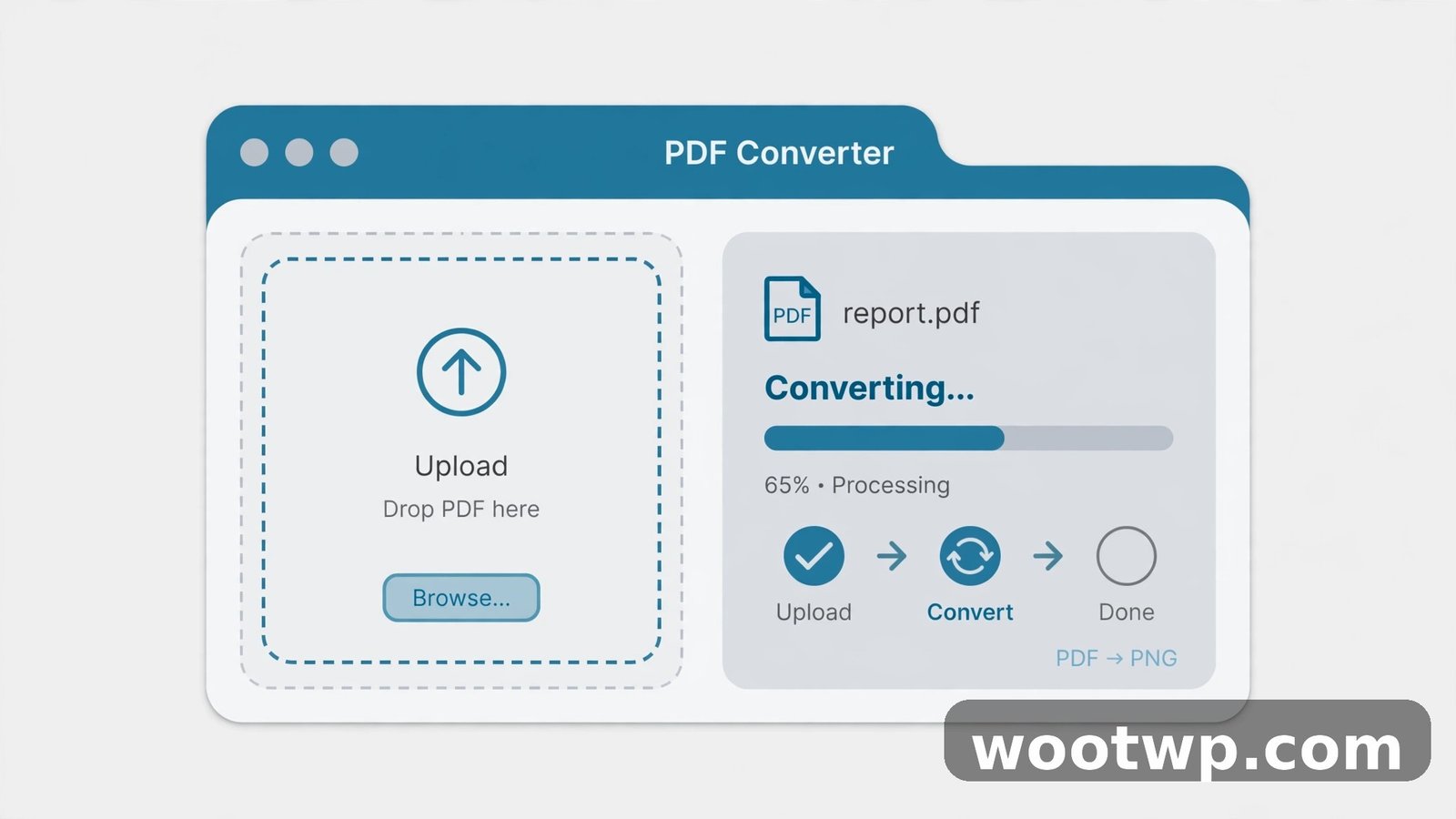
A dedicated online converter gives the best formatting results because rebuilding document structure is its entire job. Upload the PDF, download an editable .docx that keeps fonts, layout, and images.
- Open a free converter in your browser — Adobe's free PDF to Word converter, Smallpdf, iLovePDF, and PDFgear all offer free tiers.
- Click "Select a file" or drag your PDF into the upload area.
- Wait for the conversion — usually under a minute for a normal document.
- Download the .docx file and open it in Word.
- Skim through it: check tables, headings, page breaks, and images.
Free-tier limits to know about: most services cap how many files you can convert per day or per hour without an account. For a one-off document, that's plenty. For batch work, rotate between services or use the desktop methods below.
Privacy note: you're uploading your document to someone's server. For contracts, medical records, or anything sensitive, prefer an offline method (Method 2 or 4) or check the service's file-deletion policy first.
Method 2: Open the PDF Directly in Microsoft Word
This surprises people: Microsoft Word can open PDFs itself and convert them, no extra tool needed.
- Open Microsoft Word.
- Go to File, then Open, then Browse.
- Change the file-type dropdown to "PDF Files" and select your PDF.
- Word warns that it will convert the PDF to an editable document — click OK.
- Review the result and save it as .docx.
How good is it? For text-heavy documents — reports, letters, simple articles — it's genuinely solid. Complex layouts with multiple columns, floating images, or intricate tables often break and need cleanup. It also requires a Microsoft 365 subscription or a Word license; the free Word for the web can't do this.
Method 3: Convert with Google Docs
If you have a Google account, you already have a free converter.
- Go to Google Drive and upload your PDF.
- Right-click the uploaded file, choose "Open with," then "Google Docs."
- Google converts the PDF into an editable document.
- Go to File, then Download, then "Microsoft Word (.docx)."
Formatting accuracy is decent for simple documents but weaker than dedicated converters on anything complex — tables and multi-column layouts are where it struggles most. The big advantage is that it's completely free with no daily caps, and your file stays inside your own Drive.
Method 4: Use LibreOffice Writer
LibreOffice is free, open-source office software for Windows, Mac, and Linux, and it handles PDF conversion offline.
- Install LibreOffice (free download, no account needed).
- Open LibreOffice Writer.
- Go to File, then Open, and select your PDF.
- LibreOffice imports it as an editable document.
- Go to File, then Save As, and choose Word 2007–365 (.docx).
This is the best fully-offline free option. Formatting accuracy is good for straightforward documents, and nothing ever leaves your computer. The trade-off is the install and a slightly clunkier import than the browser tools.
Method 5: Convert on Your Phone
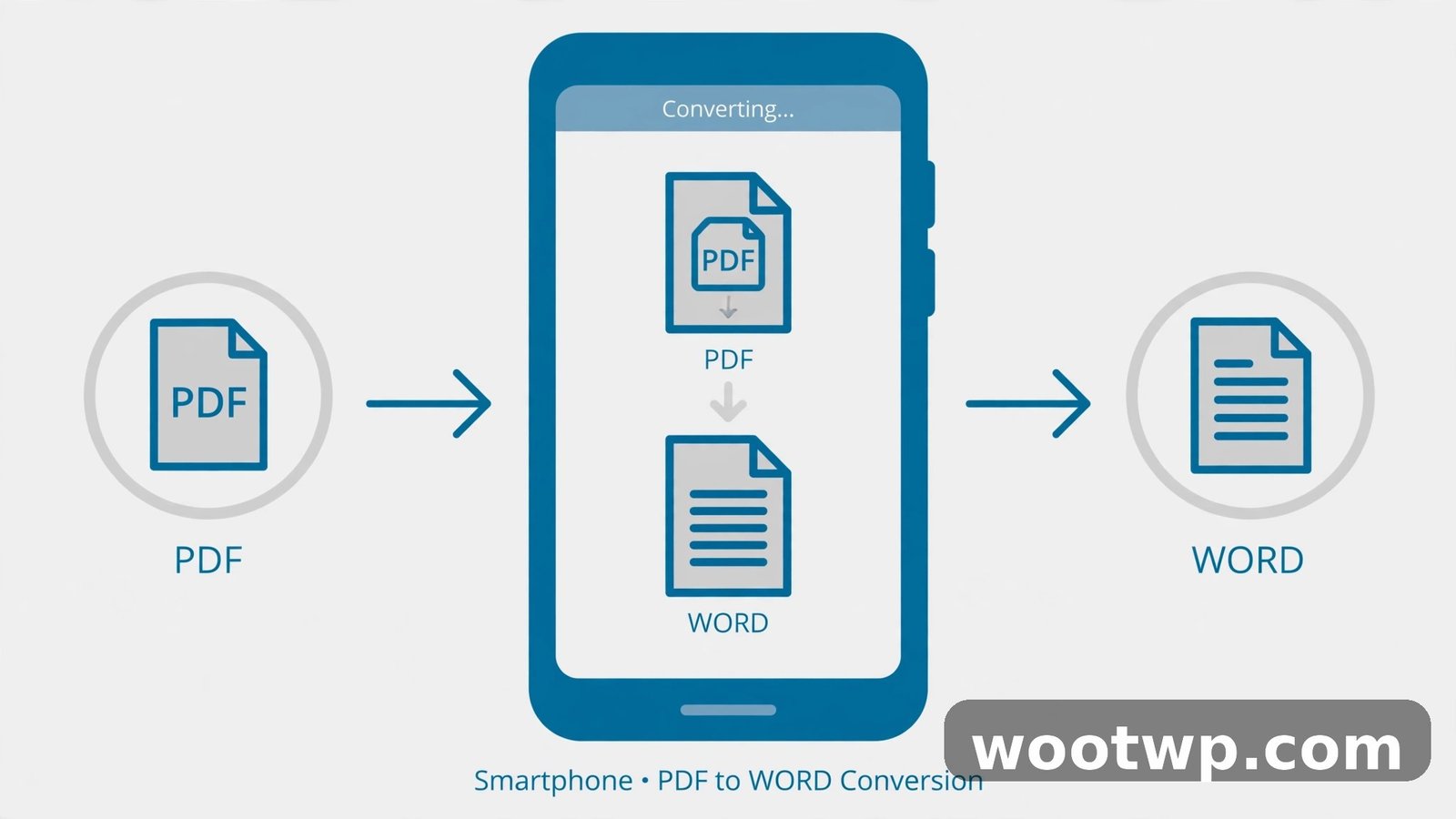
On iPhone: the Files app can't convert directly, but free apps like PDFgear's mobile app or the iLovePDF mobile site work in Safari. Upload, convert, and save the .docx to Files or send it to Word for iOS.
On Android: open Chrome and use any of the online converters from Method 1 — they all work in mobile browsers. Alternatively, install the Microsoft 365 app: open the PDF in Word for Android and save a copy as .docx.
For phone conversions, keep documents simple — editing a complex converted layout on a small screen is painful no matter which tool you use.
How Do You Convert a Scanned PDF to Word?
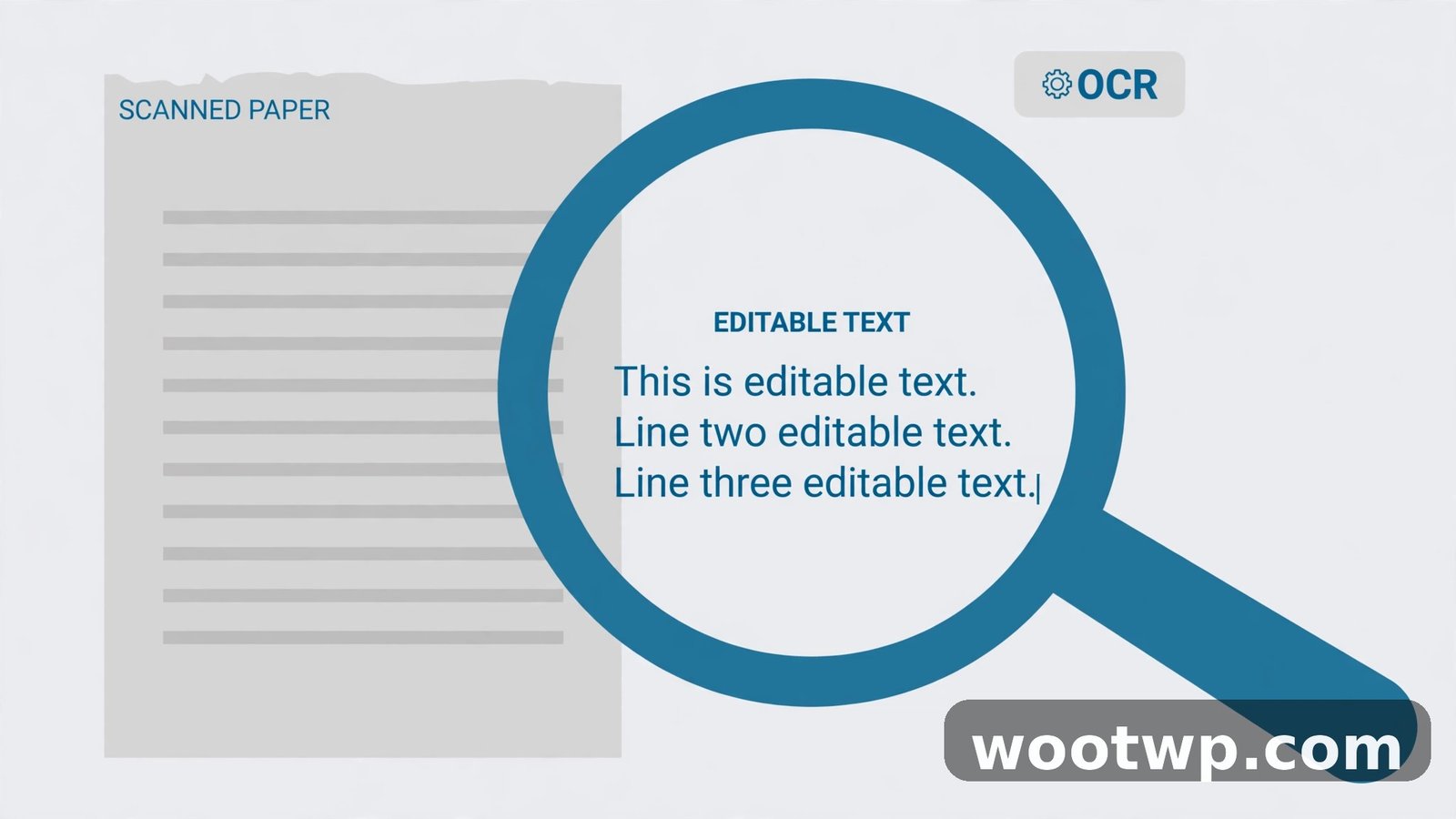
If your PDF is a scan — you can't select the text with your cursor — none of the methods above will work on their own. The pages are images, and images have no text to convert. You need OCR first.
Free OCR options:
- PDFgear includes OCR in its free converter — upload the scan and enable the OCR option before converting.
- Google Drive: upload the scan, open with Google Docs. Google runs OCR automatically and produces editable (if roughly formatted) text.
- Microsoft OneNote: insert the scan image, right-click it, and choose "Copy Text from Picture." Surprisingly accurate for clean scans.
Set expectations: OCR on a clean, straight scan of printed text is excellent. Handwriting, skewed photos of pages, or low-resolution scans will need manual cleanup no matter what.
How to Fix Formatting After Conversion
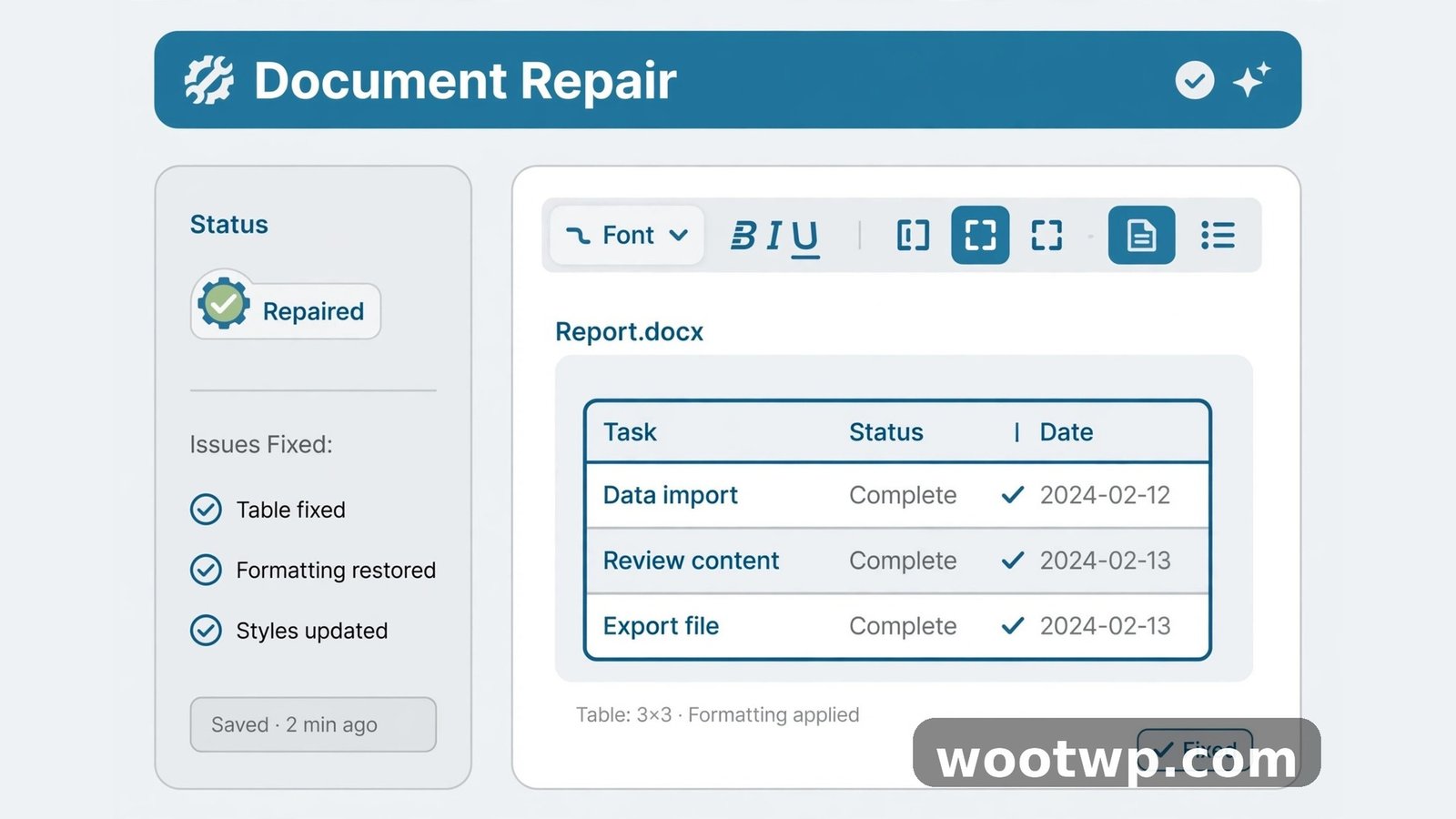
Even good conversions need a polish pass. Work through these in order:
- Fix the fonts first. Select all (Ctrl+A), apply one consistent font, and set the base size. Most "broken" documents are 80% fixed by this step.
- Repair tables. Tables are the most common casualty. Click inside a broken table, use the Table tools to fix merged cells, and re-apply borders if they vanished.
- Reset paragraph spacing. Select all, set line spacing to single or 1.15, and remove extra space before/after paragraphs. Stray manual line breaks are the usual culprit behind weird gaps.
- Re-anchor images. Right-click each image, choose "Wrap Text," and pick "In Line with Text" for predictable placement, or "Square" if you need text to flow around it.
- Check headers, footers, and page numbers. These often land in the body text during conversion. Cut them and paste them into the actual header/footer areas.
- Use Styles, not manual formatting. Apply Heading 1/Heading 2 styles to your headings. It takes two minutes and makes the whole document consistent.
A useful habit: compare the Word file side by side with the original PDF and scroll through both together. You'll catch every shifted element in one pass.
What About Password-Protected PDFs?
Converters can't touch a PDF that's locked with an open password — you'll get an error or a blank file. You need to unlock it first with the password you legitimately have. If it's your own file and you've lost the password, here's how to remove the password from a PDF before converting. Never try to bypass a password on a document you don't own — that's someone else's lock, not a technical inconvenience.
FAQs
How do I convert a PDF to Word without losing formatting for free?
Use a dedicated free online converter (Adobe, Smallpdf, iLovePDF, or PDFgear) for the best formatting, or open the PDF directly in Microsoft Word or Google Docs. Digital PDFs with selectable text convert cleanly; scanned PDFs need OCR first.
Why does my converted Word document look different from the PDF?
The converter had to guess the document structure — paragraphs, tables, columns — from fixed page positions. Complex layouts, missing fonts, and scanned pages are the usual causes. The fix-up steps above repair most issues in a few minutes.
Can I convert a scanned PDF to Word for free?
Yes. Use a converter with built-in OCR (PDFgear's free tier), upload the scan to Google Drive and open it with Google Docs, or use OneNote's "Copy Text from Picture." Clean printed scans convert well; handwriting and blurry photos need manual cleanup.
Does Google Docs preserve PDF formatting when converting?
Partially. Google Docs handles simple text documents fine, but tables, multi-column layouts, and precise positioning often shift. For complex documents, a dedicated converter gives better results.
Is it safe to use free online PDF converters?
For ordinary documents, yes — reputable services delete files after a set period. For sensitive documents (contracts, financial or medical records), use an offline method like Microsoft Word or LibreOffice so the file never leaves your computer.
What's the best free PDF to Word converter with no signup?
Smallpdf and PDFgear both convert without requiring an account on their free tiers, with solid formatting preservation. Adobe's free converter is also reliable but may ask you to sign in to download after repeated use.
Conclusion
To convert PDF to Word free without losing formatting, match the method to your document: a dedicated online converter for complex layouts, Word or Google Docs for simple text, LibreOffice for offline privacy, and OCR for scans. No converter is perfect, so budget five minutes for the cleanup pass — fix fonts first, then tables, then spacing — and compare against the original PDF. Do that, and the Word file you hand over will look like the PDF it came from.
If you work with PDFs often, you may also want this walkthrough on merging PDF files free on phone and PC — and the free Merge PDF tool does it right in your browser with no signup.