How to Add Signature to PDF on Android: 5 Easy Free Ways
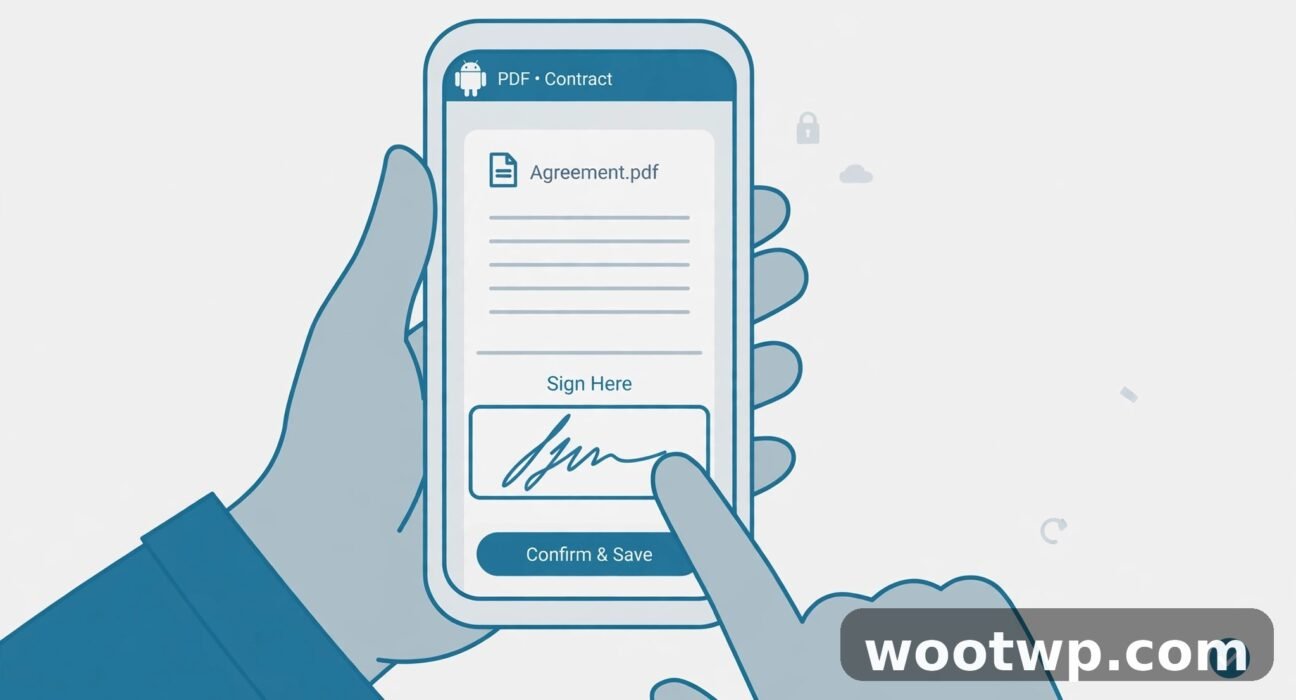
You just got a PDF in your email that needs your signature, and there is no printer in sight. The good news is that learning how to add signature to PDF on Android takes about five minutes, and you can do the whole thing on your phone for free. No printing, no scanning, no driving to an office supply store.
In this guide, I will show you five free ways to sign a PDF on your Android phone, starting with the easiest app method and ending with a no-install browser option. I will also cover how to create a signature you can reuse, what to do when a signature will not save, and whether a phone-signed PDF actually counts as a legal signature. By the end, you will be able to sign any PDF that lands in your inbox and send it straight back.
- What Counts as a Signature on a PDF?
- Method 1: Sign with Adobe Acrobat Reader (Free)
- Method 2: Sign a PDF on Android Without Installing an App
- Method 3: Sign with Xodo PDF Reader
- Method 4: Create a Reusable Signature You Draw Once
- Method 5: Sign a Paper Form with Your Phone Camera
- Is a Signature Added on Android Legally Valid?
- Common Problems When You Add a Signature to PDF on Android
- Frequently Asked Questions
What Counts as a Signature on a PDF?
When most people say they want to add a signature to a PDF on Android, they mean a simple electronic signature: a picture of their handwritten signature placed on the document. That is different from a digital signature backed by a certificate, which is a heavier security feature used for some government and banking documents. For everyday forms, contracts, permission slips, and job paperwork, a simple electronic signature is what the sender expects.
Here is the distinction in plain terms:
- Electronic signature: your drawn, typed, or uploaded signature image placed on the PDF. This covers nearly all everyday signing.
- Digital signature (certificate-based): a cryptographic seal that proves who signed and that the file was not changed afterwards. You only need this when the sender specifically asks for it.
- Typed name in a script font: looks like a signature and is accepted by many services, but it is the weakest option if anyone ever disputes the document.
For this guide, we will stick to electronic signatures, because that is what you need in almost every real situation. If you specifically need the certificate-backed kind, our guide on how to sign a PDF digitally for free covers that separately.
Method 1: Sign with Adobe Acrobat Reader (Free)
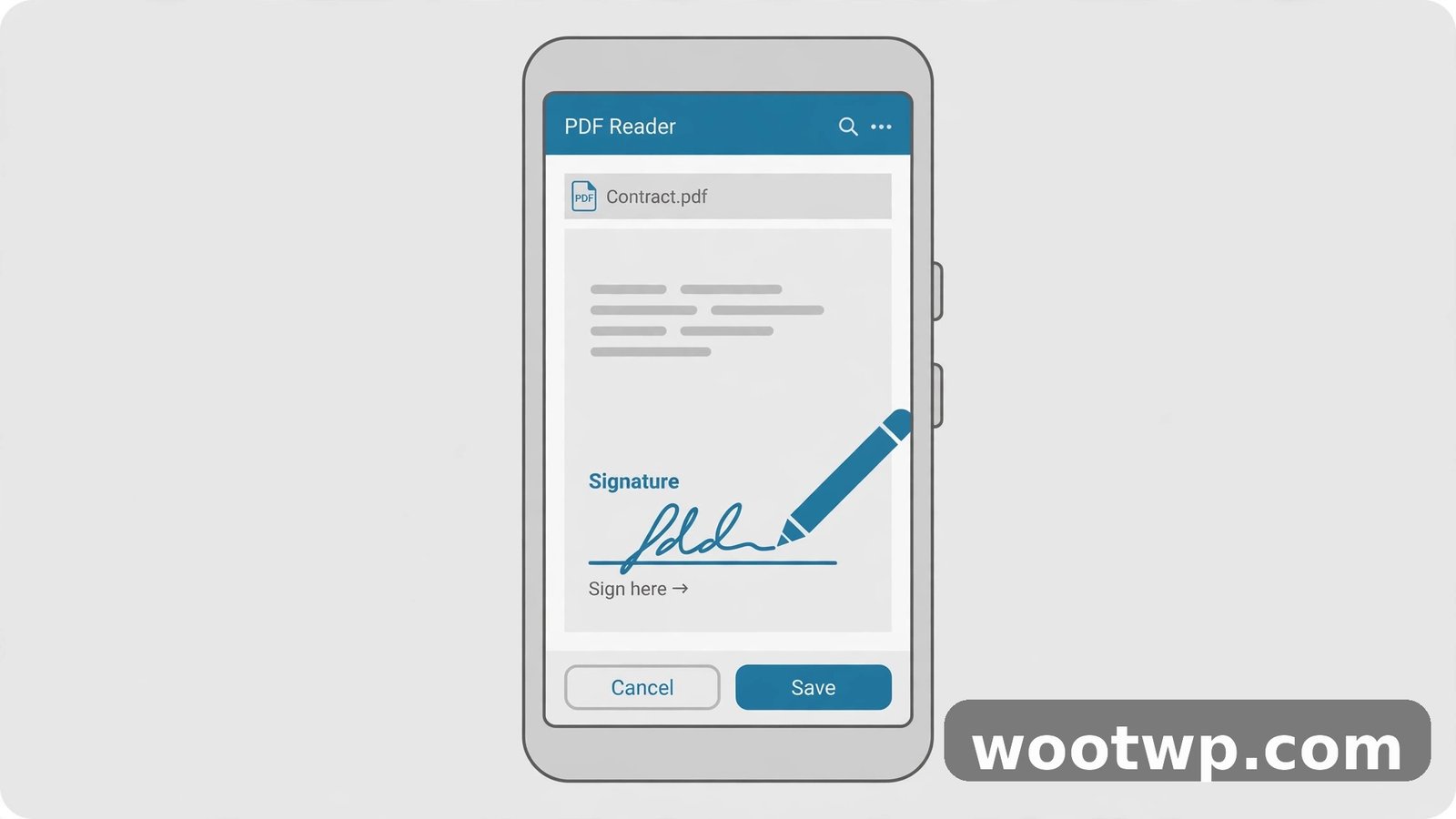
Adobe Acrobat Reader is the most reliable free way to add a signature to PDF on Android, and its Fill and Sign tools cost nothing for basic signing. If you only install one app for this job, make it this one.
- Install Adobe Acrobat Reader from the Google Play Store and open it.
- Open the PDF you want to sign. You can open it from your email, your Files app, or Google Drive.
- Tap the Fill and Sign tool (the pencil icon) at the bottom of the screen.
- Tap the signature icon, then tap Add signature.
- Choose Draw and sign with your finger, or choose Image to use a photo of your signature on paper.
- Tap Done, then tap the spot on the document where the signature belongs.
- Drag the corners to resize it and drag the signature itself to move it into place.
- Tap Save or use the share icon to send the signed PDF back.
The big advantage here is that Acrobat saves your signature, so the second document takes under a minute. One thing to watch: make sure you save a copy of the signed file before you share it. On some phones, sharing from inside the app sends the unsigned original if you skip the save step, so check the file in your Downloads folder first.
Method 2: Sign a PDF on Android Without Installing an App
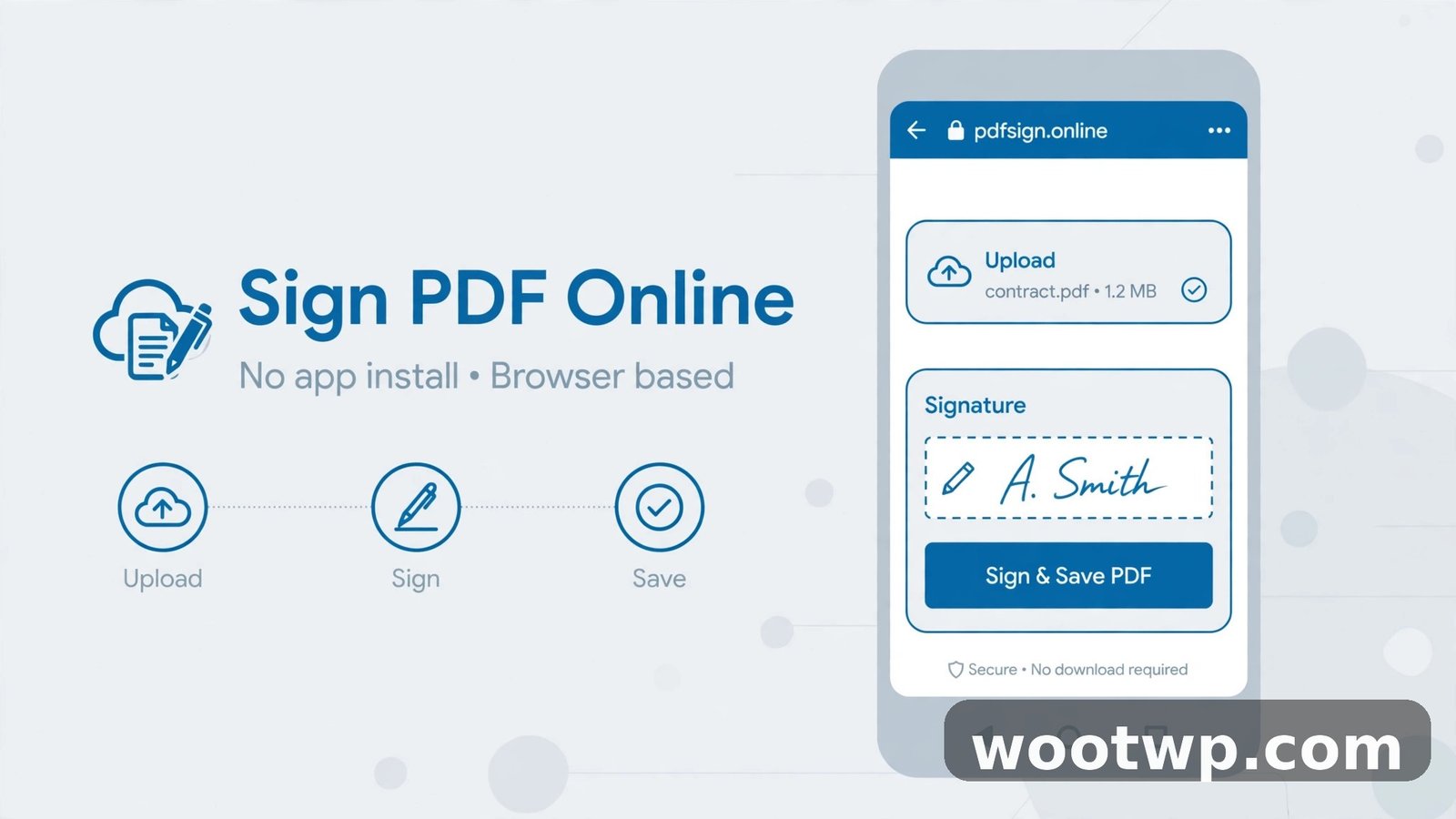
If you only need to sign one document and you do not want another app on your phone, a free browser tool is the fastest route to add a signature to PDF on Android. Several reputable sites offer a free sign-PDF tool that works entirely in Chrome.
- Open Chrome on your Android phone and go to a free PDF signing site, such as the free sign tool from SignWell or pdf.net.
- Tap Upload or Choose file and pick the PDF from your phone.
- Choose Draw to sign with your finger, Type to use a script font, or Upload to use a photo of your signature.
- Drag the signature onto the signature line and resize it to fit.
- Tap Download to save the signed PDF to your phone.
This method is genuinely free for basic signing, and you do not need to create an account on most of these tools. Two warnings from experience: first, avoid uploading highly sensitive documents, like bank forms with account numbers, to a random site you have never heard of. Stick to well-known tools. Second, check the downloaded file before you send it on, because some free tools add a small watermark unless you sign in. If yours has a watermark, switch to Adobe Acrobat Reader instead, which does not do that for basic signing.
Method 3: Sign with Xodo PDF Reader
Xodo is a solid alternative if you want one app that handles PDFs generally, not just signing. Its free version covers signatures, annotations, and form filling, which makes it handy if you deal with PDFs often.
- Install Xodo PDF Reader and Editor from the Google Play Store.
- Open your PDF in Xodo.
- Tap the signature tool in the toolbar. In some versions it sits under the Fill and Sign or markup menu.
- Draw, type, or import your signature, then tap to place it on the document.
- Resize and position it, then save or export the signed PDF.
Xodo also offers a managed signing service called Xodo Sign for collecting signatures from other people, but that part needs a subscription. For signing a document yourself, the free tools are enough. If you also need to change the text inside a PDF before signing it, see how to edit a PDF on an Android phone for free.
Method 4: Create a Reusable Signature You Draw Once
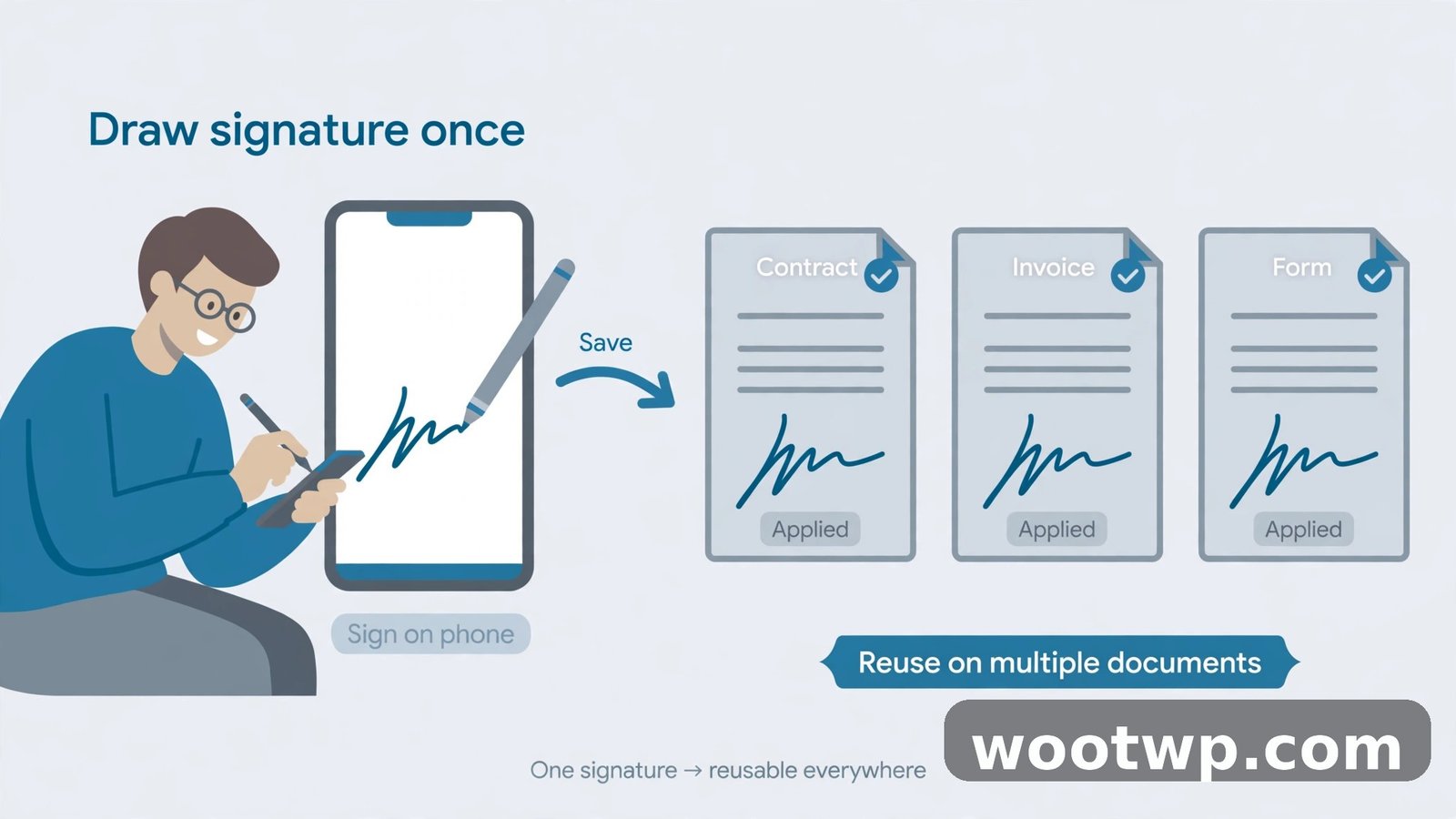
The trick that turns a five-minute job into a thirty-second job is saving your signature once and reusing it. Every method above supports this, but the signature itself is worth getting right the first time.
- Draw it slowly. A fast scribble with your fingertip looks shaky. Draw slowly, the way you would with a pen, and it will look far more natural.
- Use a stylus if you have one. Even a cheap capacitive stylus gives you much better control than a fingertip.
- Sign on paper and photograph it. Write your signature with a black pen on clean white paper, take a photo in bright light, and crop it tight. This usually produces the most realistic result.
- Remove the background if you can. Some apps let you make the white background transparent, which stops the signature from sitting in a visible white box on the document.
- Save two versions. Keep a full-size version and a smaller one, so you can pick whichever fits the signature line without shrinking it into a blur.
Once your signature is saved in the app, signing the next document is just a matter of opening it, tapping your saved signature, and placing it. That is the whole workflow, and it is why the first signing takes five minutes and every one after takes under a minute.
Method 5: Sign a Paper Form with Your Phone Camera
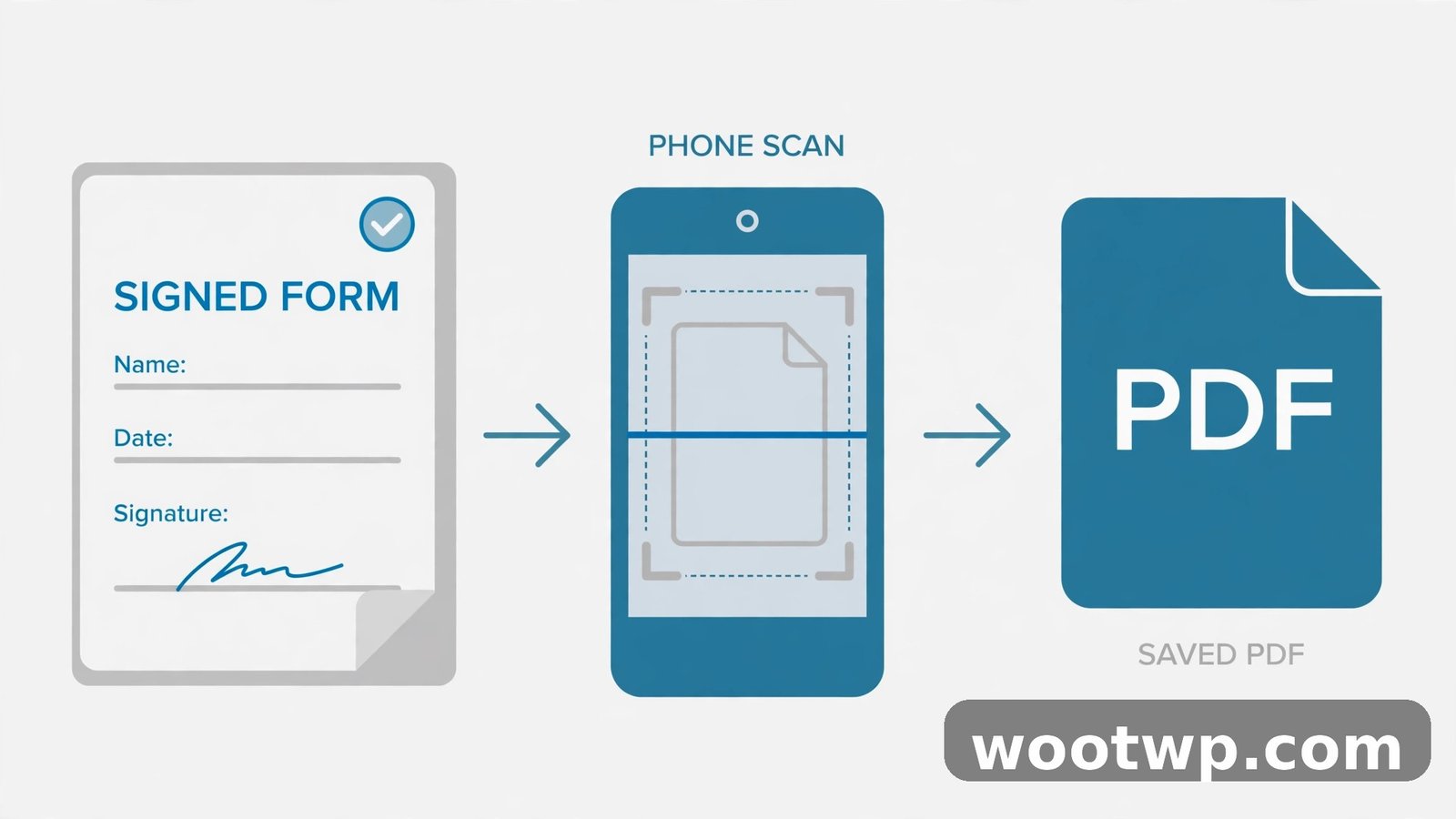
Sometimes the document is not a PDF at all. It is a paper form someone handed you, or a printout you already signed by hand and now need to send back as a file. Your phone camera handles this too.
- Sign the paper form with a pen, as normal.
- Open a scanner app such as Adobe Scan or Microsoft Lens and photograph each page.
- Let the app straighten and crop the pages, then export the result as a PDF.
- Send the PDF by email or WhatsApp, the same way you would a signed digital file.
This is not the same as adding a signature to a PDF on Android, but it solves the same problem when the starting point is paper. If you sign paper forms often, a scanner app is worth keeping on your phone alongside your PDF reader.
Is a Signature Added on Android Legally Valid?
For most everyday documents, yes. Electronic signatures are legally recognized in the United States under the ESIGN Act, in the European Union under the eIDAS regulation, and in many other countries under similar laws. A signature you draw on your Android phone and place on a PDF counts as an electronic signature, provided both sides intended it to be a signature and agreed to sign electronically.
There are exceptions worth knowing:
- Wills, some court filings, and certain property documents may still require a wet-ink signature or a certified digital signature. If the sender is a court or a government office, read their instructions carefully.
- Some banks and employers use their own signing platforms and will reject a PDF you signed yourself. In that case, use their platform, not a PDF app.
- A typed name alone is the weakest form. A drawn signature, or a photo of your real handwritten signature, holds up better if anyone ever questions it.
When in doubt, ask the person who sent the document whether an electronic signature is acceptable. In my experience, the answer is yes for almost everything except the formal exceptions above.
Common Problems When You Add a Signature to PDF on Android
- The signature looks blurry. You shrank a small image too far, or you drew it too fast. Redraw it larger, or use a photo of your paper signature instead.
- The signed file will not save. The app may not have storage permission. Go to Settings, Apps, find the PDF app, and allow file access, then try again.
- The signature sits in a white box. Your signature image has a white background. Use an app that removes it, or crop the photo tighter before importing.
- The PDF will not open in the signing app. The file may be a scanned image rather than a real PDF, or it may be password-protected. If it is password-protected, you will need the password first, and our guide on how to remove a password from a PDF walks through that.
- The recipient says the signature is missing. You probably shared the file before saving it. Open the saved file from your Downloads folder and confirm the signature is there before sending.
- The signature field is locked. Some forms have locked signature fields that only accept a certified digital signature. If the field will not accept your signature at all, ask the sender for an unlocked copy or a link to their signing platform.
Frequently Asked Questions
Can I add a signature to a PDF on Android for free?
Yes. Adobe Acrobat Reader and Xodo both let you sign PDFs for free, and free browser tools work without installing anything. You only pay if you need advanced features like collecting signatures from other people or adding a certified digital signature.
How do I add a signature to a PDF on Android without an app?
Open a free online PDF signing tool in Chrome, upload the PDF, draw or type your signature, place it on the signature line, and download the signed file. No account is needed on most tools for basic signing.
Is a signature drawn with my finger legally valid?
For most everyday documents, yes. A drawn electronic signature is legally recognized in the US, the EU, and many other countries, as long as both sides intended it as a signature. Formal documents like wills or some court filings may still need a wet-ink signature.
Can I reuse my signature on the next PDF?
Yes, and you should. Adobe Acrobat Reader, Xodo, and most browser tools save your signature after the first use, so later documents take under a minute to sign.
Why does my signature look blurry on the PDF?
It was probably drawn too small or shrunk too far. Draw it larger, or use a clear photo of your signature written on paper with a black pen, and keep the saved image at a decent size.
What is the difference between an electronic signature and a digital signature?
An electronic signature is a picture of your signature placed on a document. A digital signature adds a cryptographic certificate that proves who signed and that the file was not changed afterwards. Most everyday forms only need an electronic signature.
Conclusion
Learning how to add signature to PDF on Android is a small skill that saves a surprising amount of time. Install Adobe Acrobat Reader for regular signing, use a free browser tool for one-off documents, and save a clean signature once so every later document takes under a minute. The next time a form lands in your inbox, you will sign it and send it back before you would have found a printer.