How to Create Strong Passwords You Can Actually Remember: 7 Proven Methods
Most password advice fails for a simple reason: it tells you to create something impossible to guess and impossible to remember, and then you write it on a sticky note or reuse it everywhere. Learning how to create strong passwords you can actually remember means finding the middle ground, where the password is long and unpredictable for an attacker, but built from something your brain can hold onto.
In this guide, I will show you seven methods that work in real life, from passphrases you can picture in your head to a setup where you only need to remember one password well. I will also show you the traps that make passwords weak even when they look complicated, and how to check whether a password you already use has been exposed.
- What Makes a Password Strong in the First Place
- Method 1: Use a Passphrase of Random Words
- Method 2: Turn a Sentence Into a Password
- Method 3: Build a Picture With Person, Action, and Object
- Method 4: Use Diceware for Passwords You Must Memorise
- Method 5: Remember One Master Password and Let a Manager Do the Rest
- Method 6: Make Short Passwords Work When a Site Limits Length
- Method 7: Add Two-Factor Authentication So One Password Is Not Everything
- The Traps That Weaken Even Long Passwords
- How to Check and Change a Password That Leaked
- Frequently Asked Questions
What Makes a Password Strong in the First Place
Forget the old idea that a strong password must be a jumble of symbols. Length and unpredictability matter far more than weird characters. A short, complex password like Tr0p!9 is easier to crack than a long, plain passphrase like correct-horse-battery-staple, because every extra character multiplies the work an attacker must do, while a short password gives them a small space to search.
A strong, memorable password usually has these traits:
- Long: aim for at least 15 characters, and longer for important accounts like email and banking. Four or five random words gets you there easily.
- Unpredictable: the words or letters do not follow a pattern someone could guess from knowing you, such as your name, birthday, pet, or favourite team.
- Unique: it is used for one account only, so a leak at one site does not open every other account you own.
- Not shared: no one else knows it, it is not written in plain text on your desk, and it is not emailed to yourself.
That last point is where most people slip. Reusing one good password everywhere feels safe, because the password itself is strong. It is not safe, because the moment one site leaks it, every account using it is at risk. Uniqueness matters as much as strength.
If you only need a password for one account and you want it generated for you, try our free secure password generator to create a long, random option, then save it in a manager or write down a hint that only you understand, never the password itself in plain text.
Method 1: Use a Passphrase of Random Words
This is the method I recommend first, because it is the easiest to remember and the hardest to crack when done right.
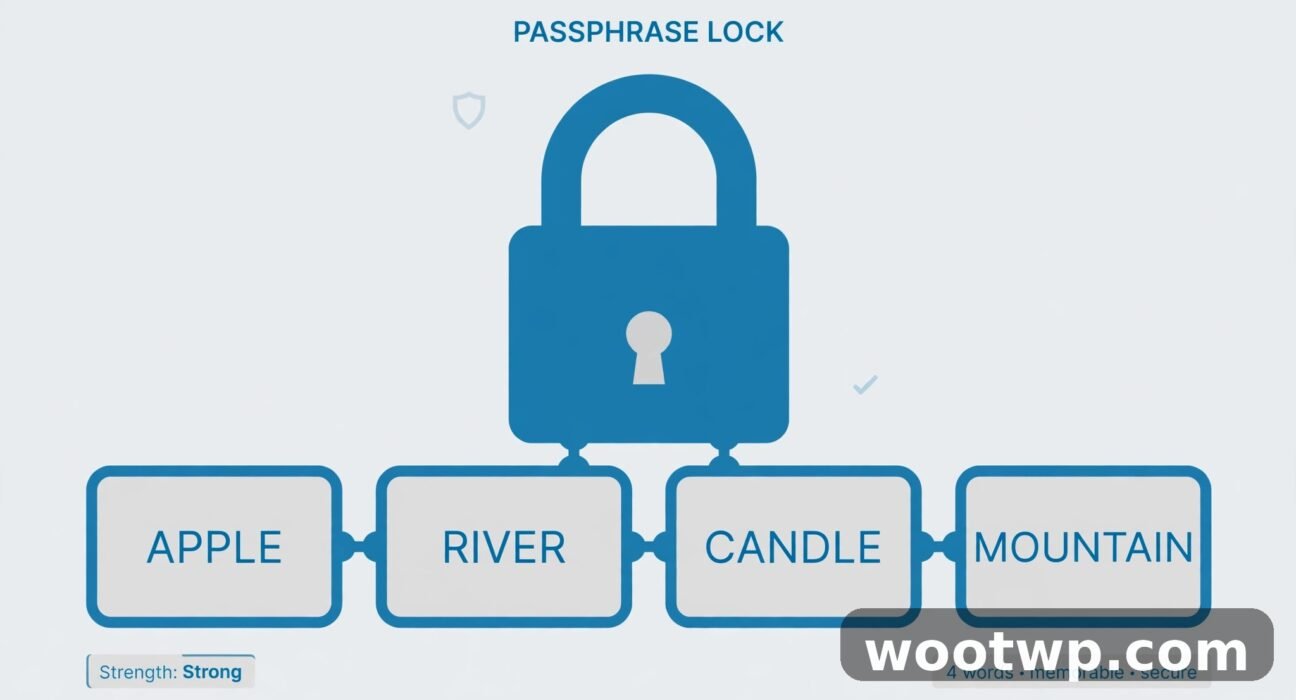
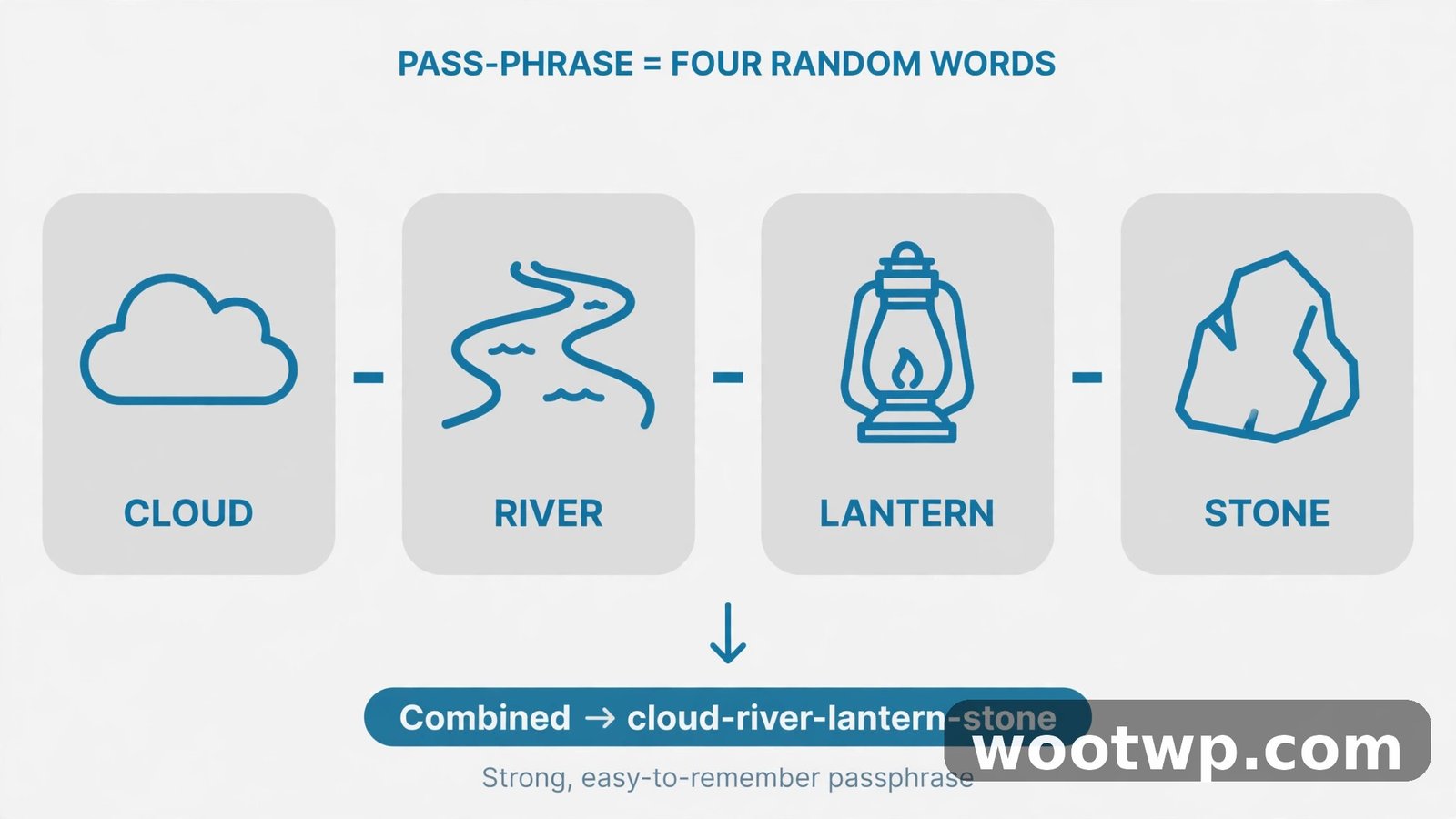
- Pick four to six words that have nothing to do with each other. For example: lantern, cactus, orbit, piano.
- Join them with a separator, such as a hyphen, and add a number you will remember, but not a birthday or year:
lantern-cactus-orbit-piano-9. - Picture the words together as one strange image: a lantern sitting on a cactus, orbiting a piano. The stranger the image, the easier it sticks.
- Say the passphrase out loud a few times, then type it a few times. Typing it cements it faster than just reading it.
Why random words, and not a normal sentence? A normal sentence is predictable. Software that cracks passwords tries common phrases, song lines, and quotes first. Random words in a nonsense order are not in any phrase list, so they survive far longer, even though they are easier for you to recall than a jumble of symbols.
Do not pick the words from your life. "Kitchen-table-dog-walk" sounds random, but it describes your routine, and anyone who knows you could guess parts of it. Pick words from different worlds: an object, a place, an animal, a food. The less they belong together, the better.
Method 2: Turn a Sentence Into a Password
If random words feel too abstract, turn a sentence only you know into a password by taking its first letters.
- Think of a sentence that means something to you, but is not a famous quote or a line from a song. For example: "My first bike was red and I rode it to school every day."
- Take the first letter of each word:
MfbwraIritsed. - Add a number and a symbol in places you will remember, not just at the end:
Mfbwra!9Iritsed. - Keep the original sentence as your memory hook. When you forget the password, recall the sentence, and the letters come back.
This method, often linked to security expert Bruce Schneier, works best for the handful of passwords you type often, such as your computer login or your password manager's master password. For accounts you log into rarely, a passphrase or a manager entry is easier, because you will not practise the sentence often enough to keep it fresh.
One warning: do not use a sentence that is public. A line from a film, a lyric, or a proverb is a terrible seed, because cracking tools include those lists. Your sentence should be personal, specific, and slightly odd, the kind of sentence only you would write.
Method 3: Build a Picture With Person, Action, and Object
Some people remember pictures better than words. The person-action-object method turns a mental image into a password.
- Pick a person, real or fictional, who is easy to picture.
- Pick an action that is vivid and slightly absurd.
- Pick an object that has nothing to do with the person or the action.
- Combine short pieces of each into a password, and add a number and a symbol.
For example, imagine a chef juggling pineapples. Take parts of each word and you might get ChefJugPin!42. The image is what you remember: the chef, the juggling, the pineapples. The password is just a compressed version of that image.
This method shines for a master password or a phone PIN, where you need one strong secret you can recall under pressure. It is less practical for dozens of accounts, because you would need dozens of distinct images, and they start to blur together. Use it for the few passwords that matter most, and let a manager handle the rest.
Method 4: Use Diceware for Passwords You Must Memorise
When you truly need a password that is both random and memorable, and you do not trust your own word choices, Diceware is the gold standard.
- Get a physical die and the EFF Diceware word list, which is free online.
- Roll the die five times and write down the five digits in order. Look up that number in the list to get one word.
- Repeat for four to six words in total. You might end up with something like
clam-fable-anvil-swift-piano. - Build a vivid story linking the words, in order, so you can recall them as a sequence.
Five words from that list gives roughly 65 bits of entropy, and six words gives roughly 78 bits. In plain terms, both are strong enough for any normal account, and far stronger than most passwords people actually use.
Why physical dice? Humans are bad at picking random words. We favour familiar words, short words, and words from the same theme. Dice do not have favourites, so the result is genuinely unpredictable. If you do not have dice handy, a reputable password generator that uses a secure random source gives the same quality, and our secure password generator is a free place to start.
Diceware takes a few minutes the first time, and that is fine. You only need it for the passwords you must memorise: your manager's master password, your email, and your computer login. Those three are worth the effort.
Method 5: Remember One Master Password and Let a Manager Do the Rest
Here is the honest truth: you cannot memorise a unique, strong password for every account you own, and you should not try. The practical answer is a password manager.
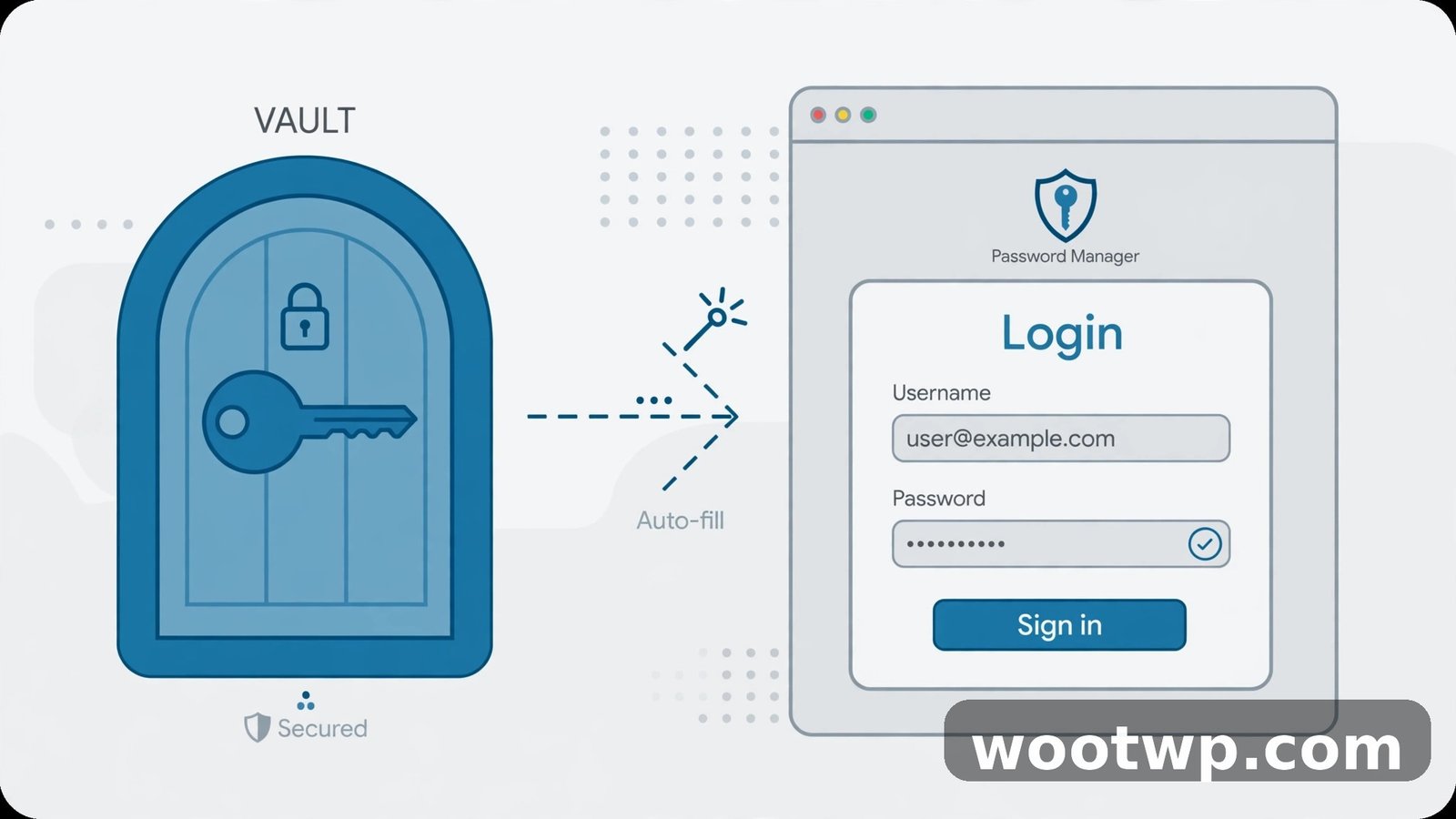
- Pick a reputable manager, such as Bitwarden, 1Password, or the built-in manager in your browser or phone, and install it on all your devices.
- Create one strong master password using Method 1 or Method 4 above. This is the one password you must memorise well, so spend time on it.
- Let the manager generate a long, random password for every other account, and save it automatically.
- When you need to log in, the manager fills the password for you. You never type it, and you never need to recall it.
This solves the reuse problem completely. Every account gets its own password, and a leak at one site harms only that site. It also solves the memory problem, because you only carry one password in your head.
Two habits make a manager safe: turn on two-factor authentication for the manager itself, and keep a written backup of your master password somewhere safe at home, such as sealed in an envelope, not on your phone or in an email. If you forget the master password and have no backup, you lose access to everything the manager holds, which is the one real risk of this setup.
If you already reuse passwords across sites, a manager also helps you fix that gradually. Start with email and banking, change those to unique generated passwords, then work through the rest over a week or two. You do not need to fix everything in one sitting.
Method 6: Make Short Passwords Work When a Site Limits Length
Some sites still cap passwords at 8 or 12 characters, which breaks the passphrase method. When you hit a limit, adapt rather than giving up:
- Use a short passphrase-style password with unusual words, not a common phrase:
CactusPiano9beatsSunshine123every time. - Mix capital letters in unexpected places, not just at the start.
- Add a symbol in the middle, not just at the end, because cracking tools check the easy patterns first.
- Never reuse the short password elsewhere. A short password is a compromise, so keep its damage limited to that one site.
Also watch for sites that forbid pasting passwords or forbid long passwords for no good reason. Those are signs of weak password handling behind the scenes. Use a unique password there, turn on two-factor authentication if offered, and avoid storing payment details on that site if you can.
Method 7: Add Two-Factor Authentication So One Password Is Not Everything
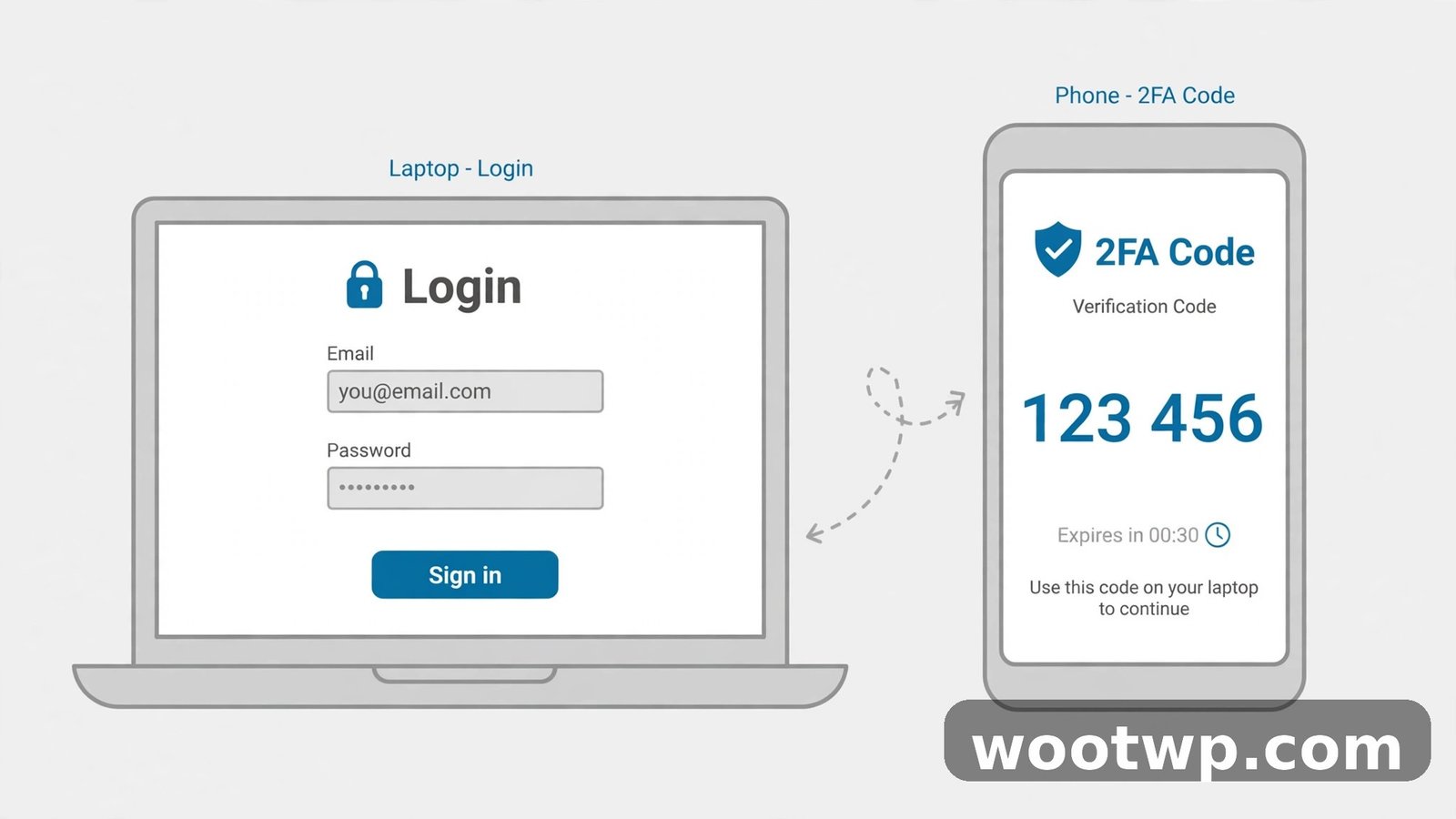
Even a perfect password can leak, get phished, or get guessed if someone watches you type it. Two-factor authentication, often called 2FA, adds a second check, usually a code from an app on your phone, so a stolen password alone is not enough to get in.
- Turn on 2FA for email first, because email can reset most other accounts.
- Turn it on for banking, social media, and any account that holds payment details.
- Prefer an authenticator app over SMS codes where you have the choice, because SMS codes can be intercepted if your number is hijacked.
- Save the backup codes the site gives you when you set up 2FA, and store them somewhere safe offline.
Our guide to transferring Google Authenticator to a new phone is worth reading before you switch phones, because losing your authenticator without backup codes can lock you out of your own accounts. Set up 2FA properly, with backups, and a leaked password becomes an annoyance instead of a disaster.
The Traps That Weaken Even Long Passwords
Watch out for these patterns, which look secure but are not:
- Predictable substitutions: changing
passwordtop@ssw0rdadds almost nothing, because cracking tools already try those swaps. - Keyboard patterns:
qwerty,asdfgh, and1qaz2wsxare among the first patterns any cracking tool checks. - Personal details: names, birthdays, pet names, hometowns, and anything visible on your social media are guessable, not secret.
- One base password with a tweak:
MyPass!AmazonandMyPass!Gmaillook different, but once one leaks, the pattern is obvious and the rest fall quickly. - Seasonal passwords:
Summer2026!andWinter2026!follow a pattern anyone can predict, and they are common enough to be in cracking lists. - Writing passwords in plain text: a note on your desk, a photo of a password, or an unencrypted file defeats the whole point, even if the password itself is strong.
If a password you use matches any of these traps, change it, starting with email and banking. You do not need to feel bad about past choices. Most people learned the old rules, which pushed short, symbol-heavy passwords, and the new advice is genuinely different.
How to Check and Change a Password That Leaked
You cannot tell by looking at a password whether it leaked. You check it against breach data.
- Go to Have I Been Pwned and enter your email address to see which breaches exposed it.
- If a breach includes a site you still use, change that site's password first, and change any other site where you reused the same password.
- Turn on 2FA for the affected accounts if you have not already.
- Watch for phishing emails that follow a breach. Attackers use leaked details to craft convincing messages, so treat unexpected password-reset emails with extra care.
Do not paste your actual password into a random "password checker" site you found through an ad. Have I Been Pwned lets you check an email address, and its password-checking tool uses a method that does not send your full password to the server. Stick to sources you trust for this job.
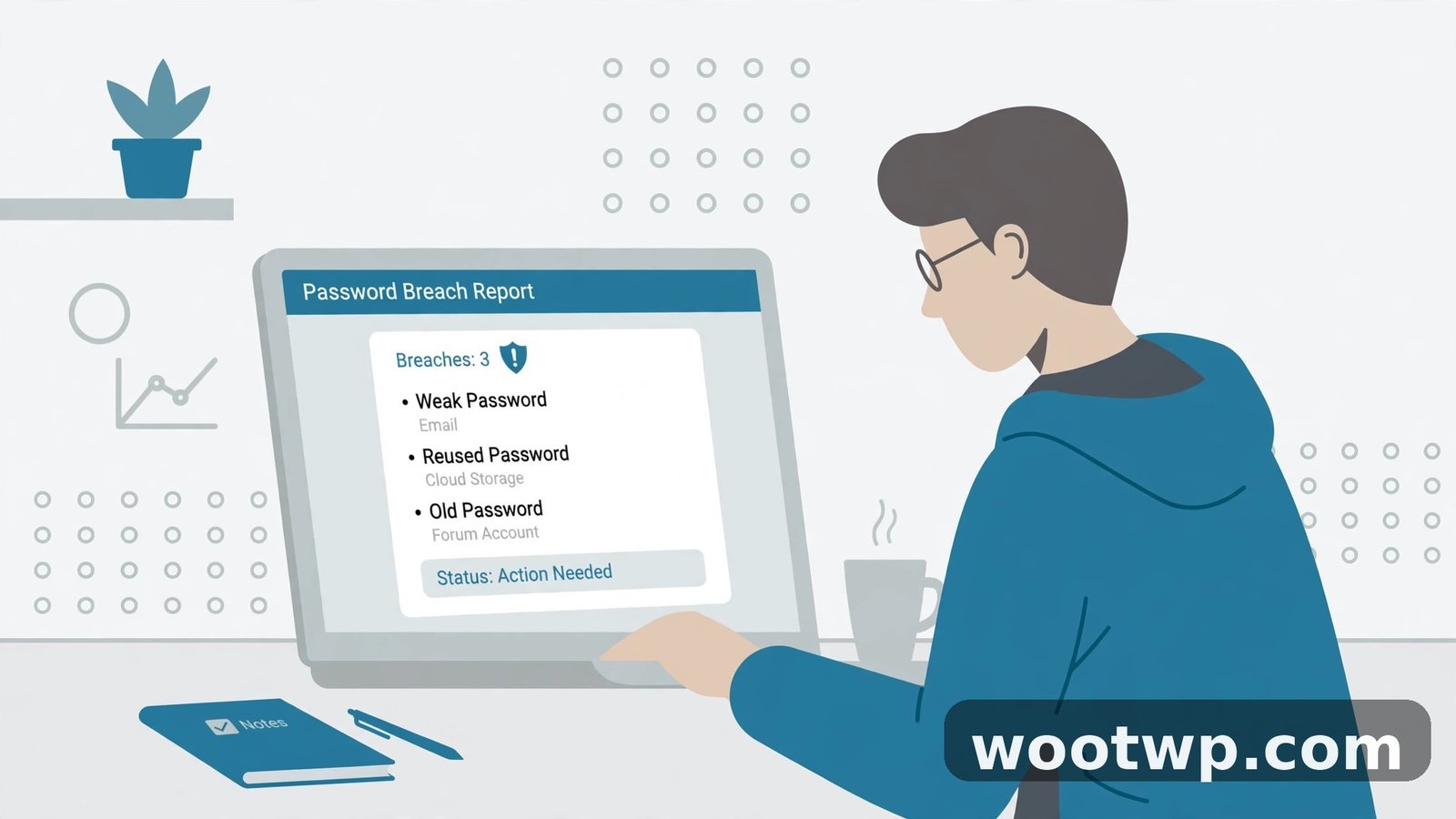
Changing a leaked password takes two minutes per site, and it is the single most useful security habit after turning on 2FA. If you use a manager, it can often flag reused and breached passwords for you automatically, which turns a vague worry into a clear to-do list.
Frequently Asked Questions
How do I create strong passwords you can actually remember for many accounts?
Use a password manager and memorise only its master password, built as a passphrase of four to six random words. The manager generates and stores a unique, long password for every other account, so you get strength and uniqueness without trying to memorise dozens of secrets.
How long should a strong password be?
Aim for at least 15 characters for important accounts, and longer where a site allows it. For a passphrase, four to six random words usually gets you past 20 characters, which is excellent. Length matters more than adding symbols to a short password.
Is a passphrase really stronger than a complex password?
Yes, when the passphrase is long and the words are random. A short password with symbols, such as Tr0p!9, has a small search space and falls quickly. A long passphrase of unrelated words has a huge search space, even though it looks plain, and it is far easier for you to type correctly.
Should I change my passwords regularly?
Not on a fixed schedule for its own sake. Change a password when it leaks, when you reused it somewhere that leaked, when you shared it, or when you suspect phishing. Forcing a change every 30 days pushes people toward weaker, patterned passwords, which is worse than keeping a strong, unique one.
What is the best method for a password I must type often?
Use a passphrase of random words, or a person-action-object image, and practise typing it for a few days. Passwords you type daily stick quickly. For passwords you type rarely, do not rely on memory at all: store them in a manager and copy or autofill them.
Can I write my passwords down?
Writing a master password hint, or a sealed backup kept at home, is reasonable, especially for a manager's master password. Writing every password in plain text in a notebook, a phone note, or an email is not. If you must keep a paper backup, keep it somewhere only you can reach, and never label it as a password list.
Conclusion
How to create strong passwords you can actually remember comes down to length, randomness, and uniqueness, not to cramming symbols into a short string. Build a passphrase of unrelated words, picture it, and use a manager so you only need to memorise one great password well. Add two-factor authentication to your important accounts, check for breaches when they happen, and you will have security you can actually live with, instead of passwords you dread typing.