How to Use Passkeys Instead of Passwords on Google: 7 Easy Steps
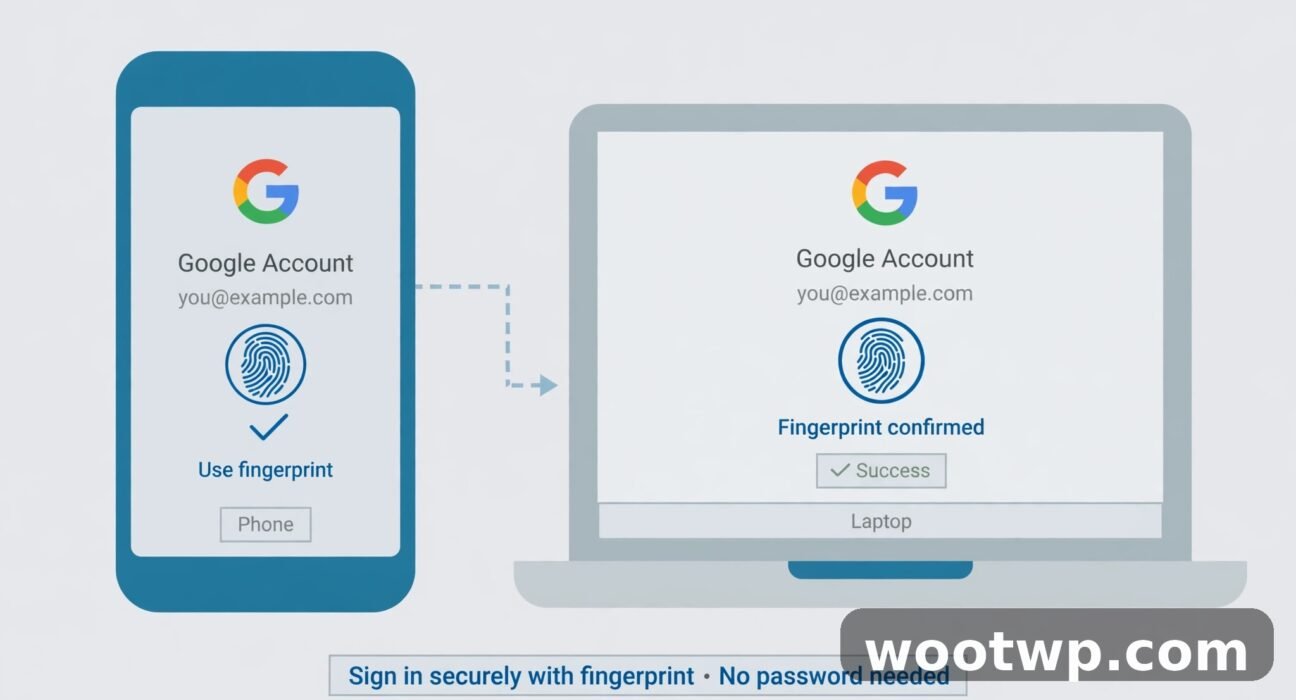
Passwords are the weakest part of most Google accounts. They get reused, guessed, leaked in data breaches, and faked by phishing pages that look exactly like the real sign-in screen. Passkeys fix all of that, and the good news is that learning how to use passkeys instead of passwords on Google takes only a few minutes. Once you set one up, you sign in with your fingerprint, your face, or your screen lock, and you never type that password again.
In this guide, I will explain what a passkey actually is, walk you through creating one on your phone and your computer, show you how to sign in with it, and cover what to do if you lose your phone. I will also explain when you should still keep your password around, because passkeys do not replace everything just yet.
- What Is a Passkey and Why Is It Safer Than a Password?
- Before You Create a Passkey
- How to Create a Passkey for Your Google Account on Android
- How to Create a Passkey for Your Google Account on a Computer
- How to Sign In to Google with a Passkey
- How to Use Passkeys Instead of Passwords on Google Across Devices
- What to Do If You Lose Your Phone
- When Should You Still Keep Your Password?
- Frequently Asked Questions
What Is a Passkey and Why Is It Safer Than a Password?
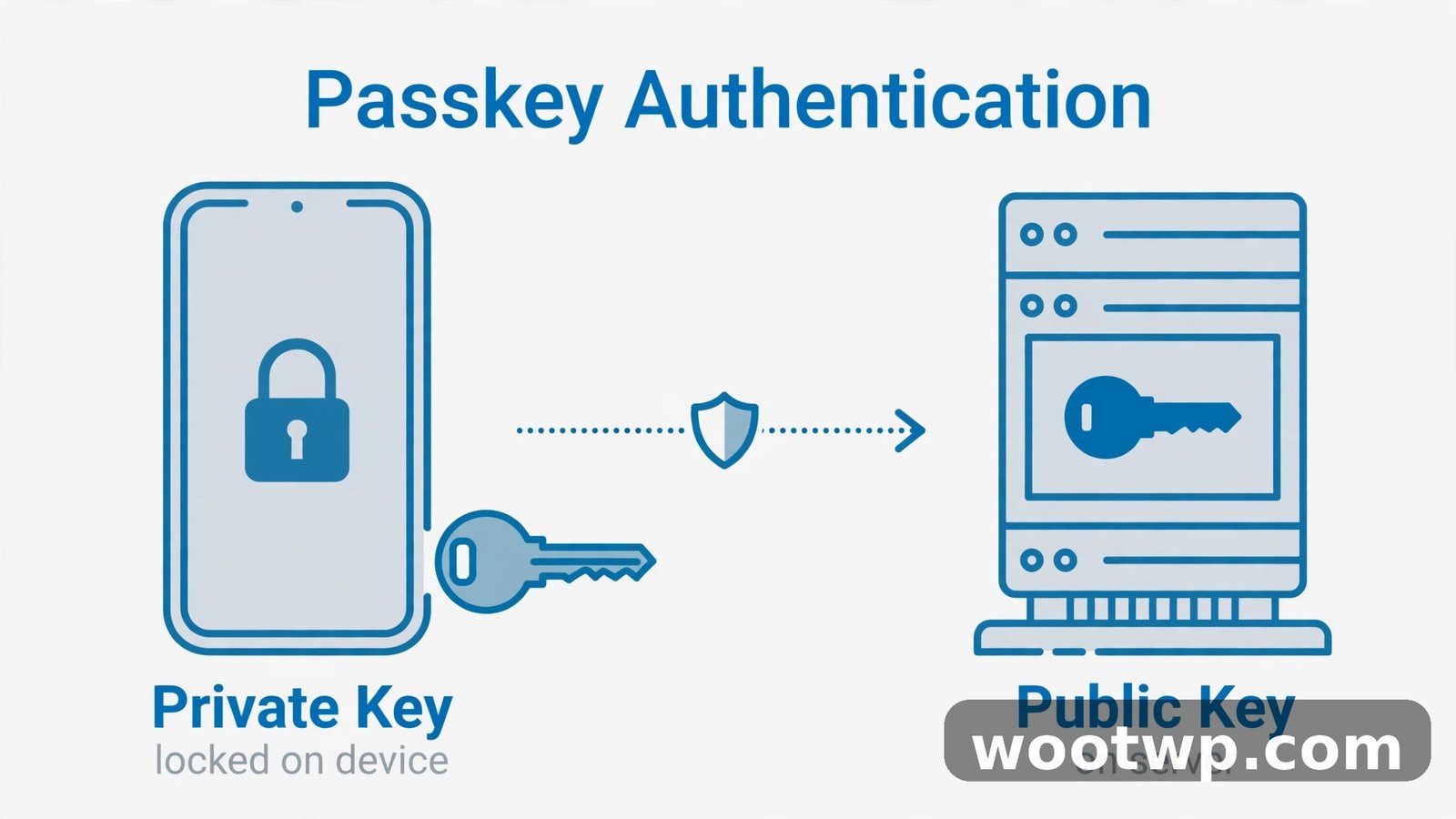
A passkey is a pair of cryptographic keys that replaces your password. Your device keeps the private key locked behind your fingerprint, face, or PIN, and Google keeps only the public key, which is useless on its own. When you sign in, your device proves it holds the private key without ever sending it anywhere. Nothing secret travels over the internet, and there is nothing for a hacker to steal from a server.
That design kills the three attacks that passwords keep losing to:
- Phishing. A fake Google sign-in page cannot steal a passkey, because a passkey only works on the real google.com. A password, by contrast, works anywhere you type it.
- Data breaches. When a site gets breached, attackers steal stored passwords. With passkeys, the site stores only a public key, which cannot be used to sign in.
- Guessing and reuse. There is nothing to guess and nothing to reuse across sites, because each passkey is unique to one account on one service.
Your fingerprint or face never leaves your device either. Google does not receive your biometric data. Your device simply uses it to unlock the private key locally, the same way it unlocks your phone.
Before You Create a Passkey
You need only three things, and most people already have all of them:
- A Google account that you can sign in to.
- A device with a screen lock, such as a PIN, fingerprint, or face unlock. Without a screen lock, the device cannot protect the private key.
- A reasonably current browser or phone. Passkeys work in recent versions of Chrome, Edge, Safari, and Firefox, and on Android and iOS devices with up-to-date software.
One tip before you start: if you use a password manager, check that it supports passkeys too. Most major ones do now, and a passkey saved in your password manager syncs to your other devices, which makes the next section much easier.
How to Create a Passkey for Your Google Account on Android
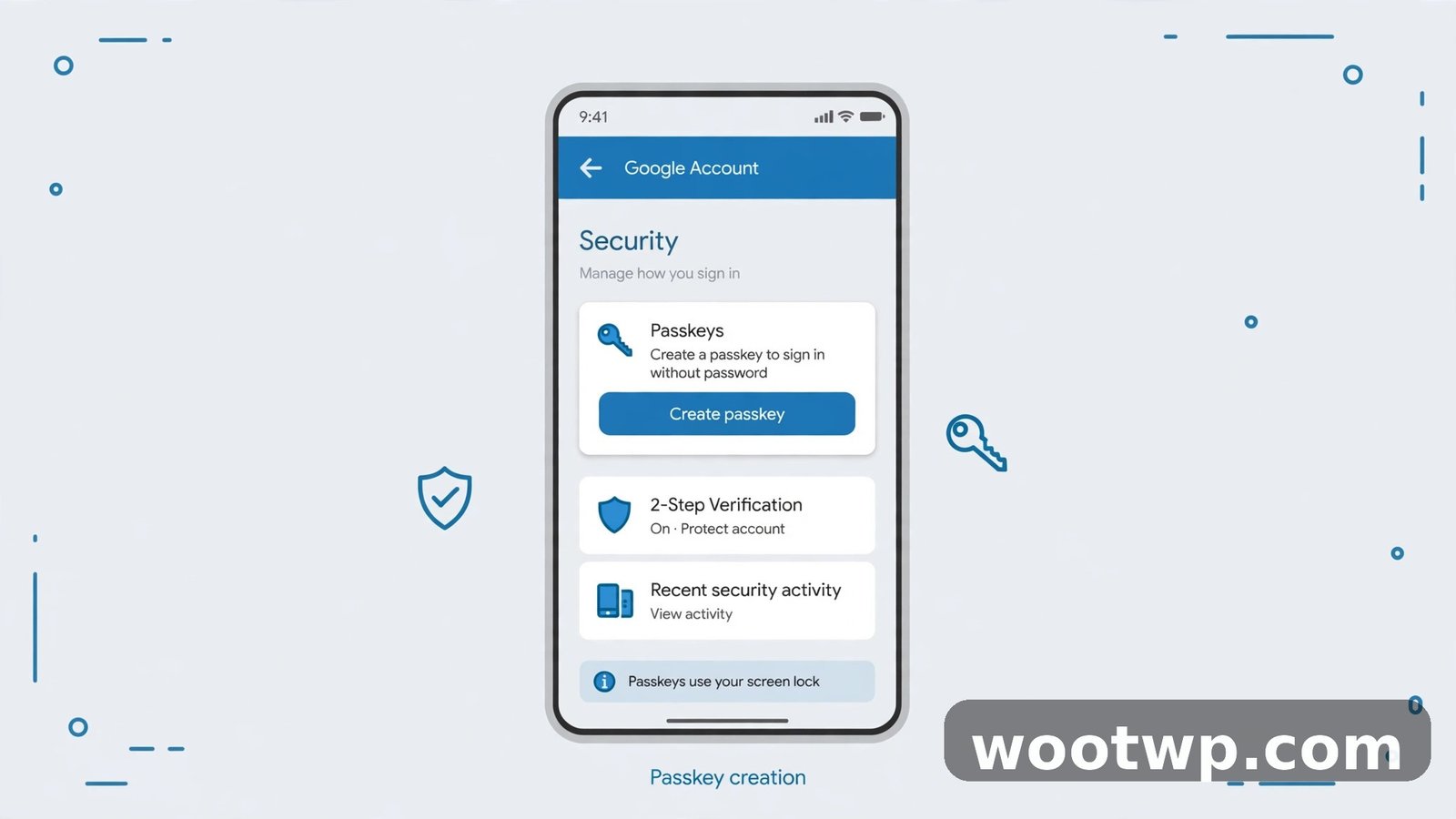
This is the easiest route for most people, because your Android phone is usually the device you have with you.
- Open the Google app on your phone, or open Settings, then Google.
- Tap your profile picture, then tap Manage your Google Account.
- Tap the Security tab.
- Scroll to Passkeys and security keys and tap it.
- Tap Create a passkey (on some phones the button reads Use passkeys or Start using passkeys).
- Confirm your identity with your fingerprint, face, or screen lock PIN.
- Tap Done when the confirmation appears.
That is the whole process. Your phone may already have created a Google passkey automatically when you signed in, so check the passkey list first. If an entry for your phone is already there, you do not need to create a duplicate.
If the Passkeys and security keys section is hard to find, you can also go straight to g.co/passkeys in Chrome while signed in to your Google account. It opens the same settings page.
How to Create a Passkey for Your Google Account on a Computer
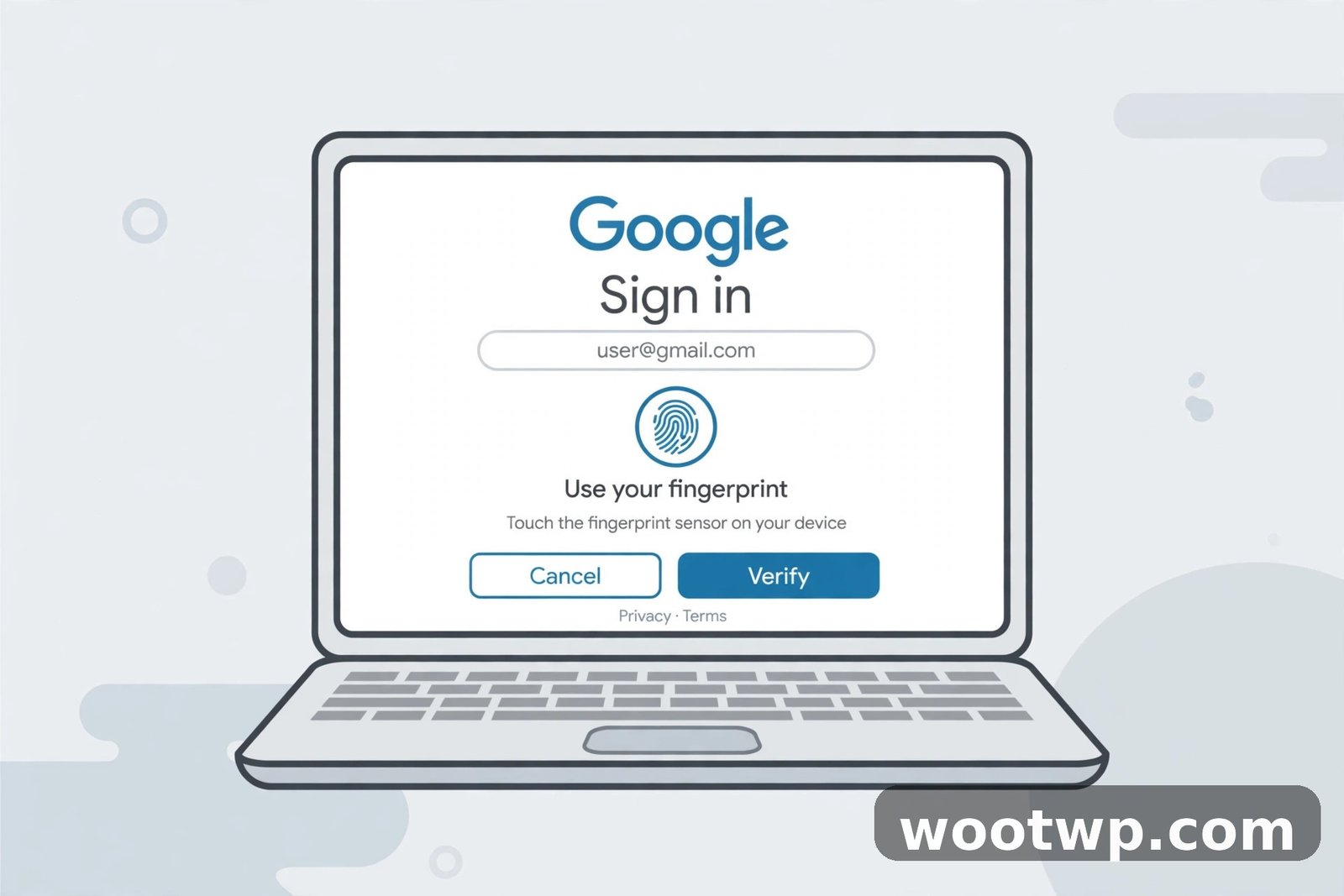
If you spend most of your time on a laptop, create the passkey there instead. The steps are nearly the same, and the passkey can live in your browser or in your operating system's keychain.
- Open Chrome, Edge, or Safari and go to myaccount.google.com.
- Sign in with your Google account and password as usual.
- Click Security in the left-hand menu.
- Scroll to How you sign in to Google and click Passkeys and security keys.
- Click Create a passkey.
- Your browser will ask how to create it. On a Windows PC, that usually means Windows Hello with a PIN, fingerprint, or face. On a Mac, it means Touch ID or your device password.
- Confirm with your fingerprint, face, or PIN, and the passkey is saved.
If your computer does not have a fingerprint reader or camera, you can still create a passkey using your phone. When the browser asks, choose the option to use another device, and a QR code appears. Scan it with your phone, confirm on the phone, and the passkey is created. This cross-device sign-in is one of the most useful parts of the system, and it is how you sign in on a computer you have never used before.
How to Sign In to Google with a Passkey
Once a passkey exists, signing in changes in a pleasant way. Here is what it looks like in practice:
- Go to a Google sign-in page and enter your email address.
- Instead of a password field, your device asks for your fingerprint, face, or PIN.
- Confirm, and you are signed in.
If you have more than one passkey, Google may ask which device to use. Pick the one you have in your hand. If you are on a new computer without a passkey, choose Use your passkey on another device (sometimes shown as Try another way) and scan the QR code with your phone.
One setting worth turning on: after creating your passkey, Google may offer Skip password when possible. Turn this on if you see it. It tells Google to offer the passkey first instead of asking for your password, which is the whole point of switching.
How to Use Passkeys Instead of Passwords on Google Across Devices
A passkey that lives on only one phone is not much use when you pick up your tablet. The good news is that passkeys sync in most setups:
- Android phones and Chrome: a passkey created on your Android phone syncs through your Google account to other Android devices and to Chrome on your computer, as long as you are signed in to the same account.
- iPhone, iPad, and Mac: passkeys sync through iCloud Keychain, so a passkey created on your iPhone appears on your Mac and iPad automatically.
- Password managers: if you save the passkey in a password manager that supports passkey sync, it follows you to every device where that manager is installed, including across Android and iPhone.
Check the sync after you create your first passkey. Sign in on a second device and see whether the passkey option appears. If it does not, the passkey may be saved only on the first device, and you should create a second passkey on the other device too. Having passkeys on two devices is good practice anyway, because it gives you a backup.
What to Do If You Lose Your Phone
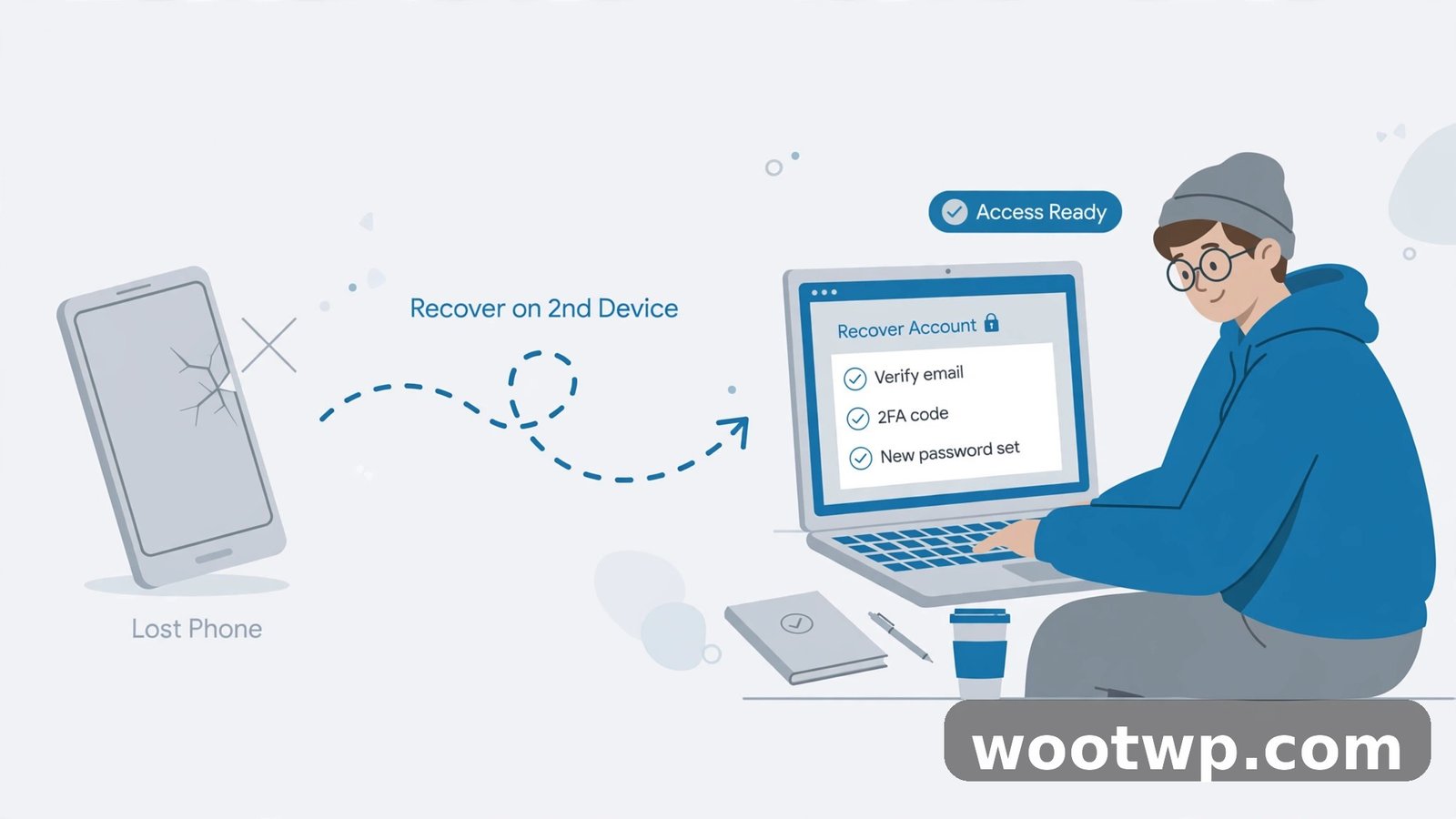
This is the question that stops most people from switching, so let us answer it directly. Losing your phone does not lock you out of your Google account, as long as you prepared even slightly.
- Sign in from another device. If your passkey synced to another phone, tablet, or computer, use that device. It will have the passkey ready.
- Use your recovery options. Your password still works as a fallback unless you deliberately removed it, and your recovery email and phone number still work for account recovery.
- Revoke the lost phone's passkey. Once you are back in, go to Security, Passkeys and security keys, find the entry for the lost phone, and delete it. That passkey can never be used again, even by someone holding your phone.
- Create a fresh passkey on your replacement phone.
The one mistake to avoid is deleting your password and all recovery methods on the same day you create your first passkey. Keep at least one fallback working until you have passkeys on two devices and you have signed in with them successfully. Our guide on how to check if your email was hacked is also worth a read while you are tightening up your account, since a strong sign-in method pairs with knowing whether your address has leaked before.
When Should You Still Keep Your Password?
Passkeys are the better default, but passwords are not dead yet, and there are a few situations where keeping yours matters:
- Old apps and devices. A few older apps that sign in to Google do not support passkeys yet. They will still ask for your password.
- Shared or borrowed computers. Never create a passkey on a computer other people use, unless you are comfortable with them signing in as you. Use the QR-code method with your phone instead.
- Account recovery. If you lose every device with a passkey, your password and recovery options are your way back in. Keep them current.
- Work accounts. Some workplace Google Workspace accounts have passkeys disabled by the administrator. If the option is missing, that is probably why.
The practical setup most people end up with is simple: passkeys on your daily devices, a strong unique password stored in a password manager as a backup (you can generate a strong password free if yours needs an upgrade), and two-step verification turned on. That combination is far stronger than a password alone, and it is also more convenient day to day.
Frequently Asked Questions
How do I use passkeys instead of passwords on Google?
Go to your Google account Security settings, open Passkeys and security keys, and tap Create a passkey. Confirm with your fingerprint, face, or PIN. After that, Google will offer the passkey instead of asking for your password when you sign in.
Are passkeys safer than passwords?
Yes. A passkey cannot be phished, because it only works on the real site, and it cannot be stolen in a data breach, because the site stores only a public key. Passwords fail at both of these.
Does Google see my fingerprint or face when I use a passkey?
No. Your biometric data never leaves your device. It only unlocks the private key stored on your phone or computer, and Google receives only a cryptographic proof, not your fingerprint or face scan.
What happens to my passkey if I lose my phone?
Sign in from another device where the passkey synced, or use your password and recovery options as a fallback. Then delete the lost phone's passkey from your Google account security settings and create a new one on your replacement phone.
Can I still use my password after creating a passkey?
Yes. Creating a passkey does not delete your password unless you choose to remove it. Most people keep the password as a backup and let the passkey handle day-to-day sign-ins.
Do passkeys work on all websites, or only Google?
Passkeys work on any site that supports them, including Apple, Microsoft, Amazon, and many others. Google is a good place to start because it is usually the account that protects all your others through password resets.
Conclusion
Switching to passkeys instead of passwords on Google is one of the highest-value security upgrades you can make in five minutes. Create a passkey on your phone, confirm it works on a second device, keep your password as a backup for now, and turn on Skip password when possible. From then on, signing in is a fingerprint tap instead of a password you have to remember, and phishing pages lose their main weapon against your account.