How to Merge PDF Files Free on Phone and PC
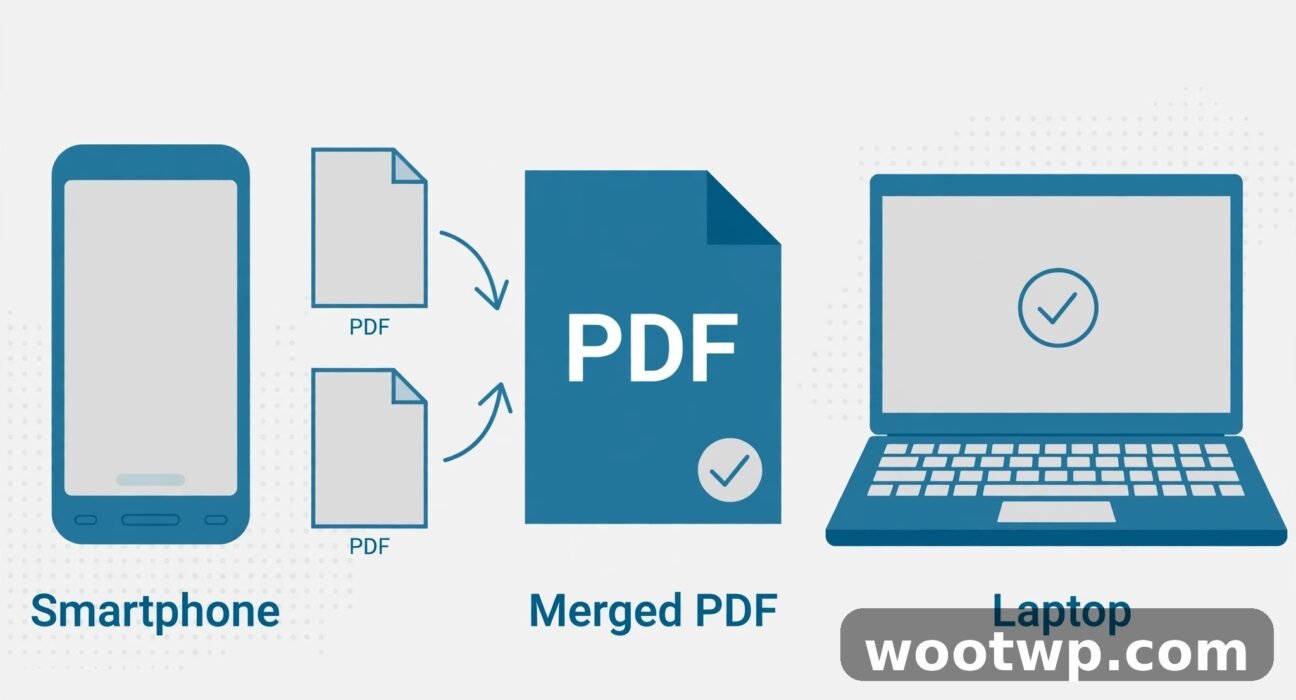
You’ve got three separate PDFs — a scanned contract, a photo of a receipt, and a bank statement — and someone asks you to send them all as one file. Learning how to merge PDF files free on phone and PC is the fastest fix, and you don’t need paid software or any technical skills. Below I’ll walk you through every free method that works: online tools in your browser, your Android phone, your iPhone, and your Windows PC.
Table of Contents
- What Does Merging PDFs Actually Mean?
- Can You Merge PDF Files Free Without Installing Anything?
- How to Merge PDF on Android and iPhone
- How to Combine PDF Files Free on a Windows PC
- 5 Tips That Save You From a Messed-Up Merge
- What If a PDF Is Password Protected?
- Why Won’t My PDFs Merge?
- FAQs
- Conclusion
What Does Merging PDFs Actually Mean?
Merging (also called combining) means taking two or more PDF files and joining them into a single PDF document, page after page, in the order you choose.
It’s worth knowing what merging is not:
- Splitting is the opposite — pulling pages out of one PDF to make several smaller ones.
- Converting changes the file type, like turning a Word document or a JPG photo into a PDF. Merging keeps everything as PDF, it just joins the files together.
- Compressing shrinks the file size. Merging may make the file bigger because it contains more pages.
Most people need to combine PDF files free because an employer, a bank, or an online form asks for “all documents in a single PDF.” Now let’s look at the easiest ways to do it.
Can You Merge PDF Files Free Without Installing Anything?
Yes. The simplest way to merge PDF online free is right in your web browser, and it works the same on a phone and a PC. Most people go hunting for apps when Chrome or Safari already has everything they need.
How Browser-Based PDF Mergers Work
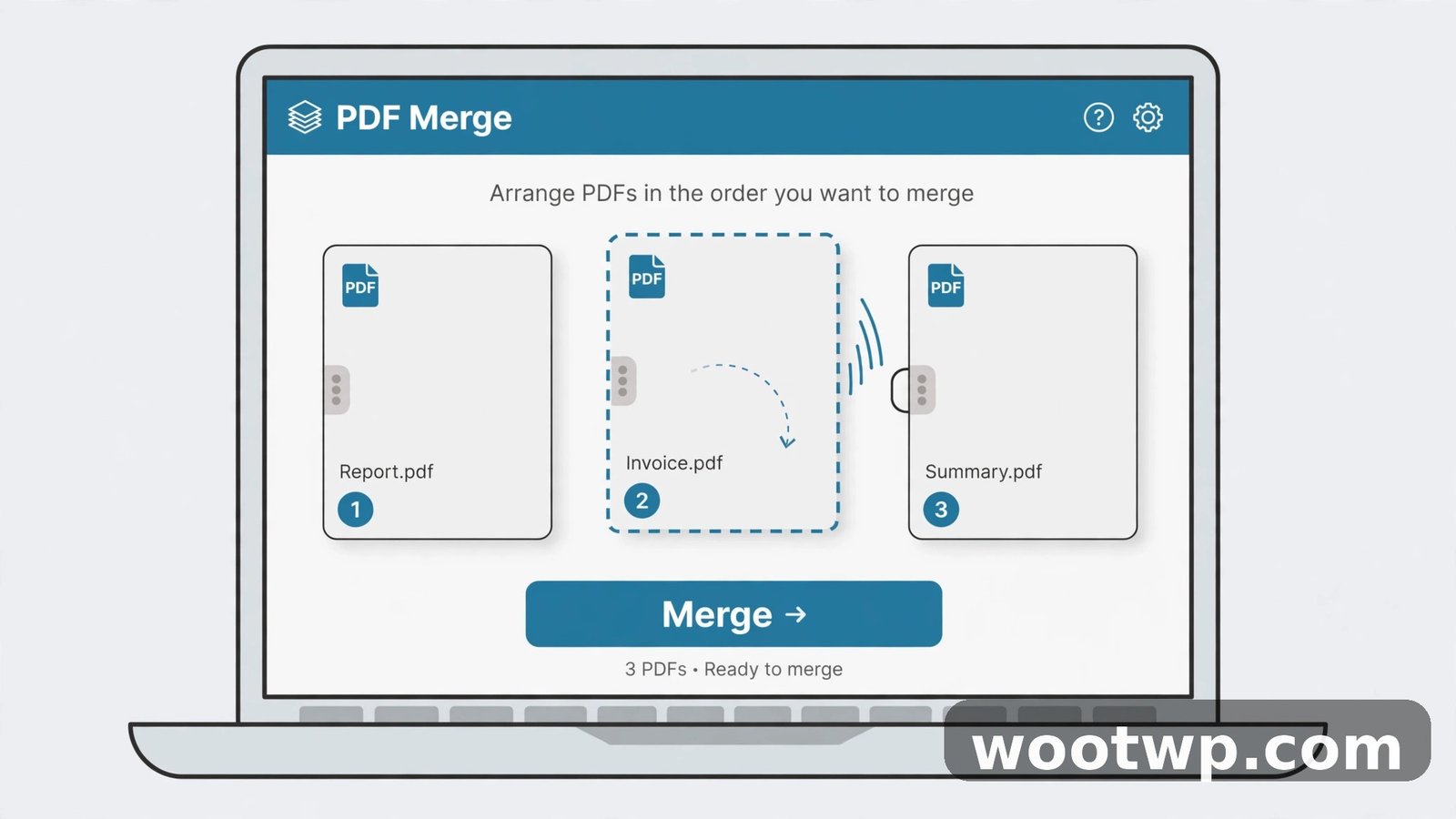
Free online merge tools let you upload your PDFs, arrange them in the order you want, join them together, and download the combined file. Two of the most reliable options are PDF24 Tools and iLovePDF — both free, no account needed, and no watermarks on the merged file.
We also run our own free Merge PDF tool — no signup needed and your files never leave your device: Merge PDF tool
Merge PDF Online Free in 4 Steps
- Open the merge tool in your browser — Chrome on Android, Safari on iPhone, or any modern browser on a PC.
- Upload your PDFs. Select all the files at once, or add them one by one.
- Reorder the files. Drag the thumbnails (or use the up and down arrows on a phone) so they sit in the exact order you want. The merged PDF will follow this order, first to last.
- Merge and download. Hit the merge button, wait a few seconds, and download the combined PDF. On a phone it lands in your Downloads folder, where you can then move or share it.
Limits Worth Knowing
Free online tools sometimes cap the number of files or the total size per merge — typically around 20 to 50 files or a few hundred megabytes. That’s plenty for everyday use. One caution: these tools upload your files to a server to process them, so don’t use them for highly sensitive documents unless you trust the service. Reputable tools delete uploaded files automatically after a short time, but for private documents I prefer the offline methods further down.
How to Merge PDF on Android and iPhone
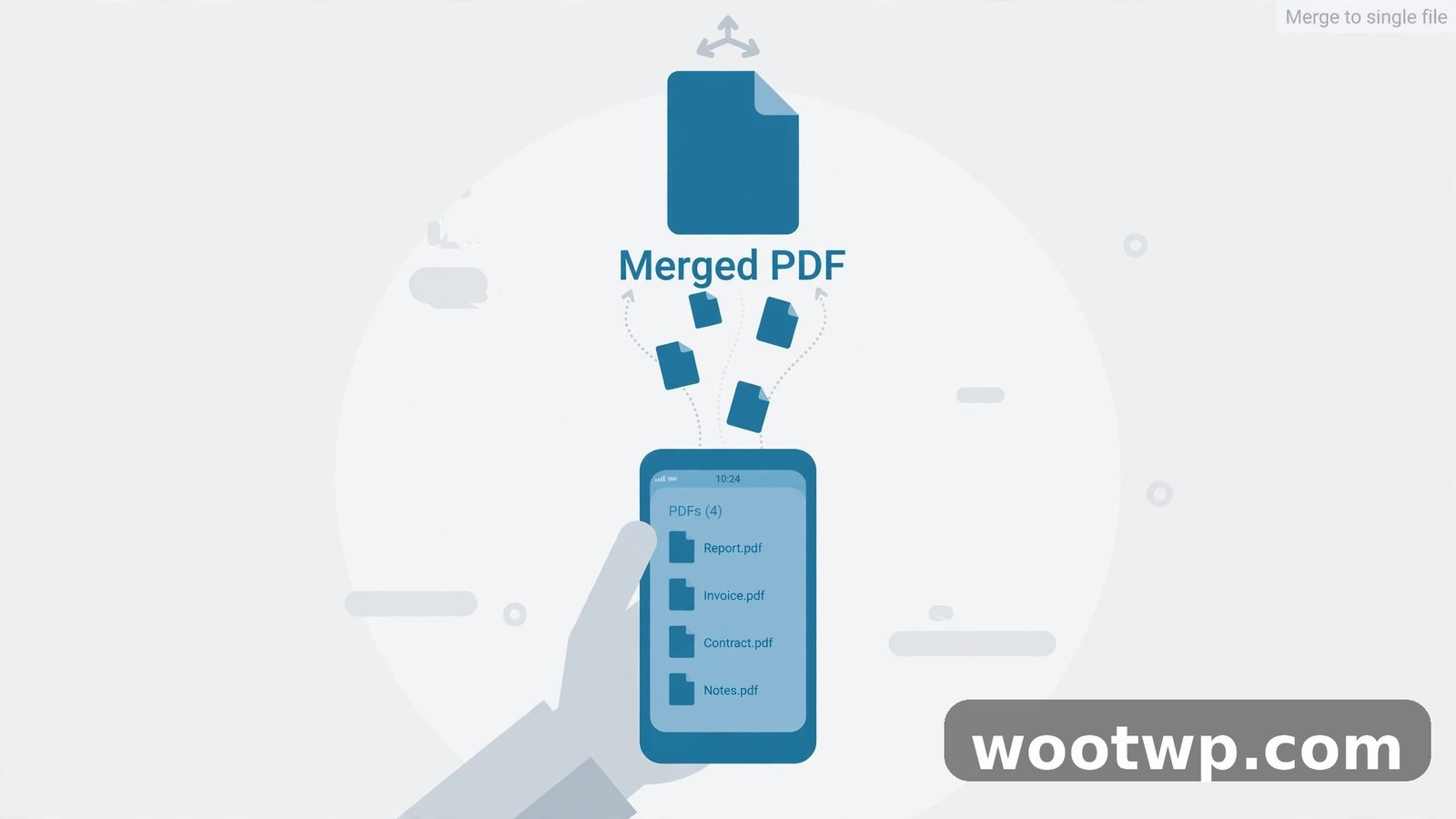
When you need to merge PDF on Android or iPhone, the browser method above works perfectly — just do the same four steps in Chrome or Safari. But there are a couple of phone-specific wrinkles worth covering.
Merge PDF on Android
On Android, Chrome handles online merge tools well. Before you start, open your Files app and check the Downloads folder so you can find your PDFs quickly during upload. If Chrome’s upload button only lets you pick one file at a time, add them one at a time — a minor annoyance, not a blocker. For frequent offline merging, grab a free merge app from the Play Store with a high rating; it should only ask for storage access, so skip any app demanding contacts or location.
Combine PDFs on iPhone
On iPhone, Safari works with the same online tools. Open Safari, go to your chosen merge tool, tap upload, and browse the Files app or iCloud Drive. Arrange the order, tap merge, and download. Use the share button on the downloaded file to save it to Files, attach it to an email, or drop it into WhatsApp. One iPhone quirk: Safari sometimes gives the file a generic name, so rename it in the Files app right away.
How to Combine PDF Files Free on a Windows PC
On a PC you have two strong routes: a fully offline method that never uploads your files anywhere, and a free desktop app for bigger jobs.
Method 1: Merge in Your Browser Without Uploading
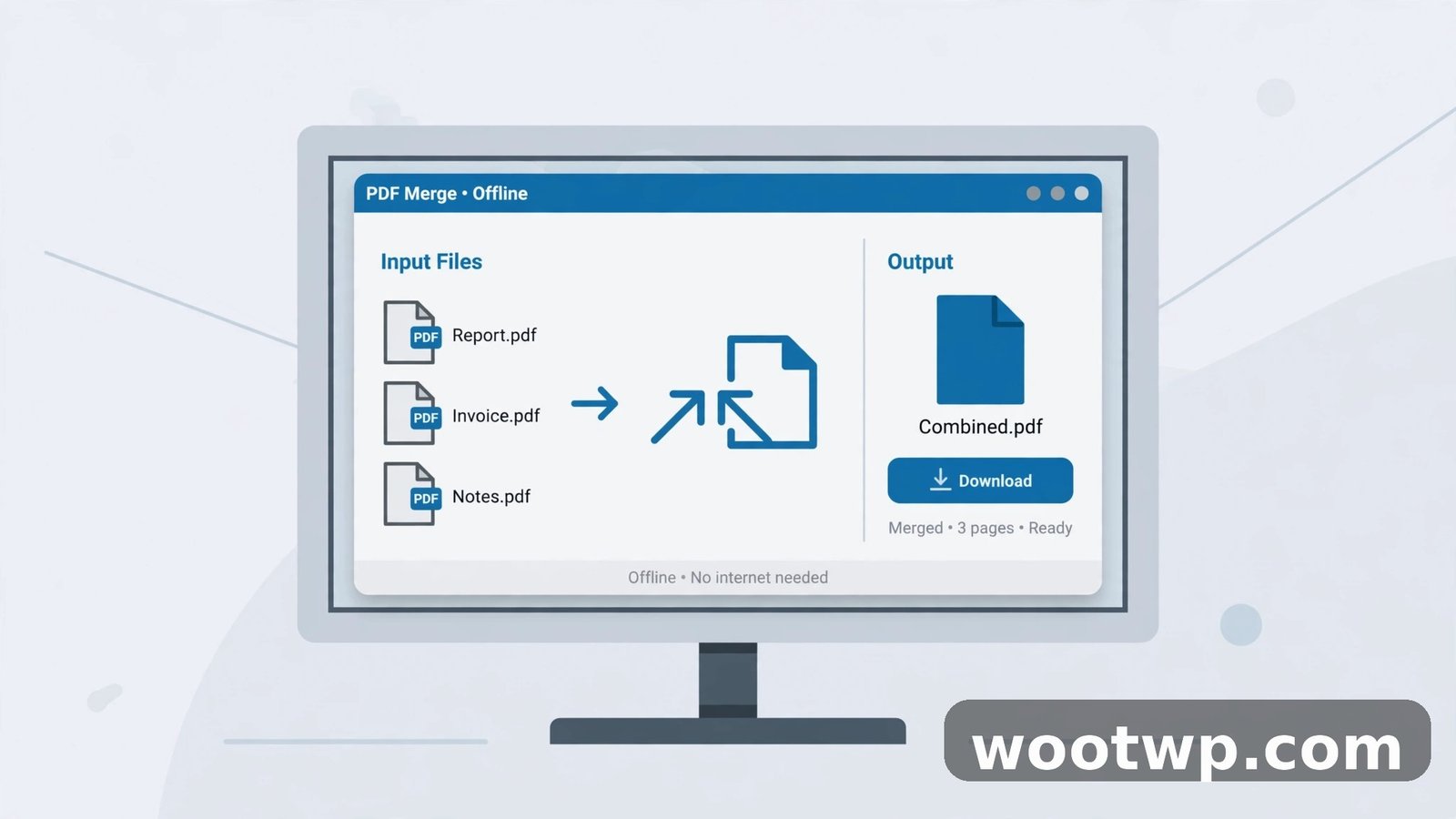
Some free tools now process everything locally inside your browser — your files never leave your computer. PDF24’s online tools are a good example: the merge happens on your device rather than on their servers. The steps are the same as the online method above (upload, reorder, merge, download), but with the privacy benefit of offline processing. If you’re handling documents with personal information, this is my recommended route.
Method 2: Use a Free Desktop App
For large or frequent merges, a desktop app is more comfortable than a browser tab. PDF24 Creator is a free Windows program with a built-in merge tool. Install it once, then open it, choose the merge tool, add your PDFs, drag them into the right order, and click merge. It’s faster with big files — no waiting on uploads — and works with no internet connection at all. Windows has no built-in PDF merge feature, so a free third-party tool like this is the way to go.
5 Tips That Save You From a Messed-Up Merge
These are the mistakes I’ve seen people make again and again when they combine PDF files free:
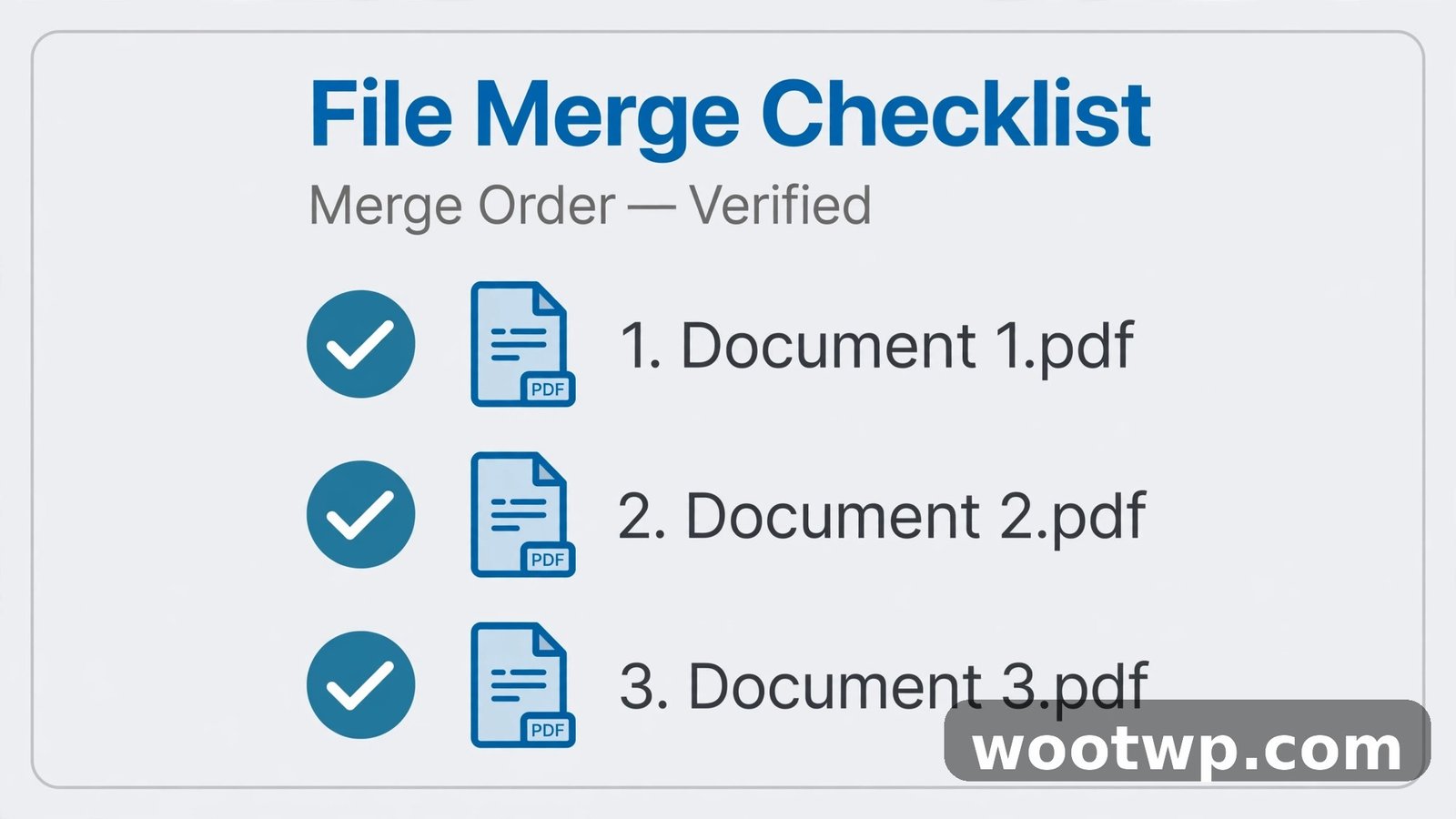
- Check the order twice before merging. The merged order is the final page order, and there’s no undo. A five-second glance at the thumbnails before you hit merge saves a redo.
- Remove blank or duplicate pages first. Scanned documents often include blank pages. Most merge tools let you delete individual pages before merging — use it.
- Watch your file names. If every file is named “document.pdf” or “scan001.pdf,” rename them clearly (contract.pdf, receipt.pdf) before uploading.
- Know that quality stays intact. Merging doesn’t re-compress your PDFs. If your merged file looks blurry, the source file was blurry to begin with.
- Check the final file size. Three 15 MB scans become one 45 MB file, which some email systems reject. Share oversized files through Google Drive instead of email.
What If a PDF Is Password Protected?
This is the number one reason merges fail. Most free tools refuse to merge a PDF that has an owner password or open restriction on it — they simply can’t read the file. The fix is to remove the restriction first, then merge.
If the PDF is yours and you know the password, start with our guide on removing the password from a PDF. If you’d rather not install anything, these methods to remove a PDF password without software work entirely in the browser. Only remove passwords from documents you own or have permission to unlock. Unlock the files, merge them, and the whole process takes a couple of minutes. And if you want the finished file locked, here’s how to protect a PDF with a password free on any device after merging.
Why Won’t My PDFs Merge?
If the merge button spins forever or throws an error, run through this checklist:
- Corrupted file: Try opening each PDF on its own first. A damaged file fails in any tool — re-download or re-scan it.
- Password protection: See the section above — unlock the file first, then merge.
- Huge file size: Files over a few hundred megabytes can time out in browser tools. Use a desktop app instead, or split the job into two smaller merges.
- Wrong file type: Double-check that every file ends in .pdf. A Word document or image sometimes gets mixed in by accident — convert it to PDF first.
- Browser issues: Clear your cache or try a different browser. On phones, updating Chrome or Safari fixes more than you’d expect.
FAQs
How can I merge PDF files free on my phone without an app?
Open your phone’s browser and use a free online merge tool like PDF24 Tools or iLovePDF. Upload the PDFs, arrange them in order, tap merge, and download the combined file. No app or account is needed on Android or iPhone.
Is it safe to merge PDF online free?
For everyday documents, yes — established tools delete uploaded files automatically after processing. For sensitive documents with personal or financial information, prefer a tool that processes files locally in your browser or a desktop app so nothing is uploaded at all.
Does merging PDFs reduce their quality?
No. Merging only rearranges pages into one file; it doesn’t re-compress images or text. Your pages look exactly the same after the merge as they did in the original files.
How many PDFs can I combine into one file for free?
Most free online tools allow roughly 20 to 50 files per merge, which covers nearly every real-world need. If you have more, do several smaller merges and then merge the results, or use a free desktop app with no limits.
Why is my merged PDF in the wrong order?
The merged file follows the exact order you set before merging. Open the merge tool again, drag the thumbnails into the correct order, double-check, then merge. There’s no way to reorder pages after merging without splitting the file again.
Can I merge password-protected PDFs?
Not directly — merge tools can’t read locked files. Remove the password first using a PDF unlock tool (only for documents you own), then merge the unlocked files normally.
Conclusion
Knowing how to merge PDF files free on phone and PC is one of those small skills that saves you again and again — job applications, expense reports, visa paperwork, school submissions. The browser method handles almost everything in under a minute, while desktop apps cover the heavy jobs and sensitive documents. Double-check the page order before you merge, and you’ll never email three separate PDFs again.