How to Stop Spam Emails in Gmail: 9 Proven Ways That Actually Work
Spam in Gmail comes in waves. One quiet week, then suddenly your inbox is drowning in fake invoices, miracle diet pills, "you've won a prize" notices, and newsletters you never signed up for. I've cleaned up inboxes for friends, family, and clients for years, and the pattern is always the same: people either delete spam one email at a time (exhausting) or ignore it until it buries the real mail (risky).
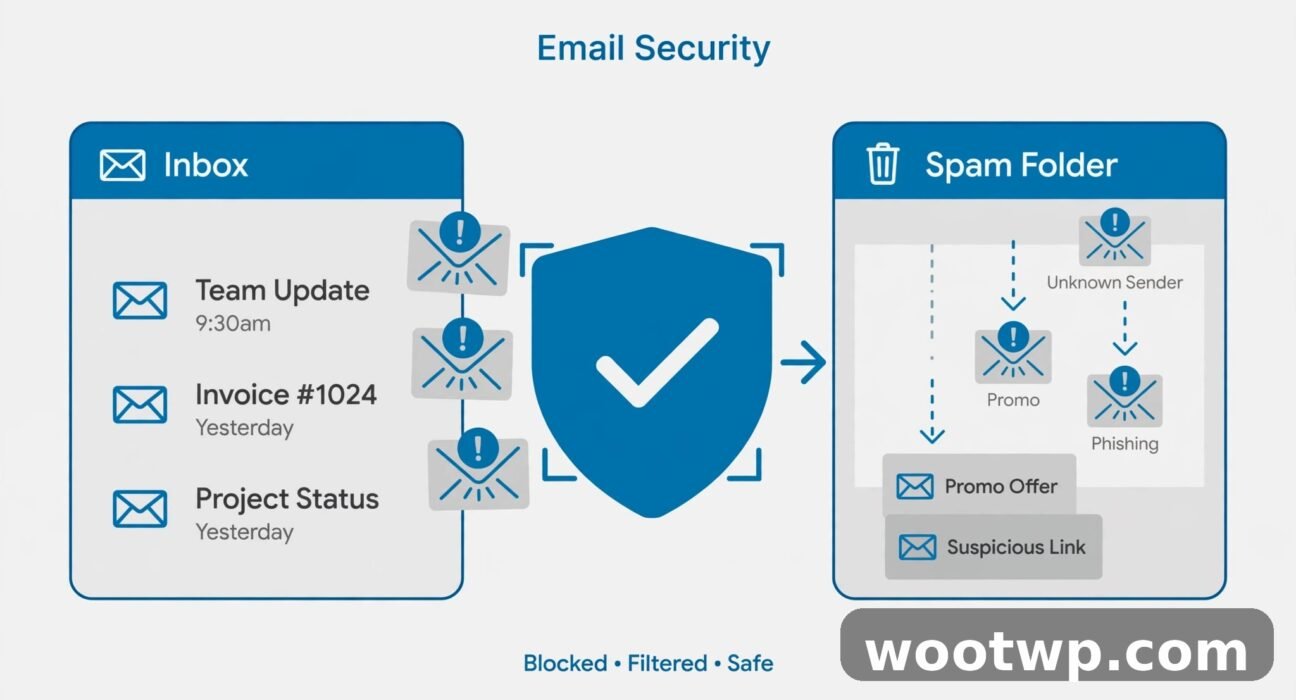
The truth is, Gmail already blocks the vast majority of junk before you ever see it. The spam that lands in your inbox is the stuff that slipped past — and there are specific, proven ways to fight each type. This guide covers all nine, in the order I'd use them: report it, block it, filter it, and clean up the settings that let it in.
1. Report Spam Instead of Just Deleting It
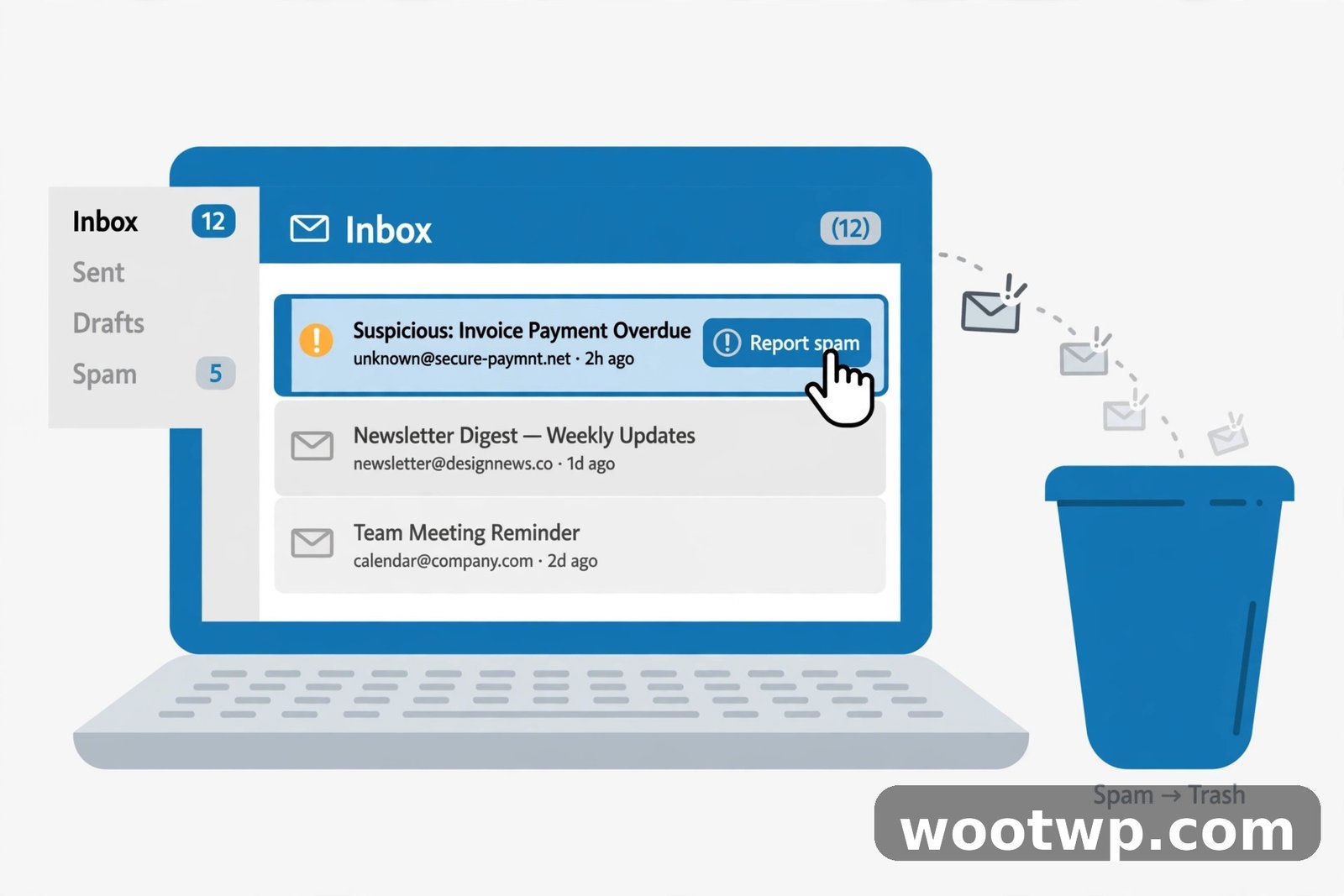
This is the single most important habit, and almost nobody does it. When you delete a spam email, Gmail learns nothing. When you report it, you're training Google's spam filters — and helping every other Gmail user too.
Here's how:
- Select the spam email (tick the checkbox next to it, or just open it).
- Click the Report spam button in the toolbar — it looks like an octagon with an exclamation mark.
- The message moves to your Spam folder, where Gmail auto-deletes it after 30 days.
On the Gmail mobile app, open the message, tap the three-dot menu in the top-right corner, and choose Report spam.
A few things worth knowing from experience:
- Never mark real mail as spam by accident. If a newsletter you actually signed up for lands in Spam, open it and click Not spam. Marking wanted mail as spam teaches the filter the wrong lesson.
- Report, don't reply. We'll get into why replying is dangerous below, but the short version: even an angry "STOP EMAILING ME" confirms your address is active.
- Report phishing separately. If the email is trying to steal your login or money (fake bank alert, "your account will be closed"), use the three-dot menu and choose Report phishing instead of plain spam. That sends it to Google's phishing team, not just the spam filter.
2. Block Senders Who Won't Quit
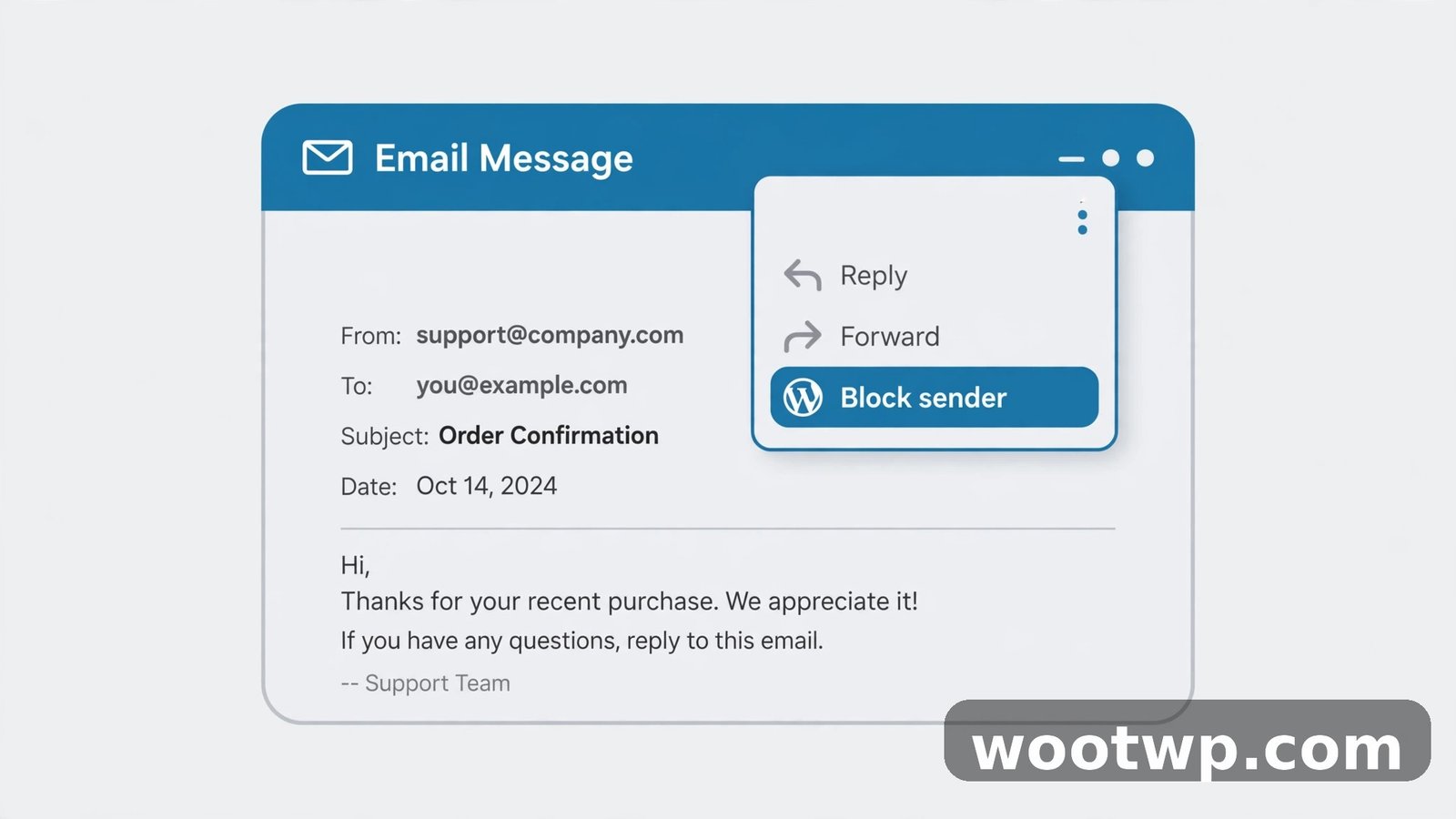
Some junk comes from the same sender over and over — the persistent marketing list, the ex-colleague's company newsletter, the store you bought one thing from three years ago. Blocking is the fastest fix for repeat offenders, and it's different from reporting spam: a blocked sender's future emails go straight to Spam automatically.
On desktop:
- Open any email from the sender.
- Click the three-dot menu (top-right, next to the reply arrow).
- Choose Block "[sender name]".
- Click Block in the confirmation popup.
On the Gmail mobile app:
- Open the email.
- Tap the three-dot menu in the top-right.
- Tap Block "[sender name]" and confirm.
Blocked messages skip your inbox entirely and land in Spam, where they're auto-deleted after 30 days. In my experience, blocking works best for persistent but legitimate-ish senders — companies that keep mailing you after you unsubscribe, or automated systems that send from the same address every time. For the truly random one-off junk ("crypto giveaway" from a fresh address each time), reporting spam and filters work better than blocking, because the next one will come from a different address anyway.
3. Unsubscribe Properly — But Only From Real Companies
Unsubscribing is the right move for mail you technically opted into: store newsletters, app notifications, event updates. But there's a trap here. If you click "unsubscribe" in an actual spam email from a stranger, all you've done is confirm your address is live — and you'll get more spam, not less.
Here's how to tell the difference:
- Safe to unsubscribe: it's a real company you recognize, the email has your name or order history, and the unsubscribe link is at the bottom of a normal-looking email.
- Don't touch it: you never heard of the sender, the email promises prizes or threats, or the "unsubscribe" link looks off. Just report it as spam.
For the safe ones, Gmail makes it easy:
- Open the email on desktop.
- Look for the Unsubscribe link near the top, right next to the sender's name in the message header. Gmail shows this automatically for bulk senders.
- Click it and confirm.
On mobile, the same Unsubscribe link appears at the top of supported emails. If Gmail doesn't show it, scroll to the bottom of the email for the sender's own unsubscribe link.
One more tip I've learned the hard way: unsubscribing can take up to 10 days to fully kick in for legitimate lists. If the same newsletter is still arriving two weeks later, stop being polite — block the sender and set up a filter (next section) instead.
4. Create Gmail Filters That Auto-Delete Repeat Junk
This is the power move. A Gmail filter is a rule that acts on incoming mail automatically — skip the inbox, delete it, label it, mark it read — before you ever see it. When the same junk keeps arriving with the same patterns (same sender domain, same subject words like "crypto" or "invoice"), a filter nukes it permanently.
There are two ways to create one. The quick way:
- Open an example of the junk email.
- Click the three-dot menu and choose Filter messages like these.
- Gmail opens the filter-creation screen with the sender pre-filled. Adjust the criteria (more on that below).
- Click Create filter.
- Choose what the filter should do — typically Skip the Inbox (Archive it) and/or Delete it — then click Create filter again.
The full way, for more control:
- Click the gear icon (top-right) and choose See all settings.
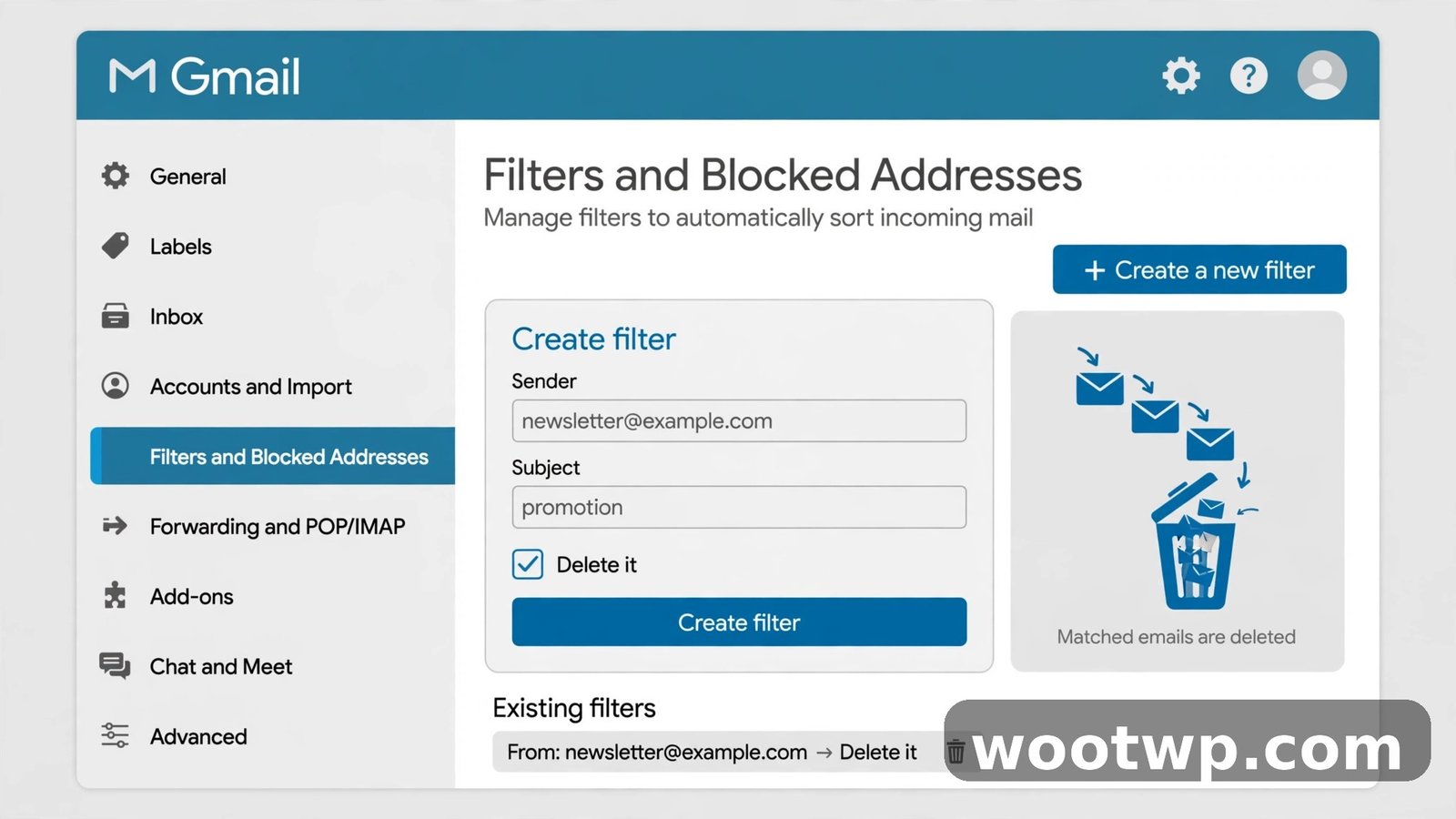
- Go to the Filters and Blocked Addresses tab.
- Click Create a new filter.
- Fill in the criteria: the From field (sender address or domain like
@shady-deals.example), the Subject field (words that repeat, like "guaranteed income"), or Has the words. - Click Create filter, pick the actions, and save.
Which actions to choose:
- Delete it — the nuclear option. Use it for obvious, recurring junk you will never want to read. Deleted filtered mail goes to Trash, not Spam, and Trash empties after 30 days.
- Skip the Inbox (Archive it) — safer choice when you're not 100 percent sure. The mail skips the inbox but is still searchable in All Mail.
- Never send it to Spam — don't tick this for junk filters. Leave it off.
- Also apply filter to matching conversations — tick this if you want the rule to clean up the junk already sitting in your inbox right now.
A word of caution: filters act silently and permanently when set to delete. Test a new filter with "Skip the Inbox" for a week before switching it to "Delete it". I've seen people nuke real order confirmations because their filter matched too broadly — a filter on the word "invoice" will also catch your actual invoices. Be specific: match the sender's domain first, subject words second.
5. Check Your Blocked Addresses List
Over time, your blocked list grows — and sometimes it contains surprises. Maybe you blocked a store during a promo frenzy and now you're missing order updates. Or maybe an old block never took effect. It's worth a review a couple of times a year.
- Click the gear icon and choose See all settings.
- Open the Filters and Blocked Addresses tab.
- Scroll to The following email addresses are blocked. You'll see every blocked sender.
- Click Unblock next to any address you want to receive from again, then confirm.
This same tab is where all your filters live. If spam from a particular sender suddenly reappears, check here first — filters can get accidentally deleted, and a missing filter explains a lot of "why is this back?" mysteries.
6. Never Reply to Spam — Here's Why
It feels good to fire off an angry reply to a spammer. Don't. Here's what actually happens when you reply to spam:
- You confirm your address is active. Spammers send millions of messages to guessed addresses. A reply — any reply, even "remove me" — flags yours as a real, monitored inbox. Your address gets promoted to premium spam lists that get sold and re-sold.
- You open yourself to social engineering. A reply starts a conversation with someone whose entire job is manipulating people by email. No good comes from that thread.
- You waste time on an automated system. Most spam is sent by bots. Nobody reads your reply; the system just logs the engagement.
The correct responses, in order of preference: report it as spam (trains the filter), block the sender (stops that address), or create a filter (stops the pattern). Silence is the strategy. Legitimate companies honor unsubscribe links; spammers honor nothing except an address that never responds — because a non-responding address eventually looks dead and gets dropped from rotation.
7. Spot Phishing Red Flags Before You Click
Not all dangerous email is obvious spam. Phishing emails are designed to look legitimate — fake bank alerts, "suspicious login" warnings, delivery notifications — and their goal is to steal your password or payment details. A quick mental checklist before clicking any link in an unexpected email:
- Check the actual sender address, not just the display name. A "bank" emailing from
support@secure-verify-random-domain.comis not your bank. On desktop, hover over the sender name; on mobile, tap it to reveal the full address. - Urgency is a weapon. "Your account will be closed in 24 hours" is designed to make you click before you think. Real companies rarely threaten instant closure by email.
- Generic greetings. "Dear valued customer" from a service that knows your name is a red flag.
- Hover before you click. On desktop, hover over any link to see the real destination in the status bar. If it doesn't match the company's real domain, close the email and report it as phishing.
And the single best defense against phishing isn't in your inbox at all: turn on 2-Step Verification for your Google account, so a stolen password alone can't get an attacker in. Our guide on how to transfer Google Authenticator to a new phone walks through the authenticator side of that setup, which is worth having before you need it.
8. Clean Up the Promotions and Updates Tabs
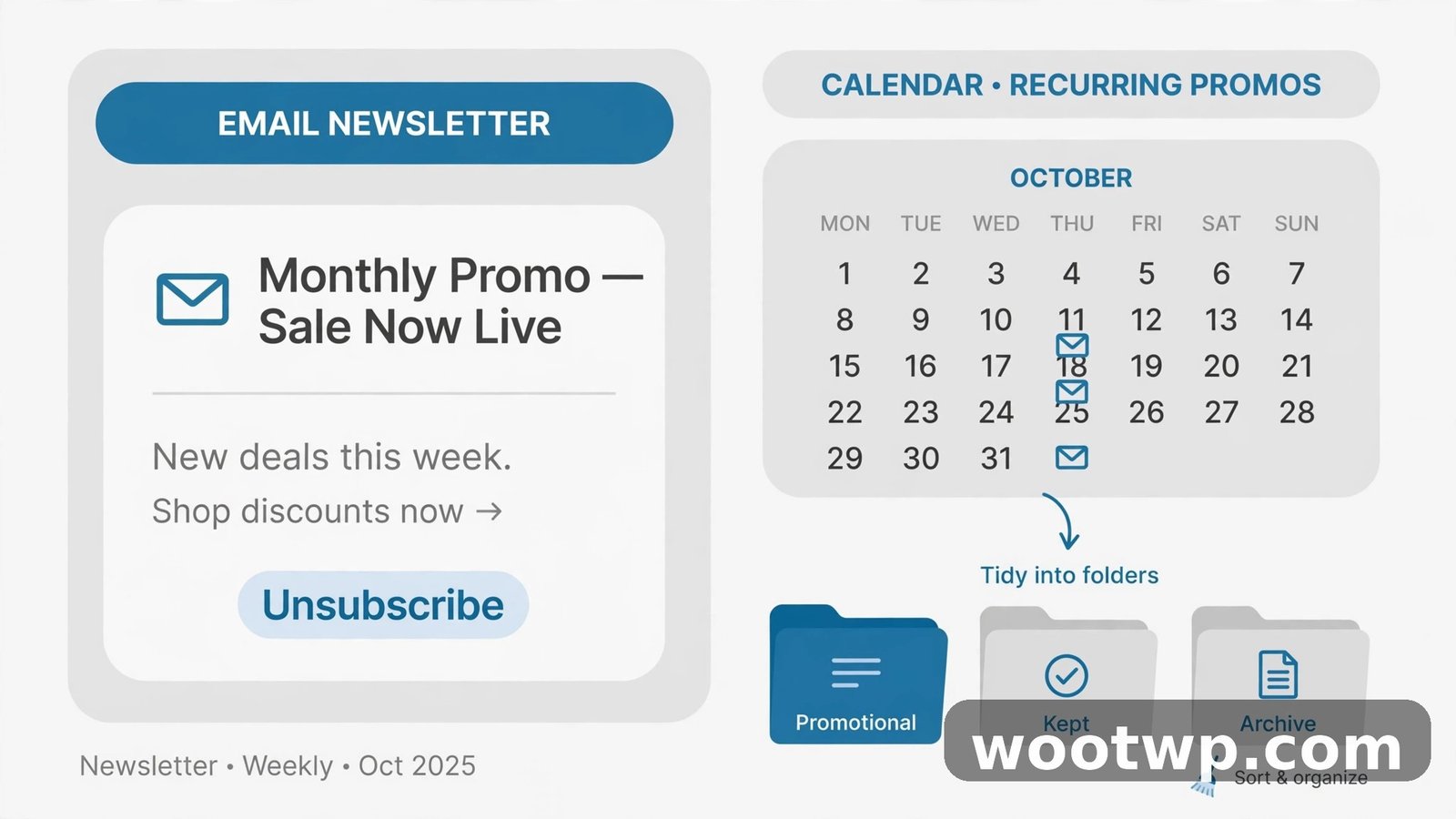
A lot of what feels like "spam" isn't spam at all — it's legitimate bulk mail piling up in the Promotions tab (store deals, newsletters) and the Updates tab (receipts, notifications, social alerts). Gmail sorts these automatically if you have tabbed inbox enabled, which keeps your Primary tab clean — but the tabs themselves can still overflow.
A few ways to keep them manageable:
- Drag-and-drop to retrain tabs. If a newsletter you actually read keeps landing in Promotions, drag it to the Primary tab. Gmail asks if you want future emails from that sender to go to Primary — say yes. Do the reverse for mail cluttering Primary that belongs in Promotions.
- Turn off tabs you don't want. Go to Settings (gear icon) > See all settings > Inbox, and untick Promotions, Social, or Updates under "Inbox type". With tabs disabled, everything lands in one inbox — which some people prefer, since at least nothing hides.
- Use the tab contents as your unsubscribe list. Open the Promotions tab, sort by sender, and unsubscribe from the ones you never open. Fifteen minutes of this once a quarter does more for inbox sanity than any filter.
If bulk mail is also eating your storage quota, it pairs well with a cleanup pass — our walkthrough on how to free up Gmail storage without deleting emails covers hunting down the space hogs with search operators, which works great right after a spam purge.
9. Audit the Settings That Let Spam In
If spam keeps arriving no matter what you do, the problem might be in your account settings rather than your filters. Run through this checklist:
- Check forwarding. Go to Settings > See all settings > Forwarding and POP/IMAP. If forwarding is on and you didn't set it up, turn it off — an attacker or an old rule could be routing your mail (and spam replies) somewhere else.
- Check "Send mail as". On the Accounts and Import tab, look at Send mail as. Unknown addresses here are a red flag worth investigating.
- Check connected apps. Visit myaccount.google.com/permissions and remove any third-party app you don't recognize. Shady apps can read your contacts and trigger spam waves.
- Review filters you didn't create. Back on the Filters and Blocked Addresses tab, look for filters you don't remember making — especially any with "Never send it to Spam" ticked. Delete anything suspicious.
- Secure shared computers. If you check Gmail on a shared or public computer, always sign out when done — and if you ever suspect someone accessed your account from one, clearing the browser's saved data is smart. Our guide on how to clear cookies in Chrome covers the full cleanup.
One more scenario I've run into: people who publish their email address publicly (on a website, in a forum signature) get dramatically more spam than people who don't. If your address is out there and the flood never stops, consider using Gmail's plus-addressing for public signups — give out yourname+shopping@gmail.com instead of yourname@gmail.com. Mail to it still reaches you, but you can filter on the +shopping part and nuke it all with one rule if that address ever leaks to spammers.
Mobile Gmail App: The Quick Version
If you mostly use Gmail on your phone, here's the condensed playbook — everything above works on mobile, just with slightly different taps:
- Report spam: open the message, tap the three-dot menu, choose Report spam.
- Block a sender: open the message, three-dot menu, Block "[sender name]".
- Unsubscribe: tap the Unsubscribe link at the top of legitimate bulk emails.
- Manage filters and blocks: the mobile app doesn't expose the full Filters and Blocked Addresses settings — for that, open Gmail in your phone's browser (mail.google.com), tap the menu, scroll down, and switch to the desktop site, or just do it next time you're at a computer.
- Report phishing: three-dot menu > Report phishing for anything trying to steal credentials.
The one mobile-specific habit worth building: report spam the moment you see it instead of swiping it away. It takes two taps, and it's the fastest way to train your personal filter.
Frequently Asked Questions
Why am I suddenly getting so much spam in Gmail?
A sudden spike usually means your address leaked somewhere new — a data breach, a signup on a sketchy site, or your address being sold between marketing lists. Check haveibeenpwned.com to see if your address appeared in a known breach. The spike typically fades over a few weeks if you consistently report the junk instead of engaging with it.
Does reporting spam in Gmail actually do anything?
Yes. Every report feeds Google's machine-learning spam filters, which protect all Gmail users, and it also tunes your personal filter — Gmail learns which senders and patterns you consider junk. One report won't stop a determined spammer, but consistent reporting measurably reduces what reaches your inbox over time. Deleting without reporting teaches the filter nothing.
Is it safe to click unsubscribe in spam emails?
Only unsubscribe from senders you recognize and trust — real companies with real unsubscribe links. Never click unsubscribe (or any link) in obvious spam, phishing attempts, or mail from strangers; it confirms your address is active and usually increases the volume. For unknown junk, report as spam and block or filter the sender instead.
What's the difference between blocking a sender and reporting spam?
Reporting spam trains Google's filters and helps everyone; the message goes to Spam and the pattern gets flagged globally. Blocking is personal — future mail from that exact address skips your inbox and goes to Spam, but it doesn't teach the global filter anything. Use both: report the junk, then block the persistent senders.
Will creating a filter delete emails I actually want?
It can, if the filter is too broad — that's why you should test with "Skip the Inbox" before switching to "Delete it", and always match the sender's domain first rather than generic subject words. A filter on @annoying-store.com is safe; a filter on the word "sale" will eventually catch something you wanted. Review your filters on the Filters and Blocked Addresses tab every few months.
How do I stop spam in the Gmail app on my phone?
Open the junk message, tap the three-dot menu, and choose Report spam or Block the sender. For legitimate newsletters, use the Unsubscribe link at the top of the email. Full filter management isn't available in the app — use Gmail in your phone's browser or a desktop for creating and editing filters under Settings, then See all settings, then Filters and Blocked Addresses.
Conclusion
Stopping spam in Gmail isn't about one magic button — it's a short routine. Report the junk so the filters learn. Block the senders who keep coming back. Build a filter or two for the patterns that repeat. Unsubscribe from the real companies, ignore the fake ones completely, and audit your account settings once in a while to make sure nothing is letting the flood in through a side door.
Do that, and in my experience the difference is dramatic within a couple of weeks: the inbox goes quiet, the real mail stands out again, and the occasional wave that gets through is handled in two taps. Start with the reporting habit today — it's the one move that compounds.