How to Record Screen on Mac Free: 5 Easy Ways
You need to show someone what's happening on your Mac, and learning how to record screen on Mac free is the fastest route. Maybe you're making a tutorial, reporting a bug to support, or capturing a gameplay clip. Whatever the reason, you don't need to buy anything. Your Mac already has two free screen-recording tools built in, and I'll walk you through both, plus a few free add-ons for system audio and full editing control.
I've recorded dozens of tutorials this way on MacBook Air and iMac models, and the built-in tools are genuinely enough for most jobs. Let's get you recording in the next few minutes.
- Free Built-In Tools on Your Mac
- Method 1: The Fastest Free Way to Record Your Screen on a Mac
- Method 2: How to Record Screen on Mac Free with QuickTime Player
- Method 3: Add Voice Narration with Your Microphone
- Method 4: Capture System Audio for Free with BlackHole
- Method 5: Full Recording Control for Free with OBS Studio
- Where Do Mac Screen Recordings Save?
- How to Stop a Mac Screen Recording
- Trim Your Recording in QuickTime
- Fix: The Screenshot Toolbar Won't Open
- Common Problems and Fixes
- Keep Your Recording File Sizes Manageable
- FAQs
- Conclusion
Free Built-In Tools on Your Mac
Every Mac running macOS Mojave (10.14) or later has two free ways to do a Mac screen recording, and you already have both:
- The Screenshot toolbar — opened with Shift-Command-5 (⇧⌘5). It handles screenshots and screen video in one floating panel, with options for mic, timer, and save location.
- QuickTime Player — open it from your Applications folder, then choose File, then New Screen Recording. On modern macOS this hands you straight to the Screenshot toolbar, which confuses people reading old guides.
That's the key detail most outdated articles get wrong: since macOS Mojave, QuickTime's New Screen Recording menu item opens the system Screenshot toolbar instead of the old floating red-button panel. If you're on Sonoma, Sequoia, or Tahoe, everything below applies to your Mac.
Method 1: The Fastest Free Way to Record Your Screen on a Mac
This is the method I use 90 percent of the time. The Mac screenshot toolbar is the quickest way to record screen MacBook tutorials, bug demos, or anything else, because you never have to open an app.
Record the Entire Screen
- Press Shift-Command-5 (⇧⌘5) to open the Screenshot toolbar.
- On the toolbar, click the Record Entire Screen icon (the dotted circle icon on the right side of the toolbar).
- Click Options if you want to pick a microphone, set a timer, or change where the file saves.
- Click Record in the toolbar.
- To stop, click the square Stop button that appears in your menu bar (or press Command-Control-Esc).
Record a Selected Portion of the Screen
- Press Shift-Command-5 (⇧⌘5).
- Click the Record Selected Portion icon.
- Drag the frame's edges to set the exact area you want. You can drag the whole frame to move it.
- Click Record.
- Stop the same way: the menu-bar Stop button or Command-Control-Esc.
A few toolbar tips worth knowing:
- Record Selected Window is available on macOS Tahoe 26 and later, which lets you capture one app window cleanly.
- Show Mouse Clicks in the Options menu draws a black ring around your pointer every time you click, which makes tutorial videos much easier to follow.
- Remember Last Selection keeps your last recording area selected the next time you open the toolbar.
- Press the Esc key before you click Record to cancel everything.
Method 2: How to Record Screen on Mac Free with QuickTime Player
QuickTime Player is the classic answer to how to record screen on Mac free, and it's still handy — especially because it opens with the free QuickTime screen record tools for trimming and splitting after you capture.
- Open QuickTime Player from your Applications folder.
- In the menu bar, choose File, then New Screen Recording.
- On modern macOS, the Screenshot toolbar appears (see Method 1). Pick your recording mode and press Record.
- Stop with the menu-bar Stop button or Command-Control-Esc.
Once you stop, QuickTime opens your recording in a preview window automatically. From there you can play it back, trim it (see the trimming section below), or choose File, then Save to keep it somewhere specific.
Why bother with QuickTime at all if it just opens the same toolbar? Two reasons: the preview window gives you instant playback to check your work, and QuickTime is the home of the trim and split editing tools you'll read about below.
Method 3: Add Voice Narration with Your Microphone
A silent screen capture is fine for a quick bug report, but tutorials need your voice. Adding narration is free and built into the same toolbar.
- Press Shift-Command-5 (⇧⌘5).
- Click Options.
- Under Microphone, choose your built-in microphone, your AirPods, or an external USB mic.
- Record as normal.
Two practical notes from experience:
- Do a five-second test recording first and play it back. Built-in MacBook mics pick up keyboard clicks loudly, so keep your typing light while narrating or use headphones with a mic.
- Set your mic level before you start. QuickTime's preview won't show you levels, so the test clip is your safety net.
If you plan to record narration often, a basic USB microphone is a bigger quality upgrade than any software change. But for occasional videos, the built-in mic is perfectly usable.
Method 4: Capture System Audio for Free with BlackHole
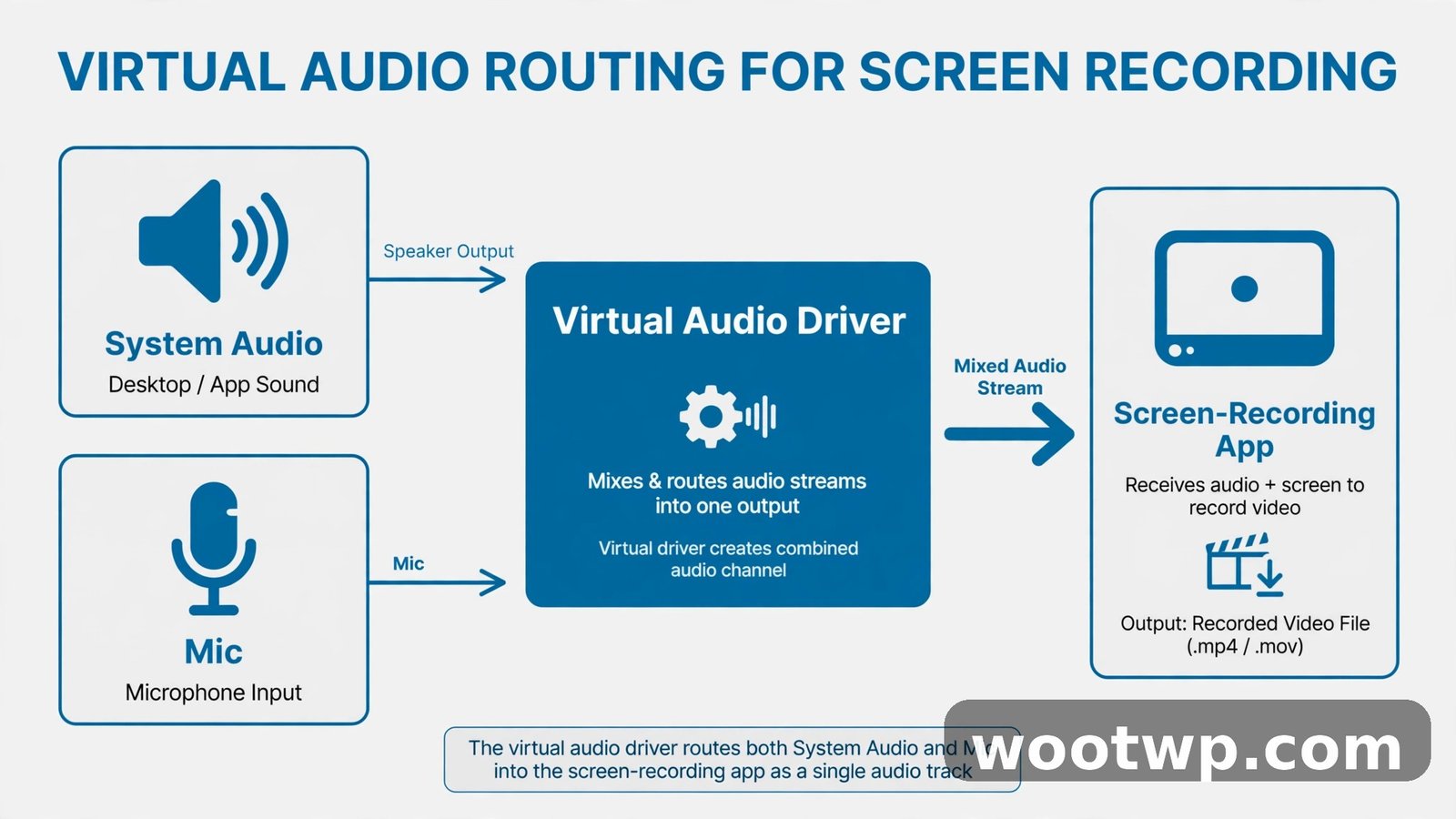
Here's the honest limitation: QuickTime does not record system audio natively. The toolbar's microphone option captures your voice, not the sound coming from your apps. So if you need to record a Zoom call's audio, a game's sound, or a video playing in your browser, you need a free virtual audio driver.
BlackHole is a free, open-source virtual audio driver for macOS that routes system audio where a recording app can grab it.
- Download and install BlackHole (the 2-channel version is enough for most people) and restart your Mac when prompted.
- Open Audio MIDI Setup from Applications, then Utilities.
- Click the plus button in the bottom-left corner and choose Create Multi-Output Device.
- Check both your normal speakers and BlackHole 2ch so you can hear the audio while it records.
- Right-click the new Multi-Output Device and choose Use This Device For Sound Output.
- Open the Screenshot toolbar with Shift-Command-5, click Options, and under Microphone select BlackHole 2ch.
- Record as normal. Your Mac's system audio is now being captured.
When you're done, remember to set your sound output back to your regular speakers in System Settings, then Sound. I forgot to switch mine back once and spent twenty minutes wondering why my MacBook was "silent."
A cleaner alternative for long-term use: create an Aggregate Device in Audio MIDI Setup that combines your mic and BlackHole, so one "microphone" choice in the toolbar captures both your voice and system sound together.
Method 5: Full Recording Control for Free with OBS Studio
If you want scenes, overlays, live streaming, or per-source audio mixing without paying for anything, OBS Studio is the free, open-source choice. It's more complex than the built-in tools, but it's genuinely free with no watermarks.
- Download and install OBS Studio for macOS and grant it screen-recording permission when asked.
- In the Sources panel, click the plus button and add Screen Capture (or Window Capture for one app).
- Add Audio Input Capture for your mic and Audio Output Capture for system audio. On macOS, system audio capture may still need a virtual driver like BlackHole.
- Click Start Recording in the Controls panel. Your files land in the Movies folder by default.
OBS is overkill for a quick screen clip, but if you're building a YouTube tutorial workflow or streaming, it's the free tool most creators land on. Record in the built-in tools for speed; graduate to OBS when you need production control.
Where Do Mac Screen Recordings Save?
By default, every Mac screen recording saves to your Desktop with a name like "Screen Recording 2026-10-24 at 09.30.00.mov". If your desktop is turning into a pile of video files, change the destination:
- Press Shift-Command-5 (⇧⌘5).
- Click Options.
- Under Save to, pick Desktop, Documents, Clipboard, Mail, Messages, or Other Location to choose any folder.
- The choice sticks, so all future recordings go there automatically.
If you ever can't find a recording, it's almost always on the Desktop under a "Screen Recording" name. You can also press the Esc key right after stopping — no, that doesn't cancel a finished recording. Just check the Desktop first.
How to Stop a Mac Screen Recording
New users always ask this mid-panic, so here it is clearly:
- Click the square Stop button in the menu bar at the top of your screen. This is the most reliable method.
- Or press Command-Control-Esc (⌃⌘Esc).
What does not work: clicking the recording window (there isn't one during toolbar recordings), pressing Esc after recording has started (Esc only cancels before you press Record), or quitting the Screenshot toolbar app.
When you stop, a thumbnail slides into the bottom-right corner of your screen. Click it to preview, or ignore it and let it save automatically to your chosen location.
Trim Your Recording in QuickTime
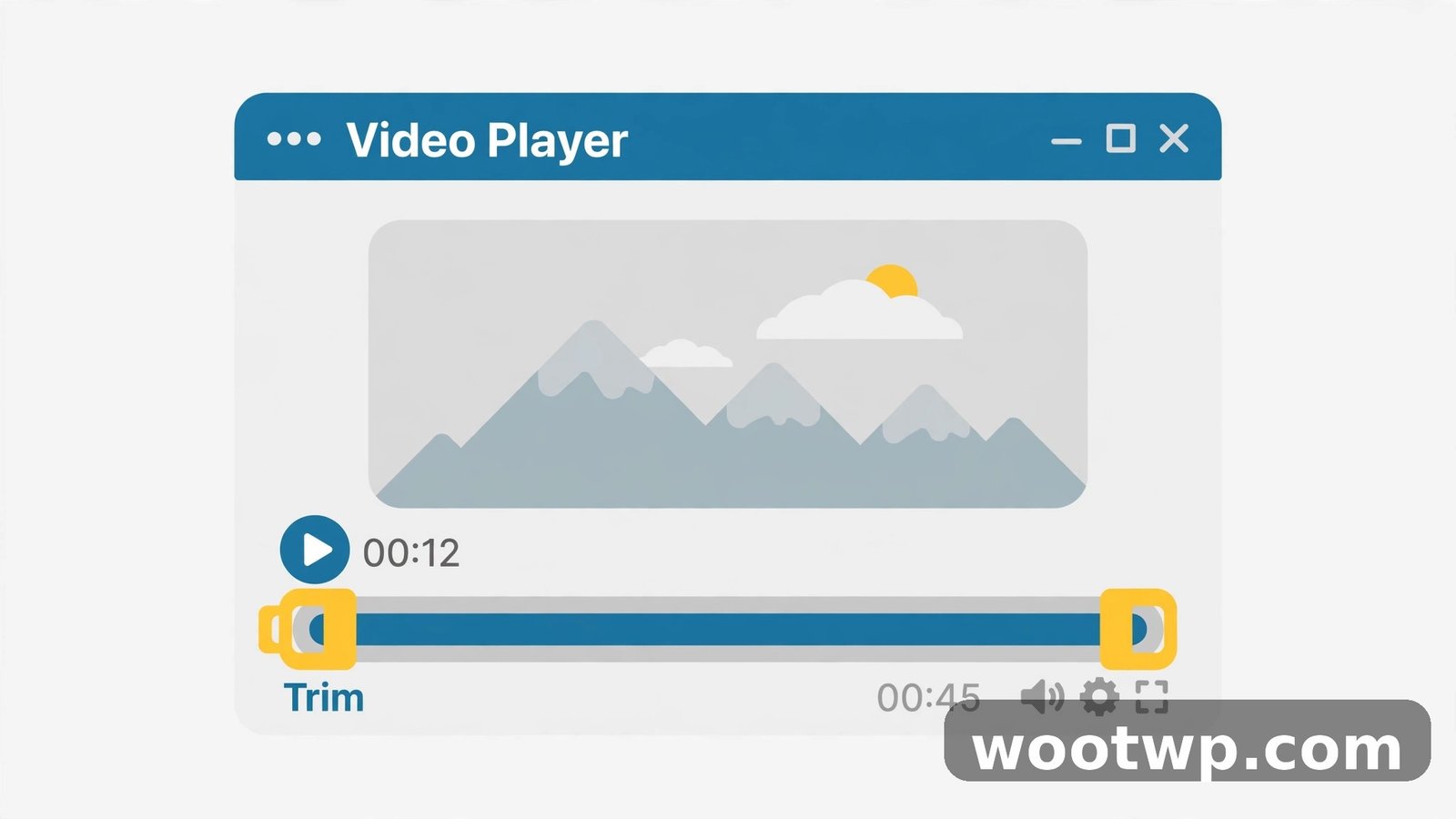
You almost always record a few extra seconds at the start or end. Trimming is free and takes seconds in QuickTime Player:
- Open your recording in QuickTime Player.
- Choose Edit, then Trim from the menu bar (or press Command-T).
- Drag the yellow handles on the timeline to set the new start and end points.
- Press Play to preview your trimmed version.
- Click Trim, then choose File, then Save to overwrite or Save As to keep the original.
For slightly more advanced cuts, QuickTime also has Edit, then Split Clip (Command-Y), which splits the video at the playhead so you can delete a middle section. It's basic, but for free built-in tools, it's surprisingly capable.
Fix: The Screenshot Toolbar Won't Open
If pressing Shift-Command-5 does nothing, or a recording fails to start, the cause is usually a permission problem. macOS blocks screen capture until you explicitly allow it.
- Open System Settings from the Apple menu.
- Go to Privacy and Security, then Screen Recording (in older macOS versions it's under Security and Privacy, then Privacy).
- Find the app you want to use (QuickTime Player, OBS, your browser — whichever is recording) and turn its switch on.
- If the app is already open, quit and reopen it so the permission takes effect.
Two more things to check:
- Screen Time or parental controls can block screen recording on managed Macs. If the toggle is grayed out, an admin profile may be restricting it.
- Older macOS versions (before Mojave) don't have the Screenshot toolbar at all. On those Macs, use QuickTime's own recording window via File, then New Screen Recording, which shows the old floating panel with a red record button.
Common Problems and Fixes
My Recording Has No Sound
This is the most common complaint, and it's almost always one of these:
- You didn't select a microphone. Open the toolbar, click Options, and check the Microphone setting before you record.
- You expected system audio. QuickTime and the toolbar cannot capture system audio on their own — that's what Method 4 (BlackHole) is for.
- Your mic is muted at the system level. Check System Settings, then Sound, then Input, and make sure your mic shows input levels when you speak.
The Recording Is Black When I Record Netflix, Apple TV, or Another Video Service
This is DRM (digital rights management) working as designed. Streaming apps like Netflix, Disney Plus, and the Apple TV app block screen capture of protected video — your recording will show a black rectangle where the video should be. Audio may record, but the picture won't. There is no built-in macOS setting that changes this; it's enforced by the content providers to prevent piracy. You'll need to use the service's own download or offline features instead.
The Recording Won't Start at All
Work through this checklist in order:
- Grant screen-recording permission (see the fix section above).
- Quit and reopen the recording app.
- Check available disk space — video files are large, and macOS can silently fail a recording when the drive is nearly full.
- Restart your Mac. Seriously. A stuck screen-capture service is one of the most common causes, and a restart clears it.
The Video Looks Blurry or Low Quality
The built-in tools record at your screen's native resolution, so "blurry" usually means something else: you're recording a small portion and then viewing it full-screen, or the playback app is downscaling. Record the full screen or a larger portion when quality matters, and check the file in QuickTime Player at actual size before judging.
Keep Your Recording File Sizes Manageable
Mac screen recordings are uncompressed-feeling monsters — a few minutes of full-screen video can easily run into hundreds of megabytes. Here's how to keep things sane without buying software:
- Record only the portion you need. A quarter-screen recording is roughly a quarter of the file size. The selected-portion mode from Method 1 is your best friend.
- Use the right format on macOS Tahoe 26 and later. In the Screenshot toolbar's Options menu, you can choose SDR (Most Compatible), which records in the widely compatible H.264 format, or HDR, which uses HEVC for smaller files at similar quality on supported Macs. H.264 plays everywhere; HEVC saves space but older devices may struggle with it.
- Trim ruthlessly. Dead air at the start, the five seconds where you were finding the right window — cut it all with Edit, then Trim. Shorter video, smaller file.
- Lower your screen resolution temporarily for recordings that don't need retina sharpness. System Settings, then Displays, then pick a scaled resolution. Your recording will be smaller and still look fine on YouTube or in a chat message.
For reference: H.264 is the safe universal choice. HEVC (H.265) gives you roughly similar quality at smaller sizes but needs a modern device to play smoothly. When in doubt, stick with the default and trim the dead air.
FAQs
Is it really free to record your screen on a Mac?
Yes. The Screenshot toolbar and QuickTime Player are built into macOS at no cost, with no time limits, watermarks, or feature locks. Free add-ons like BlackHole and OBS Studio cover system audio and advanced production, also without paying anything.
Where does the recording save on my Mac?
By default, screen recordings save to your Desktop as .mov files named "Screen Recording" with the date and time. You can change the save location anytime in the Screenshot toolbar's Options menu under Save to.
Why is there no sound in my screen recording?
You probably didn't select a microphone before recording, or you expected the Mac to capture system audio, which the built-in tools can't do on their own. Set a mic under Options, then Microphone — and use a free virtual driver like BlackHole if you need app or system audio.
Why is my screen recording black when I record Netflix or a video?
Streaming services use DRM copy protection that blocks screen capture of their video. The recording shows a black box where the video should be. This is intentional and can't be changed with macOS settings — use the service's own offline download feature instead.
How do I record my screen with audio on a Mac for free?
For voice narration, pick your mic in the Screenshot toolbar's Options menu before recording. For system audio (app sounds, call audio, game sound), install the free BlackHole virtual audio driver, route your Mac's output through it, and select it as the microphone in the recording options.
How do I stop a screen recording on a Mac?
Click the square Stop button in the menu bar at the top of your screen, or press Command-Control-Esc. A thumbnail will appear in the corner of your screen, and the file saves automatically to your chosen location.
Conclusion
Learning how to record screen on Mac free comes down to one shortcut: Shift-Command-5. The built-in Screenshot toolbar handles whole-screen and partial recordings, mic narration, timers, and save locations — and QuickTime Player gives you free trimming on top. Add BlackHole when you need system audio and OBS Studio when you outgrow the basics. No purchases, no subscriptions, no watermarks.
Start with Method 1 on your next recording and you'll wonder why you ever searched for third-party apps. For Apple's own reference on the Screenshot toolbar and its recording controls, see the official How to record the screen on your Mac guide, and if you ever need broadcast-level control for free, the open-source OBS Studio project is worth a look.