How to Secure a WordPress Website: 9 Proven Steps for 2026
If you run a WordPress site, learning how to secure a WordPress website isn’t optional anymore — it’s basic maintenance. WordPress powers a huge share of the web, and that popularity makes it the number one target for automated bots and hackers. The good news? Most attacks exploit the same handful of preventable weaknesses: outdated software, weak passwords, and wide-open login pages.
I’ve cleaned up enough hacked sites to know that security doesn’t require a degree or expensive tools. This guide walks you through nine practical steps — from updates and two-factor authentication to backups and malware scans — that will block the vast majority of attacks against your site. Let’s lock it down.
- Why WordPress Sites Get Hacked
- 1. Keep WordPress, Themes, and Plugins Updated
- 2. Use Strong, Unique Passwords for Every Account
- 3. Turn On Two-Factor Authentication (2FA)
- 4. Limit Login Attempts and Harden the Login Page
- 5. Install a WordPress Security Plugin
- 6. Use SSL and Force HTTPS Everywhere
- 7. Harden wp-config.php and File Permissions
- 8. Back Up Your Site on a Regular Schedule
- 9. Scan for Malware and Monitor Activity
- What Should You Do If Your WordPress Site Is Already Hacked?
- FAQs
Why WordPress Sites Get Hacked
Here’s the truth most “security experts” won’t tell you: hackers almost never break into WordPress through some brilliant zero-day exploit. They get in because a site owner skipped updates for six months, used “password123” for the admin account, or left the login page exposed to unlimited password guesses.
Automated bots scan the entire internet around the clock, probing WordPress sites for known plugin vulnerabilities and hammering wp-login.php with stolen password lists. If your site is an easy target, it will get hit — not because anyone chose you personally, but because you were in the path of the scan.
Every step below closes one of these doors. You don’t need to do all nine today, but the first four alone will protect you from the most common attacks.
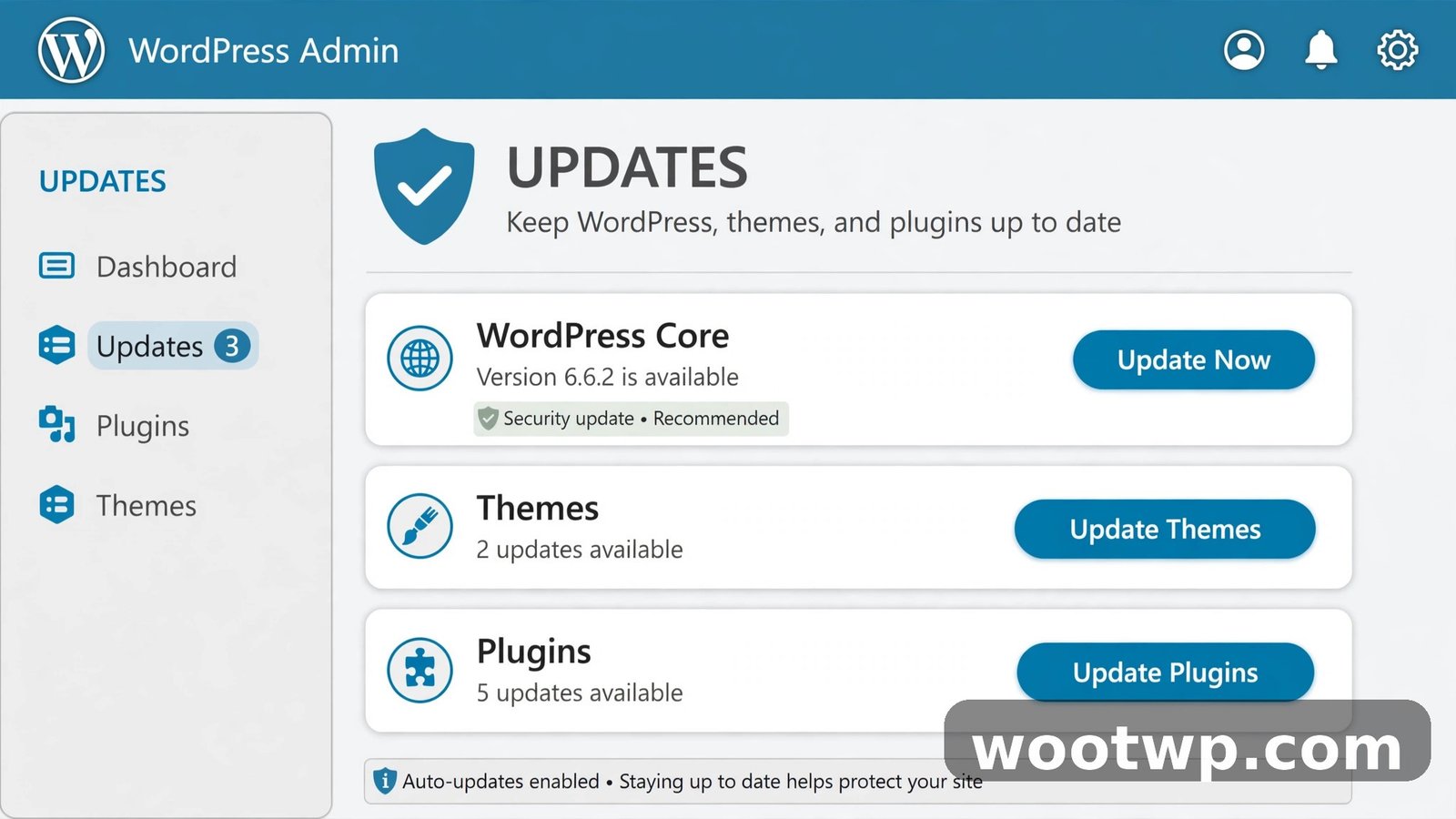
1. Keep WordPress, Themes, and Plugins Updated
Outdated software is the single biggest reason WordPress sites get hacked. When a plugin developer fixes a security hole, the changelog is public — which means attackers know exactly what to probe on sites that haven’t updated yet.
Here’s the routine that works:
- Log in to your WordPress dashboard.
- Go to Dashboard → Updates.
- Install all pending WordPress core, plugin, and theme updates.
- Repeat this check at least once a week — or turn on automatic updates (see below).
Enable automatic updates
WordPress can update itself for minor releases, and you can extend that to plugins and themes:
- Go to Dashboard → Updates and make sure automatic updates are enabled for core.
- On the Plugins page, click “Enable auto-updates” next to each trusted plugin.
- Do the same on the Appearance → Themes page for your active theme.
Auto-updates occasionally break something, so keep a backup (step 8) before you enable them site-wide. In my experience, the risk of an update breaking your site is far smaller than the risk of a known vulnerability being exploited.
Delete what you don’t use
Deactivated plugins and unused themes still contain code on your server, and that code can still be exploited. Go to Plugins → Installed Plugins and delete anything inactive. Go to Appearance → Themes and delete every theme except your active one and one default fallback (like Twenty Twenty-Four). If you’re planning to switch themes, our roundup of 3 free WordPress themes is a safe place to start — stick to themes from reputable sources.
2. Use Strong, Unique Passwords for Every Account
Weak passwords remain embarrassingly common. If your admin password is a word from the dictionary plus a number, a brute-force bot will crack it eventually. Here’s the standard I recommend:
- At least 16 characters, ideally 20+.
- Randomly generated — not a pet’s name, not your birthday.
- Unique per site and per user account. Never reuse your WordPress password on another site.
- Stored in a password manager, not in a notes app or your browser’s autocomplete alone.
Change the default “admin” username if you still have it — it’s the first username every bot tries. Create a new administrator account with a different name, log in as that user, and delete the old “admin” account (assigning its posts to the new account).
Also, give each user only the role they actually need. Your content writers don’t need administrator access — the Editor or Author role is enough. Fewer admin accounts means fewer high-value targets.
You can generate a properly random password with our free secure password generator — it takes seconds, and it’s one less excuse for using a weak one.
3. Turn On Two-Factor Authentication (2FA)
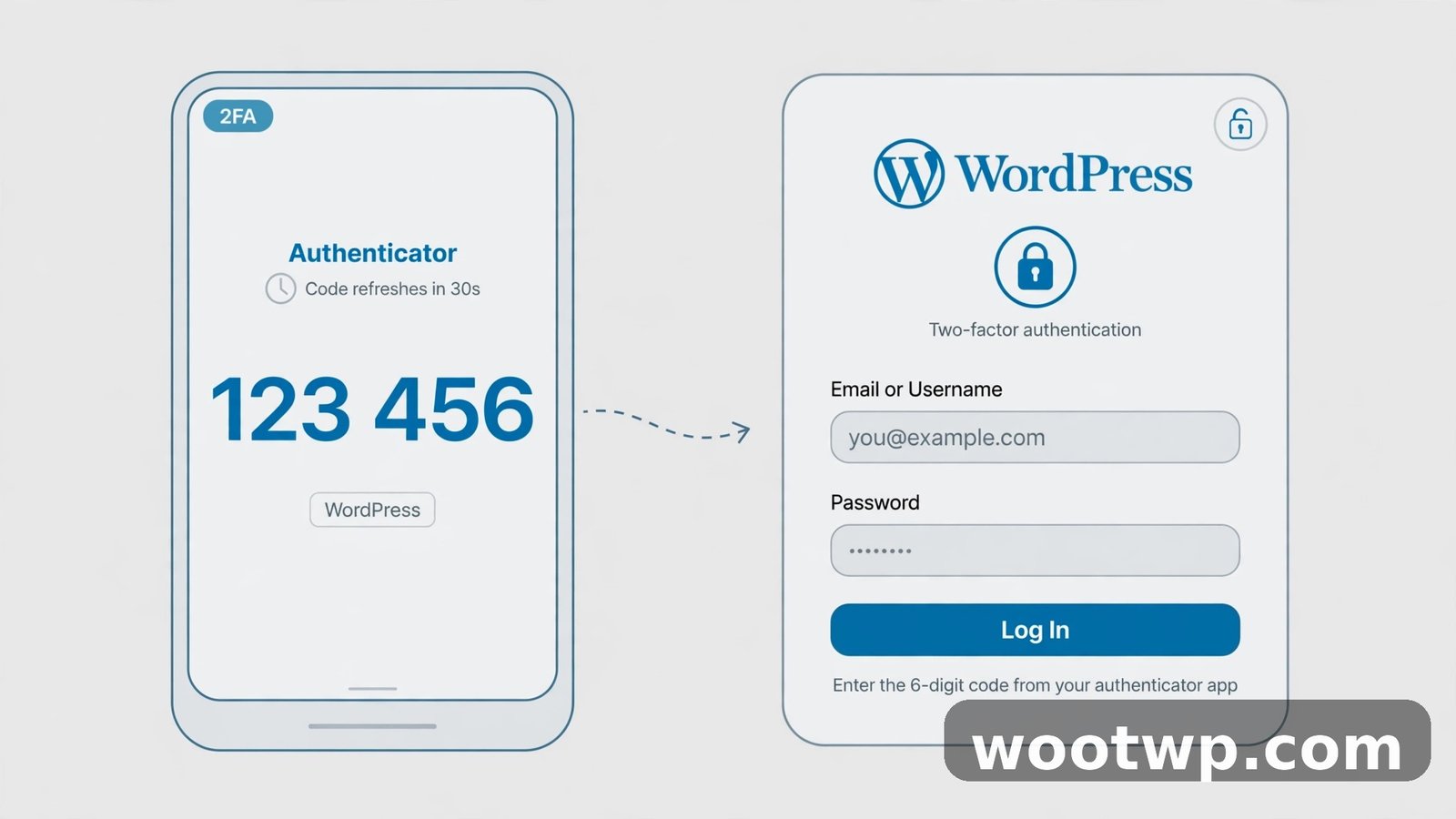
Two-factor authentication is the highest-impact security step you can take in five minutes. Even if someone steals your password, they can’t log in without the second code from your phone.
Here’s how to set it up:
- Install a 2FA plugin such as WP 2FA or Wordfence Login Security (both free).
- Go to Users → Profile in your dashboard.
- Find the two-factor authentication section and choose “One-time code (TOTP)”.
- Scan the QR code with an authenticator app like Google Authenticator, Microsoft Authenticator, or Authy.
- Enter the 6-digit code to confirm, and save the backup codes the plugin gives you.
Then enforce it for everyone with elevated access. In WP 2FA, go to the plugin’s settings and set a policy requiring 2FA for Administrator and Editor roles. You’ll get a grace period option — give users a few days, then enforce.
One warning from experience: save those backup codes somewhere safe (your password manager is perfect). If you lose your phone without backup codes, you’ll lock yourself out, and recovering access requires database or FTP work. And when you do switch phones, follow a proper process like how to transfer Google Authenticator to a new phone — don’t just install the app fresh and hope your codes come back.
4. Limit Login Attempts and Harden the Login Page
By default, WordPress lets anyone try unlimited passwords on your login page. Bots exploit this ruthlessly. Fixing it takes two moves: limit the attempts, and make the login page harder to find and abuse.
Limit login attempts
Install Limit Login Attempts Reloaded (free) and configure it:
- Go to Settings → Limit Login Attempts.
- Set allowed retries to 3–5.
- Set the lockout duration to 20–60 minutes.
- Enable “long lockout” escalation so repeat offenders get blocked for 24 hours.
This single change stops most brute-force attacks cold. Legitimate users who mistype a password a few times get a short timeout; bots hammering thousands of passwords get shut out.
Add a CAPTCHA and hide the login URL
Bots can rotate IP addresses to dodge lockouts, so add a second layer:
- Add a CAPTCHA to the login form with a plugin like Advanced Google reCAPTCHA or Cloudflare Turnstile. It adds a small checkbox humans barely notice, but it breaks automated scripts.
- Change your login URL with WPS Hide Login so wp-login.php isn’t where bots expect it. Move it to something like /my-secret-login — just don’t forget the new address yourself, and don’t use anything obvious.
5. Install a WordPress Security Plugin
A good security plugin bundles a firewall, malware scanner, and hardening checklist into one dashboard. You don’t need three separate plugins fighting each other — pick one solid option:
- Wordfence Security — the most popular free option. Includes an endpoint firewall, malware scanner, and login security with built-in 2FA. The free tier works well for most small sites.
- Sucuri Security — strong auditing and hardening features; the paid plan adds a cloud firewall that blocks attacks before they reach your server.
- Solid Security (formerly iThemes Security) — a guided hardening checklist that’s friendly for beginners.
Whichever you choose, run its setup wizard and work through the hardening recommendations it flags. Enable the firewall, turn on file-change detection (it alerts you when core files are modified unexpectedly), and schedule weekly malware scans. The official WordPress hardening guide is also worth bookmarking — it covers the same principles straight from the source.
Don’t install two security plugins at once. Their firewalls and scanners overlap, and conflicts can lock you out of your own site.
6. Use SSL and Force HTTPS Everywhere
If your site still loads over plain HTTP, login credentials and form data travel across the network unencrypted. SSL (the padlock in the address bar) encrypts that traffic. Most hosts offer free SSL certificates through Let’s Encrypt — check your hosting panel and enable it if you haven’t.
Once SSL is active:
- Go to Settings → General and make sure both the WordPress Address and Site Address start with https://.
- Add
define( 'FORCE_SSL_ADMIN', true );to your wp-config.php file (just above the “stop editing” line) to force the admin area over HTTPS. - Install Really Simple SSL if you want the plugin to handle mixed-content fixes and redirects automatically.
Then test your setup with an SSL checker to confirm there are no mixed-content warnings. Browsers now flag HTTP pages as “not secure,” which hurts trust and can hurt rankings too.
7. Harden wp-config.php and File Permissions
Your wp-config.php file holds your database credentials — it’s the crown jewel for an attacker. A few small changes make it much harder to touch:
- Add
define( 'DISALLOW_FILE_EDIT', true );to wp-config.php. This disables the theme and plugin file editors inside the WordPress dashboard, so even if an attacker gets an admin session, they can’t inject code through the editor. - Ask your host to block direct browser access to wp-config.php (most good hosts do this by default; if yours doesn’t, it’s a red flag).
- Check file permissions with your host’s file manager or an FTP client: folders should be 755, files 644, and wp-config.php 600 or 640. Never use 777 — that gives everyone full access.
Also change your WordPress security keys periodically. You can generate fresh ones from the official WordPress secret-key service and paste them into wp-config.php, replacing the old block. This forces every logged-in session to re-authenticate — handy if you suspect a session was hijacked.
8. Back Up Your Site on a Regular Schedule
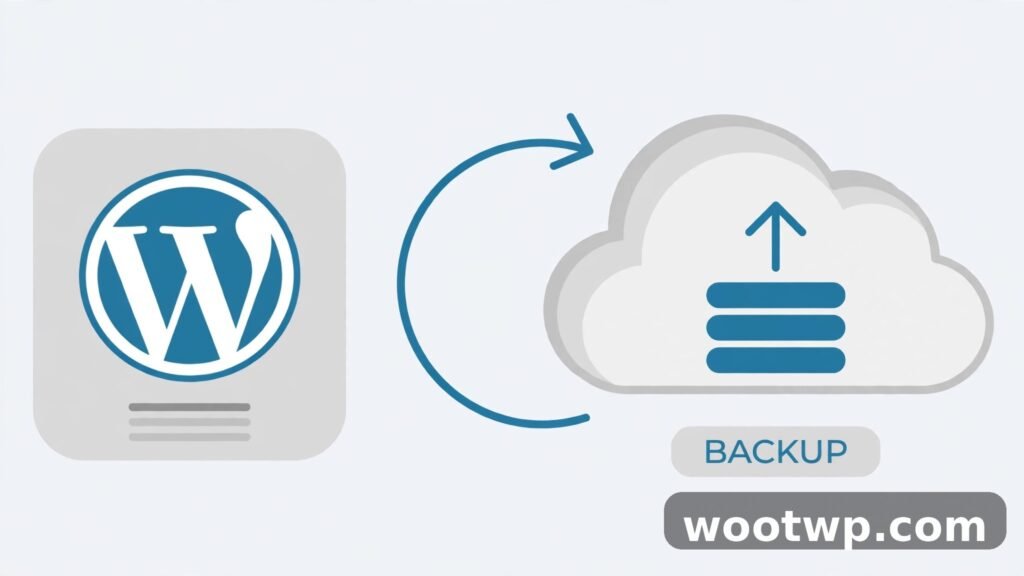
Backups don’t prevent hacks — they determine how much a hack costs you. With a recent backup, a compromised site is a 30-minute restore job. Without one, it’s a disaster.
Set up automated backups with a plugin like UpdraftPlus (free):
- Install and activate UpdraftPlus.
- Go to Settings → UpdraftPlus Backups and choose a remote storage destination — Google Drive, Dropbox, or Amazon S3. Never store backups only on the same server as your site.
- Schedule database backups daily and full file backups weekly (daily for both if you publish often).
- Set retention to at least 2–4 weeks of backups.
Then — and this is the part everyone skips — test a restore at least once. A backup you’ve never restored is just a hope. If you need the full walkthrough, see our guide on how to back up your WordPress site for free.
Store at least one backup copy somewhere you control, like an external drive. If your hosting account itself is compromised, backups on that same account may be compromised too.
9. Scan for Malware and Monitor Activity
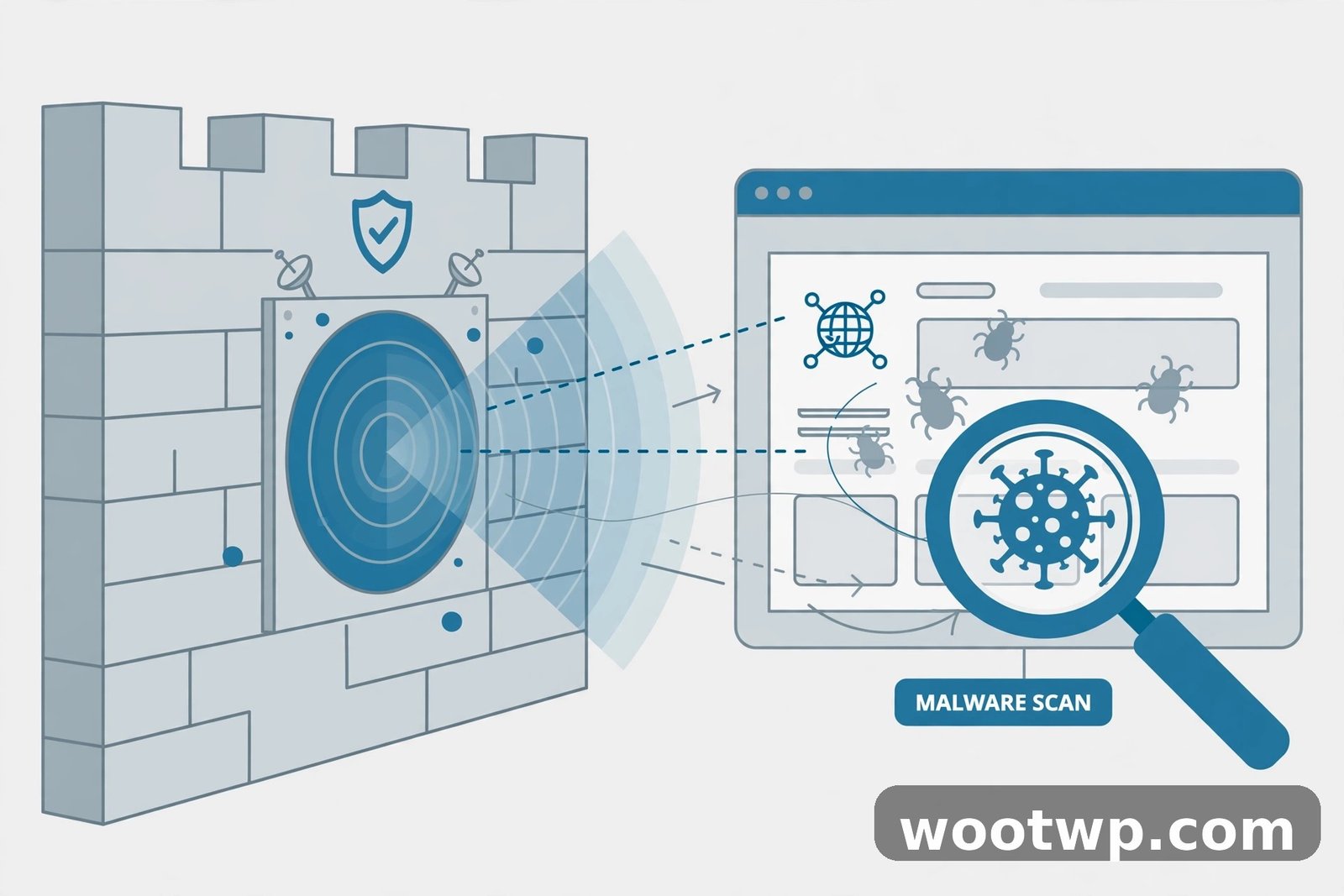
Security isn’t a one-time setup — it’s a habit. Build these checks into your routine:
- Run a malware scan weekly. Your security plugin (step 5) can do this automatically. Act on anything it flags — don’t let warnings pile up.
- Watch the file-change alerts. If core WordPress files change and you didn’t update anything, investigate immediately.
- Review user accounts monthly. Delete old accounts for people who no longer work with you, and check that nobody has been quietly promoted to administrator.
- Monitor uptime. A free tool like UptimeRobot emails you the moment your site goes down — often the first sign something is wrong.
- Keep an eye on Google Search Console. Google will warn you there if it detects malware or hacking on your site, sometimes before you notice yourself.
If your security plugin offers an activity log, turn it on. Knowing who logged in, when, and what they changed makes investigating any incident dramatically easier.
What Should You Do If Your WordPress Site Is Already Hacked?
If you’re reading this section because something already went wrong, don’t panic — but act quickly:
- Don’t log in from the compromised machine until you’ve scanned it for malware; keyloggers steal fresh passwords.
- Put the site in maintenance mode to protect your visitors while you work.
- Change all passwords: hosting panel, FTP, database, and every WordPress user — from a clean device.
- Restore from a clean backup taken before the hack (this is why step 8 matters).
- Scan and clean: run your security plugin’s deep scan, remove unknown files and users, and reinstall WordPress core, themes, and plugins from fresh copies.
- Request a review in Google Search Console if Google flagged the site, so the warning gets removed after cleanup.
If the infection is deep and you’re not confident cleaning it yourself, Sucuri and Wordfence both offer paid cleanup services. There’s no shame in calling a professional — a botched cleanup that leaves a backdoor is worse than paying for help.
FAQs
How often should I update WordPress for security?
Check for updates at least once a week, and apply security releases immediately when they’re announced. Enabling automatic updates for minor core releases and trusted plugins keeps you protected without constant manual work.
Is WordPress secure enough for an online store?
Yes, provided you follow the steps in this guide — especially SSL, 2FA, strong passwords, regular updates, and backups. WooCommerce stores run securely on WordPress every day; the breaches you hear about almost always trace back to neglected updates or weak logins, not the platform itself.
Do I need a paid security plugin?
For most small sites, no. The free versions of Wordfence or Solid Security cover the essentials: firewall, malware scanning, login hardening, and 2FA. Paid plans add conveniences like real-time firewall rules and professional cleanup, which matter more for high-traffic or business-critical sites.
Can a strong password alone protect my WordPress login?
It helps, but it’s not enough on its own. Passwords can leak in data breaches from other sites (which is why you never reuse them). Pair strong passwords with 2FA and login-attempt limiting, and a stolen password becomes useless to an attacker.
What are WordPress security keys and should I change them?
Security keys (also called salts) are random strings in wp-config.php that encrypt login cookies and sessions. Changing them forces all users to log in again. It’s a smart move after any suspected compromise, and harmless to do once a year as routine hygiene.
Will a security plugin slow down my website?
A well-configured one has minimal impact — Wordfence’s firewall, for example, runs before WordPress fully loads. Problems usually come from running two security plugins at once or enabling every aggressive option. Pick one plugin, run its recommended settings, and measure your speed before and after.
Conclusion
Learning how to secure a WordPress website comes down to consistent basics: keep everything updated, use strong unique passwords, turn on 2FA, limit login attempts, run a security plugin, enforce HTTPS, harden your configuration, back up regularly, and keep an eye on things. None of these steps is difficult on its own, and together they shut out the overwhelming majority of attacks.
Start with the first four today — they take under an hour and deliver the biggest protection for your effort. Your future self, the one who never has to clean up a hacked site at 2 AM, will thank you.