How to Backup WordPress Site for Free: 7 Easy Ways That Actually Work
One bad plugin update or one hacked login can wipe out months of posts and comments overnight. Learning how to backup WordPress site for free is the cheapest insurance for your website, and it takes about 15 minutes to set up.
I have seen this too many times: no backup, one bad update, total loss. You do not need to pay for protection. Here are 7 methods, from one-click plugin backups to manual copies.
- What Does a Complete WordPress Backup Actually Include?
- The 7 Free Ways to Back Up WordPress: A Quick Overview
- Method 1: How to Backup Your WordPress Site for Free with UpdraftPlus
- Method 2: How to Backup WordPress Manually Without a Plugin
- Method 3: Use Your Hosting Account's Built-In Backup Tool
- How Often Should You Back Up Your WordPress Site?
- How Do You Restore a WordPress Backup?
- 7 WordPress Backup Mistakes That Can Cost You Everything
- Frequently Asked Questions
What Does a Complete WordPress Backup Actually Include?
Backing up is not just downloading your theme folder. A complete backup has two parts, and you need both.
First, your site files: WordPress core, themes, plugins, and everything in the uploads folder. These live on your server, usually in public_html.
Second, your database: posts, pages, comments, menus, and settings. It lives in MySQL, not in the file manager.
Files alone give you an empty shell; database alone gives you words with no design. Every method below covers both.
The 7 Free Ways to Back Up WordPress: A Quick Overview
- UpdraftPlus manual backup — one-click backup with a free WordPress backup plugin.
- UpdraftPlus scheduled backups — automatic backups with old copies cleaned up for you.
- UpdraftPlus to Google Drive — backups sent off your server to free cloud storage.
- Manual file backup — zipping your site files through your hosting file manager.
- Manual database export — exporting your database through phpMyAdmin.
- Hosting backup tool — the free backup feature many hosts include in their control panel.
- Full download to your computer — keeping a personal copy on your own hard drive.
Methods 1 to 3 use the same free plugin.
Method 1: How to Backup Your WordPress Site for Free with UpdraftPlus
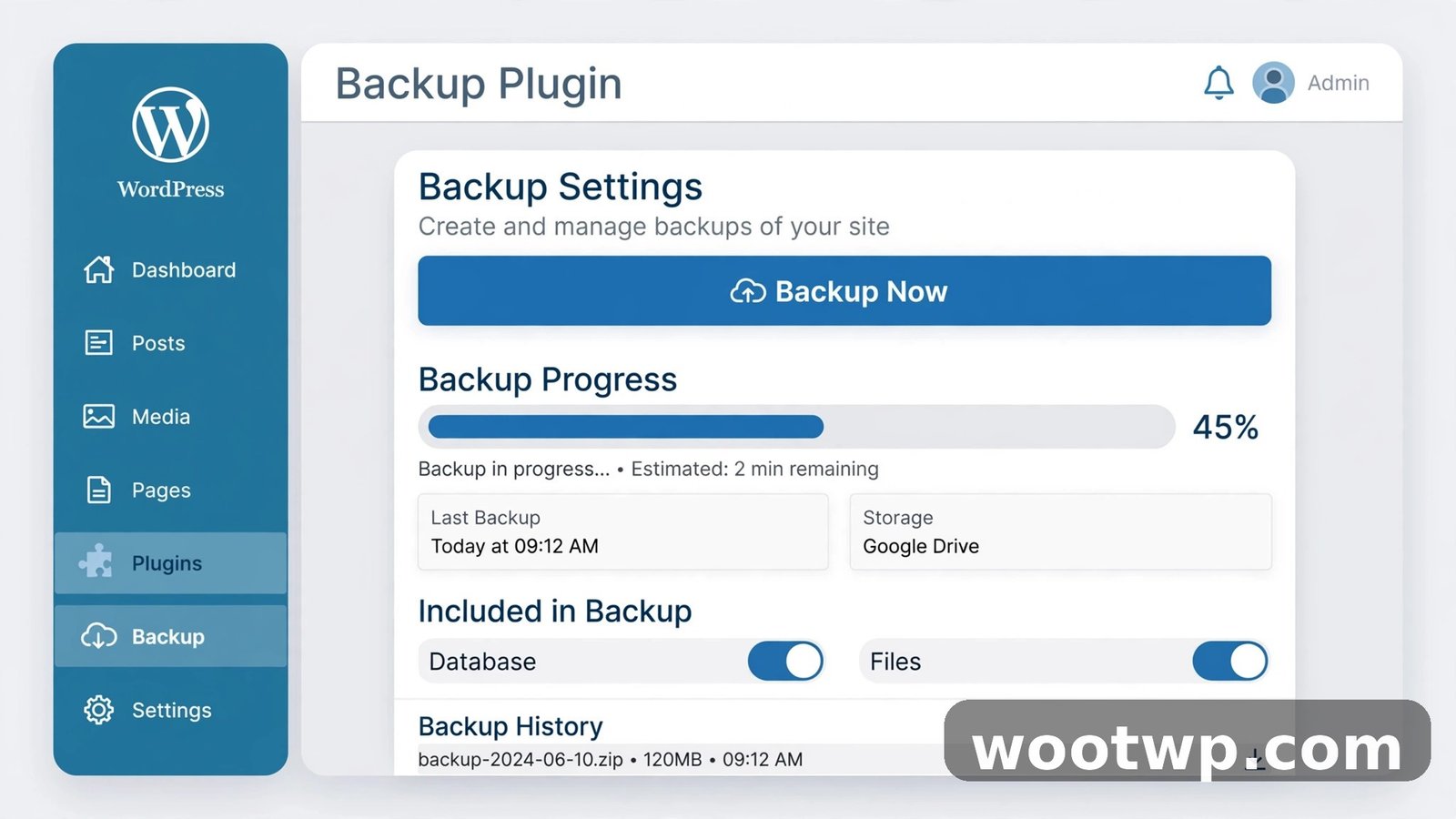
When someone asks me how to backup WordPress site for free with the least hassle, I point them to UpdraftPlus first. It backs up both files and database, runs on a schedule, and pushes copies to Google Drive at no cost.
See the official UpdraftPlus page for details.
Installing and Configuring the UpdraftPlus Backup Setup
- In your WordPress dashboard, go to Plugins > Add New.
- Search for UpdraftPlus, click Install Now, then Activate.
- Go to Settings > UpdraftPlus Backups.
Taking Your First Manual Backup
- Click Backup Now on the Settings > UpdraftPlus Backups screen.
- Leave both boxes checked (database and files), click Backup Now again, and wait for the progress bar. Do not close the tab.
Your finished backup appears in the Existing backups list.
Setting Up Automatic Scheduled Backups
- On the Settings tab, set the Files backup schedule. Weekly suits most blogs.
- Set the Database backup schedule. Daily for active sites, Weekly for quiet ones.
- Set how many scheduled backups to keep for each. 2 to 4 copies is sensible.
- Click Save Changes.
UpdraftPlus now backs up on its own and deletes the oldest copies past your retention limit. If a large backup keeps timing out, increasing your PHP memory limit usually fixes it.
Sending Backups to Google Drive for Free
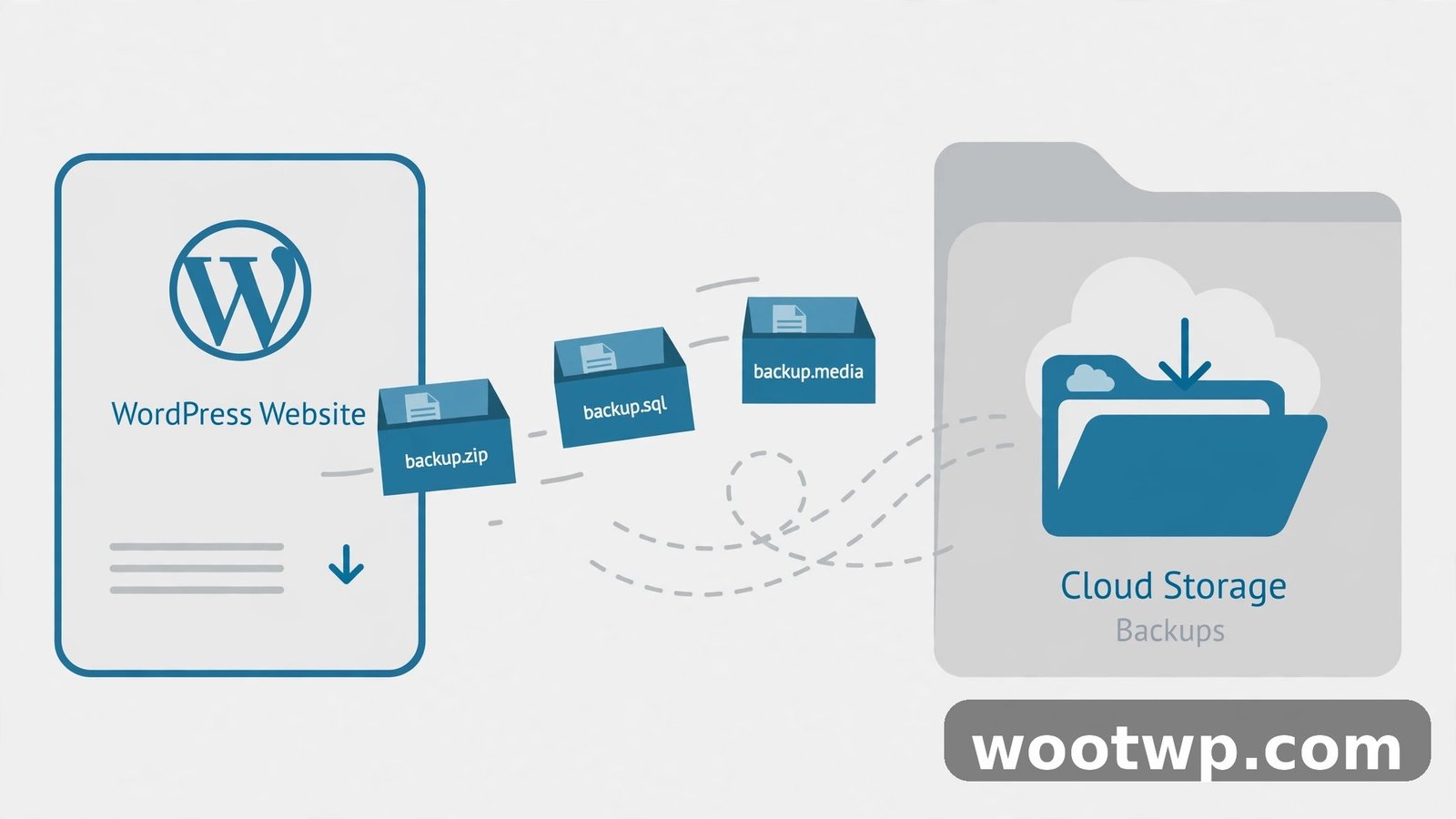
By default, UpdraftPlus stores backups on your own server, so a server failure kills your backups too. Sending them to Google Drive takes five minutes and fixes that.
- On the Settings tab, set Choose your remote storage to Google Drive and click Save Changes.
- Follow the authorization link on the page. Sign in to Google and grant UpdraftPlus permission to manage its own folder in your Drive.
- Save once more, click Backup Now, and check your Drive for a new UpdraftPlus folder with the backup files inside.
Google's free 15 GB of Drive storage is plenty for most sites.
Method 2: How to Backup WordPress Manually Without a Plugin
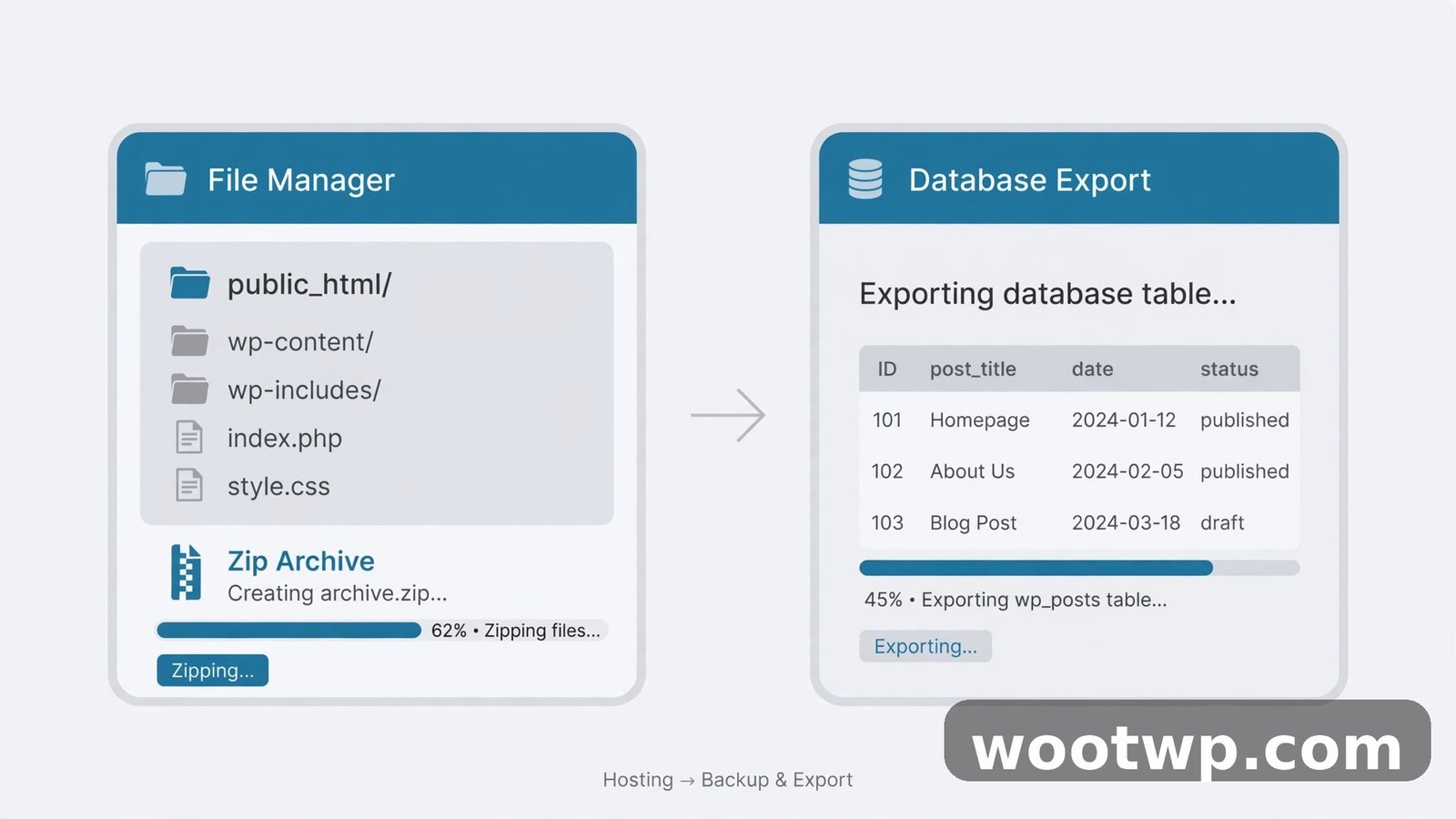
Prefer no extra plugins? The WordPress manual backup route takes a bit longer but teaches you exactly what your site is made of. WordPress's own backups documentation describes this approach too.
Backing Up Your Site Files
- In your hosting account, open cPanel (or your host's control panel), then File Manager.
- Open your site's root folder, usually public_html. Select all files and folders, click Compress to make a zip archive, and download it to your computer.
That is your file backup: wp-content with themes, plugins, and uploads, plus wp-config.php with your database connection details.
Exporting Your Database from phpMyAdmin
- In cPanel, open phpMyAdmin. In the left sidebar, click your WordPress database name. If unsure which one, check wp-config.php for the line defining the database name.
- Click the Export tab, choose the Quick method, leave the format as SQL, and click Export.
That file holds every post, page, comment, and setting. Together with your files zip, you have a complete manual backup made with free tools your host already provides.
Method 3: Use Your Hosting Account's Built-In Backup Tool
Many hosts include their own backup feature for free. Look for a Backups section in cPanel or your host's dashboard, run a full account backup (files plus databases), and download it if the tool allows.
Check how long the host keeps these copies. Some keep daily backups for a week, others for 30 days, and some delete them the moment you cancel your plan. Treat host backups as a bonus layer, not your only plan: you cannot control the schedule or keep them if you leave the host. Keep your own UpdraftPlus or manual copies too.
How Often Should You Back Up Your WordPress Site?
Back up as often as your site changes in ways you would hate to redo.
- Daily database backups if you publish posts, get comments, or take orders every day.
- Weekly file backups for most sites. Themes and plugins do not change daily.
- Before every update. Always back up before updating WordPress core, your theme, or any plugin. Updates are the most common cause of sudden breakage I have seen.
- Before big changes. New theme, new page builder, migrating hosts, editing code. Back up first, every single time.
A quiet blog is fine with weekly backups; a busy store should run daily database backups plus weekly files.
How Do You Restore a WordPress Backup?
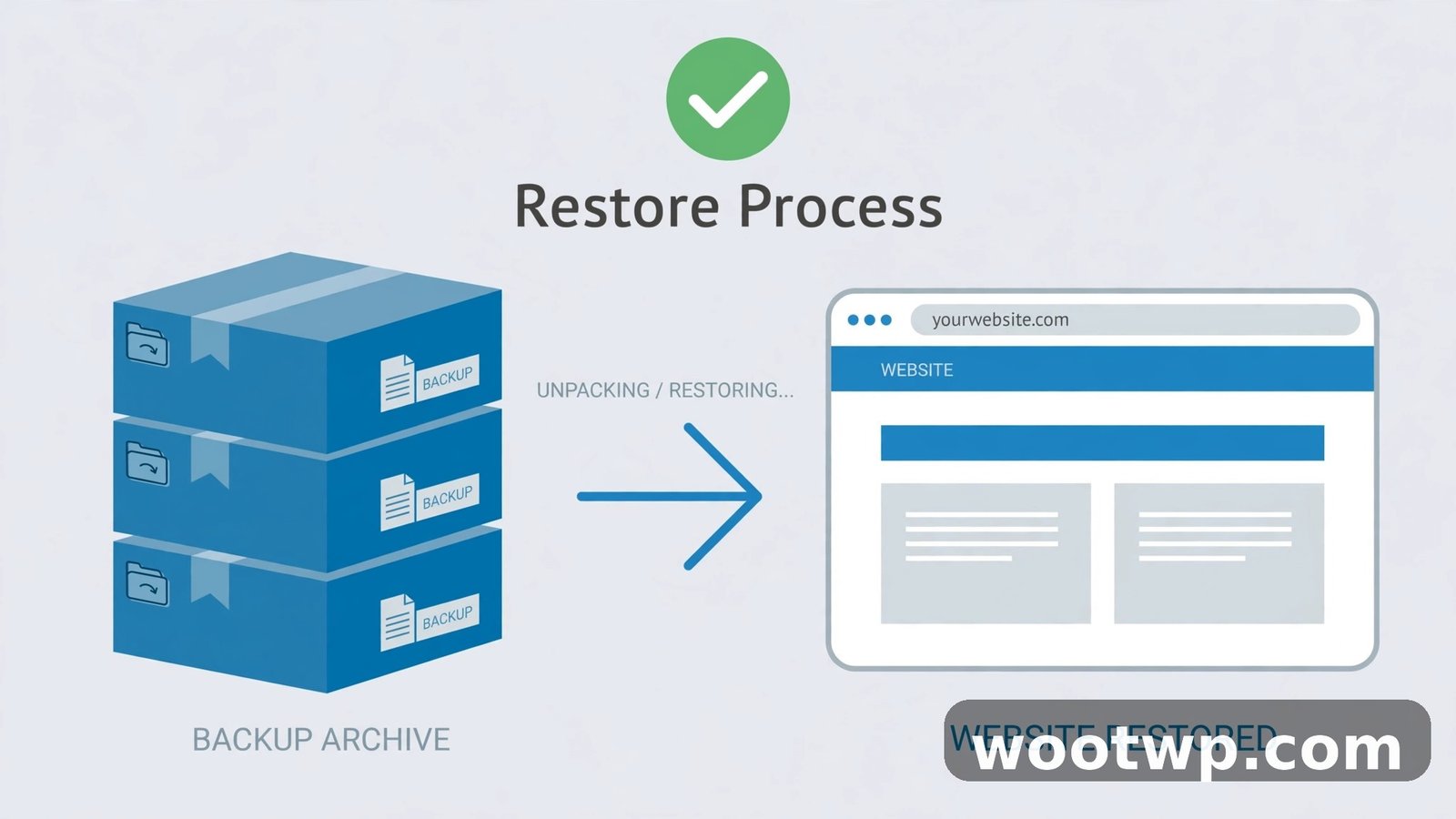
A backup you have never restored is a backup you are only guessing about.
Restoring with UpdraftPlus
- Go to Settings > UpdraftPlus Backups. Under Existing backups, click Restore next to the backup you want. On a fresh install, use Upload backup files to upload archives from your computer or Google Drive first.
- Tick every component for a full recovery: database, plugins, themes, uploads, and others. Click Restore and wait, then visit your site and confirm everything works.
Restoring a Manual Backup
- Upload your files zip to the server and extract it into your site's root folder, overwriting the broken files.
- Create a new empty database in cPanel under MySQL Databases. In phpMyAdmin, select it, click Import, choose your .sql file, and click Go.
- Edit wp-config.php so the database name, username, password, and host match, then visit your site.
If your restored pages show 404 errors, your permalink settings probably just need re-saving. Go to Settings > Permalinks and click Save Changes. If 404s persist, this guide to fixing the 404 error in WordPress walks through 9 proven fixes.
Test your restore once on a staging copy before you are in crisis mode.
7 WordPress Backup Mistakes That Can Cost You Everything
- Storing backups only on the same server. If the server fails, your backups vanish with your site. Keep at least one copy off the server, like Google Drive or your own computer.
- Never testing a restore. Corrupt or incomplete backups happen. Restore once on a test copy before you depend on it.
- Backing up files but not the database. Half a backup is no backup. Every method in this guide covers both.
- Updating before backing up. Plugin and theme updates break sites every day. The backup comes first, not after the white screen.
- Keeping too many old backups on the server. Old archives eat disk space, and full disks cause their own crashes. Keep 2 to 4 copies and let old ones rotate out.
- Backing up a bloated site. Huge unused media libraries make backups slow and enormous. A lighter theme helps too. These free WordPress themes that look premium keep sites lean without looking cheap.
- Assuming your host's backup is enough. You cannot control the schedule or keep the copies if you switch hosts. Your own backup is the one you can count on.
Frequently Asked Questions
Can I really backup my WordPress site for free, or do I need a paid plugin?
Yes, completely free. UpdraftPlus's free version handles manual and scheduled backups, retention, and Google Drive storage. The manual file manager plus phpMyAdmin method is also free.
What is the easiest free WordPress backup plugin for beginners?
UpdraftPlus is the easiest starting point. It installs like any plugin, has an obvious Backup Now button, and walks you through the Google Drive connection.
How do I backup WordPress to Google Drive automatically?
In UpdraftPlus, open the Settings tab, choose Google Drive as remote storage, save, then complete the Google authorization step. Every scheduled backup goes to your Drive automatically after that.
Does a WordPress backup include my posts and pages?
Yes, as long as it includes your database. Posts, pages, comments, and settings live in the MySQL database, not in files. In UpdraftPlus, keep the "include your database" box checked.
How long does a free WordPress backup take?
A small blog usually backs up in under five minutes with UpdraftPlus. Larger sites with thousands of images can take 15 to 30 minutes.
Where should I store my WordPress backups?
Never only on your web server. Keep at least one copy somewhere independent: Google Drive, Dropbox, or your own computer or external drive.
Conclusion
Learning how to backup WordPress site for free takes one afternoon and protects everything you have built. Set up UpdraftPlus with a weekly file schedule, a daily database schedule, and Google Drive as remote storage. The single takeaway: a backup is only real when it lives off your server and you have tested restoring it at least once.