How to Unsend an Email in Gmail: 5 Quick Tricks That Work
You've hit Send, and your stomach drops. The wrong attachment, a typo in the subject line, or the email went to the wrong person entirely. If you're wondering how to unsend an email in Gmail, here's the good news: you can take it back — but only if you act fast.
I've been there myself. The trick is knowing Gmail can't pull back a delivered email — it holds your message for a short window before sending, giving you one last chance to change your mind. Below: how to unsend an email in Gmail on desktop and mobile, how to stretch the Undo window to its full 30 seconds, and what to do when it's already too late.
- Can You Really Unsend an Email in Gmail?
- How to Unsend an Email in Gmail on Desktop
- How to Set Gmail's Send Cancellation Period to 30 Seconds
- How to Unsend an Email in the Gmail App on Android and iPhone
- What to Do When the Undo Window Has Already Closed
- Why Gmail Undo Send Sometimes Doesn't Work
- Gmail Undo Send vs Outlook Recall: What's the Difference?
- Schedule Send: A Safer Habit Than Undo Send
- Frequently Asked Questions About How to Unsend an Email in Gmail
- Conclusion
Can You Really Unsend an Email in Gmail?
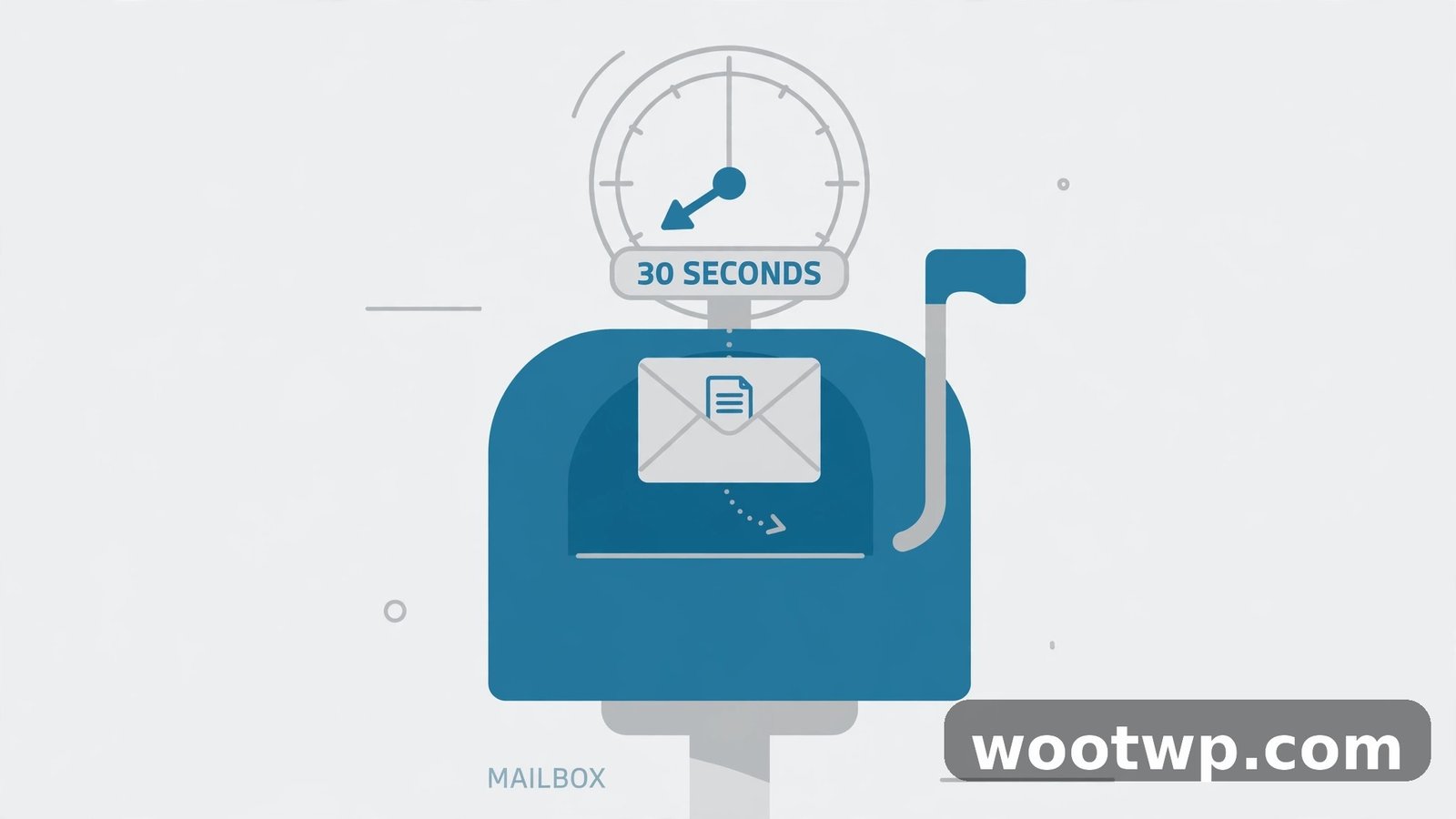
Yes — with one catch that trips up almost everyone. Gmail's Undo Send is not a true recall. When you hit Send, Gmail holds the message for 5–30 seconds (depending on your setting) before it leaves your outbox. Click Undo during that hold, and the email never gets sent; it pops back open as a draft. Once the window closes, the email is gone. That's why learning how to unsend an email in Gmail starts with understanding the timer.
What "Undo Send" Actually Does Behind the Scenes
Think of it like a mail slot with a timer on the flap: you drop the letter in, and the flap waits before releasing it. Pull it back in time, and nobody ever sees it. Outlook's recall is different — it tries to delete an already-delivered message, with mixed results. Gmail never tries that. Its approach is simpler and more reliable — but only if you're quick.
How to Unsend an Email in Gmail on Desktop
Here's the fastest way to cancel a sent email in Gmail on your computer:
- Click Send.
- A small black box appears at the bottom-left saying "Message sent."
- Click the Undo link next to it immediately.
- Gmail confirms "Sending undone" and your email reopens as a draft.
That's it — two seconds once you know where to look. The box disappears when your send cancellation period ends, and at the 5-second default you have almost no time to react. Change the setting to 30 seconds, as shown next.
What Happens After You Click Undo
The message returns as an editable draft, and the recipient never receives anything — no email, no notice. If the box already vanished, the email is on its way; skip to the recovery section below.
How to Set Gmail's Send Cancellation Period to 30 Seconds
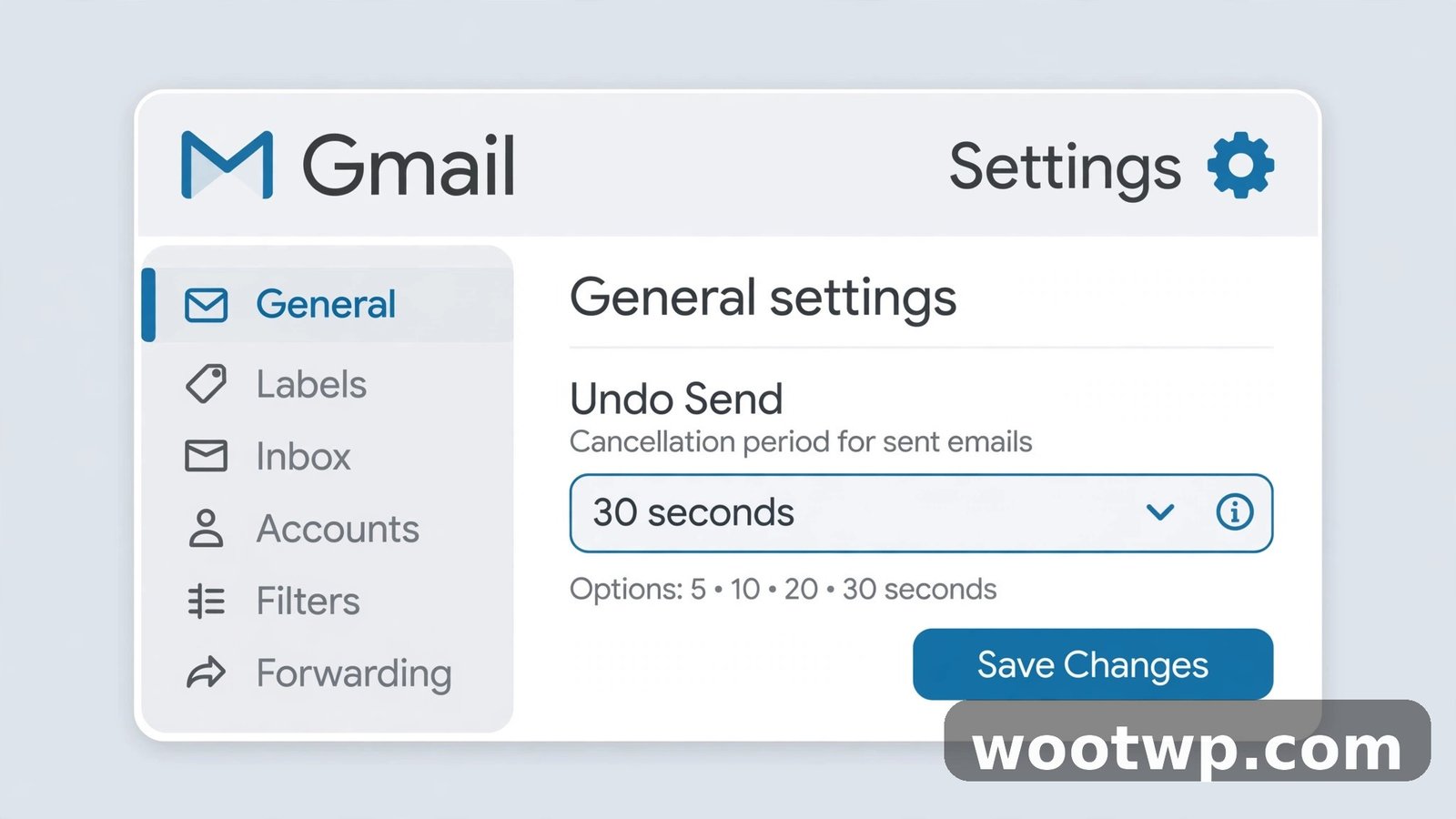
This is the single most important step. The gmail send cancellation period is the time Gmail holds your message before transmitting it, and longer is better. Here's how to max it out:
- Open Gmail on your computer and click the gear icon (top-right).
- Click See all settings at the top of the quick-settings panel.
- On the General tab, find the Undo Send section.
- Open the dropdown next to "Send cancellation period" and select 30 seconds.
- Scroll to the bottom and click Save Changes.
Your choices are 5, 10, 20, or 30 seconds (30 is the max). The only downside: emails leave 30 seconds later — no recipient will notice. That catches nearly all "oh no" moments: long enough to spot a wrong attachment or a typo in the To field.
How to Unsend an Email in the Gmail App on Android and iPhone
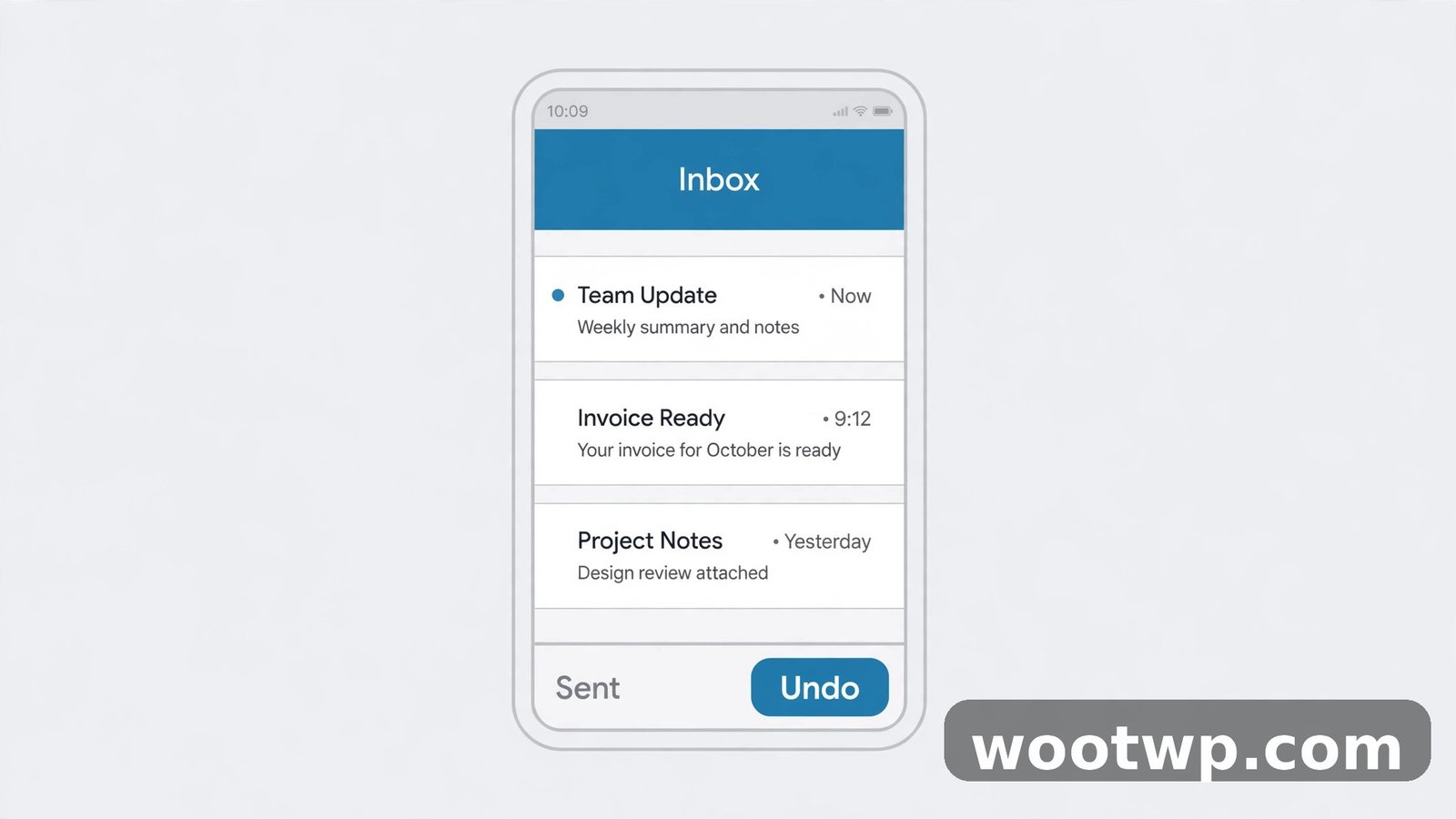
The gmail undo send feature works on mobile too:
- Send your email from the Gmail app.
- A bar appears at the bottom saying "Sent."
- Tap Undo right away.
- The email pops back open as a draft, unsent.
Two things to know. The mobile Undo bar lasts only seconds and can't be extended in the app — the visible bar may vanish before your 30-second window expires, so decide fast. Also, switching apps dismisses it. For tricky emails, draft on mobile and send from desktop.
What to Do When the Undo Window Has Already Closed
Sometimes you're too late — you notice the mistake minutes later or the next morning. Gmail can't recall a delivered email. Here's what actually works.
Send a Quick Correction Email
This is the honest, professional approach: reply to the thread with a subject like "Correction: please disregard my last email," state what was wrong, and give the corrected info in one short paragraph. People understand mistakes — I've sent plenty of these follow-ups myself, and it's never been a real problem. If the wrong recipient turns out to be a stranger and you start getting suspicious replies, lock things down with our guide on how to stop spam emails in Gmail.
Call the Recipient Directly
If the email contained something sensitive — financial details, a confidential document, personal information — don't wait. Call and ask them to delete it. Speed matters more than polish here.
Try Confidential Mode Next Time
For sensitive emails, Gmail's Confidential Mode (the lock-and-clock icon in the compose window) lets you set an expiration date and revoke access after sending. Revoking access replaces your content with an "expired" notice — not a true unsend, but a useful safety net. See the official Gmail Help: send or unsend messages for the full rundown.
Why Gmail Undo Send Sometimes Doesn't Work
Even when you know how to unsend an email in Gmail, the feature can fail you. Here are the most common reasons:
- Your send cancellation period is too short. At the 5-second default, the Undo box vanishes before most people react. Set it to 30 seconds.
- You navigated away too fast. Switching tabs or clicking another email can dismiss the "Message sent" box. Pause after hitting Send and watch for the Undo link.
- You're offline or on a slow connection. In Offline mode, Undo behavior can be inconsistent — double-check the message before sending instead of relying on Undo.
- You sent from a third-party email client. Apple Mail, Outlook, and other IMAP clients don't get Gmail's Undo Send — it only works in Gmail's web interface and official apps.
- The window simply expired. Thirty seconds is generous, but it still ends. Once the message transmits, there's no getting it back through Undo.
One more thing: every cancelled message becomes a draft, and drafts count toward your Gmail storage quota. For a bigger cleanup, see how to free up Gmail storage without deleting emails.
Gmail Undo Send vs Outlook Recall: What's the Difference?
People often search for how to recall an email in Gmail expecting it to work like Outlook. The two are fundamentally different:
| Feature | Gmail Undo Send | Outlook Recall |
|---|---|---|
| What it does | Delays sending for up to 30 seconds | Tries to delete an already-delivered message |
| Success rate | Works if you click in time | Unreliable — fails if read or opened in another client |
| Recipient sees | Nothing at all | Sometimes a recall notice (drawing attention to the mistake) |
| Time limit | 30 seconds max | Minutes to hours, but no guarantee |
Gmail's approach is honest: it never pretends to recall delivered mail. Outlook's recall often fails and can even notify the recipient of the attempt. If you're switching between the two, reset your expectations — the gmail undo send workflow is a delay, not a retrieval.
Schedule Send: A Safer Habit Than Undo Send
Here's a trick I wish more people used: don't send important emails immediately — schedule them. Gmail's Schedule Send holds the message in your Scheduled folder, editable and cancellable, until delivery time. Mistake? Cancel the send, fix the draft, reschedule. You get hours of safety instead of 30 seconds.
For the full walkthrough — including the Android and iPhone apps — see our guide on how to schedule an email in Gmail for a later time. Combine both habits — schedule the important ones, keep Undo Send at 30 seconds for everything else — and you'll rarely send a message you regret. Google documents both features in its official Gmail scheduling help page.
Frequently Asked Questions About How to Unsend an Email in Gmail
Can I recall an email in Gmail after it has been sent?
No. Gmail has no true recall — Undo Send only works during the short hold (up to 30 seconds) before the message transmits. After that, send a correction email.
How long is the Gmail send cancellation period?
It depends on your setting: 5, 10, 20, or 30 seconds, with 5 as the default. Change it under Settings, then See all settings, then General, then Undo Send — pick 30 seconds and click Save Changes.
Why don't I see the Undo button in Gmail?
Most likely the send cancellation period already expired — at 5 seconds the popup vanishes almost instantly. Undo also doesn't appear if you sent from a third-party client, used Gmail Offline, or dismissed the "Message sent" notification.
Can I unsend an email in Gmail on my phone?
Yes — tap Undo on the "Sent" bar at the bottom of the Gmail app immediately after sending. The bar disappears within seconds and can't be extended in the app, so for important mobile emails consider sending from the desktop site.
Does Gmail Undo Send work if the recipient already read the email?
No — Undo acts before delivery, so if the message has been read, the window closed long ago. Send a follow-up correction, and for urgent or sensitive cases, contact the recipient directly.
Is Gmail's Undo Send the same as Outlook's recall?
No. Gmail delays delivery for up to 30 seconds so you can cancel before anything is sent. Outlook's recall tries to delete an already-delivered message, which frequently fails and can even alert the recipient to the attempt.
Conclusion
Learning how to unsend an email in Gmail comes down to one habit: set the send cancellation period to 30 seconds and watch for that Undo link every time you hit Send. It's a small change that turns every "oh no" moment into a two-second fix. And for the emails that really matter, schedule them instead.