How to Stop YouTube From Autoplaying Videos: 7 Easy Fixes
Learning how to stop youtube from autoplaying videos saves you from the familiar trap of one short video turning into an hour of videos you never chose. You finish a video, look away for a second, and YouTube has already started the next one.
This guide shows you exactly where the switch lives on desktop, Android, iPhone, and TV. It also explains why the setting sometimes seems to turn itself back on, and what to change so it stays off on each device you use. In short, if you want to know how to stop youtube from autoplaying videos, turn off youtube autoplay in the player and check the same setting in YouTube settings. The steps take less than a minute on each device, signed in or not.
- Why It Keeps Playing
- Desktop Steps
- Android Steps
- iPhone Steps
- TV Steps
- Playlists and Feeds
- Signed Out
- Kids and Supervised Accounts
- Fixes When It Returns
- FAQs
- Conclusion
Why YouTube Keeps Autoplaying Videos
Autoplay is on by default on most accounts. When a video ends, YouTube picks a related video based on your watch history and starts it for you. That can suit hands-free viewing, but it is unhelpful when you only wanted one video or want to save mobile data.
The key point is that autoplay is set per device, not once for your whole account. You can have it on in the app on your phone and off on your computer. That is why many people fix it on a laptop and still see it happen on a phone.
YouTube also stops autoplay after a period of inactivity: after 30 minutes without activity on a mobile network, and after 4 hours on Wi-Fi. Those limits help, but they do not replace turning the setting off.
How to Stop YouTube From Autoplaying Videos on Desktop
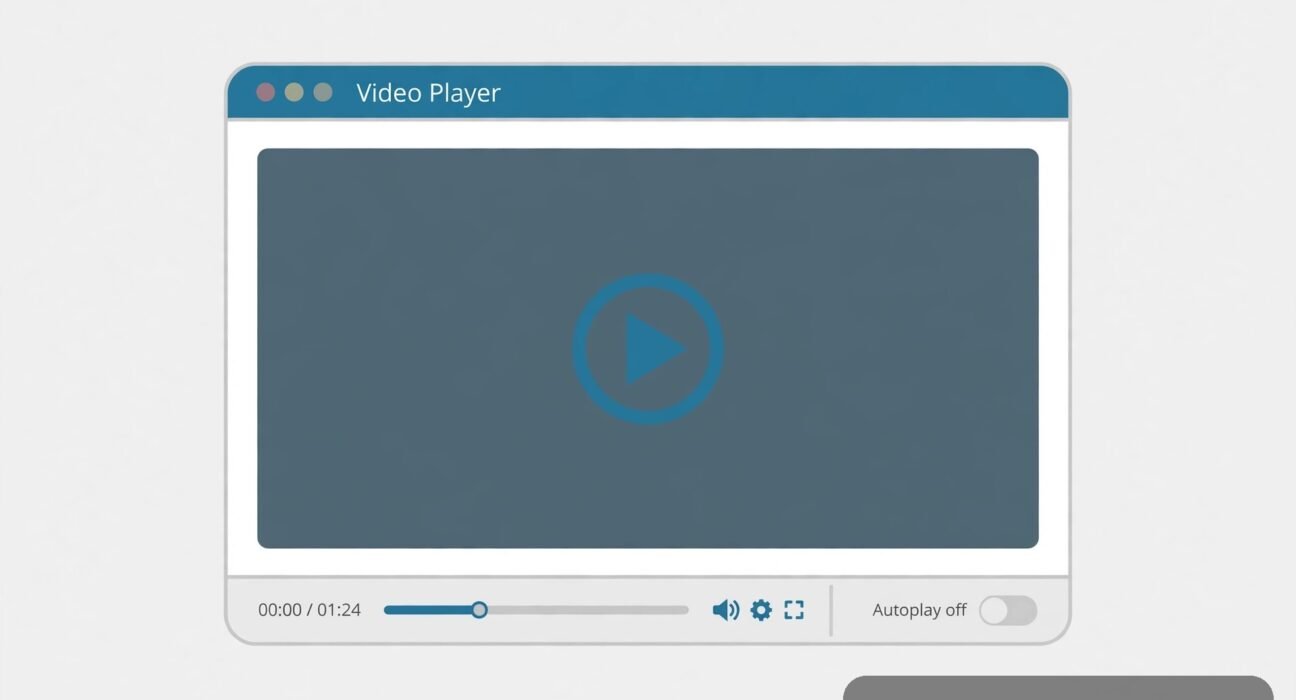
Desktop is the easiest place to fix this. The switch sits right in the video player, and you can see at a glance whether it is on or off.
Use the autoplay switch in the player
- Open YouTube in your browser and play any video.
- Move your mouse over the video player so the controls appear.
- Look at the bottom of the player, near the captions button.
- Click the Autoplay switch to turn it off.
When autoplay is on, the switch shows a play symbol. When it is off, it shows a pause symbol. To stop just one next video, wait for the countdown at the end of the video and click Cancel.
Check the setting in YouTube settings
The player switch should be enough. If you want to be sure, check your youtube autoplay settings too.
- Click your profile picture at the top right of YouTube.
- Click Settings.
- Click Playback and performance and make sure autoplay is off.
A private window starts fresh, so check the switch there as well.
The captions button sits next to the autoplay switch. If you watch with captions on, see our guide on how to add captions to a video for free for videos you upload yourself.
How to Turn Off YouTube Autoplay on Android
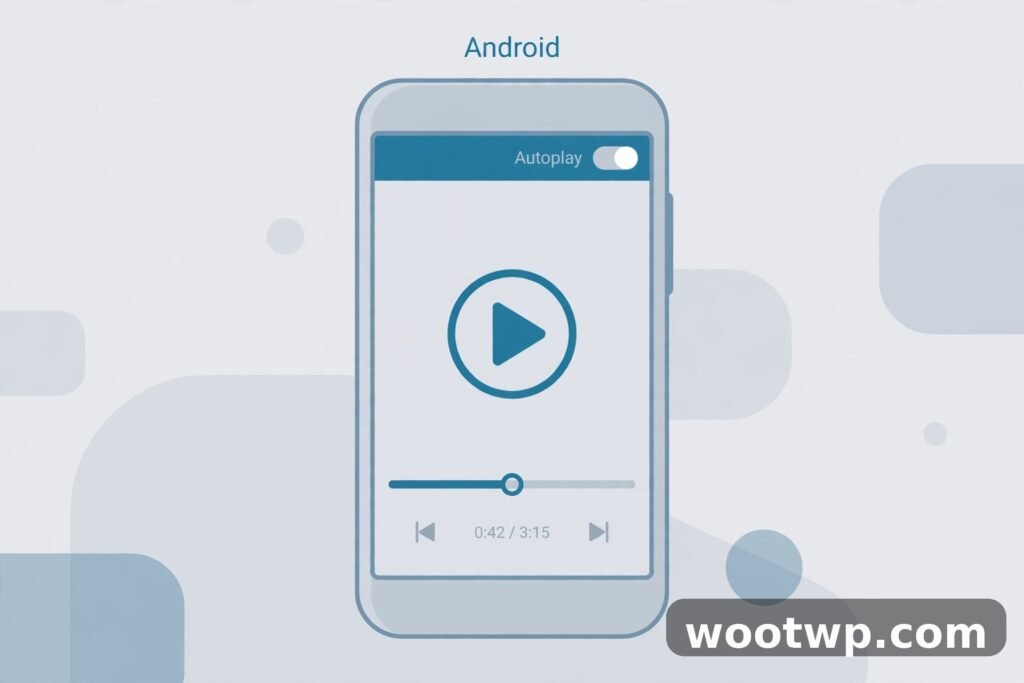
On Android, you can disable autoplay on youtube app in two places: the switch on the player and the setting in the app. Use the player switch for a quick fix, then check settings so the choice sticks.
Turn it off while a video plays
- Open the YouTube app and play any video.
- Tap the video once so the controls appear.
- Look at the top of the player for the Autoplay switch.
- Tap it to turn autoplay off.
The switch at the top of the player is easy to miss because most other controls sit at the bottom.
Turn it off in the YouTube app settings
- Tap your profile picture at the top right of the YouTube app.
- Tap Settings, shown as a gear icon.
- Tap Autoplay. On some versions of the app, this option sits under General or Playback instead.
- Turn off Autoplay next video.
That settings switch and the player switch control the same setting. If they do not match, close the app fully and open it again.
Stop videos playing in your feed
Autoplay for the next video and videos that play while you scroll are two different settings.
- Tap your profile picture, then tap Settings.
- Tap General.
- Tap Playback in feeds.
- Choose Off.
With youtube playback in feeds set to Off, feed videos show a still image until you tap them.
How to Turn Off YouTube Autoplay on iPhone
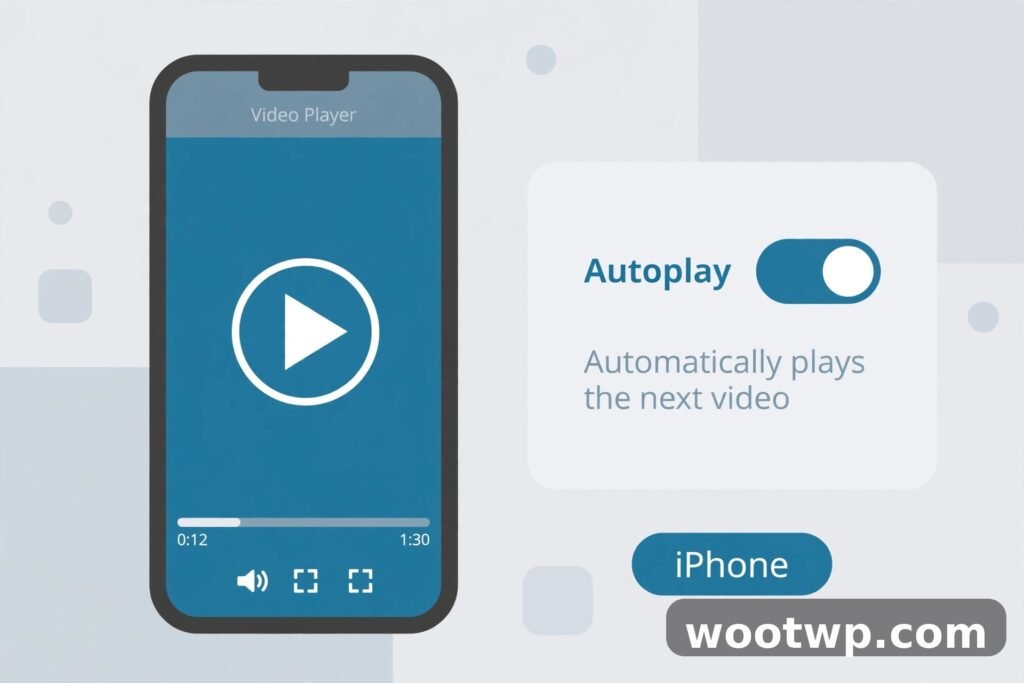
The iPhone steps match Android closely, because both use the same YouTube app design. To disable autoplay on youtube app on iPhone, use the same two checks: the player switch and the app setting.
- Open the YouTube app, play any video, tap the video, and tap the Autoplay switch at the top of the player to turn it off.
- Tap your profile picture, tap Settings, tap Autoplay (under General or Playback on some versions), and turn off Autoplay next video.
Do this while signed in to your usual account. Check it again if you switch Google accounts, since the setting follows the account on that phone. That account check matters whenever you work out how to stop youtube from autoplaying videos on a shared phone. In Safari, use the player switch on youtube.com instead, and set Playback in feeds to Off under General in the app if you want youtube playback in feeds stopped too.
How to Stop YouTube From Autoplaying Videos on TV
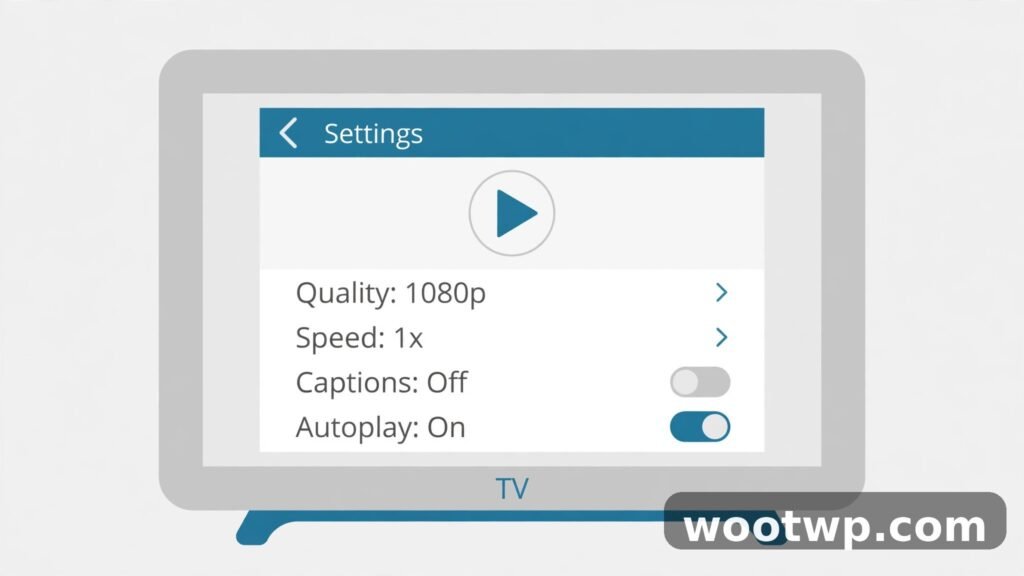
TV apps hide the setting one level deeper than phones do. You will not find a switch on the player in the same way, so go through Settings instead.
- Open the YouTube app on your TV or game console.
- Go to Settings. On many TVs, you reach Settings from the left menu or from your profile picture.
- Scroll to Autoplay.
- Select the option to turn Autoplay off.
On some TVs, the option is labelled Autoplay next video.
If you cast from a phone to a TV, check the setting on the TV app too. Casting hands playback to the TV, and the TV app can use its own autoplay setting.
How to Stop Autoplay in Playlists and the Home Feed
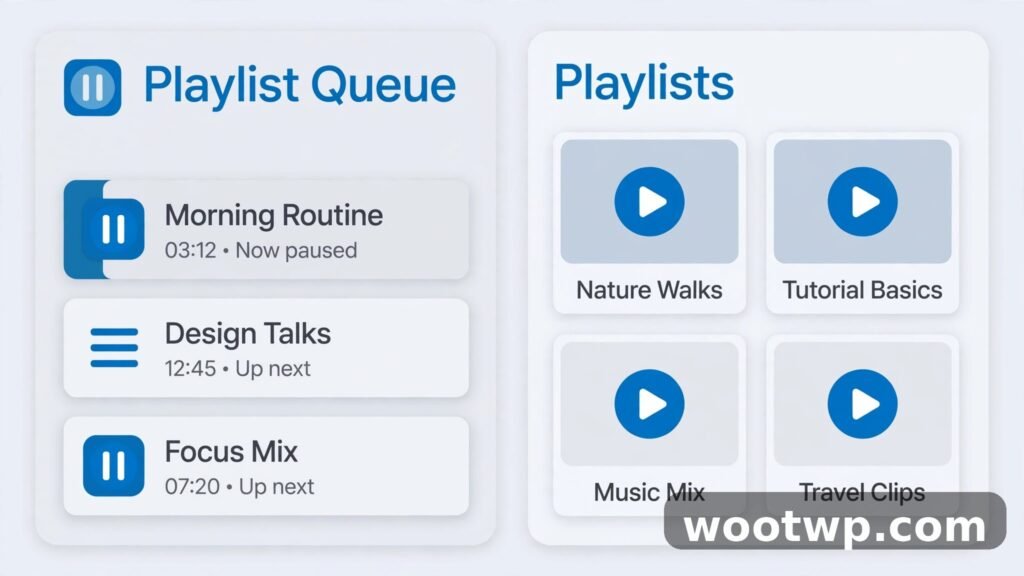
The autoplay switch stops a suggested video after a single video. A playlist is different, because the playlist itself is a queue. This is a common gap in advice about how to stop youtube from autoplaying videos, so it is worth spelling out.
Playlists
When you start a playlist, YouTube works through the items in that list. Turning autoplay off does not delete the list. To stop a playlist, pause the video and leave the playlist. Turn off Loop if it is on, because Loop repeats the playlist. If you only want one video, open it on its own watch page instead of starting the whole playlist.
Home feed and search previews
Feed previews are the silent videos that start moving as you scroll. On desktop, go to your profile picture, Settings, then Playback and performance, and turn off Video previews, also labelled Inline playback on some accounts. On mobile, use General, then Playback in feeds, then Off, as described above.
How to Stop YouTube From Autoplaying Videos When Signed Out
You can still turn autoplay off when you are signed out. The player switch works the same way. The difference is where YouTube remembers your choice: signed in, it is tied to your account on that device; signed out, the browser stores it in a cookie. So the setting can differ between browsers, clearing cookies can turn autoplay back on, and a private window starts with autoplay on again.
To fix it while signed out, open any video, find the autoplay switch at the bottom of the player on desktop or the top of the player on mobile web, and turn it off in each browser you use. Our guide on how to clear cookies in Chrome explains what clearing cookies removes, which helps you see why a signed-out setting can reset. If you share a computer, sign in first so your choice follows your account.
YouTube Kids and Supervised Accounts: What to Know
Autoplay is turned off by default for users aged 13 to 17. Teen users can usually turn it on or off themselves, unless a parent or guardian has set a stricter control.
On a supervised account, the autoplay option may be missing or locked, and updating the app will not bring back a switch that a parent control has removed. Check the parental controls for that account first. YouTube Kids has its own settings, so check the settings inside the YouTube Kids app and the parent settings for that child’s profile, on the exact profile and device the child uses.
Why YouTube Autoplay Keeps Turning Back On
If you turned autoplay off and it comes back, one of these causes is almost always behind it. This troubleshooting list is part of learning how to stop youtube from autoplaying videos for good, rather than fixing it once.
- You changed it on a different device. Autoplay is per device, so check the phone, tablet, computer, and TV separately.
- You switched accounts. Each Google account can have its own setting, so check the switch and your youtube autoplay settings with the account you actually watch with.
- You cleared cookies or used a private window. Signed-out settings live in cookies, so clearing them resets autoplay to on.
- You are in a playlist or a live stream. Pause or leave the playlist, and check the switch on a normal single video.
- An app update moved the menu. Look under General or Playback if Autoplay is not under Settings, and use the player switch for the fastest check.
- A supervised account control is in place. A parent setting can override the switch, so check the supervised account controls.
To confirm the setting has stuck, turn the switch off, close YouTube fully, reopen it, and play a different video. YouTube’s own help page confirms that autoplay settings can differ by device. See the official YouTube Help page on autoplay to compare the steps on your own device.
Frequently Asked Questions
How do I stop youtube from autoplaying videos on my phone?
Open any video in the YouTube app and tap the Autoplay switch at the top of the player to turn it off. Then go to your profile picture, Settings, and Autoplay, and make sure Autoplay next video is off. That covers both the quick switch and the saved setting.
Does turning off autoplay stop YouTube Shorts?
No. Shorts are a swipe feed, so the autoplay switch does not stop the next Short from loading when you swipe. Use the time controls in YouTube Settings, or set an app limit for YouTube in your phone’s screen time or Digital Wellbeing settings.
Why does YouTube autoplay keep turning on after I turn it off?
The most common reasons are a different device, a different Google account, cleared cookies while signed out, or a playlist queue. Check the switch on the exact device and account you watch with, on a single video rather than inside a playlist.
How to stop youtube from autoplaying videos on a smart TV?
Open the YouTube app on the TV, go to Settings, scroll to Autoplay, and turn it off. On some TVs the option is called Autoplay next video. Check the TV setting separately from your phone, because casting to a TV can use the TV app’s own setting.
Does turning off autoplay save mobile data?
It can reduce data use, because videos no longer start on their own after each video ends. It does not change the data used by the video you choose to watch. For tighter control, also set Playback in feeds to Off.
Can I turn autoplay back on later?
Yes. The switch works both ways. Tap the same autoplay switch in the player, or go back to Settings and Autoplay and turn Autoplay next video back on. You can change it as often as you like, on each device separately.
Conclusion
Now you know how to stop youtube from autoplaying videos on desktop, Android, iPhone, and TV. Turn off the switch in the player, check the same setting in YouTube settings, and repeat the check on each device you use. That one habit ends the chain of videos you never chose, so watch what you picked, let it end, and choose the next video yourself.