
How to Print From Android Phone to WiFi Printer: 7 Easy Ways
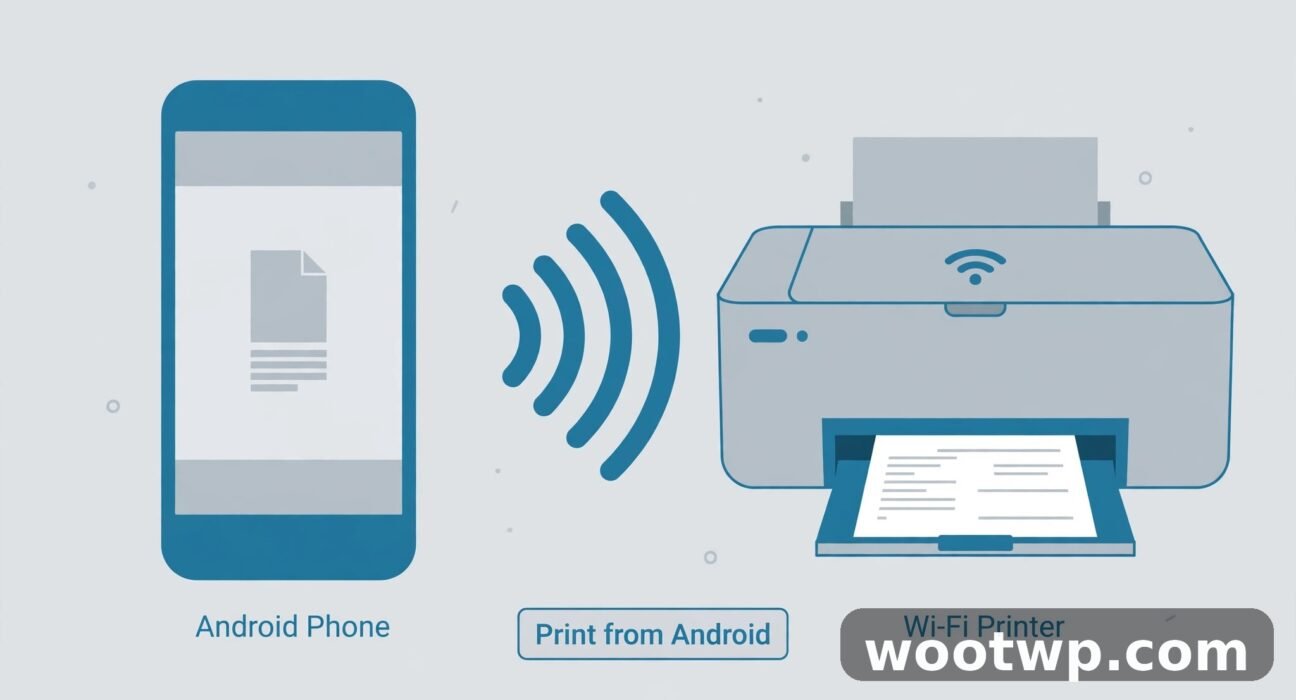
You need a paper copy of a document, a photo, or a ticket, and the only device in your hand is your phone. Learning how to print from Android phone to WiFi printer saves you from emailing the file to yourself, opening a laptop, and hunting for a cable. Most Android phones can already print over Wi-Fi with nothing extra to install, as long as your phone and printer share the same network and the printer supports wireless printing.
In this guide, you will learn how to print from Android phone to WiFi printer with the built-in print service, with Wi-Fi Direct when there is no shared network, and with your printer maker's app when the built-in option misses your model. You will also fix the common "printer not found" problem, print photos, PDFs, web pages, and emails, and save ink and paper with a few simple settings.
Table of Contents
- What You Need Before You Print From Android to a WiFi Printer
- How to Print From Android Phone to WiFi Printer With the Built-In Service
- How to Print Photos, PDFs, Web Pages, and Emails From Your Phone
- How to Print From Android Phone to WiFi Printer With Wi-Fi Direct
- How to Print From Android Phone to WiFi Printer With a Printer App
- Why Is My Printer Not Showing Up on My Android Phone?
- How to Save Ink, Paper, and Time When You Print From Your Phone
- FAQs About Printing From Android to a WiFi Printer
- Conclusion
What You Need Before You Print From Android to a WiFi Printer
Before you learn how to print from Android phone to WiFi printer step by step, check three things. Each one takes less than a minute, and skipping them causes most failed print jobs.
- A Wi-Fi printer. Your printer must connect to your home or office Wi-Fi network. Look for a Wi-Fi light on the printer, or open its network settings on its small screen. A printer that only plugs into a computer with a USB cable will not appear over Wi-Fi unless you share it through that computer.
- Phone and printer on the same Wi-Fi network. This is the number one cause of a missing printer. If your phone uses mobile data, or joins a guest network while the printer sits on the main network, the two devices cannot see each other. Open your phone's Wi-Fi settings and confirm the network name matches the one your printer uses.
- The default print service turned on. Android includes a built-in android print service based on the Mopria standard. Most phones ship with it enabled. You can check it in Settings, and this guide shows you where.
In my experience, the same-network check fixes more printing problems than any other step. I have seen people reinstall apps and restart printers for half an hour, only to find the phone had switched to a neighbour's open network or to mobile data. Check the network name first, every time.
How to Check That Your Printer Is on Wi-Fi
Print a network settings page from the printer itself. On most models, hold the Wi-Fi or Information button for a few seconds, or open Network Settings in the printer menu and choose Print Network Configuration. The page shows the network name, the signal strength, and the printer's IP address.
If the printer shows no network name, run its wireless setup again. On printers with a screen, choose Wireless Setup Wizard and pick your network. On printers without a screen, use the maker's setup app on your phone, or press the WPS button on your router and then the Wi-Fi button on the printer within two minutes. Keep the printer fairly close to the router for the first setup, then move it back to its usual spot if the signal stays strong.
How to Turn On the Default Print Service
The default print service is the built-in android print service that finds Wi-Fi printers on your network. To check it, follow these steps:
- Open Settings on your Android phone.
- Tap Connected devices, then Connection preferences, then Printing. On Samsung phones, the path is Settings, then Connections, then More connection settings, then Printing. On some phones, simply search for "printing" in Settings.
- Tap Default Print Service or System Printing Service.
- Make sure the switch is on. If it is off, turn it on and wait a few seconds while it scans.
- Your printer should appear in the list. If it does not, tap the three-dot menu and choose Add printer, or restart the service with the switch.
You do not need a Google account, a cloud service, or a cable for this method. Google Cloud Print shut down at the end of 2020, and the built-in service replaced it. HP's own guide to printing from an Android phone walks through the same built-in steps for HP printers, including Wi-Fi Direct. If an old guide still tells you to set up Cloud Print, ignore that part. The built-in service is the current method.
How to Print From Android Phone to WiFi Printer With the Built-In Service
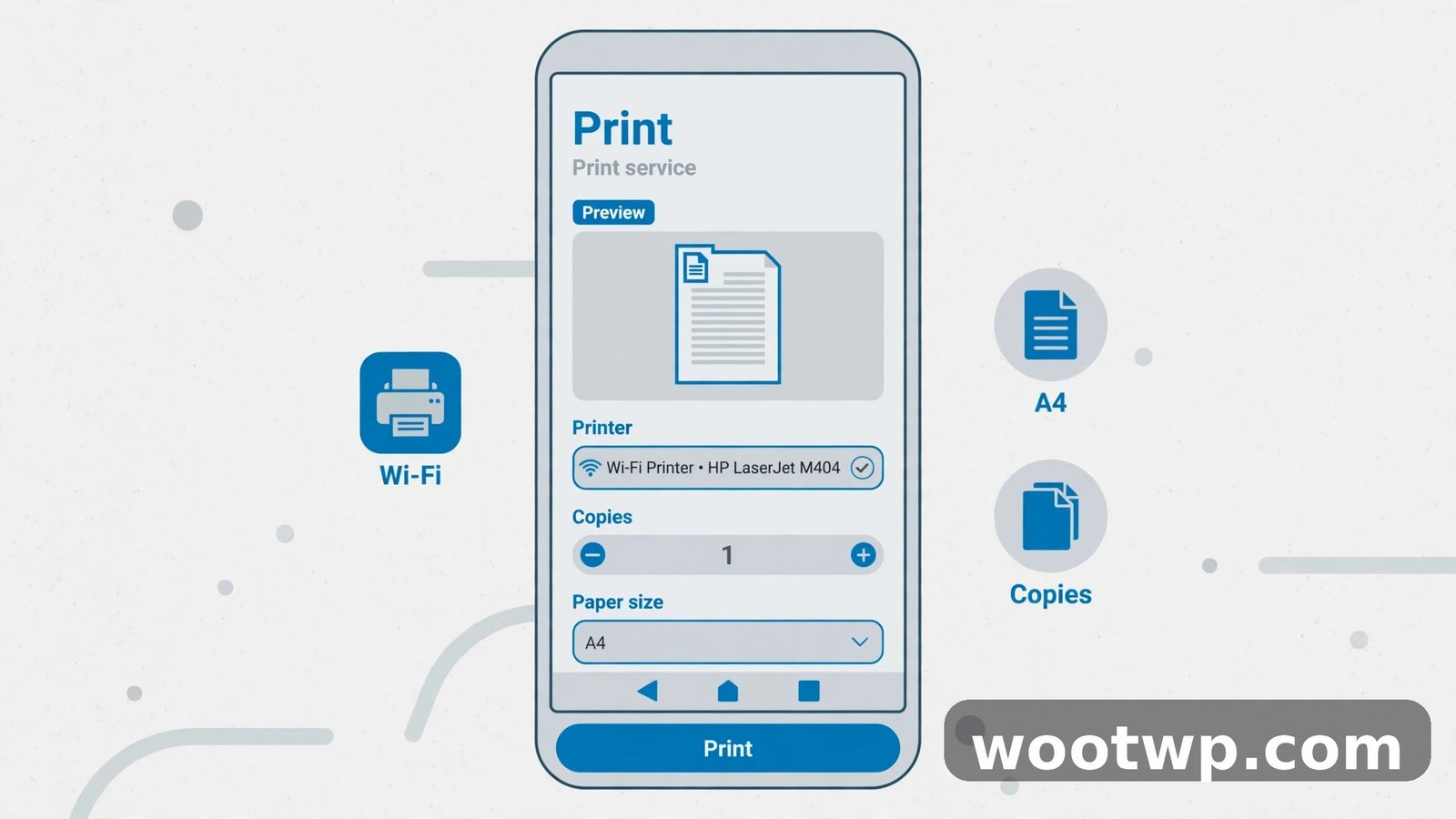
This is the fastest way to learn how to print from Android phone to WiFi printer, because it uses software already on your phone. Once the printer appears in the print service, printing from almost any app follows the same pattern.
- Connect your phone and printer to the same Wi-Fi network.
- Open the file, photo, web page, or email you want to print.
- Tap the three-dot menu or the Share icon in that app.
- Tap Print. If you do not see Print in the menu, open the file in an app that supports printing, such as Google Drive, Chrome, or Google Photos.
- At the top of the print preview, tap the printer name dropdown and choose your Wi-Fi printer. If it is not listed, tap All printers and wait for the scan to finish.
- Set the number of copies, paper size, colour or black and white, orientation, and page range. Check the preview carefully, especially for web pages, which often print extra pages of ads and menus.
- Tap the print icon. The job goes straight to the printer over Wi-Fi.
Wait for the printer to warm up. The first page can take 30 seconds or more on an inkjet that has been asleep. Do not send the job twice. If you tap print again, you will get two copies.
How to Print From Android Phone to WiFi Printer When Print Is Missing From the Menu
Some apps hide the print option, or do not offer it at all. That does not mean you cannot print. Use one of these workarounds:
- Photos: open the photo in Google Photos, tap the three-dot menu, then tap Print.
- Documents: open the file in Google Drive or Microsoft Word, then use the Share or menu option and choose Print.
- Web pages: open the page in Chrome, tap the three-dot menu, tap Share, then tap Print.
- Screenshots and downloads: find the file in the Files app, tap the three-dot menu, and choose Print, or open it in Photos or Drive first.
If you print from Chrome, use the print preview to cut wasted pages. In the preview, change the page range to print only the pages you need, or save the page as a PDF first and print the PDF instead.
How to Print Photos, PDFs, Web Pages, and Emails From Your Phone
Printing from your phone is not one single action. Each type of file has a slightly different path, and the settings that matter change with the file type. Work through the type you need below.
How to Print a Photo From Your Android Phone
Photos need colour, the right paper size, and a preview check, and that check is a core part of how to print from Android phone to WiFi printer without wasting ink.
- Open the photo in Google Photos.
- Tap the three-dot menu and choose Print.
- Choose your Wi-Fi printer.
- Set the paper size to match the paper in the tray, usually 4 by 6 inches for photo paper or A4 for plain paper.
- Choose colour, and set the quality to high if your printer offers that option in the preview.
- Check the preview. Crop or rotate the photo in Photos before printing if the edges cut off part of the picture.
- Tap the print icon.
For the best results, print photos on photo paper, not plain copy paper. Plain paper soaks up ink and dulls colours. Also, shrink large photos before you print a test copy if you only need a small print. Learning how to compress images without losing quality helps when you share or store the same photo online, and it keeps your phone storage under control too.
How to Print a PDF From Your Android Phone
PDFs are the easiest files to print, because they keep their layout on any device.
- Open the PDF in Google Drive, the Files app, or your PDF reader.
- Tap the three-dot menu or Share icon and choose Print.
- Choose your printer and check the page count in the preview.
- Set the page range if you only need certain pages. For long PDFs, print the pages you need instead of the whole file.
- Choose single-sided or double-sided if your printer supports it.
- Tap the print icon.
If a PDF prints with missing text or blank pages, open it in a different reader and try again. A damaged download is a common cause. Delete the file, download it again on Wi-Fi, and print the fresh copy.
How to Print a Web Page or an Email
Web pages and emails often print badly because they were designed for a screen, not paper. Use these steps to keep the output clean:
- Open the page in Chrome or the email in Gmail.
- In Chrome, tap the three-dot menu, then Share, then Print. In Gmail, open the message, tap the three-dot menu, then Print.
- In the preview, look at the page count. If Chrome wants to print eight pages for a short article, the page includes menus, comments, or ads.
- Change the page range to the pages with the content you need, or use your browser's reader view before printing.
- Choose black and white for text-only pages to save colour ink.
- Tap the print icon.
For a page you will print often, save it as a PDF first. In the print preview, choose Save as PDF instead of a printer. You can then print that PDF later without reopening the web page.
How to Print From Android Phone to WiFi Printer With Wi-Fi Direct
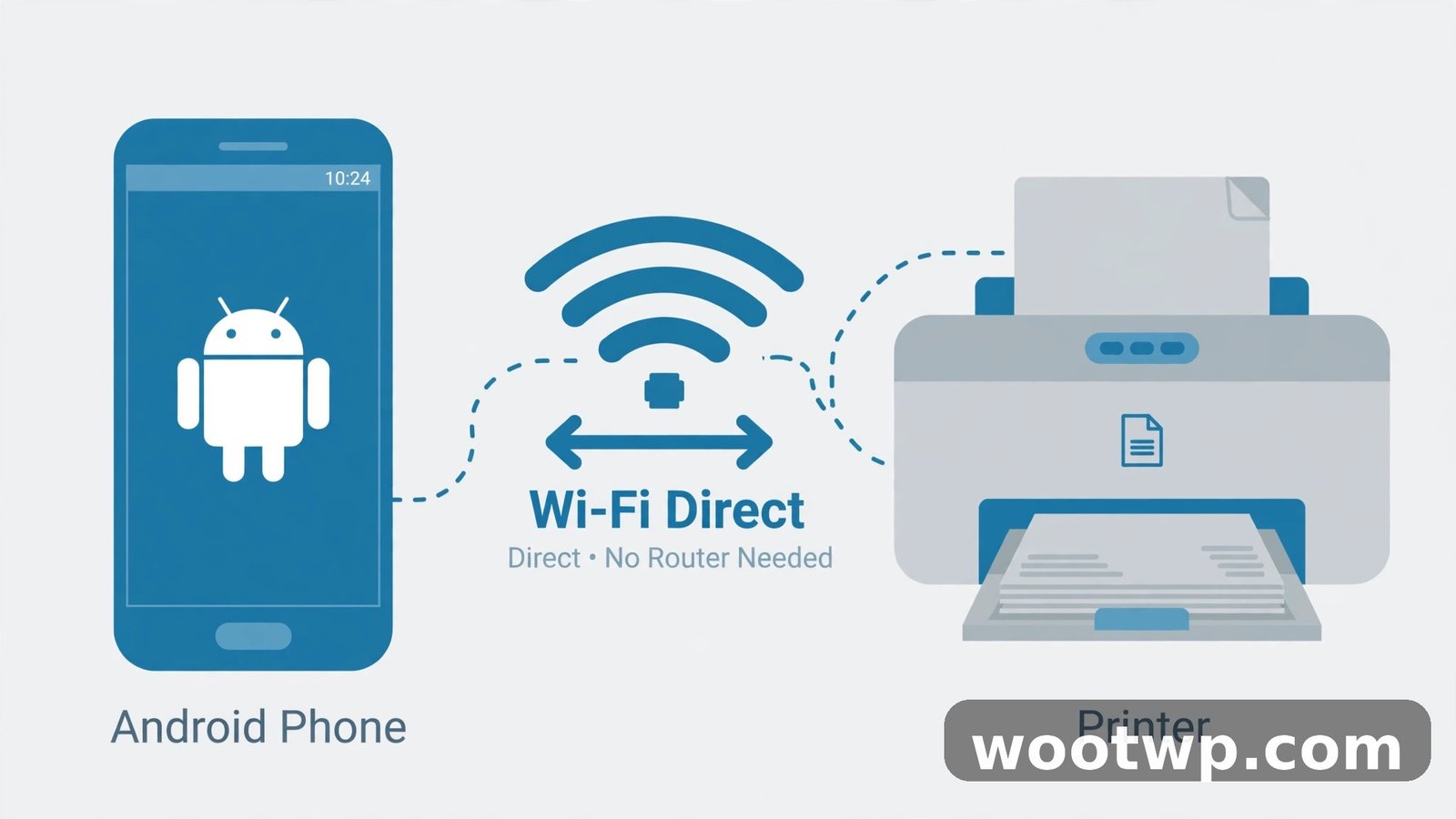
Wi-Fi Direct is the backup method for how to print from Android phone to WiFi printer, and it lets your phone talk straight to the printer, with no router and no shared Wi-Fi network in between. It helps in offices, hotels, and homes where your phone cannot join the same network as the printer. Most printers made after 2014 support it, and most Android phones support it too.
To print with Wi-Fi Direct, follow these steps:
- Turn on Wi-Fi Direct on your printer. On printers with a screen, open Network Settings or Wireless Settings and choose Wi-Fi Direct. On printers without a screen, press and hold the Wi-Fi Direct button, or check the printer manual for the button combination. The printer will show a Wi-Fi Direct name, often starting with "DIRECT-", and a password.
- On your phone, open the file you want to print and tap Print as usual.
- Tap the printer dropdown and look for the printer's Wi-Fi Direct name. If it does not appear, tap All printers and wait for the scan.
- If your phone asks for a password, enter the Wi-Fi Direct password shown on the printer or printed on its network settings page.
- Allow location permission if Android asks for it during discovery. Android needs that permission to find nearby wireless devices. It is a system requirement for discovery, not a sign that the print app tracks your location.
- Set your print options and tap the print icon.
- After printing, reconnect your phone to your normal Wi-Fi network if it does not switch back on its own.
Wi-Fi Direct is slower to set up the first time, but it works well as a backup. I keep it in mind for printing at a friend's house or a small office, where asking for the Wi-Fi password feels awkward and the printer sits right there. One warning: while connected through Wi-Fi Direct, your phone may lose internet access, because it uses its Wi-Fi radio for the printer connection. That is normal. Switch back to your normal network when you finish.
How to Print From Android Phone to WiFi Printer With a Printer App
When the built-in service cannot find your printer, or you want extra features such as scanning and ink-level checks, your printer maker's app is the next step. The big makers all offer one: HP Smart, Canon PRINT, Epson Smart Panel, and Brother Mobile Connect. They are free, and they work with their own printers over Wi-Fi.
To use a printer app, follow these steps:
- Install your printer maker's app from the Google Play Store. Search for the exact brand name, and check that the developer name matches the maker.
- Open the app and sign in only if it asks. Most printing features work without an account.
- Add your printer in the app. Make sure your phone and printer share the same Wi-Fi network during setup.
- Grant the permissions the app asks for during setup, including nearby device permission, so it can find the printer.
- Choose Print Photos, Print Documents, or Print from Files inside the app, pick your file, set your options, and print.
Printer apps add useful extras. You can check ink levels before a big job, clean the print heads from your phone, scan a document with the printer's scanner and save it as a PDF, and order ink when levels run low. They also help with older printers that do not fully support the built-in service. If you print often, keep the app installed even if you mostly use the built-in service. It is the fastest way to check why a printer stopped responding.
Watch out for apps that look like the maker's app but come from an unknown developer and charge a fee. The real maker apps are free. If an app asks you to pay before it prints a test page, delete it and search again from the Play Store listing linked on the maker's own website.
Why Is My Printer Not Showing Up on My Android Phone?
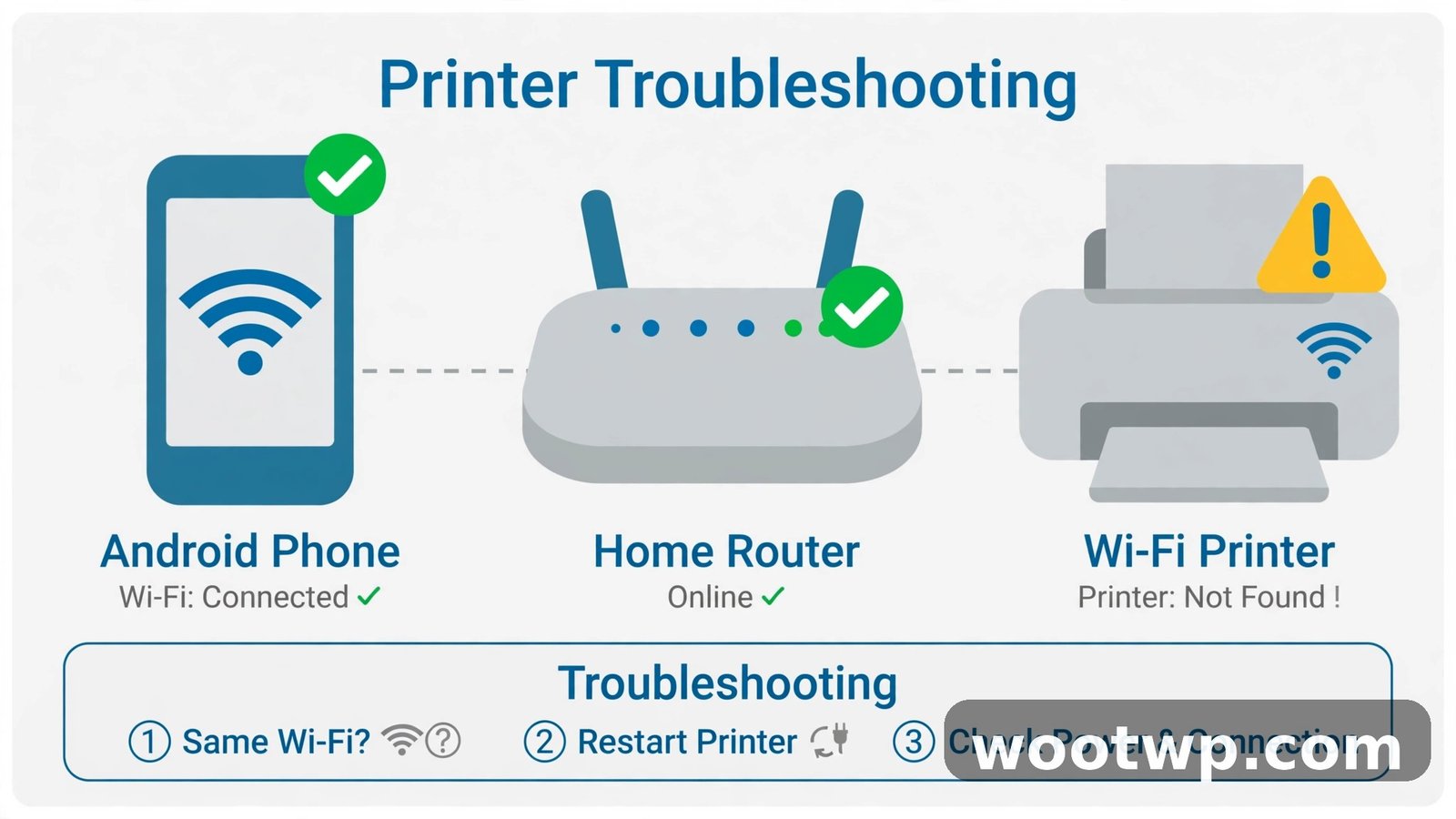
If you followed the steps above and still cannot print from Android phone to WiFi printer, work through this checklist in order. Stop as soon as the printer appears. Do not skip ahead to reinstalling apps before you check the basics.
- Confirm the same network. Open Wi-Fi settings on your phone and check the network name. Print a network page from the printer and compare. If they differ, move the phone to the printer's network.
- Turn off mobile data for the test. Some phones prefer mobile data and skip the local network search. Turn mobile data off, try printing again, then turn it back on.
- Restart the printer. Turn it off, wait 30 seconds, and turn it on again. Wait until the Wi-Fi light stays solid, not blinking.
- Restart your phone. A fresh start clears a stuck print service. This sounds simple, and it fixes a surprising number of discovery problems.
- Check the print service. Go to Settings, search for "printing", open Default Print Service, and confirm it is on. Turn it off and on again to force a fresh scan.
- Restart your router. Unplug it for 30 seconds, plug it back in, and wait two minutes. If your home Wi-Fi feels slow in general, read the guide on how to fix slow WiFi at home before you blame the printer.
- Move closer. If the printer sits far from the router, or behind thick walls, its signal may drop. Move the printer closer for a test print.
- Check for a firmware update. Open the maker's app or the printer's settings menu and check for updates. Old firmware sometimes breaks discovery after a phone update.
- Add the printer by IP address. In the print preview, tap All printers, then the add option, and enter the IP address from the printer's network page. This bypasses discovery and talks to the printer directly.
- Try the maker app. If the built-in service still misses the printer, install the maker's app and add the printer there.
What to Do When the Printer Shows Up but the Job Never Prints
A printer that appears in the list but never prints usually has a queue problem, not a connection problem. Check the printer screen for an error: out of paper, paper jam, low ink, or a lid left open. Clear the error, then check the print queue on the printer or in the maker app and cancel any stuck job. Send the job once more, with one copy, before you try a larger job.
If the printer prints a test page from its own menu but not from your phone, the problem sits in the phone's print settings. Check the paper size in the preview. A mismatch, such as Letter selected when the tray holds A4, can hold the job without an obvious error on the phone.
How to Save Ink, Paper, and Time When You Print From Your Phone
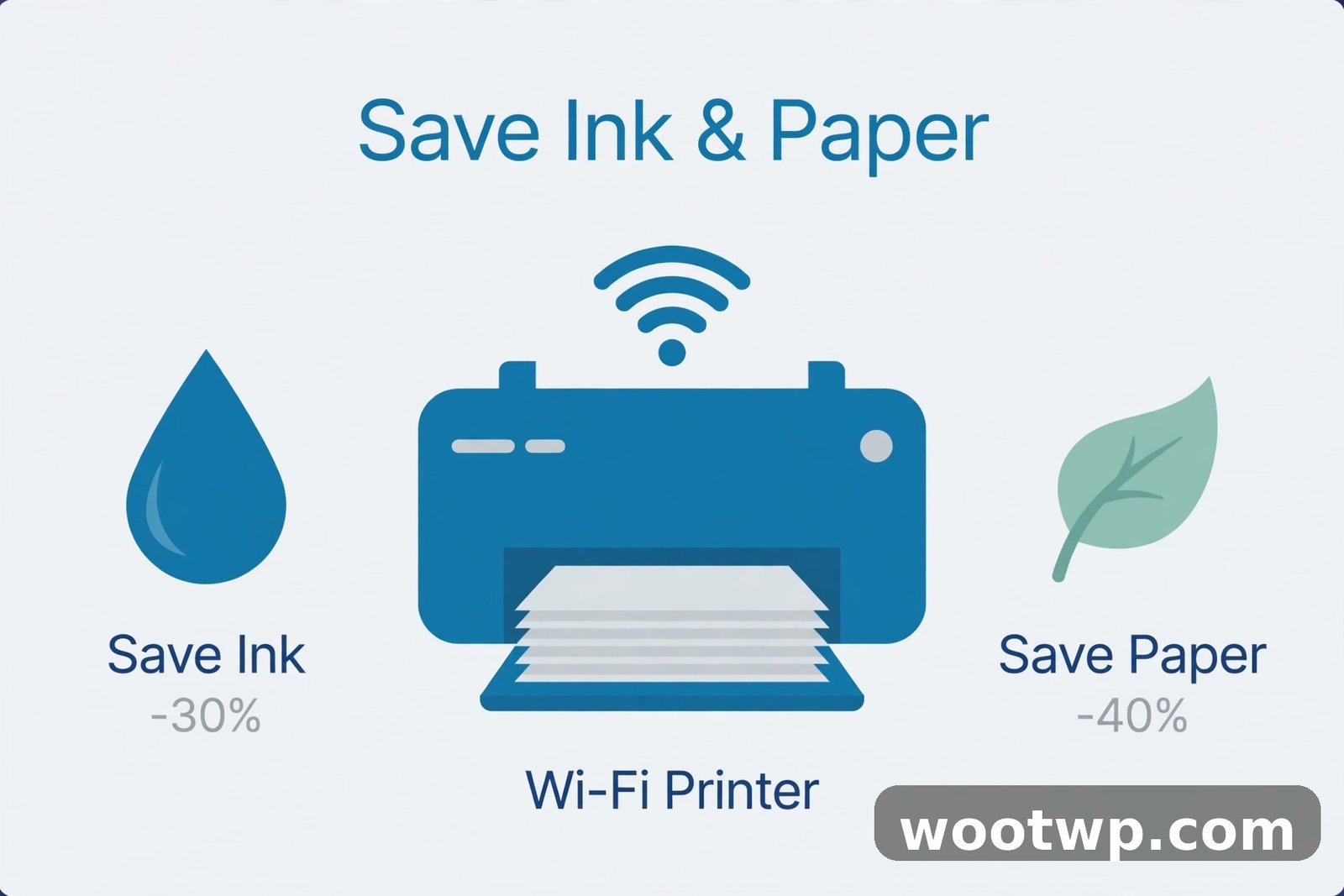
Printing from a phone makes it easy to waste ink, which is why how to print from Android phone to WiFi printer well always includes the preview habit, because the print button sits one tap away and the preview is small. These habits keep costs down without much effort.
- Always read the preview. Check the page count before you print. A web page that looks short on a phone screen can run to ten pages on paper.
- Print in black and white for text. Colour ink costs more, and most documents read fine in grayscale. Switch to colour only for photos and charts that need it.
- Use double-sided printing. If your printer supports it, turn on two-sided printing for multi-page documents. It halves paper use at once.
- Print two pages per sheet for drafts. For reading copies and drafts, set two pages per sheet in the preview. The text stays readable, and you use half the paper.
- Set the right paper size first. A wrong paper size wastes the whole job. Match the setting to the paper in the tray every time you switch between photo paper and plain paper.
- Keep the printer firmware updated. Updates fix discovery bugs and sometimes improve ink use. Check every few months in the maker app.
- Print a test page after a long break. If the printer sat unused for weeks, print one test page first. Dried nozzles show up on a test page, not on the photo you wanted to frame.
In my experience, the preview habit alone saves more ink than any other trick. I once printed a 22-page web article because I skipped the preview. The article itself was three pages. The rest was navigation, comments, and ads. Now I check the page count on every job, and I have not wasted a full ink cartridge on a web page since.
FAQs About Printing From Android to a WiFi Printer
Can I print from my Android phone to a WiFi printer without any app?
Yes. The short answer to how to print from Android phone to WiFi printer without any app is that most Android phones include a built-in print service that finds Wi-Fi printers on the same network. Open your file, tap Print from the menu or Share options, choose your printer, and tap the print icon. You only need a maker app if the built-in service cannot find your printer or you want extras such as scanning and ink checks.
How do I print from Android phone to WiFi printer if the printer does not appear?
First, confirm your phone and printer use the same Wi-Fi network name. Then restart the printer, restart your phone, and check that the Default Print Service is turned on in Settings. If the printer still does not appear, restart the router, move the printer closer to it, or add the printer by its IP address in the print preview.
Can I print from my phone if my printer has no Wi-Fi?
Yes, with limits. You can share a USB printer through a computer on the same network, use Wi-Fi Direct if the printer supports it, or connect with a USB OTG adapter and a compatible print app. The simplest long-term fix for frequent printing is a Wi-Fi printer, because the built-in service then works with no extra setup.
Why does my Android phone print blank pages?
Blank pages usually mean low or dried ink, a paper size mismatch, or a damaged file. Check ink levels in the maker app, print a test page from the printer menu, and confirm the paper size in the preview matches the tray. If only one file prints blank, download it again or open it in a different app and retry.
Can I print from my Android phone when I am away from home?
Only if the printer supports remote printing through the maker's cloud service, such as HP ePrint or a similar feature, and you set it up in advance. The built-in print service works on the local network only. For remote printing, set up the maker app and its cloud feature before you leave, and keep the printer on and connected to Wi-Fi.
Does printing from Android use mobile data?
No, when you print over Wi-Fi or Wi-Fi Direct, the job travels over the local wireless connection, not mobile data. Your phone may still use mobile data for other apps while you print. Turn mobile data off during a test if the printer does not appear, since some phones prefer the mobile connection for network discovery.
Conclusion
Now you know how to print from Android phone to WiFi printer three ways: the built-in service for everyday printing, Wi-Fi Direct when there is no shared network, and the maker app when you need extra features or the built-in service misses your model. Start with the same-network check, use the preview on every job, and work through the troubleshooting list in order when a printer hides. The one habit that matters most is simple: check the network name and the preview before you tap print, and most jobs will go through on the first try.