


How to Delete Google Search History Automatically: 5 Easy Steps
If you want to know how to delete Google search history automatically, the setting you need is buried two menus deep in your Google Account — and once you turn it on, Google quietly erases your old searches on a schedule you pick, without you ever having to remember. Every search you make while signed in to Google can be saved to your account under Web and App Activity. That history follows you across your phone and computer, and it builds up for years unless you do something about it. This guide shows you how to set auto-delete to 3, 18, or 36 months on the web and on your phone, how to delete everything you have already saved, and how to stop Google saving your searches altogether if you would rather keep nothing at all.
There are two kinds of search history, and people mix them up all the time. The first lives in your Google Account — that is what this guide covers. The second lives in your browser — the list of pages you visited in Chrome. Clearing one does not clear the other. So if you want a proper clean-up, you handle both: this guide for your Google Account history, and our guide on how to clear cookies in Chrome for the browser side.
In this guide:
- What Google Saves When You Search — and Where It Lives
- How to Delete Google Search History Automatically on the Web
- How to Delete Google Search History Automatically on Your Phone
- How to Delete Your Existing Google Search History Right Now
- How to Stop Google Saving Your Search History Altogether
- Which Auto-Delete Period Should You Pick?
- Frequently Asked Questions About Deleting Google Search History Automatically
- Conclusion: Set It Once and Forget It
What Google Saves When You Search — and Where It Lives
When you search on Google while signed in, and Web and App Activity is turned on, Google saves the search to your Google Account. That includes the words you typed, the results you clicked, and the time you searched. The same setting also saves activity from other Google services — YouTube watches, Maps searches, and Assistant requests — because they all feed into the same activity record.
This is not the same as your browser history. Your browser history is the list of pages stored on your device by Chrome, Firefox, or whatever browser you use. Your Google search history is stored on Google's servers, tied to your account, and it follows you to every device you sign in on. Deleting your browser history does nothing to the copy on Google's servers. Deleting your Google search history does nothing to the copy in your browser. You need to clear both if you want both gone.
Why would you bother? A few honest reasons:
- Privacy on shared devices. Anyone who picks up your signed-in phone can open your search history and read it. Auto-delete limits how far back that trail goes.
- Less data sitting on someone else's servers. You cannot control how Google stores your data, but you can control how much of it piles up.
- A cleaner, less creepy ad profile. Your searches feed into the ads Google shows you. Shorter history means less material to work with.
- Peace of mind. Most people never look at their history, but knowing it is not building up forever feels better.
None of this is about hiding wrongdoing. It is about choosing how much of your daily life is recorded by default. Google gives you the controls — they are just not where most people would look for them.
How to Delete Google Search History Automatically on the Web
This is the main method, and it works from any computer. It takes about two minutes.
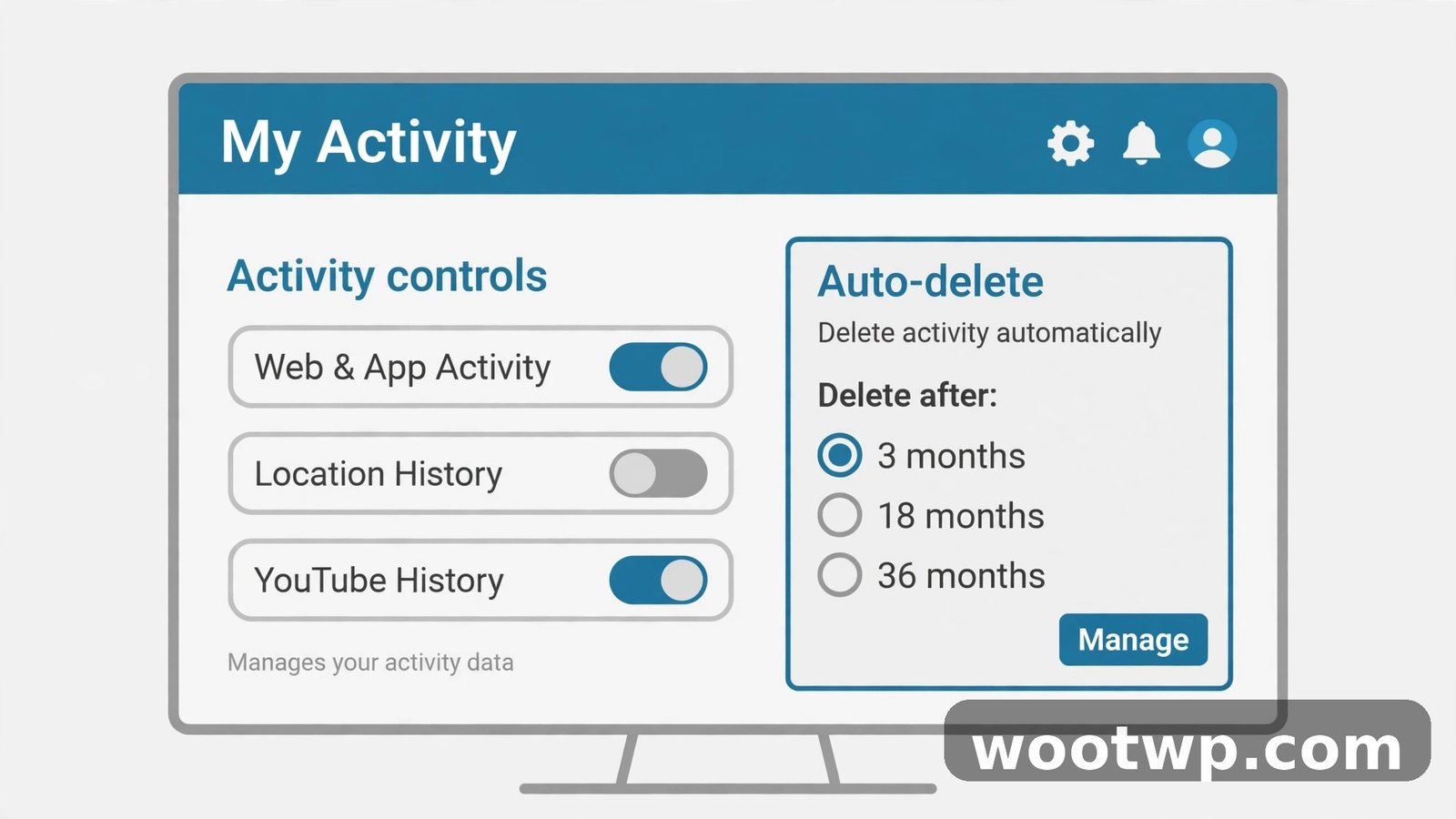
- Go to myactivity.google.com and sign in. This is the My Activity page for your Google Account. If you are signed in to more than one Google account in the browser, check the profile picture in the top-right corner — make sure it is the account whose history you want to manage.
- Click Controls in the left-hand menu. On a narrow window this may be hidden behind a menu icon. The Controls page shows the activity settings for your account.
- Find Web and App Activity. This is the setting that controls whether Google saves your searches and other activity. Under it you will see the current auto-delete status — it probably says "Auto-delete (Off)."
- Click the words under "Auto-delete (Off)" — or "Auto-delete (On)" if it is already set. This opens the auto-delete options.
- Choose "Auto-delete activity older than" and pick a period: 3 months, 18 months, or 36 months. The shortest period, 3 months, keeps the least history. Pick the one that fits you, then click Next and confirm.
That is the whole setup. From now on, Google automatically erases any saved search activity older than the period you picked. The deletion runs on Google's side, so you do not need to keep your computer on or open any app. It just happens. Google's own help page on erasing search history automatically lists these same steps if you want to check them against the official guide.
One important detail: auto-delete only removes activity older than your chosen period. If you pick 3 months, searches from the last three months stay. If you want those gone too, delete your existing history first — the steps are in the section below.
A note on the new "Search Services History" name
Google has started renaming some of these settings on newer screens. You may see "Search Services History" instead of "Web and App Activity" in places. It is the same setting with a new label. If your screen says Search Services History, follow the same steps — open it, find the auto-delete option, and pick your period. Google changes these labels now and then, so if a menu looks slightly different from the screenshots in this guide, look for the words "auto-delete" and you are in the right place.
How to Delete Google Search History Automatically on Your Phone
You can set the same auto-delete schedule from the Google app on your phone. The steps are nearly identical on Android and iPhone.
On Android:
- Open the Google app.
- Tap your profile picture or initial in the top-right corner.
- Tap Search history.
- Tap Auto-delete.
- Choose Auto-delete activity older than and pick 3 months, 18 months, or 36 months.
- Tap Next and confirm.
On iPhone:
- Open the Google app.
- Tap your profile picture or initial in the top-right corner.
- Tap Search history.
- Tap Auto-delete and choose your period the same way.
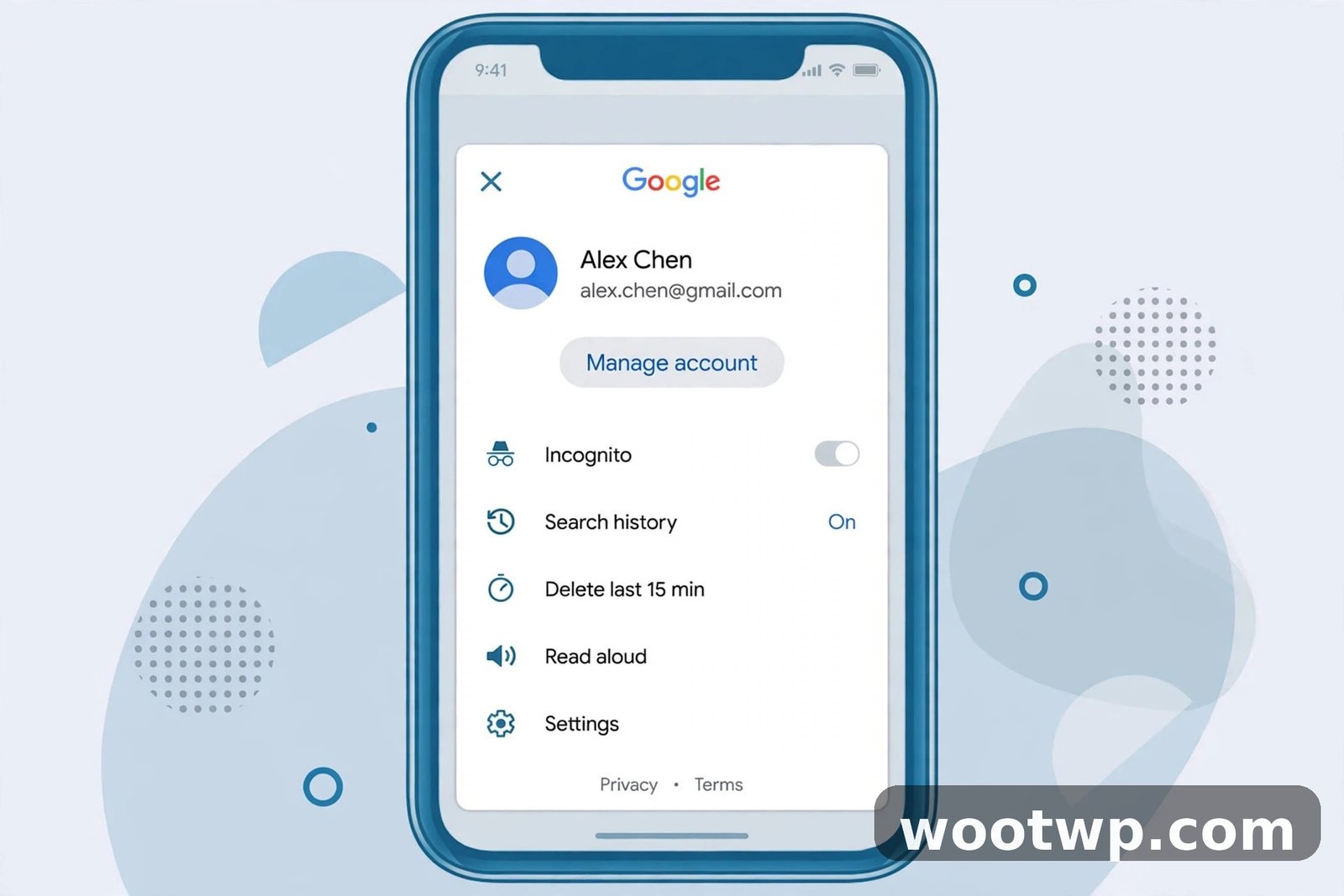
You only need to set this once, on one device. The setting belongs to your Google Account, not to the phone, so it applies everywhere you are signed in. If you set it on your computer, it is already active on your phone, and the other way round.
There is one more handy phone trick worth knowing. On Android, you can delete a single recent search without opening any settings: touch and hold a recent search in the Google search bar, then tap Delete when the option appears. It is a quick way to remove one embarrassing typo or one search you would rather not keep, without wiping anything else.
How to Delete Your Existing Google Search History Right Now
Auto-delete handles the future. Your existing history — everything saved up to today — needs a manual delete. Do this first if you want a clean slate, then let auto-delete keep it clean from now on.
On the web:
- Go to myactivity.google.com and sign in.
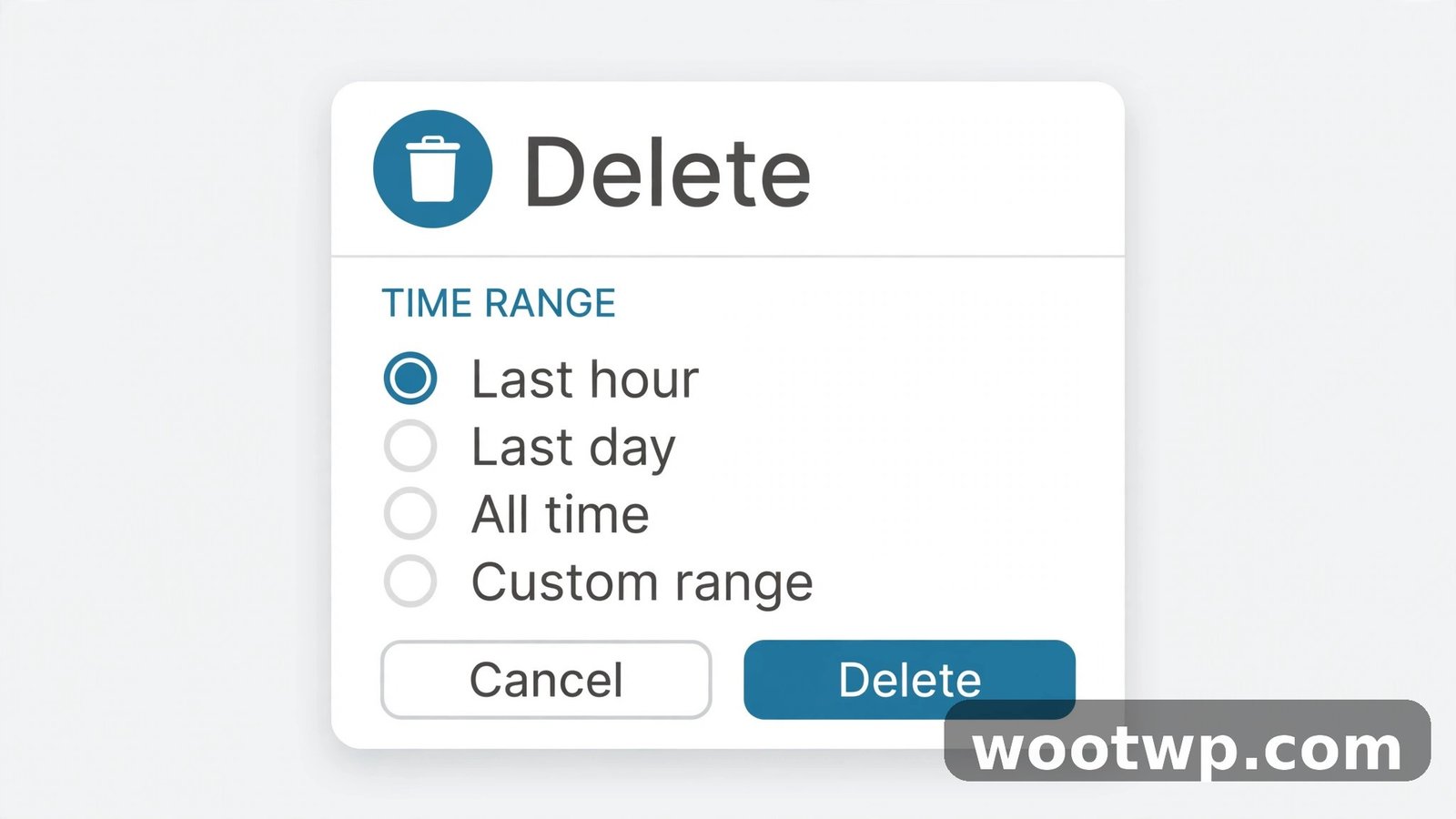
- Click Delete at the top of the page.
- Choose a range: Last hour, Last day, All time, or Custom range.
- Pick Delete all time to wipe everything, or Custom range to erase a specific period — useful if you only want to remove searches from a particular trip or a particular month.
- Confirm. Google shows you a summary of what will be deleted before it goes ahead.
On your phone:
- Open the Google app and tap your profile picture.
- Tap Search history.
- Tap Delete and choose Delete today, Delete custom range, Delete all time, or Auto-delete.
A warning that matters: deleted history cannot be brought back. Before you tap Delete all time, think about whether you rely on your history for anything — some people use it to find a site they visited weeks ago and cannot remember. If that sounds like you, pick a custom range instead, or download your data first through Google Takeout so you have a copy.
How long does the deletion take? Google says the removal starts right away, but fully erasing the data from its systems takes about two months, with backups lasting up to six months. That is normal for a service of Google's size — the history disappears from your account immediately, and the copies on Google's servers are purged on their schedule. Setting auto-delete on top of a manual wipe means new history never builds up past your chosen window again.
How to Stop Google Saving Your Search History Altogether
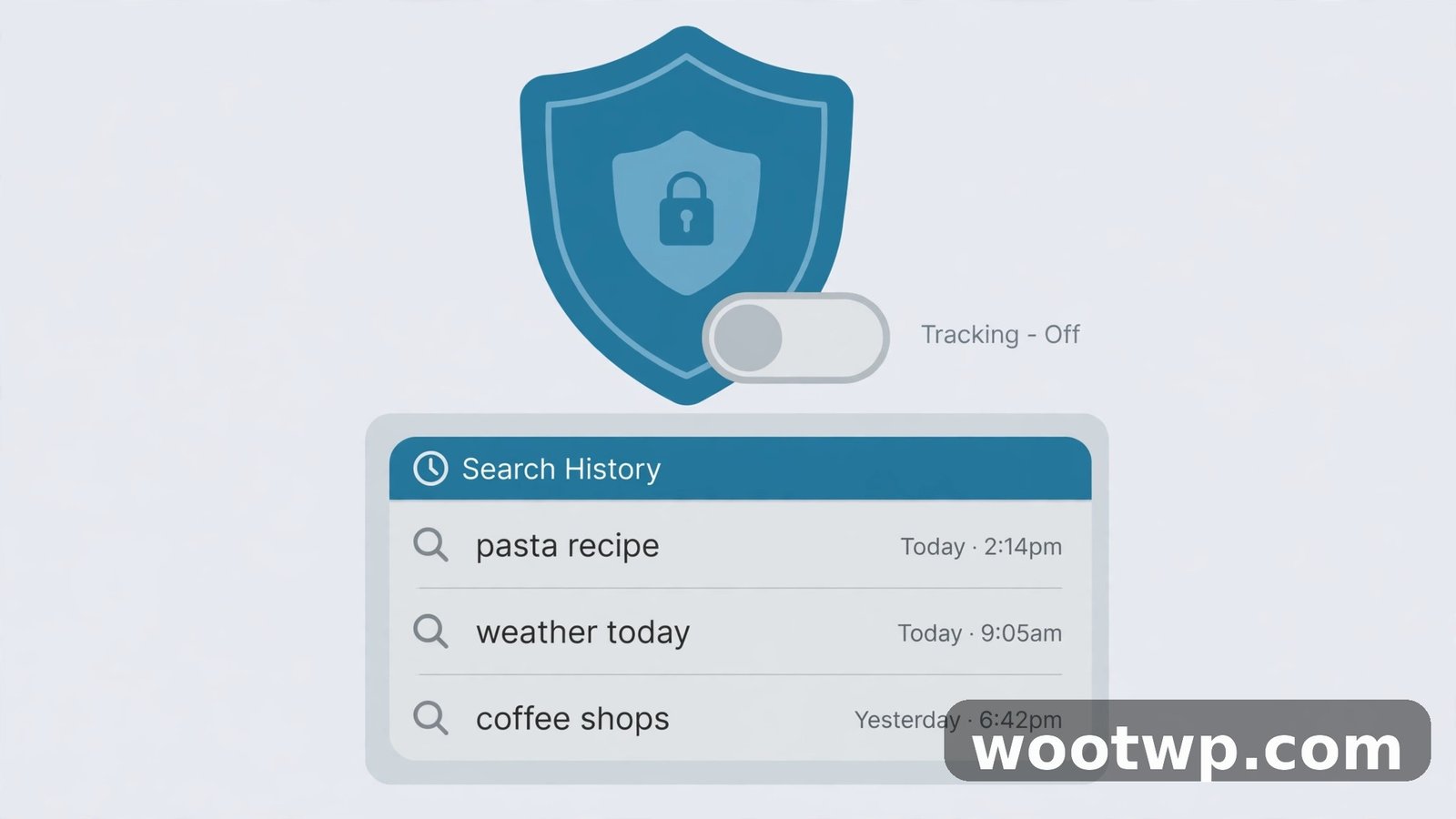
If you would rather Google saved nothing at all, you can turn Web and App Activity off completely. This is the strongest option, and it is the right one if you do not want a search trail of any kind.
On the web:
- Go to myactivity.google.com and sign in.
- Click Controls in the left-hand menu.
- Find Web and App Activity and click Turn off.
- Google will ask you to confirm and warn you about what you lose. Read it, then confirm.
On your phone:
- Open the Google app and tap your profile picture.
- Tap Search history.
- Look for the option to turn off saving, or go through your Google Account settings to Web and App Activity and turn it off there.
Turning it off stops future saving. It does not delete what is already saved — do the manual delete above first if you want the old history gone too.
What do you lose by turning it off? A few conveniences: Google will not remember your past searches to suggest them when you start typing, your search results become less personalised, and features that rely on your activity — like Google remembering a restaurant you looked up — stop working. For most people the trade is worth it, but it is a real trade. That is why many people choose the middle path instead: keep saving on, but set auto-delete to 3 months. You keep the useful suggestions for recent searches and nothing older than a season survives.
If you are tightening up your Google security in general, this is a good moment to look at the rest of it too. Passkeys are the strongest sign-in option Google offers, and our guide on how to use passkeys instead of passwords on Google walks through setting them up. And if you ever worry an email from "Google" is not really from Google, here is how to tell if an email is phishing before you click anything in it.
Which Auto-Delete Period Should You Pick?
Google gives you three choices, and the right one depends on how you use your history.
- 3 months — best for privacy. This keeps the least history. Recent searches are still there when you need to find a site again, but nothing older than a season survives. Pick this if privacy is your main reason for doing this at all. In my experience, most people who bother setting auto-delete end up happiest with 3 months — it is short enough to feel meaningful and long enough that you never notice anything missing.
- 18 months — the balanced default. This is Google's own default for new accounts, and it is a reasonable middle ground. You keep a year and a half of history for finding old searches, and the really old stuff disappears on its own.
- 36 months — best if you actually use your history. Some people genuinely search their history to find things — a recipe from two years ago, a shop they visited once. If that is you, 36 months keeps the archive useful while still putting an end date on it.
There is no wrong answer, and you can change the period any time. If you start with 18 months and decide later that you want less kept, go back to the same menu and switch to 3 months. Google applies the new window right away.
One more thing to check while you are in these settings: the same Controls page has auto-delete options for your YouTube history and your location history. They work exactly the same way, with the same 3, 18, and 36 month choices. If you are cleaning up your Google footprint, set them in the same visit — it takes another minute and the logic is identical.
Frequently Asked Questions About Deleting Google Search History Automatically
How do I delete Google search history automatically on Android?
Open the Google app, tap your profile picture, then Search history, then Auto-delete. Choose "Auto-delete activity older than" and pick 3, 18, or 36 months. The setting belongs to your Google Account, so it applies on every device you use.
Does auto-delete remove my search history from Google's servers completely?
It removes the history from your account right away, and Google then purges its copies from its systems over about two months, with backups lasting up to six months. The history is gone from your account immediately — the delay is only about Google's internal copies.
What is the difference between deleting Google search history and clearing browser history?
Google search history is saved to your Google Account on Google's servers. Browser history is saved on your device by Chrome or your browser. Clearing one does not clear the other. To clean up properly, set auto-delete on your Google Account and clear your browser history separately.
Can I recover deleted Google search history?
No. Once you delete search history — manually or through auto-delete — it cannot be brought back. If you think you might need it, download a copy through Google Takeout before you delete it.
Does turning off Web and App Activity stop Google tracking me completely?
No. It stops Google saving your searches and activity to your account, but Google still processes your searches to show you results, and other settings like location history and YouTube history are separate. For a fuller clean-up, check the auto-delete options for those too, on the same Controls page.
Why is my Google search history still showing after I turned on auto-delete?
Auto-delete only removes activity older than the period you picked. If you chose 3 months, searches from the last three months stay until they age out. To remove those too, do a manual delete first — My Activity, Delete, then Delete all time or a custom range — and auto-delete will keep things clean from then on.
Conclusion: Set It Once and Forget It
Learning how to delete Google search history automatically takes two minutes and you only do it once. Open My Activity, go to Controls, find Web and App Activity, and pick an auto-delete period — 3 months if privacy matters most to you, 18 months for a balance, 36 if you actually use your history. Delete what is already saved if you want a clean slate, and remember that your browser keeps its own separate history, so clear that too. Set it, forget it, and your search trail takes care of itself from now on.