

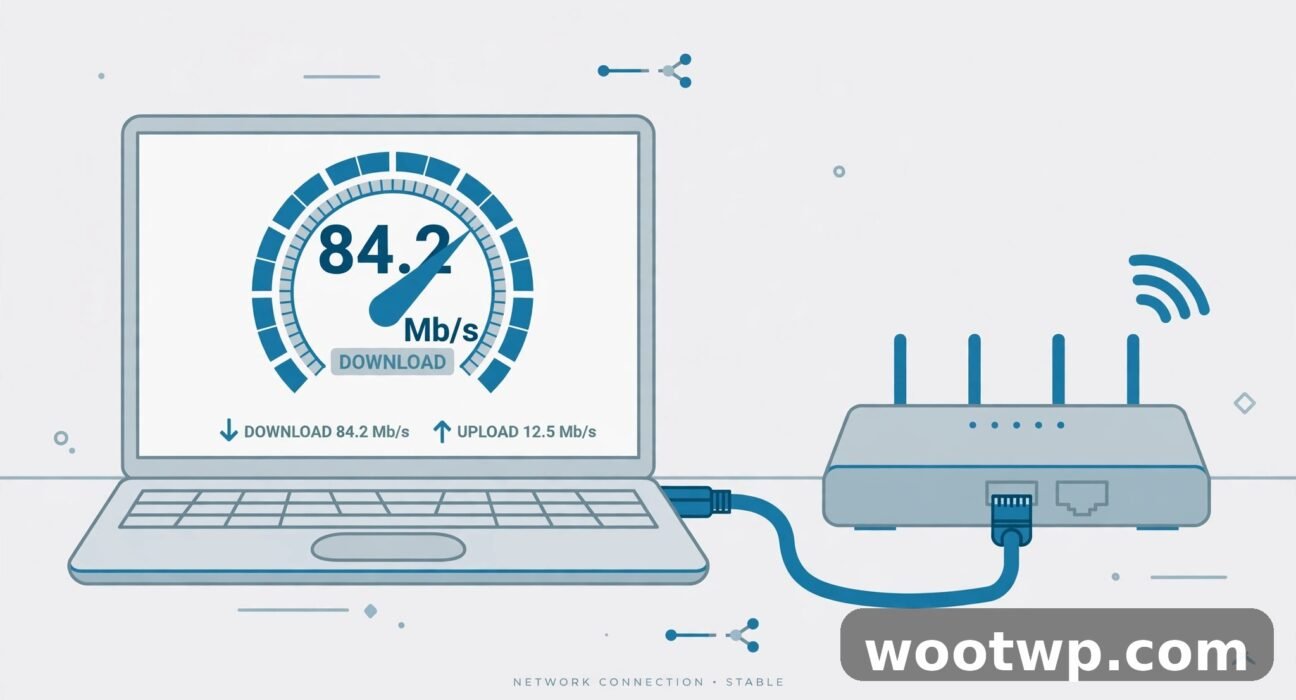
How to Check Real Internet Speed: 7 Proven Accurate Tests
If you want to know how to check real internet speed, the first thing to accept is that a single speed test number is never the whole story. One test can tell you your line is fast while your videos still buffer. Another can report a low number on a connection that works perfectly well. The difference is not that one test lies — it is that each test measures something slightly different, under different conditions, to a different server. This guide shows you which test to use for which question, how to run a test properly so the number means something, how to read the four numbers that actually matter, and what to do when the result does not match the speed you pay for.
The short version: use a wired connection, close everything else, run the test three times, and take the middle result. Then run a second test — Speedtest for your line's maximum, Fast.com for how streaming really feels — and compare. If you do that, you will know more about your connection in ten minutes than most people learn in a year of complaining about it.
In this guide:
- What an Internet Speed Test Actually Measures
- How to Check Real Internet Speed: The Method That Gives Honest Numbers
- Speedtest vs Fast.com: Which Test Tells You the Truth?
- How to Read Your Results: Download, Upload, Ping, and Jitter
- How Much Speed Do You Actually Need?
- Why Your Test Results Change Through the Day
- What to Do When Your Speed Is Lower Than Your Plan
- Frequently Asked Questions About Checking Internet Speed
- Conclusion: Test Twice, Trust the Pattern
What an Internet Speed Test Actually Measures
A speed test sends data between your device and a test server and reports how much got through each second, in megabits per second (Mbps). It measures throughput — the capacity of the path between you and that server at that moment — not the speed of "the internet" in general.
That distinction matters, because the path changes everything:
- The server matters. A test to a server inside your provider's network can read higher than a test to a server across the country. Neither number is wrong. They measure different paths.
- The connection type matters. A test on Wi-Fi mostly measures your Wi-Fi, not your internet line. A weak signal, the wrong band, or interference from a neighbour's router can cut the number in half while your line itself is fine.
- The moment matters. Networks get busy in the evening. A test at 3 p.m. and a test at 9 p.m. can differ by a wide margin on the same connection.
- The method matters. Some tests open several connections at once to push your line as hard as possible. Others use a single connection, which reads lower but looks more like real apps behave.
So when two tests disagree, it is usually not a bug. They are answering different questions. The skill is knowing which question you are asking.
How to Check Real Internet Speed: The Method That Gives Honest Numbers
Most bad speed test results are not a bad connection — they are a bad test. Follow this method and the numbers you get will actually mean something.
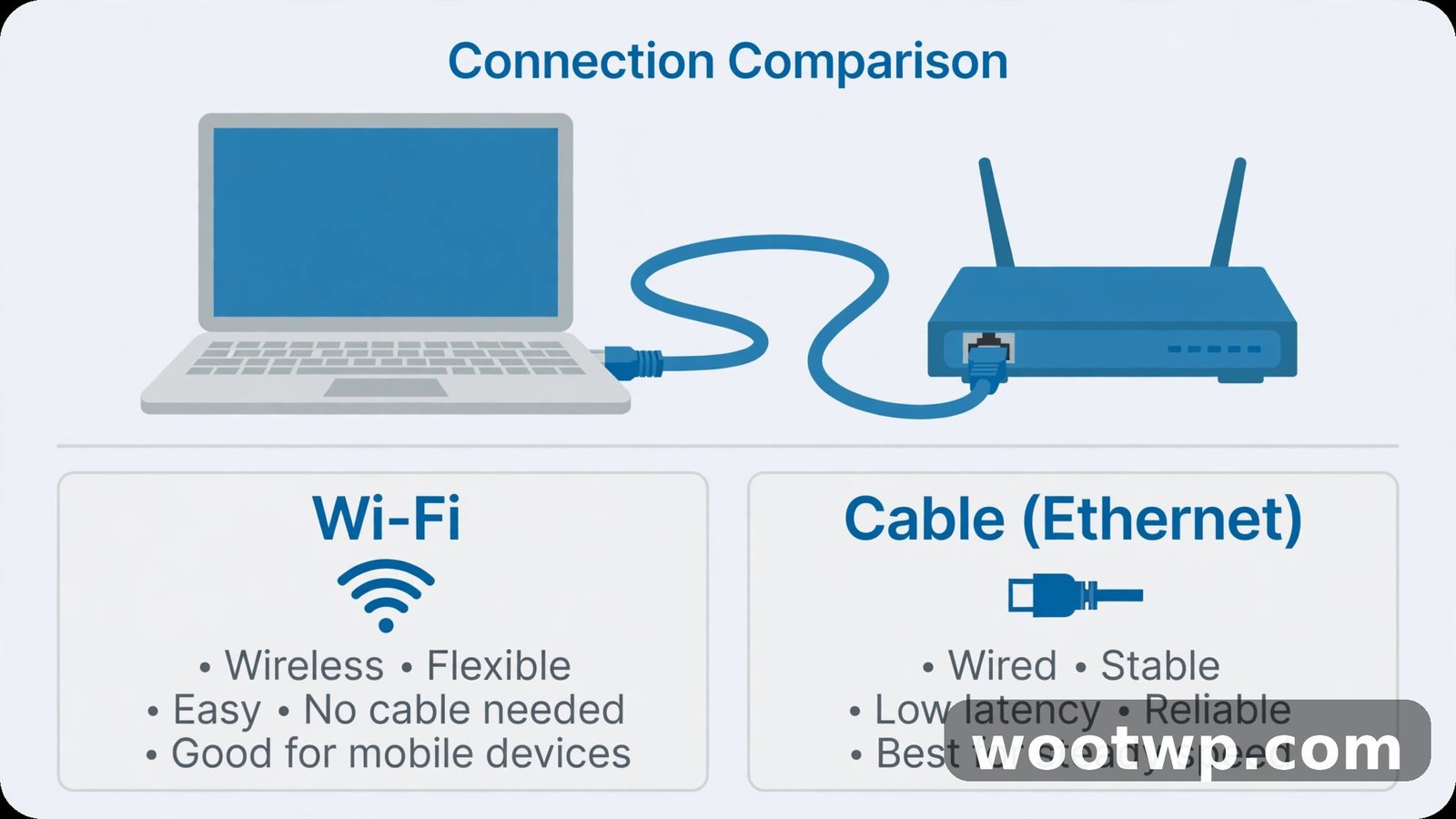
- Plug in with an Ethernet cable if you can. A wired test measures your internet line. A Wi-Fi test measures your Wi-Fi. If your laptop has an Ethernet port, use it. If it does not, a cheap USB-to-Ethernet adapter does the job. If you must test on Wi-Fi, stand in the same room as the router and use the 5 GHz band.
- Pause everything else on your network. Stop downloads, cloud backups, game updates, and video streams on every device in the house. A backup quietly uploading in the background can steal a large share of your line and wreck the result.
- Close other tabs and apps on the test device. A browser with twenty tabs open, especially ones with video or ads refreshing, competes with the test for the same connection.
- Turn off your VPN. A VPN routes your traffic through another server, which usually lowers speed and raises ping. Test without it. If you want to know what your VPN costs you, test with it on afterwards and compare.
- Run the test three times, a few minutes apart. Take the middle result, not the best one. One lucky run tells you nothing. Three runs show you the pattern.
- Test once in the evening too. Networks are busiest between 7 p.m. and 11 p.m. If your speed is fine at noon and poor at 9 p.m., that tells you the problem is congestion, not your line.
Write the numbers down — download, upload, ping, and the time of day. A small note on your phone is enough. After a week of testing this way, you will know your connection's real pattern, and you will have solid evidence if you ever need to call your provider about it.
Speedtest vs Fast.com: Which Test Tells You the Truth?
These are the two tests most people use, and they often give different numbers on the same connection. Both are honest. They just measure different things.
Speedtest by Ookla — the maximum your line can carry
Speedtest is the most widely used test. It picks a nearby server automatically, and you can change it. By default it opens several connections at once, which pushes your line as hard as it can go and shows the highest throughput your connection can sustain. It reports download, upload, ping, and jitter.
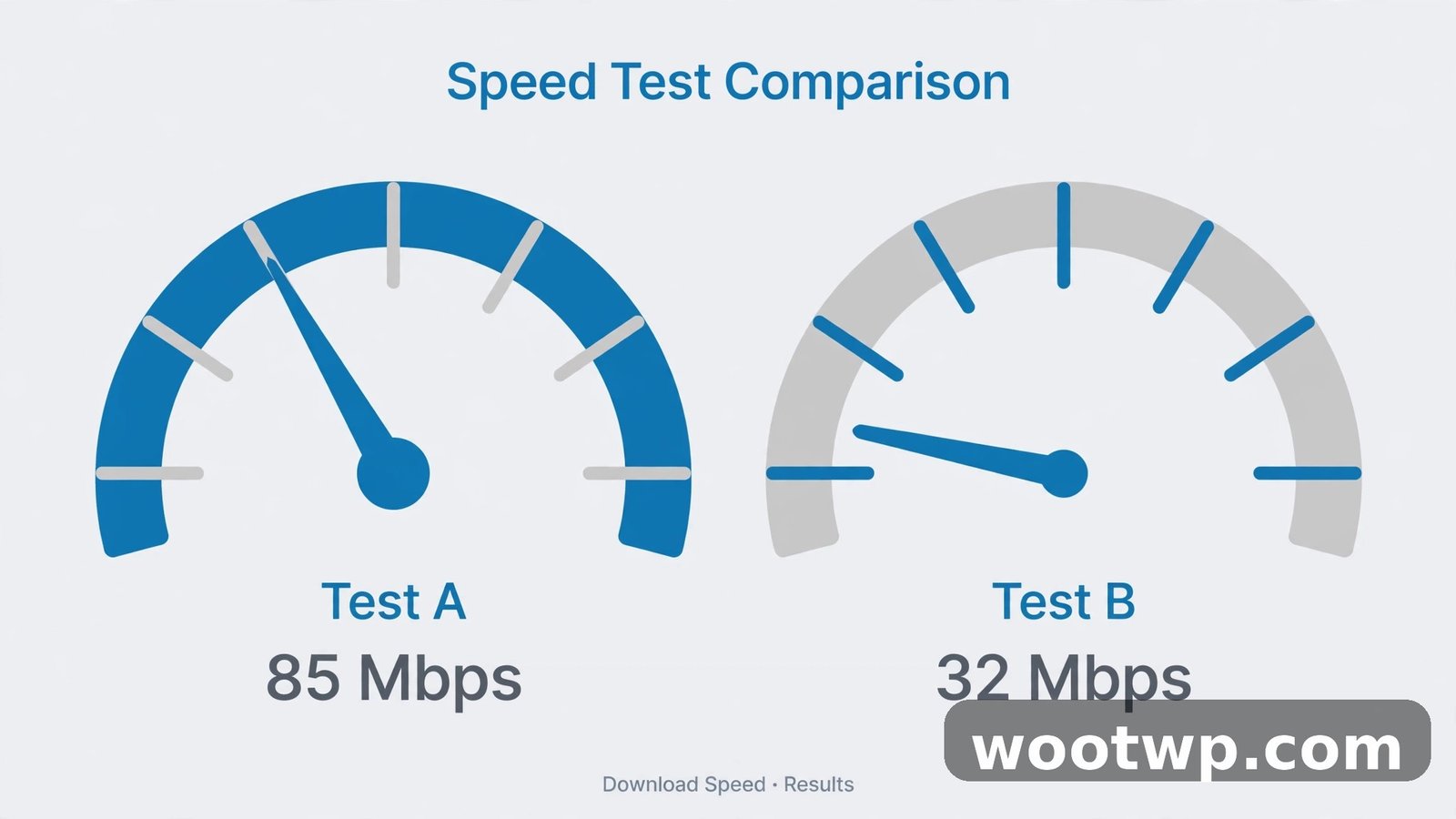
Use Speedtest when you want to answer: "Am I getting the speed I pay for?" Compare its result with your plan's advertised speed. If you pay for 100 Mbps and a wired Speedtest shows 90 to 95 Mbps, that is normal — a test result usually lands a little below the plan speed because of overhead. If it shows 40 Mbps on a wired test with nothing else running, something is wrong.
Fast.com — how streaming really feels
Fast.com is Netflix's test. It starts the moment the page loads and shows your download speed first. Click "Show more info" to see upload, latency, and loaded latency. It tests to Netflix's servers using a single connection — the same way Netflix actually streams video to you.
Use Fast.com when you want to answer: "Why does Netflix buffer?" Because it measures the path to Netflix's servers specifically, it shows how streaming will actually perform. Fast.com often reports a lower number than Speedtest on the same connection. That does not mean your line is slow. It means the single-stream path to Netflix is slower than the multi-stream path to the nearest Speedtest server — and for streaming, the Fast.com number is the one that matches your experience.
The honest answer: use both
Neither test alone tells the full story. Run Speedtest to check your line against your plan, then run Fast.com to check your streaming path. If both are healthy, your connection is healthy. If Speedtest is fine but Fast.com is half the number, especially in the evening, you are likely seeing congestion, weak peering between your provider and Netflix, or video traffic being slowed down. If both are low, the problem is your line, your Wi-Fi, or your router — and the troubleshooting section below covers that.
Your provider may also have its own test. It measures to a server inside the provider's network, so it can read higher than either of the other two. It is useful for one thing: if your provider's test is fast and Speedtest is slow, the problem is probably outside your provider's network, which is worth knowing before you call them.
How to Read Your Results: Download, Upload, Ping, and Jitter
A speed test reports four numbers. Here is what each one means in plain language, and what counts as good.
- Download speed (Mbps). How fast data comes to you. This is the headline number and the one that decides how quickly pages load, videos stream, and files download. For most homes, this is the number that matters most.
- Upload speed (Mbps). How fast data goes from you to the internet. This matters when you send large files, back up photos to the cloud, or make video calls. Upload is usually much slower than download on home connections, and that is normal — most plans are built that way.
- Ping (ms). How long a small message takes to travel to the server and back, in milliseconds. Low is better. Under 20 ms is excellent. Under 50 ms is fine for almost everything. Over 100 ms and you will feel the lag in video calls and online games.
- Jitter (ms). How much the ping varies from moment to moment. Low jitter means a steady connection. High jitter means the delay jumps around, which is what makes video calls freeze and voices cut out even when the download speed looks fine.
Two numbers people often miss: loaded latency and packet loss. Loaded latency is the ping while your connection is busy — it shows how your connection behaves under load, and it is the number that explains why a video call stutters while someone else is downloading. Packet loss is the share of data that never arrives and has to be sent again. Even 1 to 2 percent packet loss makes video calls and gaming feel terrible. Fast.com shows loaded latency under "Show more info," and some tests report packet loss too.
How Much Speed Do You Actually Need?
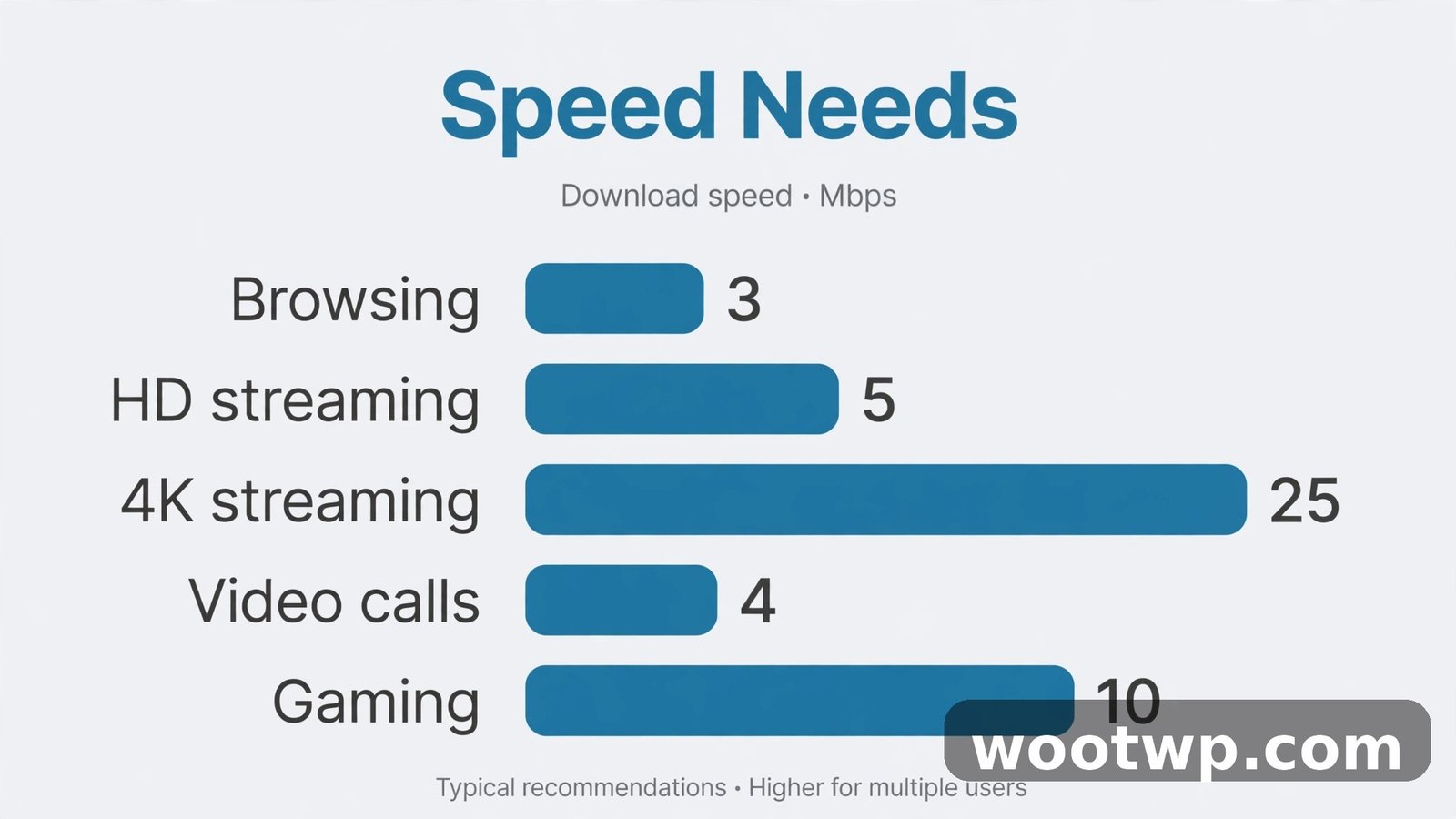
The number on your plan is a maximum, not a requirement. Here is what common activities actually use:
- Browsing and email: 1 to 5 Mbps is plenty.
- HD video streaming (1080p): about 5 Mbps per stream.
- 4K video streaming: about 25 Mbps per stream.
- Video calls: 3 to 8 Mbps, and upload matters as much as download.
- Online gaming: surprisingly little — 3 to 6 Mbps is enough, but ping matters far more than speed. A 20 Mbps connection with 15 ms ping beats a 500 Mbps connection with 120 ms ping for gaming every time.
- Cloud backup and large uploads: limited by your upload speed, which is the slowest number on most home plans.
A household with two people streaming 4K and one person on video calls needs roughly 60 to 80 Mbps of real, usable speed. If your plan says 100 Mbps and your wired test shows 90 Mbps, you have room. If your wired test shows 25 Mbps, you do not — and no amount of router restarting will fix a line that is only delivering a quarter of what you pay for.
Why Your Test Results Change Through the Day
If you test in the morning and again at night and get very different numbers, that is normal, and it tells you something useful.
- Evening congestion. Between 7 p.m. and 11 p.m., everyone in your neighbourhood is streaming. Shared parts of the network slow down. A drop of 20 to 30 percent in the evening is common on cable connections. A drop of 70 percent is not.
- Wi-Fi interference. Your neighbours' routers, your microwave, and even a baby monitor can interfere with Wi-Fi, especially on the crowded 2.4 GHz band. If your wired test is fine but your Wi-Fi test is poor, the problem is your Wi-Fi, not your internet.
- The test server. Speedtest picks the nearest server by default, but "nearest" does not always mean "fastest path." If one server gives a strange result, try another server in the same test and compare.
- Your own devices. A phone backing up photos, a console downloading a game update, or a smart TV streaming in the next room all share your line. Test with everything else paused and you will see the difference.
This is why one test is never enough. Test three times, at different times of day, wired, with everything else paused. That pattern is your real internet speed. A single number from a single test on a busy evening over Wi-Fi is mostly noise.
What to Do When Your Speed Is Lower Than Your Plan
Work through this list in order. Stop when the speed recovers, so you know what fixed it.
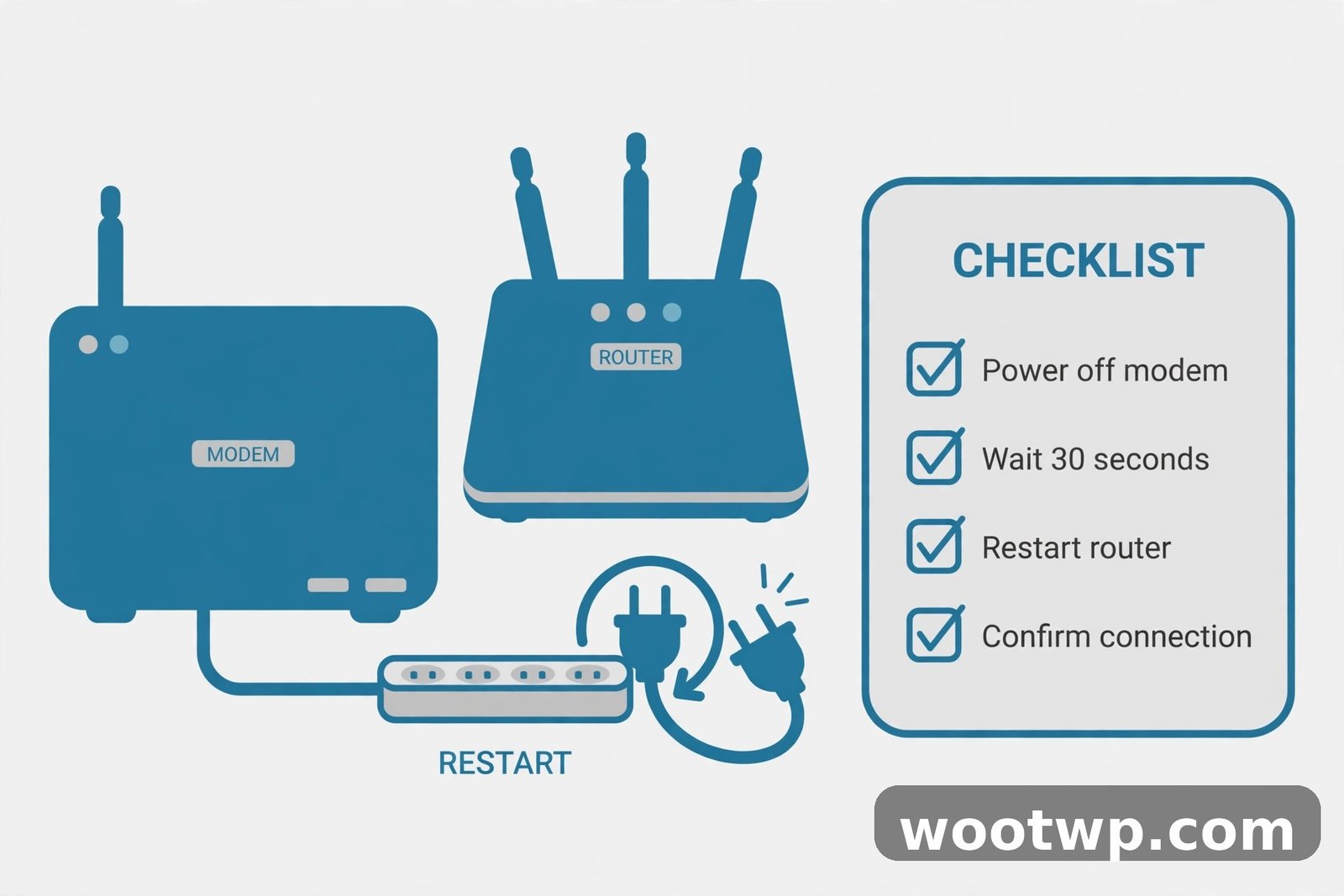
- Restart your modem and router. Unplug both, wait 30 seconds, plug the modem back in first, wait for its lights to settle, then plug the router back in. This fixes more problems than anything else on this list.
- Test wired. If the wired test is fine and the Wi-Fi test is poor, the problem is your Wi-Fi. Move closer to the router, switch to the 5 GHz band, or consider a mesh system if your home is large.
- Check who is using your network. An unknown device hogging your connection will drag every test down. Here is how to check who is using your Wi-Fi and how to fix slow Wi-Fi at home once you know what is going on.
- Test at a quiet time. Run the wired test early in the morning. If it is fine then and poor in the evening, the problem is congestion on your provider's network, not your equipment.
- Check your cables and hardware. A damaged Ethernet cable, an old router, or a modem that only supports an older Wi-Fi standard can cap your speed below your plan. If your plan is faster than 100 Mbps, make sure your cables and router ports support it — old 100 Mbps equipment silently limits a 200 Mbps plan to 100.
- Call your provider with numbers. Tell them your plan speed, your wired test results, and the times you tested. "I pay for 100 Mbps and my wired test shows 35 Mbps at 8 p.m. and 40 Mbps at 8 a.m." gets a far better response than "my internet is slow." Ask them to check the line and confirm whether there is congestion or a fault in your area.
If the provider says everything looks fine on their side but your tests still show low numbers, ask whether your area is oversubscribed or whether a technician visit is possible. And if the problem turns out to be your Wi-Fi rather than the line, our guide on how to see your saved Wi-Fi password on Windows 11 is handy when you need to reconnect devices after changing Wi-Fi settings or swapping routers.
Frequently Asked Questions About Checking Internet Speed
How do I check my real internet speed accurately?
Use a wired Ethernet connection, pause downloads and streams on every device, turn off your VPN, and run the test three times a few minutes apart. Take the middle result. Then test once in the evening too, since networks are busiest between 7 p.m. and 11 p.m.
Why is Fast.com slower than Speedtest?
Fast.com uses a single connection to Netflix's servers, which reads lower but matches how streaming actually behaves. Speedtest opens several connections at once to a nearby server, which shows the maximum your line can carry. Both numbers are real — they measure different paths.
What is a good internet speed test result?
It depends on your plan and your household. A wired result within 10 to 20 percent of your plan speed is good. Ping under 50 ms is fine for almost everything, and under 20 ms is excellent. If your result is less than half your plan speed on a wired test with nothing else running, something needs fixing.
Does Wi-Fi slow down my speed test?
Yes, almost always. A Wi-Fi test measures your Wi-Fi as much as your internet line. Weak signal, interference, or the wrong band can cut the result in half. For an honest test of your line, use an Ethernet cable. Use Wi-Fi tests to check how good your Wi-Fi is in each room.
Why does my internet speed drop at night?
Evening congestion. Between 7 p.m. and 11 p.m., everyone in your neighbourhood is streaming video, and the shared parts of the network slow down. A drop of 20 to 30 percent is normal on cable. If the drop is much bigger, test wired at a quiet time to find out whether it is congestion or your own equipment.
Can my internet provider slow down my speed test?
Some providers prioritise traffic to well-known speed test servers, which can make test results look better than real-world performance. That is one more reason to test with Fast.com too — it measures the path to Netflix, which is harder to prioritise, and it matches what streaming actually feels like.
Conclusion: Test Twice, Trust the Pattern
Knowing how to check real internet speed comes down to method, not luck. Test wired, pause everything else, run it three times, and take the middle number. Use Speedtest to check your line against your plan and Fast.com to check how streaming really feels. Read all four numbers — download, upload, ping, and jitter — not just the headline. And remember that one test is never enough: the pattern across the day is your real speed, and it is the pattern that tells you whether the problem is your line, your Wi-Fi, or just a busy evening.