
How to Disable Comments in WordPress: 7 Easy Ways That Work
It was a Tuesday morning, and I opened my WordPress dashboard with a coffee in one hand, expecting maybe two or three comments to check. Instead, the moderation queue showed 412. Four hundred and twelve. Most of them were the usual junk — "Great post! Check my site for cheap watches," links to crypto schemes, a long ramble about miracle weight-loss tea on a post about fixing a broken contact form.
That was the morning I finally sat down and figured out how to disable comments in WordPress properly, once and for all. Not a half fix. Not a setting I ticked and then forgot about, only to find old posts still collecting spam a week later. The real thing, done in the right order.
If your comment section has turned into a chore instead of a conversation, this guide is for you. I'll walk you through every way to turn off WordPress comments — the built-in setting, the bulk edit for old posts, the plugin route, and the code route for people who want comments gone everywhere, for good. Pick the method that fits your site. Most people only need the first two.
- The Quick Answer
- Why Disable Comments in WordPress?
- Method 1: Turn Off Comments for New Posts
- Method 2: How to Disable Comments in WordPress on a Single Post or Page
- Method 3: Close Comments on Existing Posts in Bulk
- Method 4: Delete the Comments That Are Already There
- Method 5: Use a Plugin to Disable Comments in WordPress
- Method 6: Disable Comments With Code
- Do Pages Need This Too?
- Troubleshooting: Comments Still Showing?
- FAQs
- Conclusion
The Quick Answer
Short version first. Details after.
Go to Settings, then Discussion, and uncheck "Allow people to submit comments on new posts." Save. That's how to disable comments in WordPress for everything you publish from now on.
But — and this is the part that trips nearly everyone up — that setting only affects future posts. Your old posts keep their comment boxes open until you close them separately. So if you stop here, the spam keeps coming on anything you already published. The bulk edit in Method 3 fixes that in about two minutes. Do both, and you're done.
Want comments gone from the whole site, including the comment forms, the admin menus, and the "X comments" counts? Skip ahead to the plugin in Method 5 or the code in Method 6. Those remove comments everywhere, not just on new posts.
Why Disable Comments in WordPress?
Not every site needs a comment section. Honestly, plenty of sites are better off without one.
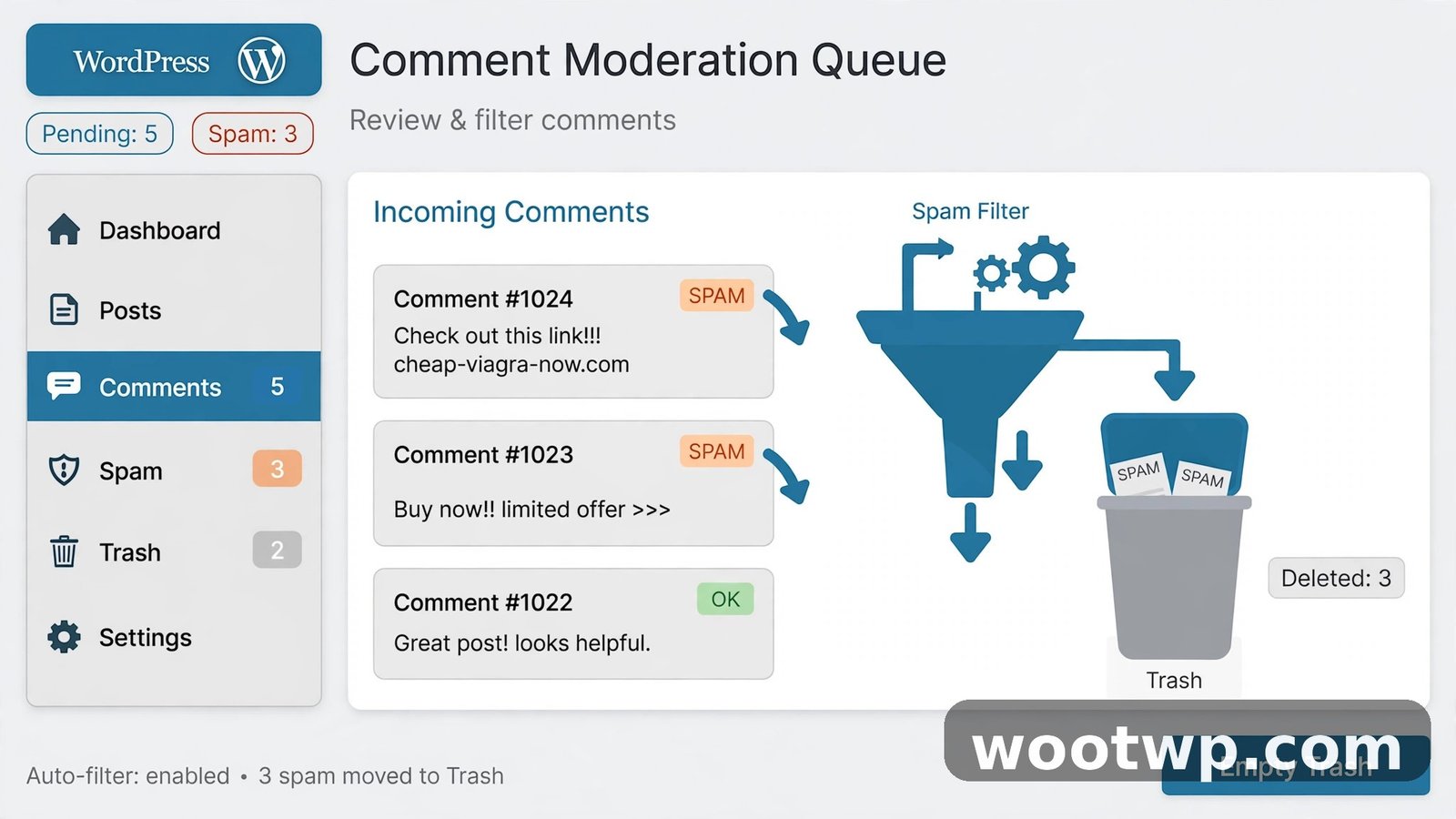
Spam is the big reason. The moment a WordPress site gets indexed, bots find it. They post links to dodgy shops, fake support numbers, and sites you'd never want your name next to. Akismet catches a lot of it, but the rest lands in your moderation queue, waiting for you to deal with it. On a small site with no team, that queue becomes a second inbox you never asked for.
Then there's the moderation burden itself. Real comments need answers. Questions need replies. Arguments need calming down. If your site is a brochure, a portfolio, a shop, or a help centre, comments add work without adding much value. A contact form does the same job with far less noise.
Some sites have a legal or safety reason, too. A site aimed at kids, a company page, a landing page for a product — open comments there invite trouble nobody has time to watch. And on a membership site, you might want discussion in a forum or a private group instead of scattered under random posts.
None of this means comments are bad. Blogs built on conversation should keep them. But if nobody is talking and the bots are, switching comments off is a perfectly good call. You can always switch them back on later. Nothing here is permanent.
Method 1: Turn Off Comments for New Posts
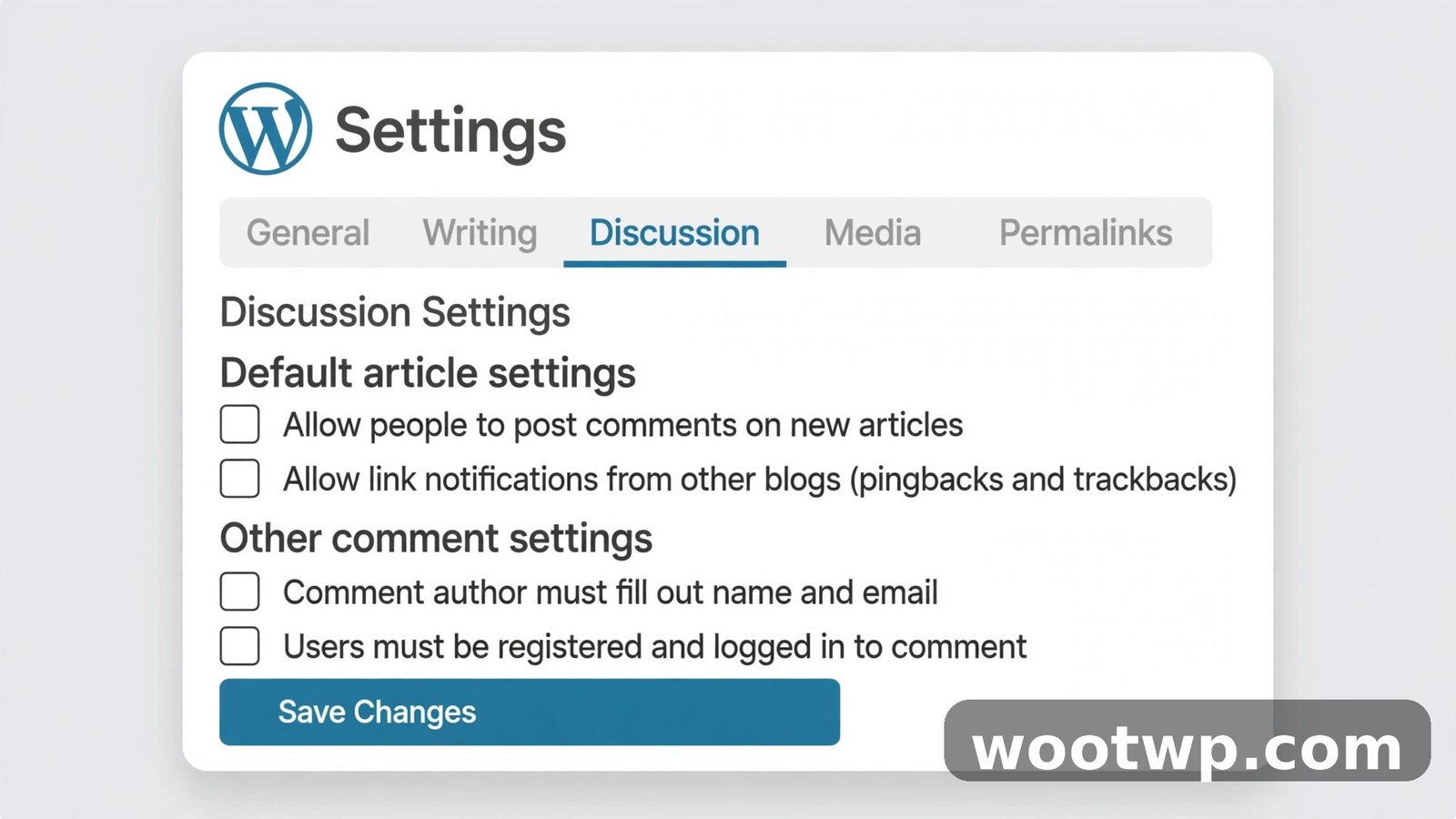
This is the first stop for anyone learning how to disable comments in WordPress, and it takes about thirty seconds. The setting lives in the WordPress discussion settings, and it controls whether new posts allow comments by default.
- Log in to your WordPress dashboard.
- Go to Settings, then Discussion.
- Find the section called Default post settings.
- Uncheck the box next to "Allow people to submit comments on new posts."
- Scroll down and click Save Changes.
Done.
From now on, every post you publish will have its comment form switched off automatically. You won't have to remember to turn it off each time. That's the whole point of a default setting — set it once, forget about it.
One thing to watch, though. See that checkbox about pingbacks? It's sitting right underneath, and it says "Allow link notifications from other blogs (pingbacks and trackbacks) on new posts." If you're shutting comments down because of spam, uncheck that one too. Pingbacks are a different kind of notification, but spammers abuse them the same way, and they show up in your moderation queue just like comments do.
The "automatically close comments" trick
Right below those checkboxes, there's another setting worth knowing about: "Automatically close comments on articles older than [ ] days." Set that number to 0, and WordPress closes comments on every post the moment it's published. Zero days means zero window for comments. Ever.
Why would you use this instead of just unchecking the box above? Two reasons. First, it works even if a theme or a plugin forces comments open on new posts — the age rule closes them anyway. Second, some people like a middle ground: set it to 30 or 60 days, and posts accept comments while they're fresh, then close themselves quietly once the conversation has moved on. Old posts are where most spam lands, because nobody's watching them anymore. A 30-day window keeps the good discussion and cuts off the long tail of junk.
To be fair, for most people the plain checkbox is enough. But if spam keeps sneaking in on new posts even after you unchecked it, the zero-day trick is your backup. It has saved me more than once on sites where a theme was quietly overriding the default.
Method 2: How to Disable Comments in WordPress on a Single Post or Page
Maybe you don't want comments off everywhere. Maybe you just want them off on one post — the pricing page, say, or the post that keeps attracting the same argument every few months. WordPress lets you switch comments off per post, and there are two ways to do it.
In the block editor
- Open the post or page you want to change.
- In the right-hand sidebar, click the Post tab (or Page tab for pages).
- Scroll down to the Discussion section. If you don't see it, click the three-dot menu at the top right, choose Preferences, then Panels, and switch on Discussion.
- Uncheck "Allow comments."
- Click Update to save.
The comment form disappears from that post straight away. Anyone visiting it sees the article and nothing else. No form, no "leave a reply" box.
With Quick Edit from the post list
Faster, if you're already looking at your post list:
- Go to Posts, then All Posts.
- Hover over the post you want to change and click Quick Edit.
- In the Quick Edit panel, find the "Allow Comments" checkbox and uncheck it.
- Click Update.
Same result, fewer clicks. I use Quick Edit when I'm tidying up a handful of posts and don't want to open each one in the editor. It's the quiet little shortcut nobody tells you about until you've been doing this for years.
Here's the mistake I made the first time, and I bet I'm not the only one. I unchecked the setting in Method 1, published a new post, and then sat there staring at the comment form still sitting at the bottom of it. The setting was off, so why was the form still there? Because the post had been written — drafted, I mean — before I changed the default. Drafts keep the comment setting they were created with. I had to open that one post and uncheck "Allow comments" by hand. Lesson learned: the default only applies to posts created after you change it. Anything already in drafts needs the per-post fix.
Method 3: Close Comments on Existing Posts in Bulk
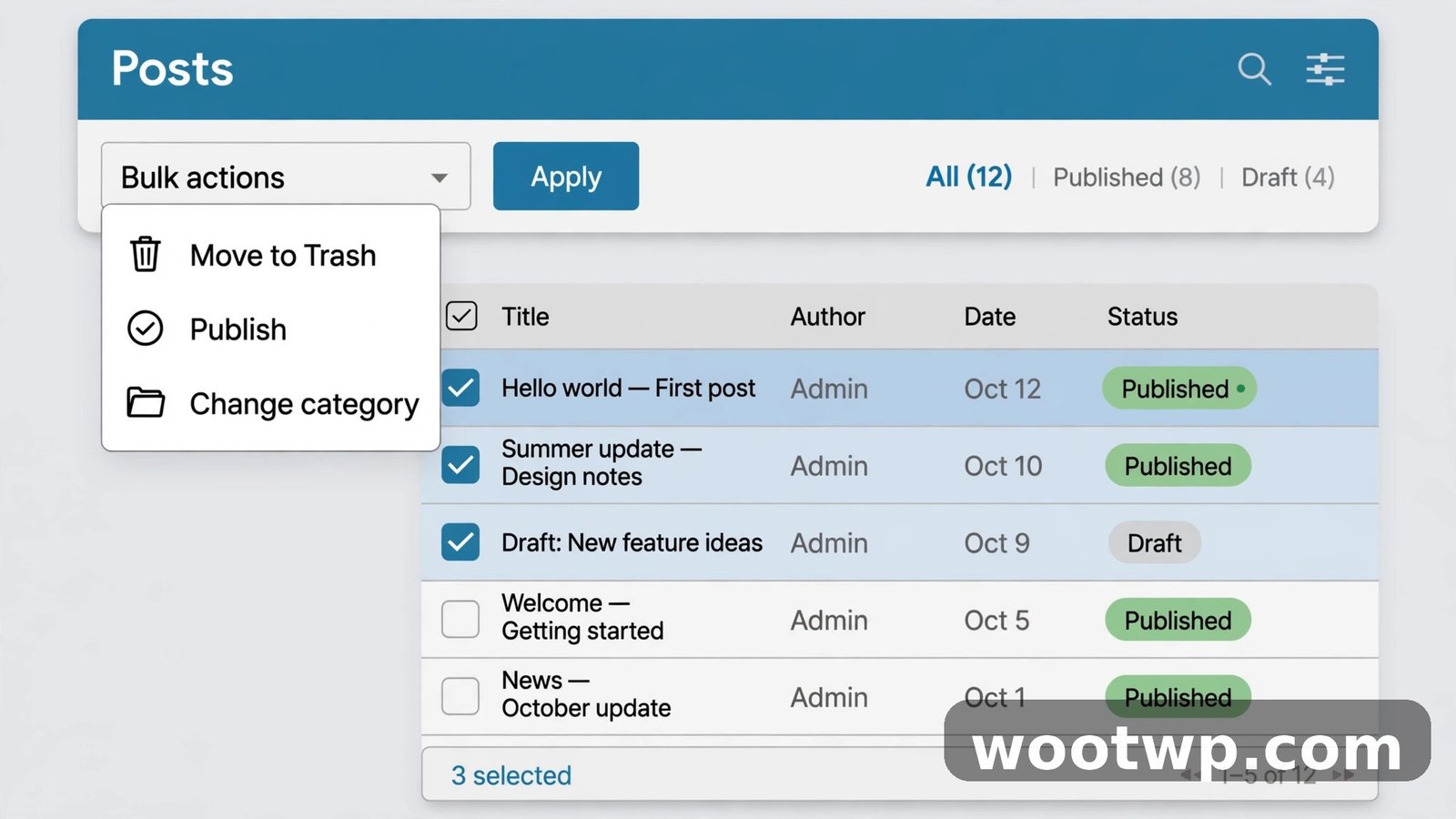
This is the step most guides skip, and it's the one that actually stops the spam. If you searched for how to disable comments in wordpress and only found the settings page, this is the part those guides left out. The Discussion setting only covers new posts. Your old posts — the ones Google already knows about, the ones bots already found — stay open until you close them. On a site with a hundred posts, doing that one by one would take forever. Bulk edit does it in minutes.
- Go to Posts, then All Posts.
- At the top of the list, tick the checkbox next to Title to select every post on the page. WordPress shows 20 posts per page by default, so you'll repeat this a few times on a big site.
- Open the Bulk actions dropdown and choose Edit, then click Apply.
- In the bulk edit panel, find the Comments dropdown and choose Do not allow.
- Click Update.
That's it for that batch. Move to the next page of posts and repeat.
Want to close comments on existing posts faster? Bump up the number of posts per page first. Click Screen Options at the top right of the post list and change "Pagination" to 100. Now each bulk edit covers a hundred posts at a time instead of twenty. On a site with 300 posts, that's three rounds instead of fifteen.
And if you'd rather select only certain posts — say, everything in one category — filter the list first using the category dropdown above the table, then select all and bulk edit. Same steps, smaller batch.
One honest warning: bulk edit is a blunt tool. It changes every post you selected, all at once, and there's no undo button. Before you run it across your whole site, try it on two or three posts first and check the result on the live site. Then do the rest. Thirty seconds of caution beats an afternoon of fixing things.
Method 4: Delete the Comments That Are Already There
Learning how to disable comments in wordpress stops new spam. It doesn't remove the spam that's already sitting there. If your moderation queue is full of junk, or old posts are showing embarrassing comment threads to visitors, you need to clear them out.
- Go to Comments in the left sidebar of your dashboard.
- Tick the checkbox at the top to select all comments on the page.
- Open the Bulk Actions dropdown, choose Move to Trash, and click Apply.
- Repeat for each page of comments.
For spam specifically, there's a shortcut. Click the Spam link at the top of the Comments screen to see only the comments WordPress already flagged. Select them all and choose Delete Permanently. Gone. No need to trash them first.
And if the pile is truly enormous — thousands of comments, say — a plugin like WP Bulk Delete can clear them in one go, filtered by status, date, or post. It's overkill for a hundred comments, but a lifesaver for a site that's been collecting spam untouched for a year. Back up your database before you run anything that deletes in bulk, though. Deleting is forever, and a backup is cheap insurance.
What about the genuine comments? The ones from real readers that you actually want to keep? Bulk delete lets you filter, so you can trash only the spam and leave the approved comments alone. Or leave the old approved comments visible and just close the form — visitors see the old conversation, but nobody can add to it. That's a fair middle ground on a post with a good discussion history.
Method 5: Use a Plugin to Disable Comments in WordPress
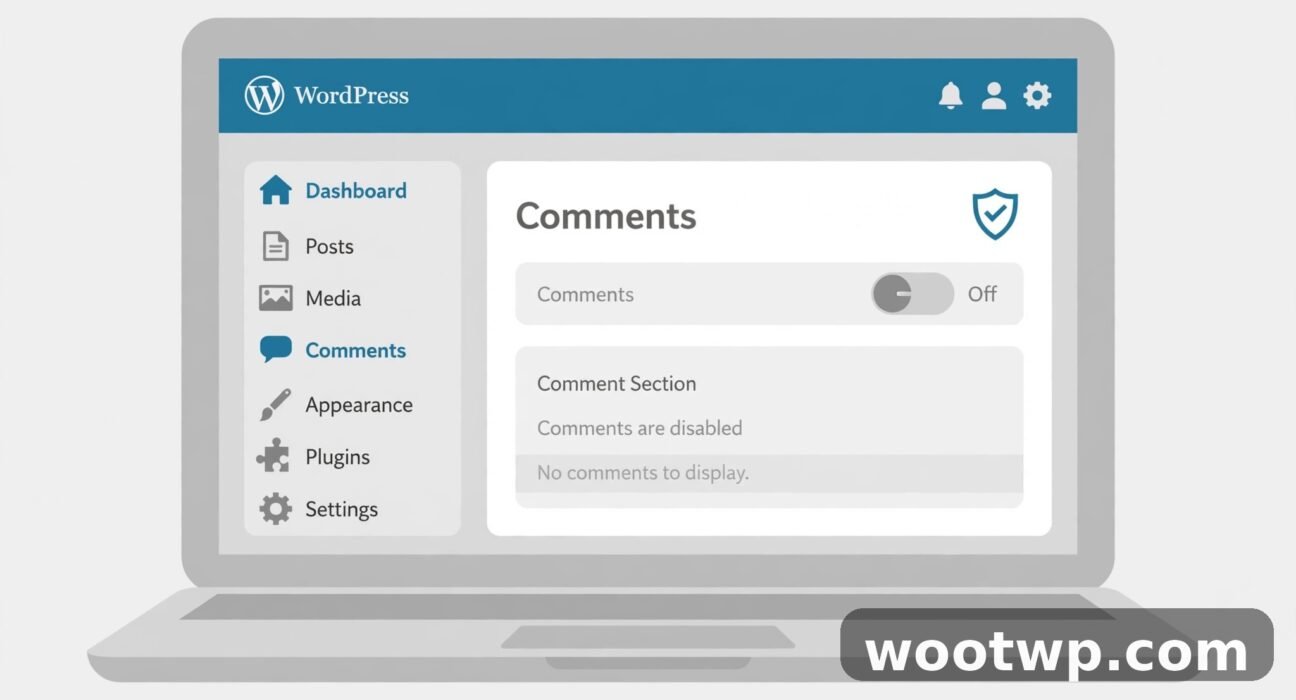
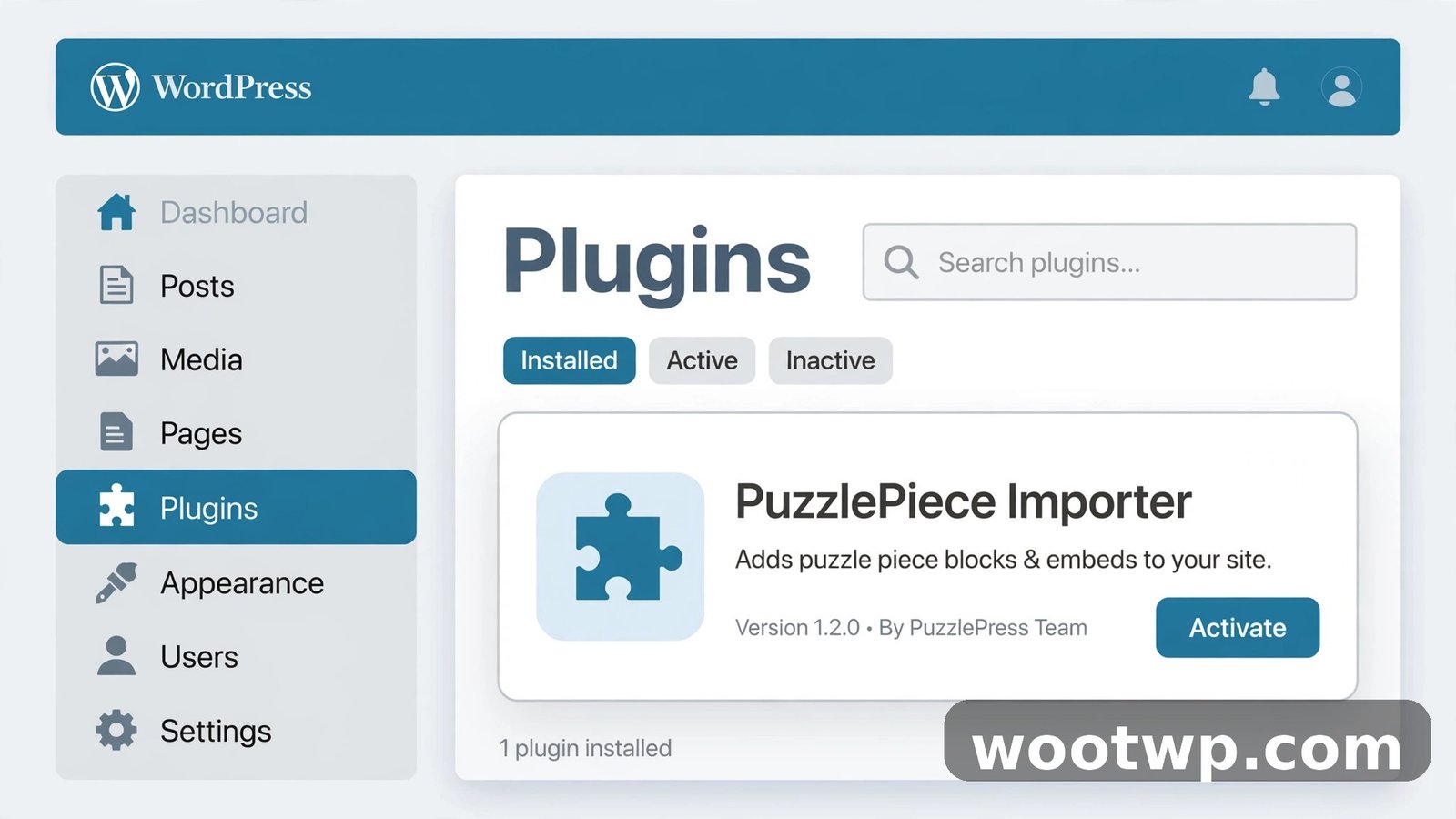
If your question is how to disable comments in wordpress so thoroughly that no trace of the feature remains, a plugin is the answer. Settings and bulk edits handle the comment forms. A disable comments WordPress plugin goes further: it strips comments out of the whole site. No comment forms, no comment counts in the admin bar, no Comments menu in the dashboard, no "recent comments" widgets. For a site that will never want comments, this is the cleanest option.
The plugin to use is Disable Comments by WPDeveloper. It's free, it's actively maintained, and it's the current standard for this job. A quick note, because this confuses people: there used to be a popular plugin with the same name by Samir Shah. That one is discontinued and no longer maintained. Don't install it. The WPDeveloper version is the one you want.
- Go to Plugins, then Add New.
- Search for "Disable Comments" and look for the one by WPDeveloper.
- Click Install Now, then Activate.
- Go to Settings, then Disable Comments.
- Choose "Disable comments everywhere" — or pick specific post types if you only want comments off on, say, posts but not on a custom post type.
- Click Save Changes.
Done. Comments vanish from the front of the site and from the admin area in one move.
Why use a plugin instead of just the settings? Two reasons. First, it removes the comment links and menus that the plain setting leaves behind. Visitors won't see a "0 Comments" link that leads nowhere, and your dashboard loses a menu you never use. Second, it stops the comment-related code from loading on your pages at all, which keeps things a little tidier behind the scenes.
The trade-off is small: one more plugin on your site. If comments are the only thing you're disabling, and you never plan to turn them back on, it's a fair trade. If you think you might want comments back in a few months, stick with the settings method instead — it's easier to reverse with one checkbox.
While you're tidying up the site, it's worth checking the rest of your setup too. A lot of comment spam arrives because a site hasn't been looked at in a while, and the same visit that fixes comments is a good time to review your theme. Our roundup of 3 free WordPress themes worth installing is a handy starting point if your current theme is part of the problem.
Method 6: Disable Comments With Code
This is the last stop for anyone learning how to disable comments in wordpress the developer way. No plugin, no settings dance — just a few lines of code that switch comments off at the source. This method is for people who are comfortable editing their theme files, or who already use a code snippets plugin. It tells WordPress to treat every comment as closed, no matter what the post settings say.
Add this to your theme's functions.php file, or better, through a code snippets plugin:
add_filter( 'comments_open', '__return_false', 20, 2 );
add_filter( 'pings_open', '__return_false', 20, 2 );
add_filter( 'comments_array', '__return_empty_array', 10, 2 );
What do those three lines do? The first one closes the comment form on every post and page. The second one shuts off pingbacks and trackbacks. The third one hides any comments that already exist, so old threads don't show up on the live site even though they're still in the database.
Now the warning, and I mean this one. Back up your site before you touch functions.php. A typo in that file can take your whole site down with a white screen — ask me how I know — and a backup is the difference between a five-minute restore and a very bad afternoon. Honestly, if you're not sure what functions.php is, use the plugin method instead. Same result, no risk.
Better still, use a code snippets plugin like WPCode instead of editing the theme file directly. Snippets added through a plugin survive theme updates, and if a snippet breaks something, you can switch it off from the dashboard instead of digging into files over FTP. Editing functions.php directly means your changes vanish the next time the theme updates, unless you're using a child theme. And child themes are a whole other article.
If you'd rather read the official explanation of what each Discussion setting does before you start changing things, the WordPress documentation for the Discussion settings screen covers every checkbox on that page. And for the spam side of the problem, Akismet's guide to disabling comments in WordPress walks through the same methods from the point of view of the team that filters most of the world's WordPress spam.
Do Pages Need This Too?
If you only want to learn how to disable comments in wordpress for posts, pages mostly look after themselves. WordPress pages have comments switched off by default. When you create a new page, the "Allow comments" box is already unchecked. So your About page, your Contact page, your pricing page — none of those take comments unless someone deliberately switched them on.
Posts are the opposite. New posts allow comments by default, which is why the Discussion setting in Method 1 matters so much. That's the default you actually need to change.
Worth a quick check, though: if your theme or a page builder switched comments on for pages at some point, the same per-page fix from Method 2 applies. Open the page, find the Discussion panel, uncheck "Allow comments," update. Same steps, same result.
And while you're thinking about what your site exposes to strangers, remember that comments aren't the only open door. Your accounts matter just as much. If you ever move to a new phone, our guide on moving Google Authenticator to a new phone makes sure your two-factor codes come with you, so a lost phone doesn't lock you out of your own site.
Troubleshooting: Comments Still Showing?
You followed a guide on how to disable comments in wordpress, did everything right, and the comment form is still sitting there on some post, mocking you. Before you throw anything, run through this list. Nine times out of ten, it's one of the first two.
- You only changed the default. The Discussion setting covers new posts, not old ones. Go back to Method 3 and bulk edit your existing posts. This is the single most common cause, and yes, it got me too.
- Your cache is showing an old page. If you use a caching plugin or a host with built-in caching, clear the cache after changing comment settings. Otherwise visitors keep seeing the cached version of the page — comment form included — until the cache expires.
- Your theme forces comments on. Some themes include their own comment template and show it regardless of the post setting. Switch to a default theme like Twenty Twenty-Four for a minute and check. If the form disappears, the theme is the problem, and a child-theme fix or a different theme is the answer.
- A plugin is overriding the setting. Membership plugins, page builders, and some SEO plugins can force comments open. Switch plugins off one at a time and test. Tedious, I know. But it finds the culprit.
- You're looking at a cached page in your browser. Hard refresh the page — Ctrl plus Shift plus R on Windows, Cmd plus Shift plus R on Mac — before you decide anything is broken. I have lost count of the times the "bug" was my own browser cache.
Nope. None of that worked? Then check whether you're actually logged in as the right user, and whether another admin switched the setting back. On a site with more than one admin, settings can change under you without anyone mentioning it. A quick message in the team chat solves that one faster than any debugging.
FAQs
How do I disable comments in WordPress for new posts only?
Go to Settings, then Discussion, and uncheck "Allow people to submit comments on new posts." Then click Save Changes. Every post you publish after that will have comments off by default. Your existing posts stay exactly as they are, so use the bulk edit in Method 3 if you want those closed too.
How do I turn off WordPress comments on all existing posts at once?
Use bulk edit. Go to Posts, then All Posts, select all the posts on the page, choose Edit from the Bulk actions dropdown, set Comments to "Do not allow," and click Update. Repeat for each page of posts. Raising the posts-per-page count under Screen Options to 100 makes the whole job much faster on a big site.
Can I disable comments on one WordPress post without turning them off everywhere?
Yes. Open the post in the editor, find the Discussion panel in the sidebar, uncheck "Allow comments," and click Update. Or use Quick Edit from the All Posts list and uncheck "Allow Comments" there. The rest of your site keeps working exactly as before, with comments on everywhere else.
What is the best plugin to disable comments in WordPress?
Disable Comments by WPDeveloper is the standard choice. It's free, actively maintained, and it removes comments from the whole site — front end and dashboard — in one go. Don't install the older plugin of the same name by Samir Shah, which is discontinued. If you only need comments off on new posts, though, you don't need a plugin at all. The built-in Discussion setting does that job on its own.
Does disabling comments in WordPress delete the old comments?
No. Turning comments off only closes the form — the comments already in your database stay right where they are. If you want them gone, delete them from the Comments screen in your dashboard, either one page at a time or with a bulk delete plugin. Hiding them with the code method in Method 6 also works, but the comments still exist in the database underneath. So if you want them truly gone, delete them. If you just don't want visitors to see them, hiding is enough.
Will disabling comments hurt my WordPress SEO?
Not in any way that matters. Google doesn't rank pages by whether they have a comment section. What can help, oddly enough, is that closing comments removes pages of thin, spammy user content from your site — content Google never asked for. If anything, a clean site with no spam comments looks better than one full of junk links. Keep the content itself strong, and your rankings will be fine.
Conclusion
That's how to disable comments in WordPress, start to finish. Change the Discussion setting so new posts don't take comments, bulk edit your old posts so they stop too, and use a plugin or a few lines of code if you want comments gone from the entire site. Do the first two steps and the spam stops. Do all of them and comments disappear completely — forms, menus, counts, the lot. Your dashboard gets quieter, your moderation queue empties out, and you get that time back for the work that actually matters.