How to Free Up Gmail Storage Without Deleting Emails: 8 Proven Ways
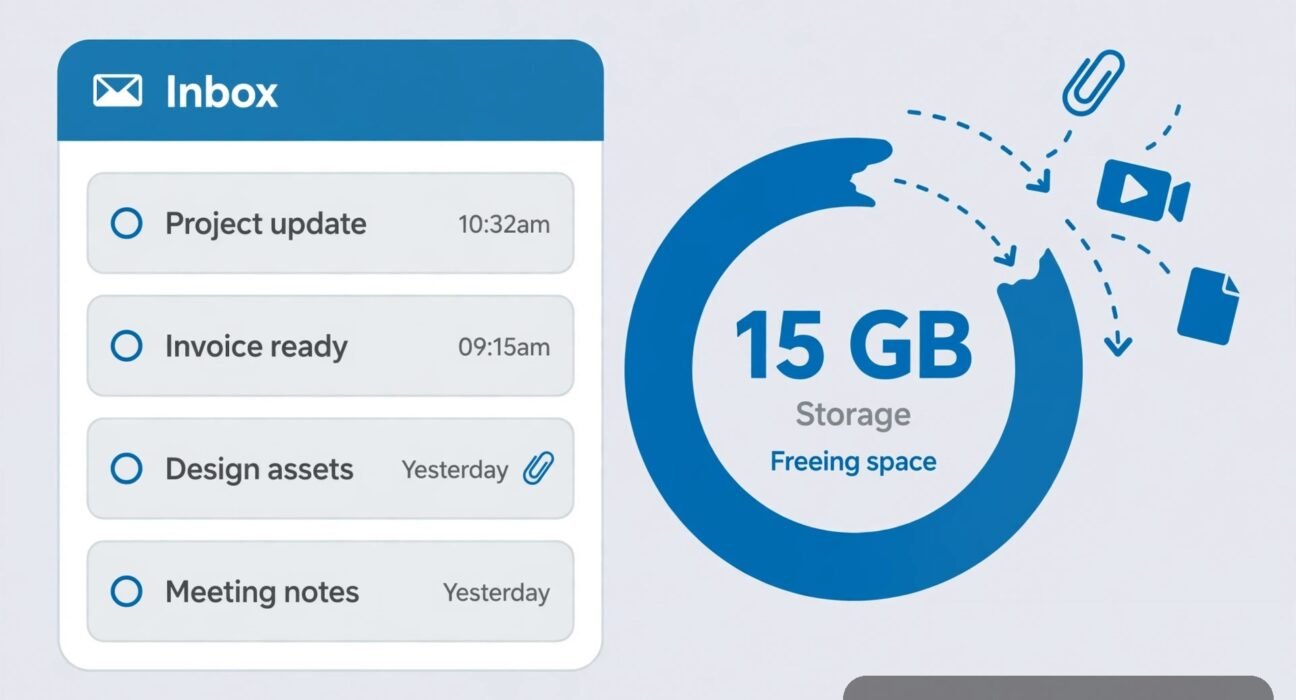
That "You've run out of storage" warning in Gmail is stressful. Google gives every free account just 15GB, and that single bucket is shared across Gmail, Google Drive, and Google Photos. One heavy attachment here, a few years of newsletters there, and suddenly you can't send or receive mail.
The good news: you almost never have to delete the emails you care about. Most of the space in a full inbox comes from a handful of space hogs — giant attachments, years of old promotions, and junk sitting in Trash and Spam. The methods below target those specifically, and the last one (the archive trick) lets you move everything out of a bursting account while keeping every single message. I've used all of these on real accounts over the years, and the order below is the order I'd do them in — biggest wins first.
Start Here: See Exactly Where Your 15GB Went
Before you touch a single email, open the Storage Manager. It shows you a visual breakdown of how your 15GB is split between Gmail, Drive, and Photos, so you stop guessing.
- Go to one.google.com/storage/management in your browser (you must be signed in).
- Look at the three colored bars: Gmail, Google Drive, and Google Photos.
- Click into the biggest one to see what's eating space inside it.
I've seen accounts where the owner was convinced Gmail was full, when actually Google Photos was holding 11GB of original-quality backups. Ten minutes of Photo cleanup solved the whole problem without deleting a single email. Check this first — it decides which methods below matter most for you.
Method 1: Hunt Down the Space Hogs With Gmail Search Operators
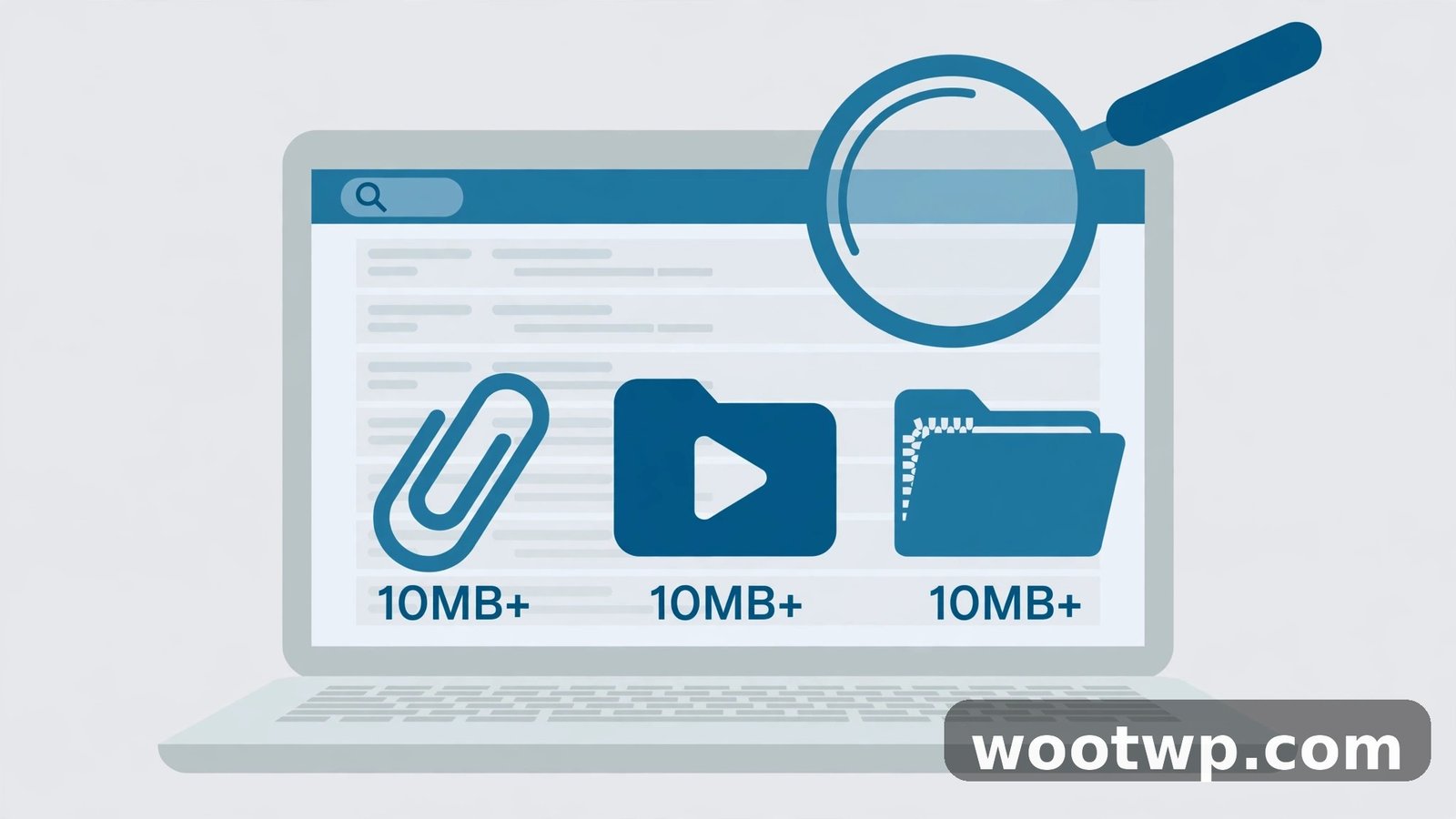
A tiny number of emails with huge attachments usually account for most of a Gmail account's size. Gmail's search operators let you surface them in seconds. Type any of these into the Gmail search box at the top:
has:attachment larger:10M— every email with an attachment bigger than 10MBhas:attachment larger:5M— same, but 5MB and upfilename:mp4 OR filename:mov OR filename:zip— big video and zip files specificallyfilename:pdf larger:5M— heavy PDFs like scanned documents and ebooks
Once the results load, you'll usually spot the pattern fast: old video files someone sent you in 2021, a thread where a coworker emailed a 40MB PowerPoint back and forth six times, scanned ID documents you needed once.
What to do with them:
- Open the email and preview the attachment. Ask yourself: do I actually need the email, or just the file?
- If you only need the file, save it (see Method 2), then delete the email.
- If you need neither, delete the email outright.
One warning from experience: before you mass-delete, glance at the sender and subject. Search results for "larger:10M" sometimes include emails you genuinely want — like the video of a family event. Don't bulk-select and nuke the whole list; scan it first.
Method 2: Save the Attachment to Google Drive, Then Delete the Email
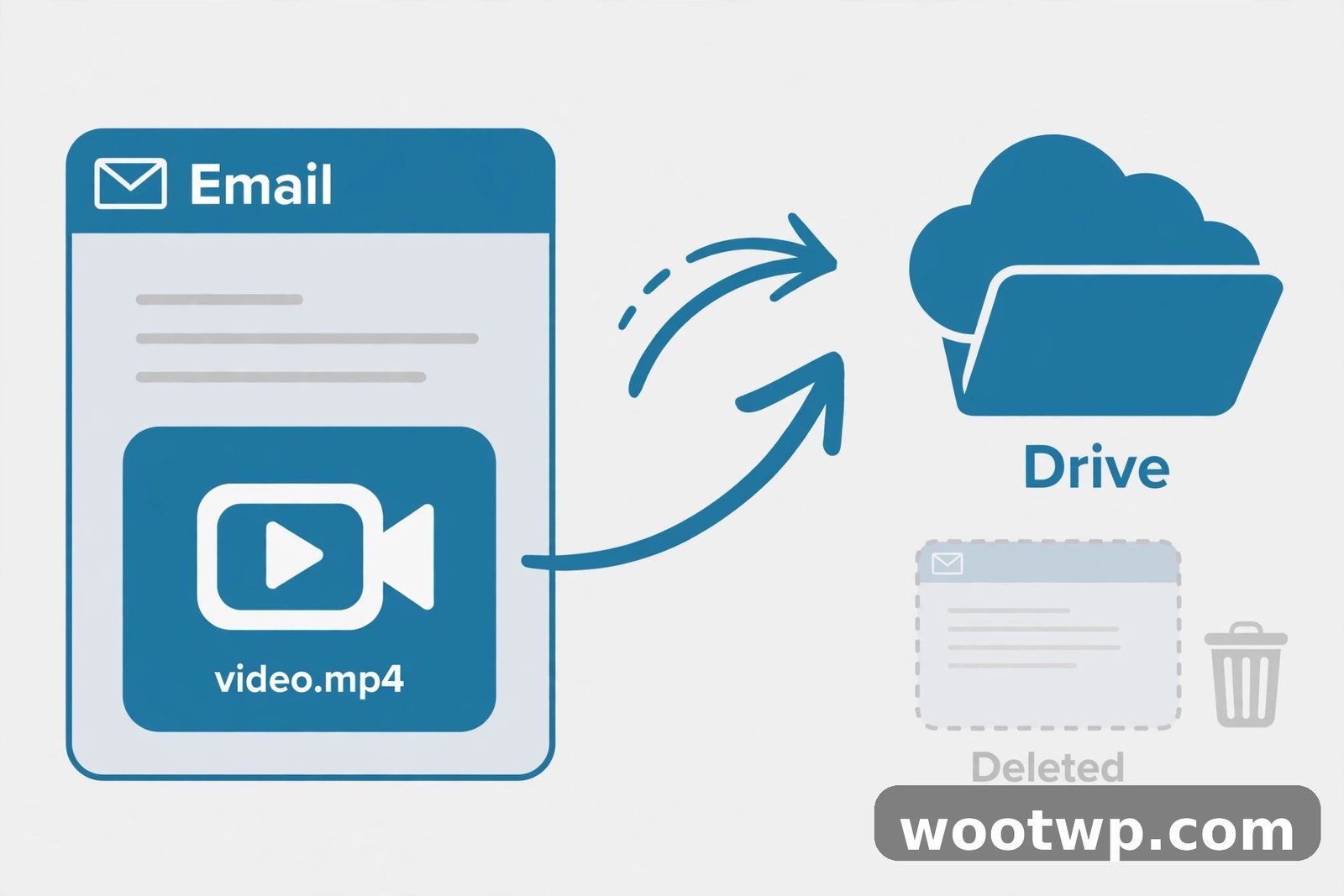
Here's the key insight most people miss: in Gmail, the attachment is what costs you space, not the email text. A message that says "see attached" uses a few kilobytes. Its 25MB video attachment uses 25 megabytes. So if you keep the file but delete the email, you win.
The cleanest way to do this is moving the file to Google Drive:
- Open the email and hover over the attachment.
- You'll see two icons: a download arrow and a Drive icon with a plus sign ("Save to Drive"). Click Save to Drive.
- Choose a folder (or create one called "Email attachments") and click Move.
- Now delete the email itself.
The file now lives in Drive, where you can search for it, share it, and open it anytime — and the email's copy of it is gone. Since Drive and Gmail share the same 15GB, this doesn't technically free quota by itself — so don't stop here. The real win comes when you combine this with Method 4 (moving everything to a second account) or when the file in Drive replaces something else. Actually, let me be precise: the honest version is that moving an attachment to Drive and deleting the email nets you zero bytes of quota, because the storage moved with it.
So why do it? Two reasons. First, it separates your files from your mail, so later steps (like the archive trick or bulk deletes) can't accidentally destroy something you needed. Second — and this is the practical one — Drive has a Trash of its own, Drive files are easier to sort by size, and you can spot duplicates with tools later. Think of this method as organizing before the real cleanup.
If the attachment is a password-protected PDF you can no longer open — old bank statements and tax documents love to be like this — there's no point keeping it in limbo. Our walkthrough on how to remove a password from a PDF covers the free ways to unlock it so you can actually read it in Drive, or confirm it's safe to delete.
Method 3: Bulk-Delete Old Promotions and Social Updates
Promotions and social notifications are the junk drawer of every inbox. A single retailer's daily deals email might only be 50KB, but three years of them from forty retailers adds up to real gigabytes. And nobody mourns a 2022 promo code.
Gmail's category searches make this safe and fast:
- Type
category:promotions older_than:1yinto the search box and press Enter. - Click the checkbox at the top to select all visible results.
- Click "Select all conversations that match this search" (the blue link that appears).
- Hit Delete.
- Repeat with
category:social older_than:1yandcategory:updates older_than:6m.
This deletes thousands of emails in about thirty seconds, and because you're filtering by age and category, your real correspondence is untouched. A couple of safety habits worth keeping:
- Run the search and scan the first page of results before selecting all. Sometimes an important receipt lands in Promotions.
- If you're nervous, narrow it further:
category:promotions older_than:2yis almost pure junk. - Anything from the last year stays — you can repeat the process every few months.
For extra precision, combine with before:2024/01/01 (use whatever date makes sense) to draw a hard line: everything promotional before that date goes.
Method 4: The Second-Account Archive Trick (POP3)
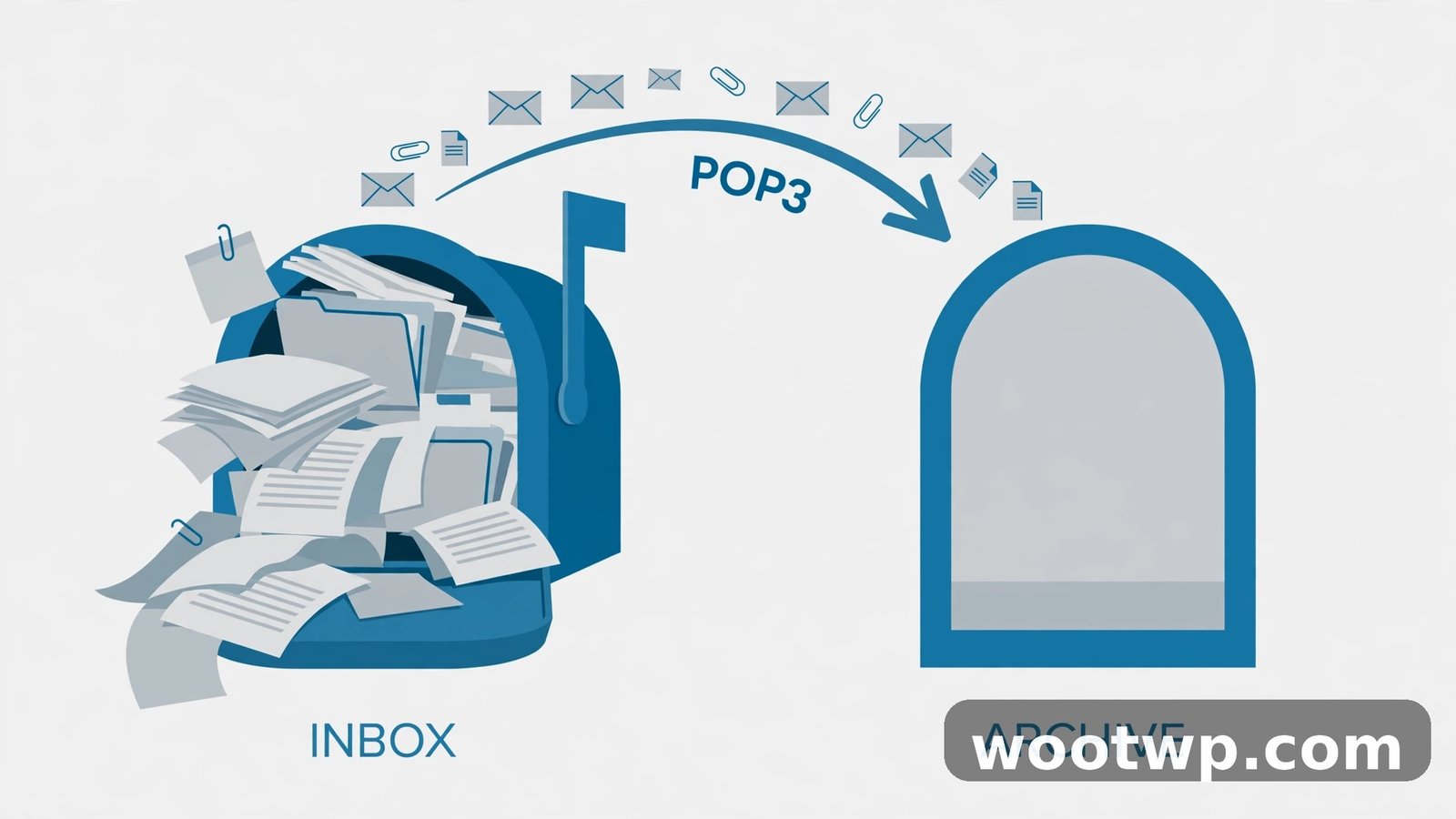
This is the method for when the inbox is genuinely bursting and you don't want to delete anything at all. The idea: create a second free Gmail account, pull every message out of the old account into the new one, and tell Google to delete the originals as they're copied. Every email survives — it just lives in a different account with its own fresh 15GB.
Step 1 — Prepare the old (full) account:
- In the full account, click the gear icon → See all settings → Forwarding and POP/IMAP.
- Under "POP download", select Enable POP for all mail (even mail that's already been downloaded).
- Click Save Changes.
Step 2 — Set up the new (archive) account:
- Create a new Gmail account (or use an existing spare one).
- In the new account, go to gear icon → See all settings → Accounts and Import.
- Under "Check mail from other accounts", click Add a mail account.
- Enter the old account's email address, choose Import emails from my other account (POP3), and continue.
- Enter the old account's username and password. Use POP server pop.gmail.com, Port 995, and tick Always use a secure connection (SSL).
- On the options screen, make sure "Leave a copy of retrieved messages on the server" is UNCHECKED. This is the crucial part — unchecking it means each fetched message is deleted from the old account after it's copied over.
- You can tick Label incoming messages so everything from the old account gets a label like "OldMail" — very handy for finding things later.
Google then starts pulling your old mail across. For a big inbox this can take hours — leave both accounts alone and let it run. When it's done, the old account is nearly empty and the new account holds everything.
Important notes:
- If the old account has 2-Step Verification turned on (and it should), a regular password won't work for the POP login — you'll need an App Password. Generate one at myaccount.google.com → Security → 2-Step Verification → App passwords.
- Since the archive account now holds years of your mail, secure it properly with two-factor authentication. If you set it up with an authenticator app and later switch phones, follow a proper transfer process for Google Authenticator so you don't get locked out of the archive.
- Empty the old account's Trash afterward (Method 6), or the deleted copies keep using space.
Method 5: Back Up With Google Takeout Before Any Big Purge
Before you run any bulk deletion — especially Method 4 — take a full backup. Google Takeout downloads everything in your account as files you keep on your own computer. If you ever delete something by mistake, the backup is your undo button.
- Go to takeout.google.com.
- Click Deselect all, then tick only Mail (you can include Drive too if you want).
- Choose Export once, .zip format, and a split size (2GB chunks are manageable).
- Click Create export. Google prepares the file — for large inboxes this takes a while — then emails you a download link.
The Mail export arrives as MBOX files, which open in Thunderbird or any MBOX viewer. Store the zip on an external drive or in a second cloud account. It's cheap insurance, and once you have it, every other method on this list feels a lot less scary.
Method 6: Empty Trash and Spam Immediately
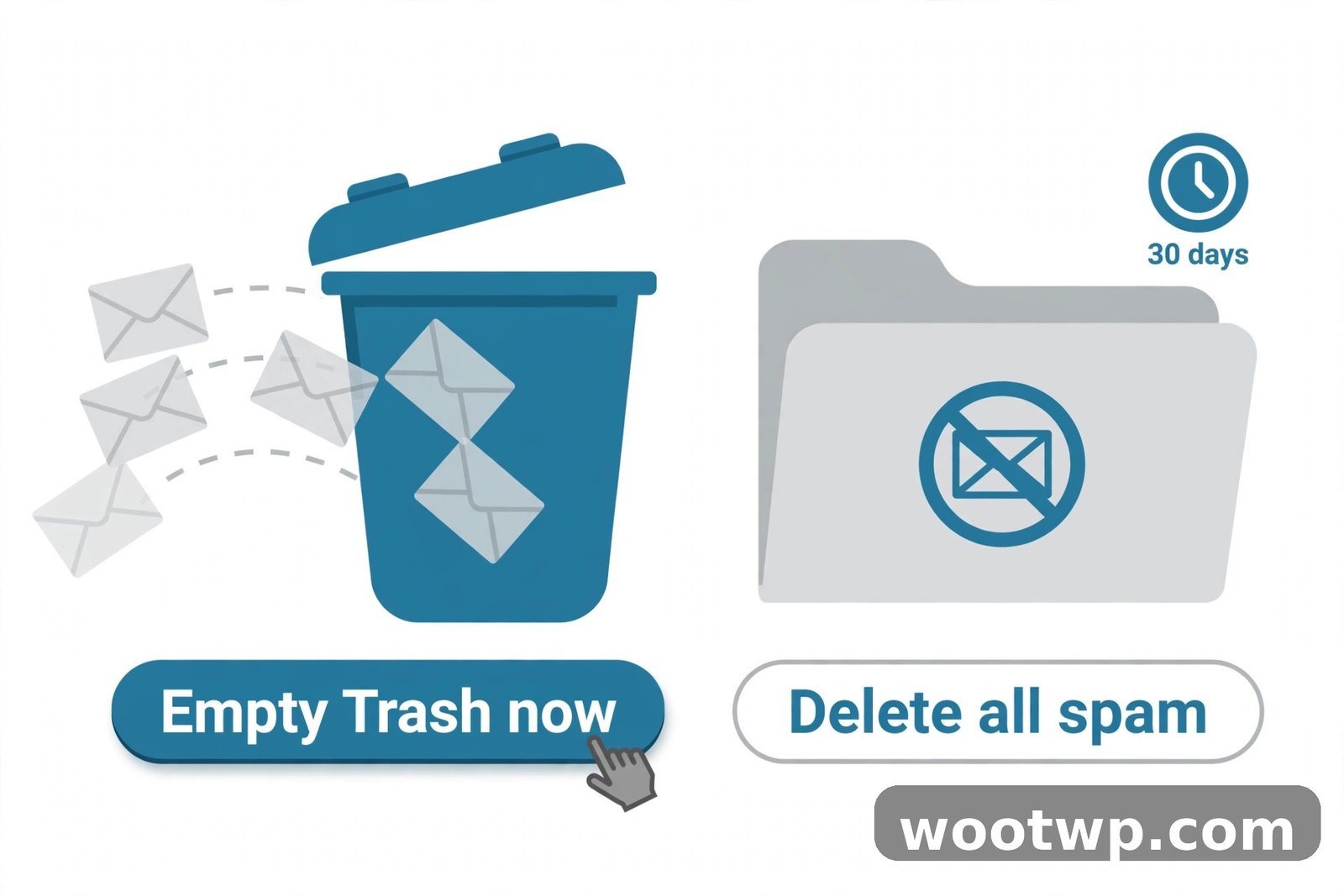
Here's something that surprises people: deleting emails doesn't free space right away. Deleted messages sit in Trash for 30 days, and spam sits in Spam for 30 days, and all of it still counts against your quota until it's gone. If you just did Methods 1–3, the space is still occupied until you finish this step.
- In Gmail's left sidebar, click More to expand, then Trash.
- Click Empty Trash now at the top, and confirm.
- Do the same for Spam → Delete all spam messages now.
Do this at the end of every cleanup session. It's a thirty-second habit that converts all your earlier deleting into actual freed space.
Method 7: Stop Future Clutter With Manage Subscriptions
Cleaning once is good; stopping the flood is better. Gmail has a built-in subscriptions manager that lists every mailing list you're subscribed to, with a one-click unsubscribe for each:
- Click in the Gmail search box and type Manage subscriptions, then press Enter (or open it from the left sidebar under More).
- You'll see a list of senders with how many emails each has sent you recently.
- Click Unsubscribe next to any sender you don't read anymore.
Be aggressive here — newsletters you "might read someday" are the ones filling your quota. For senders without a working unsubscribe link, use Report spam instead of just deleting; Gmail learns and starts filtering them automatically.
Also worth doing: in Settings → Inbox, consider turning off the Promotions and Social tabs' auto-categorization if you'd rather see everything and unsubscribe as it arrives. Different people prefer different setups, but the principle is the same: every subscription you kill is space you never have to clean again.
Method 8: Clean Google Drive and Google Photos Too
Remember the shared 15GB. If the Storage Manager from the first section showed Drive or Photos as the real culprit, Gmail tricks alone won't save you.
Google Drive cleanup:
- Go to drive.google.com and click Storage in the left sidebar.
- Files sort by size, biggest first. Old phone backups, exported videos, and forgotten zip files usually top the list.
- Delete what you don't need, then open Trash and click Empty trash — Drive trash also holds files for 30 days and still counts against your quota.
One thing to know: files in "Shared with me" don't use your storage — only files you own or added to your Drive do. So don't waste time there.
Google Photos cleanup:
- Go to photos.google.com → Settings.
- If your photos are stored in Original quality, switch new uploads to Storage saver — it looks identical on screens and uses a fraction of the space.
- Use Recover storage in the same settings page. This converts your existing Original-quality photos and videos to Storage saver quality, which can free multiple gigabytes at once with no visible difference on a phone or laptop.
Keep It Clean: A 10-Minute Monthly Routine
Storage fills up again if you never look at it. Once a month, spend ten minutes on this loop and you'll likely never see the "storage full" banner again:
- Open one.google.com/storage/management and check the balance.
- Run
has:attachment larger:10Mand deal with anything new. - Run
category:promotions older_than:6mand bulk-delete. - Empty Trash and Spam.
- Glance at Manage subscriptions and unsubscribe from anything new.
That's it. Small, regular maintenance beats a panicked purge every two years.
Frequently Asked Questions
Does deleting emails free up Google storage immediately?
Only after you empty the Trash. Deleted emails sit in Trash for 30 days and still count against your 15GB until they're gone — either automatically after 30 days or immediately when you click "Empty Trash now."
Will the second-account archive trick delete anything permanently?
The trick deletes the old account's copies only after they've been copied to the new account, because you uncheck "Leave a copy of retrieved messages on the server." Nothing is lost in transit under normal circumstances — but run a Google Takeout backup first anyway, because there's no undo if you misconfigure a setting.
Do attachments I move to Google Drive use double storage?
No. Google counts the file once, wherever it lives. But remember: moving an attachment from Gmail to Drive and deleting the email doesn't free quota by itself, since both share the same 15GB. The real space savings come from the archive trick, bulk deletes, and cleaning Drive and Photos.
Does emptying Spam actually free space?
Yes, though usually not much — spam messages are mostly text. It's still worth doing because it's instant and free, and a Spam folder that's been accumulating for months can hold thousands of messages.
Can I just buy more storage instead of cleaning?
You can — Google sells extra storage through Google One plans starting at 100GB. But paid storage fills up too if the clutter keeps coming, so even with a paid plan, the unsubscribe and bulk-delete habits in this guide are worth keeping.
Do labels and filters count toward my storage?
No. Labels, filters, and stars are just metadata — they don't use measurable space. Feel free to organize with as many labels as you like; only message content and attachments count.
Conclusion
A full Gmail account almost never means you have too many important emails — it means attachments, old promotions, and forgotten junk are hogging space that your real mail needs. Start with the Storage Manager to find the actual culprit, hunt the big attachments with search operators, move keepers to Drive, bulk-delete old promotions, and empty Trash and Spam to make it all count. If the account is truly bursting, the second-account archive trick moves everything to a fresh 15GB without losing a single message — just back up with Takeout first and secure the archive account properly.
Do the ten-minute monthly routine from here on, keep your subscriptions under control, and that "storage full" warning will become a thing of the past.