
How to Reset WordPress Password from phpMyAdmin: 5 Easy Steps
Being locked out of your own WordPress site is stressful. You type the password you are sure is right, WordPress says it is wrong, and the reset email never shows up. If you know how to reset WordPress password from phpMyAdmin, you can get back into your dashboard in about five minutes, without waiting for an email that may never arrive. This guide walks you through the exact clicks, the one dropdown most people get wrong, and what to do the moment you are back inside.
- When to Reset Your WordPress Password from phpMyAdmin
- Before You Start: Back Up Your Database
- Step 1: Open phpMyAdmin From Your Hosting Panel
- Step 2: Find the Right Database and the Users Table
- Step 3: Edit Your User Row and Set the New Password
- Step 4: Save and Log In to WordPress
- Step 5: Secure Your Account After You Get Back In
- Alternative Method: How to Reset WordPress Password from phpMyAdmin With an SQL Query
- The WP-CLI Alternative for SSH Users
- Common Mistakes to Avoid
- Frequently Asked Questions
- Conclusion
When to Reset Your WordPress Password from phpMyAdmin
The phpMyAdmin method is a rescue method, not your everyday password tool. It is the right choice when the normal reset path is broken. Reach for it when the lost-password email never arrives, even after checking spam. Use it when the admin email on the account is old, wrong, or belongs to someone who no longer works with you. It also helps when a plugin or a security setting blocks logins or password resets, and when you are locked out entirely with no way into the dashboard.
Use the normal reset instead when it works. If the reset email arrives, click the link in it and set a new password from the WordPress login screen. It is faster, it does not touch your database, and there is nothing to break. The same goes if you can still log in with another admin account. Go to Users, open your profile, and set a new password from there.
One warning before we start. phpMyAdmin edits your live database directly, and there is no undo button. A wrong edit in the wrong row can break logins for other users. Follow the steps exactly, touch only the one user row that belongs to you, and back up first. If you are nervous about editing a database, ask your host's support team to do the reset for you. Most hosts will do it in a few minutes.
Before You Start: Back Up Your Database
Never edit a live database without a backup. It takes two minutes, and it turns a scary edit into a safe one. If anything goes wrong, you restore the backup and try again. That rule matters even more here, because learning how to reset WordPress password from phpMyAdmin means editing the live user table directly.
In cPanel, open the Backup or Backup Wizard tool and download a copy of your database. In hPanel, use the Backups section the same way. For a full walkthrough, see this guide on how to back up your WordPress site for free.
While you are here, note down two things: your hosting panel login, so you can open phpMyAdmin, and the new password you plan to use. Pick something strong now, not a placeholder you will forget to change later. A password manager can generate one for you.
You also need to know which database belongs to your site. If your hosting account has only one WordPress site, there is usually only one database. If you run several sites, you will need to match the right one in the next step. Keep your wp-config.php file in mind. It names the exact database, and you can open it from your hosting file manager if you get stuck.
Step 1: Open phpMyAdmin From Your Hosting Panel
phpMyAdmin is a web tool for managing MySQL databases, and almost every shared host includes it. The exact path depends on your host. The steps below show how to reset WordPress password from phpMyAdmin once the tool is open, so the first job is just getting into it.
In cPanel
- Log in to cPanel.
- Scroll to the Databases section.
- Click phpMyAdmin.
- phpMyAdmin opens in a new tab, showing a list of databases on the left.
In hPanel (Hostinger)
- Log in to hPanel.
- Go to the Dashboard for your hosting plan.
- Under Databases, click phpMyAdmin.
- Pick the database for your site if you are asked.
In other hosting panels
Look for a Databases or Advanced section. The button is almost always labeled phpMyAdmin. If your host uses a custom panel and you cannot find it, search the host's help docs for "phpMyAdmin" or ask support. You need hosting panel access for this method. If you do not have it, the person who manages the hosting will need to help.
Once phpMyAdmin opens, you will see a left sidebar listing your databases. Do not click anything else yet. The next step is finding the right database.
Step 2: Find the Right Database and the Users Table
Click the database name in the left sidebar to open it. You will see a list of tables. Look for the one that ends in _users. In a standard WordPress install it is called wp_users, but the prefix may differ. Many hosts and security plugins change the prefix during setup, so yours might be something like wpxp_users or site1_users. The part after the underscore is always users, so scan for that.
If you have several databases and you are not sure which one belongs to your site, open the site's wp-config.php file in your hosting file manager and look for the line that defines the database name. It looks like this:
define( 'DB_NAME', 'your_database_name' );Match that name to the list in phpMyAdmin. That is the database you want. Picking the wrong database is the most common mistake when you reset WordPress password from phpMyAdmin, because you will edit a user that belongs to a different site and nothing will change on the one you are locked out of.
Once you have the right database open, click the users table name in the list. phpMyAdmin shows every user account on the site in a table view, with columns like ID, user_login, user_pass, user_email, and user_registered.
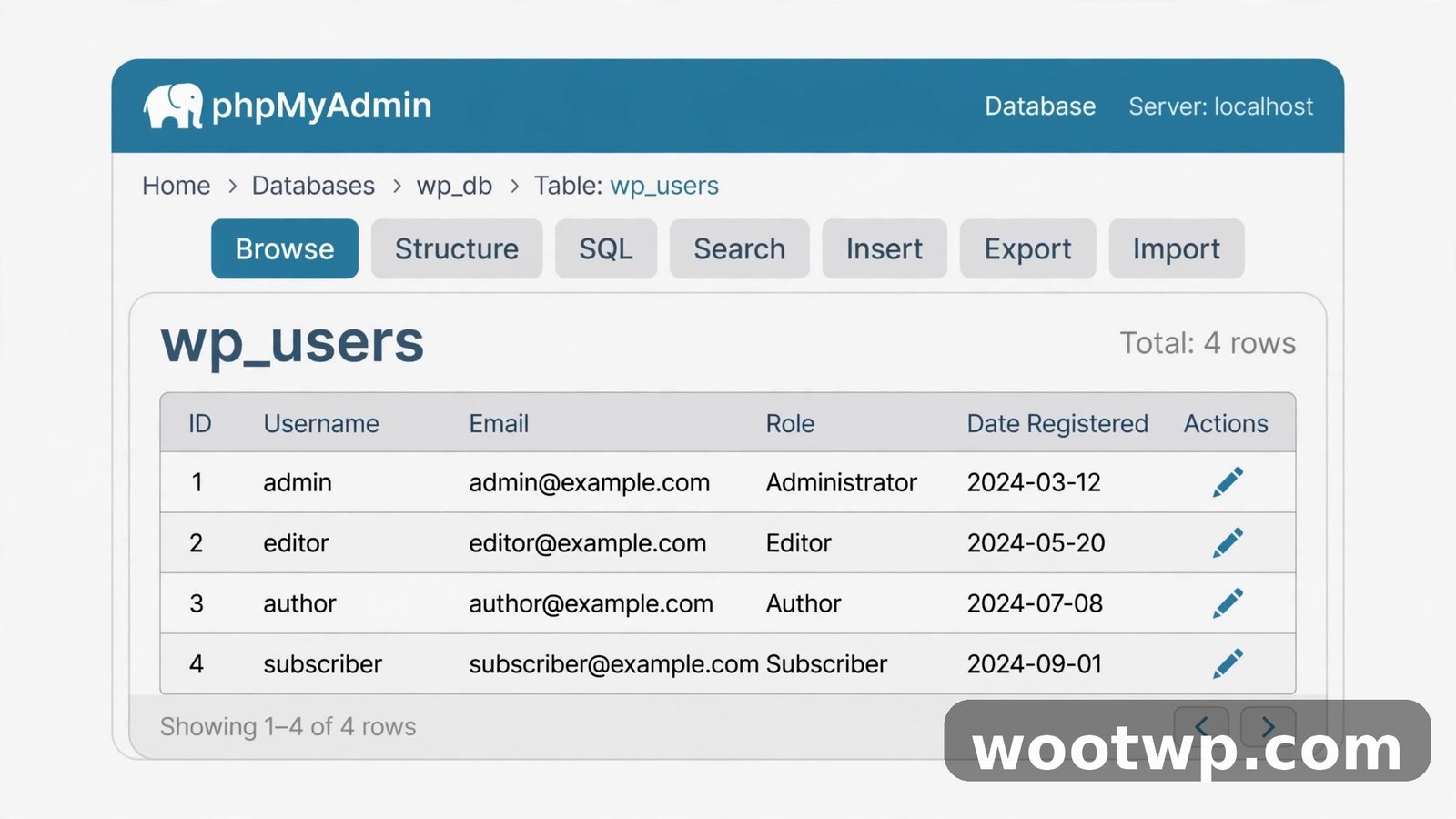
Find the row that belongs to you. Check the user_login column for your username and the user_email column for your email address. If several admins exist, make sure you pick your own row. Editing someone else's row changes their password, not yours, and that creates a second problem on top of the first.
Step 3: Edit Your User Row and Set the New Password
This is the step where the actual reset happens, and it is the heart of how to reset WordPress password from phpMyAdmin. Take it slowly.
- Click the Edit link on your user row. In phpMyAdmin this is usually a small pencil icon or an Edit link at the start of the row.
- The edit form opens, showing one row of fields for that user. Find the
user_passfield. It holds a long string of scrambled characters. That is your current password hash, not your password. - Click the Function dropdown next to the
user_passvalue field. This is the step most people miss. Select MD5 from the dropdown. - Delete the old hash in the Value box for
user_passand type your new password in plain text. Yes, plain text. phpMyAdmin will run it through MD5 when you save, because you picked MD5 in the function dropdown. - Leave every other field alone. Do not change
user_login,user_email, orID. Changing the username here does not help and can break the account. - Click the Go button at the bottom of the form to save.
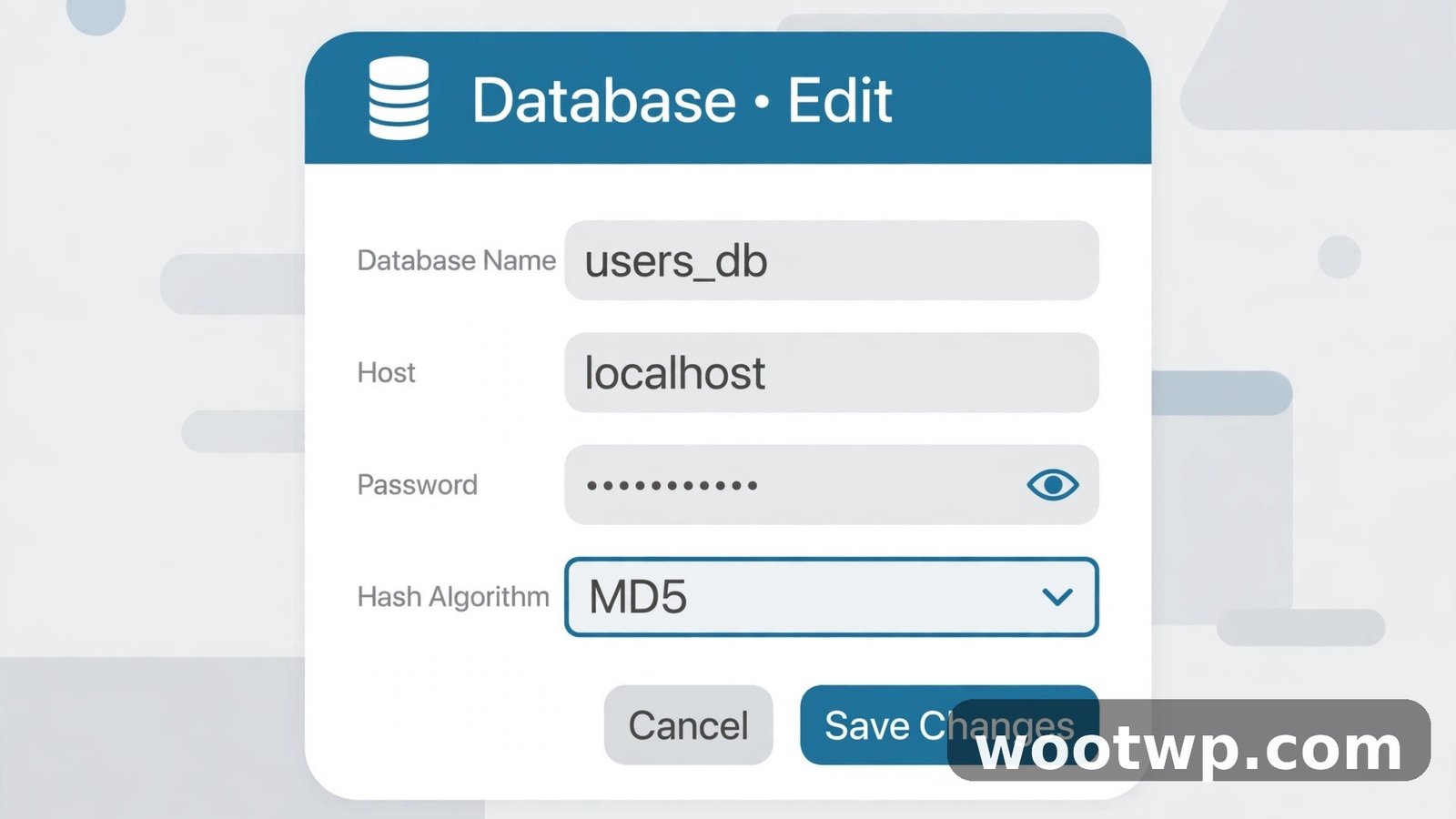
Here is why MD5 works even though it is an old, weak hash. WordPress stores passwords with bcrypt in WordPress 6.8 and newer, which is far stronger than MD5. But WordPress also knows how to recognise an old MD5 hash from the days before bcrypt. When you log in with the new password, WordPress checks it against the MD5 hash, sees that it matches, and then quietly re-hashes it with bcrypt and saves the stronger version. MD5 is only a temporary bridge to get you back in. It is not your password's final resting place, and you should not leave it there any longer than you have to.
That is also why you must pick MD5 in the function dropdown. If you leave the dropdown blank and type a plain password, WordPress will compare your typed password against that plain text as if it were a hash, and the login will fail. MD5 is the correct choice for this GUI method.
One caution about the new password you type here: phpMyAdmin shows it on screen while you type. Make sure nobody is looking over your shoulder, and do not use a password you reuse anywhere else. You will replace it with a fresh strong one in the next steps anyway.
Step 4: Save and Log In to WordPress
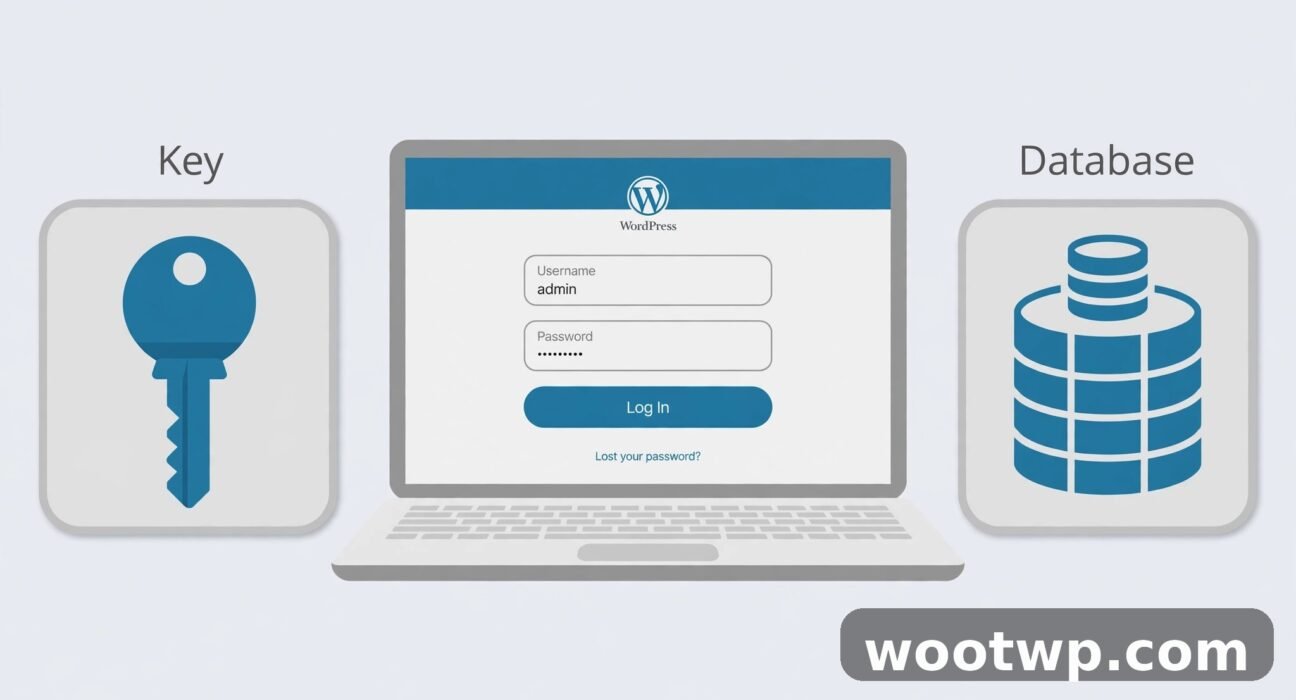
After you click Go, phpMyAdmin shows a confirmation that one row was updated. Go back to your WordPress login page, usually at yoursite.com/wp-login.php. Type your username and the new password you just set, then log in.
If it works, you are in. That first clean login tells you the method worked, and it is the outcome every guide on how to reset WordPress password from phpMyAdmin is aiming for. WordPress has already upgraded your password hash to bcrypt behind the scenes, so the MD5 value is gone. If the login still fails, do not panic and do not start changing other rows. Run through this quick checklist first:
- Did you edit the right database? Open
wp-config.phpagain and confirm the database name matches. - Did you edit your own user row, not another admin's row?
- Did you select MD5 in the function dropdown before saving?
- Did you type the new password in the
user_passvalue box, not in another field? - Is caps lock off, and did you copy the password exactly, with no extra space at the start or end?
In my experience, the answer is almost always one of those five. The most common is the MD5 dropdown. People type the new password, click Go, and never touch the function column, so the plain password gets saved as the hash value and nothing matches at login. Go back, set MD5, type the password again, save, and try logging in once more.
If the login page itself is behaving oddly, for example showing a cached version or an old error, clear your browser cache and try a private window. A stale cache can also make a fixed site look broken, so this guide on how to clear your WordPress cache can help if the site itself is caching the login page.
Step 5: Secure Your Account After You Get Back In
Getting back in is only half the job. The other half is making sure you do not get locked out again and that the account is safe now that it has been through a rough reset.
- Go to Users, then Profile, in the WordPress dashboard.
- Scroll to Account Management and set a brand new strong password. Use a password manager to generate it. Make it long, random, and unique to this site.
- Check the email address on your profile. If it is old or wrong, fix it now. This is the address WordPress sends reset links to, and a wrong address is usually why the normal reset failed in the first place.
- Turn on two-factor authentication. A plugin or your security plugin can add this. It asks for a code from your phone as well as your password, so a stolen password alone is not enough to get in.
- Look at the other admin accounts on the site under Users, then All Users. Remove any admin you do not recognise. If someone else got in while you were locked out, this is where you would spot it.
- Check your site's recent activity if your security plugin keeps a log. Look for failed login attempts and any changes made while you were out.
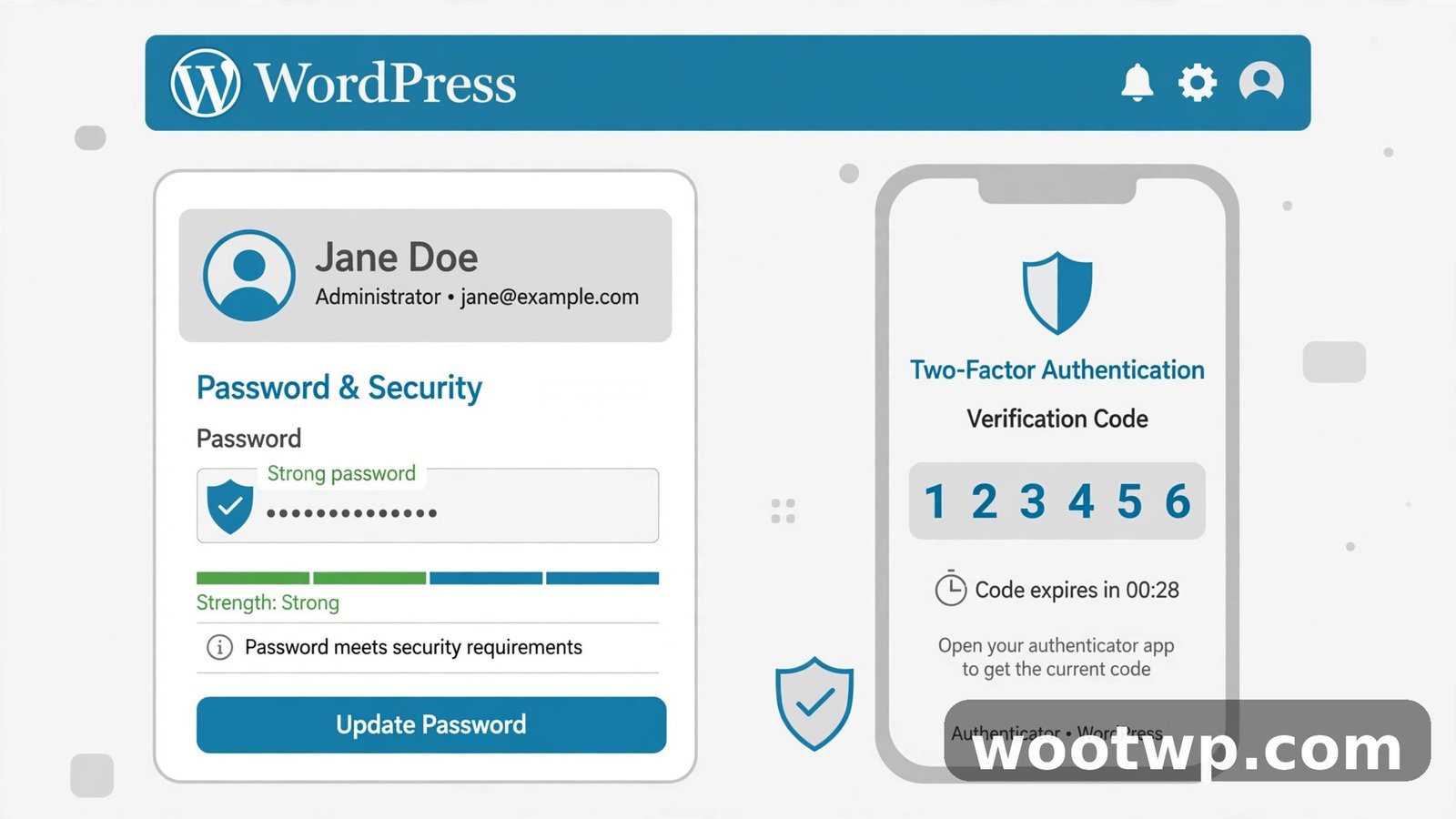
Also, if the reset email never arrived in the first place, find out why before you need it again. The usual causes are a wrong admin email, your host blocking outgoing mail, or a missing SMTP setup. Fixing the email problem now means the normal reset will work next time and you will not need to reset WordPress password from phpMyAdmin again. If you changed hosts recently or plan to, this guide on how to move your WordPress site to a new host covers keeping your login and email settings intact during a move.
Alternative Method: How to Reset WordPress Password from phpMyAdmin With an SQL Query
If you are comfortable with SQL, you can do the same reset without opening the edit form. In phpMyAdmin, click the SQL tab at the top, paste the query below, replace the placeholder values with your own, and click Go.
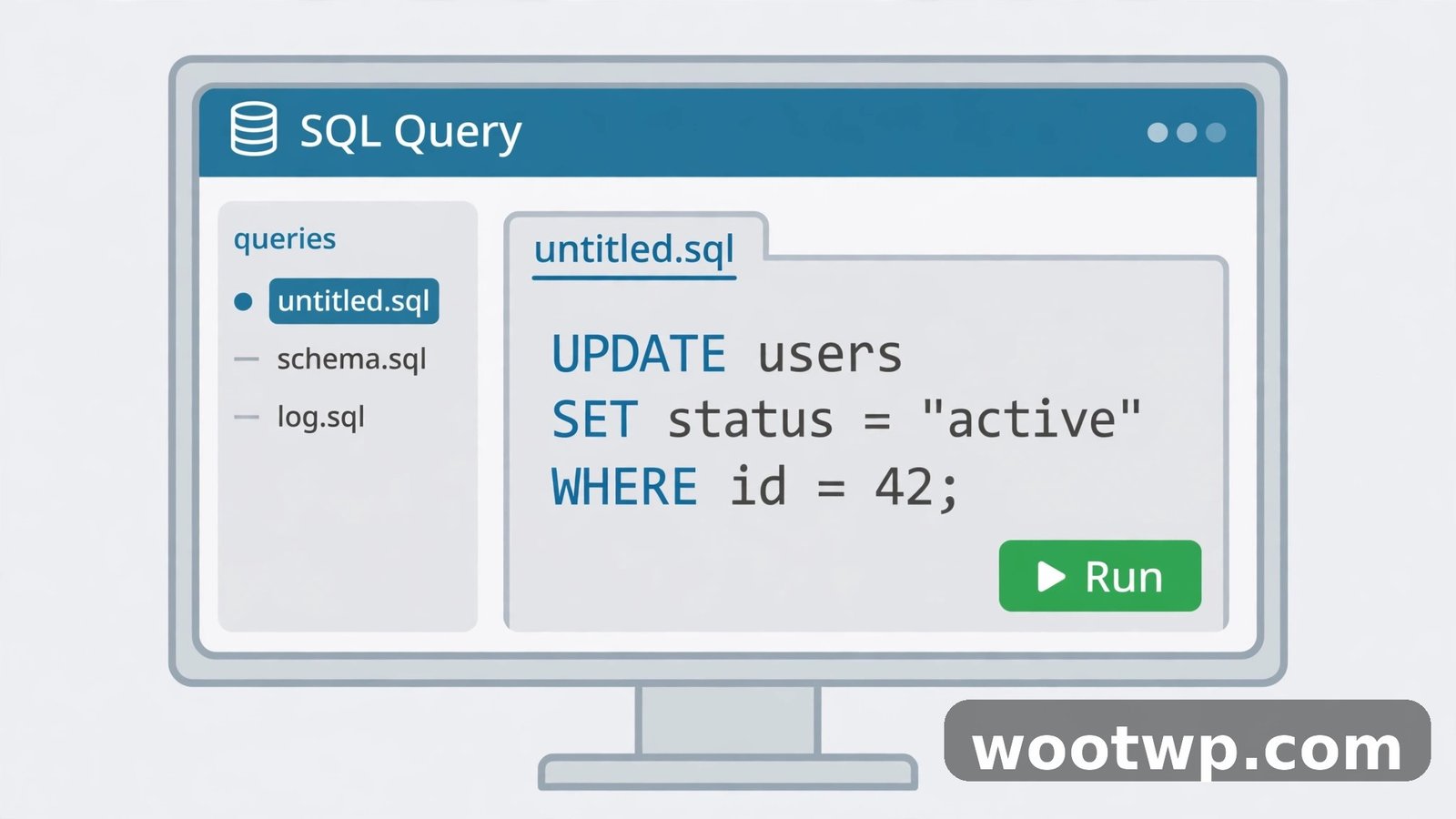
UPDATE wp_users SET user_pass = MD5('your-new-password') WHERE user_login = 'your-username';Change three things in that query before you run it:
wp_usersmust match your real table name, including your table prefix if it is notwp_.your-new-passwordbecomes the new password, in plain text inside the single quotes.your-usernamebecomes your actual WordPress username, the value in theuser_logincolumn.
The WHERE clause matters. Without it, the query would reset every user on the site to the same password. With it, only your account changes. phpMyAdmin will report that one row was affected. Then log in with the new password, exactly as in the GUI method, and WordPress will upgrade the hash to bcrypt on that first login.
This method is faster once you know it, and it is handy when the edit form is awkward on a small screen. The GUI method is safer for most people, because a typo in a query can do more damage than a typo in a form field. Pick the one you are more comfortable with. Both end in the same place: a working login and a fresh bcrypt hash.
The WP-CLI Alternative for SSH Users
If you have SSH access to your server and WP-CLI is installed, you can reset the password from the command line without opening phpMyAdmin at all. Connect over SSH, move into your WordPress install folder, and run:
wp user update your-username --user_pass=your-new-passwordWP-CLI handles the hashing for you, so there is no MD5 step and no dropdown to get wrong. It sets the password with WordPress's current hashing right away. Log in with the new password and you are done.
Either route gets you back in, but if you have no SSH access, the guide above on how to reset WordPress password from phpMyAdmin is the way to go. WP-CLI can also list users, which helps when you are not sure of the exact username:
wp user listThat prints every user with their ID, username, and email, so you can confirm which account is yours before you reset it.
Common Mistakes to Avoid
I have seen people working through how to reset WordPress password from phpMyAdmin trip over the same handful of mistakes, over and over. Here is the list, so you can skip all of them.
- Editing the wrong database. With several sites on one hosting account, it is easy to open the wrong one. Check
wp-config.phpfor the database name first. - Editing the wrong user row. Double-check the username and email in the row before you touch it. Resetting another admin's password locks them out instead of letting you in.
- **Editing
user_logininstead ofuser_pass.** The password lives inuser_pass. Changing the username does nothing for your login and can break the account. - Forgetting to pick MD5 in the function dropdown. This is the number one mistake. Without MD5, the plain password is saved as the hash value and the login fails.
- Table prefix confusion. Your table may not be
wp_users. Look for the table that ends in_usersin your database, and use its full name in the SQL method. - Extra spaces in the new password. A trailing space copied from a password manager or typed by accident means the password you type at login will not match. Type it carefully or paste it cleanly.
- Skipping the backup. A backup takes two minutes. Restoring a broken database takes far longer and costs far more stress.
- Leaving the MD5 password in place. The reset password works, but treat it as temporary. Set a fresh strong password from your profile as soon as you are in, and let WordPress store the bcrypt version.
- Not fixing the reason you were locked out. If the reset email never arrives, the problem will come back. Fix the admin email and the site's email sending while you still have dashboard access.
If you work through that list and the login still fails, the problem may be deeper than a password. A security plugin may be blocking your IP, the site may have a corrupted users table, or the database user itself may lack write access. In that case, contact your host. They can check the database directly and tell you whether the change actually saved. The official WordPress guide is also worth reading. See the official WordPress guide to resetting your password for the full set of recovery options, including the emergency script method for cases where database access is also a problem.
Frequently Asked Questions
How do I reset my WordPress password from phpMyAdmin if I forgot the admin email too?
You can, because phpMyAdmin does not need your email at all. Open phpMyAdmin, find the users table, edit your user row, set the user_pass function to MD5, type a new password, and save. Then log in with that password and update the email address in your profile right away.
Is it safe to use MD5 to reset a WordPress password?
Yes, as a temporary bridge. WordPress recognises the MD5 hash, checks your login against it, and immediately re-hashes the password with bcrypt, its stronger algorithm. Just do not leave the MD5-based password in place. Set a fresh strong password from Users, then Profile, as soon as you are logged in.
What is the users table called if it is not wp_users?
It is your table prefix plus users. The prefix is set when WordPress is installed and is often changed for security, so it might be wpxp_users or something similar. Open wp-config.php in your file manager and look for the table prefix setting, or just look for the table ending in _users in phpMyAdmin.
Why does my new password still not work after I reset it in phpMyAdmin?
The usual cause is the MD5 dropdown. If you typed the password but left the function column blank, WordPress compares your login attempt against plain text instead of a hash, and it fails. Open the row again, pick MD5 in the function dropdown, type the password again, and save. Also check that you edited the right database and the right user row.
Can I reset another user's WordPress password from phpMyAdmin?
Yes, and that is exactly what site owners do when a team member is locked out. Find their row in the users table by username or email, set user_pass to MD5, and type a temporary password. Tell them to log in and change it to their own strong password from their profile straight away.
Do I need a plugin to reset my WordPress password from phpMyAdmin?
No plugin is needed. phpMyAdmin comes with almost every hosting panel, and the reset uses only the database edit or a single SQL query. A plugin would not help here anyway, because you cannot install or run one while you are locked out of the dashboard.
Conclusion
Learning how to reset WordPress password from phpMyAdmin is one of those skills you hope you never need and are glad to have when you do. Open phpMyAdmin, find the right database and users table, edit your row with the MD5 function, and log in. Then set a fresh strong password, fix the admin email, and turn on two-factor authentication so the next lockout never happens. The whole rescue takes about five minutes, and the follow-up takes five more.