
How to Compress Video Without Losing Quality Free: 7 Easy Ways
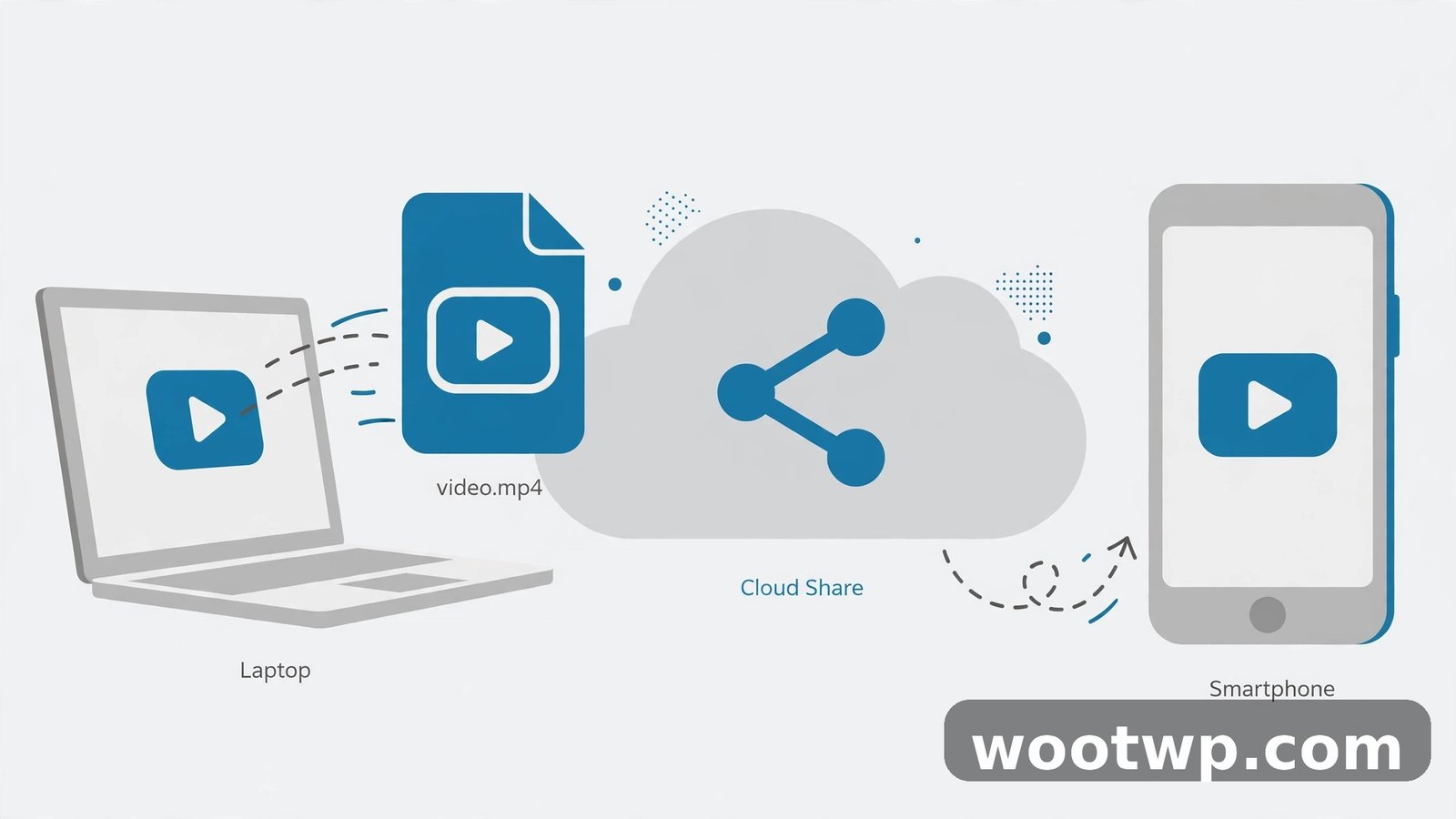
Last Tuesday, just past 11 pm, I was on the sofa with my phone in one hand and cold tea going cold on the table. My cousin wanted a two-minute clip from his nephew's birthday party. Simple, right? The video was 1.8 GB. WhatsApp flat-out refused it. My email bounced it straight back. And my phone storage was already gasping for air.
Two minutes of video. 1.8 GB. That was the night I finally sat down and figured out how to compress video without losing quality free — no paid software, no sketchy uploads, just the right settings in the right tools.
Seen that "file too large" error yourself? Three words, zero help. This guide is the fix: which free tools to use, which settings actually matter, and which mistakes turn a crisp video into mush. Nothing here costs a cent.
- What "Without Losing Quality" Actually Means
- Why Are Video Files So Huge?
- The One Rule Before You Compress Anything
- How to Compress Video Without Losing Quality Free with HandBrake
- What Video Compression Settings Should You Use?
- How to Compress Video with FFmpeg
- The VLC Shortcut for a Quick Squeeze
- How to Compress Video Without Losing Quality Free on Your Phone
- Should You Use an Online Video Compressor?
- Mistakes That Wreck Your Video
- Frequently Asked Questions
- Final Thoughts
What "Without Losing Quality" Actually Means
Nobody puts this in the headline, so I will. Every time you re-encode a video with a lossy codec, some data gets thrown away. That's not a bug. That's the whole point of compression.
So "without losing quality" really means "without losing visible quality". The file gets much smaller. Your eyes can't tell the difference. That's the deal.
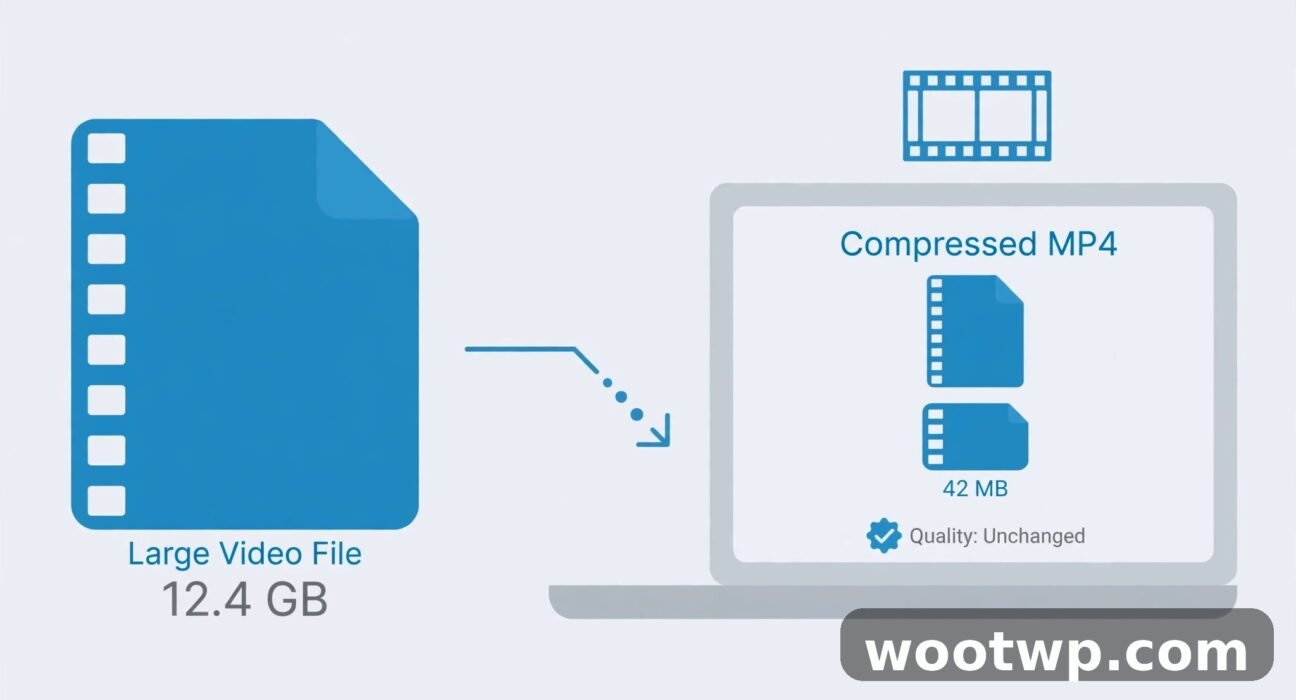
Most people chase this backwards. Slider to the bottom, faces turn to watercolour — or they keep the file at 2 GB out of pure fear. The sweet spot sits between those two, and honestly, it's wider than you'd think. A 1.8 GB phone clip can often drop to 300–400 MB and look identical. Figuring out how to compress video without losing quality free comes down to one tool and one number, and both are covered below.
Why Are Video Files So Huge?
Blame the bitrate. Seriously — file size is just bitrate times duration. That's the whole maths.
A phone recording 1080p at 8 Mbps eats roughly 60 MB per minute once you add audio. Ten minutes, 600 MB. A 4K clip at 40 Mbps? About 300 MB per minute. An hour of that can pass 17 GB. No wonder your storage is always full.
Phones record at high bitrates on purpose. Better too much detail than too little, the thinking goes. Great for editing. Terrible for sending. So when you want to reduce video file size, you're doing one of three things: lowering the bitrate, dropping the resolution, or switching to a smarter codec. The first and third work best. Resolution? That's the last resort. It's the change your eyes actually notice.
The One Rule Before You Compress Anything
Compress from the original file. Always. Never compress a file that has already been compressed. Each round of lossy encoding throws away more detail, and the damage stacks up fast.
I learned this the hard way years ago, re-compressing the same holiday clip twice by mistake. The second pass turned the sea into blocky blue squares. Gone. A sticky note on my monitor would have saved that footage. A sticky note. In 2026.
So before you touch anything: find the original. The clip straight out of the camera app — not the one WhatsApp already chewed up. Keep a backup until you've checked the compressed version. Compare a few seconds: skin tones, hair, dark scenes, because banding shows up there first. Looks fine? Then delete the big file. Not before.
How to Compress Video Without Losing Quality Free with HandBrake
HandBrake is the tool I reach for first. Free, open source, runs on Windows, Mac and Linux, and it doesn't hide the good settings behind a paywall. If you want to learn how to compress video without losing quality free on any desktop, this is where to start. Download it only from HandBrake's official site — copycat download pages exist, and you don't want those.
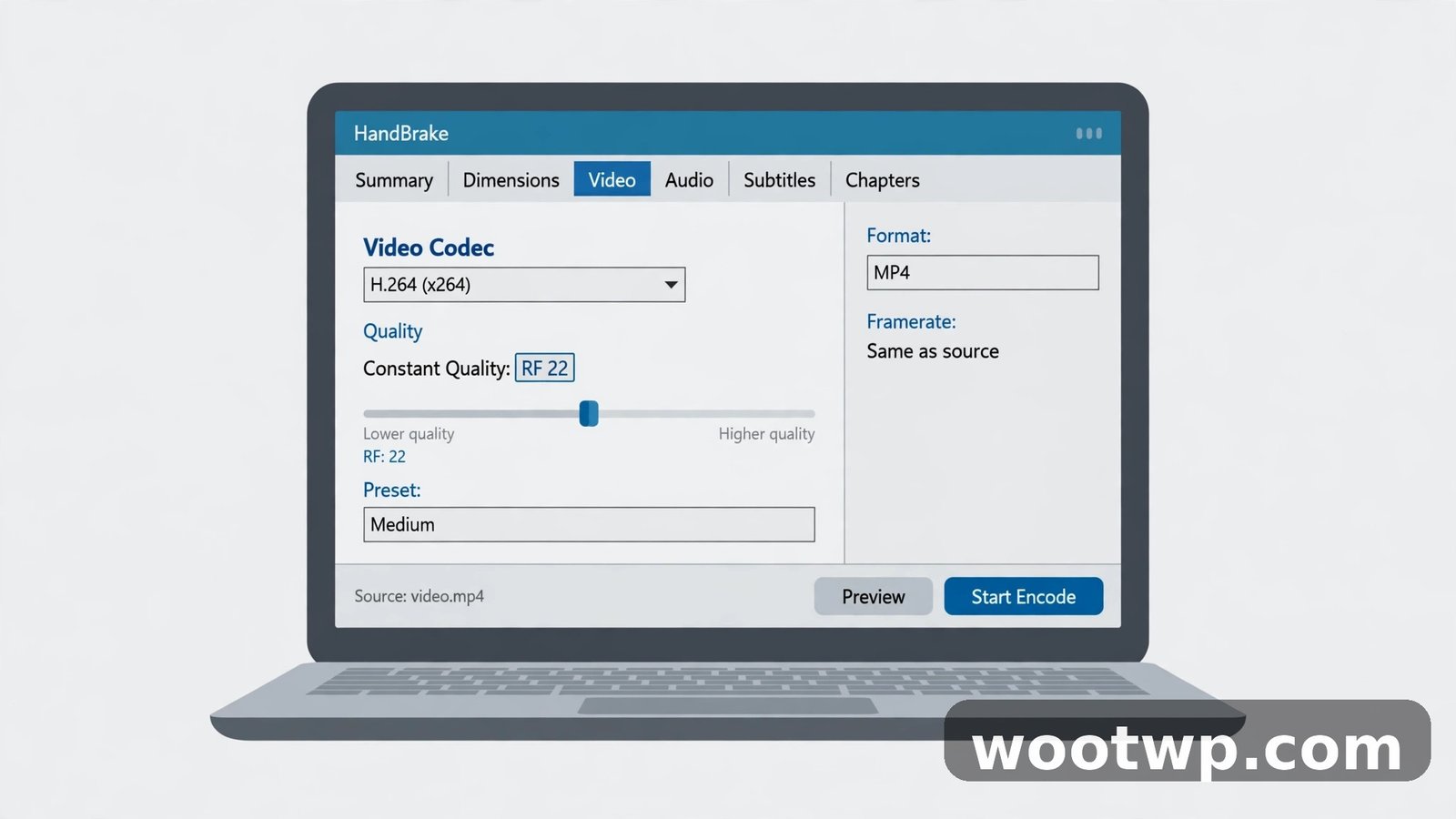
The job itself? About five minutes of clicking. Then waiting while your computer encodes. That's it.
- Open HandBrake and drag your video file into the window.
- Under Summary, set Format to MP4 — playable basically everywhere.
- On the Dimensions tab, leave resolution and frame rate alone ("Same as source").
- On the Video tab, pick a preset: Fast 1080p30 to start, HQ 1080p30 for a little more quality.
- Set the Video Encoder to H.264 (x264) — the safe, universal choice.
- Under Quality, choose Constant Quality and set RF to 22. This number matters most; the next section explains it.
- On the Audio tab, keep AAC at 128 kbps. Fine for speech and music; higher barely helps.
- Pick where to save the file, hit Start Encode, and wait.
How long does it take? A two-minute clip on a decent laptop, two or three minutes. A 40-minute video on an older laptop? A while. Sometimes longer than the video itself, honestly. Start it, go make tea, come back. Then watch the first 30 seconds — a dark scene and a fast-moving scene. Both fine? Done. Spot blockiness? Run it again with RF two points lower.
What Video Compression Settings Should You Use?
Most guides go vague here. I won't. The single most important of all video compression settings is the constant quality value — RF in HandBrake, CRF in FFmpeg. Same idea, same scale. Once you understand this number, you understand how to compress video without losing quality free.
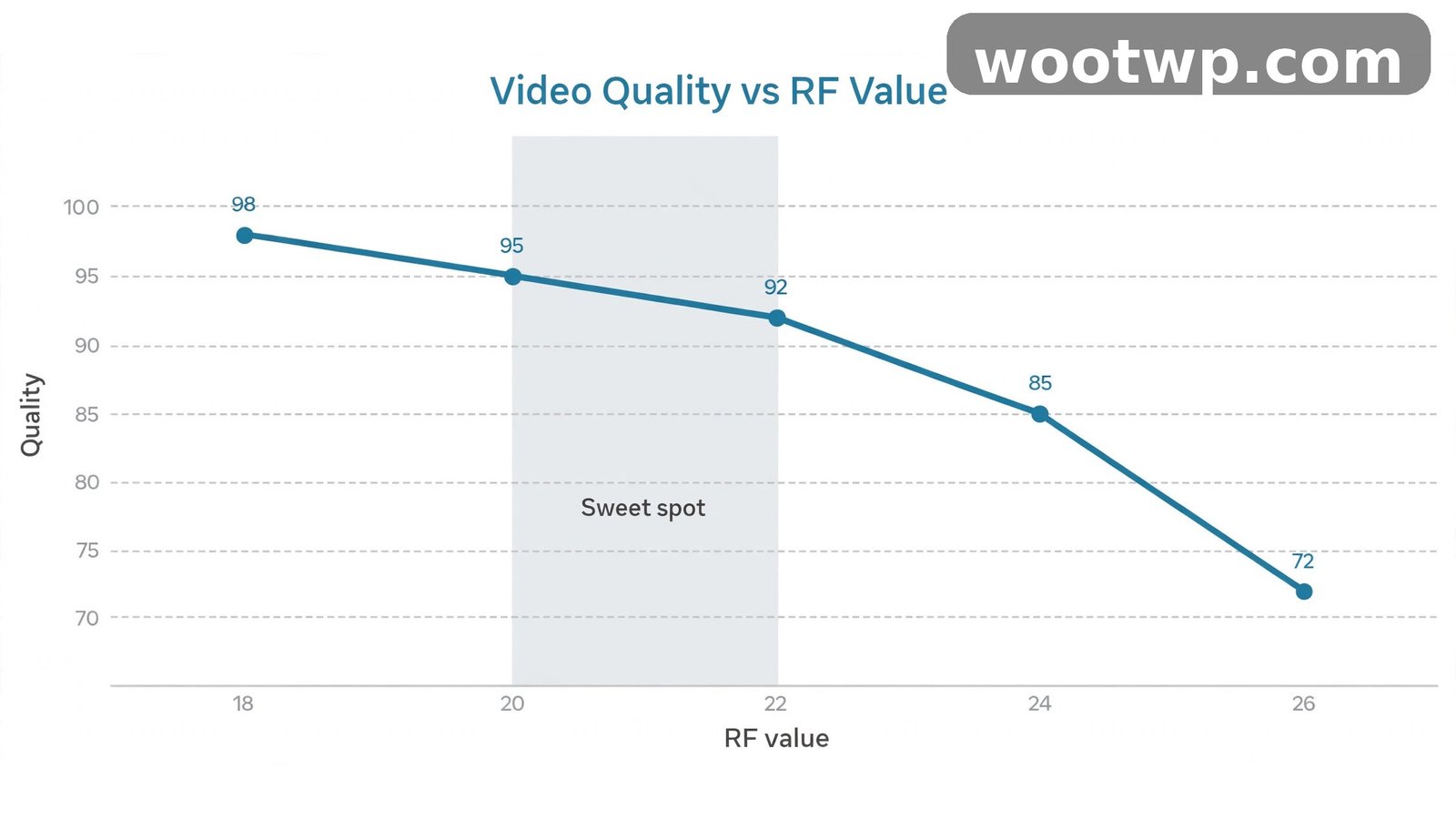
The scale runs from 0 to 51. Lower means higher quality and a bigger file. Higher means smaller file and worse quality. Zero is near-lossless and enormous. Fifty-one is a slideshow of mush.
- RF 18–20: Very high quality — for archiving something precious.
- RF 20–22: The sweet spot for 1080p H.264. HandBrake's own docs suggest around 20 for standard definition and 22 for HD. Most people should live here.
- RF 23–24: Still good for most eyes, noticeably smaller — a fair pick for sharing.
- RF 26–28: Softness creeps into detailed scenes. Fine for a quick share, risky for anything you care about.
- RF 30 and up: Don't. I tried RF 30 once on a birthday video. Faces went waxy, the grass turned to green soup, and I re-encoded the whole thing from the original. Ask me how I know.
H.264 is the universal safe pick. Every phone, TV, browser and app plays it. H.265 — also called HEVC — squeezes the same picture into a file roughly 30–50% smaller, but it needs more processing power to encode, and older devices can struggle to play it. Newer phones? H.265 is a great pick. Not sure? Stick with H.264. AV1 is newer and even more efficient, but encoding it is painfully slow on most home computers. To be fair, AV1 will matter more in a year or two. Today, not worth the wait.
Keep the original frame rate and resolution. Dropping 60 fps to 30 fps barely saves space and makes motion choppy. Dropping 1080p to 720p is the move only when the file is still too big after everything else. Resolution is the lever your eyes notice first, so pull it last.
How to Compress Video with FFmpeg
Like the command line? Or need to compress a whole folder at once? FFmpeg is the power tool underneath half the video software on the planet. Free, fast, and scarier-looking than it actually is. It's also a solid route if you want to learn how to compress video without losing quality free and skip the big graphical app entirely. Download it from FFmpeg's official site and make sure it's on your system path.
The basic command to compress mp4 free with FFmpeg looks like this:
ffmpeg -i input.mp4 -c:v libx264 -crf 22 -preset medium -c:a aac -b:a 128k output.mp4
What each piece does:
-i input.mp4— your source file.-c:v libx264— encode the video with H.264.-crf 22— constant quality 22, the same sweet spot as HandBrake's RF 22.-preset medium— how hard the encoder works. Slower presets mean a smaller file but more time; faster presets finish sooner with a slightly bigger file.-c:a aac -b:a 128k— audio in AAC at 128 kbps.
Want H.265? Swap the codec and nudge CRF up — its scale behaves a bit differently:
ffmpeg -i input.mp4 -c:v libx265 -crf 24 -preset medium -c:a aac -b:a 128k output.mp4
CRF 24 here matches CRF 22 in H.264 visually, but the file comes out smaller. Try both on a short clip. A 30-second test costs almost nothing and tells you everything.
The VLC Shortcut for a Quick Squeeze
Already have VLC installed? Then you already own a basic compressor. No download needed.
Open VLC, go to Media, then Convert / Save. Add your file, click Convert / Save, and pick a profile like Video – H.264 + MP3 (MP4). Hit Browse to choose where the output goes, then Start.
It works. It's quick. But be honest about what it is: a quick squeeze, not a precision tool. VLC has no constant quality slider, so you can't dial in that RF 22 sweet spot. Use it when someone's waiting on the file right now — a friend on WhatsApp, a deadline in ten minutes. For anything you care about, use HandBrake or FFmpeg instead.
How to Compress Video Without Losing Quality Free on Your Phone
Sometimes the computer isn't nearby and the video is stuck on your phone. Fair enough. You can shrink it right there.
On Android, the easiest route is Google Photos. Open the video, tap Edit, then look for the export or save options — on many phones you can export a copy at a lower resolution. Samsung's Gallery editor and Pixel's built-in editor offer the same thing, though the exact menu names move around between brands. (They always do. Why is it never in the same place twice?)
On iPhone, the cleanest route is iMovie: import the clip, tap Done, then share it out at a lower resolution like 720p. Photos itself also offers a smaller copy when you share through some apps, though the options depend on your iOS version.
One-tap compression apps exist by the dozen, and some are fine. But read the reviews first. Plenty stamp a watermark on your video or cap the export length until you pay. The built-in tools above have neither problem.
One quick note: if the clip is still too big after compressing, the problem might be the app, not the file. Our guide to sending large videos on WhatsApp without losing quality walks through the size limits and the document-send workaround that skips WhatsApp's own compression.
Should You Use an Online Video Compressor?
Online compressors are tempting. No install, no settings. Drag, drop, done. If your main goal is learning how to compress video without losing quality free and installing nothing, they look perfect. And for a short, unimportant clip? They're fine. Genuinely fine.
But there's a trade-off, and it's worth saying plainly: your video uploads to someone else's server. A stranger's company holds a copy of your footage, even if only for a few minutes. A clip of your cat? Who cares. A client's wedding video? A work presentation? Anything with kids in it? Think twice.
There's also a practical limit. Uploading 2 GB on a slow connection takes forever, and many free tools cap file size or length — or quietly watermark the output. My rule: personal clips, online is fine. Anything private or client work, HandBrake on your own computer wins. No upload wait, no surprise watermark.
Mistakes That Wreck Your Video
Most ruined videos aren't ruined by bad tools. They're ruined by small choices that feel harmless at the time.
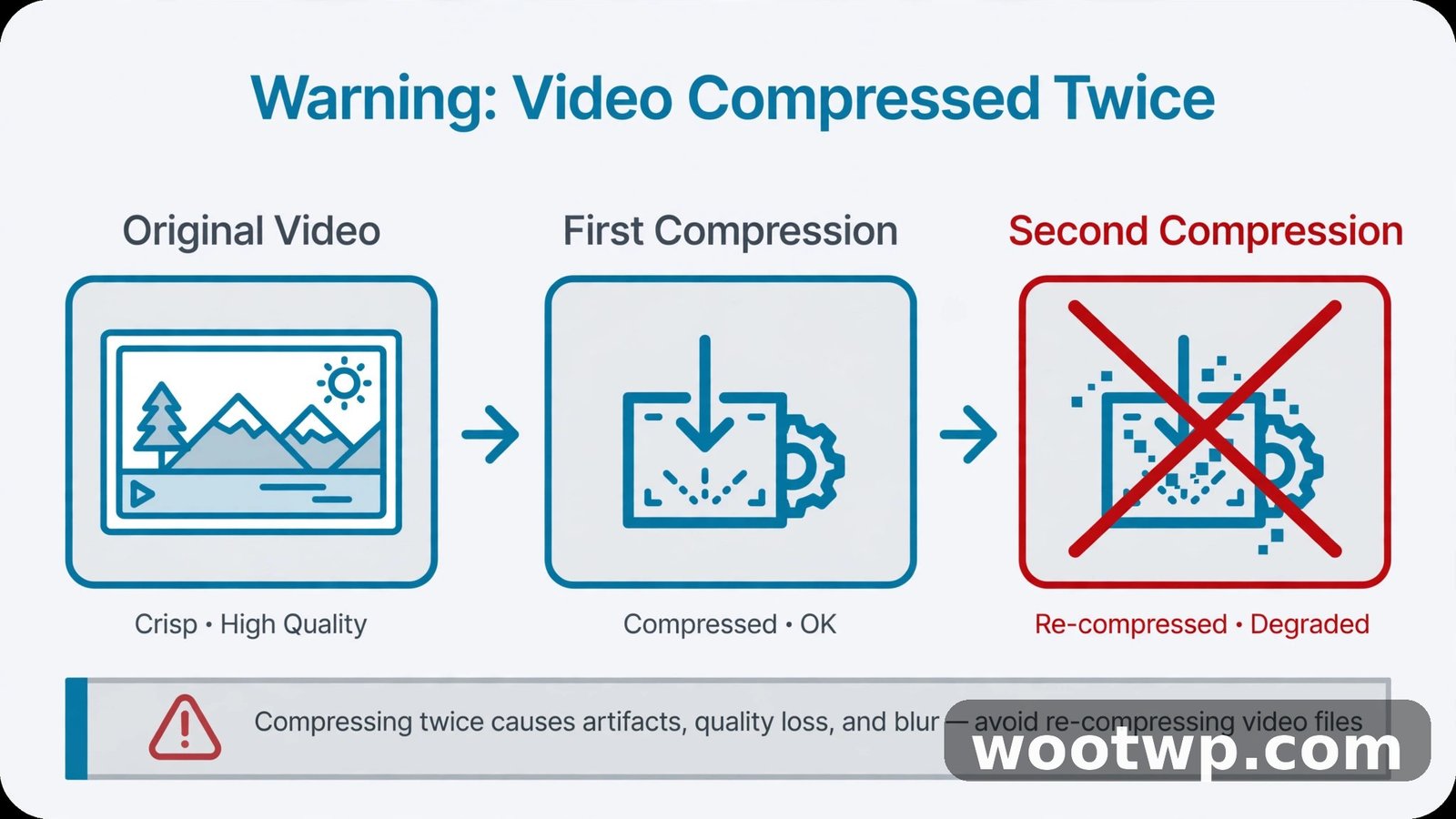
The fastest way to fail at learning how to compress video without losing quality free is to compress an already-compressed file. Worth repeating, because it bites everyone eventually. A file that's been through WhatsApp or Instagram once has already lost detail you can't get back. Squeezing it again just makes the damage visible.
Uploading to YouTube or TikTok and compressing first is another one. Sounds sensible — smaller upload, faster, right? Except those platforms re-encode everything you send them. Your video gets compressed twice: once by you, once by them. Upload the best master you have and let the platform do its thing.
Then there's the resolution trap. People drop a 4K clip to 720p "to save space" and wonder why it looks soft on their TV. Change the quality number first, the codec second, and touch resolution last — only when the file is still too big.
Last one. Boring, but it matters: check the output before you delete the original. Watch thirty seconds — a dark scene and a busy one. Looks right? Delete away. Doesn't it? You still have the original, and the fix is a second encode with a lower RF number. That's a five-minute problem. Deleting the original first turns it into a permanent one.
If the compressed file is part of a bigger project, adding captions afterwards makes it more watchable. Our guide to adding captions to a video for free covers seven methods that work with the file you just shrank.
Frequently Asked Questions
How do I compress a video without losing quality for free?
HandBrake, RF 22, H.264, original resolution and frame rate. That combo usually cuts the file in half — sometimes more — while the picture looks the same. Grab HandBrake free from handbrake.fr, load the video, set those values, hit encode. Done.
What is the best free video compressor with no watermark?
HandBrake, for most people. Free, open source, no watermark, Windows, Mac and Linux. FFmpeg is just as free and more powerful — if the command line doesn't scare you. VLC works in a pinch, but you get far less control over quality.
Does compressing a video reduce quality?
Yes, a little. Every lossy re-encode throws away some data — that's the deal with how to compress video without losing quality free. The loss is real, but at the right settings it's invisible. At RF 20–22 in H.264, most people can't spot any difference on a normal screen. The damage shows up when you push the quality number too high, or compress the same file twice.
Can I compress a video on my phone without an app?
Yes. On Android, Google Photos and most built-in gallery editors let you export a copy at a lower resolution. On iPhone, iMovie exports at 720p, and sharing through some apps offers a smaller size. For the best results, though, a computer and HandBrake give you far more control.
What CRF value should I use for 1080p video?
CRF 20–24 in H.264, with 22 as the best starting point. Lower numbers, better quality and bigger files. Higher numbers, smaller files and visible softness. For H.265, start around CRF 24 — roughly the same look, smaller file. And always test on a short clip before encoding a long video. Thirty seconds now saves an hour later.
Why is my compressed video still too big?
Usually one of three reasons. The quality number is set too low. The video is long or 4K. Or the source was already huge. Try H.265 instead of H.264 — 30–50% smaller at the same visual quality. Still too big? Drop the resolution to 720p. But only after trying the codec and quality settings first.
Final Thoughts
Learning how to compress video without losing quality free isn't about finding one magic button. It's about knowing which number matters — that constant quality value — and leaving everything else alone. HandBrake and FFmpeg both do the job for nothing, and a thirty-second test encode will tell you more than any article can.
Shrink the file. Keep the original until you've checked the result. Next time a clip is too big to send — mine was a birthday video at 11 pm on a Tuesday — you'll know exactly what to do. That's it, genuinely.