Seeing “500 Internal Server Error” where your website used to be is a horrible feeling. Take a breath — this is one of the most common WordPress errors, and it’s almost always fixable without losing anything.
Here’s what a 500 error actually means: something went wrong on the server side, and WordPress can’t tell you what. Unlike most errors, it never names the cause. Your job is to work through the likely culprits in order, starting with the simplest. Most people find the problem within the first four fixes.
Before you touch anything: back up what you can. Download a copy of your wp-config.php and .htaccess files before editing them. And know this — renaming a folder (which several fixes below ask you to do) deletes nothing. It’s completely reversible: rename it back and everything returns to normal.
Fix 1: Reload the Page and Clear Your Cache
Sometimes a 500 error is temporary — a hiccup during a server restart or a stuck cache serving a broken page.
- Hard-refresh the page: Ctrl + Shift + R (Windows) or Cmd + Shift + R (Mac).
- Clear your browser cache completely. If you need the steps, here’s how to clear cookies and cache in Chrome.
- If you use a caching plugin (WP Rocket, LiteSpeed Cache, W3 Total Cache), purge its cache. Can’t reach wp-admin? Most caching plugins store files in
wp-content/cache— you can delete that folder’s contents via FTP and the plugin will rebuild it. - If you’re behind Cloudflare or another CDN, purge the CDN cache from its dashboard too.
If the error disappears, you’re done. If it comes back intermittently, skip to Fix 9 (PHP version) and Fix 11 (ask your host about resource limits) — on-and-off 500 errors usually mean the server is running out of memory under load.
Fix 2: Check and Regenerate the .htaccess File
A corrupted .htaccess file is one of the most common causes of a site-wide 500 error. This tiny file controls how your server handles URLs, and one bad rule in it takes down every page.
You need file access for this — either an FTP client like FileZilla or your hosting panel’s File Manager (cPanel, hPanel, etc.). Your FTP credentials are in the welcome email your host sent when you signed up.
- Connect via FTP or open File Manager and navigate to your site’s root folder (usually
public_html). - Find the
.htaccessfile. It starts with a dot, so it’s hidden — in FileZilla, go to Server → Force showing hidden files. In cPanel File Manager, click Settings and tick Show Hidden Files. - Download a copy to your computer as a backup, then rename it to
.htaccess_old. - Reload your site. If it works now, the old
.htaccesswas the problem. - Now regenerate a clean one: log in to wp-admin, go to Settings → Permalinks, and click Save Changes (you don’t need to change anything). WordPress writes a fresh
.htaccessautomatically. - If renaming didn’t help, delete the newly generated file (if any) and rename
.htaccess_oldback to.htaccessto restore your original rules.
The default WordPress .htaccess looks like this — if yours contains anything wildly different (especially lines added by old security plugins), that’s your suspect:
# BEGIN WordPress
RewriteEngine On
RewriteRule .* - [E=HTTP_AUTHORIZATION:%{HTTP:Authorization}]
RewriteBase /
RewriteRule ^index\.php$ - [L]
RewriteCond %{REQUEST_FILENAME} !-f
RewriteCond %{REQUEST_FILENAME} !-d
RewriteRule . /index.php [L]
# END WordPress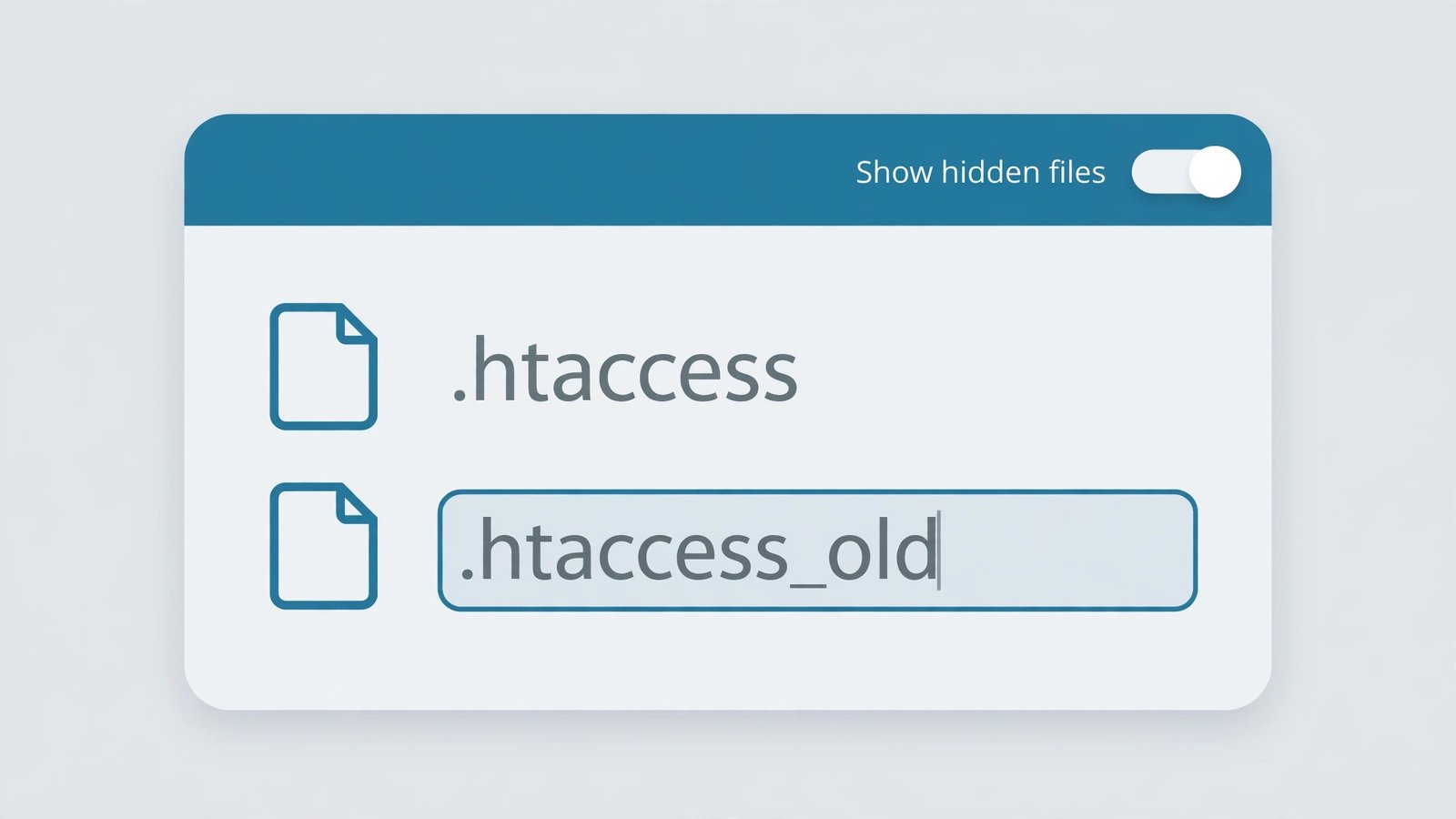
Fix 3: Increase the PHP Memory Limit
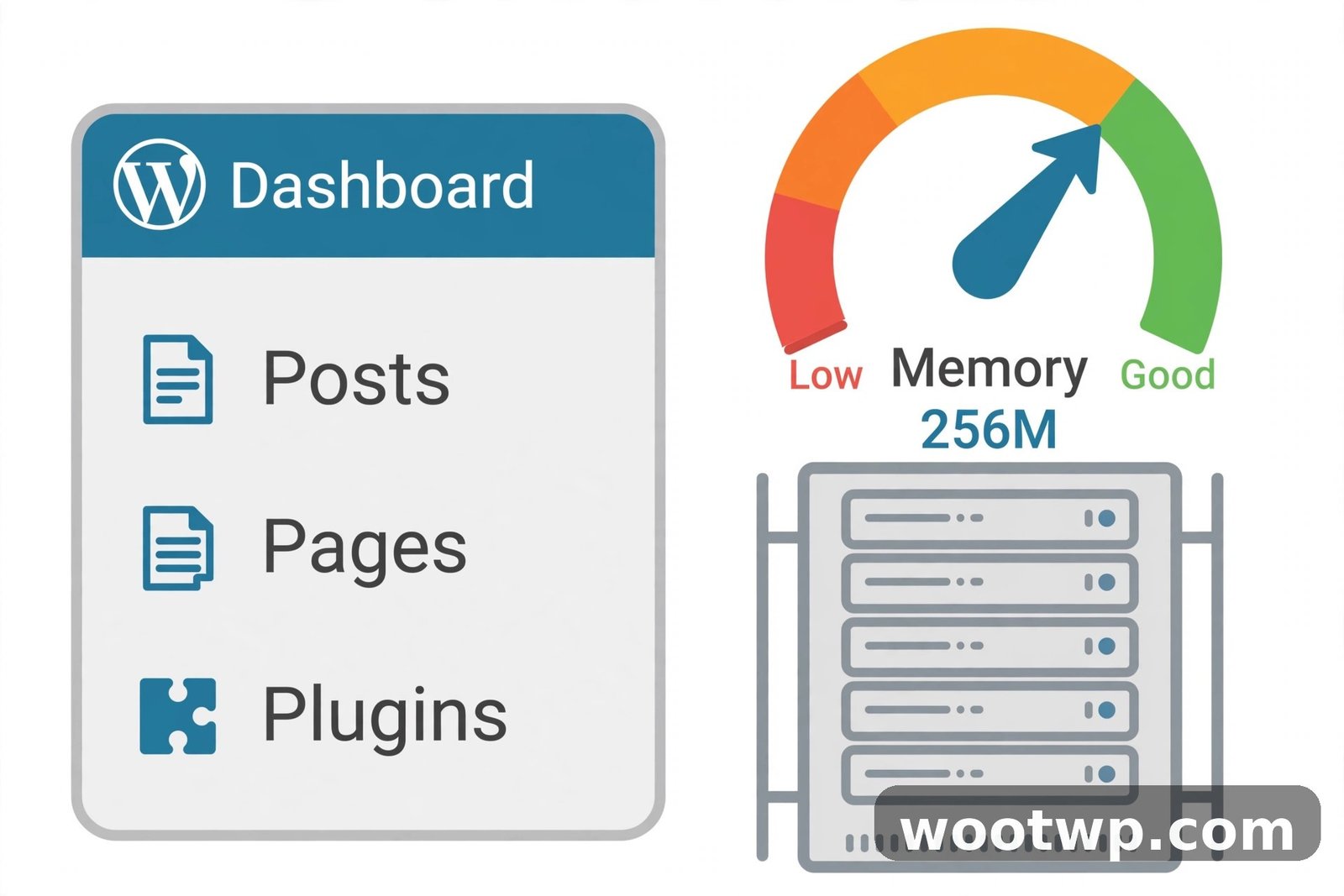
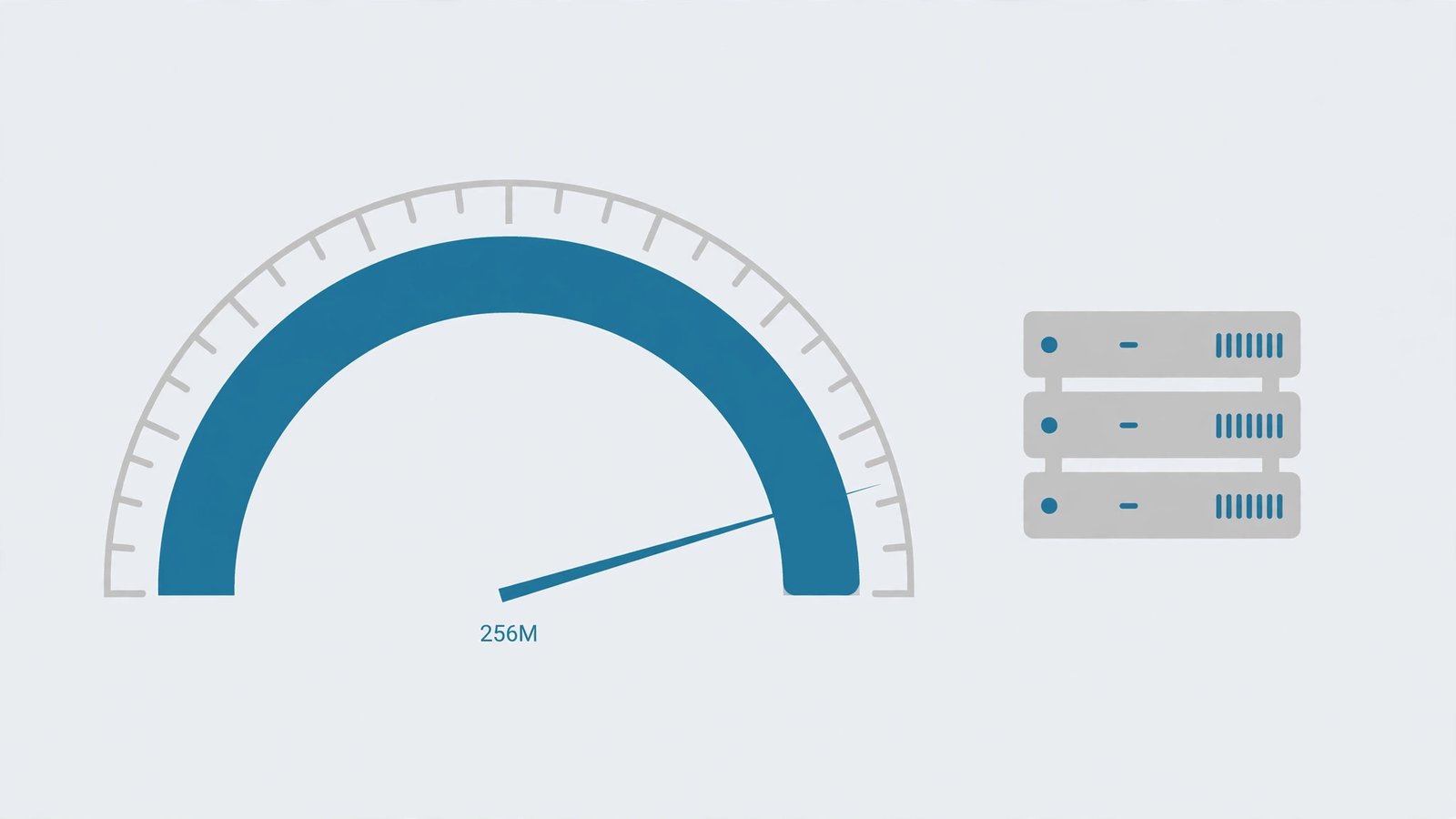
WordPress runs on PHP, and PHP gets a fixed amount of memory per task. When a plugin, theme, or import job needs more than it’s allowed, the process dies — and you get a 500 error. This is especially common after installing a page builder, a backup plugin, or WooCommerce.
The fix is one line in wp-config.php:
- Via FTP or File Manager, open
wp-config.phpin your site’s root folder. Download a backup copy first. - Find the line that says
/* That's all, stop editing! Happy publishing. */. - Just above that line, add:
define( 'WP_MEMORY_LIMIT', '256M' );- Save and re-upload the file, then reload your site.
Two alternative methods if you prefer:
- php.ini method: If your host lets you edit
php.ini(or create one inpublic_html), addmemory_limit = 256M. - .htaccess method: Add
php_value memory_limit 256Mto.htaccess. Fair warning — on some hosts this line itself causes a 500 error. If the error appears right after adding it, remove the line and use one of the other methods.
You can also raise the admin-area limit separately with define( 'WP_MAX_MEMORY_LIMIT', '512M' ); — useful if the error only hits wp-admin during heavy tasks like imports or updates.
If 256M doesn’t fix it, don’t keep raising it blindly to 1G. Something is consuming abnormal memory, and you want Fix 4 (plugins) and Fix 7 (debug log) to find what.
Fix 4: Deactivate All Plugins via FTP
A single broken or incompatible plugin is probably the #1 cause of WordPress 500 errors — especially right after an update. When wp-admin itself is down, you can’t deactivate plugins the normal way, so you do it through the filesystem.
- Connect via FTP or File Manager and go to
wp-content/. - Rename the
pluginsfolder toplugins_old. - Reload your site. WordPress now sees zero plugins. If the site loads, a plugin was the culprit — and nothing is lost; all your plugin settings are still in the database.
- Rename the folder back to
plugins. - Log in to wp-admin (it should work now), go to Plugins, and reactivate them one by one, reloading the site after each. When the 500 error returns, you’ve found the offender. Leave it deactivated and look for an alternative or contact its developer.
Start your one-by-one reactivation with the most recently updated or installed plugins — they’re the usual suspects. Caching, security, and backup plugins top the list because they hook deepest into WordPress.
Fix 5: Switch to a Default WordPress Theme
If plugins weren’t the problem, the next suspect is your theme — particularly after a theme update, or if you’re running an old theme on a new WordPress version.
- Via FTP or File Manager, go to
wp-content/themes/. - Find your active theme’s folder and rename it (e.g.,
mytheme→mytheme_old). - Reload your site. WordPress detects the missing theme and automatically falls back to a default theme like Twenty Twenty-Four or Twenty Twenty-Five. If the site loads, your theme was the cause.
- Check for a theme update in wp-admin, or contact the theme developer. If the theme is abandoned, it’s time to switch — and once you’re back up, these free WordPress themes that look premium are solid, well-maintained options.
Your content, menus, and widgets are stored in the database, not the theme folder — renaming the folder doesn’t delete any of them.
Fix 6: Check File and Folder Permissions
Incorrect file permissions can trigger 500 errors because the server refuses to execute files it considers insecurely configured. This often happens after a migration, a manual upload, or a misbehaving plugin.
The correct permissions for WordPress are:
- All files: 644
- All folders: 755
- wp-config.php: 600 or 644 (tighter is better)
To check and fix via FTP (FileZilla):
- Right-click the
public_htmlfolder → File permissions. - Enter 755, tick Recurse into subdirectories, select Apply to directories only, and apply.
- Repeat with 644, this time selecting Apply to files only.
In cPanel File Manager, select files/folders, click Permissions, and set the values the same way. Never set files or folders to 777 — that’s a security hole, and many hosts will 500-error a site that has it.
Fix 7: Enable WordPress Debug Mode and Read the Error Log
If nothing above worked, stop guessing and make WordPress tell you what’s wrong. Debug mode writes the actual PHP error — including the file and line number — to a log you can read.
- Open
wp-config.php(backup copy first, as always). - Find
define( 'WP_DEBUG', false );and replace it with:
define( 'WP_DEBUG', true );
define( 'WP_DEBUG_LOG', true );
define( 'WP_DEBUG_DISPLAY', false );
@ini_set( 'display_errors', 0 );- Place these above the
/* That's all, stop editing! */line. - Reload the broken page once to trigger the error.
- Via FTP or File Manager, open
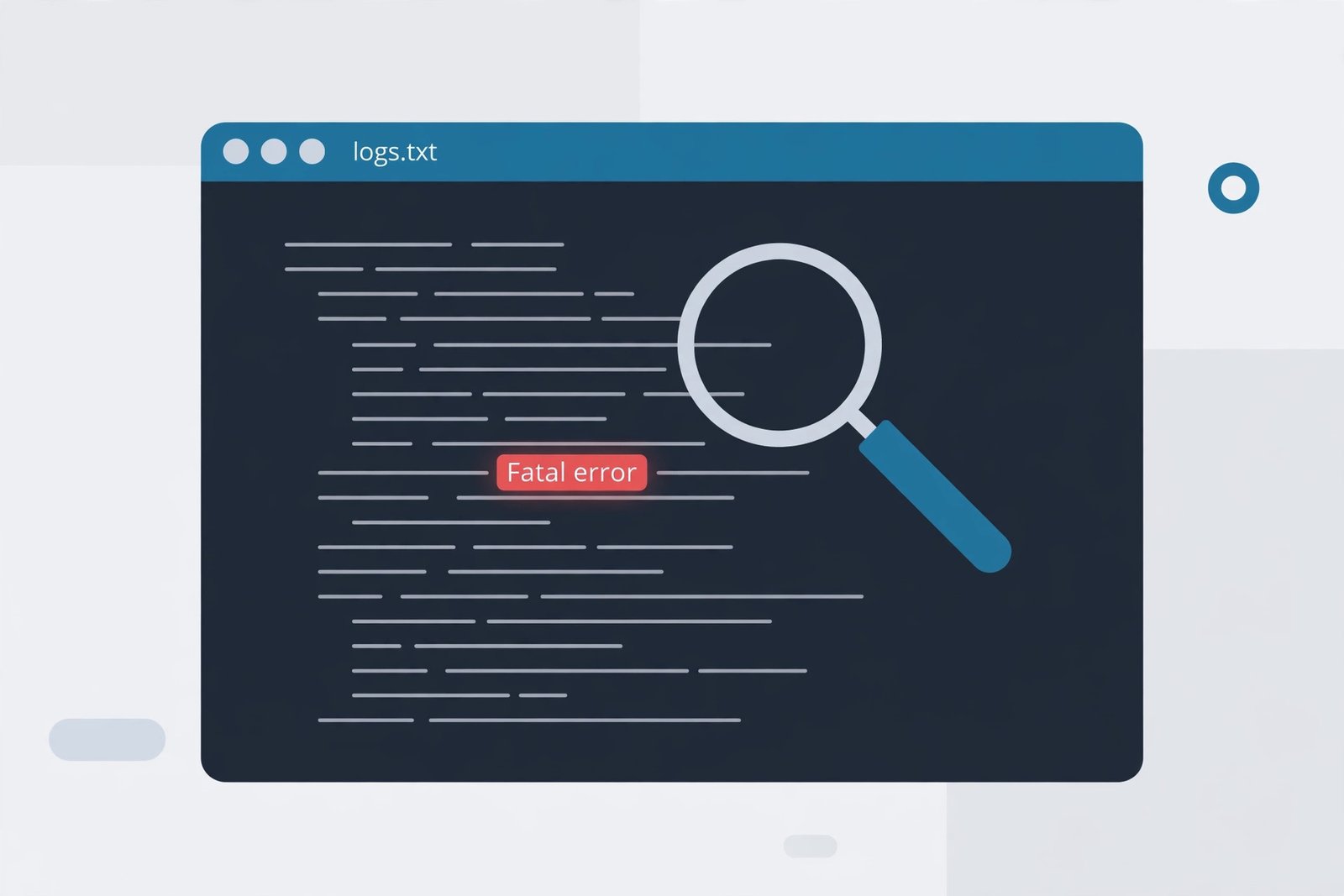
wp-content/debug.log. Look at the most recent entries for lines containingFatal error— they’ll name the exact plugin, theme, or core file that’s crashing, e.g.Fatal error: Allowed memory size exhausted in .../wp-content/plugins/some-plugin/some-file.php. - Now you know precisely what to deactivate, update, or replace.
- Important: when you’re done, set
WP_DEBUGback tofalseand deletedebug.log. Leaving debug mode on in production can expose sensitive paths to visitors.
Fix 8: Re-upload Fresh wp-admin and wp-includes Folders
Sometimes WordPress core files themselves get corrupted — a failed automatic update is the classic cause. The fix is to replace the core folders with pristine copies. Your content is safe: it lives in the database and wp-content, which you will not touch.
- Download a fresh copy of WordPress from wordpress.org (match your current version if you know it; otherwise grab the latest).
- Unzip it on your computer.
- Via FTP, upload the fresh
wp-adminandwp-includesfolders, overwriting the ones on your server. - Do not upload
wp-content, and do not overwrite your existingwp-config.php. - Reload your site.
If an interrupted update left half-written core files behind, this replaces them cleanly and the error clears.
Fix 9: Update Your PHP Version to 8.1 or Higher
WordPress 6.x requires PHP 7.4 at minimum and officially recommends PHP 8.1 or 8.2. Running a modern WordPress on an end-of-life PHP version (7.x or older) is a reliable recipe for 500 errors, because newer code uses language features the old interpreter can’t parse.
- In your hosting panel, look for Select PHP Version, MultiPHP Manager (cPanel), or the PHP settings in hPanel.
- Switch your domain to PHP 8.1 or 8.2. (8.3 is fine too if your plugins support it — check their changelogs.)
- Reload your site.
Two cautions: back up first, and if the error gets worse on new PHP, one of your plugins is incompatible with it — switch PHP back, then use Fix 4 to identify the outdated plugin. Hosts sometimes auto-upgrade PHP without telling you, so if the error appeared out of nowhere overnight, this is worth checking early.
Fix 10: Restore From a Backup
If you know roughly when the error started (“it was fine yesterday morning”), the fastest fix may be rolling back to a backup from before that point.
- Hosting backups: most decent hosts keep automatic daily backups. Look in your hosting panel for Backups, JetBackup, or similar — you can usually restore files, database, or both in a few clicks.
- Plugin backups: if you use UpdraftPlus, BackupBuddy, or similar, restore from its dashboard or via its restore procedure.
Restore both files and database to the same point in time — restoring only one can leave them mismatched. And note what changed since the backup (a new plugin? an update?) so you don’t just reintroduce the problem.
Fix 11: Contact Your Hosting Support
If you’ve worked through all ten fixes and the site is still down, it’s time to let the host look at the server side. This isn’t admitting defeat — hosts can see the server error logs, which record the exact cause of every 500 error instantly. What took you an hour of detective work takes them thirty seconds.
When you open the ticket or live chat, include:
- When the error started (as precisely as you can)
- What changed around that time (updates, new plugins, migrations)
- Which of the fixes above you’ve already tried and what happened
- Whether wp-admin is affected or just the front end
Good hosts will identify the cause from their logs — a killed process, a mod_security rule blocking something, a full disk, an account-level resource limit — and often fix it on the spot.
Frequently Asked Questions
What actually causes a 500 Internal Server Error in WordPress?
The most common causes are a corrupted .htaccess file, exhausted PHP memory, a conflicting or broken plugin or theme, wrong file permissions, an outdated PHP version, or corrupted core files. The error message itself never says which — that’s why you work through them in order.
Will I lose my posts and pages while fixing this?
No. Your content lives in the WordPress database, and none of these fixes touch the database. Renaming plugin or theme folders only deactivates them; your settings remain stored and come back when you rename the folders back.
How do I access my files if wp-admin is down too?
Use FTP (FileZilla is free) or your hosting panel’s File Manager. Your FTP hostname, username, and password were in the welcome email from your host, and File Manager needs no credentials beyond your hosting login.
The error appeared right after an update. What should I check first?
Start with Fix 4 (deactivate all plugins via FTP). Post-update 500 errors are overwhelmingly caused by a plugin or theme that isn’t compatible with the new version. Reactivate one by one to find it, then check for an update to that plugin or find a replacement.
Why does the 500 error come and go instead of staying broken?
Intermittent 500 errors usually mean resource exhaustion — PHP memory or CPU limits being hit during traffic spikes or heavy tasks (backups, imports). Increase the memory limit (Fix 3), and ask your host whether your plan’s resource limits are being hit. Persistent errors, by contrast, are usually a broken file or plugin.
How long does it usually take to fix a 500 error?
Most cases resolve in 15–30 minutes following this order — cache, .htaccess, memory limit, and plugins cover the vast majority. If you reach the debug-log stage, add another 15 minutes to read and interpret the log. Only genuinely tricky cases need hosting support.
Conclusion
A 500 Internal Server Error looks catastrophic, but it’s WordPress’s way of saying “something broke and I can’t tell you what” — not “everything is gone.” Work the list in order: clear the cache, fix .htaccess, raise the memory limit, rule out plugins and themes, check permissions, and let the debug log name the culprit if you’re still stuck. Nine times out of ten, you’ll never need to get past step four.
Once you’re back online, do three things so this doesn’t repeat: keep WordPress, themes, and plugins updated (stale code causes most of these errors), keep automated backups running, and lock down your accounts — moving Google Authenticator to a new phone properly is a good reminder to make sure 2FA is active on both your hosting and WordPress admin accounts. A site that’s updated, backed up, and secured is a site that rarely shows you a 500 page.